 Free Practice Workbook
 It is important to use functions and features in Excel to be able to calculate dates accurately. You may want to go back 90 days from the current date for project management, financial analysis, or tracking deadlines. In this article, you will learn how to calculate 90 days before today in Excel.
Key Takeaways:
- Use the TODAY function in Excel to get the current date.
- Add or subtract numbers from the TODAY function just like numbers.
- Use the EDATE() function to add or subtract months in Excel.
- Format cells as dates to get accurate results.
- Conditional formatting can be used to highlight important dates.
Table of Contents
How to Calculate 90 days before Today
Date Functions
The TODAY function shows the current date in Excel.
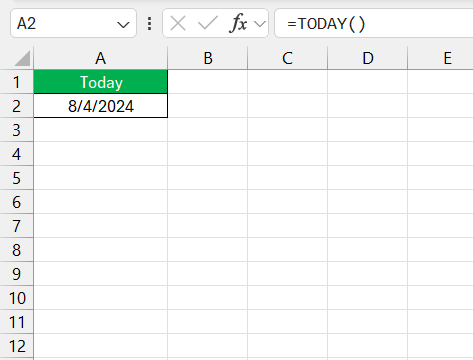
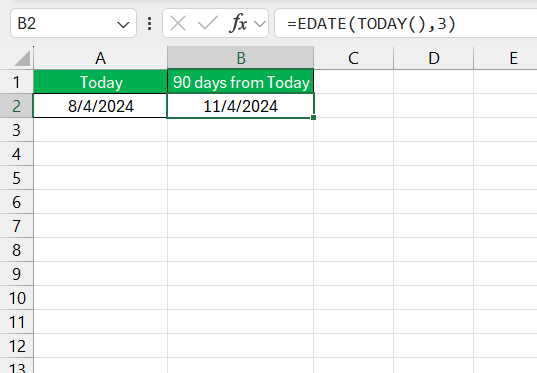
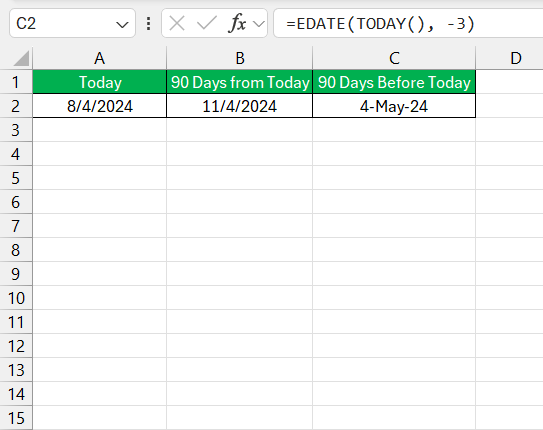
If you combine this with the EDATE function, you will be able to add or subtract months from a current date.
=EDATE(TODAY(),3)
This function will add 3 months to the current date.
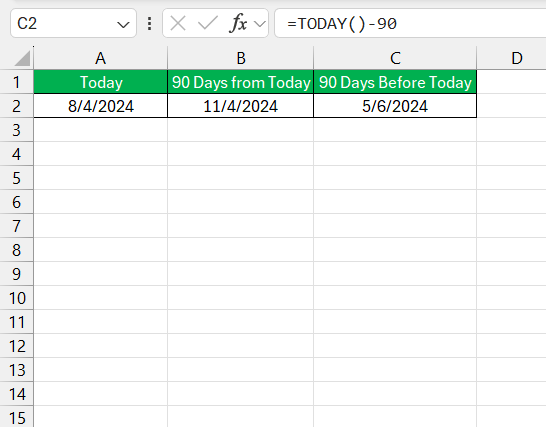
Calculate 90 Days before Today
You can use simple subtraction to move 90 days in the past from the current date.
EDATE Function
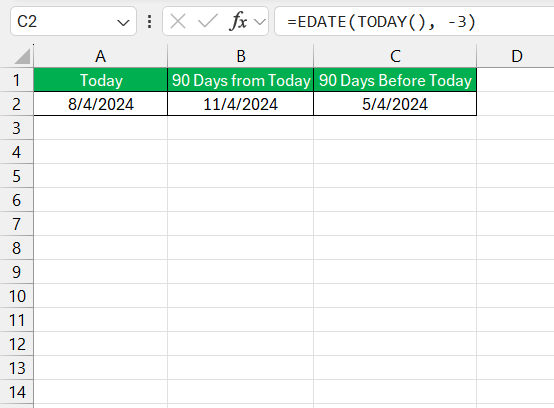
The EDATE function is used to subtract months from a date. You can combine EDATE and TODAY to subtract 3 months from the current date.
Tips and Tricks
Format Cells
You can follow the steps below to format dates in Excel:
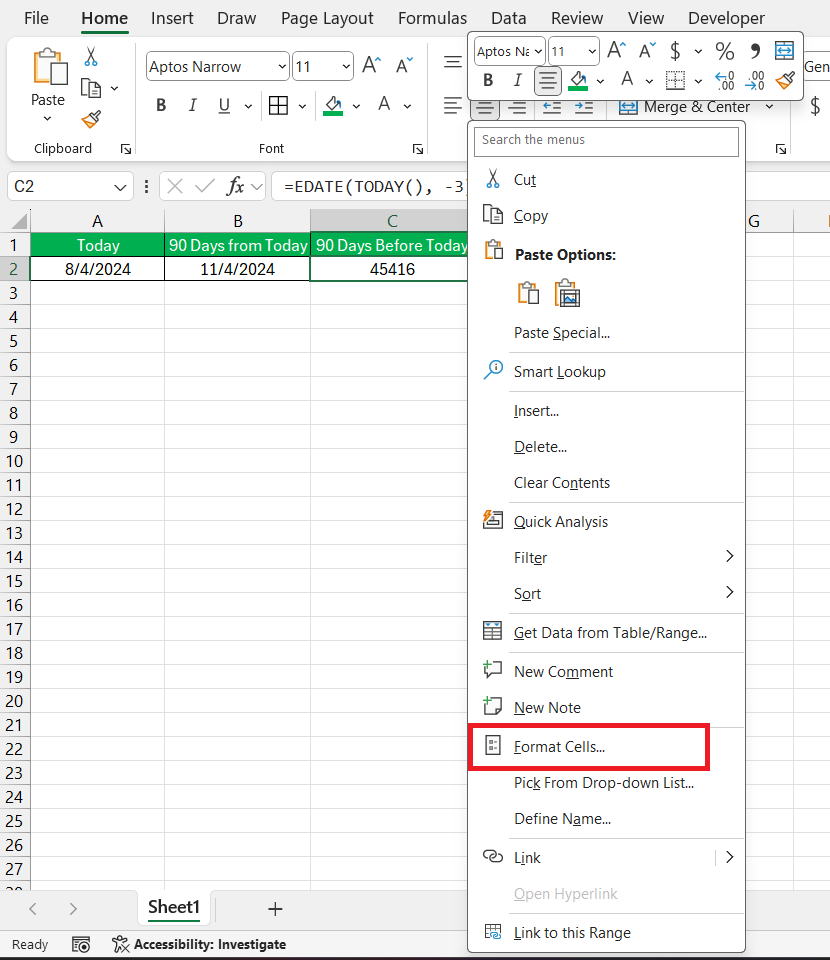
STEP 1: Right-click the cell.
STEP 2: Select Format Cells.
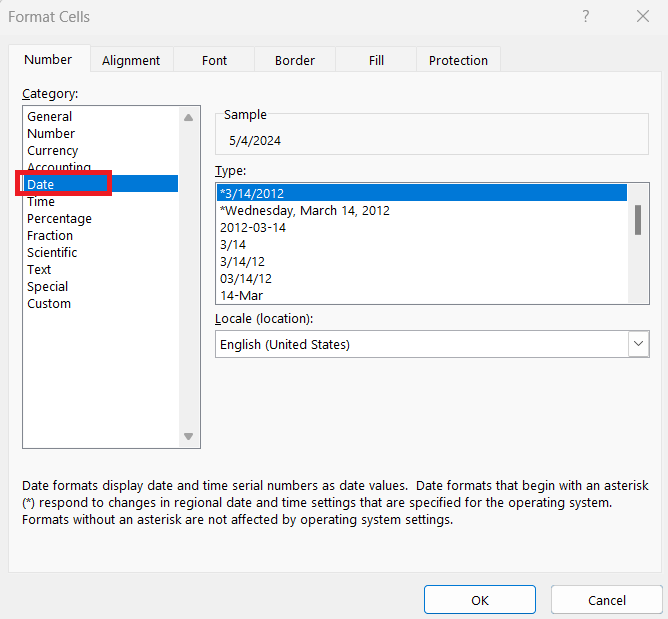
STEP 3: Click on Date.
STEP 4: Select the desired format.
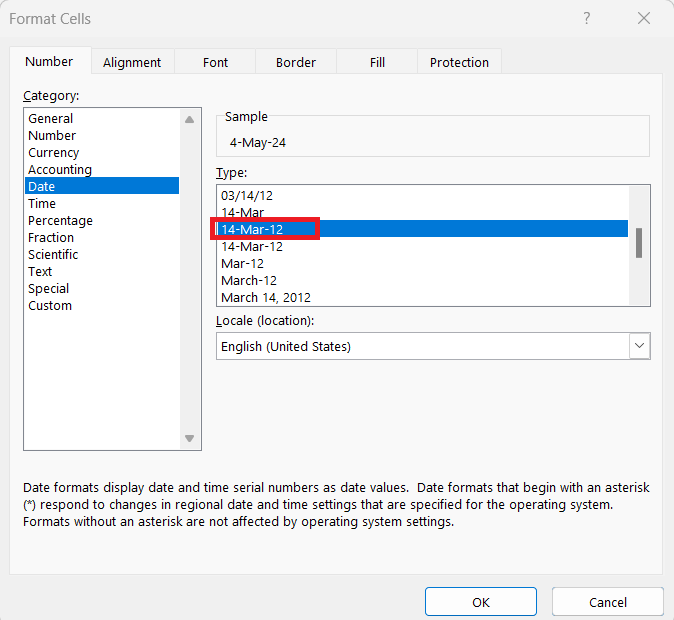
STEP 5: Click OK.
The selected cell will be formatted as per your selection.
Highlight Dates
Excel can be used to highlight important dates so that they stand out. You can use conditional formatting to spotlight dates that are within the 90-day mark.
- Highlight the cells.
- Go to Conditional Formatting.
- Click on New Rule.
- Use the formula.
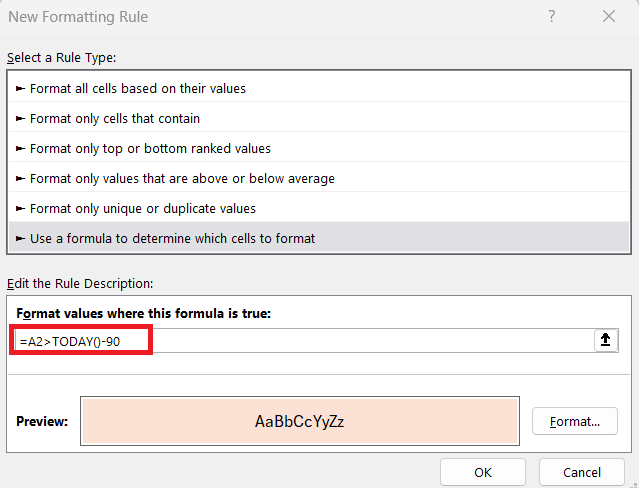
- Select a desired formatting.
- Click OK.
Dates that are within the three-month window will be highlighted.
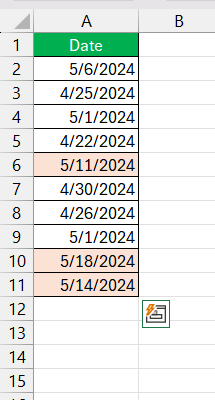
This method will highlight all time-sensitive tasks so that no important dates are missed.
FAQs
How to calculate 90 days before a date?
You can go back 90 days from a specified date by using the subtraction operator in Excel.
=A1 – 90
Excel will display the date that is 90 days before the specified date.
How to Calculate Business Days Instead of Calendar Days?
You can use the WORKDAY function to calculate business days instead of calendar days. The formula to add 90 business days to a date mentioned in cell A2:
=WORKDAY(A1, 90)
How to do a conditional format in Excel for 90 days?
You can follow the steps below to format dates that are within 90 days from the current date:
- Select the cells.
- Go to the Home tab.
- Select Conditional Formatting.
- Select New Rule
- Select Use a formula to determine which cells to format
- Enter the formula: =AND(A1<=TODAY()+90, A1>=TODAY())
- Click OK.
How to get the current date in Excel?
The TODAY function shows the current date in Excel.
=TODAY()
How to format dates in Excel?
You can follow the steps to format a value as a date in Excel:
- Right-click the cell.
- Click Format Cells.
- Select Date.
- Click OK.

John Michaloudis is a former accountant and finance analyst at General Electric, a Microsoft MVP since 2020, an Amazon #1 bestselling author of 4 Microsoft Excel books and teacher of Microsoft Excel & Office over at his flagship MyExcelOnline Academy Online Course.

 30 Days - Full Access









