 Free Practice Workbook
Adding 3 months from today in Microsoft Excel can be done with Excel formulas. Whether you’re extending a subscription reminder or planning a future event, the Excel EDATE function will allow you to calculate this easily.
Key Takeaways
- EDATE works with various date formats like “MM/DD/YYYY” or “DD/MM/YYYY”.
- It’s not just about adding 3 months; EDATE allows for adjusting dates by any number of months.
- Combine EDATE with functions like TODAY() or IF() for enhanced date management.
Download the spreadsheet and follow along with the blog on How to calculate 3 months from today in Excel – Download excel workbookAdd-3-months-from-today-in-Excel.xlsx
Table of Contents
Step-by-Step Guide to Adding 3 Months with EDATE
Entering the EDATE Formula in Excel
STEP 1: Place your cursor in the cell where you desire the resulting date to appear.
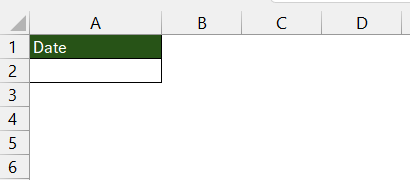
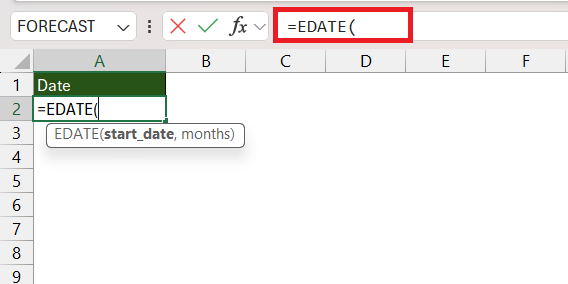
STEP 2: Type in =EDATE function.
=EDATE(
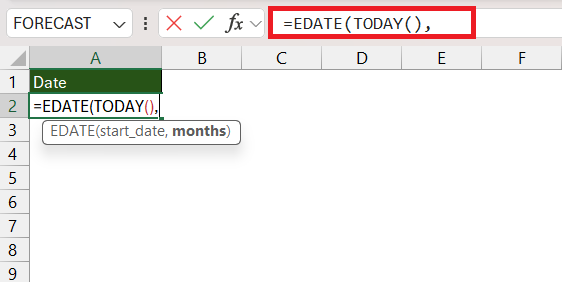
STEP 3: Enter the TODAY function to get the start date.
=EDATE(TODAY()
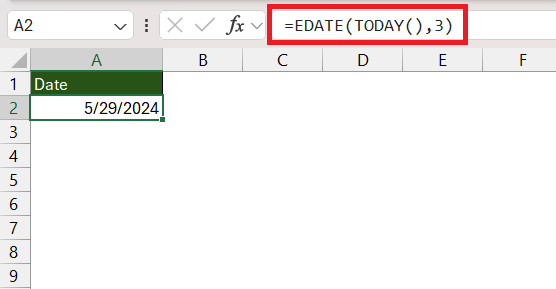
STEP 4: Input the number of months you want to add (positive number) or subtract (negative number). Complete the formula with a closing parenthesis and hit Enter.
=EDATE(TODAY(),3)
To add 3 months to a date in cell C5, you’d conjure up the formula =EDATE(C5, 3). Pressing Enter will show the date that lies precisely 3 months ahead.
Examples of Adding 3 Months to Various Date Formats
Excel’s EDATE feature is quite adaptable, handling a variety of date formats with relative ease. Whether you have dates in the classic “MM/DD/YYYY”, the international “DD/MM/YYYY”, or even if they’re formatted with textual months like “March 15, 2023”, EDATE is unfazed.
For example, if you want to add 3 months to February 15, 2024:
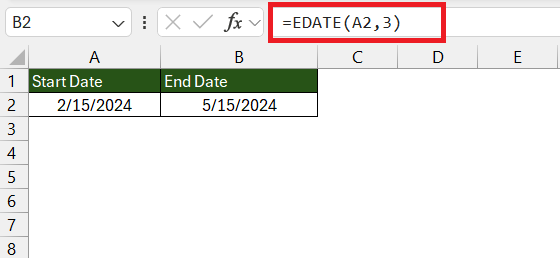
- With a date in “MM/DD/YYYY” format (
2/15/2024), the formula=EDATE(A2, 3)in an adjacent cell would yield5/15/2024.
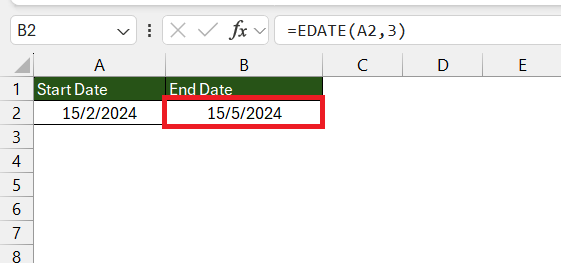
- If your date is in “DD/MM/YYYY” format (
15/2/2024), the formula doesn’t change; it adapts to the cell’s format and would still result in15/5/2024post-addition.
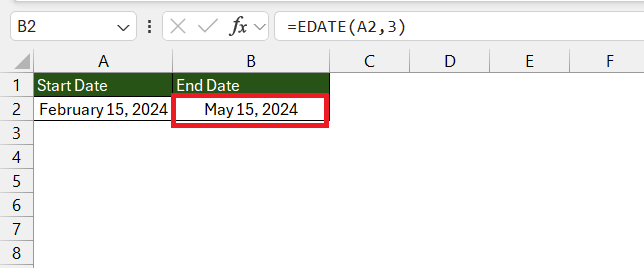
- For a textual date like “February 15, 2024”, the formula remains
=EDATE(A2, 3), translating to “May 15, 2024” in the output cell.
Tips for Maximizing Efficiency with EDATE
Quick Adjustments: Beyond Just 3 Months
The EDATE function isn’t limited to just adding a quarter of a year. Whether you’re planning ahead for a full year, half a year, or just a single month, EDATE can swiftly adjust your dates accordingly. Simply replace the ‘3’ in your formula with the desired number of months for the job.
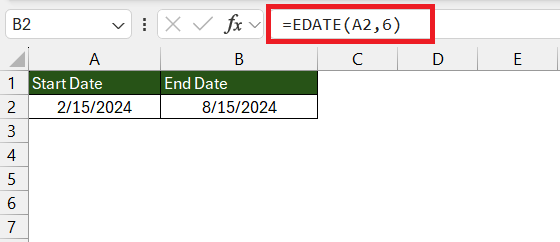
Want to leap 6 months into the future? Use this formula =EDATE(A2, 6)
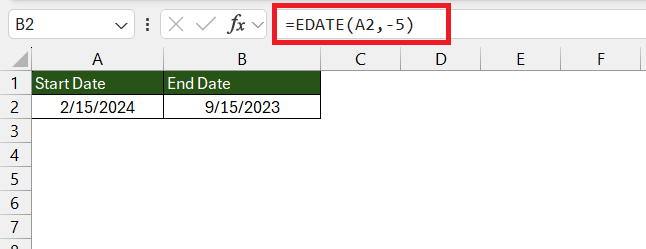
If you need to look back 5 months, use the formula =EDATE(A2, -5)
Combining EDATE with Other Excel Functions
You can combine EDATE with other Excel functions. For instance:
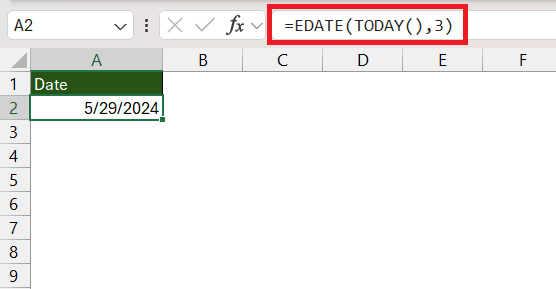
- Pair it with TODAY() to automatically calculate a date in the future or past from the current date.
=EDATE(TODAY(), months)
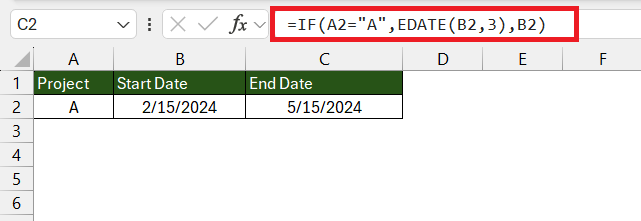
- Use it with IF() to create conditional date operations, like extending a deadline based on a certain condition.
=IF(condition, EDATE(start_date, months), alternative_result)
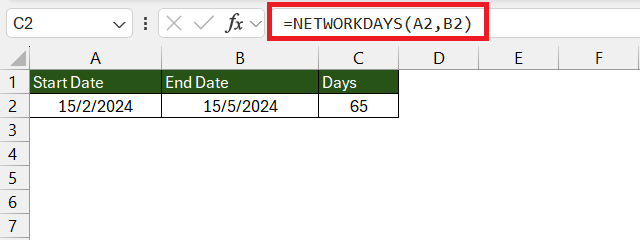
- Use it alongside NETWORKDAYS() to calculate workdays between two dates while skipping weekends and holidays.
Frequently Asked Questions
How can I add a different number of months using EDATE?
To add a different number of months using EDATE function, replace the second argument with the desired number. For example, =EDATE(A1, 5) would add 5 months to the date in A1. Adjust the number to match your specific requirements, whether it’s 1 month or 24 months.
Can EDATE handle dates across years?
Yes, EDATE is able to cross over years while adding or subtracting months. Use it to project dates across multiple year transitions.
What should I do if EDATE returns an error?
Check the date format and ensure it’s valid. Also, verify that the months’ argument is a number with its data type.
How do I calculate months between today and date in Excel?
To calculate months between today and a past date, use =DATEDIF(A1, TODAY(), "m") where A1 contains the past date. This will return the number of complete months between the dates.

John Michaloudis is a former accountant and finance analyst at General Electric, a Microsoft MVP since 2020, an Amazon #1 bestselling author of 4 Microsoft Excel books and teacher of Microsoft Excel & Office over at his flagship MyExcelOnline Academy Online Course.

 30 Days - Full Access









