 Free Practice Workbook
When working with Excel, arrows are used to show trends, direction, or to create flowcharts. Excel offers several ways to add arrows and customize them. In this guide, I will walk you through the different methods to add arrows in Excel.
Key Takeaways:
- Arrows are used to show trend or direction.
- They are also used to create flowcharts.
- Draw arrows using shapes in the worksheet.
- Use the symbol menu or alt codes to insert arrows.
- Use arrow keys to navigate and select cells.
Table of Contents
Introduction to Arrow in Excel
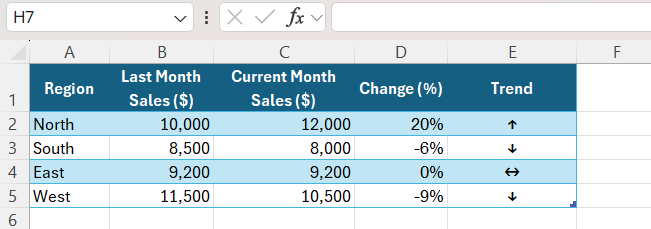
In Excel, arrows are great elements that help direct attention to key information. A simple arrow can break down complex information and make it easier for others to understand the data.
The direction of an arrow often implies a trend or movement. For instance,
- Right arrows – forward progression or next steps
- Left arrows – return to previous data or a deduction
- Upward arrows – positive growth or improvement
- Downward arrows – decline or decrease
How to Add Arrow Keys in Excel
1. Insert by Shapes
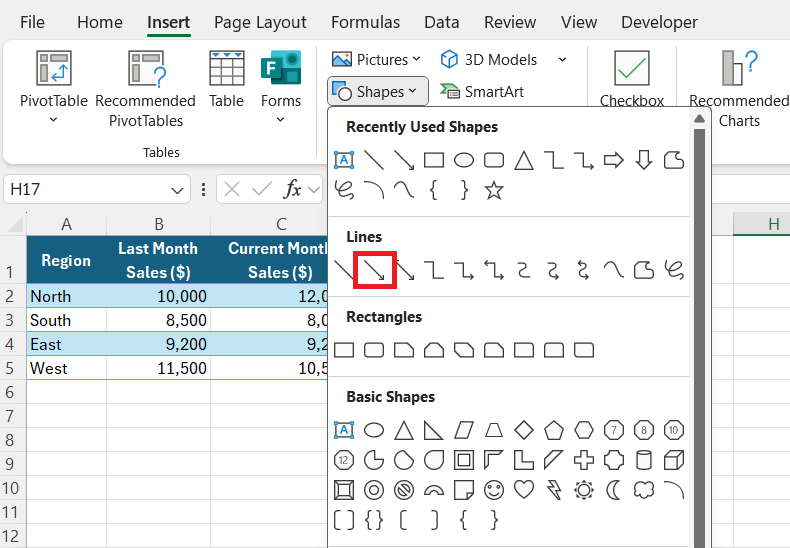
STEP 1: Go to the Insert tab.

STEP 2: Click on Shapes in the Illustrations group. Under Lines, I select the type of arrow I need.
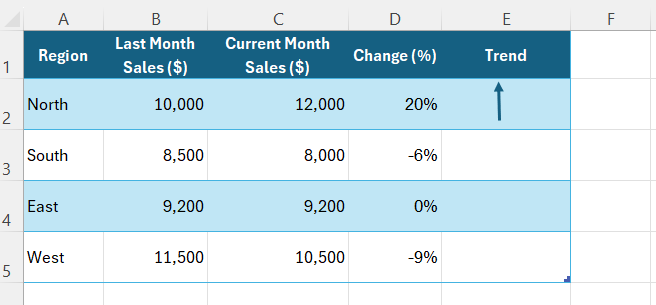
STEP 3: Click and drag on the worksheet to draw the arrow.
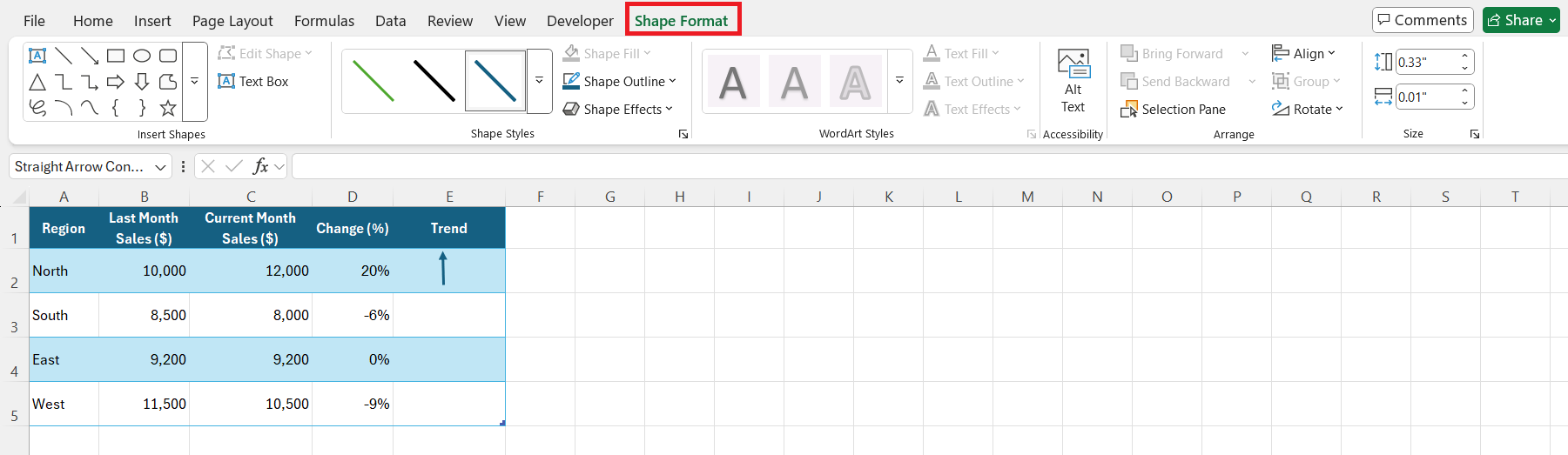
STEP 4: To customize it, I use the Shape Format tab to change the color, thickness, and style.
2. Using Arrow Keys for Navigation
- Use the arrow key to move the selection to the next cell in that direction.
- Ctrl + Arrow key jumps to the last filled cell in a row or column.
- Shift + Arrow key extends the selection.
- Alt + Down Arrow opens a drop-down list in a cell with data validation.
3. Add Arrows with Conditional Formatting
STEP 1: Select the data range where I want arrows.
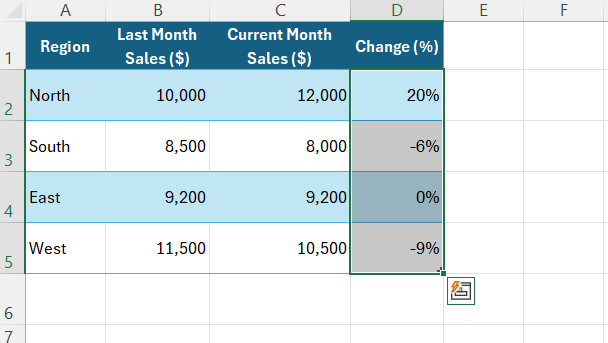
STEP 2: Go to the Home tab and click on Conditional Formatting > Icon Sets > Select arrows.
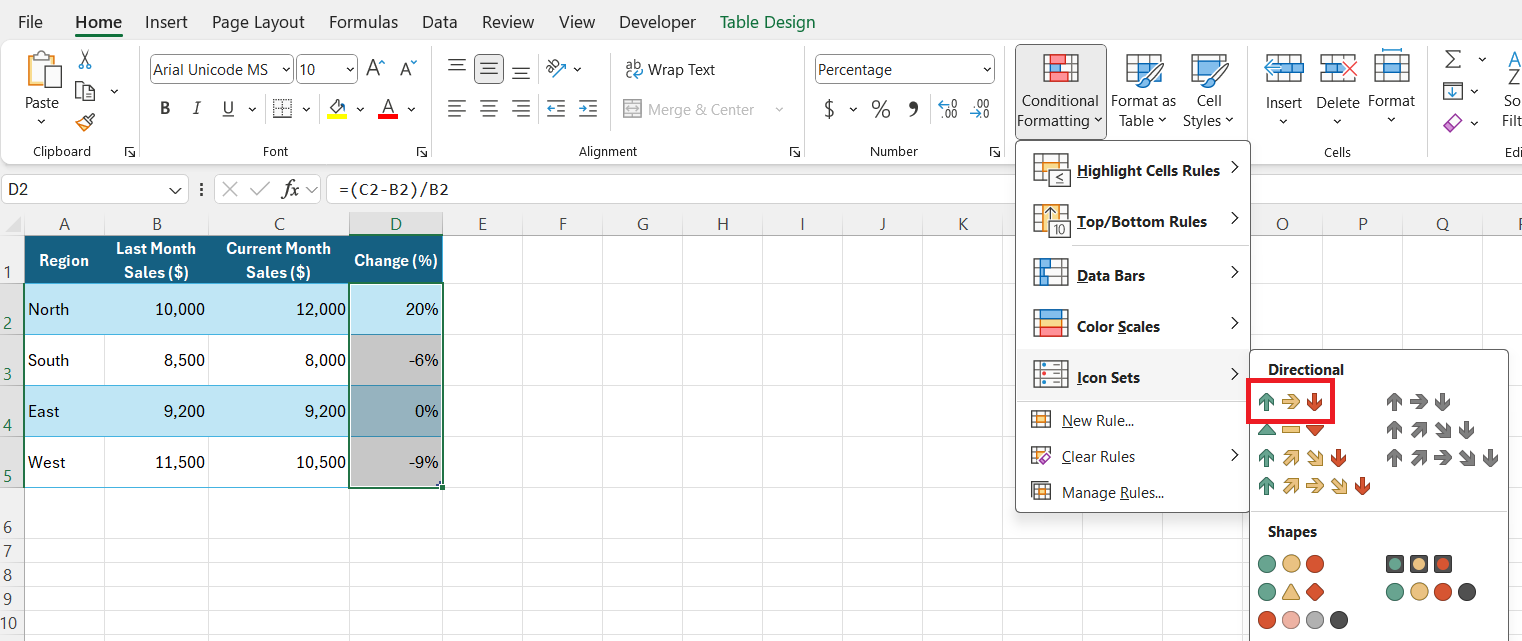
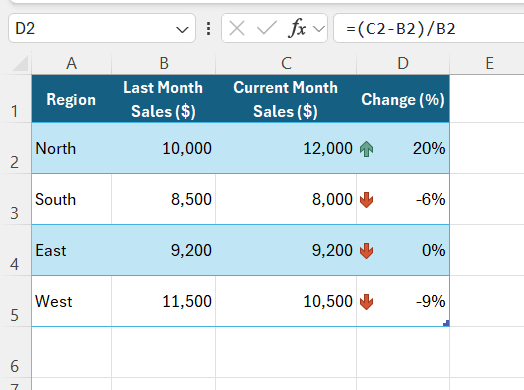
STEP 3: Excel automatically adds up, down, or sideways arrows based on the values in the selected range.
4. Using the Arrow Symbol in a Cell
STEP 1: I click on the cell where I need the arrow.
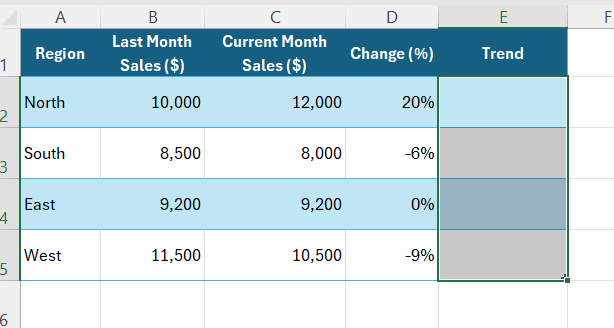
STEP 2: I go to the Insert tab and click Symbol.

STEP 3: Under Font, I select “Wingdings” or “Arial Unicode MS”. I find and insert the arrow symbol I need. Click on Insert.
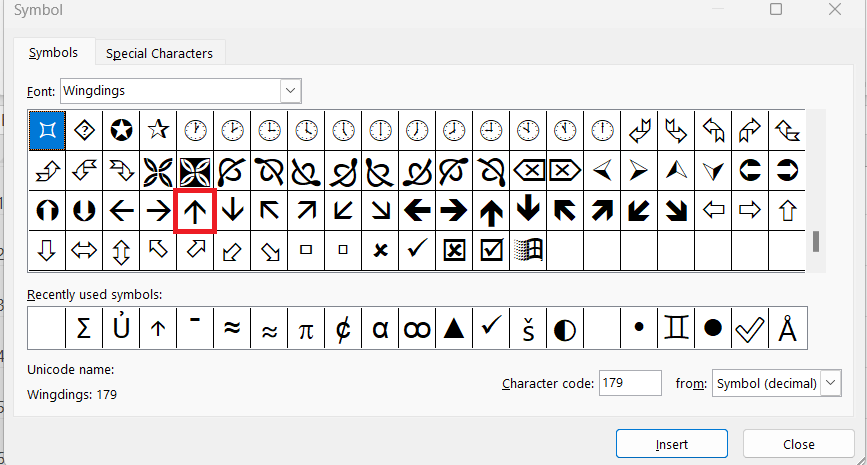
The arrow will be inserted in the selected cell.
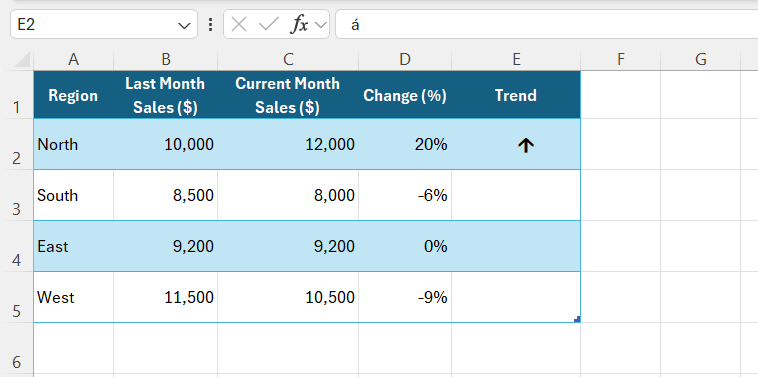
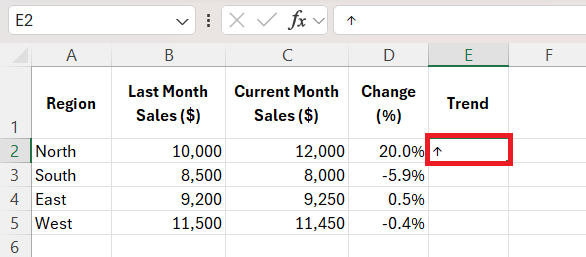
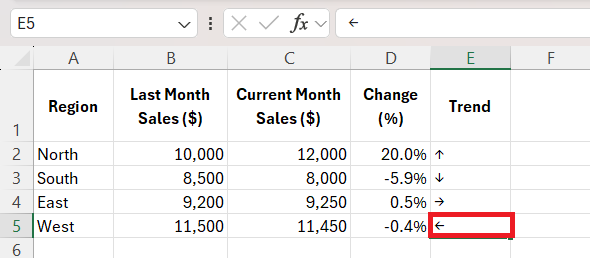
Alternatively, I use keyboard shortcuts like:
Upward Arrow = ALT + 24
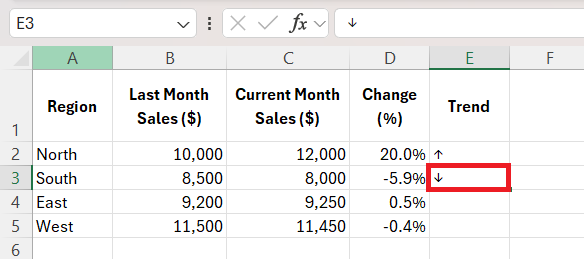
Downward Arrow = ALT + 25
Right Arrow = ALT + 26
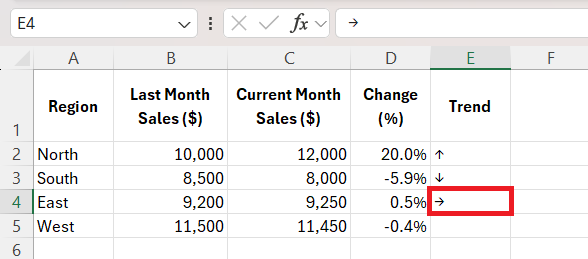
Left Arrow = ALT + 27
FAQs
1. What is the fastest way to insert an arrow in Excel?
The fastest way to insert arrows is by using Alt codes. Hold ALT and type:
24 – Arrow pointing up
25 – Arrow pointing down
26 – Arrow pointing left
27 – Arrow pointing right
2. How to make arrows change automatically with my data?
You can use conditional formatting icon sets to add arrows that change automatically with the data. Excel checks each value and adds a green, yellow, or red arrow on its own.
3. Why is my arrow showing as a box or a strange character?
If arrows are showing as arrows or boxes, it is a font problem. The cell font does not support that symbol. You can change the font to Wingdings or Arial Unicode MS, and the arrow will display correctly.
4. Can I add an arrow inside a cell along with text?
Yes, arrows can be added inside a cell along with text.
- Place the cursor inside the cell
- Go to the Insert tab
- Click on Symbol
- Pick the arrow you need
5. How to keep an arrow attached to a chart?
To keep the arrow attached to a chart,
- Select the chart
- Then, draw the arrow shape
The arrow will become part of the chart, so it moves and copies along with it.

John Michaloudis is a former accountant and finance analyst at General Electric, a Microsoft MVP since 2020, an Amazon #1 bestselling author of 4 Microsoft Excel books and teacher of Microsoft Excel & Office over at his flagship MyExcelOnline Academy Online Course.

 30 Days - Full Access









