 Free Practice Workbook
When creating presentations in Microsoft PowerPoint, adding exponents can be useful when writing scientific, mathematical, or chemical notations. It can also be used to make text stand out or clarify information for my audience. In this article, you will learn how to do superscript or subscript in PowerPoint.
Key Takeaways:
- Superscript formatting in PowerPoint improves clarity
- It is used in scientific and mathematical presentations.
- Use the Font dialog box for quick access to superscript and subscript formatting.
- Customize the PowerPoint Ribbon to streamline frequently used tools.
- Keep font size and alignment consistent across slides.
- Use shortcut Ctrl + Shift + (+) for superscript to save time.
Table of Contents
Adding Exponents in PowerPoint
Step-by-Step Guide
Firstly, highlight the text segment that requires elevation or reduction, as the case may be.
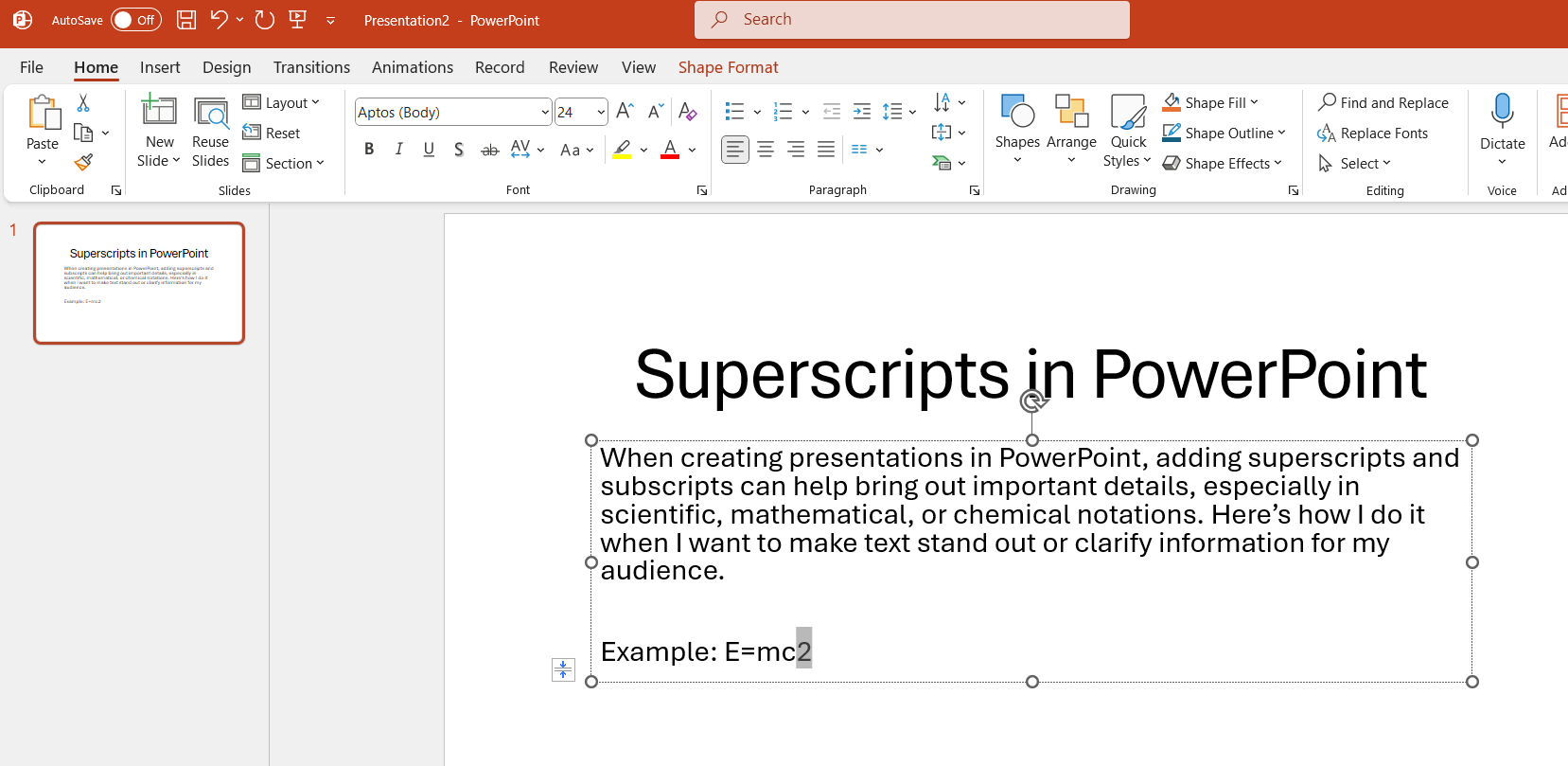
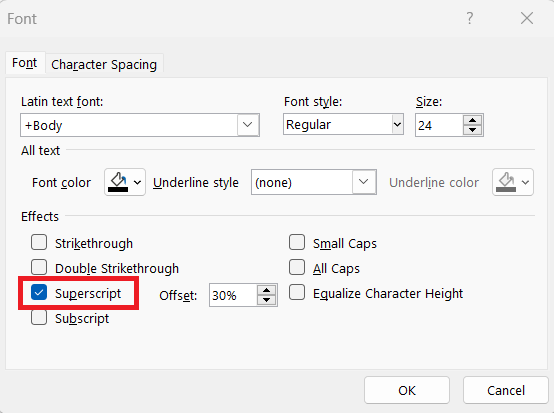
I go to the Home tab. Then, I find the Font group and directly interact with the small arrow in the bottom-right corner, which will bring up the Font Dialog Box.

In this box, under the Effects section, lies the treasure trove: checkboxes for Superscript or Subscript. A simple click here, and another to confirm with ‘OK’, and the job’s done.
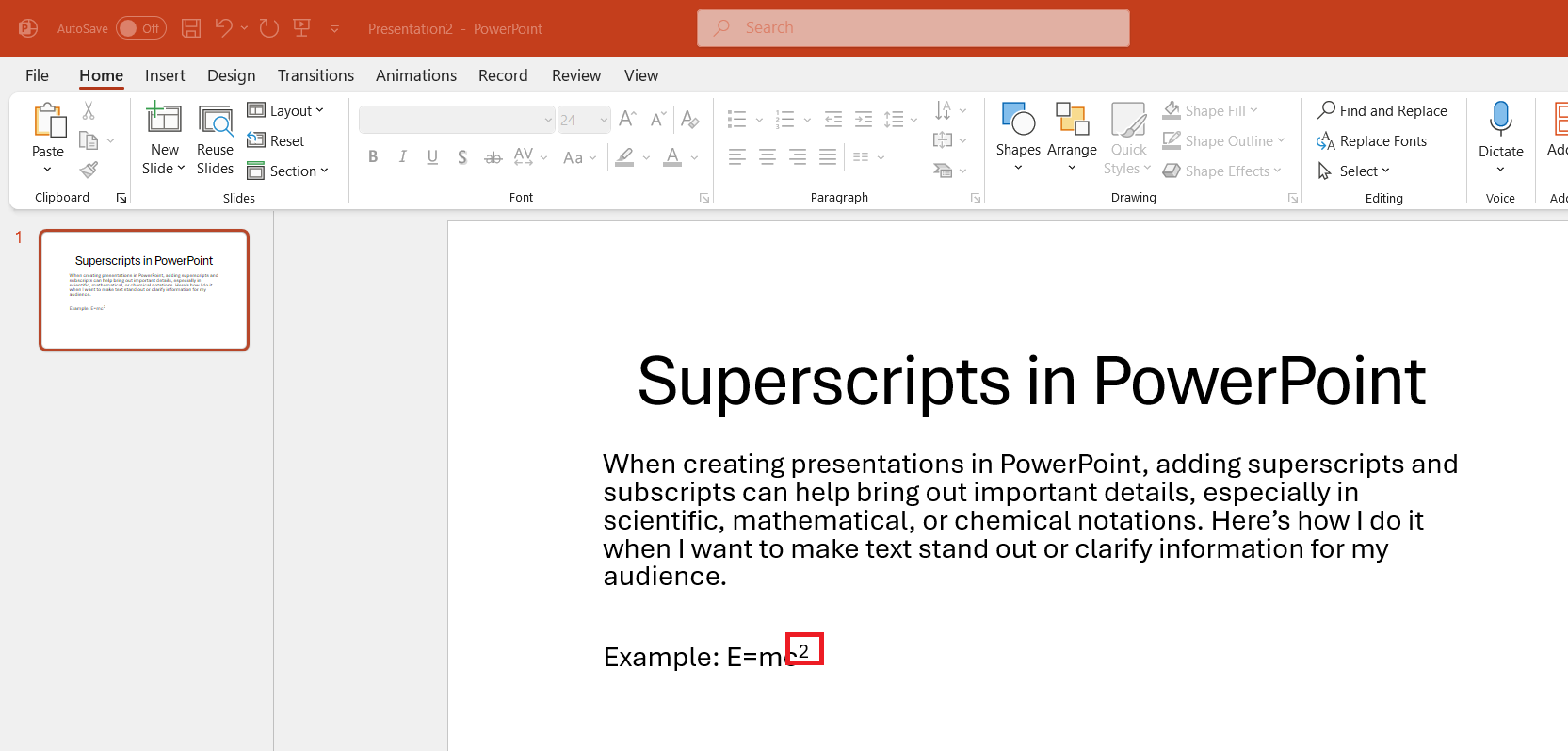
The highlighted text will be changed to superscript or subscript as per your selection.
Keyboard Shortcuts
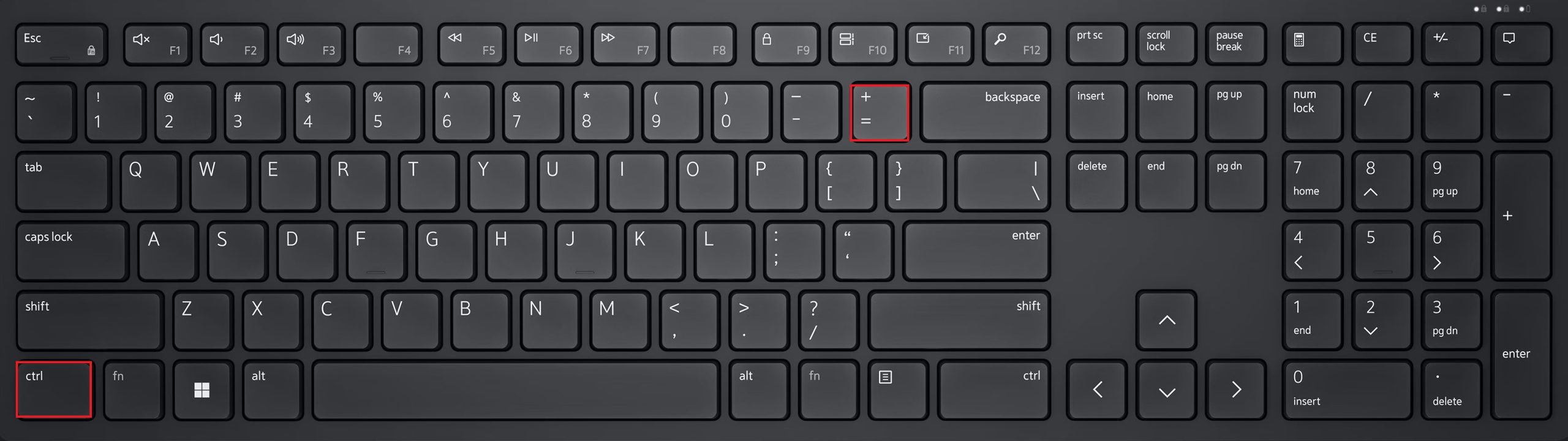
To quickly convert text to superscript without having to navigate through menus, I use keyboard shortcuts. To apply superscript:
- Select the text
- Press
Ctrl,Shift, and thePlus sign (+)together
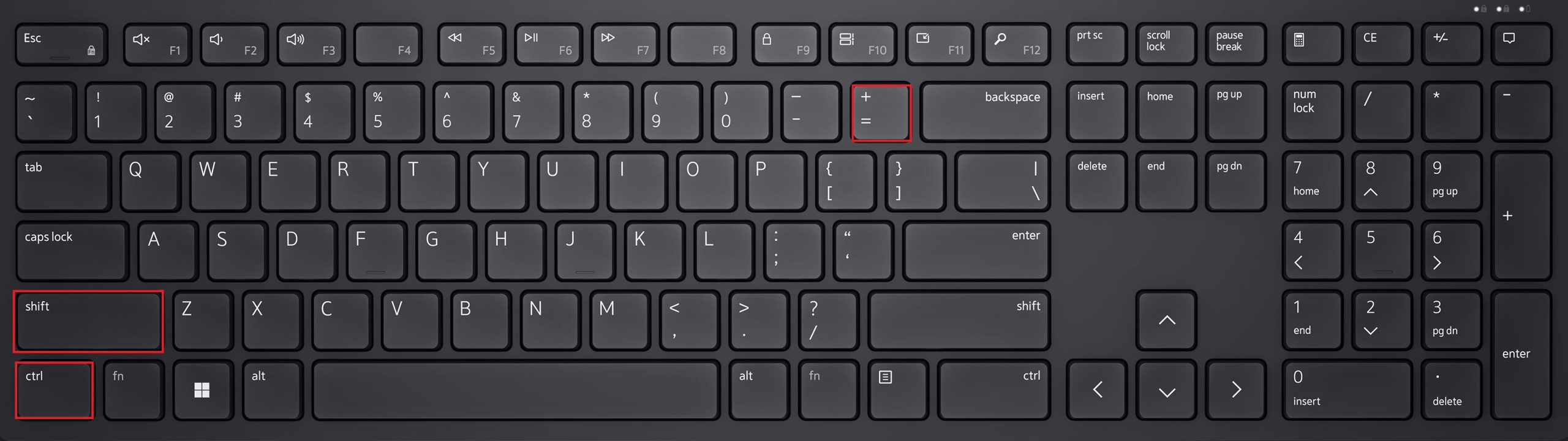
Similarly, when I use the combination of Ctrl and the Equal sign (=) to apply a subscript.
Advanced Superscript Tactics
Add Custom Equations
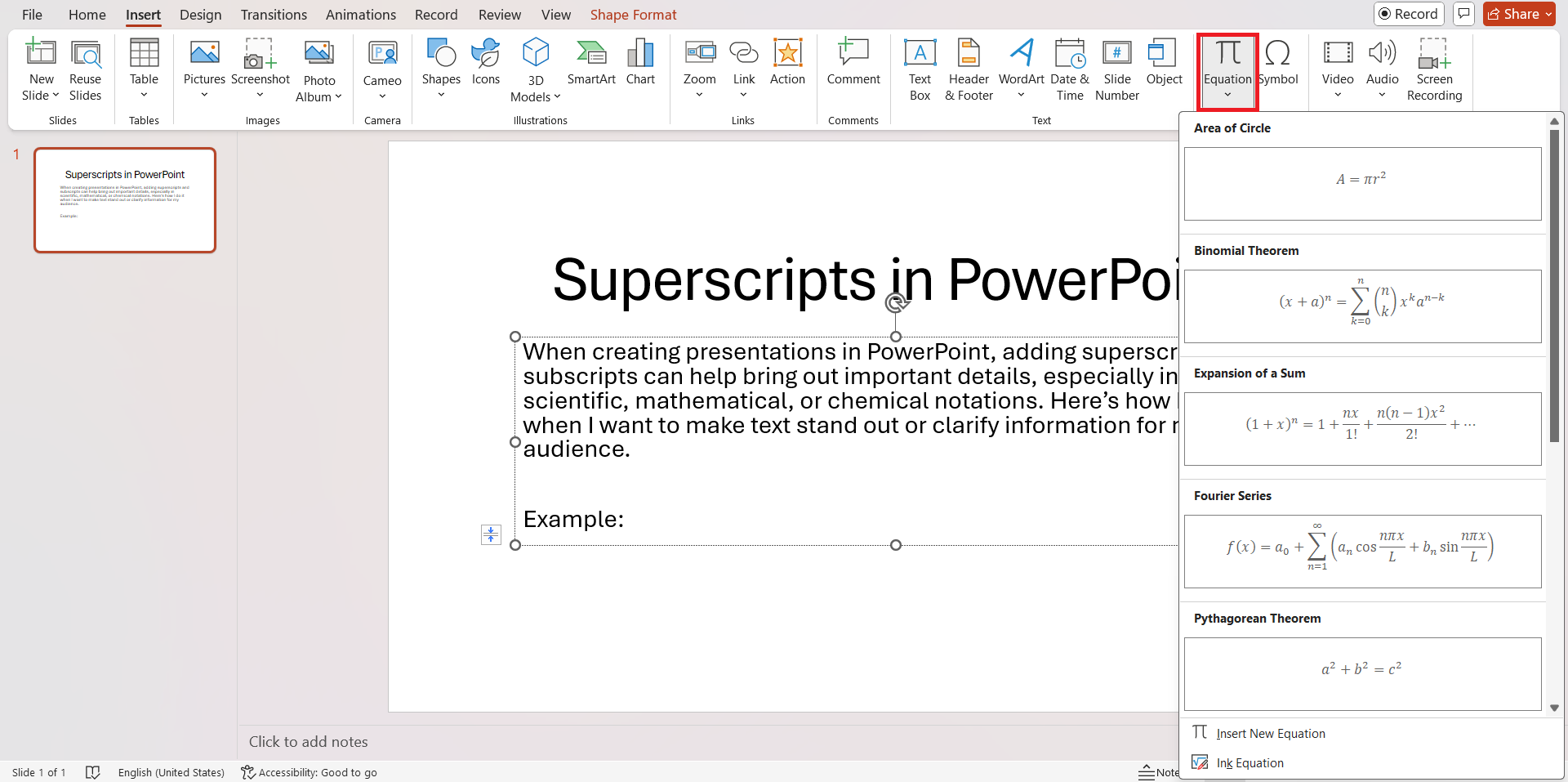
When I work with mathematical or scientific equations, it may be useful to add exponents. Follow the steps below to write equations properly:
- Go to the Insert tab
- Click on Equation
- Choose a commonly used equation or create your own
Customize Ribbon
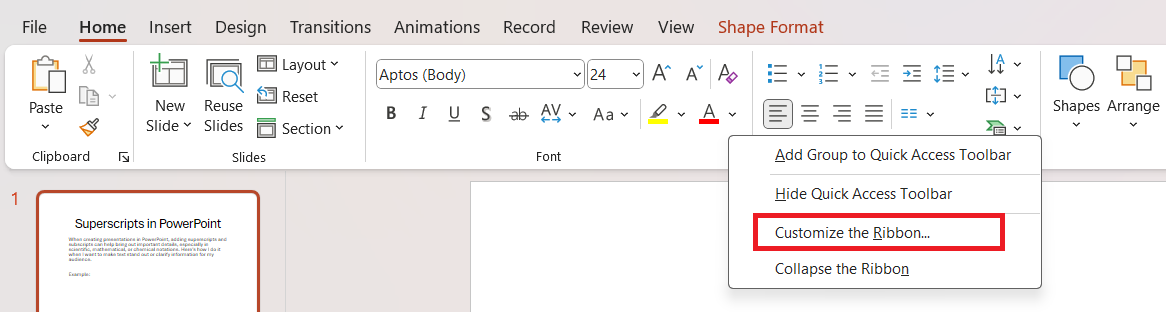
If I use superscript and subscript frequently, I can add them to my Ribbon. Follow the steps below:
- Right-click on the Ribbon
- Select Customize the Ribbon
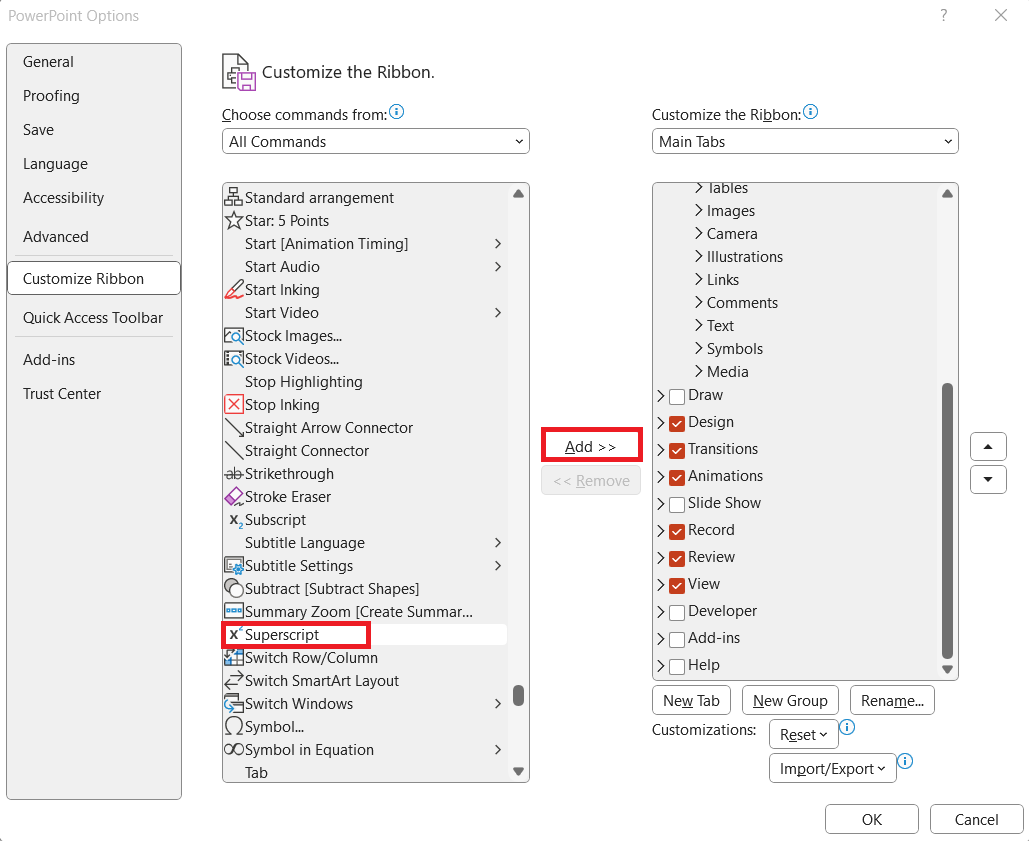
- In the PowerPoint Options dialog box, select Superscript or Subscript
- Press the Add button
Best Practices for Superscript Use
Tips & Tricks
- Always use large fonts for the main text so that the superscript is clear.
- Use high contrast colors so that the superscript does not blend in.
- Consistent spacing around exponents improves readability.
Avoid Common Mistakes
One frequent blunder is the misalignment of the text. This happens when the superscript is either too high or too low relative to the base text.
Another is the inconsistency of formatting throughout the presentation. It can confuse the audience rom the overall professional look. Font size is another concern – exponents that are too small can be challenging to read, while those that are too large may overpower the base numbers.
FAQs
How to easily insert a superscript in PowerPoint?
To insert a superscript in PowerPoint swiftly,
- I highlight the text I want to superscript
- Press
Ctrl,Shift, and thePlus sign (+)
How to do 2 squared on PowerPoint?
To represent ‘2 squared’ in PowerPoint,
- Type the number 2 alongside the number you want to square
- Highlight the second number
- Use the
Ctrl,Shift, andPlus sign (+)shortcut for superscript
How to insert superscript or subscript symbols quickly?
To quickly insert superscript or subscript symbols in PowerPoint, I select the text or number to modify and use keyboard shortcuts for speed.
- For superscript, I press
Ctrl,Shift, andPlus sign (+) - For subscript, press
Ctrland theEqual sign (=)

John Michaloudis is a former accountant and finance analyst at General Electric, a Microsoft MVP since 2020, an Amazon #1 bestselling author of 4 Microsoft Excel books and teacher of Microsoft Excel & Office over at his flagship MyExcelOnline Academy Online Course.

 30 Days - Full Access









