Pinterest Pixel

How to Convert Percentage to Basis Point in Excel – Step by Step Basis Point Calculator

John Michaloudis
When working with financial data, even a small change in percentage can make a great difference.
So, it is important to know how to convert a percentage to a basis point.

This calculation is useful when working with interest rates, return on investment, or financial spreads.

In this article, we will understand the basics of basis points and how to convert percentages to basis points in Excel.

Introduction to Basis Points

What is a Basis Point?

A basis point is a unit used to describe a percentage change.

1 basis point = 0.01%

So, 100 basis points = 1%

This avoids confusion and clearly explains the change in interest rate. For example, if the interest rate has changed from 6% to 6.25% you can say that it has increased by 25 basis points.

Basis Points in Finance

Knowing about basis points is important in the finance world for a variety of reasons:

  • It can be used to explain small changes in interest rate, bond yields, loan terms, etc.
  • For a large sum of money, even a tiny change in interest rate can mean a large amount.
  • It is useful for comparing small changes like a change of less than 1%.


Creating Basis Point Calculator

You can easily convert percentages to basis points by following the steps below –

STEP 1: Create two columns for percentage value and basis point.
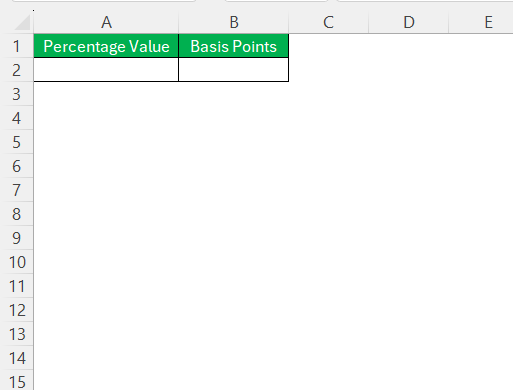
Basis Point Calculator in Excel

STEP 2: Type the percentage value in column A.
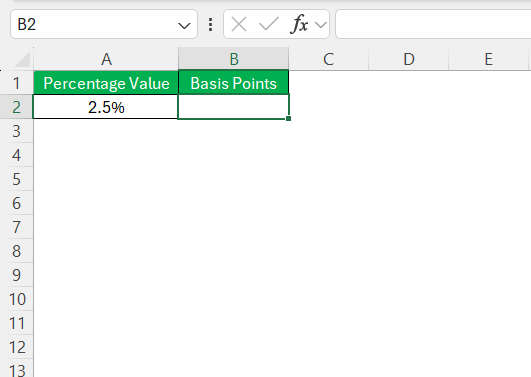
Basis Point Calculator in Excel

STEP 3: Enter the formula

=A2*10000

This formula will convert 2.5% into basis points by multiplying the number by 10,000.
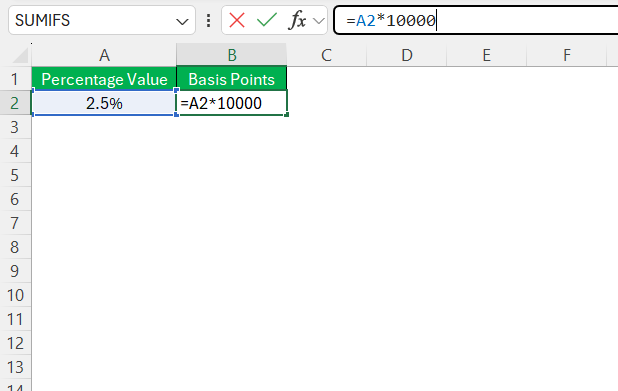
Basis Point Calculator in Excel

STEP 4: Press ‘Enter’, and you’ll have the percentage value from A2 displayed as basis points in your chosen cell.
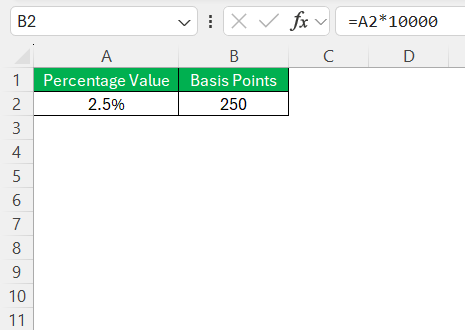
Basis Point Calculator in Excel

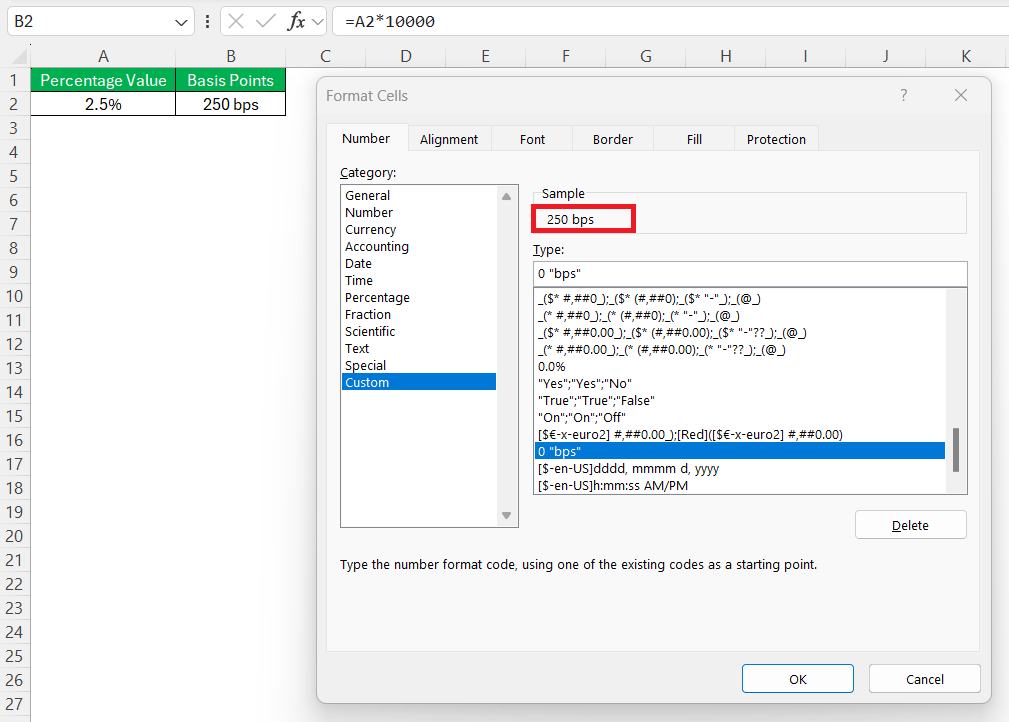
STEP 5: You can change the format by right-clicking on the output cell and selecting Format Cells. In the dialog box, go  to the ‘Number’ tab, choose ‘Custom’, and type 0 bps.
Basis Point Calculator in Excel

Using these steps, you can easily convert a percentage to basis points and also add the text bps after the value.


Tips and Tricks

Avoiding Common Mistake

Accuracy is of utmost importance when calculating the basis point. This is because even a small change can lead to a wrong financial decision. Here are two major pitfalls to avoid:

  • Always double-check your formula. Make sure there is no misplacement of the decimal point or an incorrect formula.
  • Confusion between basis point with percentage. One basis point is one-hundredth of a percent.

Be careful with these common mistakes to make sure that the results of the calculations are correct.

Real-World Applications

Assessing Loan Interest Rates

When comparing loan interest rates, basis points can act as an important deciding factor. A small change in interest rate can add up to a large amount over time. For example, a change of 25 basis points may seem like a small amount at first, but with time, it can add up to a large repayment amount. So, it is important to compare investments based on their interest rate in basis points.

Evaluating Investment Performance

In investment analysis, even a small change can make a lot of difference. Basis points help in tracking those small changes, especially those that are less than 1%. It helps in comparing the performance of different investments’ returns. A 10 basis point difference in investment return can convert to a large amount over time.

Excel lets you convert percentages to basis points and hence allows easy comparison of funds, stocks, and bonds.


FAQs

How to convert percentages into bps in Excel?

To convert a percentage into basis points (bps) in Excel, use the formula (Percentage*100)*100. For a direct calculation, write your percentage in a cell, say A1, and in the next cell, type =(A1*100)*100. Press Enter, and the cell will display the value in basis points. This multiplies your percentage by 10,000, following the basis point conversion ratio.

Is 100 basis points equivalent to 1%?

1 Basis point is 1/100 th of 1%, i.e., 0.01%. So, 100 basis points is equal to 1%.

How to use basis points in financial models?

You need to convert basis points to percentages to be able to use them in financial models. TO convert it, you need to divide basis point by 10,000.

Percenatge = Basis Point/10000

Convert 2% to bps.

Two percent (2%) is equivalent to 200 basis points (bps). To convert a percentage to basis points, multiply the percentage by 100. Thus, 2% multiplied by 100 gives us 200 bps.

How many bps are in 1%?

There are 100 basis points (bps) in 1%. To elaborate, since each basis point is one-hundredth of a percentage point, multiplying 1% by 100 gives us the total of 100 bps.

If you like this Excel tip, please share it


Founder & Chief Inspirational Officer

at

John Michaloudis is a former accountant and finance analyst at General Electric, a Microsoft MVP since 2020, an Amazon #1 bestselling author of 4 Microsoft Excel books and teacher of Microsoft Excel & Office over at his flagship MyExcelOnline Academy Online Course.

See also  Quick Fix: How to Undecline Outlook Meetings in Seconds

Star 30 Days - Full Access Star

One Dollar Trial

$1 Trial for 30 days!

Access for $1

Cancel Anytime

One Dollar Trial
  • Get FULL ACCESS to all our Excel & Office courses, bonuses, and support for just USD $1 today! Enjoy 30 days of learning and expert help.
  • You can CANCEL ANYTIME — no strings attached! Even if it’s on day 29, you won’t be charged again.
  • You'll get to keep all our downloadable Excel E-Books, Workbooks, Templates, and Cheat Sheets - yours to enjoy FOREVER!
  • Practice Workbooks
  • Certificates of Completion
  • 5 Amazing Bonuses
Satisfaction Guaranteed
Accepted paymend methods
Secure checkout

Get Video Training

Advance your Microsoft Excel & Office Skills with the MyExcelOnline Academy!

Dramatically Reduce Repetition, Stress, and Overtime!
Exponentially Increase Your Chances of a Promotion, Pay Raise or New Job!

Learn in as little as 5 minutes a day or on your schedule.

Learn More!

Share to...









