 Free Practice Workbook
Table of Contents
How to use the BETWEEN formula
Combine MIN, MAX & AND functions
In the example below, you have the start of the range in Column A, end of the range in Column B and the value to be evaluated in Column C.
You need to check whether the number entered in Column C is in between the numbers in Column A & Column B using a creatively formulated BETWEEN formula in Excel.

The function that can be used to determine if the value in cell D7 is in-between values in cell A7 & B7 is
=IF(AND(C7>=MIN(A7,B7),C7<=MAX(A7,B7)), “Yes”, “No”)
Let’s break this formula into parts to understand it better:
- C7 >= MIN(A7, B7) – This expression checks whether the value in cell C7 is greater than (or equal to) the smaller of the two numbers in cell A7 and B7.
- C7 <= MAX(A7, B7) – This expression checks whether the value in cell C7 is smaller than (or equal to) the larger of the two numbers in cell A7 and B7.
- AND( C7 >= MIN(A7, B7), C7 <= MAX(A7, B7)) – AND function simply checks whether the above two conditions are met or not i.e. whether the value in cell C7 is greater than (or equal to) the smaller number and less than (or equal to) the larger number.

MEDIAN function
You can use a simpler version of this complicated function by creatively using the Median formula:

=IF(C7=MEDIAN(A7:C7), “Yes”, “No”)
In our first example above, the range is 20-60, upon checking the value 50, it is in between this range.
The median formula will return the value in the middle of these 3 values when arranged in increasing order: 20, 50, 60. The median value is 50.
Since it matches the value we are evaluating, then the answer we get is a Yes, this value (50) is in between the range.
Now that you have learned how to use Excel if between two numbers, let’s move forward to dates and text.
Between formula in Excel for Dates
Irrespective of how you format a cell to display a date, Excel always stores it as a number. The number stored for each date actually represents the number of days since 0-Jan-1990.
1st Jan 1990 is stored as 1 (representing 1 day since 0-Jan-1990) and 23rd June 2020 is stored as 44,005 (representing 44005 days since 0-Jan-1990).
So, to check whether a date is in between two mentioned dates, we have the same application as the median formula.
Below is an example of how to use the median function to check dates.

=IF(C10=MEDIAN(A10:C10), “Yes”, “No”)
In our first example above, the range is May 1 – July 1, upon checking the date June 1, it is in between this range.
The median formula will return the value in the middle of these 3 dates when arranged in increasing order: May 1, June 1, July 1. The median value is June 1.
Since it matches the value we are evaluating, then the answer we get is a Yes, this value (June 1) is in between the range.
Between formula in Excel for Text
For text, we are checking if the value is alphabetically in the middle. We will be using the and formula:

=IF(AND(C12>=A12, C12<=B12, “Yes”, “No”)
Interestingly enough, you can compare texts using the >= and <= operators. Excel is able to compare them which goes alphabetically first or last.
In our first example above, the range is Cat – Dog, upon checking the text Cow, it is in between this range. As when arranged alphabetically, it would be: Cat, Cow, Dog.
The And formula checks if Cow >= Cat, and Cow <= Dog. You will see that both of these are true, as Cow is alphabetically later than Cat, while Cow is alphabetically ahead of Dog. Which is why we get a Yes result.
Advanced Tips
Inclusive vs. Exclusive Boundaries: How to Include Edge Values
Understanding the difference between inclusive and exclusive boundaries is crucial when working with the Between Formula. Inclusive boundaries mean that the edge values are considered part of the range, while exclusive boundaries exclude these values. To include edge values in your calculations effectively, adjust your logical operators accordingly. For example, to ensure a value is counted when it’s exactly equal to either boundary of your range, you can use the AND function with greater than or equal to (>=) and less than or equal to (<=) comparisons.
Handling Errors and Exceptions with Grace
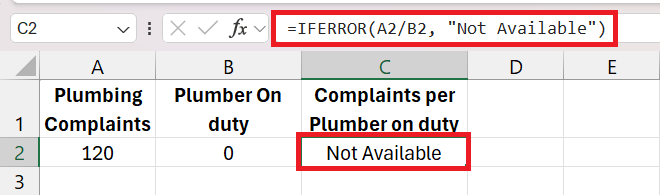
Navigating through errors and exceptions with finesse ensures that your Excel sheets remain functional and insightful. For the times when a value doesn’t fall clearly within the set range or when unexpected text strings appear in numerical fields, it’s important to fortify your Between Formulas with error handling functions like IFERROR or ISERROR. This proactivity helps maintain the integrity of your data analysis by either correcting or flagging irregularities, allowing you to address them without disrupting the workflow.
Excel IF Between Two Numbers
Optimizing Data Analysis with Precision and Accuracy
The Between Formula amplifies your ability to conduct precise and accurate data analysis. By defining exact parameters, you ensure that only relevant data points are scrutinized, which leads to more accurate insights and conclusions. This precision eliminates noise in your datasets, helping to highlight trends and anomalies that might otherwise be lost. When your analysis is both precise and accurate, the value of your findings increases, serving as a robust foundation for informed decision-making.
How Between Formula Enhances Decision Making in Excel
The Between Formula is a powerhouse for decision-making as it equips you with the capability to filter and analyze data that meets specific conditions. This targeted approach allows for more nuanced and sophisticated insights into business performance, financial health, or any other metric you are examining. By narrowing down data to a specific range, you can base decisions on solid, relevant facts, making your action steps more informed and effective. It’s not just about sifting through data; it’s about spotlighting the information that truly matters.
FAQs
1. Does Excel have a BETWEEN function?
No. You can create the same logic using other Excel functions.
2. Which functions can I use to check if a value is between two numbers?
You can use IF, AND, MIN, MAX, or MEDIAN.
3. Can I use this method with dates?
Yes. Excel stores dates as numbers, so the same formulas work.
4. Can I check if text is between two values?
Yes. Excel compares text alphabetically.
5. How do I include the start and end values in the range?
Use the >= and <= operators in your formula.

Bryan
Bryan Hong is an IT Software Developer for more than 10 years and has the following certifications: Microsoft Certified Professional Developer (MCPD): Web Developer, Microsoft Certified Technology Specialist (MCTS): Windows Applications, Microsoft Certified Systems Engineer (MCSE) and Microsoft Certified Systems Administrator (MCSA).
He is also an Amazon #1 bestselling author of 4 Microsoft Excel books and a teacher of Microsoft Excel & Office at the MyExecelOnline Academy Online Course.

 30 Days - Full Access









