 Free Practice Workbook
Microsoft Excel treats dates as not just dates but sequential numbers. It offers a gateway to efficient calculations and precise data management. Use Excel’s date functionalities and discover how to calculate days since or days until.
Key Takeaways:
- Excel treats dates as sequential numbers and simplifies calculations.
- Properly format cells and set up exceptions for holidays or non-working days for accurate date calculations.
- Use functions like DATEDIF to effortlessly calculate time spans between dates.
- Combine advanced formulas to manage complex date scenarios.
- Use the TODAY function to anchor your calculations to the present.
Table of Contents
How to Calculate Days Since or Until Date
Using DATEDIF
Thinking of finding out how long ago an event took place? The DATEDIF function is like a time machine for your data. Follow these steps:
STEP 1: Input the start date in A2

STEP 2: Input the end date (or TODAY() for the current date) in cell B2.
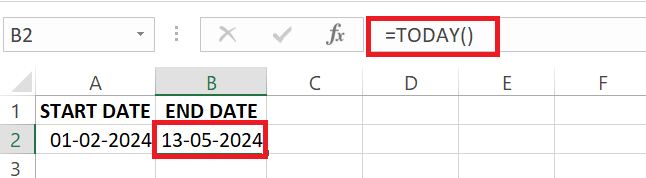
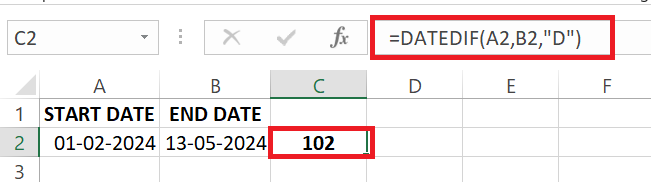
STEP 3: Use the formula “=DATEDIF(start date, end date, unit)” by entering the same in cell C2. And replace the start date and end date with cell references A2 and B2, respectively. Choose the unit of time as days (“D”). This function quickly calculates the time elapsed in days.
Combining Formulas for Complex Date Calculations
You can combine DATE, DAY, and NETWORKDAYS.INTL to calculate the number of days until a specific date:
This formula will return the number of working days that has passed until June 1, 2024. This value will exclude weekends and any specified holidays.
Practical Uses
Monitor Project Deadlines
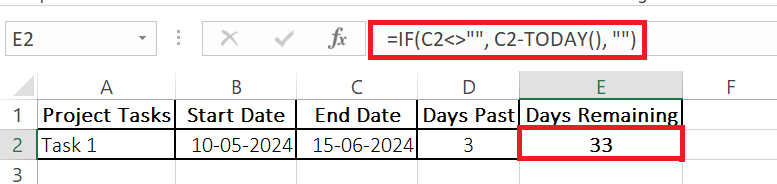
You can calculate the number of days remaining for a project using subtraction and the TODAY formula. You can subtract the project end date from today’s date to get the result.
Calculate Countdown
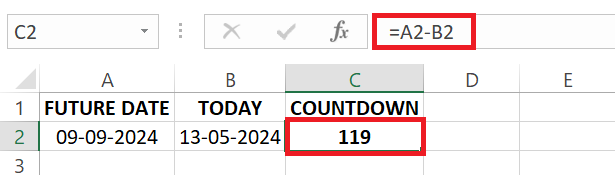
Countdowns add pressure and can keep you motivated towards reaching the milestones. Use the simple subtraction formula
=Future Date - TODAY()
Tips and Tricks
Format Dates
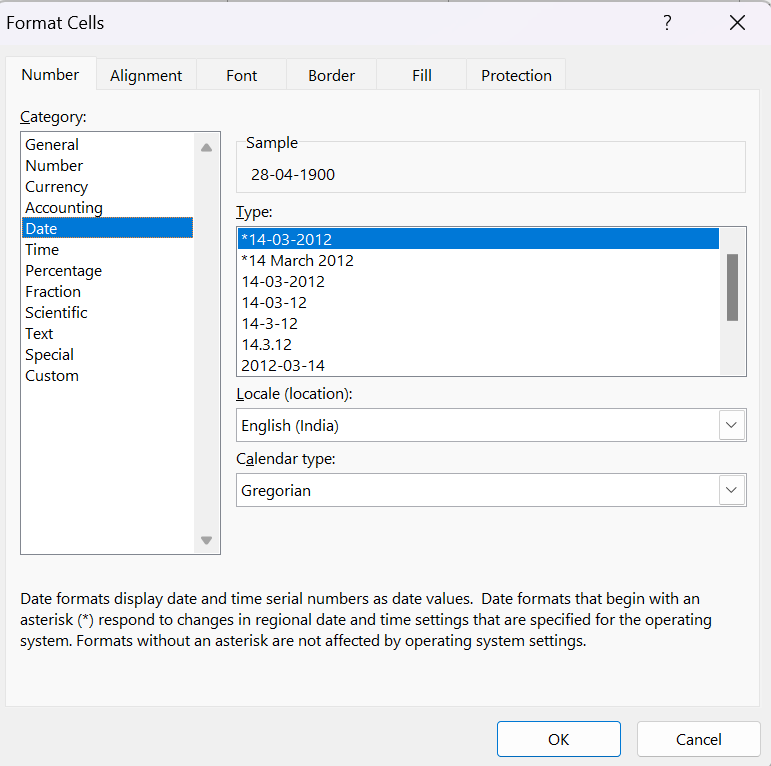
You can follow the steps below to format dates in Excel:
- Right-click on the cell.
- Select Format Cells.
- In the dialog box, you can select an appropriate date format.
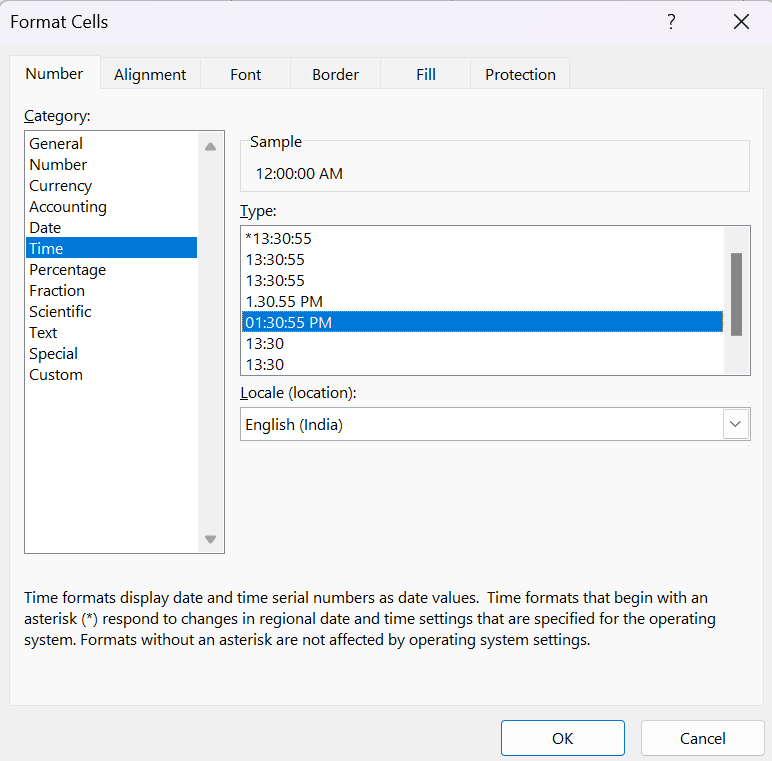
You can also choose an appropriate time format for numerical calculations.
Business Days vs. Calendar Days
It is important to understand the difference between business days and calendar days for project timelines or deliveries. You can use NETWORKDAYS to consider only weekdays in the calculations.
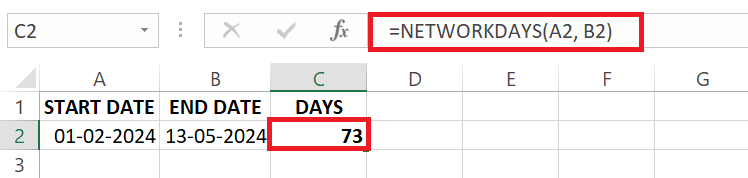
This formula will return the number of working days between the two dates. You can use NETWORKDAYS.INTL function for non-standard weekends and to exclude list of holidays as well.

This considers Monday through Thursday as working days.
You can include another argument, i.e. list of holidays. This formula will now exclude the holidays from the calculation.

This will exclude the dates listed in cells D1:D3 from the calculation of working days.
FAQs
How to calculate the number of days since a date?
You can calculate the number of days since a date by subtracting the current date from it. The formula will be:
= TODAY – Specific Date
How to find out how many days are left until a future event?
Absolutely, just subtract today’s date from the future event date using the formula =[future event date] - TODAY(). Excel will instantly give you the number of days remaining until that event.
How to calculate days until due date?
You can use the subtraction formula to calculate days until the due date. The formula will be:
= Project Due Date – TODAY()
How to calculate the number of days since a date?
You calculate the number of days since a date by using =TODAY() - [past date], with [past date] being the date you want to calculate from. Excel will deliver the total days passed.
How to calculate days overdue in Excel?
To calculate days overdue in Excel, if the due date has passed, use the formula =TODAY() - [due date]. This will provide the number of days that are overdue, as long as TODAY’s date is beyond the due date.

John Michaloudis is a former accountant and finance analyst at General Electric, a Microsoft MVP since 2020, an Amazon #1 bestselling author of 4 Microsoft Excel books and teacher of Microsoft Excel & Office over at his flagship MyExcelOnline Academy Online Course.

 30 Days - Full Access









