 Free Practice Workbook
Table of Contents
Understand Center Text Alignment
Center alignment places the text in the middle of a cell horizontally. Instead of sticking to the left or right side, the content sits neatly in the center. This is especially useful for headings, titles, or labels.
Center alignment improves the overall appearance of your spreadsheet. It makes headings stand out and gives your data a clean look.
Methods to Center Text Across a Selection
Use the Ribbon Tool
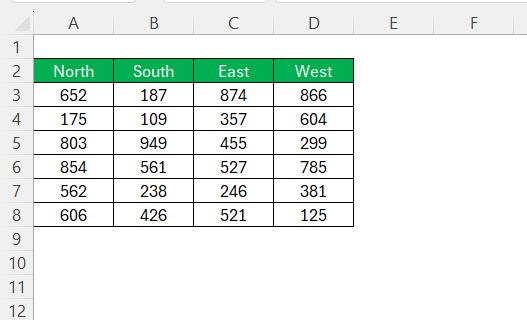
The Ribbon is located at the top of the Excel interface. It contains a range of commands under different tabs. To center text,
- Go to the Home tab
- Click on the Center button

All text will be center-aligned.
Shortcut Keys
To center-align text using a shortcut, select the desired cells and press Alt + H, followed by A and then C. It reduces dependency on mouse navigation.
Format Cells
To use this method,
- Select the cell or range of cells you wish to center
- Right-click on the selection
- Choose “Format Cells” from the context menu
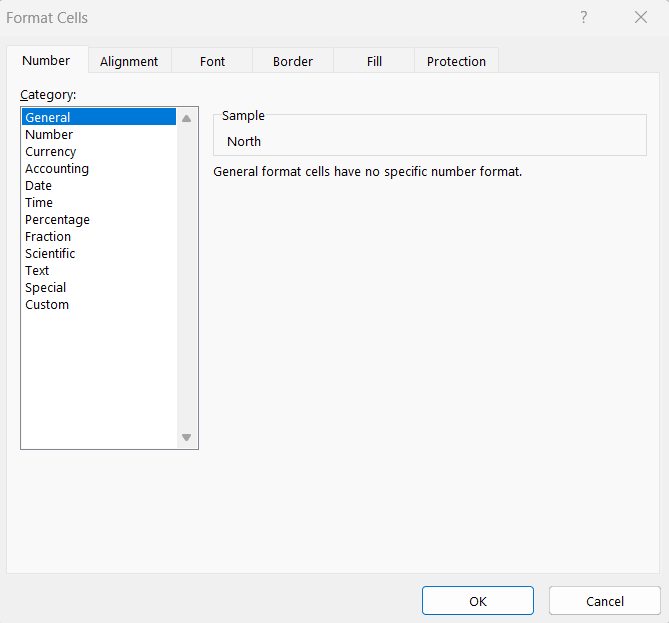
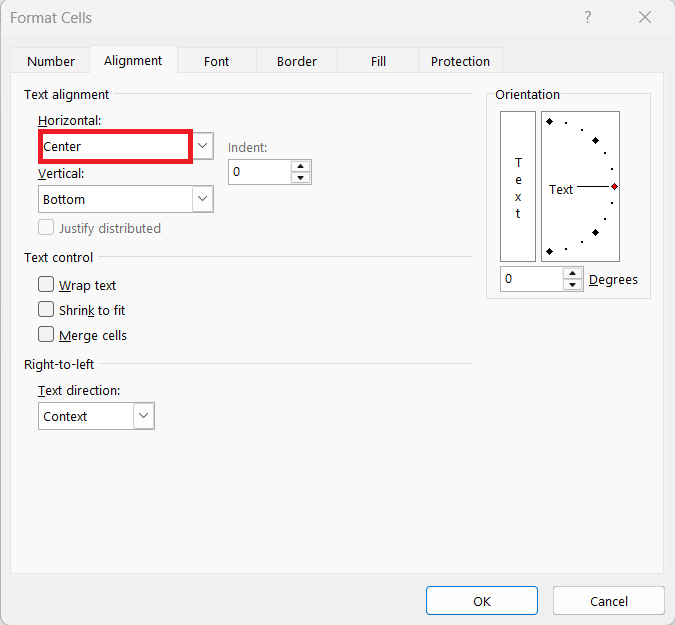
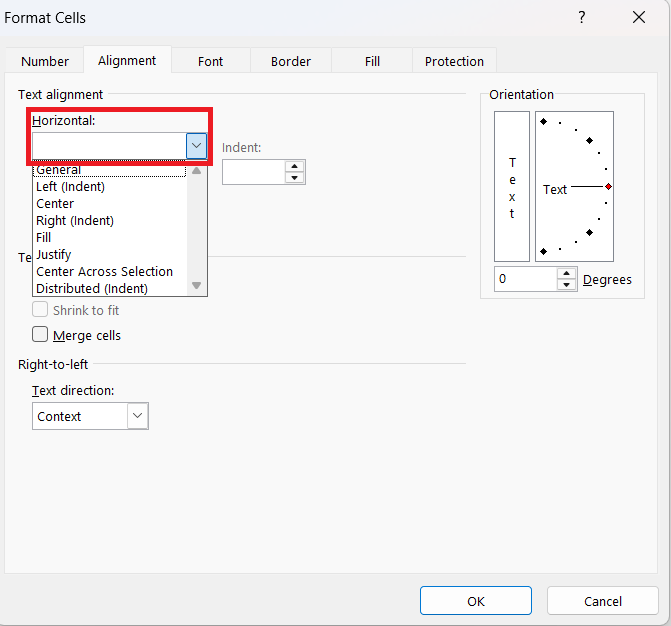
- In the dialog that appears, go to the “Alignment” tab
- Under the Horizontal drop-down menu, select “Center” from the options
- Click “OK”
Advanced Techniques
Merge Cells vs Center Across Selection
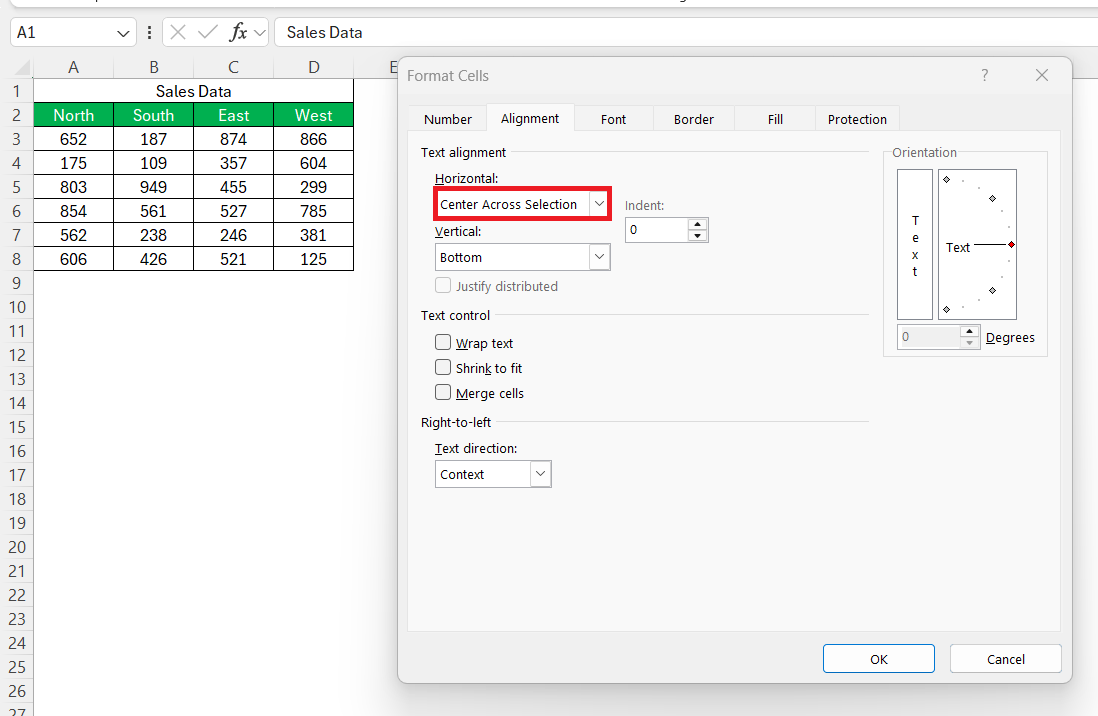
When working with Excel, it is important to understand the difference between “Merge Cells” and “Center Across Selection.” Merging cells combines two or more adjacent cells into a single larger cell. It can disrupt the spreadsheet’s structure.
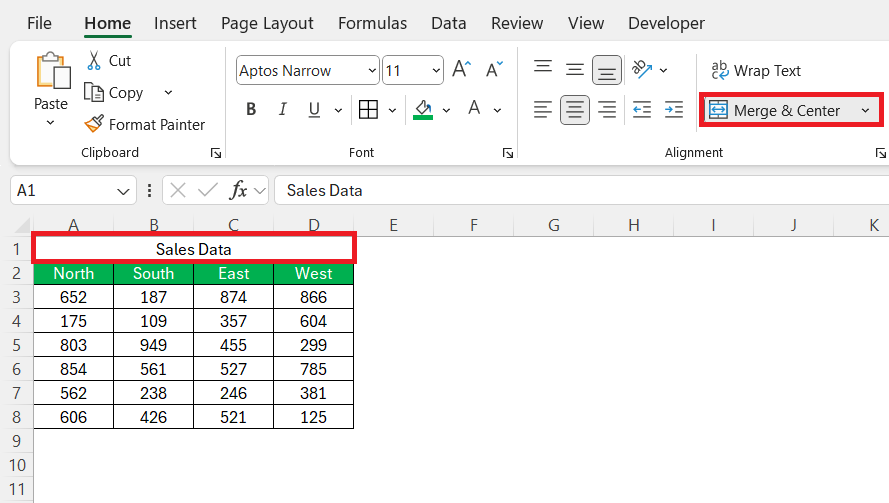
In contrast, “Center Across Selection” aligns text across a selected range without altering the cell structure.
Align Numbers by Decimal Point
You can align numbers by the decimal point to improve the readability of data. To accomplish this,
- Select the cells containing the numbers
- Open the Format Cells dialog box by pressing
Ctrl + 1.
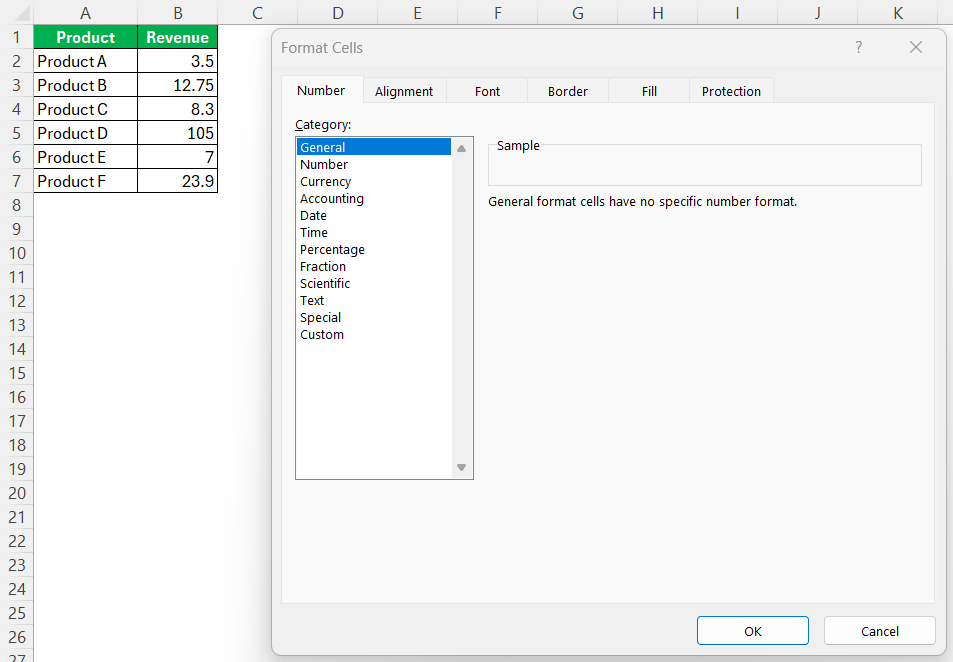
- Go to the “Number” tab
- Select “Custom” from the list.
- Enter a format code such as
0.0? - Click OK
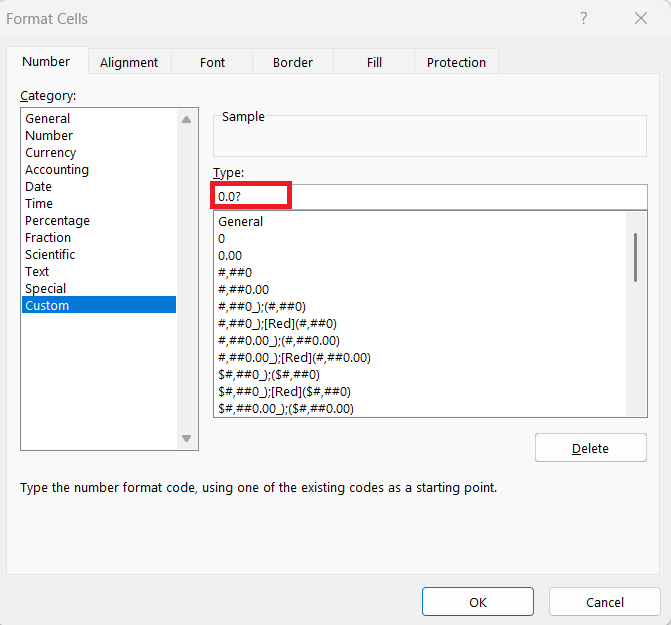
It will align numbers to the decimal point with consistent spacing for the decimal places specified by the question marks.
Adjusting the number of question marks controls how many decimal places are displayed.
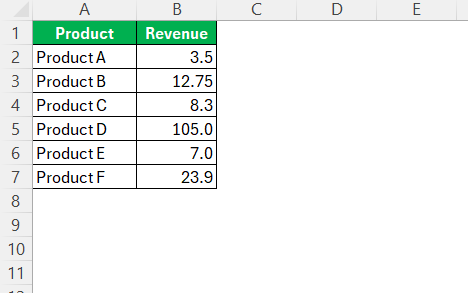
This method will make sure that all numbers are aligned perfectly at the decimal point.
Horizontal vs. Vertical Alignment
Horizontal alignment decides where your text appears from left to right. You can align it to the left, center, or right side of the cell.
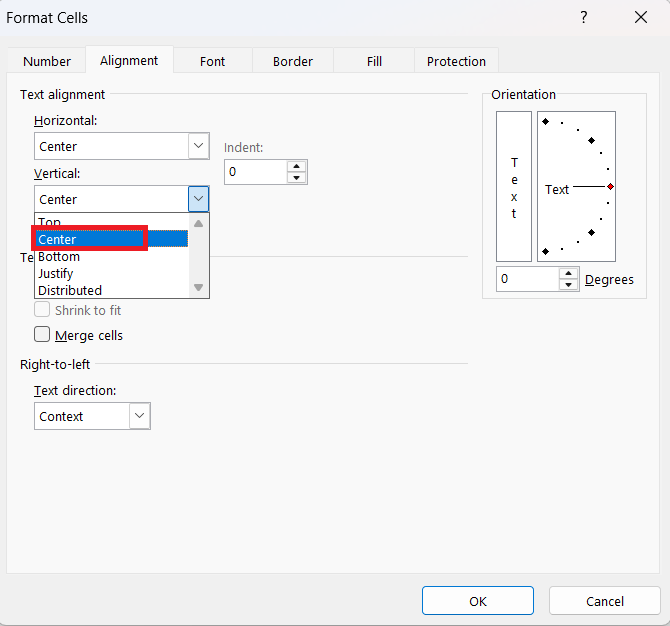
Vertical alignment controls how text is placed from top to bottom. You can position it at the top, middle, or bottom of the cell. Middle alignment works well when cells have more height or contain multiple lines.
FAQs
What is the difference between Merge & Center and Center Across Selection?
The Merge & Center combines multiple cells into one. Whereas, Center Across Selection aligns text across selected cells without merging them.
How to align text vertically as well as horizontally?
You can align text both vertically and horizontally in Excel. Horizontal alignment options include left, center, and right, while vertical alignment options consist of top, middle, and bottom.
How to use shortcut keys to center text quickly?
To center-align text, select the cell and press Alt + H + A + C.
Why does my text alignment not appear correct when I save the document?
Text alignment issues upon saving may result from differences in default printer settings affecting document display.
How to align text in the middle in Excel?
To align text in the middle of a cell in Excel,
- Select the desired cells
- Go to the “Home” tab
- Find the “Alignment” group
- Click on “Middle Align”

John Michaloudis is a former accountant and finance analyst at General Electric, a Microsoft MVP since 2020, an Amazon #1 bestselling author of 4 Microsoft Excel books and teacher of Microsoft Excel & Office over at his flagship MyExcelOnline Academy Online Course.

 30 Days - Full Access









