In Microsoft Excel, changing the font to all caps is vital for efficient data presentation and formatting. This guide explores the power of uppercase shortcuts in Excel, demonstrating how they can simplify data standardization across spreadsheets. From basic functions and shortcuts to advanced macros, understanding how to efficiently convert text to uppercase is essential for any Excel user.
Key Takeaways
- The UPPER function in Excel provides a straightforward method to convert text into uppercase.
- Flash Fill offers a formula-free option for case conversion.
- Macros enable automation of uppercase conversion, saving significant time and effort for frequent users.
- Common pitfalls in using uppercase shortcuts include potential data loss, exceptions oversight, and misapplication.
- Customizing the QAT with uppercase conversion tools can dramatically improve efficiency.
Table of Contents
Text Case in Excel
Excel offers diverse ways to change text formatting, including changing the text case. There are different text cases, like:
- Sentence Case – This keeps the first letter of each sentence in capital form.
- Uppercase – This will convert all letters to uppercase.
- Lowercase – This will convert all letters to lowercase.
- Proper Case – This will capitalize each word in a sentence.
- Toggle Case – This will change uppercase letters to lowercase and lowercase letters to uppercase.
When importing data from different sources, the original text case may be disrupted. You can use Excel functions, shortcuts, and macros to effortlessly change text case. This will make the spreadsheet look professional and easy to read.
Methods to Convert Font to all Caps
Method 1 – UPPERCASE Function
The UPPER function in Excel is a straightforward solution for converting any text to uppercase letters. The syntax is:
=UPPER(text)
It allows you to transform your data and bring uniformity swiftly.
Follow the steps below to use UPPERCASE function to convert text case:
STEP 1: Enter the UPPER function.
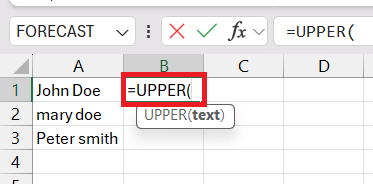
STEP 2: Select the cell containing the text ot type the text directly in the formula.
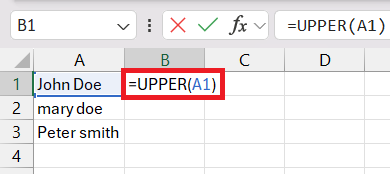
STEP 3: Press Enter.
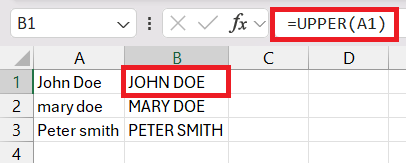
Remember, the UPPER function is non-discriminatory – every letter fed into it emerges as an uppercase character.
Method 2 – Flash Fill
The Flash Fill is the quickest way to transform text to uppercase. Follow the steps below:
- Manually convert text to uppercase for the first few cells.
- Select the cells where you want to replicate the process.
- Go to the Data tab.
- Select the Flash Fill button.

You can also press Ctrl + E to use Flash Fill.
Method 3 – VBA Macro
You can use VBA code to automate the uppercase conversion process. Follow the steps to know how:
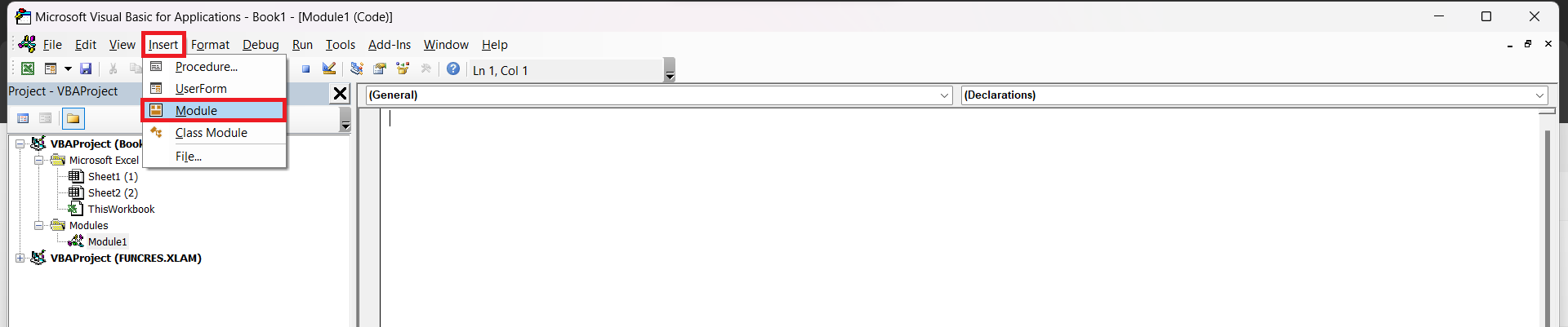
STEP 1: Press Alt + F11 to open the VBA editor.
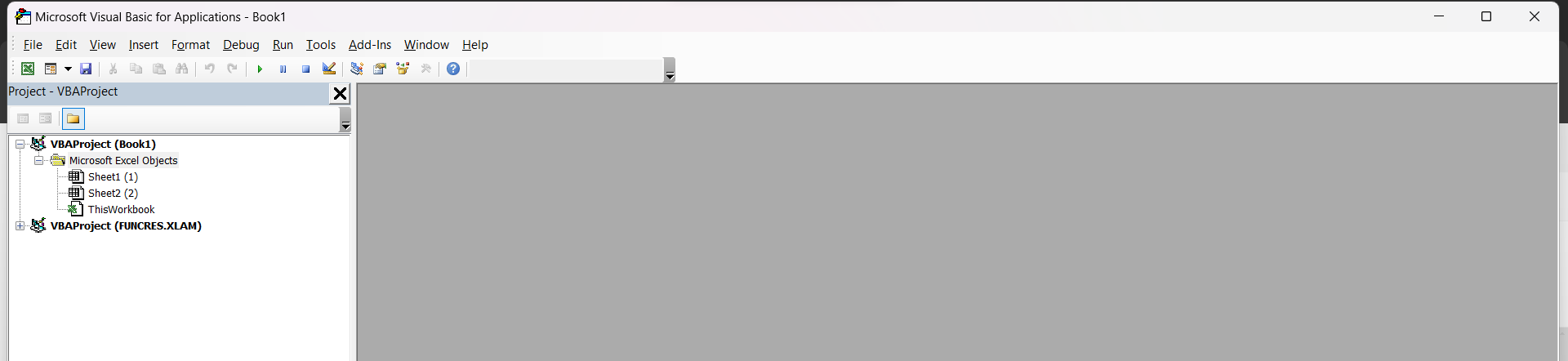
STEP 2: Select Insert > Module.
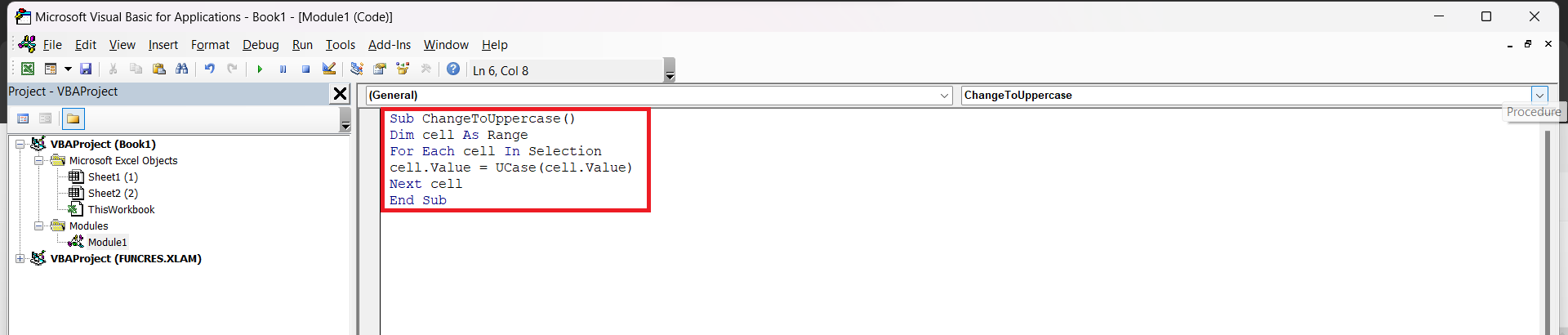
STEP 3: Enter this VBA code:
Sub ChangeToUppercase()
Dim cell As Range
For Each cell In Selection
cell.Value = UCase(cell.Value)
Next cell
End Sub
STEP 4: Close the editor.
STEP 5: Select the cells, and pressAlt + F8
STEP 6: Choose your macro and press Run.
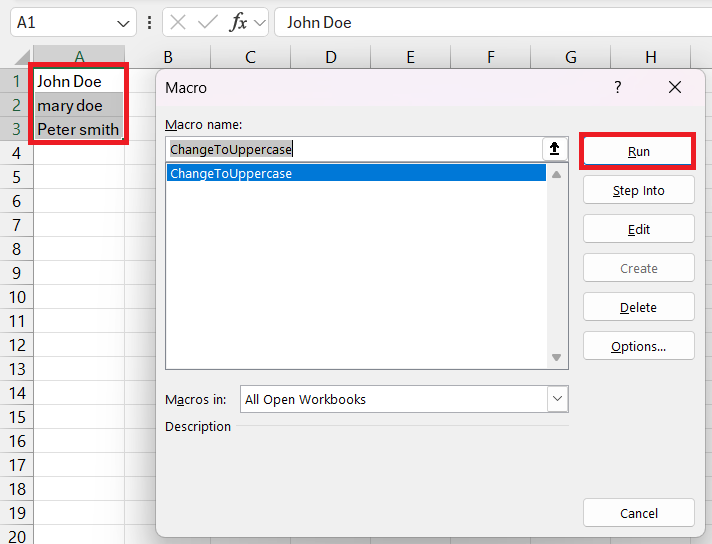
This will convert the text to uppercase.

Using macros will help you to quickly convert text to uppercase without much effort.
FAQs
How to Change Text to Uppercase in Excel?
The quickest way to make text uppercase in Excel is by using the UPPER function. It instantly converts selected text to uppercase, saving time on manual entry or navigating through menus.
How to Change Case for Multiple Cells?
Yes, you can use shortcuts to change case for multiple cells at once in Excel. Simply use the Excel UPPER function and employ the drag-fill handle to extend the formula across multiple cells.
How to make all capital letters in Excel?
To make all letters capital in Excel without using formulas, add an empty column next to your data and type the capitalized version of the first entry. Press ‘Enter,’ and Excel will suggest using Flash Fill (Ctrl + E) to transform the rest of the column into uppercase.
What is the VBA code that can be used to change the font to all caps in Excel?
Sub ChangeToUppercase()
Dim cell As Range
For Each cell In Selection
cell.Value = UCase(cell.Value)
Next cell
End Sub
What is Flash Fill in Excel?
Flash Fill in Excel is a smart data entry feature that automatically fills in data for you based on a pattern it detects in your actions. After you manually enter data in a few cells to establish a pattern, Flash Fill can complete the rest of the column by recognizing and applying the pattern to additional data. It’s particularly useful for formatting, extracting, or transforming data without the need for formulas.

John Michaloudis is a former accountant and finance analyst at General Electric, a Microsoft MVP since 2020, an Amazon #1 bestselling author of 4 Microsoft Excel books and teacher of Microsoft Excel & Office over at his flagship MyExcelOnline Academy Online Course.

 30 Days - Full Access









