Key Takeaways
- OneDrive stores the files in the cloud so that they are synced to all devices.
- Move the OneDrive folder to another drive to save space.
- Always back up your files before moving them.
- Unlink and relink OneDrive when changing its folder location.
- Move the folder to improve storage management.
Table of Contents
Why Change OneDrive Folder Location
The following are the reasons why you should consider moving the OneDrive folder location:
- It will provide valuable space in the local storage.
- A different folder location may align better with the file organization preference.
- It may be beneficial to distribute data across various drives.
- Moving to an external drive can help in easier data backup and recovery.
How to Change OneDrive Folder Location
Prepare to Move Your OneDrive Folder
Moving your OneDrive folder is not a complicated process, but you need to check these points before starting the process:
- Back Up Your Files: Always back up all the files currently in OneDrive, just in case things go awry during the move.
- Check Your OneDrive Sync Status: Make sure that all your files are fully synced to OneDrive online to avoid any discrepancies between local and cloud copies.
- Unlink OneDrive: Right-click the OneDrive taskbar icon, click on Settings, and then on the Account tab, click the ‘Unlink OneDrive’ button. Ignore the login screen that appears for now; you will need it later.
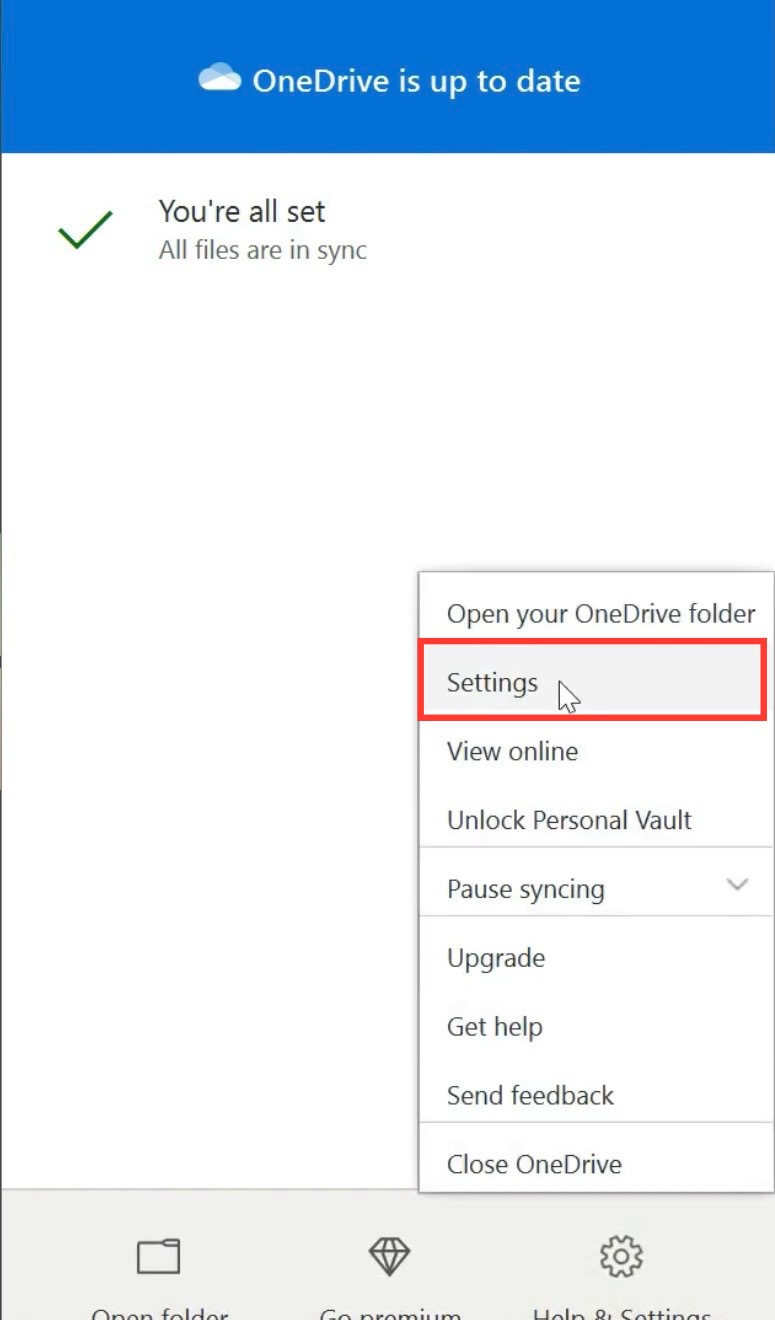
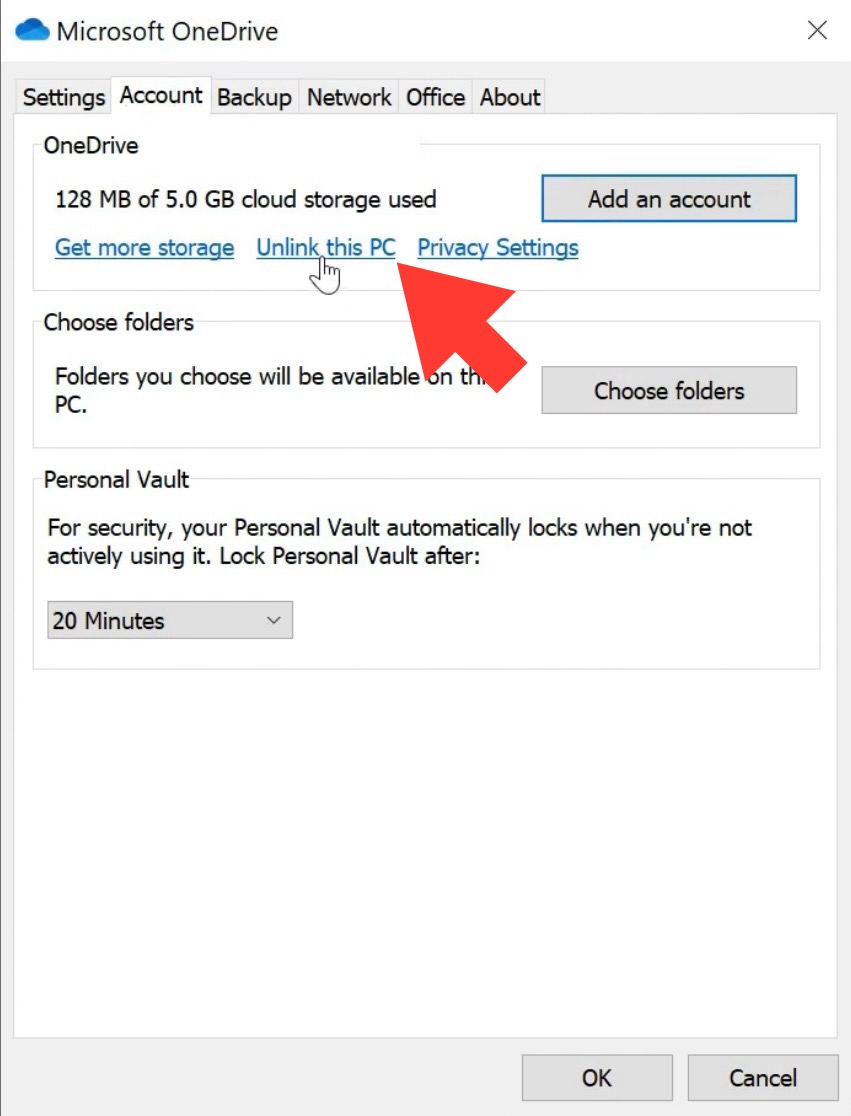
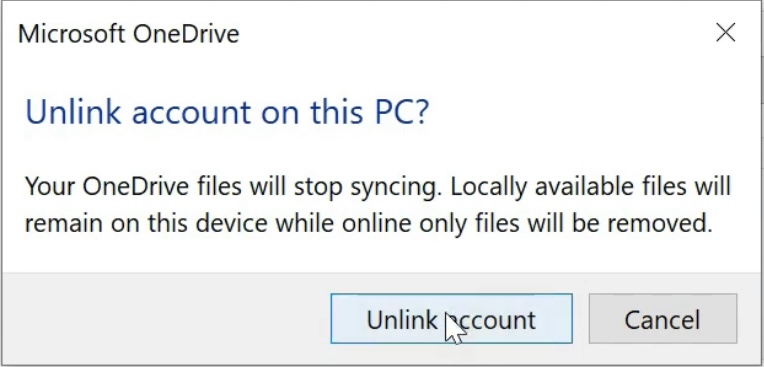
By unplugging OneDrive, you’re essentially telling your computer that you need to set OneDrive up again, which is precisely what you want when changing its location.
Move the OneDrive Folder to a New Location
To relocate your OneDrive folder to your preferred spot on your Windows PC:
- Open File Explorer: Go to the current OneDrive folder location, which is typically found in your user folder.
- Utilize the Ribbon: Click on the ‘Home’ tab on the ribbon in File Explorer.
- Move Command: Select your OneDrive folder. In the ribbon, click ‘Move to,’ then choose ‘Choose location’ from the dropdown menu.
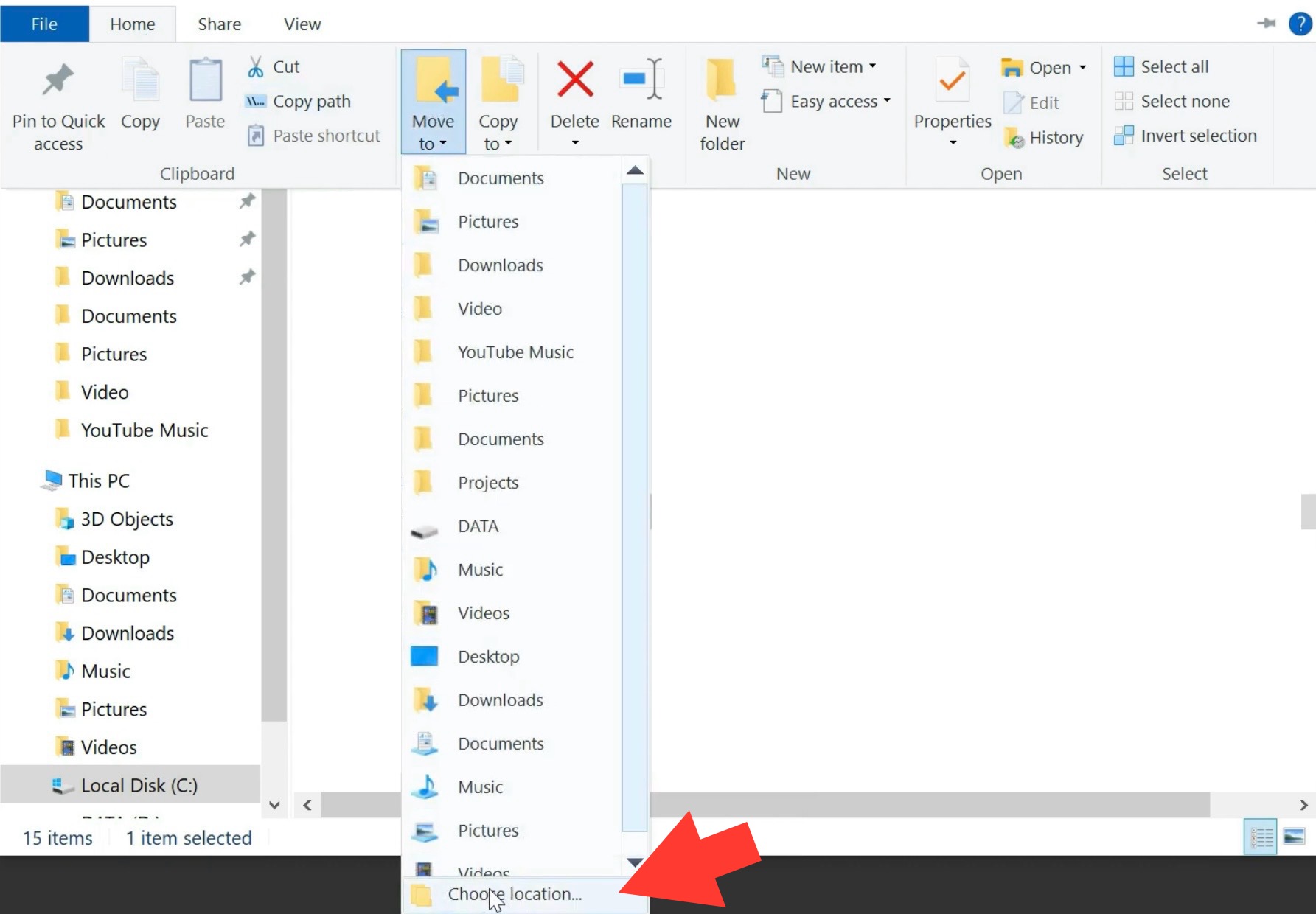
- Choose New Location: In the pop-up dialog, go to your desired new folder location, select it, and then click the ‘Move’ button.
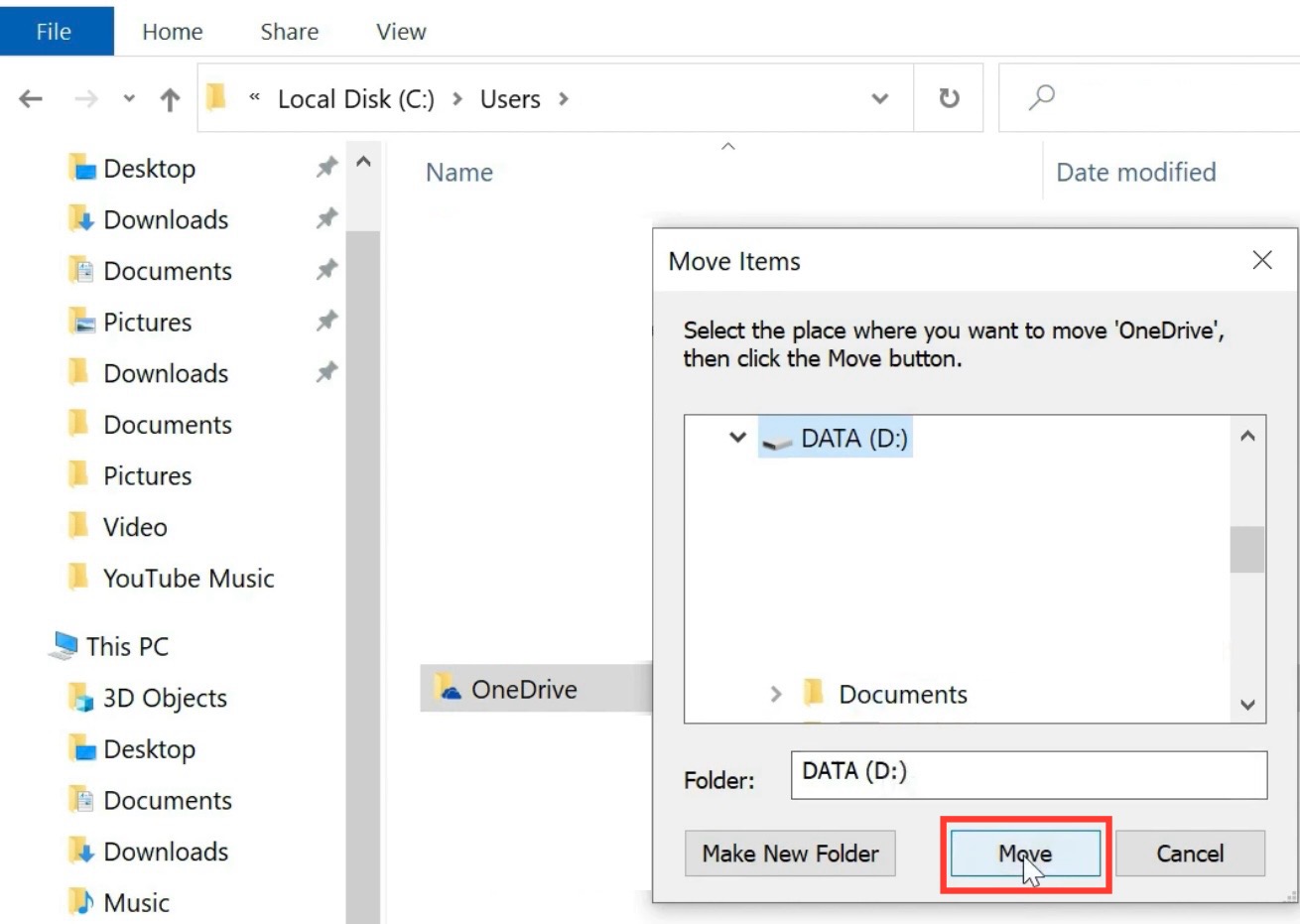
Windows will proceed to move your entire OneDrive folder, along with all its contents, to the new location. Please wait patiently: depending on the size of your folders, it may take several minutes.
Now your files are exactly where you want them, and you’re ready for the next step: re-linking OneDrive.
Link OneDrive to the New Folder Location
With the OneDrive folder now in its new home, it’s time to link your OneDrive account with the new location on your PC:
- Reopen OneDrive Setup: Access the ‘Set up OneDrive’ window that you previously closed, or reopen it by clicking on the OneDrive app.
- Email and Sign In: Enter your email address in the OneDrive app window and click ‘Sign in’.
- Personal or Work: Choose ‘Personal’ when prompted to specify why you’re signing in.
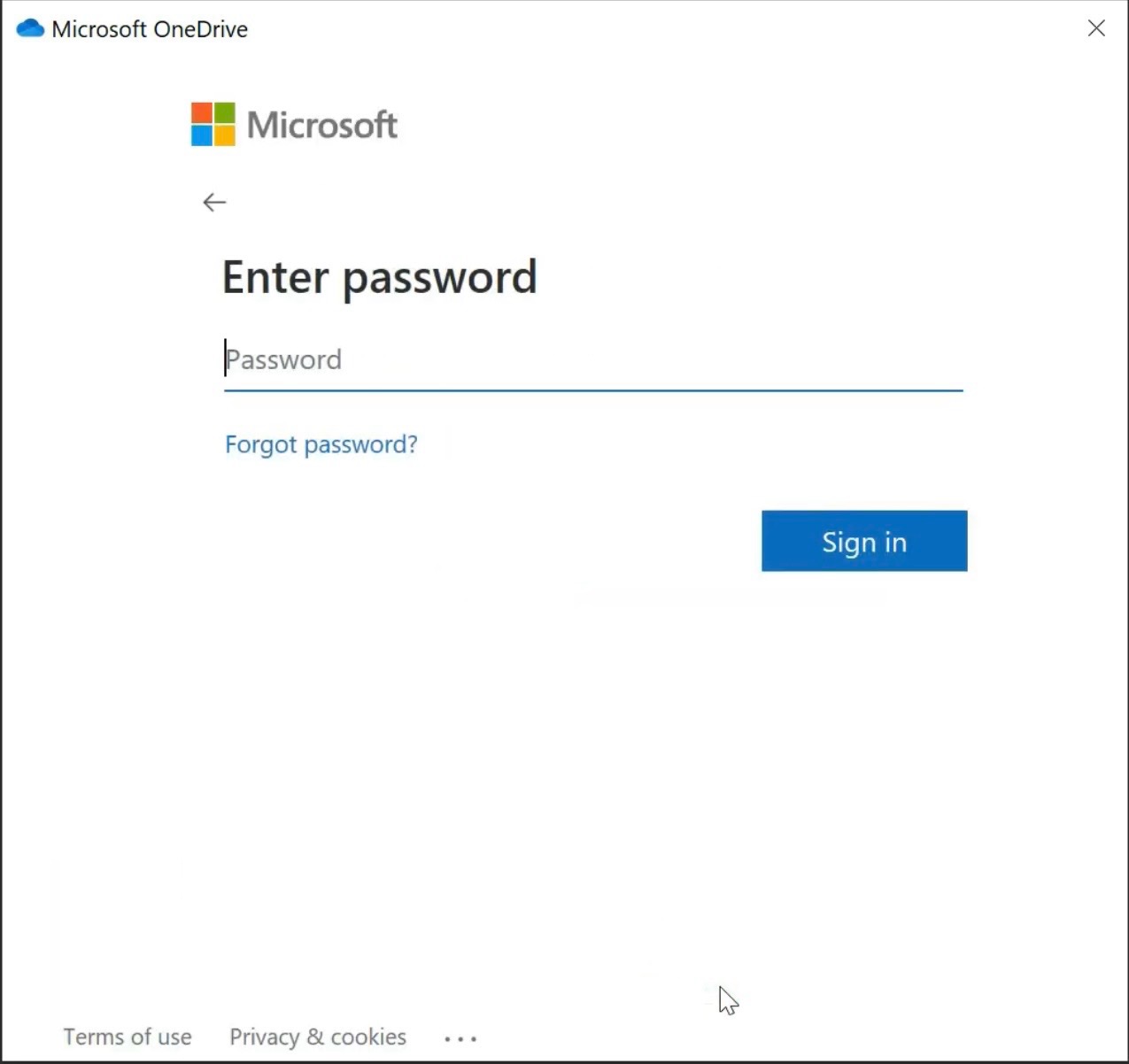
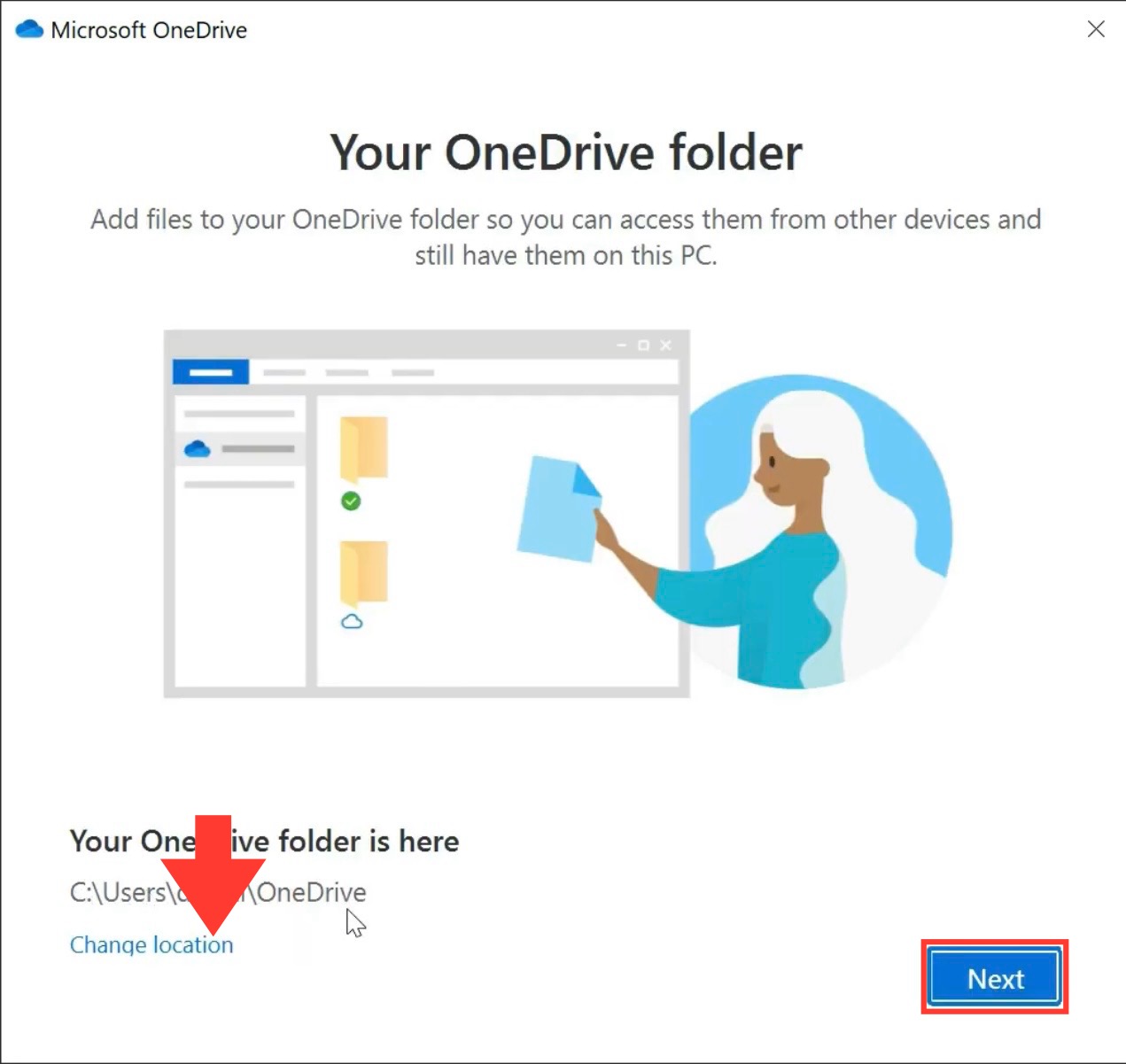
- Password Entry: Type in your password, follow through the sign-in process, and when you get to the ‘This is your OneDrive folder’ screen, select ‘Change location.’
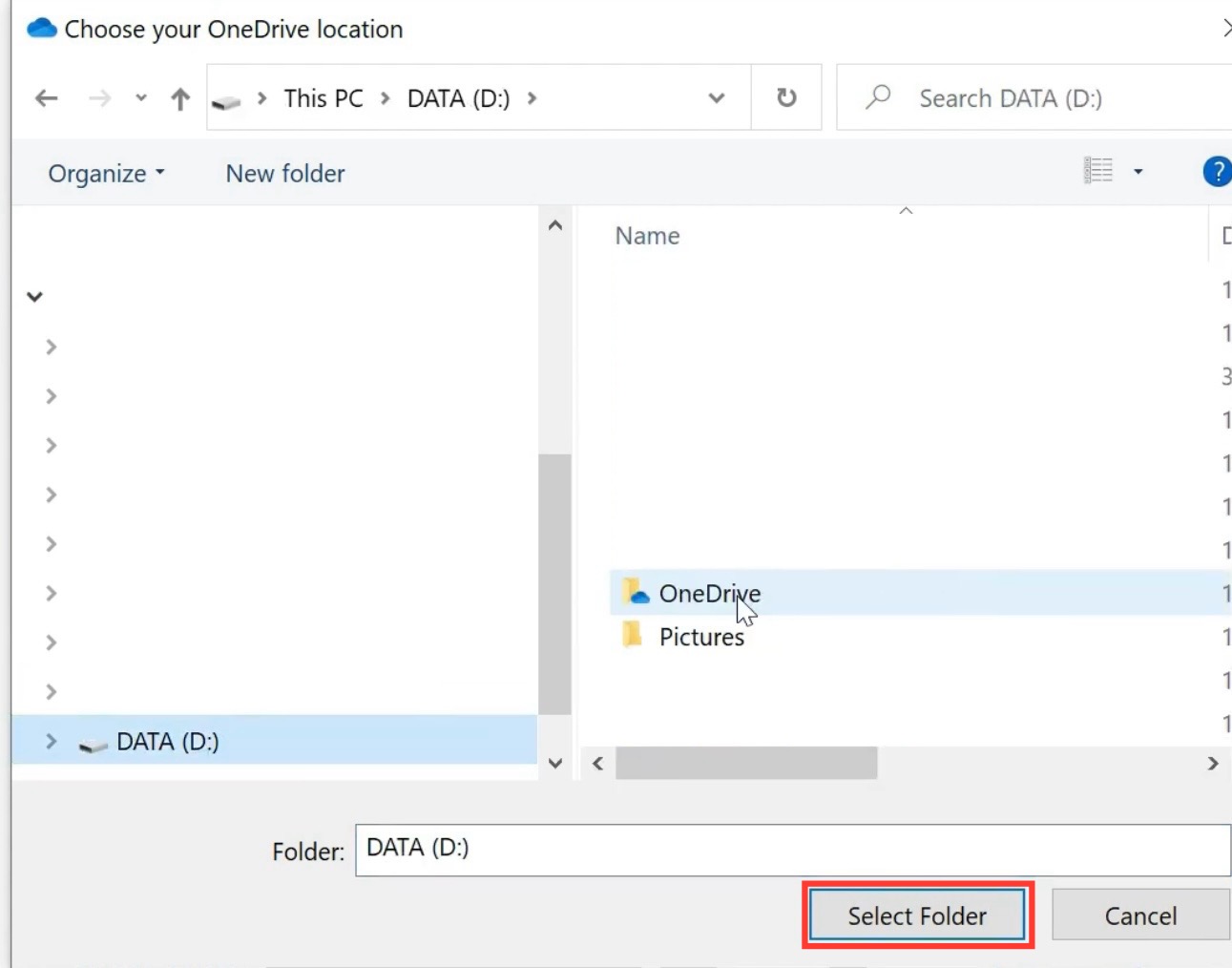
- Selecting New OneDrive Location: Go to the new OneDrive folder location and click ‘Select Folder.’
- Confirmation: Click ‘Use this location,’ which tells OneDrive to sync to this new location on your device.
- Finish Setup: Follow the remaining instructions to finish syncing your files. Select folders to sync if you do not wish to sync them all.
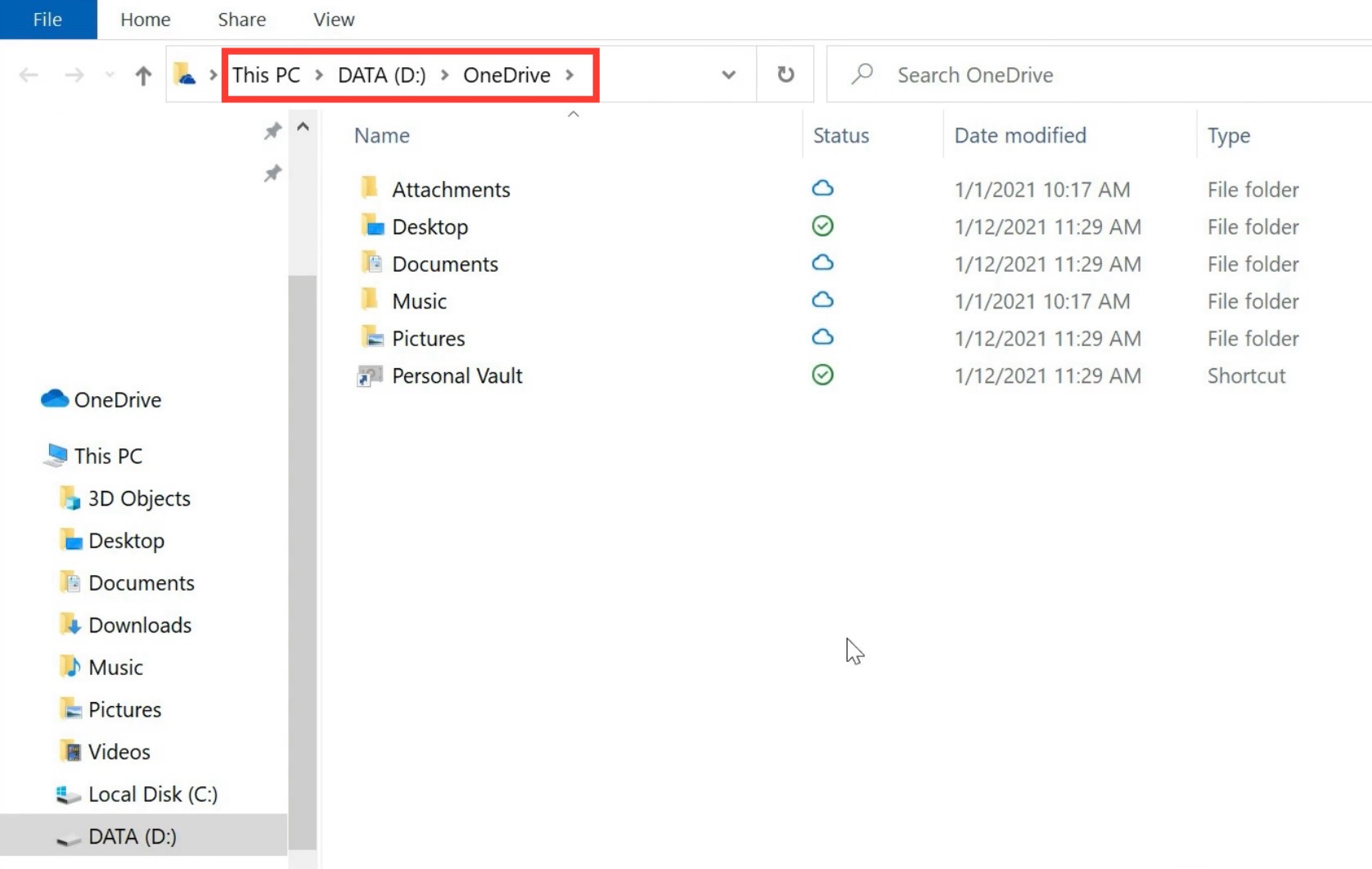
Now, your OneDrive should reflect the changes, and files will sync to and from this new directory. Congratulations on successfully relocating your OneDrive!
Tips & Tricks
It is important to be aware of some common pitfalls when moving the OneDrive folder:
- Avoid using your computer for other heavy tasks that might interfere with the moving process.
- Make sure that the destination folder has the correct permissions.
- Check that the OneDrive has fully synced before you start moving it.
- Confirm the suitability of the new location.
- Check if OneDrive is linked correctly to the new location. If not, relinking may be necessary.
- Conflicts or permission issues could cause sync errors; check if you have the right permission levels in the new location.
- If files are missing, check your OneDrive online to confirm if they exist there and weren’t lost during the transition.
- Create a logical folder hierarchy for easy navigation.
- Stick to consistent naming conventions to be able to search the file easily.
- Remove outdated or unnecessary files to keep your OneDrive clutter-free.
FAQs
Can I move the OneDrive folder to an external drive?
Yes, you can move the OneDrive folder to an external drive. Just make sure that the drive is always connected when you start up your PC, as OneDrive will need to access its folder to sync files.
What happens if I move files out of the OneDrive folder?
If you move files out of the OneDrive folder, they will no longer be synced to the cloud. These files also won’t be accessible from other devices where you use OneDrive unless you move them back or upload them manually.
Is it possible to rename the OneDrive folder after moving it?
No, renaming the OneDrive folder is not recommended. It can disrupt the synchronization with the cloud and possibly cause errors with the files that are already synced. Stick with the default folder name for smooth operation.
How to check that my files are syncing correctly after changing the location?
To check that your files are syncing correctly after changing the OneDrive location:
STEP 1: Check the OneDrive sync status in the taskbar.
STEP 2: Confirm that all desired folders are selected in your sync settings. This helps maintain consistent synchronization of your files.

John Michaloudis is a former accountant and finance analyst at General Electric, a Microsoft MVP since 2020, an Amazon #1 bestselling author of 4 Microsoft Excel books and teacher of Microsoft Excel & Office over at his flagship MyExcelOnline Academy Online Course.

 30 Days - Full Access









