Learn about Excel with our Free Microsoft Excel Online Course!
Key Takeaways
- Use the right colors to improve the readability of the presentation.
- Hex code is a six-digit combination that represents a color.
- Use the hex code to use the exact color shade that you want.
- Use consistent colors to make your presentation look professional.
Table of Contents
What are Hex Codes?
Hex code is a six-digit combination of numbers and letters that represents a color. It starts with a # and then the value for the color code. Each code points to a unique shade of color.
For example:
- #FF0000 – pure red
- #0000FF – pure blue
- #00FF00 – pure green
You can use a hex code to provide a specific color to your slide that matches your brand palette.
How to Find Hex Color Codes
When you’re aiming to maintain brand integrity in your presentations, it’s important that the colors you use are spot-on. Extracting hex codes from your existing graphics or brand logos assures this level of consistency. PowerPoint’s 2013 incarnation introduced a game-changer for this task—the EyeDropper tool.
To extract hex codes from a picture in PowerPoint:
STEP 1: Click on the Insert tab and then select Picture.
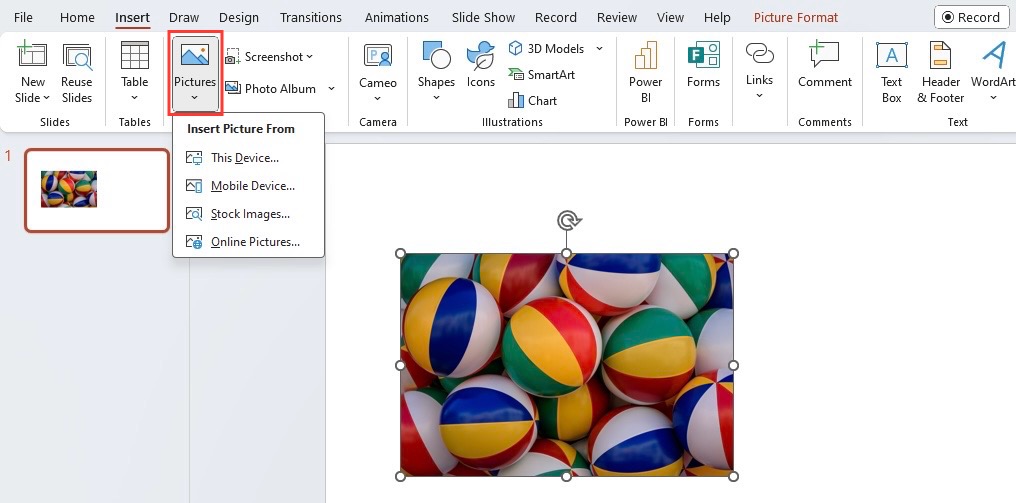
STEP 2: Click on the inserted picture.
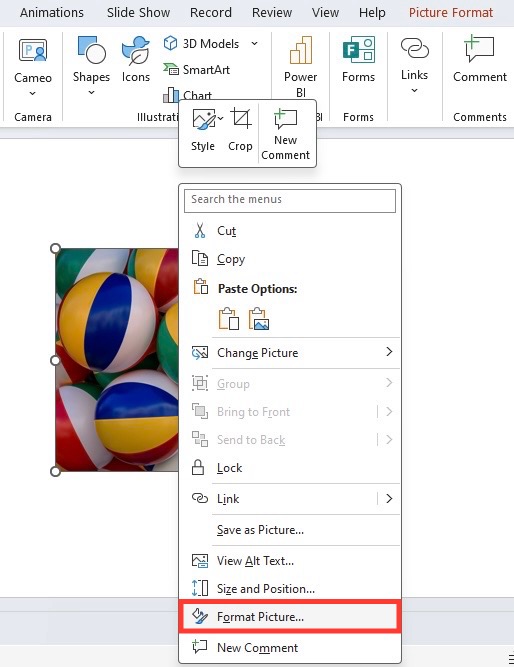
STEP 3: Right-click on the selected picture and choose Format Picture.
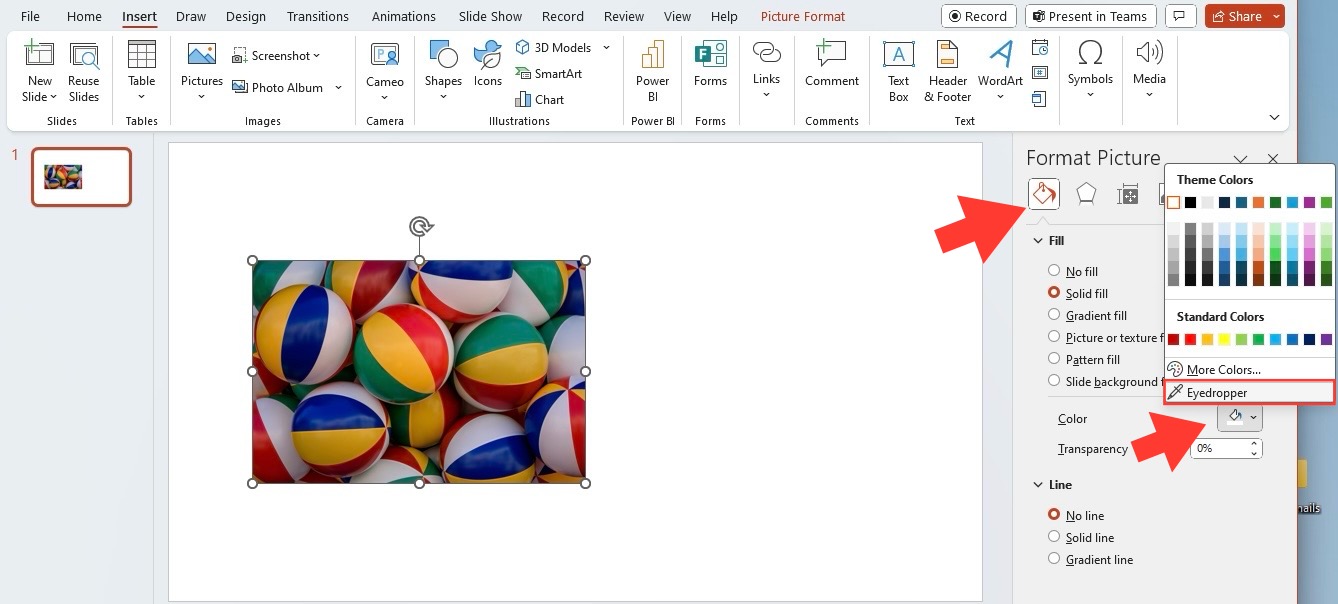
STEP 4: In the dialog box, click on the fill button and select eyedropper.
STEP 5: Click on the color you want to extract.
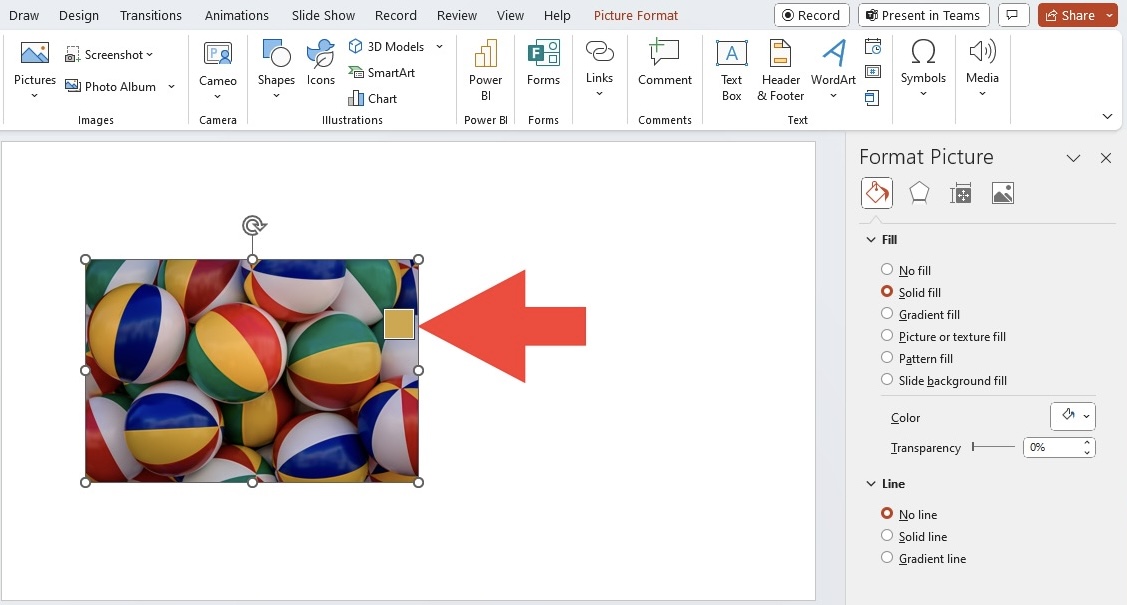
STEP 6: The hex code for the selected color will be displayed. Write down this code in the notepad.
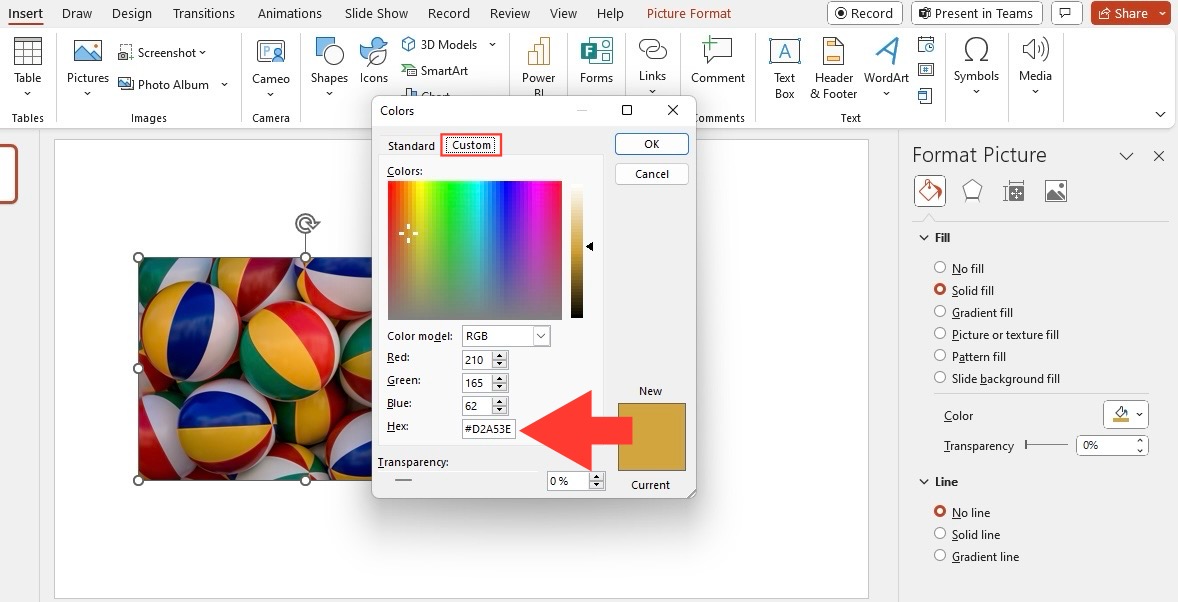
STEP 7: Repeat the process to extract hex codes from other parts of the image.
In this way, you can easily use the eye dropper tool to extract the exact color and apply it to any element in the slide.
Apply Hex Color Codes in PowerPoint
Customize Your Slide Backgrounds
You can use a hex color code to add background color to your slide. It will help you to customize your slide with the same color shade that matches your company’s brand palette. To apply the hex code:
- Go to the Design tab
- Click on Format Background
- Select Solid fill
- Click on Color and enter the hex code.


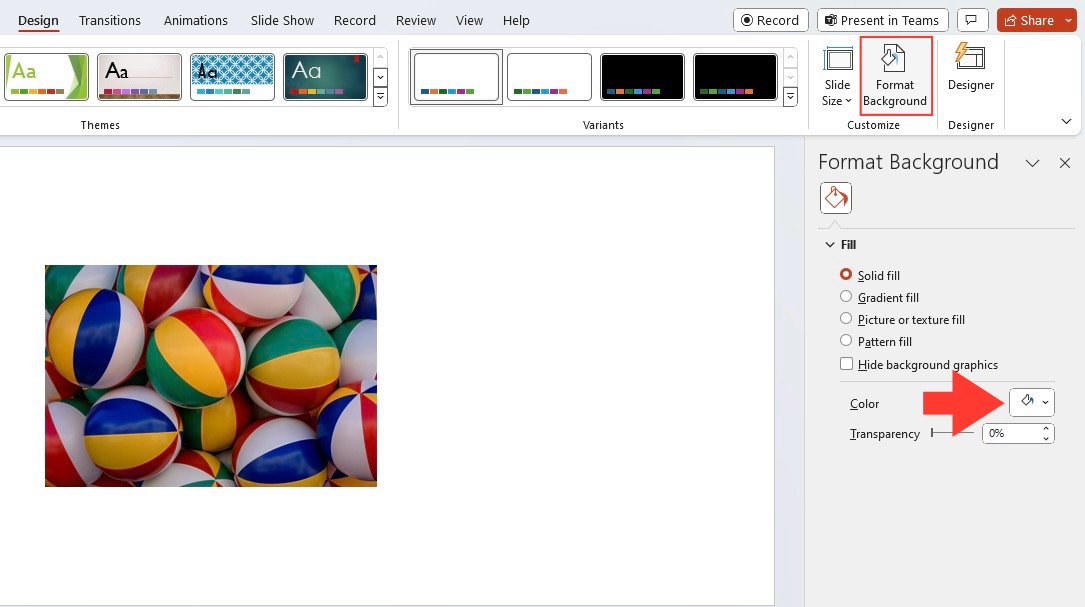
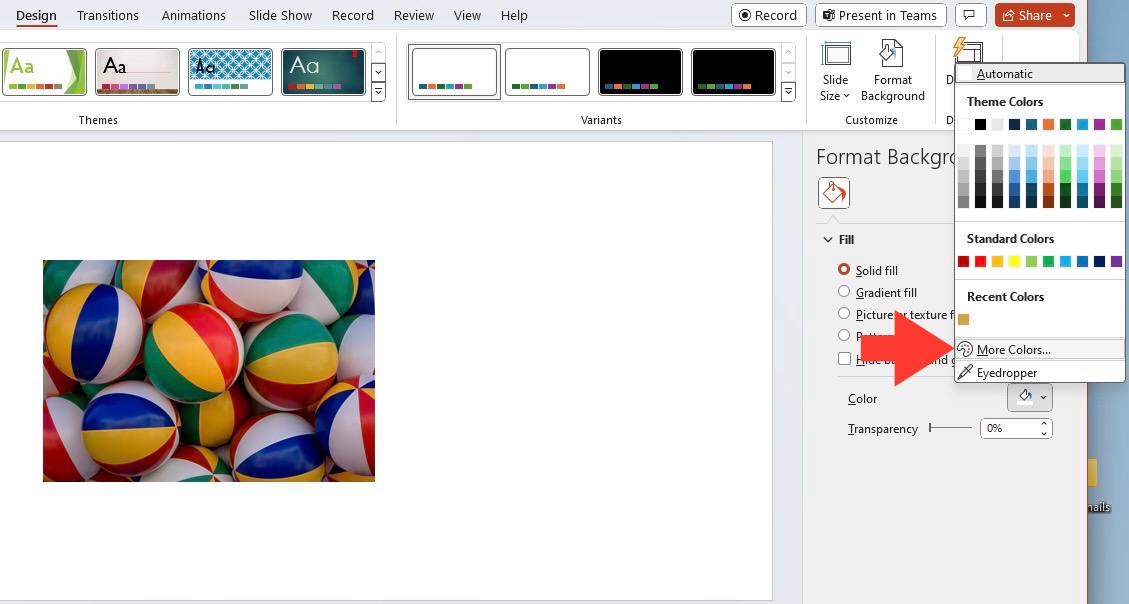
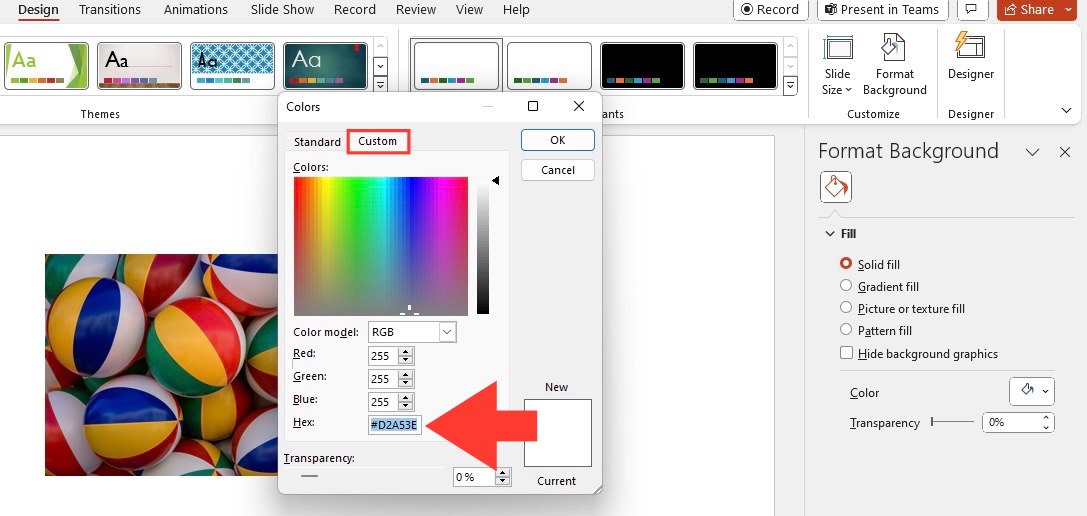
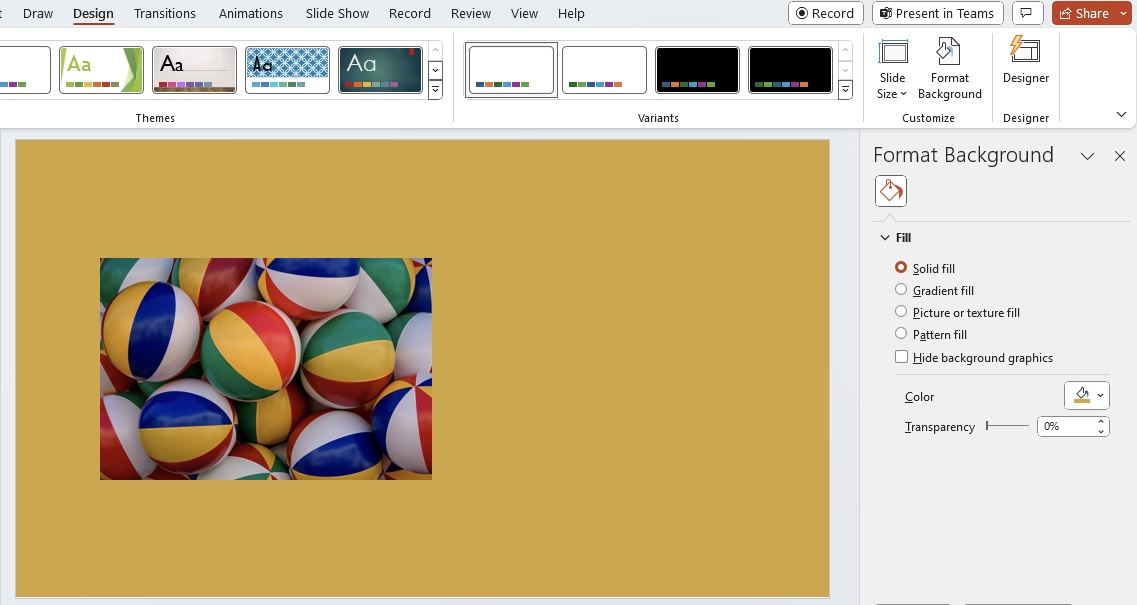
These custom backgrounds provide you with a clean base and give your presentation a professional look. You should use a background style that matches your company’s identity.
Designing Charts using Hex Colors
Using hex color in charts not only looks attractive but also aligns with your chosen color scheme. Whether it is a pie chart or a bar graph, you can match it with the brand logo color.
- Right-click on the chart element you want to edit.
- Select Format Shape from the menu.
- Choose Fill.
- Enter the required hex color code.
Tips & Tricks
Balance Color Scheme
When choosing a color scheme, you need to strike a balance between harmony and contrast. Harmonious colors will create pleasing aesthetics and readability, while contrast will draw the eye to key elements within your PowerPoint slides. Every color in your slide should have a purpose. Background colors should be subtle, while accent colors should stand out.
Brand Consistency
You should maintain brand consistency not only for visual appeal, but also for building trust and recognition.
- Use the brand’s hex code for headings, text, charts, etc.
- Use a standard template with brand colors.
By following this, you can make sure that the brand colors are used irrespective of who is creating the presentation.
Consistency does not mean using a few colors, but using the same color logic. If you are using a specific color to highlight important points, make sure to use the same color to highlight throughout. This uniformity will provide clarity and improve brand recognition.
Adjust Colors for Accessibility
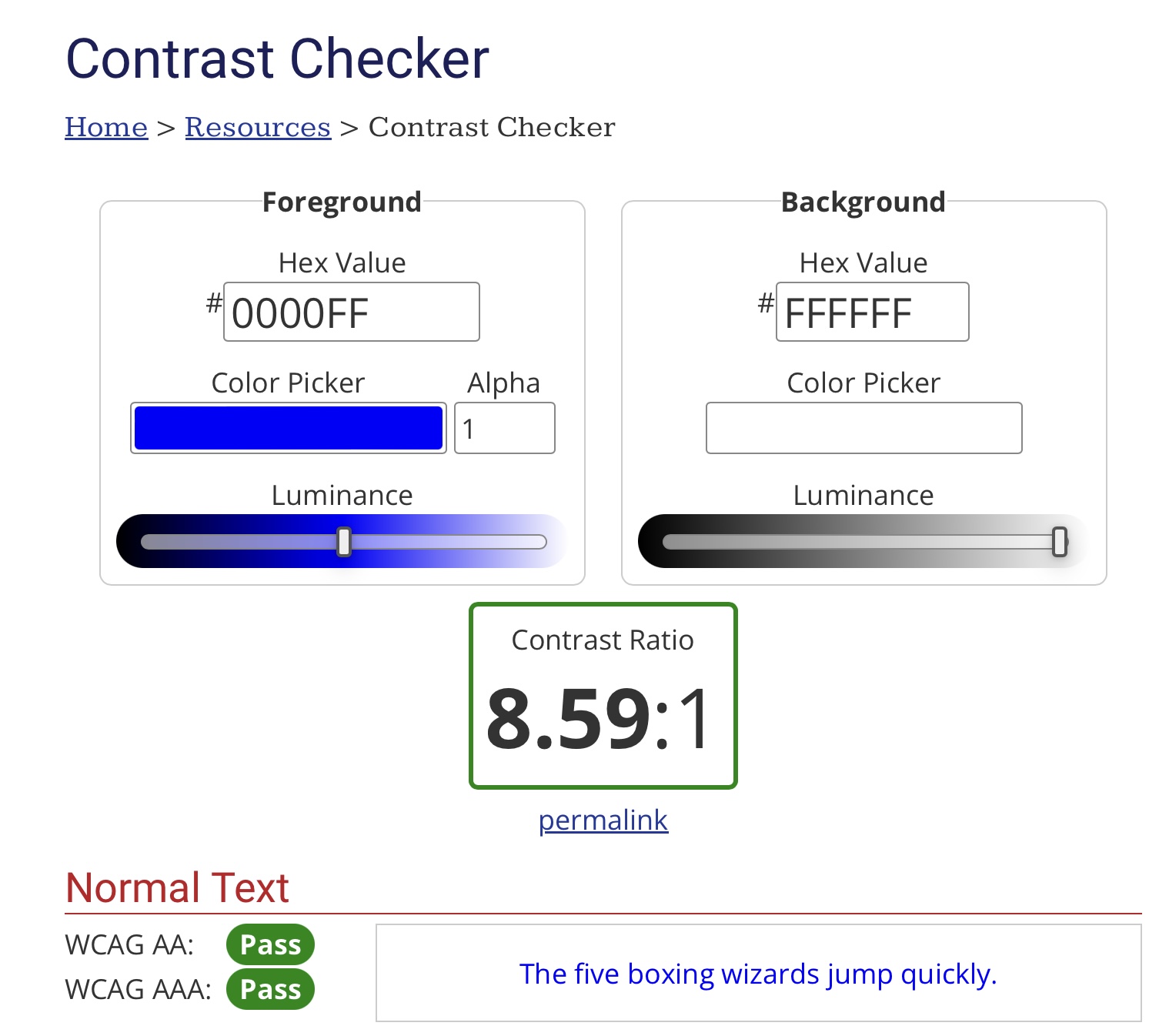
- Select colors that the visually impaired can easily distinguish.
- Use contrasting colors for color blind veiwers so that each color stands out clearly.
- Use bright colors for headings to highlight them.
- Use subtle colors for backgrounds so that the content is visible.
FAQs
How to find the Hex color in PowerPoint?
To find the hex color in PowerPoint, select a shape with the color you want to identify, right-click, choose ‘Fill’ (or ‘Outline’ for border colors), and then ‘More Fill Colors’. In the Colors dialog, at the bottom, you’ll see the hex code for that color. Copy this code for future use.
How to add custom hex codes to PowerPoint templates?
To add custom hex codes to PowerPoint templates, go to the ‘Design’ tab and click on ‘Customize Colors. Click on the paint bucket icon and then ‘More Colors’. Enter your hex code directly into the field labeled as ‘Hex’ or ‘RGB’ and apply it to your template elements.
What is the quickest way to apply a color scheme throughout my presentation?
The quickest way to apply a color scheme throughout your presentation is by using the Slide Master. Go to the ‘View’ tab, select ‘Slide Master’, and apply your chosen colors to the master slides. These changes will reflect across all your slides for a consistent color scheme.

John Michaloudis is a former accountant and finance analyst at General Electric, a Microsoft MVP since 2020, an Amazon #1 bestselling author of 4 Microsoft Excel books and teacher of Microsoft Excel & Office over at his flagship MyExcelOnline Academy Online Course.

 30 Days - Full Access









