Suppose you have written your email, but you don’t want to send it right away. That’s where Outlook’s email scheduling feature comes in. They allow you to write an email whenever you want and have it delivered at a pre-determined time.
Download our 141 Free Excel Templates and Spreadsheets!
Key Takeaways
- Outlook lets you write emails now and send them later.
- Use Schedule Send feature to send emails later.
- Choose a specific delivery time.
- Edit scheduled emails before sending.
- Use extra tools for follow-ups and tracking.
Table of Contents
Why Schedule Email?
Email scheduling is useful when you want your message to arrive at the right time. For example, you may be working late at night but want your email delivered during business hours. This feature helps you maintain a professional communication schedule without having to remember to send the email later.
Step-by-Step Guide to Schedule Emails in Outlook
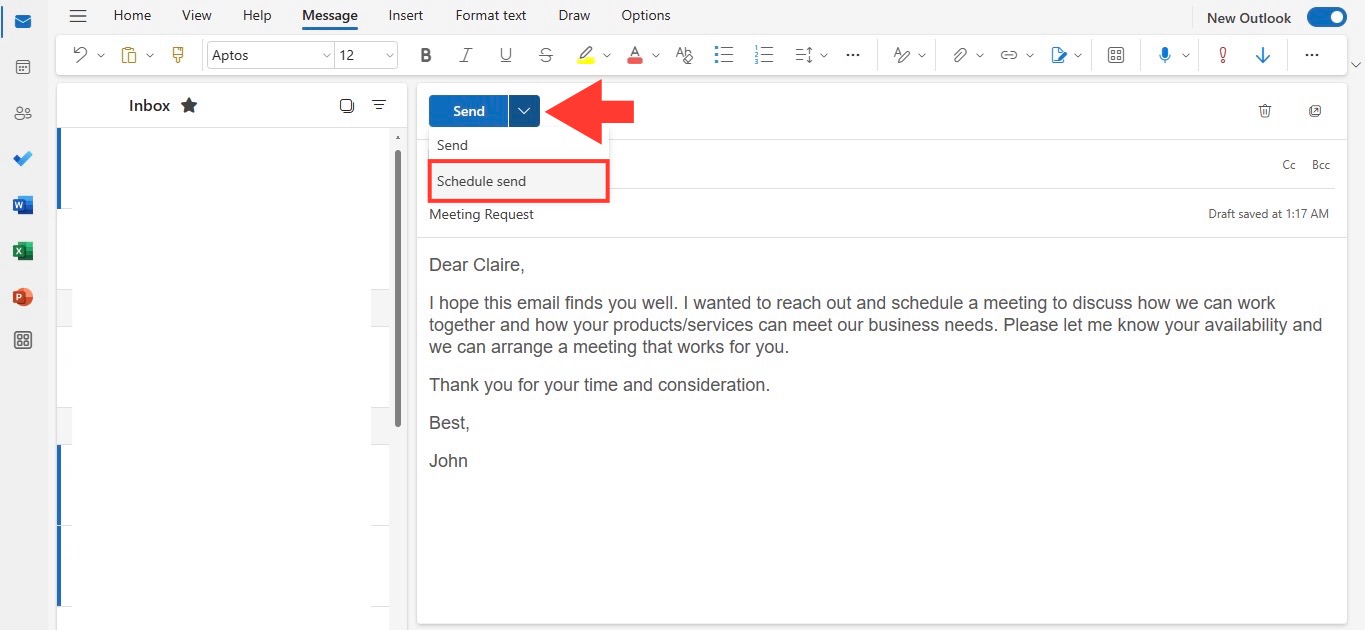
If you’re using Outlook on your desktop, scheduling an email is a swift process.
- Compose your message
- Click on a small arrow next to the Send button
- Select Schedule Send

- Select the date and time
- Press Send
Advanced Methods
Delay Delivery
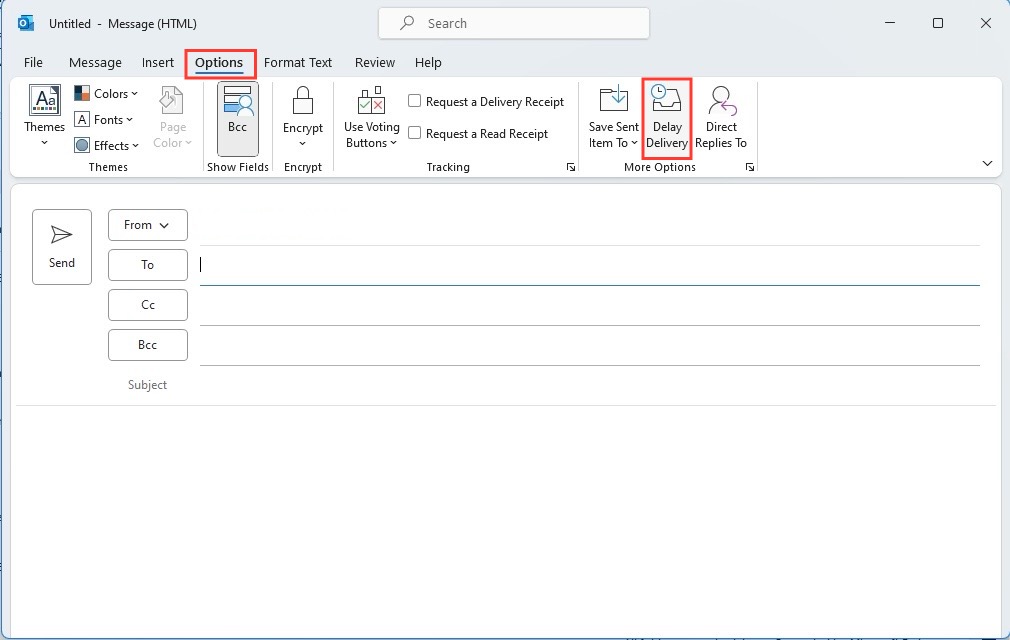
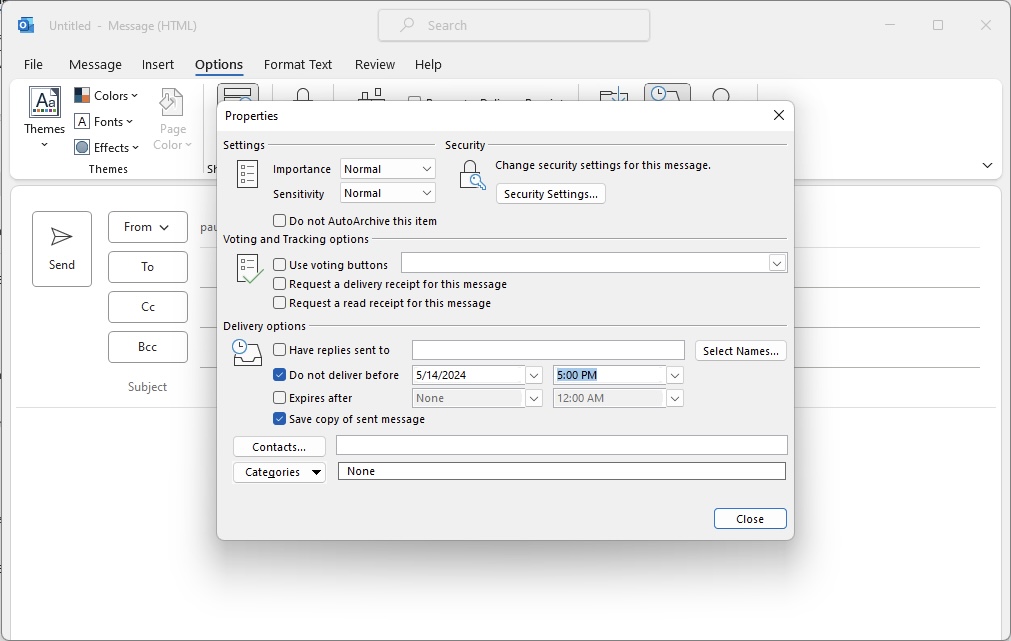
Delay delivery allows you to set delivery restrictions, such as “Do not deliver before” a specific date and time.
- Draft an email
- Open the Options tab.
- Click Delay Delivery.
- Check Do not deliver before.
- Choose the date and time.
- Click Send.
Follow-up Strategies
There are no built-in tools for automatic follow-up emails. You need to use third-party tools for automatic follow-up emails.
- First, schedule the email
- Then, set an automatic follow-up email.
The follow-ups will be activated only when there is no reply.
Avoid Spam Triggers
Avoid sending bulk emails all at once. This can trigger spam filters. To avoid this, it is important to add a time gap between each email.
This helps improve delivery rates and increases the chances of your emails reaching inboxes instead of spam.
Tips and Tricks
- Connect Outlook with Microsoft To Do to stay organized.
- Create tasks directly from emails.
- Save notes without leaving your inbox.
- Keep important information easy to find.
- Turn emails into actionable tasks.
- Use Cortana to manage emails more efficiently.
- Have emails read aloud while multitasking.
- Schedule emails using voice commands.
- Get reminders for important tasks and deadlines.
- Receive helpful suggestions based on email content.
FAQs
How to schedule an email in Outlook?
To schedule an email in Outlook on desktop,
- Compose your email
- Click the little arrow next to Send
- Select ‘Send Later’
- Choose the date and time
- Press Send
Can I schedule emails using the Outlook Mobile app?
Unfortunately, the Outlook mobile apps do not support scheduling. You will need to use Outlook on desktop or the web version to schedule emails. Once scheduled, you can still view the email from your mobile device.
Where are scheduled emails stored?
Scheduled emails are saved in the Drafts or Sent Items folder before delivery.
Can I edit a scheduled email?
You can open and edit a scheduled email before the scheduled time. This allows you to update the message, change the send time, or cancel it completely if needed.
Can Outlook send follow-up emails?
Outlook cannot send follow-up emails on its own. You will have to use third-party tools to send follow-up emails.

John Michaloudis is a former accountant and finance analyst at General Electric, a Microsoft MVP since 2020, an Amazon #1 bestselling author of 4 Microsoft Excel books and teacher of Microsoft Excel & Office over at his flagship MyExcelOnline Academy Online Course.

 30 Days - Full Access









