 Free Practice Workbook
Table of Contents
Getting Started with Excel for Conversion
Understanding Latitude and Longitude Formats
Latitude and longitude are commonly used to identify the exact location on Earth. They are written in the Degrees, Minutes, and Seconds (DMS) format. In this format, the latitude goes from 90 degrees at the poles to 0 degrees at the Equator, and longitude reaches up to 180 degrees from the Prime Meridian. A sample DMS format will be
28°36’50”
where,
- Degrees (°) is the main unit
- Minutes (′) is the subdivisions of a degree
- Seconds (″) is the subdivisions of a minute
To make the calculation easier, you can convert it to decimal degrees (DD) format. This format combines degrees, minutes, and seconds into a single decimal value. A sample DD format will be:
28.61389
By default, Excel does not understand the latitude and longitude format. If you type a coordinate in DMS format like 28°36’50”, Excel will treat it as text. This will make it impossible for you to do any calculations, sorting, filtering, etc. on this data. Converting them to decimal degree format will turn the coordinates into numeric values. This will allow Excel to easily work on the data.
Preparing Your Data
The data should be correctly organized in the workbook, and both latitude and longitude should be in separate columns. You should label each column correctly. This will help you when creating formulas, as you will not have to scroll up to. You should also make sure to back up the original data before starting the conversion process.
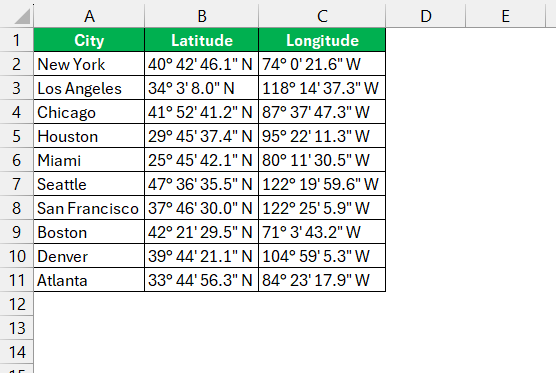
Convert Lat Long to Decimal in Excel
Method 1 – Manual Conversion Technique
Manual conversion of DMS to decimal degrees could be somewhat time-consuming, but it is undoubtedly possible when working with smaller datasets. The basic method is splitting the DMS values and then applying the conversion formula:
Degree Decimal = Degree + (Minutes/60) + (Seconds/3600)
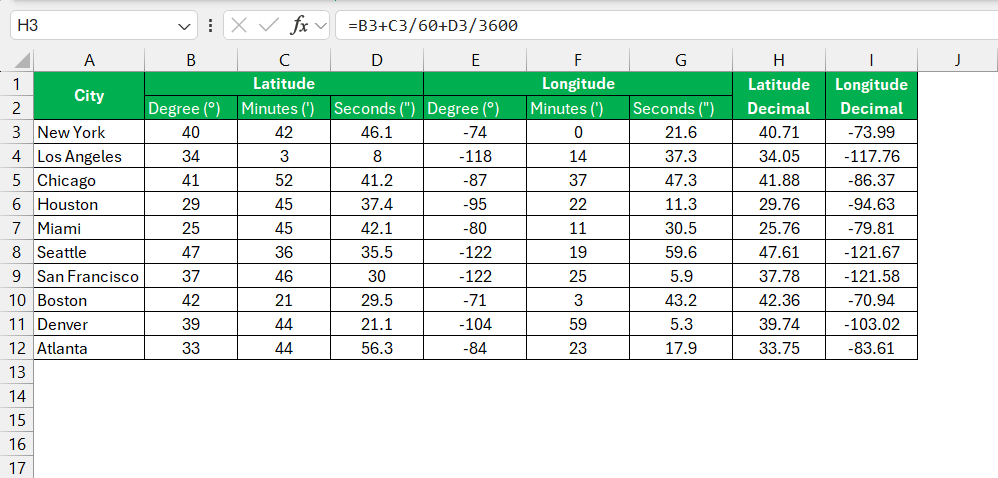
First, input degree, minutes and seconds in three different columns for both latitude and longitude. Then, apply the above formula to each city. This will provide you with the latitude and longitude values with decimals. This process is mostly used when you are working with a large set of data.
Method 2 – Use Functions
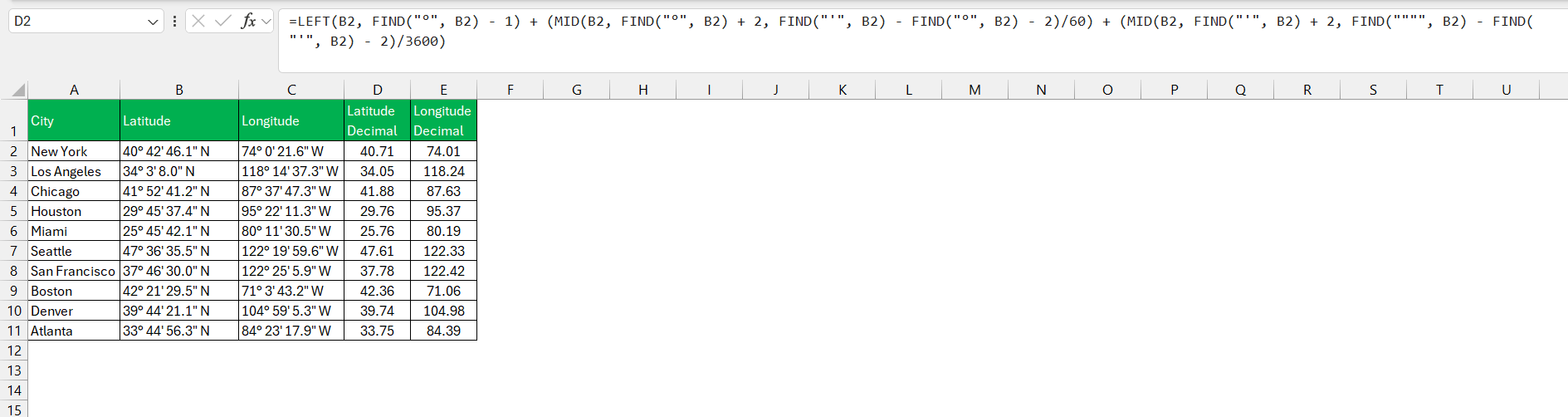
Excel’s built-in function can be used to automate the conversion process from DMS to decimal degrees. Instead of computing each cell manually, functions like LEFT, MID, FIND, and mathematical operations facilitate the conversion seamlessly.
Here’s a simplified step offering an example: Concatenate the DMS into a single cell, and use a formula such as
=LEFT(A1, FIND(“°”, A1) – 1) + (MID(A1, FIND(“°”, A1) + 2, FIND(“‘”, A1) – FIND(“°”, A1) – 2)/60) + (MID(A1, FIND(“‘”, A1) + 2, FIND(“”””, A1) – FIND(“‘”, A1) – 2)/3600)
FAQ – Frequently Asked Questions
What Is the Formula for Converting Latitude and Longitude to Decimal?
The formula for converting coordinates to decimal in Excel is =Degree + (Minute/60) + (Second/3600). Adding all these values will provide you with a single decimal value that will point you to the location.
Can Excel recognize Latitude and Longitude Formats?
Excel does not recognize latitude and longitude formats and treats them as general text. You need to format the data correctly by converting it to decimal degrees.
How to convert from Decimal to Lat Long?
Yes, it’s possible to reverse convert from decimal degrees to traditional latitude and longitude (DMS). The process involves multiplying the decimal by 60 to get the minutes and again by 60 to obtain the seconds. But remember, you’ll need to separate the whole number part (degree) from the fractional part before beginning the conversion to minutes and seconds.

John Michaloudis is a former accountant and finance analyst at General Electric, a Microsoft MVP since 2020, an Amazon #1 bestselling author of 4 Microsoft Excel books and teacher of Microsoft Excel & Office over at his flagship MyExcelOnline Academy Online Course.

 30 Days - Full Access









