 Free Practice Workbook
In this article, I’m going to walk you through several methods to convert negative value to positive value in Excel. Whether you’re working with financial data, calculations, or just cleaning up a dataset, converting negative numbers to positives can save you time and help you in your analysis.
Key Takeaways:
- Multiply by -1 or use the ABS function to convert negative value to positive value.
- Use Paste Special to quickly convert a range of negative numbers.
- The IF function provides more control wherein you convert the negative values only.
- VBA macros automate bulk conversions with a data range.
Table of Contents
How to Convert Negative value to Positive value
Multiply with Minus One
By multiplying any negative value by a negative one (-1), we get the positive value:
STEP 1: Start with this formula: =A2*-1 (assuming A2 is the cell with the negative number).
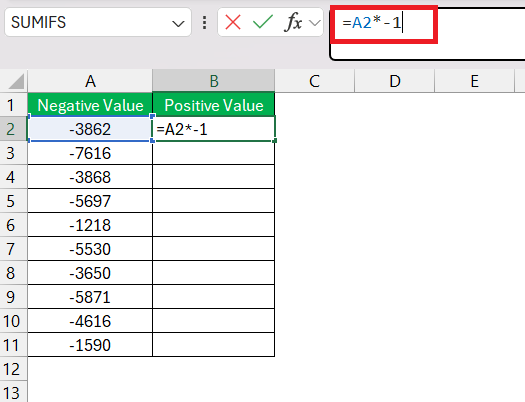
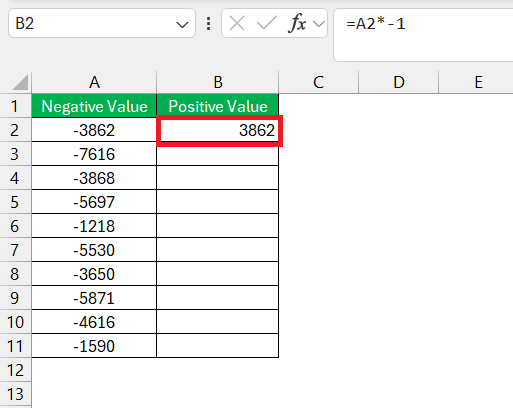
STEP 2: The negative number is multiplied by -1.
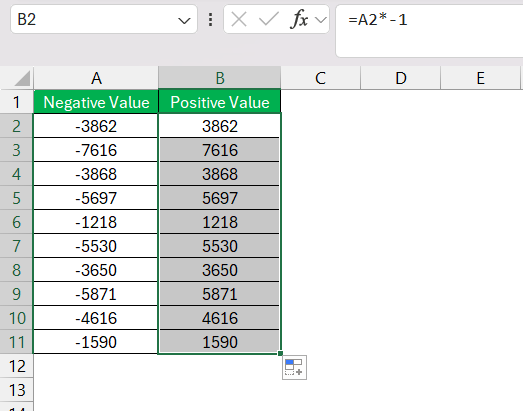
STEP 3: To apply this across a list, we can drag the corner of the cell down to copy the formula.
Use the ABS Function for Quick Conversion
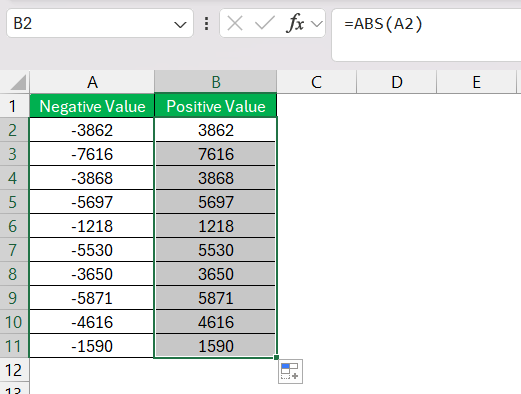
The ABS function strips away the sign, handing us the absolute value of the number:
STEP 1: Begin by entering =ABS(A2) into a cell, where A2 is the cell you’re converting.
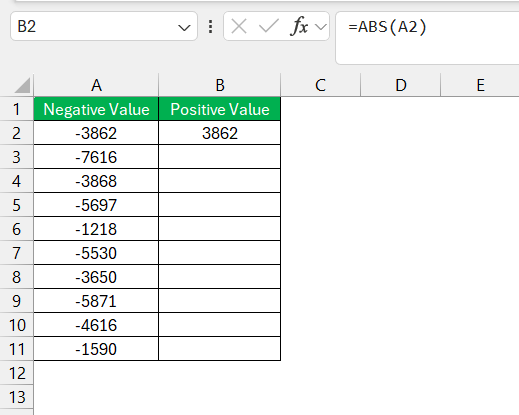
STEP 2: Once entered, simply extend the formula to the entire list by dragging the fill handle.
More Excel Function Examples
How to Use Paste Special
STEP 1: Type -1 in an empty cell.
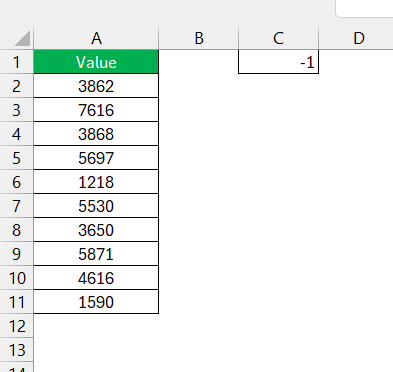
STEP 2: Copy the cell (Ctrl+C), then select the range with the negative numbers.
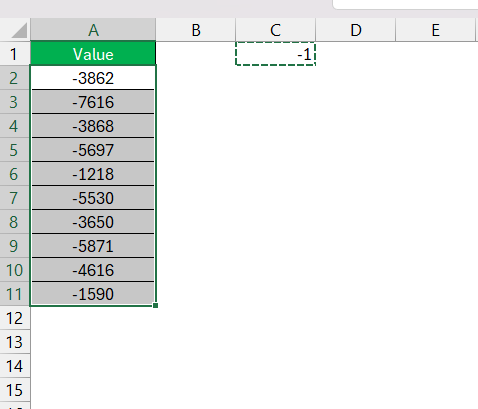
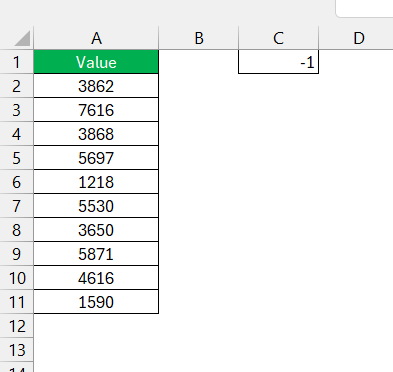
STEP 3: Right-click on a selected cell, choose ‘Paste Special,’ then select ‘All’ and ‘Multiply’ options.

STEP 4: Click ‘OK’ then the negative numbers become positive.
Using IF Function
The IF function allows you to selectively convert negative values while leaving positive numbers unchanged.
In cell B2 (if your data is in A2), type the following formula:
=IF(A2<0, A2*-1, A2)
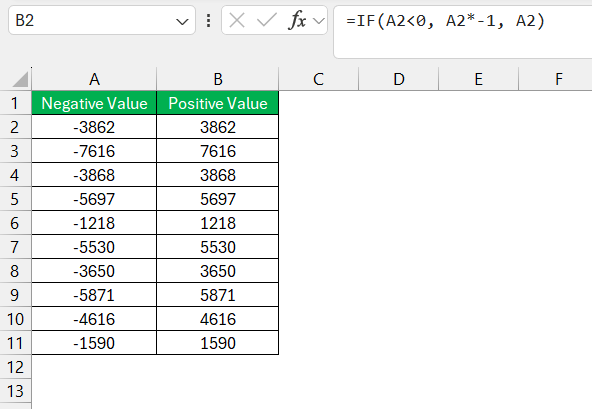
This formula checks if the value in A2 is less than 0 (i.e., a negative number). If it is, the formula multiplies it by -1, converting it to a positive number. If it’s already positive, it leaves the value unchanged.
Using VBA Macros for Bulk Conversions
I have utilized VBA macros to automate the conversion of negative values to positive across extensive datasets, saving an immense amount of time and potential human error. To build a VBA macro for this purpose:
STEP 1: Press Alt + F11 to open the VBA editor.

STEP 2: Choose ‘Insert’ followed by ‘Module’ to create a new module.
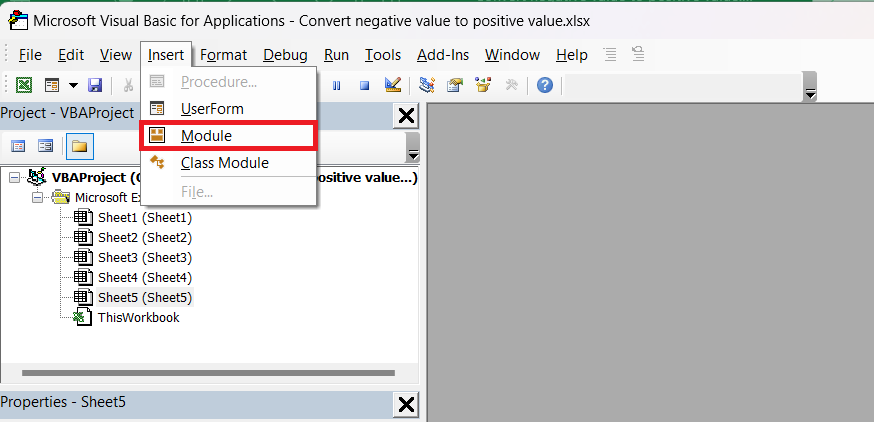
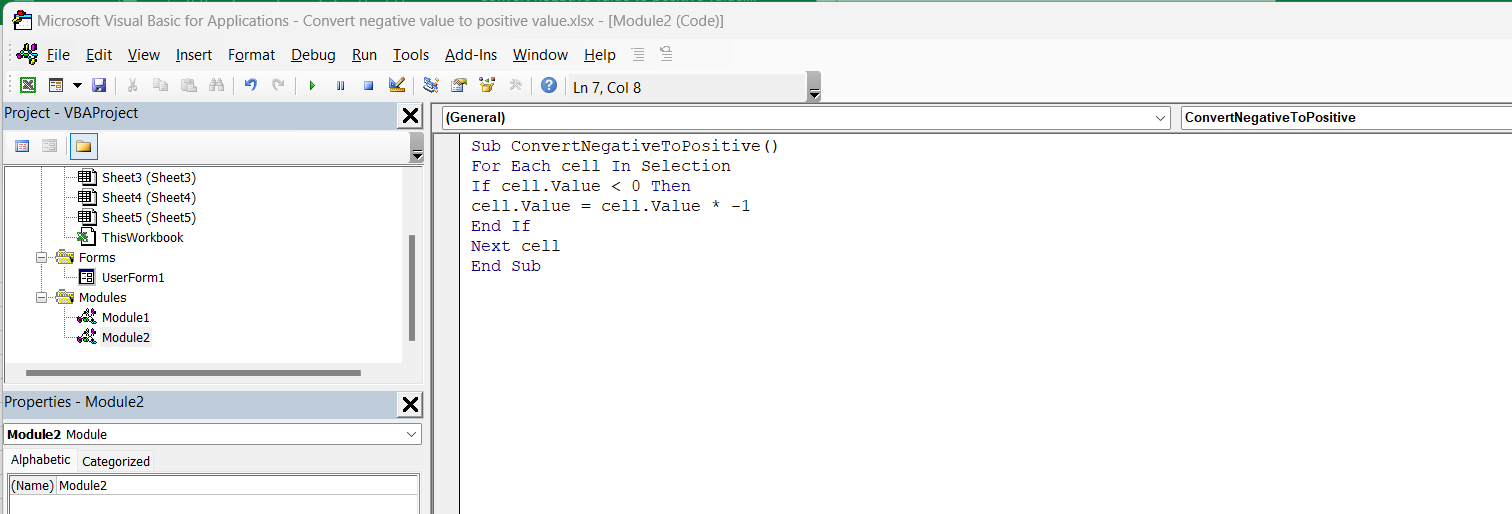
STEP 3: Write the macro code that can iterate over a range and convert negative value to positive value. An example snippet would be:
Sub ConvertNegativeToPositive()
For Each cell In Selection
If cell.Value &lt; 0 Then
cell.Value = cell.Value * -1
End If
Next cell
End Sub
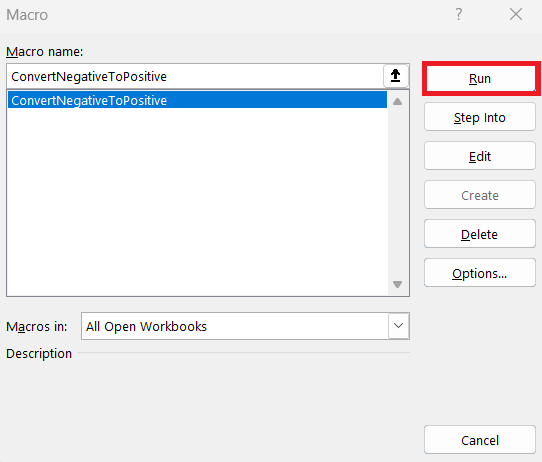
STEP 4: Run the macro.
Using Flash Fill
With one example, Flash Fill grasps the pattern and replicates it across the selected range:
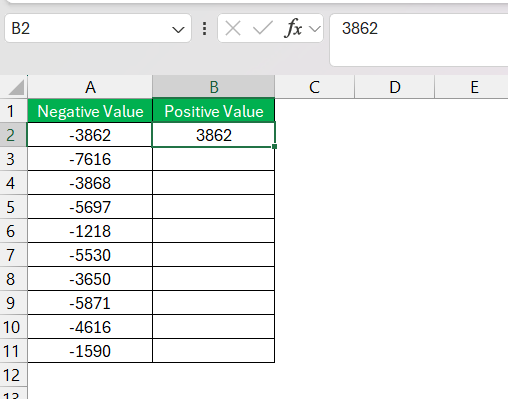
STEP 1: First, I enter the positive number corresponding to the negative one in cell A2 into cell B2 (we’re considering A-column contains the negative values).
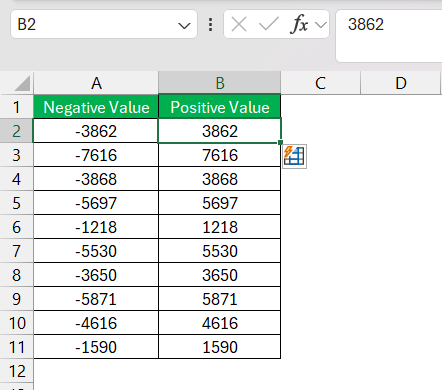
STEP 2: On hitting Ctrl + E, Flash Fill kicks in from cell B3 onward, converting the range of negative numbers to positive in a split second.
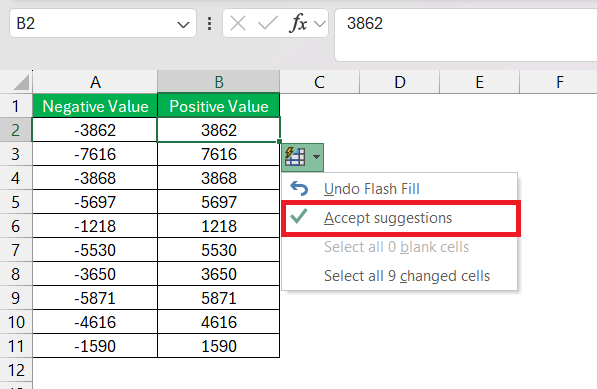
STEP 3: I then click on the small icon on the right side of column B, select “Accept Suggestions,” and it’s done. All negatives are now positives.
Flash Fill eliminates the need for complex formulas.
Power Query
If you’re comfortable using Power Query, you can also convert negative values to positive ones there. Power Query allows for flexible data manipulation, especially useful for large datasets.
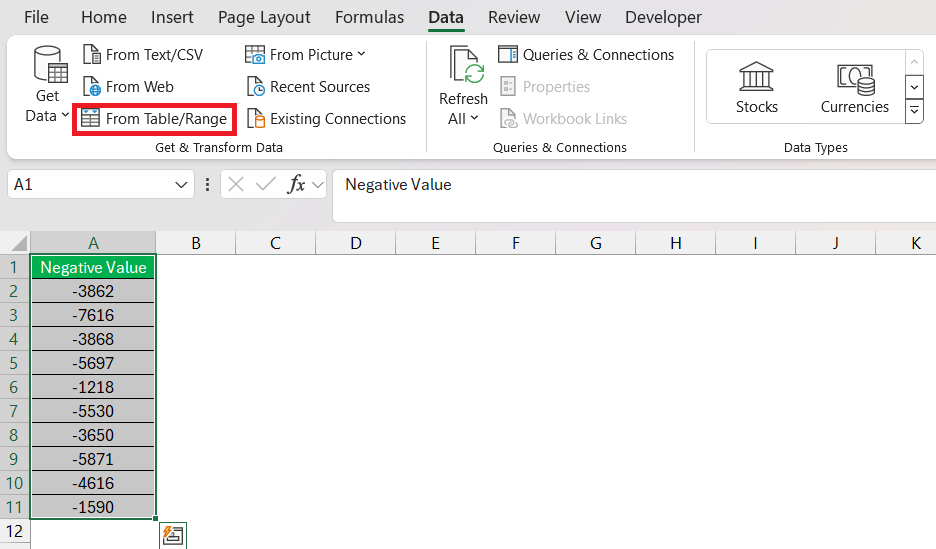
STEP 1: Select your data range and go to Data > From Table/Range.
STEP 2: In Power Query, click on the column with negative numbers. Go to Transform and select Standard > Multiply.
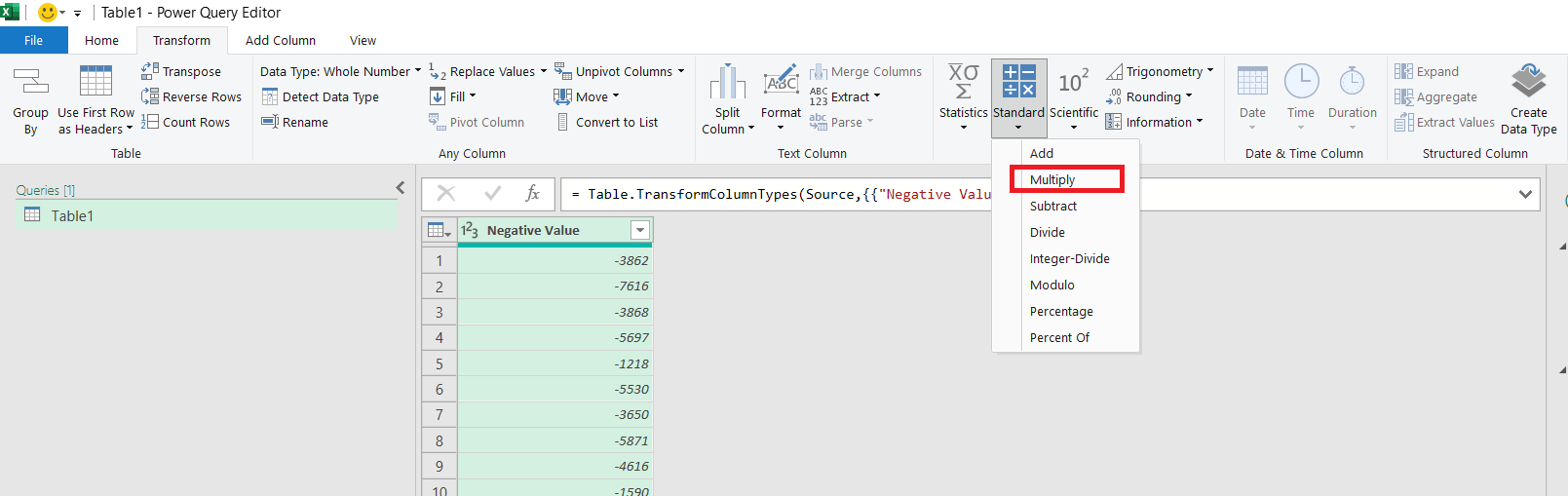
STEP 3: Type -1 and click OK.

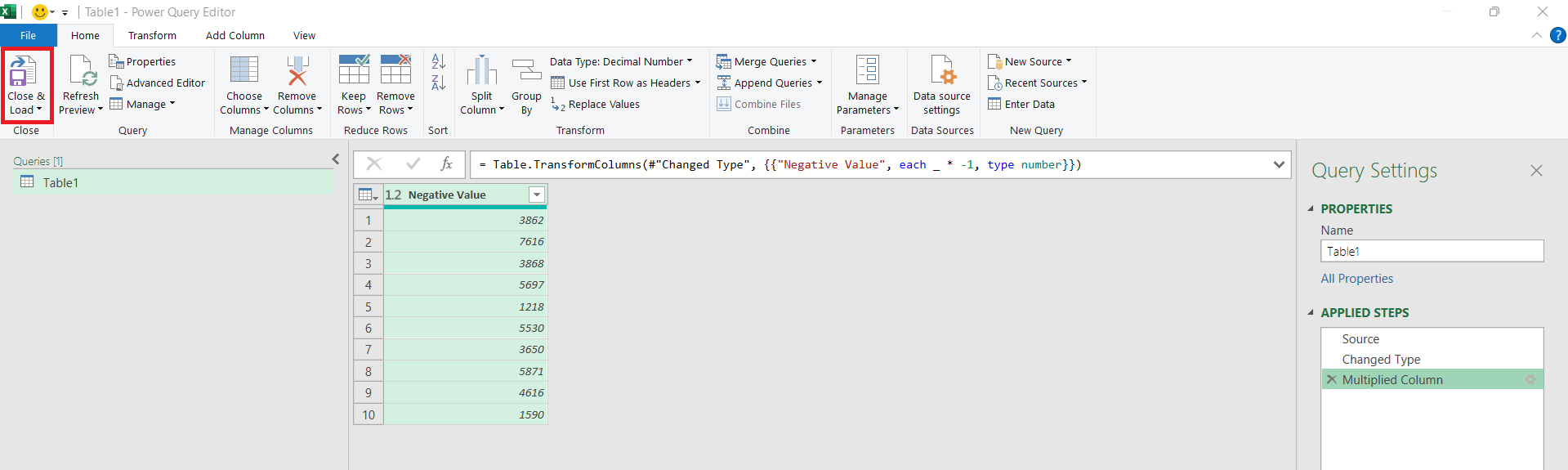
STEP 4: After making the transformation, click Close & Load to load the data back into Excel.
Frequently Asked Questions (FAQ)
How to convert negative to positive in Excel using a formula?
To convert negative numbers to positive in Excel, use the ABS function. Simply type =ABS(A1) in a cell, replacing A1 with the reference to the cell containing the negative number. When you hit Enter, the cell will display the positive value of the number.
Can Excel convert all negative numbers in a column with one formula?
Yes, Excel can convert all negative numbers in a column with one formula. Enter =ABS(A1) next to your first number, and then drag the fill handle down to apply this to the entire column. This will yield positive values for all negative numbers in the column.
What formula can I use to only display negative numbers as positive?
To display negative numbers as positive without changing the actual value, use a custom number format. Select the cells, right-click, choose ‘Format Cells,’ then ‘Custom,’ and enter the format 0;0;0;@. This makes negatives appear positive in the cell.

John Michaloudis is a former accountant and finance analyst at General Electric, a Microsoft MVP since 2020, an Amazon #1 bestselling author of 4 Microsoft Excel books and teacher of Microsoft Excel & Office over at his flagship MyExcelOnline Academy Online Course.

 30 Days - Full Access









