When working with data in Excel, it is important to understand how to convert percentages to decimals. It is useful in financial calculations, data analysis, scientific computations, and more. In this article, you will learn how to convert a percentage to a decimal in Excel.
Key Takeaways:
- Excel Reads Percentages as Fractions.
- Converting percentages allows for exact calculations.
- Multiply by 1 to convert a percentage to a decimal.
- Use the format cell dialog box to convert percent to decimal.
- Create a custom function for conversion.
Table of Contents
Understanding Percentages
A percentage is a fraction expressed as a part of a hundred. Converting percentages is a key task in data analysis so it is important to understand how Excel treats decimals. When you type a number followed by a percentage sign, Excel reads it as a hundredth of its value.
50% will be stored as 0.5
How to Convert Percent to Decimal
Method 1 – Multiplication
If you want to keep the original data but see the decimals in a different column, follow the steps below –
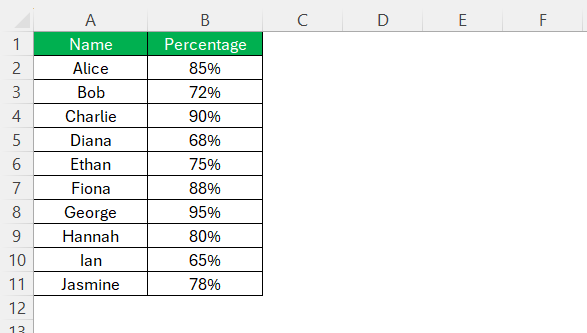
STEP 1: Start by ensuring that your percentages are entered into a column. For example, place your percentages in column B.
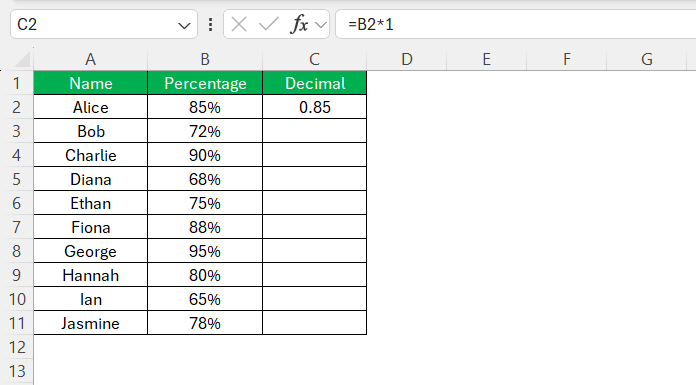
STEP 2: In a blank column (e.g., column C), type the formula –
STEP 3: Use the fill handle to drag the formula down.
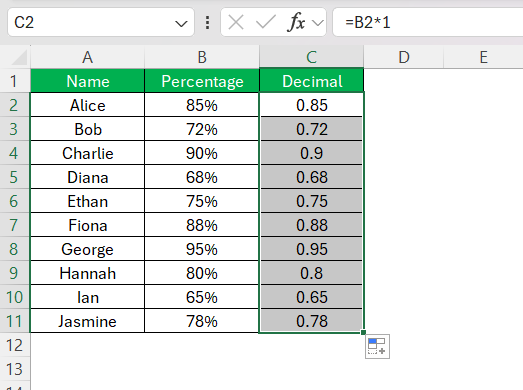
If you multiply a percentage by 1, it will be converted to a decimal, but the original data will remain the same.
Method 2 – Number Format
Excel’s built-in Number Format feature is a great tool to convert percentages to decimals. There are several ways in which you can use number format:
- Go to the Home tab and select percentage style.
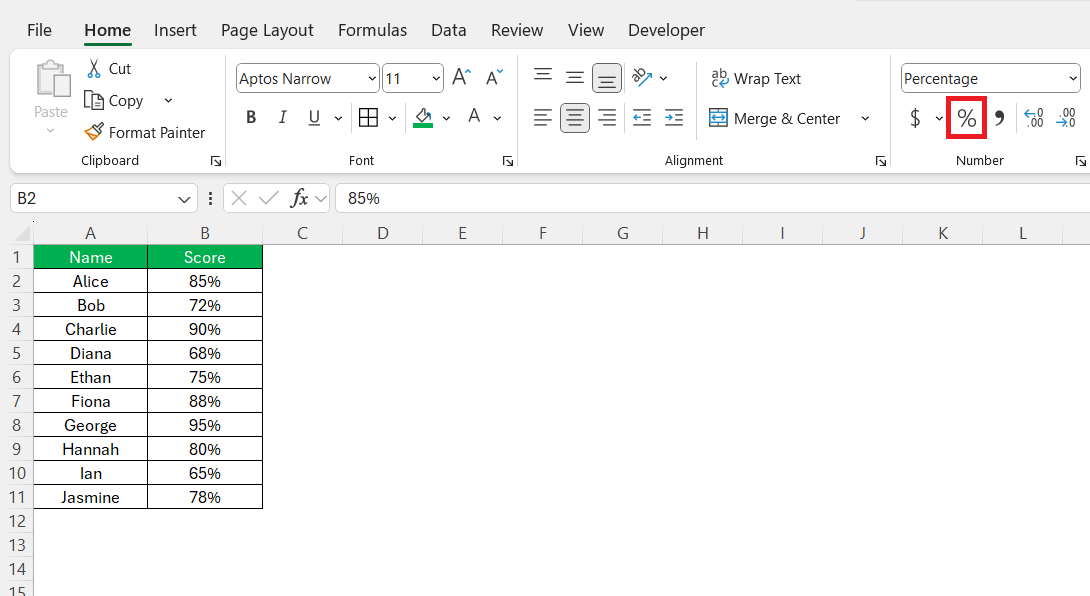
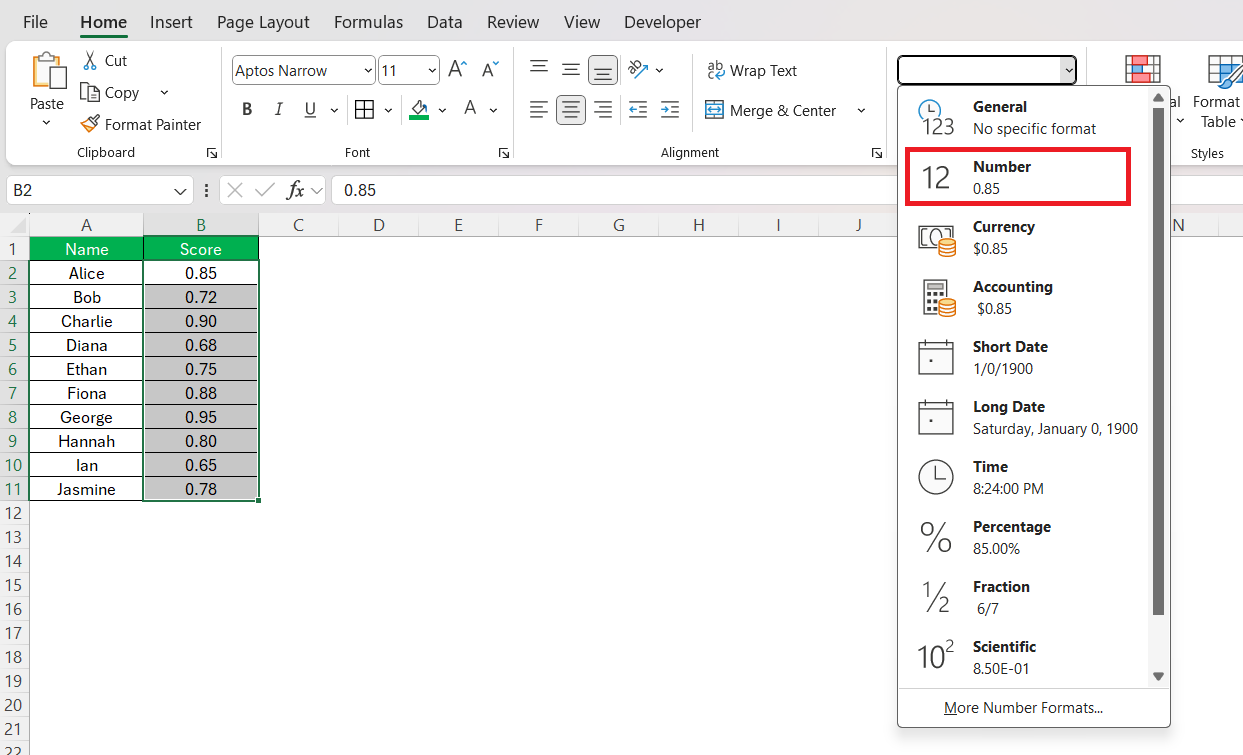
- Go to the Home tab and select Number from the dropdown.
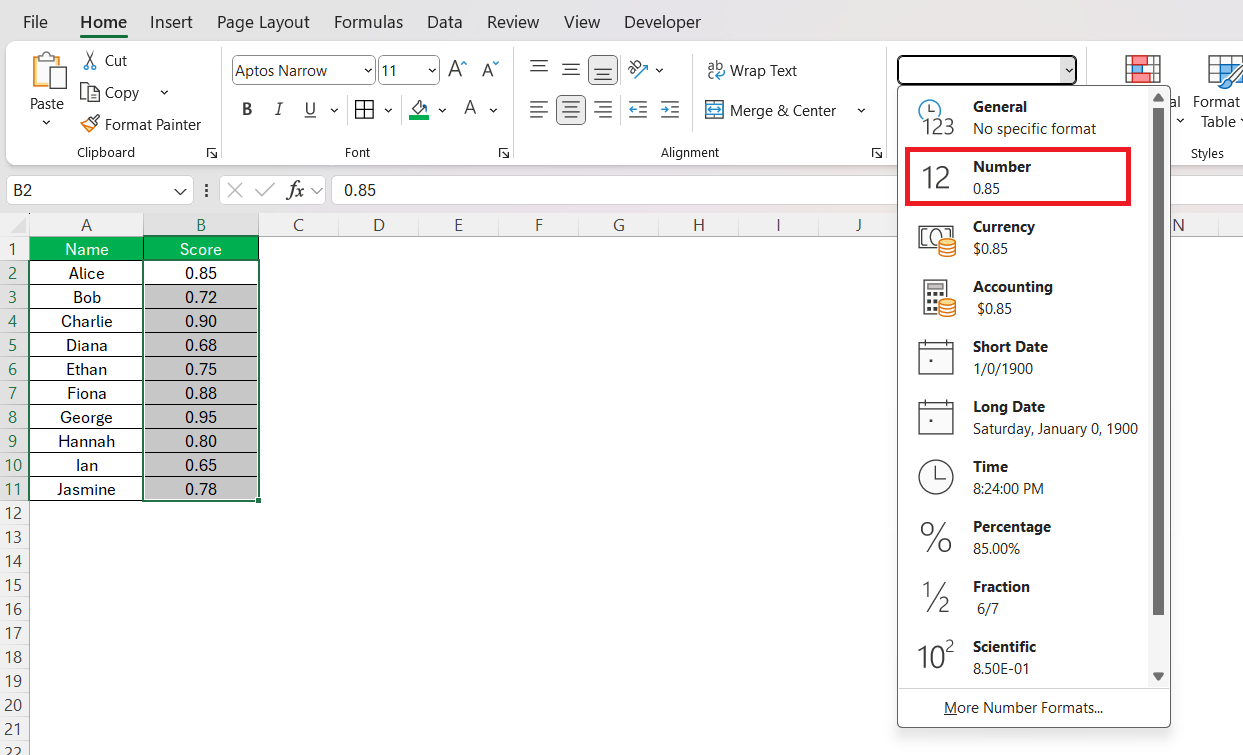
- Use shortcut Ctrl+Shift+% to apply percentage formatting.
This method will keep the data intact but change how it is displayed.
Method 3 – Custom Functions
You can create a custom function to convert a percentage to a decimal.
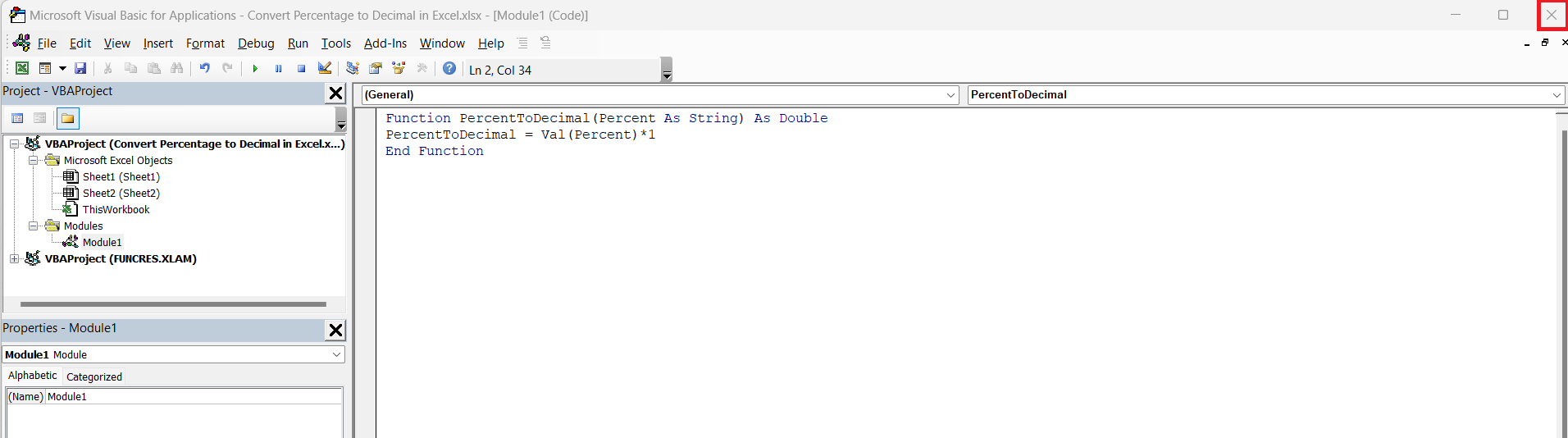
STEP 1: Press Alt + F11 to open VBA editor.
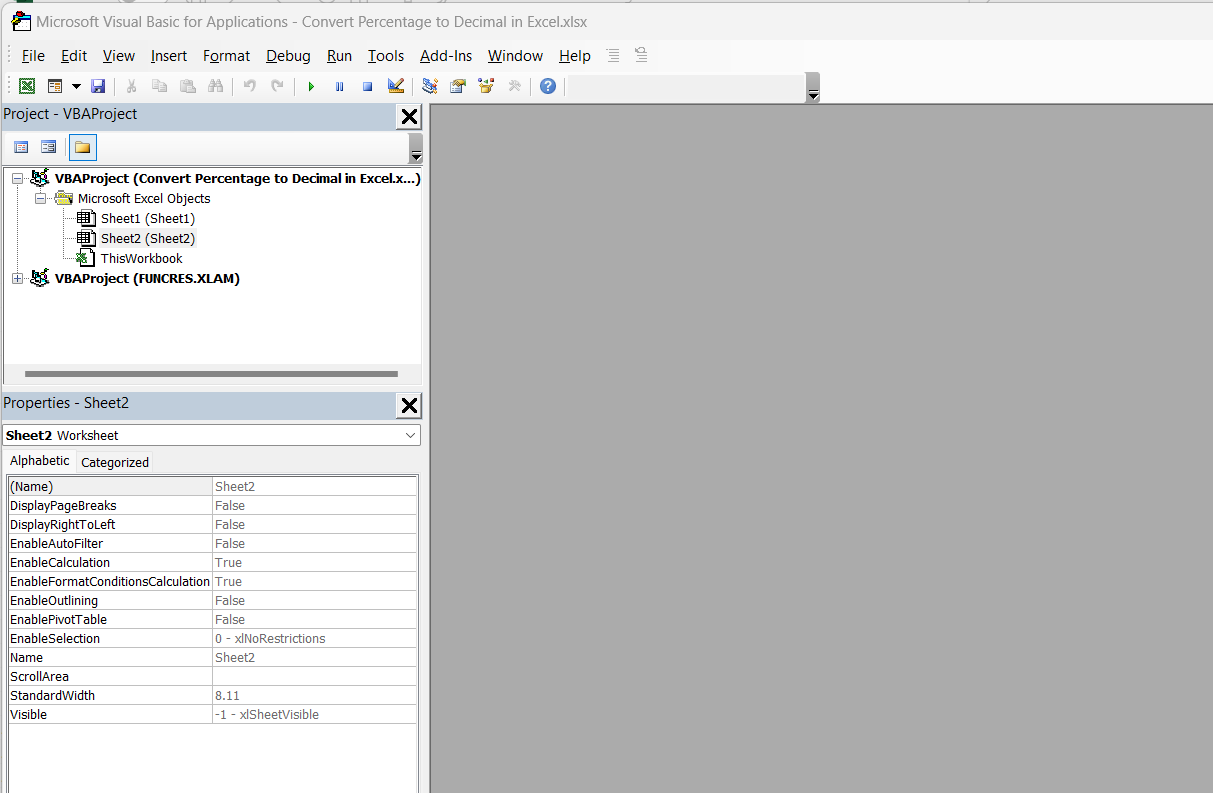
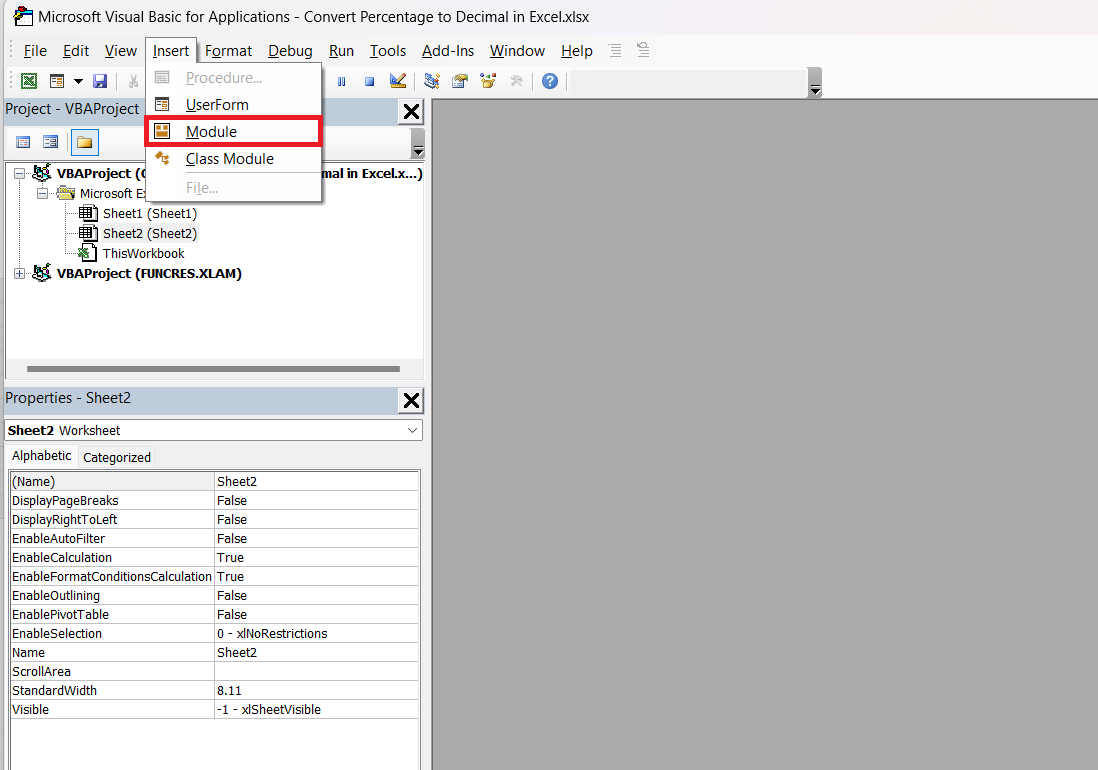
STEP 2: Click Insert > Module.
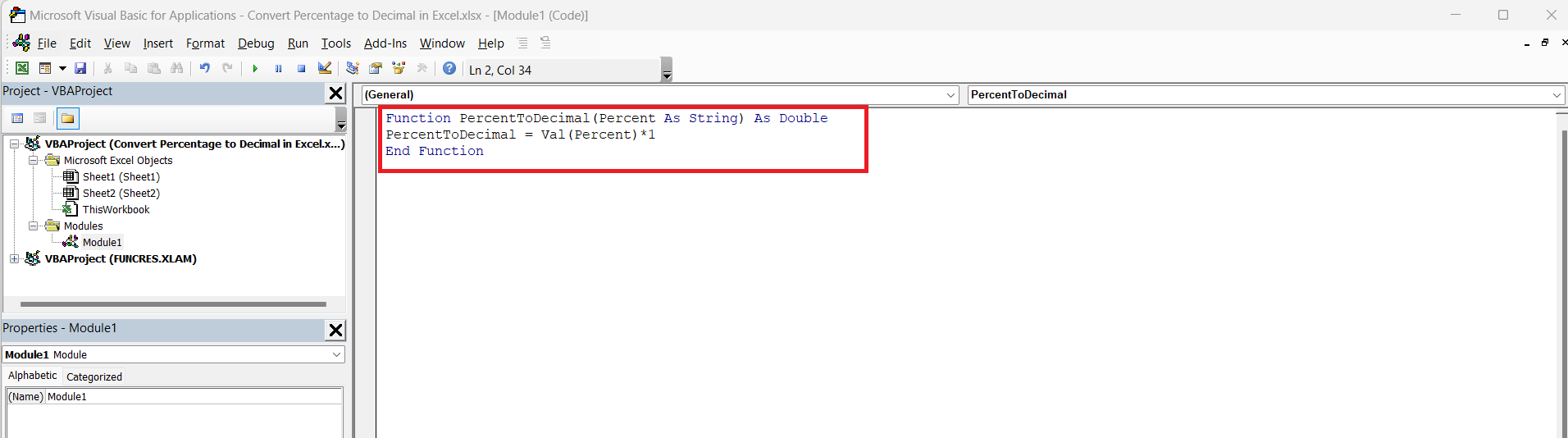
STEP 3: Enter the code.
STEP 4: Close the VBA editor.
STEP 5: Use the new function.
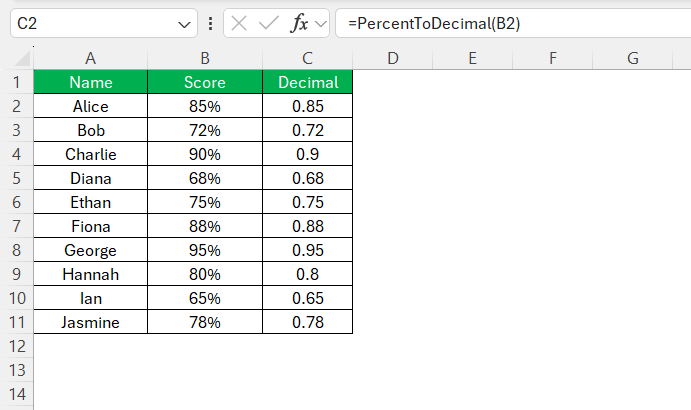
This function will convert a percentage to a decimal.
Tips and Tricks
- Double-check the cell format after conversion to check if the value has not been rounded off.
- Use the Format Cells option to specify the exact number of decimal places.
- Make sure they reference the correct cells and that the cell references are consistent.
- Always verify that the cells you’re working with are formatted correctly.
- Check that there are no extra characters present in the cells.
- It is time-consuming to use manual calculations for large amounts of data.
FAQs
How to convert a percent into a decimal?
To convert a percentage into a decimal in Excel, simply select the cell with the percentage, type =A1/100 (assuming A1 is the cell with the percentage), and press ‘Enter’. Excel will display the decimal value in the selected cell. If you have a column of percentages, copy the formula down to convert them all at once.
How to Convert a Column of Percentages to Decimals in One Go?
To convert a column of percentages to decimals in one go, use the Paste Special feature. Here’s a quick way:
- Type ‘100’ in an empty cell and copy it.
- Select the column with percentages.
- Right-click and choose ‘Paste Special’.
- Select Divide.
- Click OK.
The percentages will be converted to decimals.
How to remove the percentage symbol from the cell’s content?
If the percentage symbol is part of the cell’s content, you can use this formula to remove the symbol.
=LEFT(A1, LEN(A1)-1)/100
How does Excel store percentages?
Excel stores percentages as decimals. If you 50% in a cell, it will be stored as 0.5.
Why is the percentage not converting correctly in Excel?
If the percentage is not converting correctly, it may be because the value is stored as text.
- Go to the cell.
- Click on the small green triangle.
- Click Convert to Number.
After following these steps, the conversion should work correctly.

John Michaloudis is a former accountant and finance analyst at General Electric, a Microsoft MVP since 2020, an Amazon #1 bestselling author of 4 Microsoft Excel books and teacher of Microsoft Excel & Office over at his flagship MyExcelOnline Academy Online Course.

 30 Days - Full Access









