 Free Practice Workbook
Converting measurements from meters to feet is a common task when working with height, distance, or engineering data. Excel has a simple formula to convert meters to feet. In this article, we will guide you on how to convert 1.75m to feet in Excel.
Key Takeaways:
- You can convert 1.75m to feet using simple Excel formulas.
- Multiply the value in meters by 3.28084 to get the result in feet.
- CONVERT function offers a built-in method for unit conversion.
- There may be a rounding error if you ignore decimal places.
- Always double-check that all data uses the same base unit before converting.
Table of Contents
How to Convert 1.75m to Feet
Use Conversion Factor
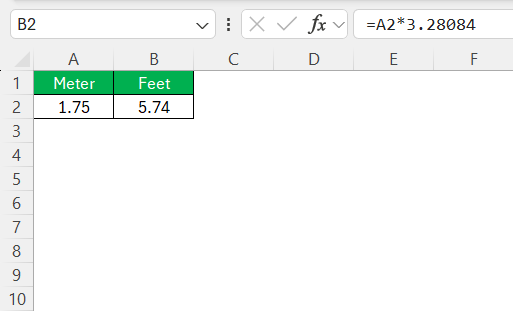
You can multiply the value in meters with the conversion factor to get the result in feet.
=A2*3.28084
A2: This is the initial cell where you’ve input your value.*: This operator multiplies your cell reference value by the conversion factor.3.28084: Since 1 meter equals approximately 3.28084 feet.
CONVERT Function
The CONVERT function in Excel is used to convert one measurement unit into another. It helps save time and reduces manual calculation errors. the syntax of CONVERT function is:
=CONVERT(number, “from_unit”, “to_unit”)
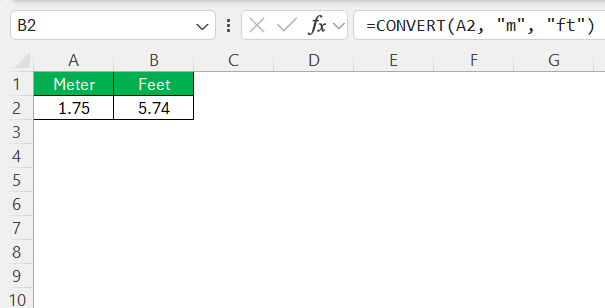
To convert 1.75 meters to feet, you can use this formula:
=CONVERT(A2,”m”,”ft”)
- A2 contains the value 1.75.
- “m” stands for meters.
- “ft” stands for feet.
Tips & Tricks
- Always input your meter values into cells and reference them in your formulas.
- Create a template that includes the conversion formula.
- Verify the conversion factor (3.28084) to prevent discrepancies.
- Assign a name to cells containing frequently used values by using the name manager.

Common Mistakes and How to Avoid Them
Misunderstand Decimal Conversions
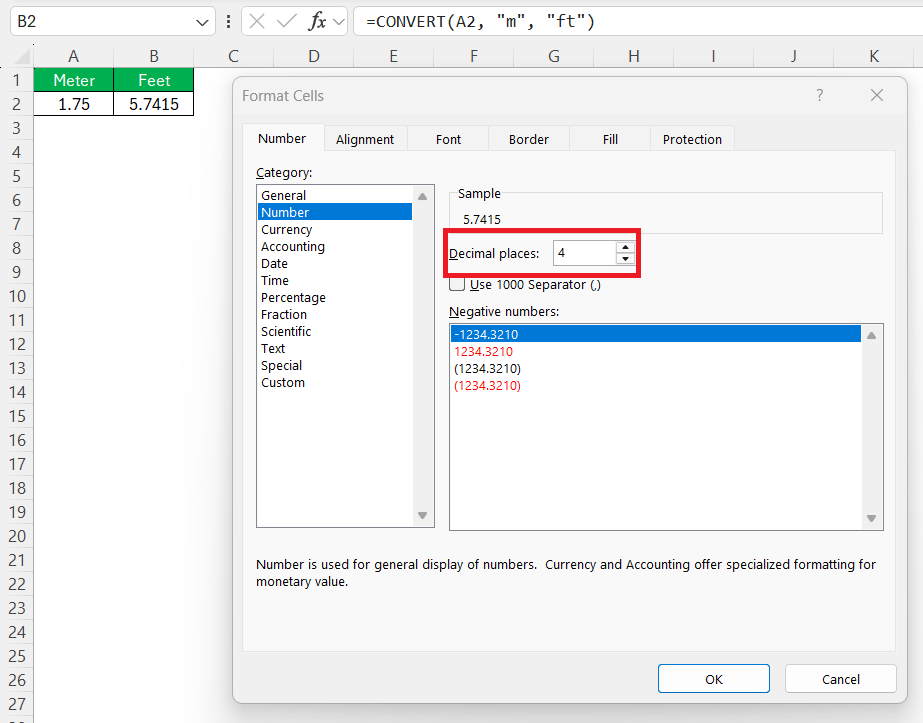
Decimal conversion mistakes are common in Excel. Many users ignore decimal values during conversions. This can lead to inaccurate results. For example, 1.75 meters equals about 5.74147 feet. Rounding too early may cause errors.
To avoid this, display enough decimal places in Excel. You can adjust the cell formatting to show the full value.
Omit Unit Consistency Checks
Make sure that all measurements are properly converted to the desired unit. If you are working with meters, all input data should match this unit before conversion. Incorrect input can result in significant errors.
To prevent this, you can use data validation tools to restrict entry to specific units only.

FAQs
What is the formula to convert meters to feet in Excel?
To convert meters to feet in Excel, use the formula
=A1*3.28084
How to convert 1.75m directly to inches using Excel?
You can convert 1.75 meters directly to inches in Excel using the CONVERT function.
= CONVERT(A1, "m", "in")
What is 1.75 meters in feet?
1.75 meters is approximately 5.74 feet.
Can I use the CONVERT function in Excel?
Yes, you can use the CONVERT function to convert meters to feet.
=CONVERT(A1,”m”,”ft”).

John Michaloudis is a former accountant and finance analyst at General Electric, a Microsoft MVP since 2020, an Amazon #1 bestselling author of 4 Microsoft Excel books and teacher of Microsoft Excel & Office over at his flagship MyExcelOnline Academy Online Course.

 30 Days - Full Access









