 Free Practice Workbook
Suppose you want a list of employees and you want to add values for only those cells where employee names have been entered. Excel does not have a built-in SUMIF not blank function to calculate this. But you can use either SUMIF, SUMPRODUCT, or FILTER function to sum values if a cell is not blank. In this article, you will learn how to calculate SUM if not blank in Excel.
Key Takeaways:
- Use SUMIF with “<>” to sum values when the corresponding cell is not blank.
- Use SUMPRODUCT to check non-blank cells and calculate the matching values.
- Use FILTER with SUM to return and add only the values where cells are not blank.
- Use SUMIFS when you need to combine the not-blank condition with other criteria.
- Check for formulas returning “” because cells that look blank may contain a formula.
Table of Contents
Introduction to Sum If Not Blank
What does “sum if not blank” mean?
“Sum if not blank” means adding up numbers in one range only where a matching cell in another range has content. If the matching cell is empty, that row is skipped.
Say column A holds customer names and column B holds order values. A sum-if-not-blank formula adds only the order values where a name is present. Rows with no name are left out.
SUMIF Function
You can use the SUMIF function to check the content of a cell and add values of another cell. The syntax for the SUMIF function is:
=SUMIF(criteria_range, “<>”, sum_range)
- criteria_range – the cells you want to check for blanks.
- “<>” – the criteria. It means “not equal to nothing”, which is the same as “not blank”.
- sum_range – the cells with the numbers to add.
SUMPRODUCT Function
The SUMPRODUCT function multiplies corresponding values in two or more arrays and then returns their total. You can also use it to test conditions and sum values based on those conditions.
The basic syntax is:
=SUMPRODUCT(array1, [array2], …)
For a sum-if-not-blank calculation, you can use:
=SUMPRODUCT((array1<>””)*array2)
FILTER Function
The FILTER function extracts data that meets a specified condition. Unlike SUMIF, which directly calculates a total, FILTER can return the actual values or rows that meet the condition.
The syntax is:
=FILTER(array,include,[if_empty])
- array – the range you want to filter.
- include – the condition used to decide which values to return.
- if_empty – an optional value to return if no records meet the condition.
You can use FILTER with SUM to calculate the sum of non-blank values.
For example:
=SUM(FILTER(array1,array2<>””))
How to Calculate SUM If Not Blank in Excel
Method 1: Use SUMIF
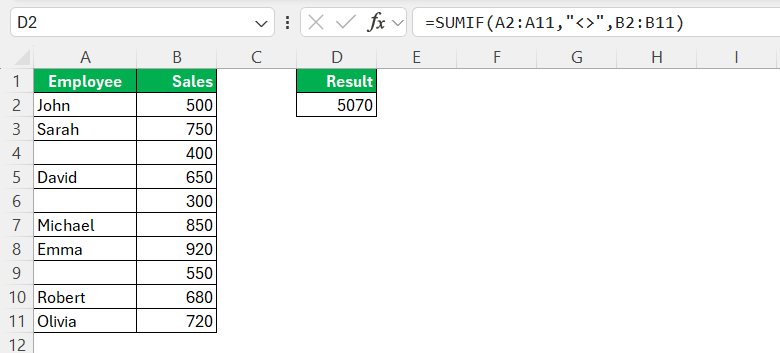
You can use the SUMIF function to check if the employee name is present in column A and add the corresponding sales amount in column B. The formula to be used is:
=SUMIF(A2:A11,”<>”,B2:B11)
Method 2: Use SUMPRODUCT
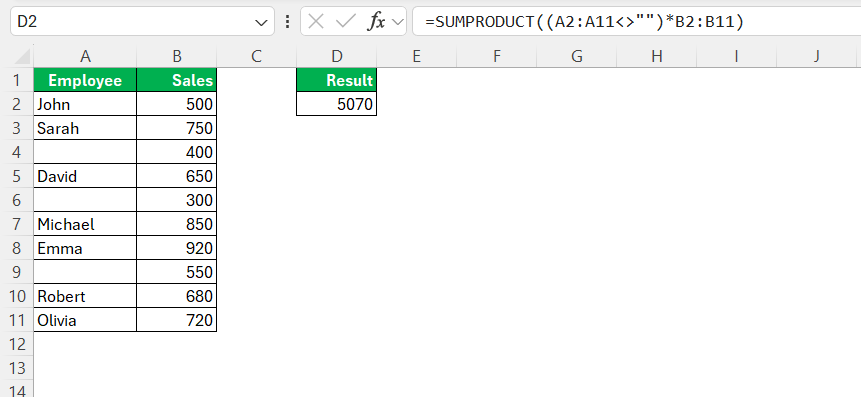
The SUMPRODUCT checks for non-blank employee names and multiplies the result by the corresponding sales amount.
=SUMPRODUCT((A2:A11<>””)*B2:B11)
Method 3: Use FILTER
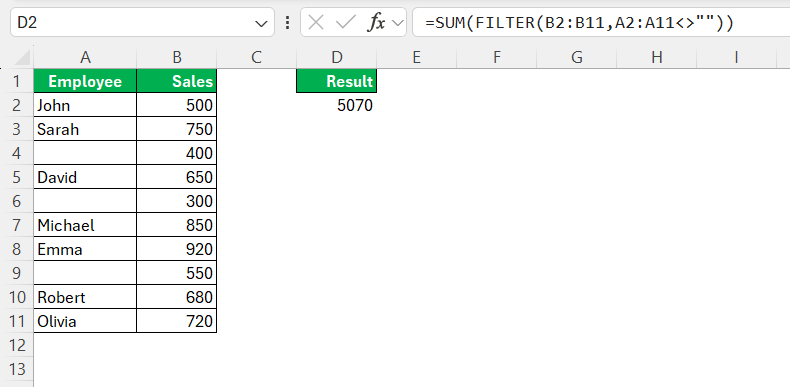
FILTER returns the sales values where the Employee cell is not blank, and SUM adds them.
=SUM(FILTER(B2:B11,A2:A11<>””))
Tips & Tricks
- Use
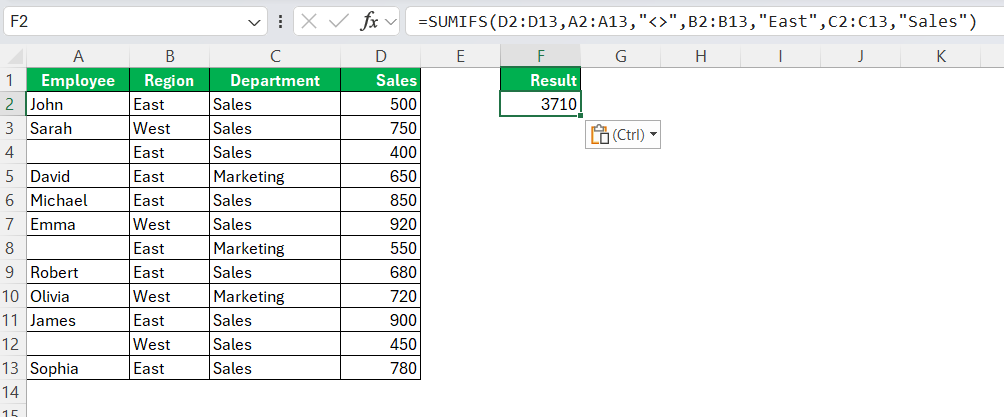
SUMIFwhen you only need one not-blank condition. - Use
SUMIFSwhen you need to apply multiple conditions to your data.
- Use
SUMPRODUCTwhen you need to combine several logical conditions in one formula. - Use
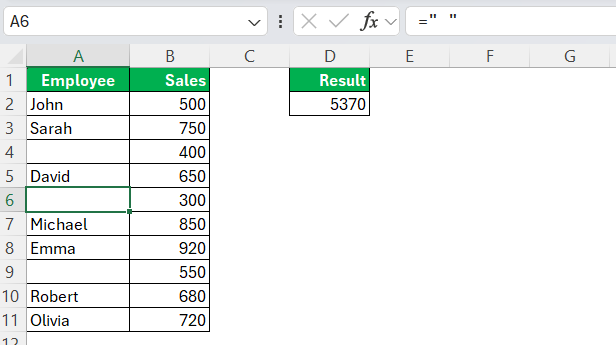
FILTERwhen you want to return the matching values as well as calculate their total. - Check cells that contain formulas returning
""because they may look blank but are not truly empty.
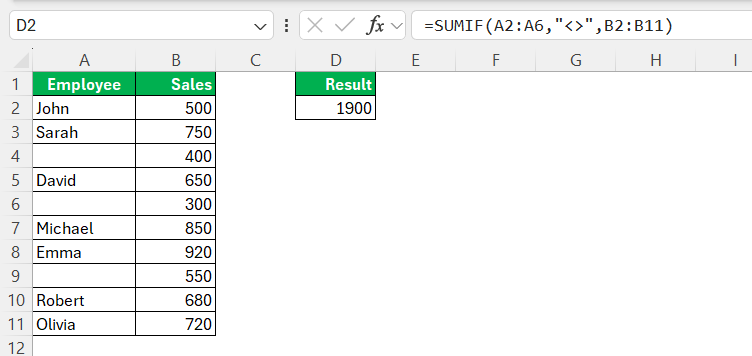
- Keep the criteria range and sum range the same size to avoid incorrect results.
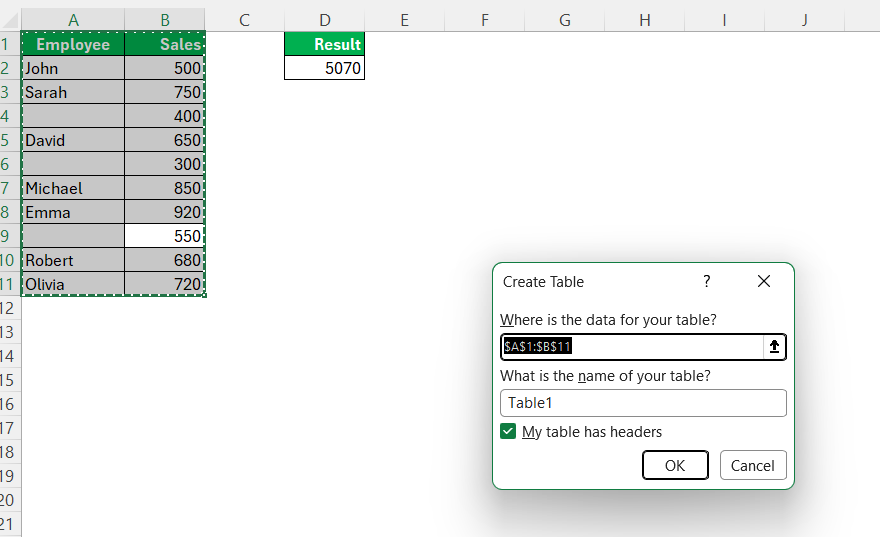
- Convert your data into an Excel Table so formulas automatically include new rows.
FAQs
1. How do I SUMIF if a cell is not blank?
Use =SUMIF(A2:A6,”<>”,B2:B6) to sum values in column B when the corresponding cells in column A are not blank.
2. Can I use SUMPRODUCT instead of SUMIF for not blank?
Yes, you can use =SUMPRODUCT((A2:A6<>””)*B2:B6) to sum values where the corresponding cells are not blank.
3. How do I use FILTER to sum non-blank cells?
Use =SUM(FILTER(B2:B6,A2:A6<>””)) to filter the values where column A is not blank and then calculate their total.
4. What does "<>" mean in the SUMIF formula?
“<>” means “not equal to” and is used in this formula to tell Excel to include cells that are not blank.
5. Which function is best for SUM if not blank?
SUMIF function is usually the simplest option for a single not-blank condition, while SUMPRODUCT and FILTER are useful for more flexible calculations.

John Michaloudis is a former accountant and finance analyst at General Electric, a Microsoft MVP since 2020, an Amazon #1 bestselling author of 4 Microsoft Excel books and teacher of Microsoft Excel & Office over at his flagship MyExcelOnline Academy Online Course.

 30 Days - Full Access









