 Free Practice Workbook
When working in Excel, one of the most common tasks is to convert text entries to dates. The dates may appear as text because they are either entered in a non-standard format or imported from external data. In this article, you will learn how to convert text to a date using Excel’s built-in tools and functions.
Key Takeaways:
- Excel stores dates as serial numbers.
- This allows Excel to perform date calculations just like numbers.
- Text dates limit Excel’s ability to perform date functions, sorting, and filtering.
- Functions like DATEVALUE, VALUE, and Text to Columns help convert text into recognizable dates.
- Excel features such as Flash Fill and error-checking can simplify converting multiple text dates simultaneously.
Table of Contents
Converting Text to Dates in Excel
When dates are imported from external sources or are entered in a non-standard format, Excel may store them as text. This can create issues as Excel loses its ability to perform basic operations on these dates.
So, Correct date conversion is important for several reasons:
- It will make sure that the data analysis is performed accurately.
- Date-specific functions will return the correct results only if Excel is able to recognize the dates correctly.
- A correctly formatted date will improve the readability of data.
Date System in Excel
Excel’s Serial Number Format Explained
Excel counts dates as serial numbers, where each day is a sequential number. It starts from January 1, 1900, i.e. serial number 1. For example, the serial number 44562 represents the date – January 1, 2023.
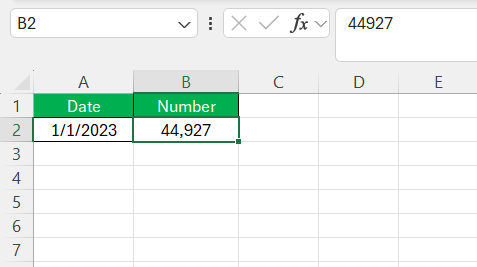
This allows for date arithmetic, like subtracting one date from another to find the number of days in between. It is the backbone of all date-related operations in Excel.
Text Date vs. Excel Date
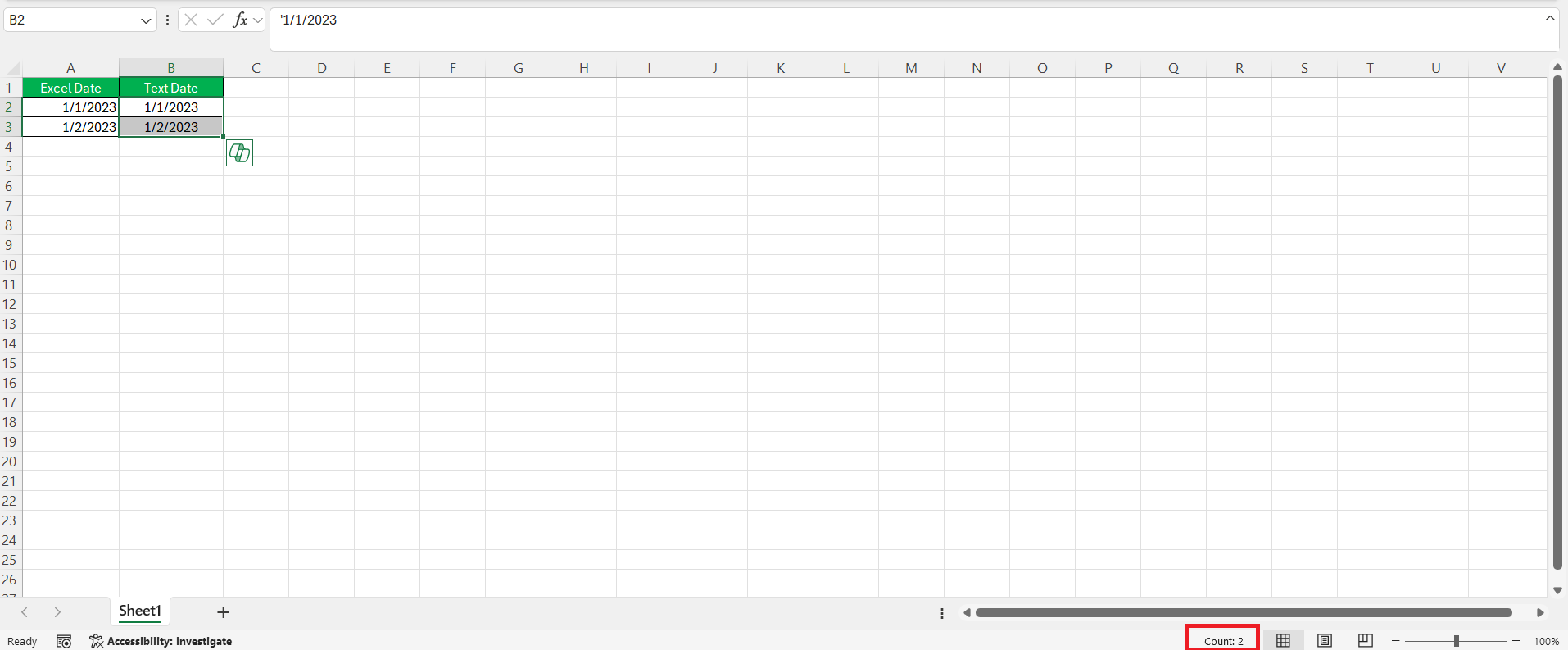
Excel dates are formatted as Date type in the Number Format box. It is aligned to the right within a cell. This indicates that the dates are treated as numbers.
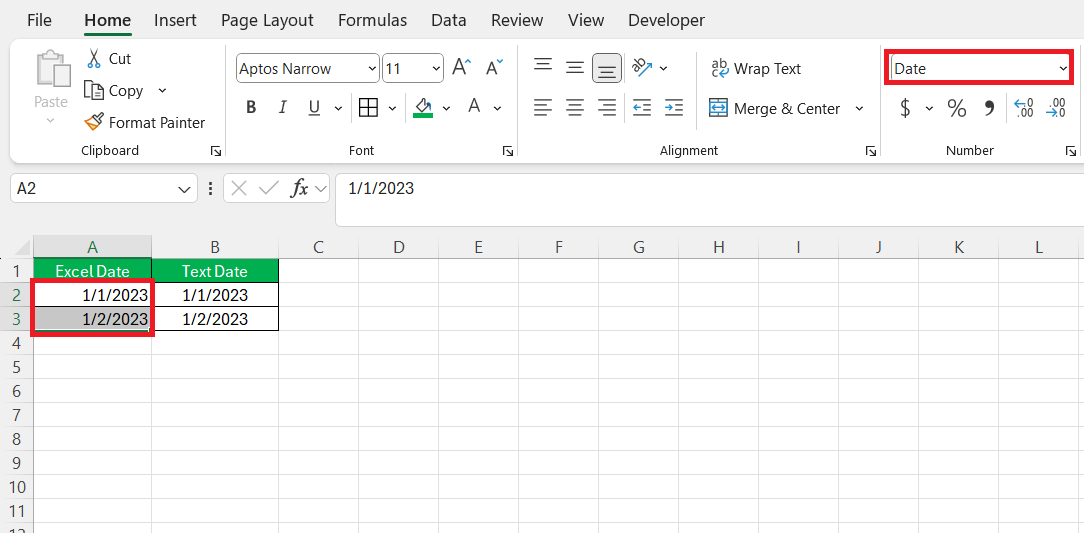
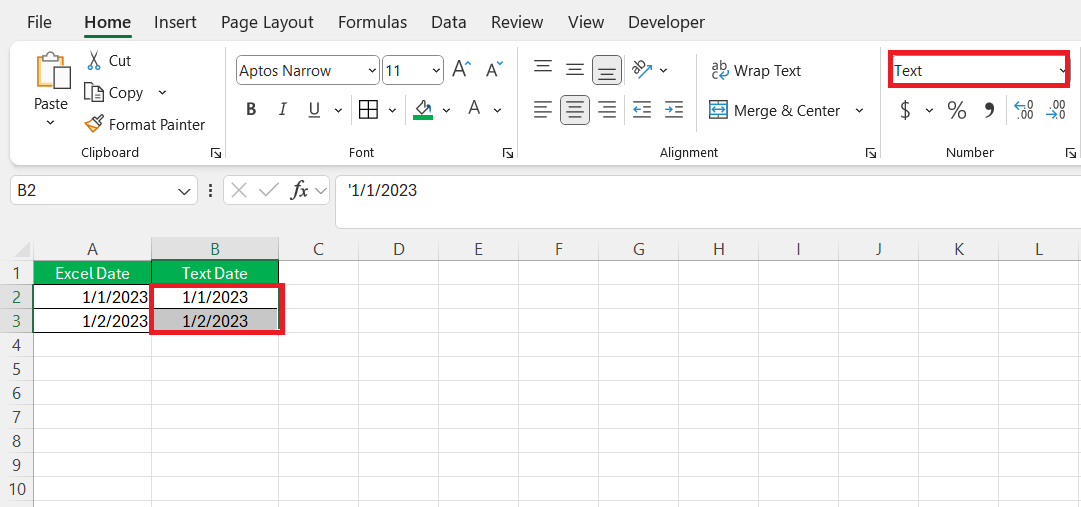
Text dates are stored as General or Text format.
When several Excel dates are selected, the status bar provides the “Average,” “Count,” and “SUM” – functions.
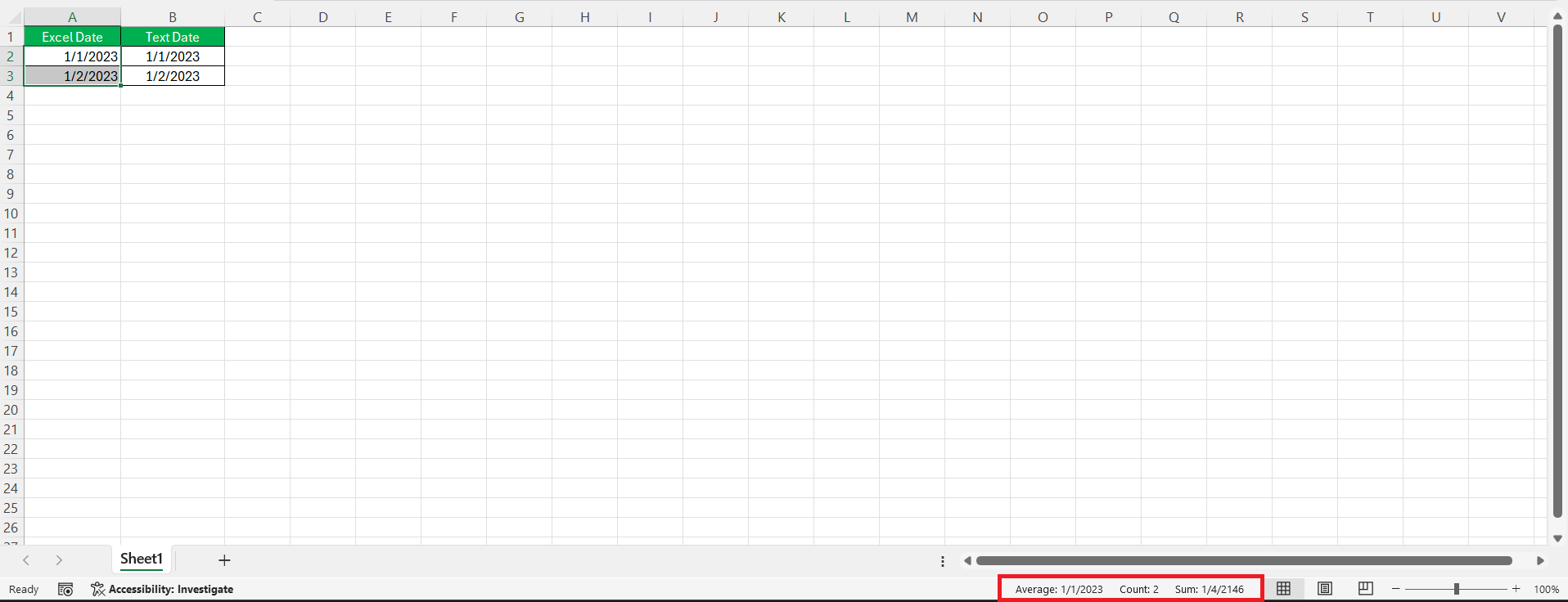
Text dates might include characters like apostrophes. This character will limit the utility in calculations and analysis. It will only display a count of values.
You will not be able to use date functions or sort data by date.
Methods to Convert Text to Date in Excel
DATEVALUE Function
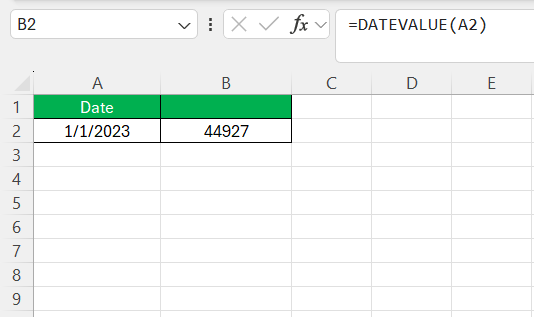
The DATEVALUE function is one of the easiest ways to convert text to dates. The formula is:
=DATEVALUE(A1)
Text to Columns
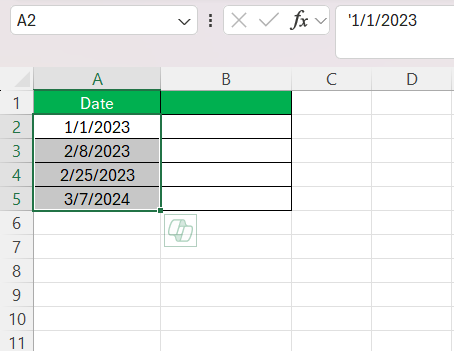
To convert a column of date stored as text, follow the steps below:
STEP 1: Select the column containing the text entries.
STEP 2: Go to the Data tab and select Text to Columns.

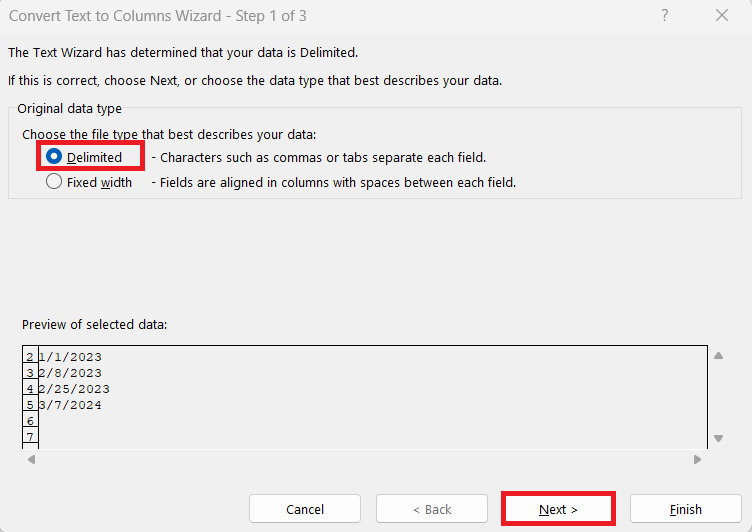
STEP 3: Choose Delimited and click Next twice.
STEP 4: Choose Date and select the appropriate format from the drop-down menu.
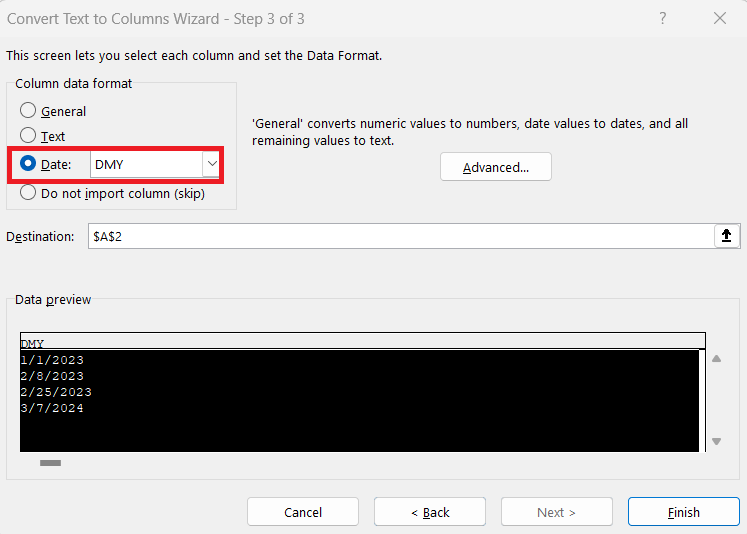
This method is a lifesaver when dealing with large datasets!
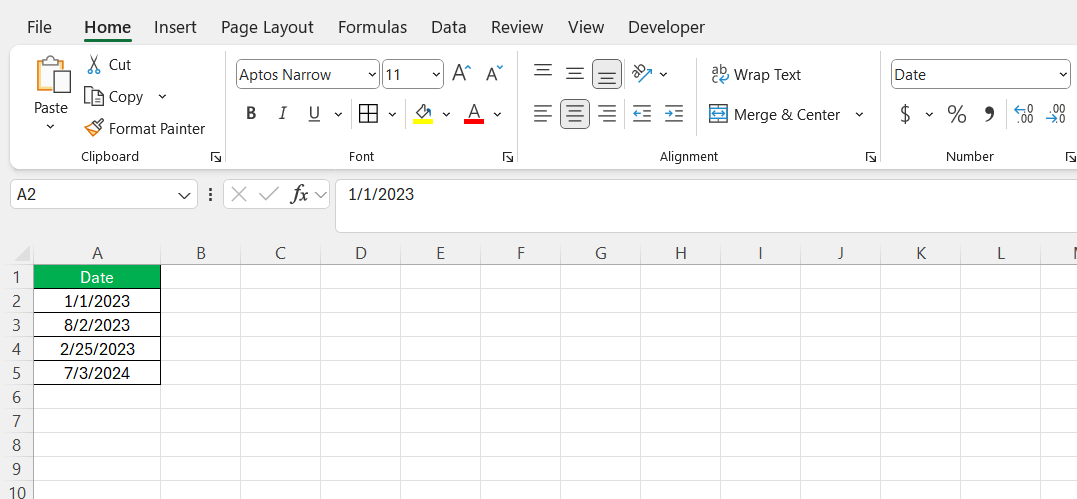
VALUE Function
You can use the VALUE function to convert text to a numeric date value. This method is useful when the text is formatted in a format like ‘2024-09-23’.
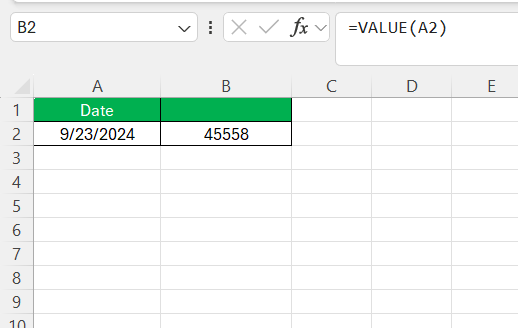
You can easily format this as a date by pressing Ctrl + Shift + #.
Tips & Tricks
Text Dates with Years in 2 digits
You can follow the steps below to convert a date displaying the year in two digits to four digits:
- Select all the affected cells.
- A small green triangle will appear in the corner of the cells.
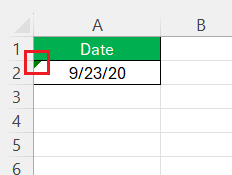
- Click on the yellow diamond-shaped error icon.
- Select the ‘Convert to Date’ option.
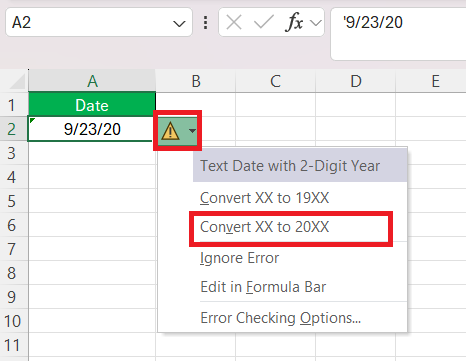
With a simple click, all the two-digit years change to four-digit years. Remember that this method assumes that the dates are either in the 1900s or the 2000s.
Converting Multiple Text Dates
For converting multiple text dates simultaneously, using Excel’s Flash Fill feature is a game-changer. This feature leverages Excel’s pattern recognition capabilities to convert and fill down an entire column based on a single example.
To activate it, I start by manually converting one text date into my desired date format in a cell adjacent to the original data.
Go to the Home tab > Fill > Flash Fill. After typing the initial converted date to trigger Flash Fill, and Excel will attempt to fill the column following the pattern I’ve set.
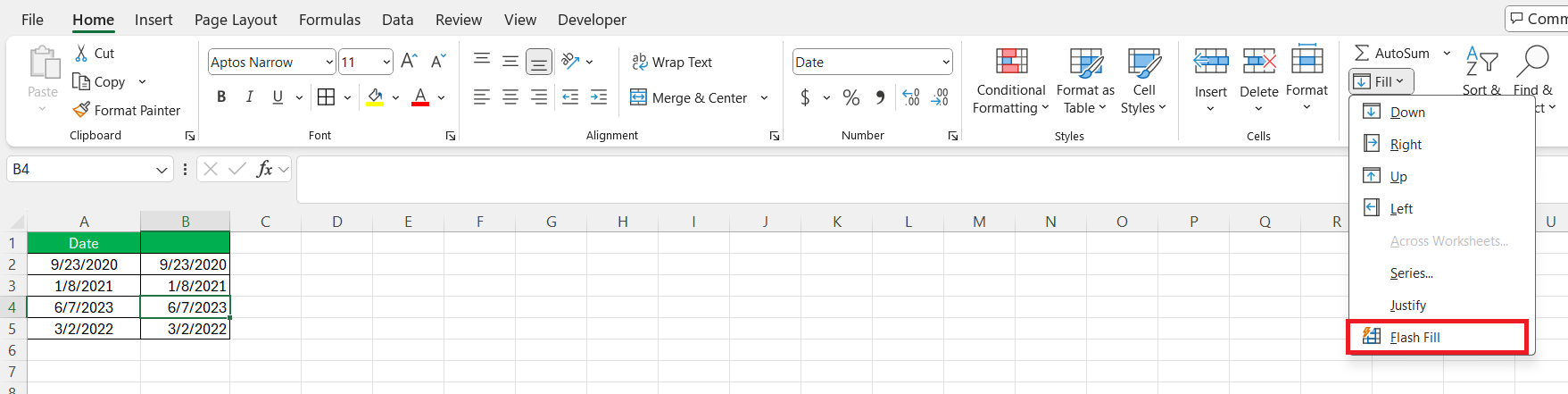
This works wonders for large datasets, where manual conversion would be prohibitively time-consuming.
FAQs
How to convert text to Data in Excel?
To convert text to date in Excel, select the cells with text dates. Navigate to the ‘Data’ tab, click on ‘Text to Columns,’ choose ‘Delimited,’ and proceed. Then, under ‘Column Data Format,’ select ‘Date,’ choose the appropriate format, and finish the wizard. Your text will be converted to a date format.
How to convert a text string with custom delimiters into a date?
Yes, you can convert a text string with custom delimiters into a date in Excel. Use the ‘Text to Columns’ feature, select ‘Delimited,’ specify your custom delimiter, and then format the column as a date in the final step of the wizard.
How to convert a serial number into an Excel date?
To convert a serial number into an Excel date, just change the cell’s formatting. Select the cell, right-click, choose ‘Format Cells,’ pick ‘Date’ from the ‘Number’ tab, and select your desired date format. Excel will display the serial number as a date.
What are the limitations when converting eight-digit numbers to dates?
When converting numbers to a date, there might be a limitation that Excel will not recognise the format. This can happen because of lack of delimiter. You can use custom formulas like LEFT, MID, and RIGHT to extract the components of a date and structure them as a recognizable date format.
How to convert multiple texts to dates at once?
You can use the Text to Column option to convert multiple texts to dates in Excel.
- Select the Column.
- Go to Data > Text to Column.
- Choose Delimited.
- Click Next twice.
- Select Date and the desired date format.
- Click Finish.

John Michaloudis is a former accountant and finance analyst at General Electric, a Microsoft MVP since 2020, an Amazon #1 bestselling author of 4 Microsoft Excel books and teacher of Microsoft Excel & Office over at his flagship MyExcelOnline Academy Online Course.

 30 Days - Full Access









