 Free Practice Workbook
Color-coding in Microsoft Excel isn’t merely about aesthetics; it’s a powerful aid for managing complex datasets swiftly. By leveraging color-coded systems, you can expedite data analysis, spotting patterns and information at a glance. In this guide, we will cover the methods on How to count and sum by color.
Key Takeaways:
- Color coding can help you spot patterns and outliers.
- You can use conditional formatting to color-code rows in Excel.
- You can use SUBTOTAL to accurately sum by color.
- You can also use VBA to dynamically sum by color.
- Keep the rules for color coding constant to avoid confusion.
Table of Contents
Introduction to Color-Coded Summing in Excel
Color-Coding in Data Analysis
Color coding in Excel is not just for aesthetics; it is also useful to understand complex data quickly. It can act as a visual cue to check each row and find important data. It is useful in grouping data and highlighting key metrics in Excel.
Using Conditional Formatting
You can quickly summarize your data by applying conditional formatting.
- Select the cells.
- Go to the Home tab.
- Select Conditional Formatting.
- From the dropdown, select the rule that is applicable to you.
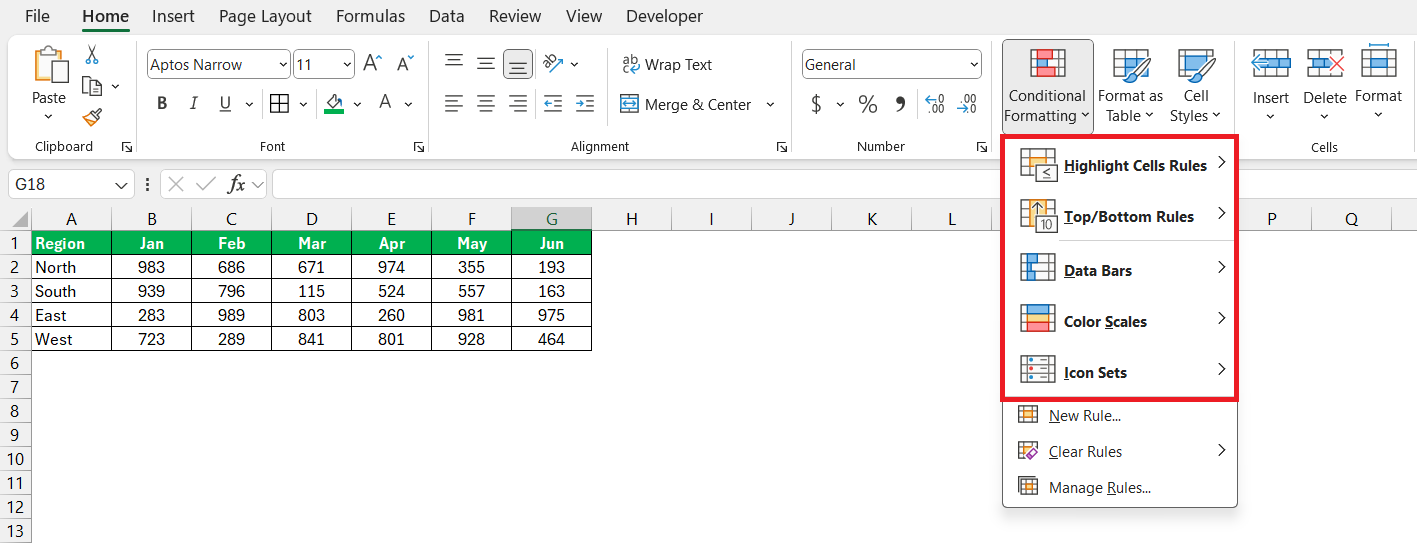
You can use Conditional Formatting to color-code the rows, create data bars, add icons, or set up color scales.
How to Sum by Color in Excel
SUBTOTAL Function
You can use the SUBTOTAL function to sum by color in Excel. It is a useful function as it has the ability to consider only visible cells. Follow the steps below to understand how to use it –
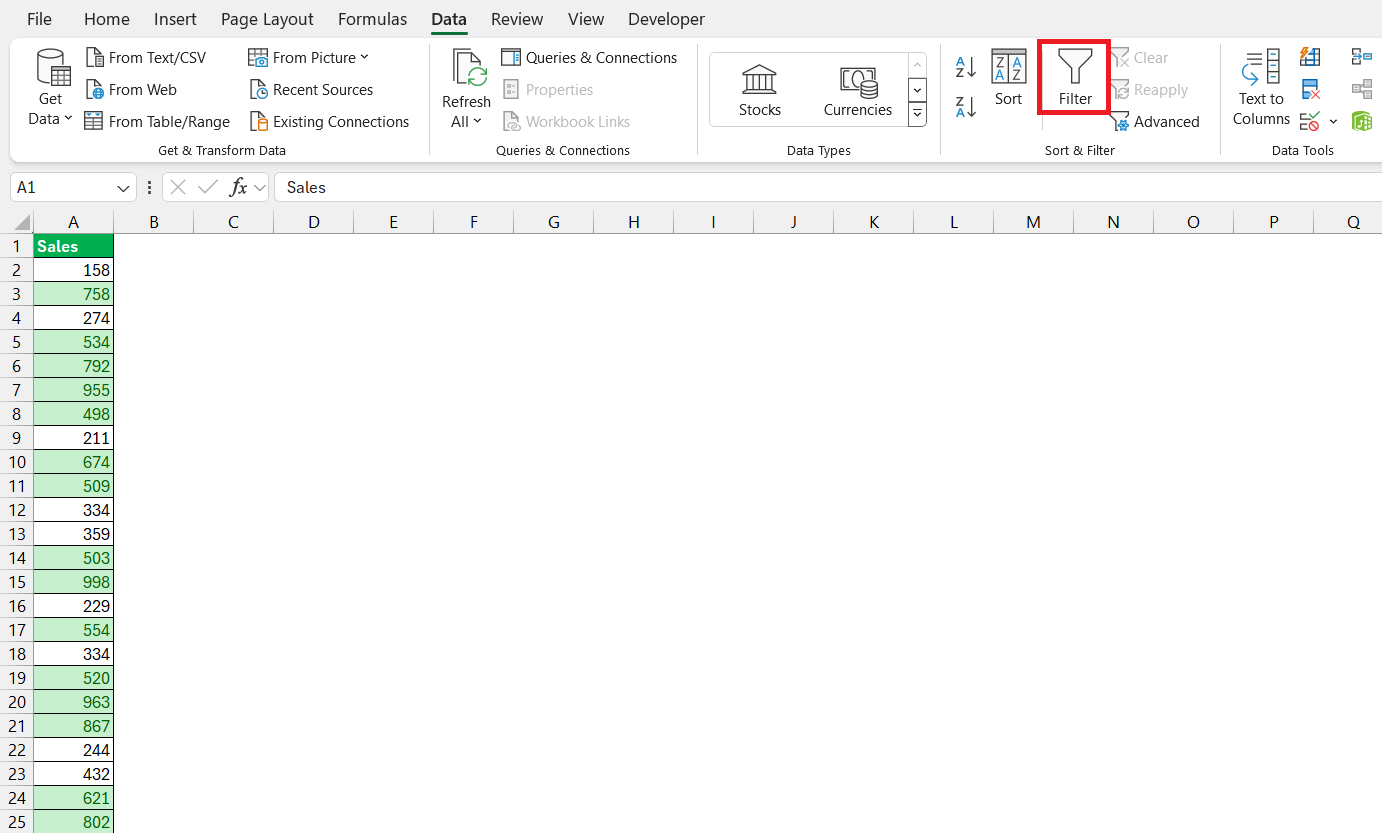
STEP 1: Select the data. Go to the Data tab and then select Filter.
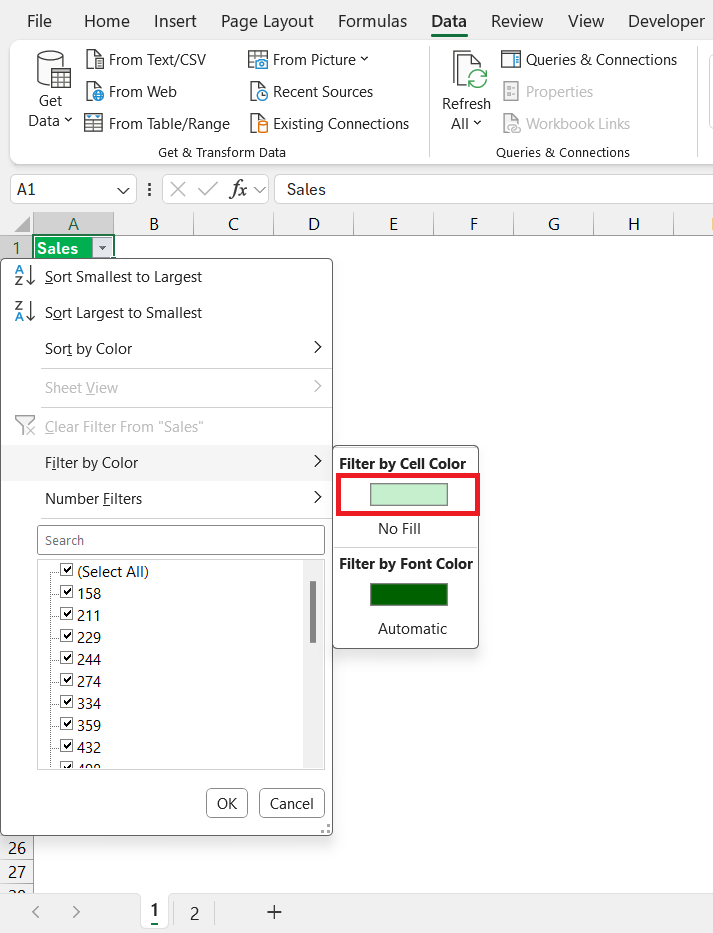
STEP 2: You can then select Filter by Color and select a color.
STEP 3: Go to the bottom of the dataset. This is where you can enter the SUBTOTAL formula.
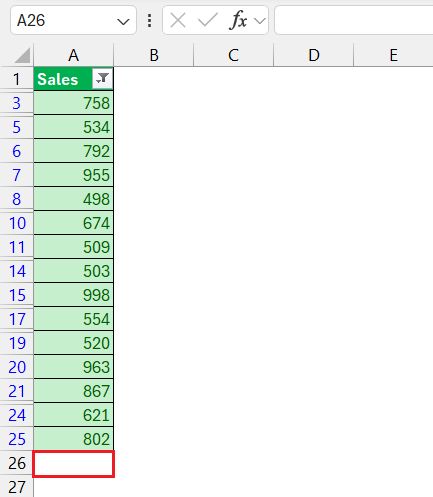
STEP 4: Input =SUBTOTAL(9, range) where ‘range’ refers to the cells you wish to sum. Enter the SUBTOTAL formula –
=SUBTOTAL(9,range)
Here, the first argument is 9, as you want to sum only the cells that are visible.
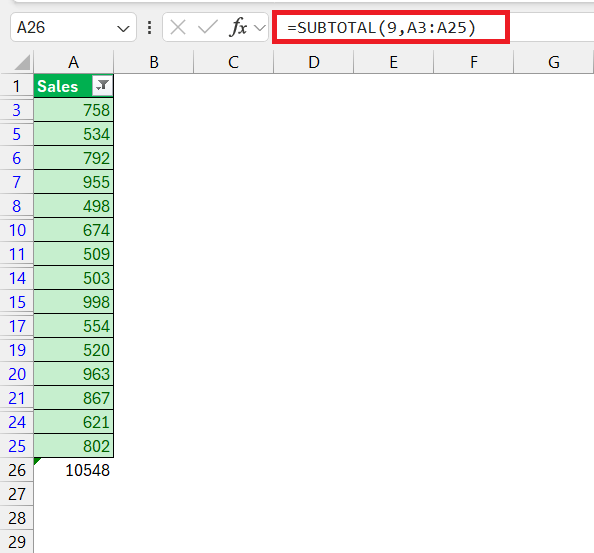
This will provide you with the total sum of values that are highlighted in green.
SUMIF Function
If you’re not keen on using complex methods, basic Excel formulas can still do the trick. You’d be working on a bit of a workaround since Excel doesn’t have a built-in function for summing by color. Here’s how to approach it: use the color to define a condition, assign a value to that condition—maybe “1” for colored cells and “0” for non-colored.
Employ the SUMIF function to tally up the cells that meet your criterion.
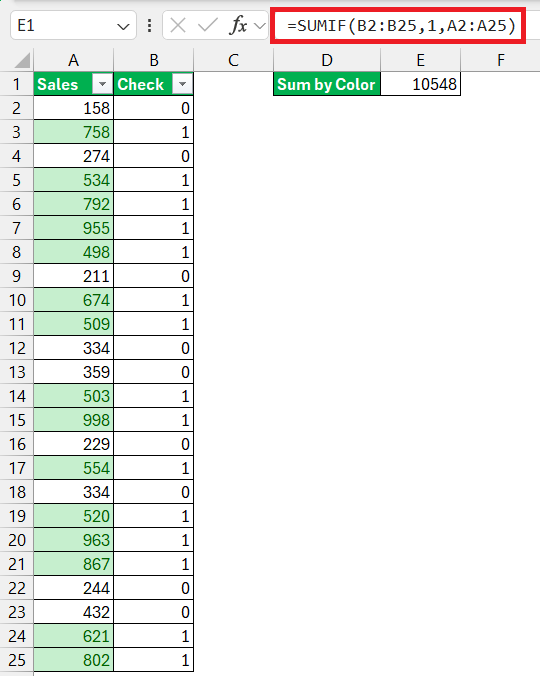
While not directly summing by color, this method offers a simpler alternative for users less comfortable with VBA or add-ins.
Advanced Methods
VBA Macros
Embrace the power of customization with VBA macros and make summing by color a breeze.
STEP 1: Press Alt + F11 to open VBA editor.

STEP 2: Go to Insert and choose Module.

STEP 3: Type the macro below –
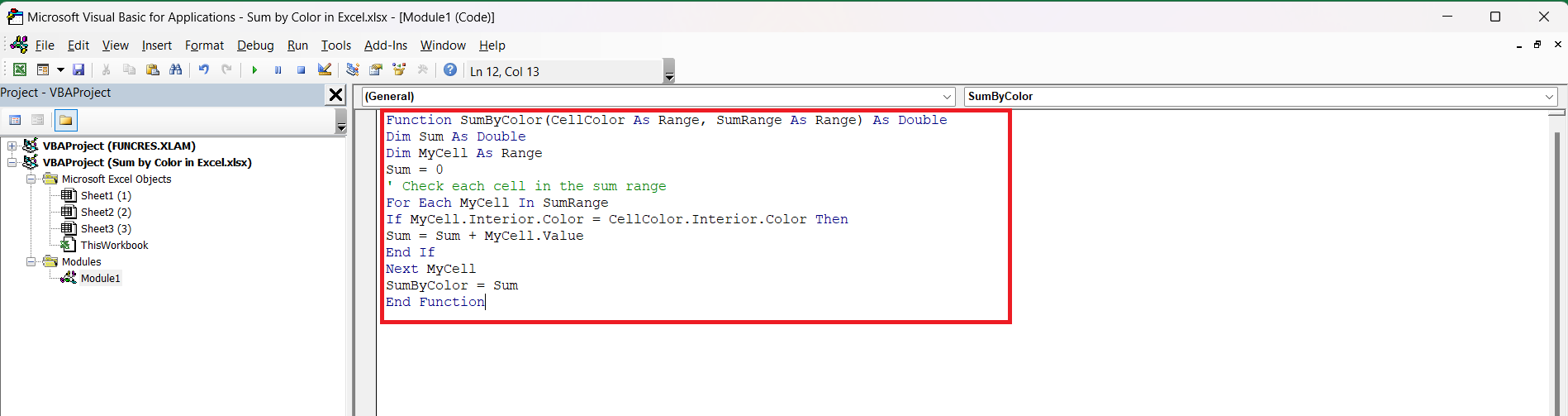
After you have created and saved the function, you can use it directly in your Excel workbook like any other function.
Suppose you have a cell (let’s say I1) with the color you want to sum. And you have a range of cells (B2:BG5) where some cells are colored the same as A1. You can use the function in another cell like this:
=SumByColor(I1,B2:G5)
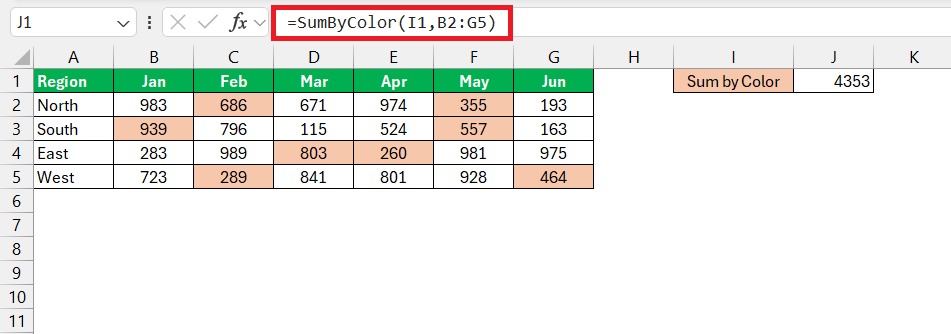
This formula will return the sum of all cells in the range B2:G5 that have the same background color as the cell I1.
FAQs
How to sum based on color in Excel?
To be able to sum based on color, you can apply conditional formatting to highlight the cells you want to consider for summing. Then, you can apply the filter button to filter by color, and lastly use the SUBTOTAL function to sum by color.
What are the drawbacks of using color to sum data in Excel?
The main drawback of using color as a criterion is that Excel does not treat cell color as a value. So, there are built-in functions to sum by color. You can use a filter, VBA, or other add-ins to get this task done.
How to sum by color without using macros?
You can sum by colors by using a combination of the Filter button and the SUBTOTAL function in Excel.
What is conditional formatting?
Conditional formatting is a feature in Excel that automatically applies formatting to cells that meet a certain criterion. It can highlight values by applying colors, adding icons, adding color scales, or data bars. This helps in analyzing data and identifying patterns and outliers.

John Michaloudis is a former accountant and finance analyst at General Electric, a Microsoft MVP since 2020, an Amazon #1 bestselling author of 4 Microsoft Excel books and teacher of Microsoft Excel & Office over at his flagship MyExcelOnline Academy Online Course.

 30 Days - Full Access









