Email templates can be useful if you frequently send similar messages. Whether it is a weekly report, a client follow-up, or a response to a common inquiry, having a template can make your workday much smoother. In this guide, I’ll show you how to create an email template in Outlook.
Key Takeaways:
- Email templates save time by avoiding repeated typing.
- They help keep your emails consistent and professional.
- You can customize templates with names and details.
- Quick Steps let you use templates faster.
- Clear names make templates easy to find and use.
Table of Contents
Introduction to Email Template
What is an Email Template in Outlook?
Imagine tapping into a world where sending out batches of emails doesn’t just save you a chunk of time but also enhances the consistency and professionalism of your communications. That’s precisely what an email template in Outlook can offer.
It’s a pre-defined email format that includes generic content applicable to recurrent situations or messages. So, whenever I need to send a similar email, instead of starting from scratch, I use a template as a base and make necessary tweaks to personalize. This approach is not only efficient but helps maintain a uniform tone and branding across all of my messages.
Why Use Email Templates?
- Efficiency: Save time by avoiding repetitive typing.
- Consistency: Ensure your messaging is consistent across all emails.
- Customization: Templates can still be personalized with placeholders for names, dates, and other specific information.
- Professionalism: Pre-built templates help maintain a polished and professional tone.
How to Create Your First Template
Set Up an Outlook Template
STEP 1: We begin by launching Outlook and clicking on ‘New Email’ to start composing a fresh message.

STEP 2: We put together the content that will be standard across each email sent from this template. This includes formulating a subject line, typing out the body of the email, and inserting any signatures or legal disclaimers needed.
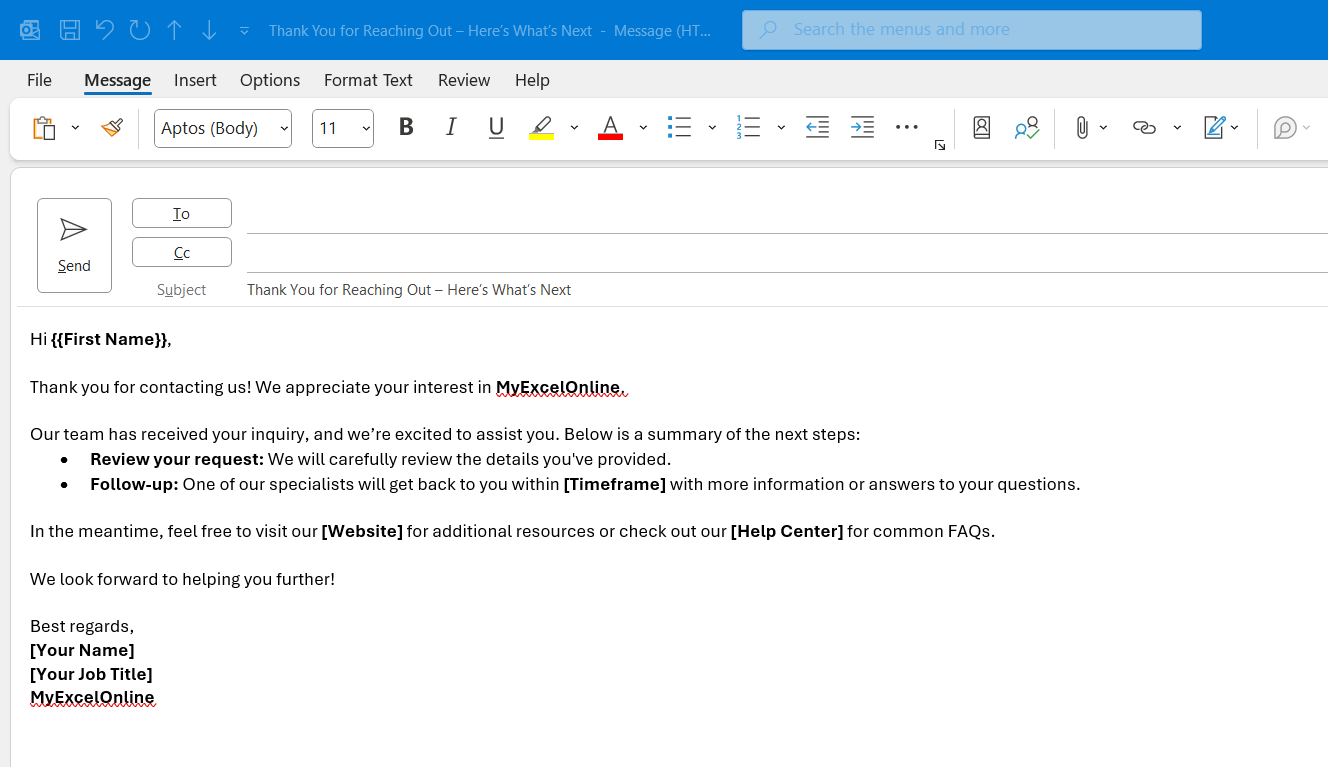
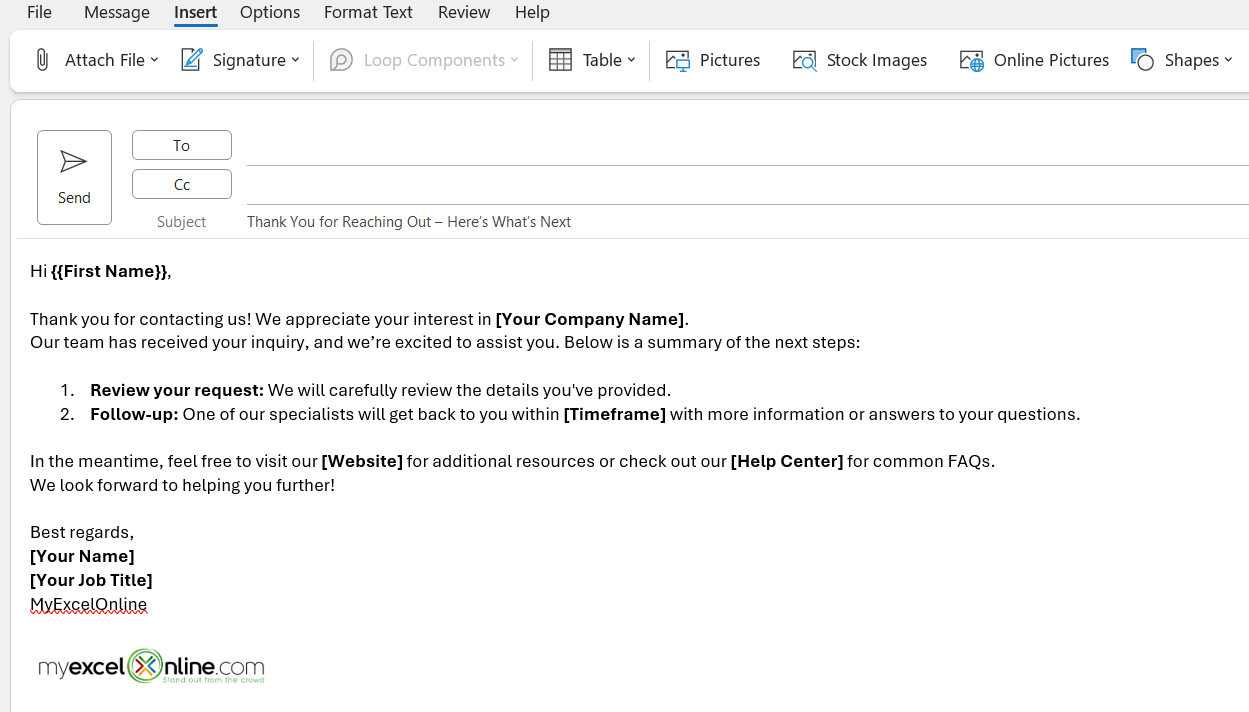
STEP 3: We then move on to style the email. This is where creativity comes into play. Although there are no drag-and-drop builders, I can select from basic templates provided by Outlook, apply themes, change text formats, and even insert logos or images to reflect my branding.
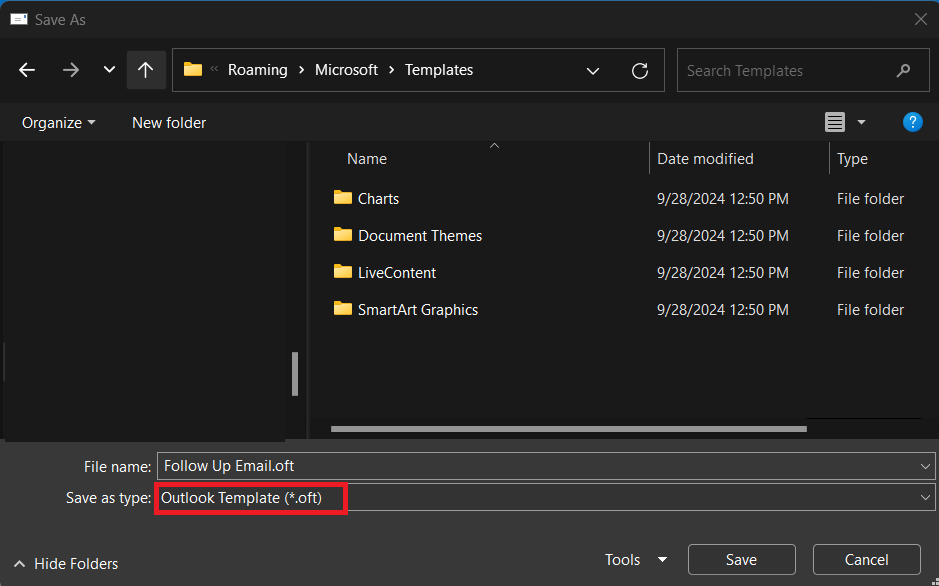
STEP 4: Once the email looks just right, it’s time to save it as a template. I navigate to the ‘File’ menu, select ‘Save As’, and in the Save as type field, choose ‘Outlook Template (*.oft)’. Before saving, I ensure to give it a clear and recognizable name that I will easily remember.
How to Access Template in Outlook
STEP 1: Go to Home > New Items > More Items > Choose Form.
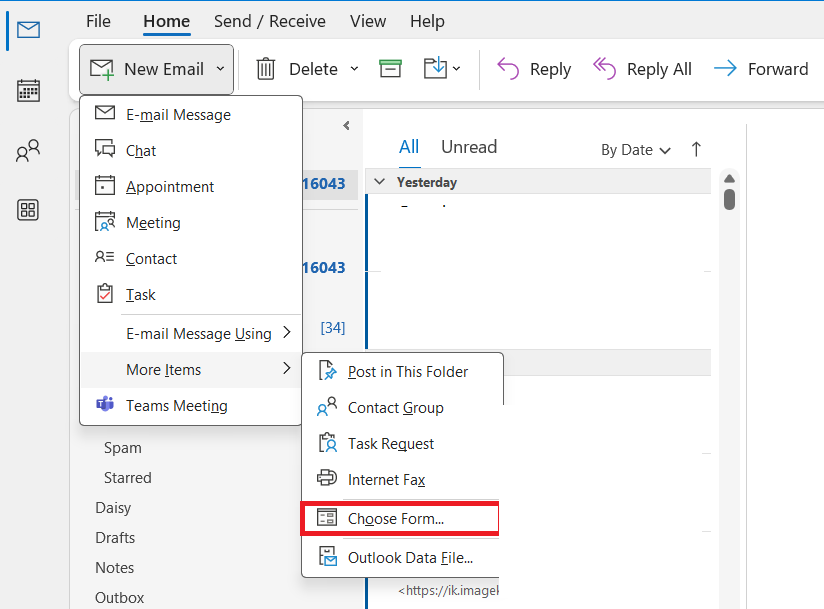
STEP 2: In the Choose Form window, select User Templates in File System under the Look In dropdown.
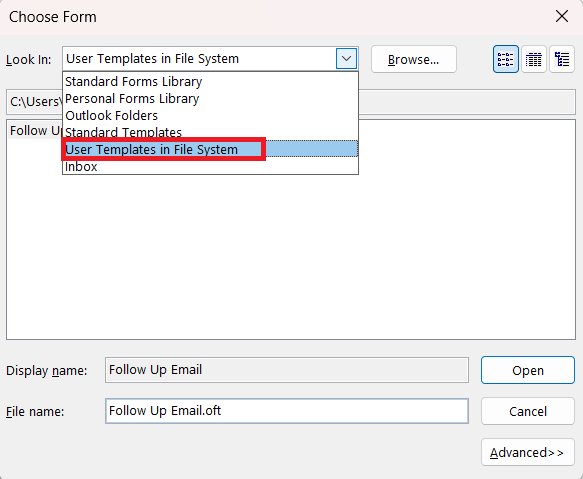
STEP 3: Find the template I want to use and click Open.
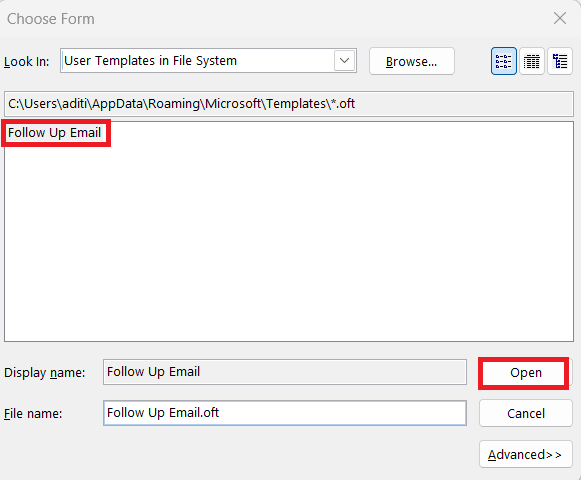
The template will pop up in a new email, and I just need to fill in the placeholders with the relevant information before sending it off. It’s a quick and easy process!
Advanced Techniques
Quick Steps
Quick Steps can perform a series of actions with a single click, such as replying to an email with a specific template or creating a new message using a template.
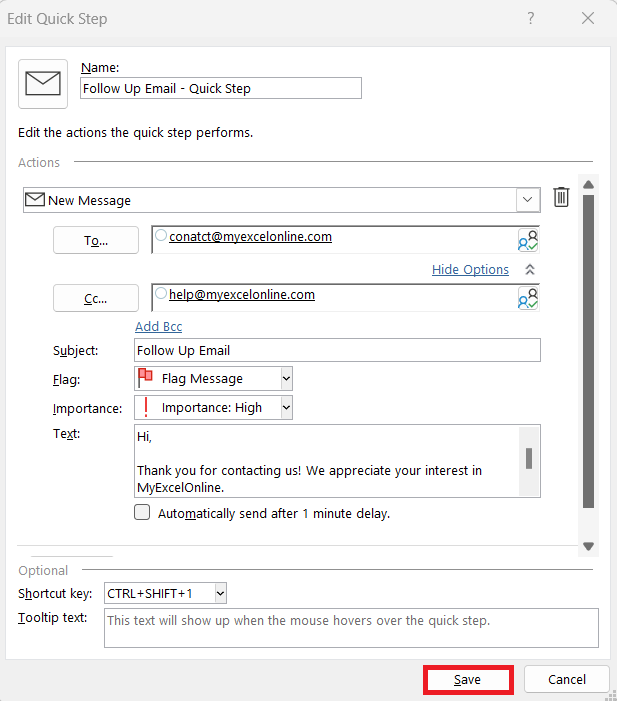
STEP 1: Click on Quick Steps in the Home tab. Choose ‘New Quick Step’ and select ‘New Message’.
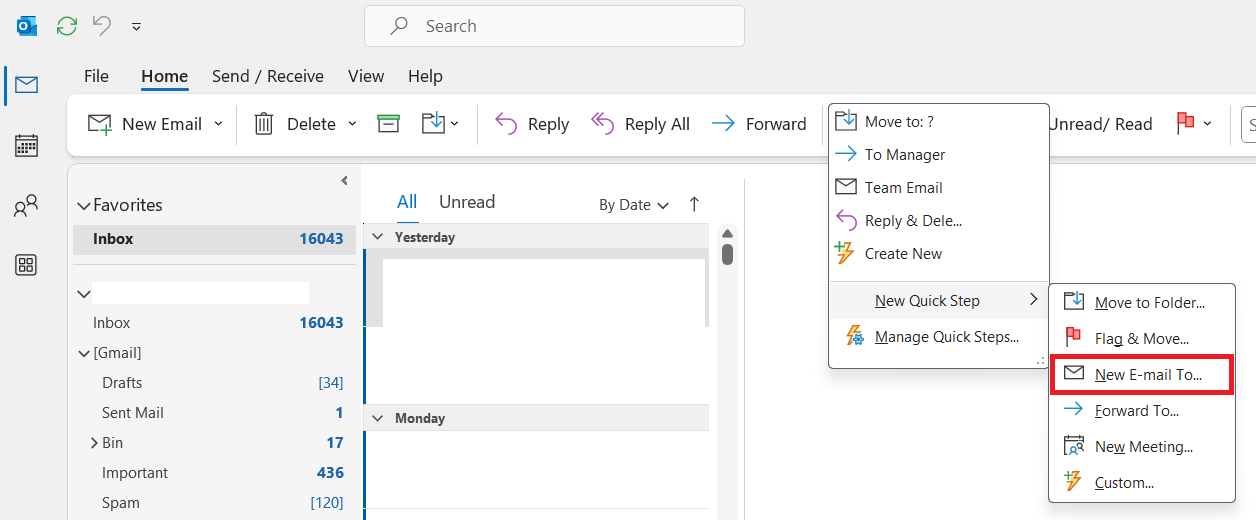
STEP 2: Choose ‘Show Options’ to add all necessary details.
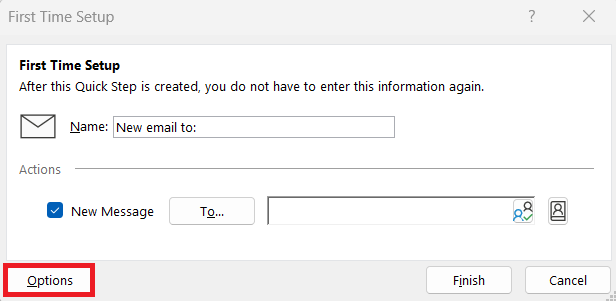
STEP 3: Fill in the desired details and under ‘Text’, I add the content of my email template, if it’s a plain text template. Click Save.
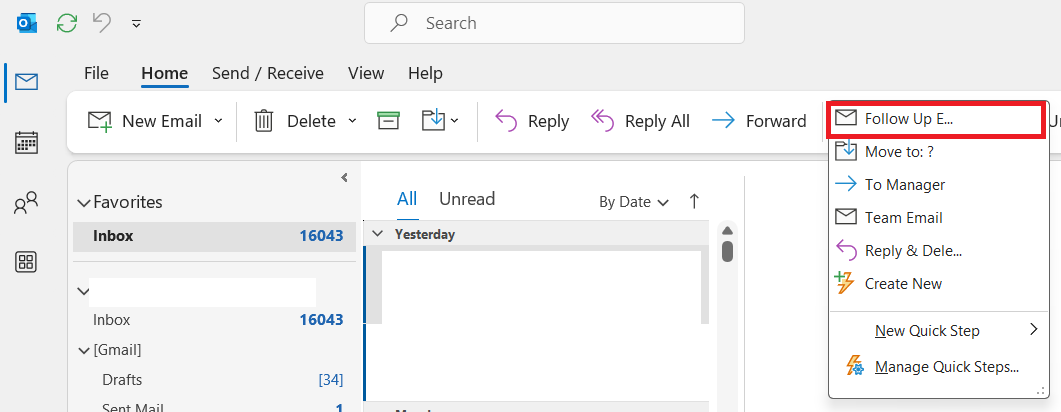
When it’s time for the Quick Step to do its magic, I simply click on it in the Quick Steps gallery, and a new message with the pre-defined template content pops up—it’s like hitting the easy button on email setup.
Save and Name Templates
Once templates are created in Outlook, it’s important to save them for easy access. I name each template with something descriptive and straightforward. For example, if I have an email template for meeting follow-ups, I might name it “Meeting Follow-Up_Template.”
This will make sure that when I look through a list of templates, there’s no guesswork involved. I can swiftly find the one I need without the hassle of opening and previewing multiple templates to identify the right one.
To save the templates, I follow the default file path which is typically
C:\Users\UserName\AppData\Roaming\Microsoft\Templates.
Using a default path is important because it allows Outlook to easily locate and open the template from within the program.
Frequently Asked Questions (FAQs)
Q1: What is an email template?
An email template is a preformatted and/or prewritten email that serves as a framework for constructing similar messages quickly and consistently, ensuring efficiency in communication.
Q2: How to create a template in Outlook?
To create a template in Outlook, start by composing a new email, including the content, formatting, and any signatures. Once complete, go to ‘File’ > ‘Save As’ and select ‘Outlook Template (*.oft)’ as the file type, then give it a memorable name.
Q3: How to access my saved templates?
To access saved templates in Outlook, go to the Home tab, click on New Items > More Items > Choose Form. In the Choose Form window, select “User Templates in File System,” find the desired template, and click Open.
Q4: Can I personalize templates?
Yes, templates can be personalized by using placeholders or dynamic fields, such as recipient names, dates, or custom messages. This allows you to send tailored emails while maintaining the efficiency of a pre-formatted template.
Q5: What is Quick Steps in Outlook?
Quick Steps is a feature in Outlook that automates multiple tasks with one click, such as applying a template, moving emails, or sending quick responses. It’s a great way to streamline repetitive email processes and boost productivity.

John Michaloudis is a former accountant and finance analyst at General Electric, a Microsoft MVP since 2020, an Amazon #1 bestselling author of 4 Microsoft Excel books and teacher of Microsoft Excel & Office over at his flagship MyExcelOnline Academy Online Course.

 30 Days - Full Access









