You can integrate Microsoft Teams with Outlook to allow seamless collaboration between emails and meetings. In this guide, you will learn how to add Microsoft Teams to Outlook.
Key Takeaways:
- Integrate Microsoft Teams with Outlook to combine email and meetings.
- Teams and Outlook should be logged in with the same Microsoft account.
- Enable the Teams Meeting Add-in in Outlook.
- Schedule and manage Teams meetings directly within Outlook.
- Use built-in tools to resolve common issues.
Table of Contents
Seamless Collaboration with Teams and Outlook
Today, we use technology to manage our daily tasks. Tools like Microsoft Teams and Outlook keep everything in one place.
They make work simple and organized. Using them together helps teams work better.
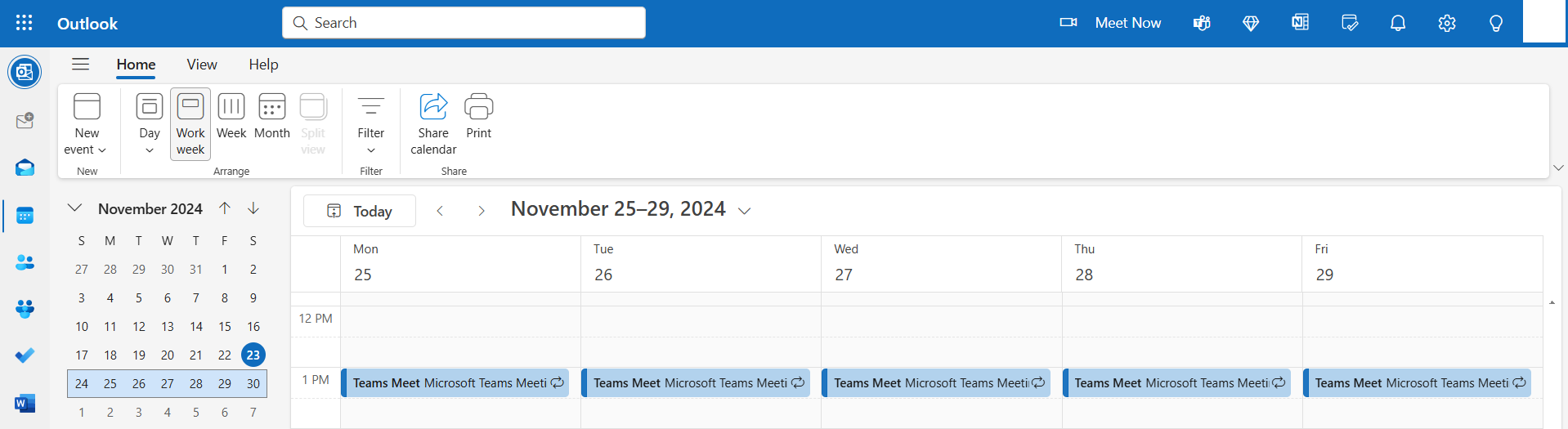
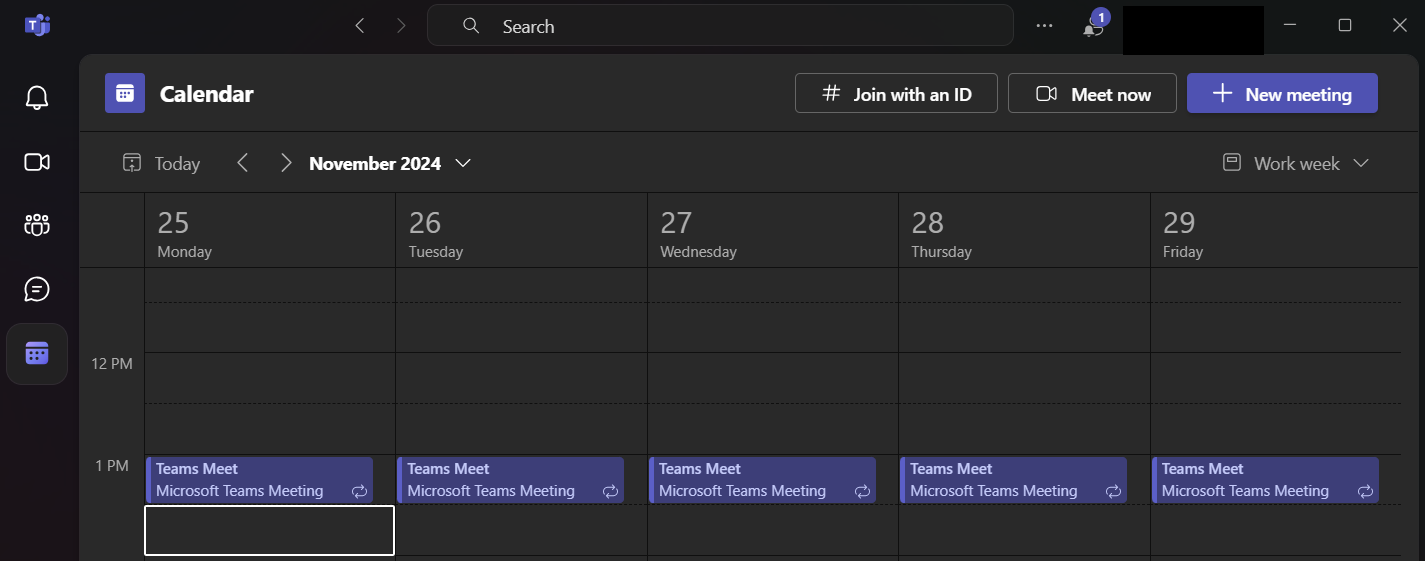
You can also share files in email and edit them in Teams.
Pre-requisite
Download Microsoft Teams and Outlook Desktop Versions
Before we dive in, it is important to make sure that we have the right tools. I recommend starting by downloading the desktop versions of both Microsoft Teams and Outlook.
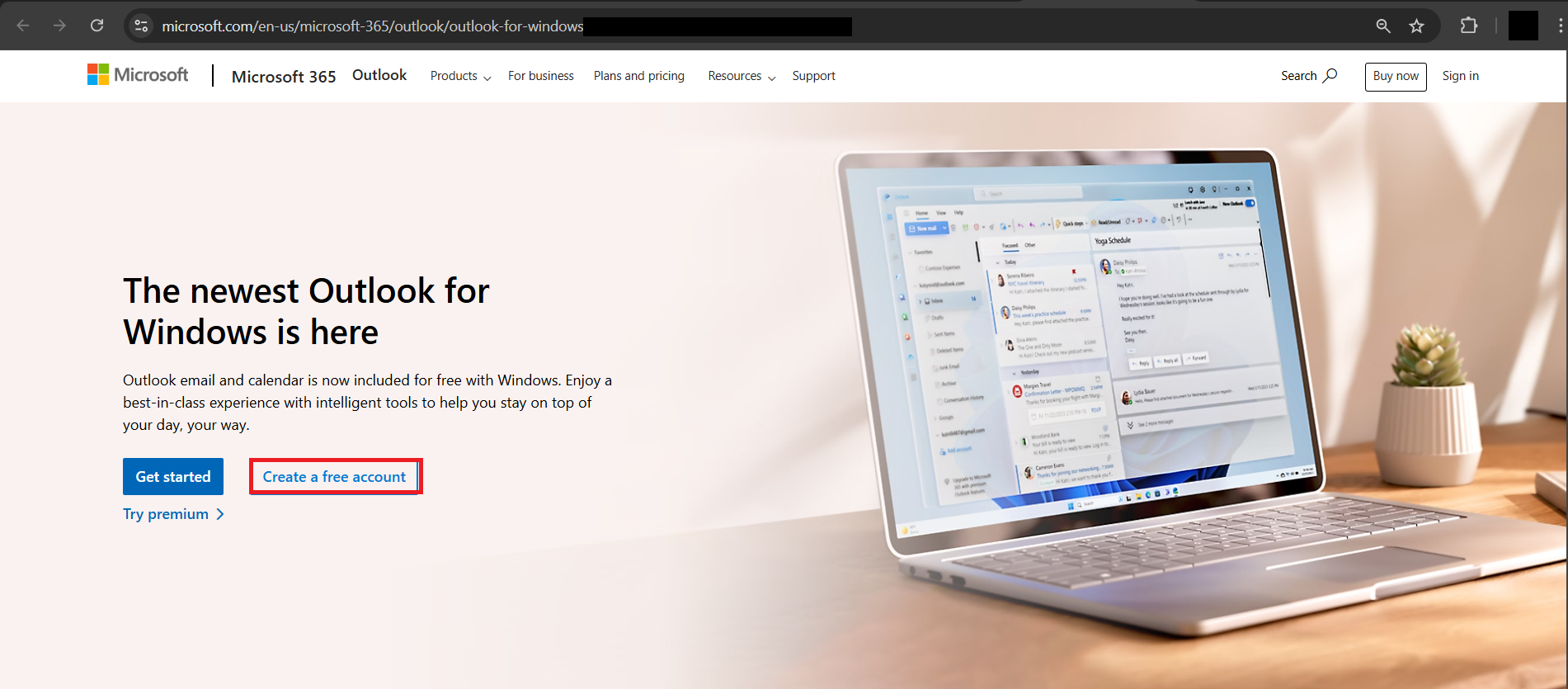
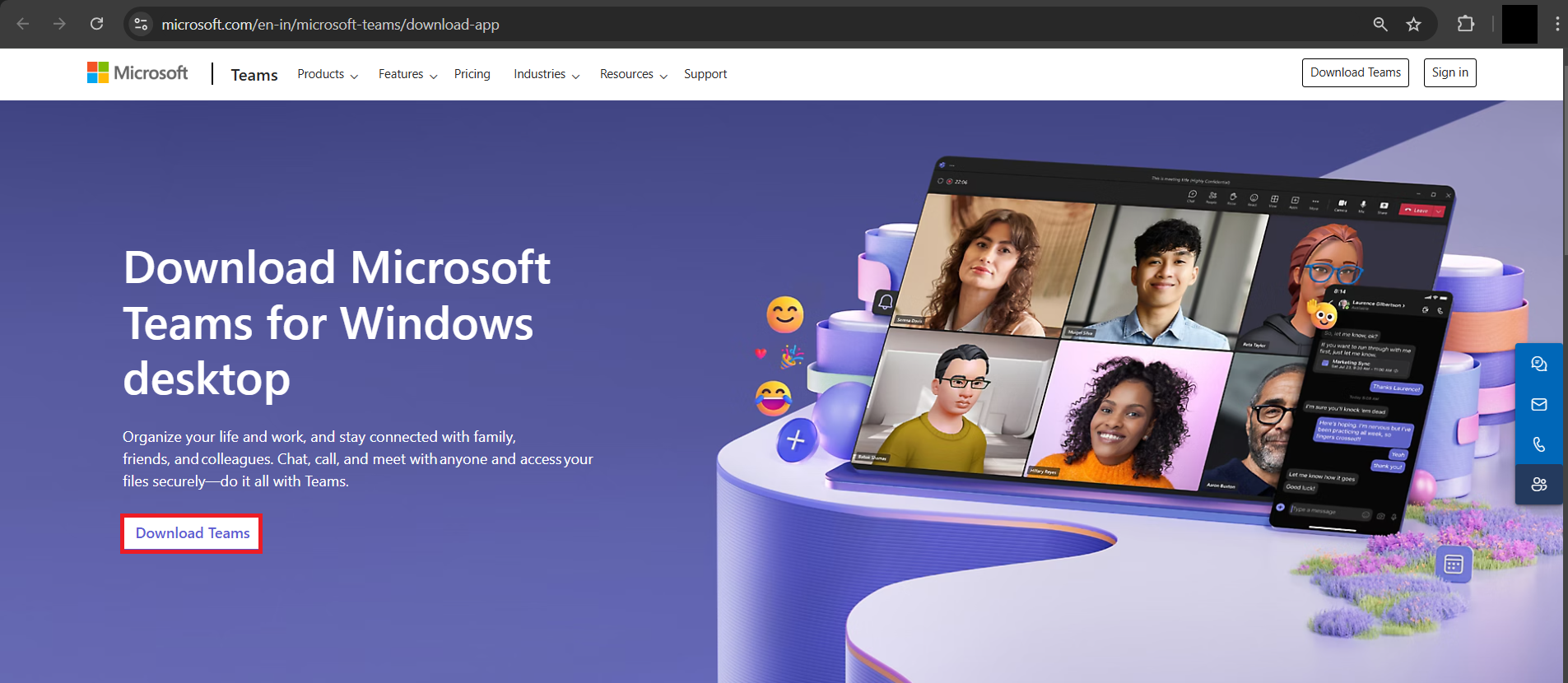
Simply follow the installation prompts for each application, and you’ll be set to proceed in no time.
Log in to Both Programs
Once the desktop versions are installed, follow the steps below:
Sign in to both Outlook and Teams using the same Microsoft account. By using identical credentials, we avoid any compatibility issues that might arise from mismatched accounts.
How to Add Microsoft Teams to Outlook
Verify Installation and Updates
It is important to check that both Teams and Outlook are updated. To update Outlook, follow the steps below:
- Go to Files
- Click on Office Account/Account
- Click on Update Now.
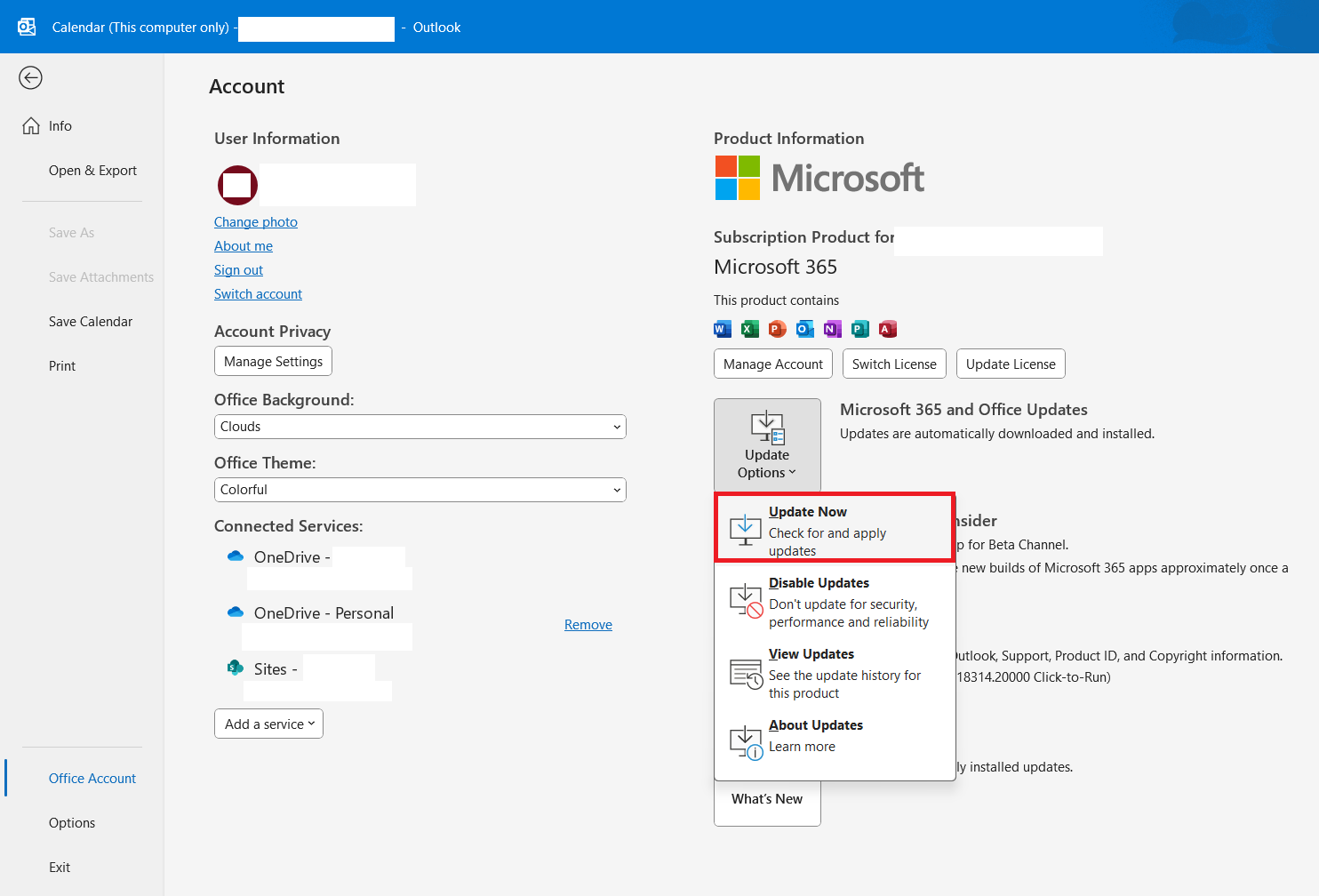
Locate and Enable the Microsoft Teams Meeting Add-In in Outlook
- Open Outlook.
- Go to File > Options.

- Select Add-Ins > Microsoft Teams Meeting Add-In for Microsoft Office.
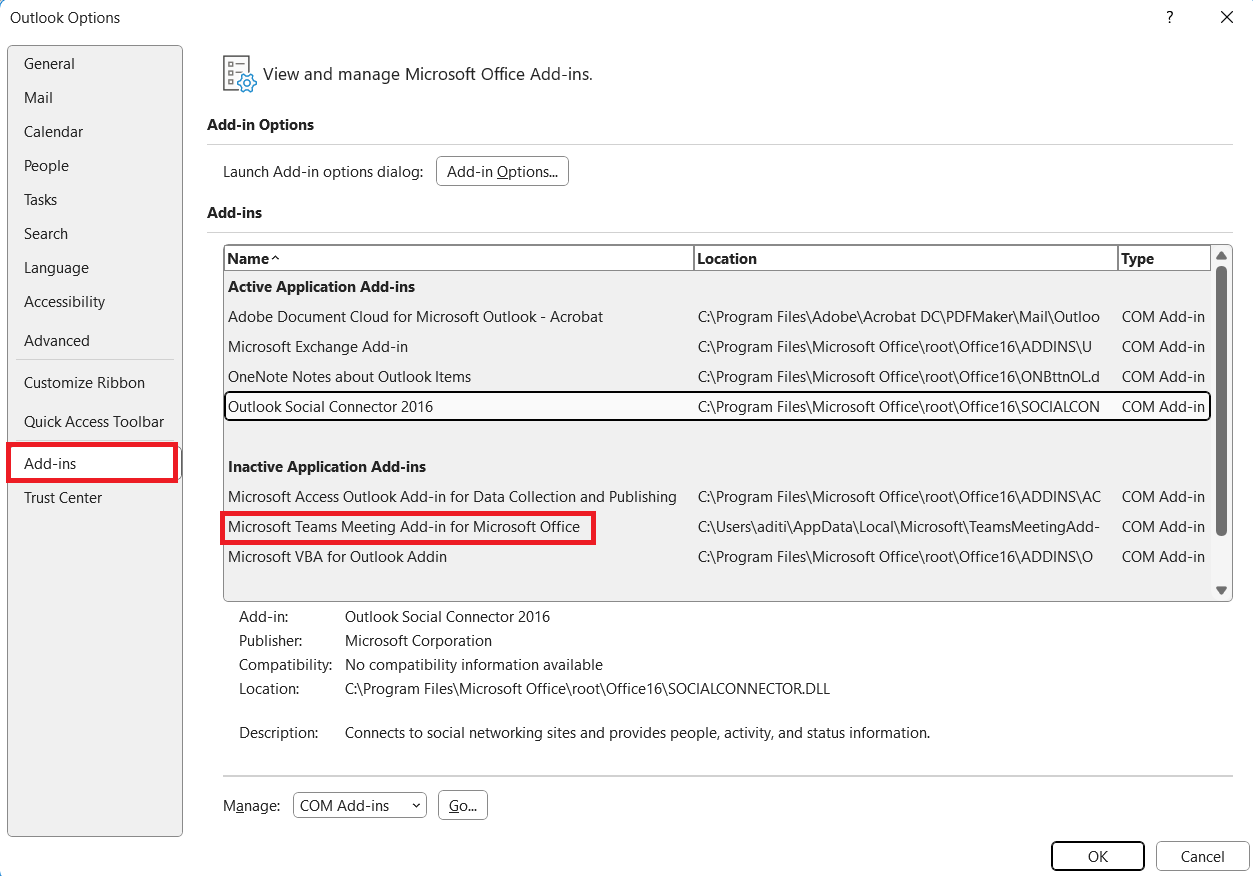
If it is under ‘Add-ins available’, you’re all set!
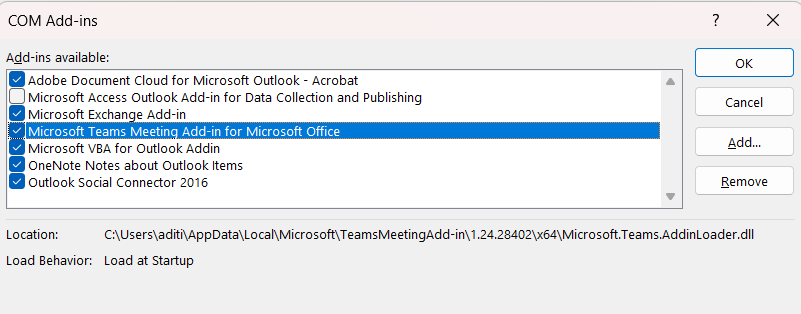
If it is not available there, follow the steps below:
- Go to ‘Disabled Application Add-ins’
- Select ‘COM Add-ins’
- Click ‘Go’
- Check the box next to the Teams Add-In.
- Click OK
- Restart Outlook.
Teams is now part of your Outlook.
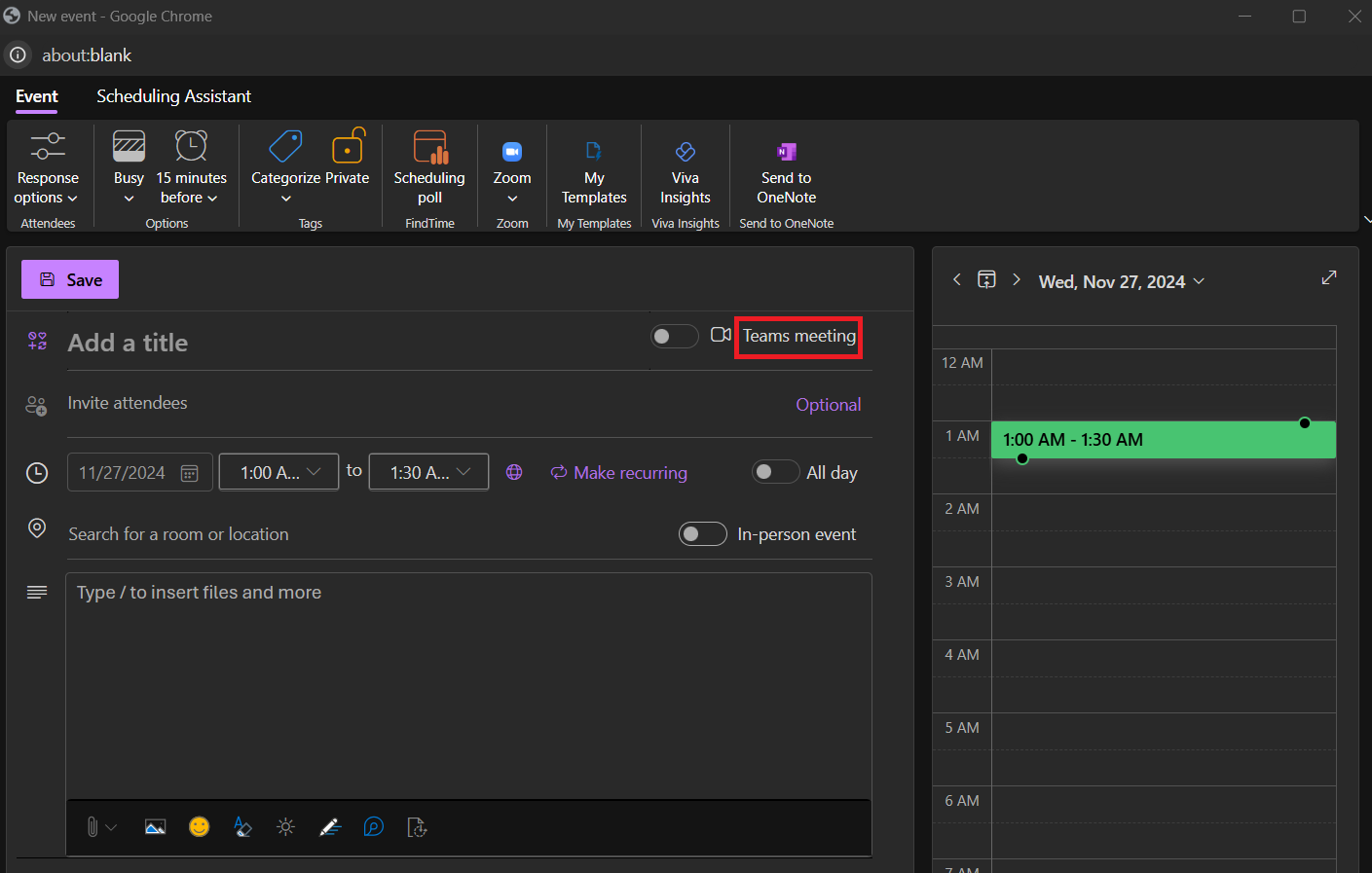
With the integration complete, we can now effortlessly turn every meeting into a Teams meeting. You can just click on a button within the Outlook meeting invite.
FAQs
Can You Use Microsoft Teams with Microsoft Outlook?
Yes, using Microsoft Teams in collaboration with Microsoft Outlook is highly beneficial. It allows you to efficiently schedule and manage meetings directly within the Outlook interface.
How to check the status of the Microsoft Teams add-ins on Outlook?
To check the status of the Microsoft Teams Add-in on Outlook, follow the steps below:
- Go to File > Options
- Click on Add-ins
- See if it’s under ‘Active Application Add-ins’.
- If it’s under ‘Disabled’, enable it from the ‘COM Add-ins’ manager.
Why is Teams not showing up in Outlook?
Teams not showing up in Outlook generally suggests an add-in issue. It can happen when the Teams Add-In is disabled, a version incompatibility, or incorrect account use.
How to manually add Teams to Outlook?
To manually add Teams to Outlook, follow the steps below:
- Go to File > Options > Add-Ins.
- In the Manage drop-down, select COM Add-ins.
- Click Go.
- Click Add.
- Browse to the Teams installation folder.
- Click OK
- Restart Outlook.

John Michaloudis is a former accountant and finance analyst at General Electric, a Microsoft MVP since 2020, an Amazon #1 bestselling author of 4 Microsoft Excel books and teacher of Microsoft Excel & Office over at his flagship MyExcelOnline Academy Online Course.

 30 Days - Full Access









