When I first started using Microsoft Teams, I was amazed by how it transformed the way I collaborate with my colleagues. One of the features that stood out to me the most was Channels in Microsoft Teams. In this article, you will learn all about channels in Microsoft Teams.
Key Takeaways:
- Channels in Microsoft Teams are virtual spaces that organize communication.
- Standard channels promote communication and co-authoring.
- Private channels provide secure spaces for sensitive discussions.
- Personalize channels with tabs, apps, and notification settings to customize the workspace.
- Use naming conventions, pinning, and hiding features to streamline the channel.
Table of Contents
Introduction to Microsoft Teams Channels
Microsoft Teams channels are foundational elements that support teamwork. In my experience, they act as virtual rooms for each aspect of a project or topic. Channels help team members to stay organized and focused. They can consolidate communications, files, and tools in one readily accessible place.
Channels in Microsoft Teams are like dedicated spaces within a team where we can focus on specific topics, projects, or departments. Each channel is essentially a separate conversation thread, complete with its own files, apps, and meetings. This structure helps keep our discussions organized and ensures that information is easily accessible to everyone involved.
Channels in Microsoft Teams
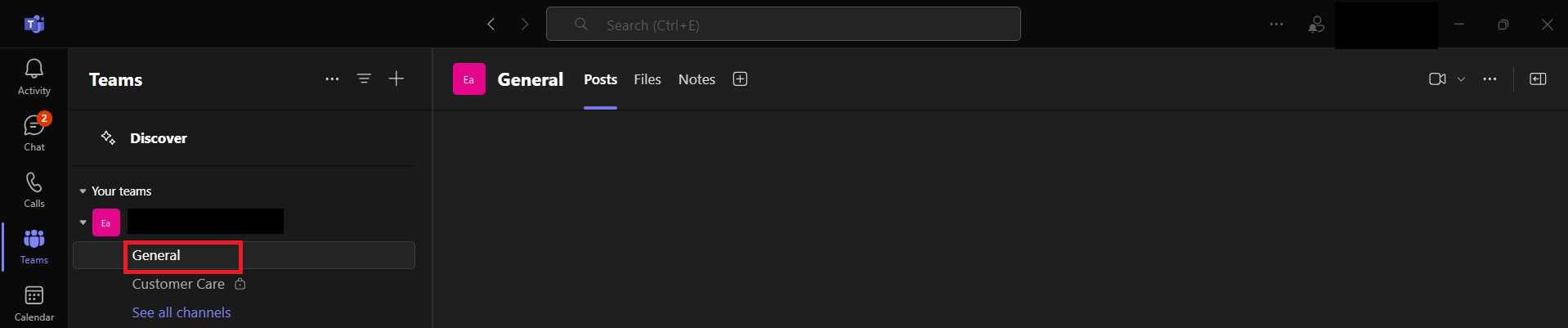
Standard Channels
Standard channels are like open spaces for team communication. Team members can easily share messages, files, updates, and ideas. These channels are used for real-time collaboration, and each member has access to the channel.
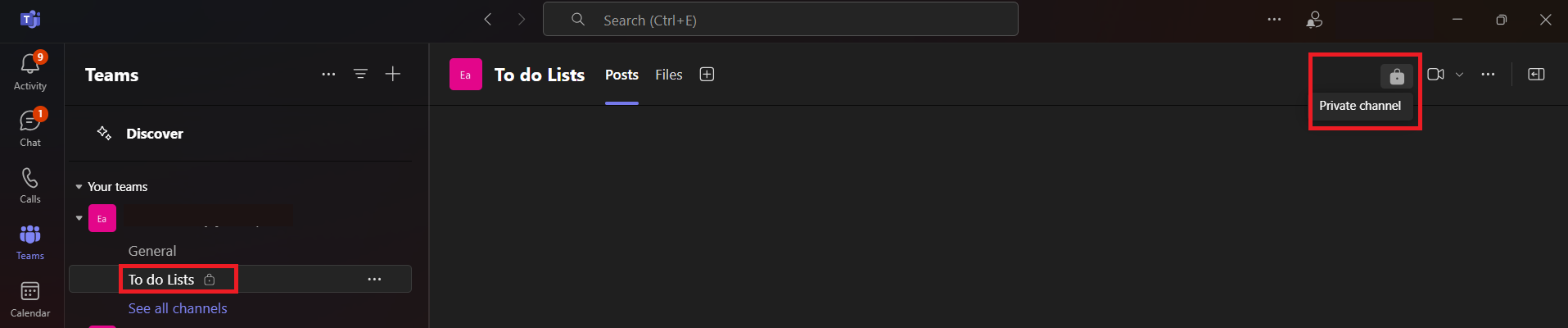
Private Channels
Private channels are created for confidential discussions. They are useful for sensitive projects and only selected members can access these channels.
Customize Channel
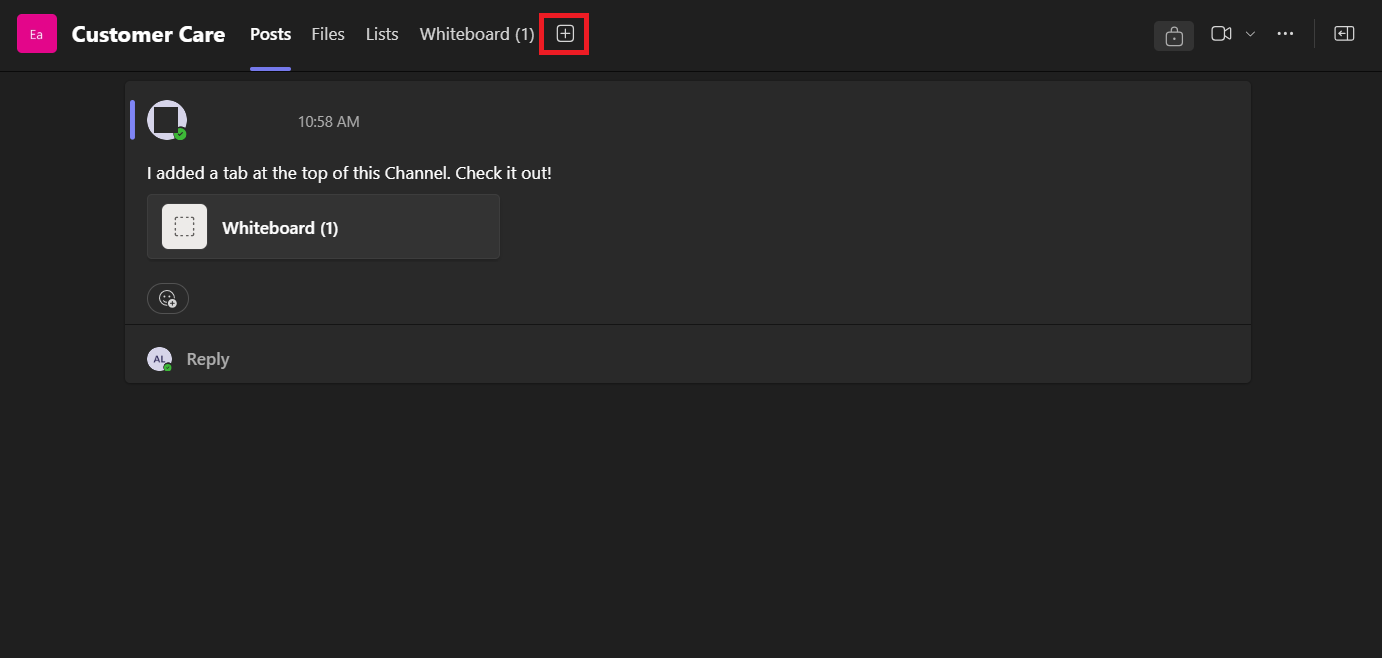
Tabs
You can add tabs to keep important files and tools at the top.
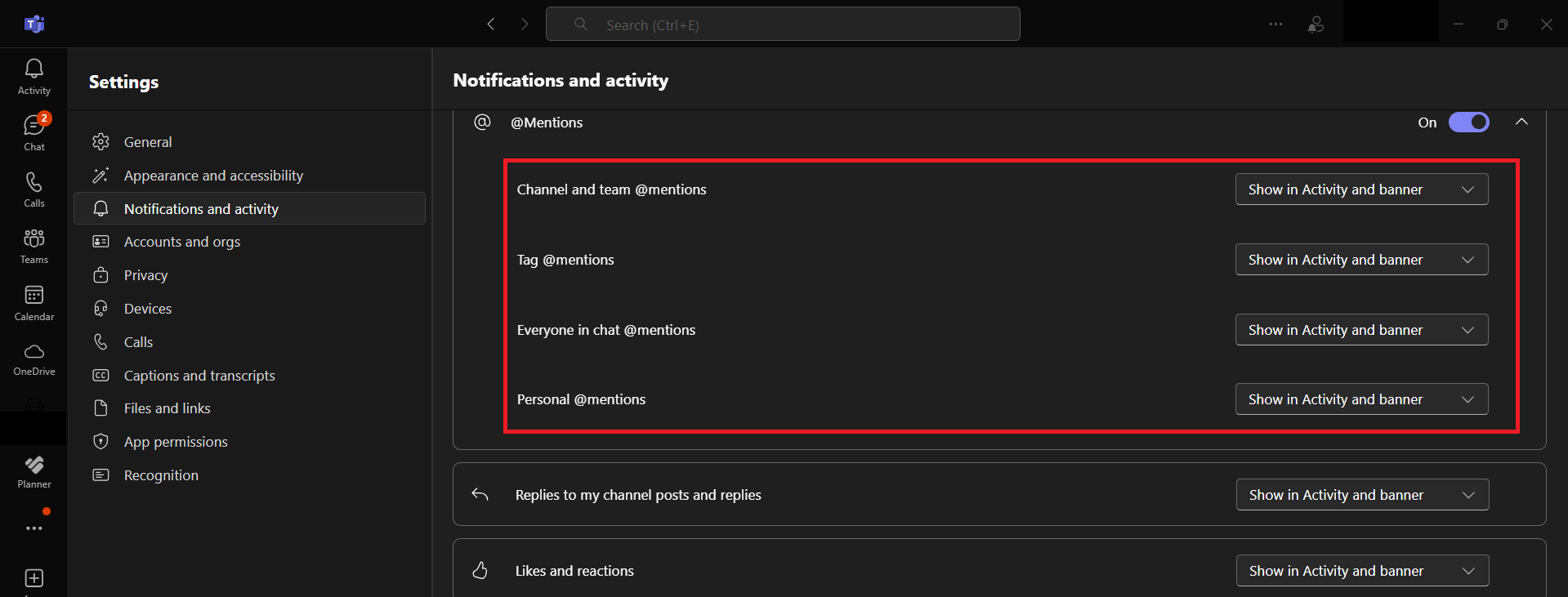
Manage Notifications
- @Mentions: You can set an alert so that when anyone mentions your name, you get a notification.
- Replies: We can change notification settings to make sure that we are informed when someone replies to our messages.
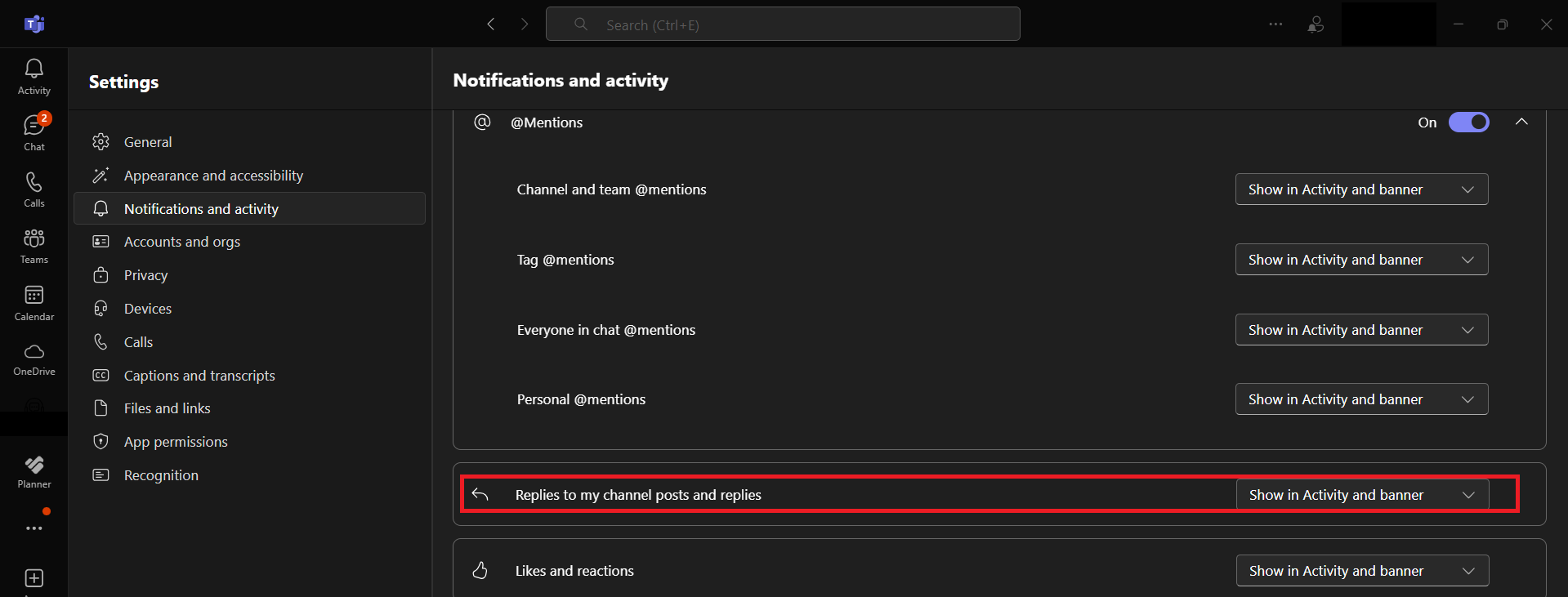
- Channel-specific settings: Change notification settings for each channel to prioritize important updates.
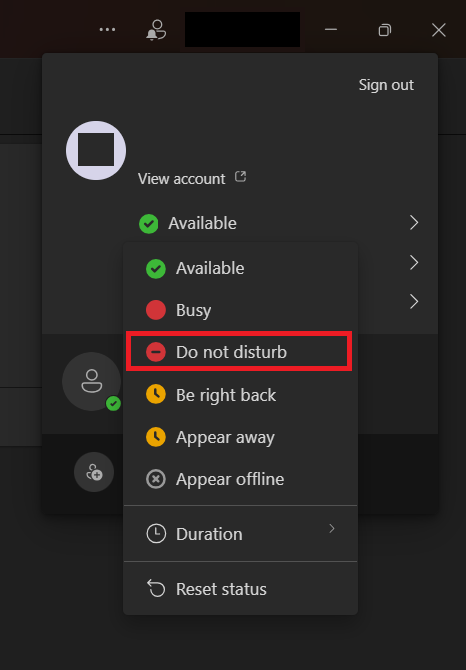
- Do Not Disturb: Use do not disturb option when you want no notifications and want to work uninterrupted.
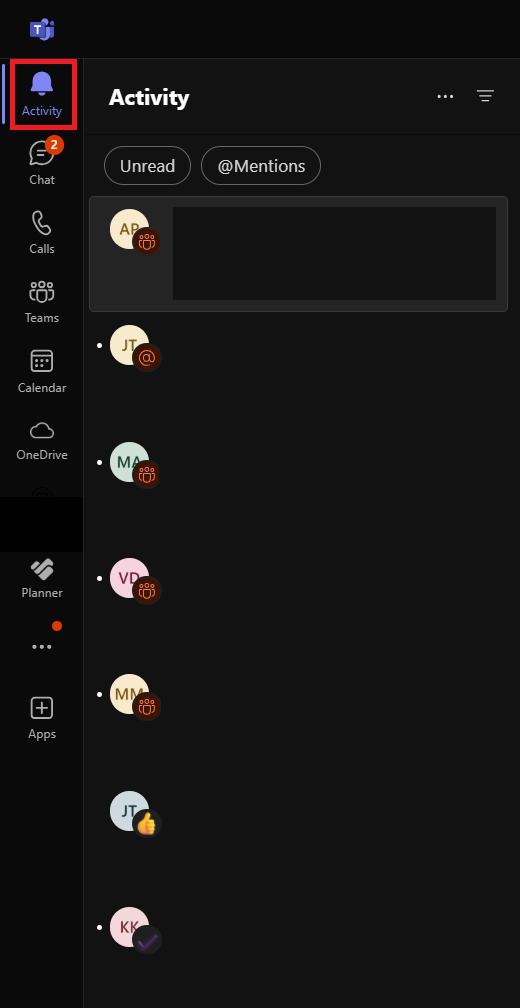
- Activity Feed: Go to the Activity Feed to see all mentions, replies, and alerts.
Organize Channels for Quick Access
Favorite and Pin Channels
Maintaining quick access to our key channels is important for swift navigation. We can star our favorite channels and create a separate list for quick access.
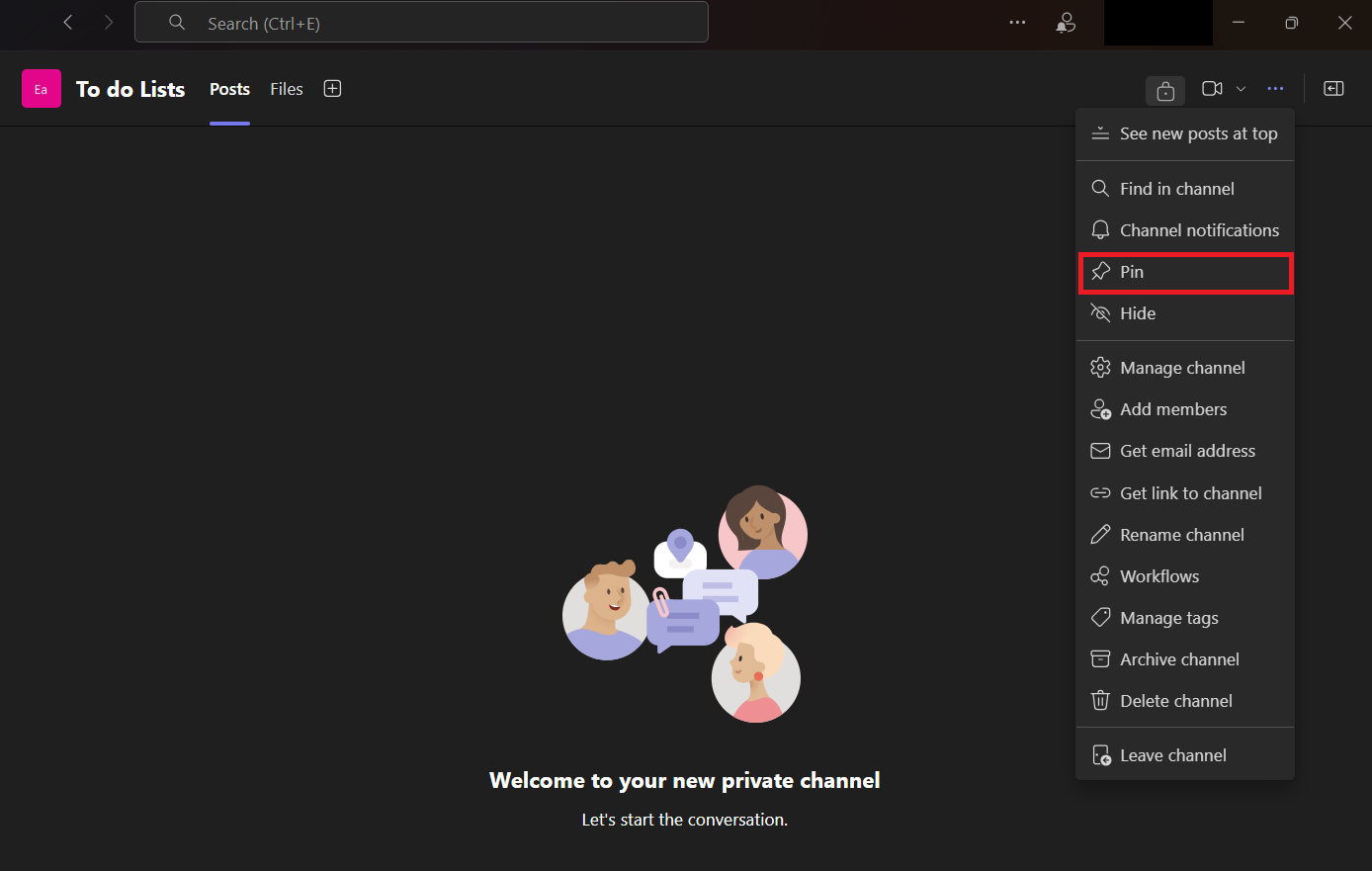
By pinning channels, we can make sure that these channels are always at the top of our team’s list. We can pin any channel that we frequent or need to monitor closely.
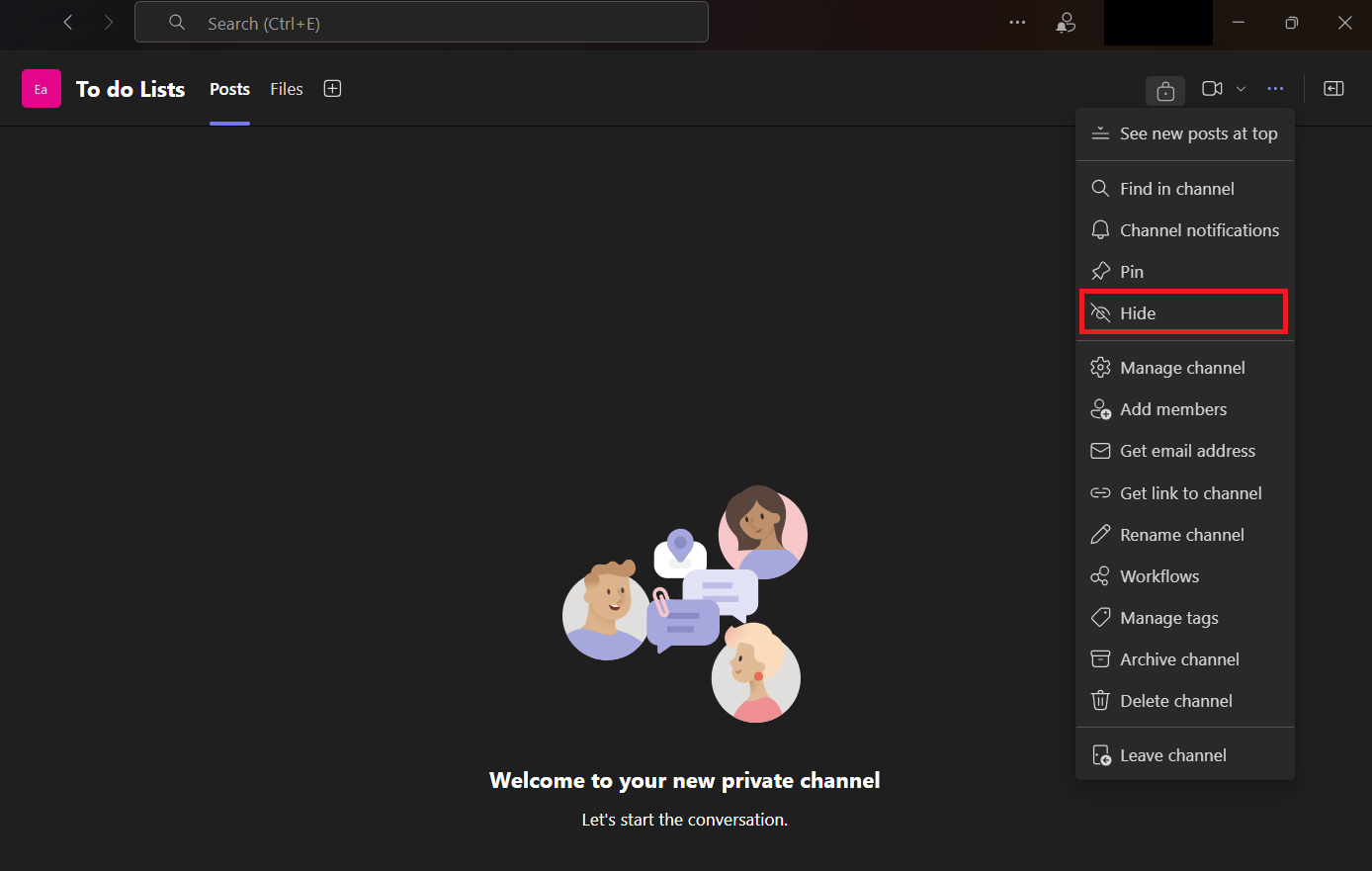
Hide Channels
We hide the less frequently used channels to declutter our workspace. This will keep us focused on the channels that matter most to our daily tasks.
FAQs
What are channels in Microsoft Teams?
Channels are dedicated spaces inside a team. They help organize chats, files, and meetings.
What is the difference between standard and private channels?
Standard channels are open to the whole team, whereas private channels are limited to selected members.
How to customize channels in Microsoft Teams?
You can add tabs, apps, and tools to customize channels in Microsoft Teams. You can also manage channel notifications.
Can external members be added to a private channel?
Yes, external members can be added to a private channel in Microsoft Teams, but they must first be invited as guests to the team. Once added, they can collaborate in the private channel with access limitations.

John Michaloudis is a former accountant and finance analyst at General Electric, a Microsoft MVP since 2020, an Amazon #1 bestselling author of 4 Microsoft Excel books and teacher of Microsoft Excel & Office over at his flagship MyExcelOnline Academy Online Course.

 30 Days - Full Access









