It can be frustrating when Microsoft Teams pops up every time you start your computer. It may not be convenient when you don’t need to use this automatically after starting the computer. In this article, you will learn how to stop Microsoft Teams from opening at startup.
Key Takeaways:
- Microsoft Teams opens at startup because auto-start is enabled by default.
- You can turn it off in the app’s Settings under the General tab.
- Task Manager gives a quick way to disable it from the Startup list.
- Windows Settings also lets you switch off startup apps easily.
- Managing startup apps can make your computer start faster.
Table of Contents
Microsoft Teams launching at Startup
Why Does Microsoft Teams Open on Startup?
Microsoft Teams typically opens on startup because it’s set to do so by default. The intention is to streamline the user’s experience by having Teams ready and available the moment the desktop appears. This auto-launch feature is particularly designed for those who regularly use Teams for work or school, ensuring they won’t miss important notifications or meetings right after system boot.
Impact on System Performance and Productivity
Having Microsoft Teams open on startup can sometimes weigh heavily on system resources, especially if the computer has limited memory or processor power. The additional seconds or even minutes added to boot time might not seem monumental, but they accumulate into a sluggish beginning that can disrupt the flow of a productive day.
Consistent delays can lead to frustration and set a laggard tone for what lies ahead in a busy schedule.
How to Stop Microsoft Teams from Opening at Startup
Accessing Teams General Settings
STEP 1: Open the Microsoft Teams application.
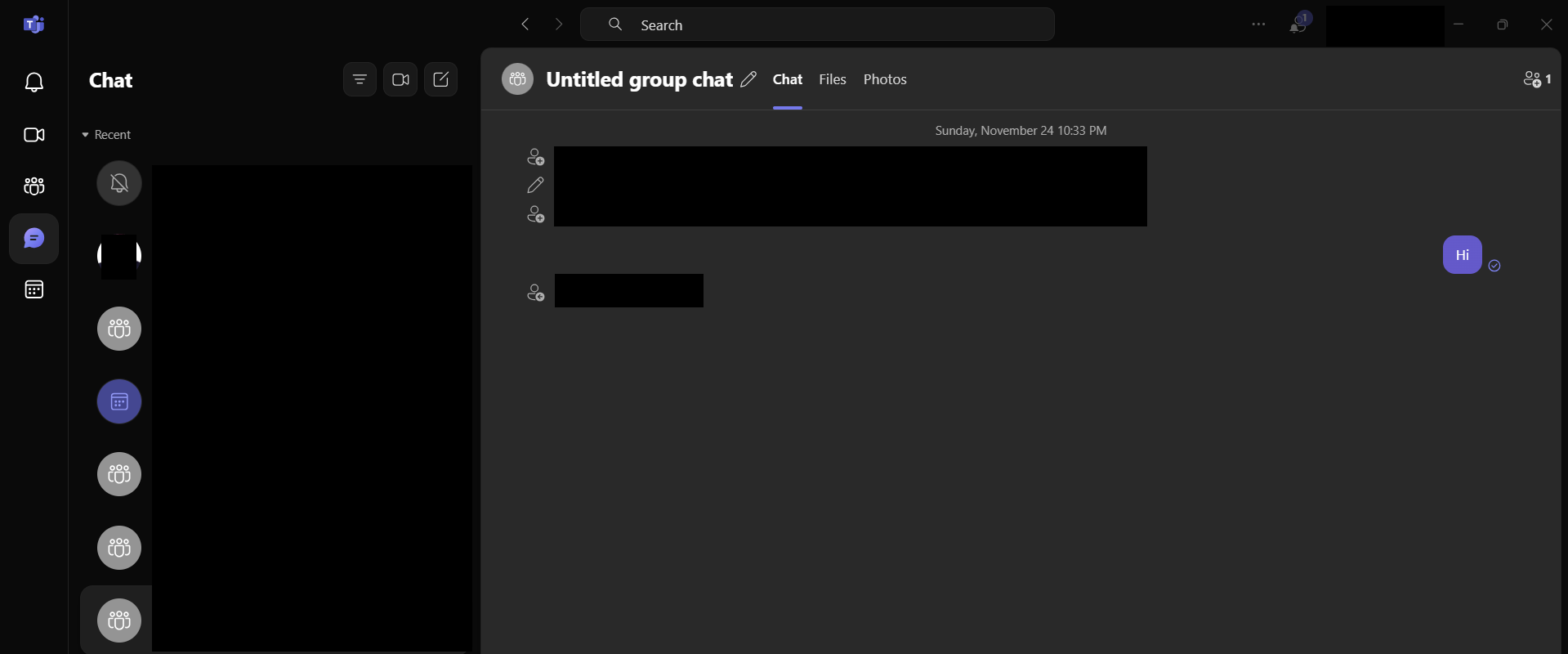
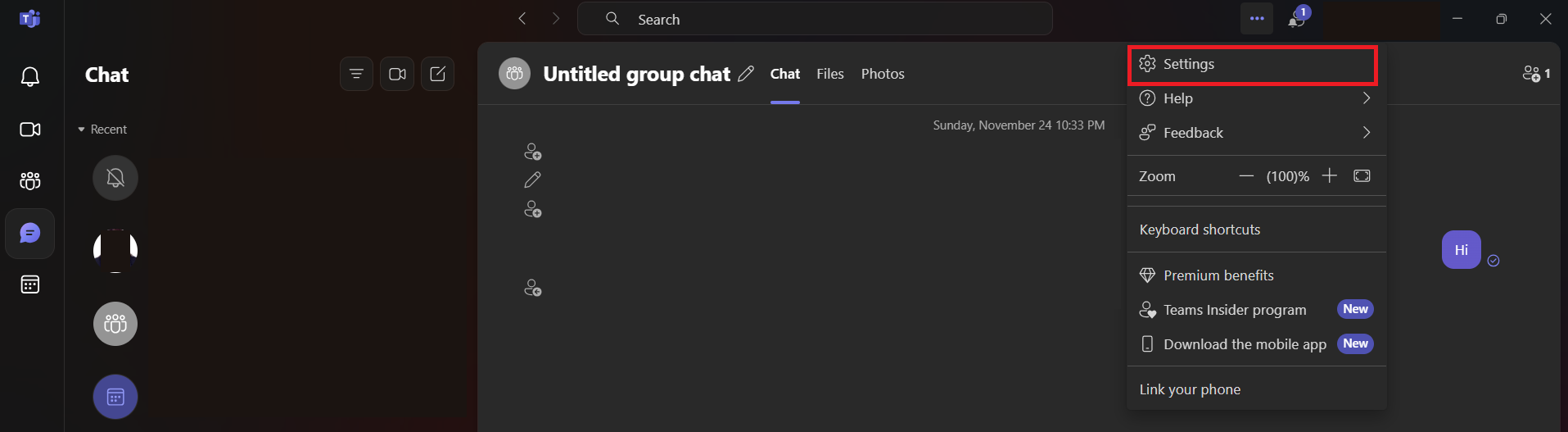
STEP 2: Click on three dots at the top right corner of the window to open a dropdown menu. From the options available, select “Settings” to open the configuration panel for Teams.
STEP 3: In the sidebar of the Settings window, click on the “General” tab to find the startup options. Look for the “Auto-start teams” setting. You’ll typically find a checkbox or a toggle switch next to it.
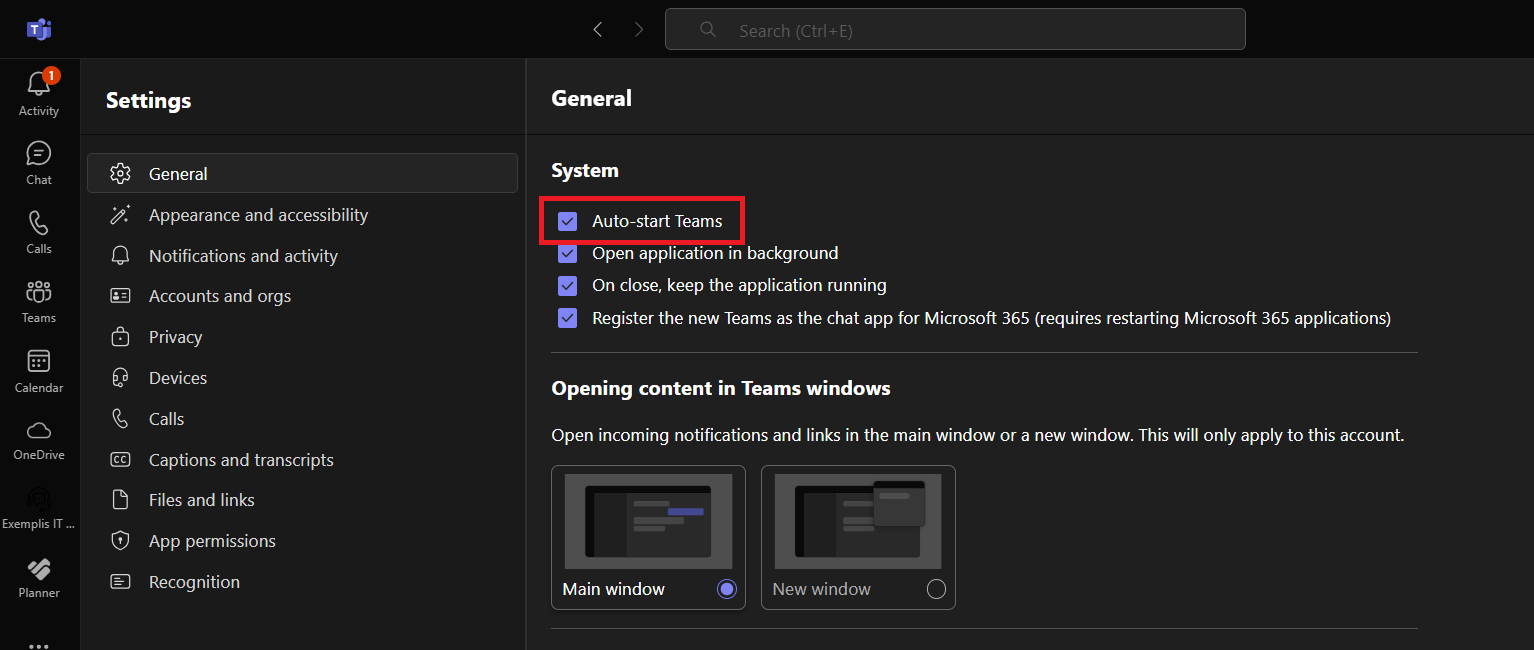
If you want to prevent Teams from opening at startup, simply uncheck this box or toggle the switch to the “Off” position.
STEP 4: Restart your computer to ensure the changes have taken effect.
Traversing the Startup Tab of Task Manager
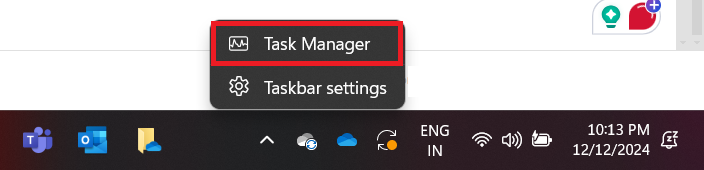
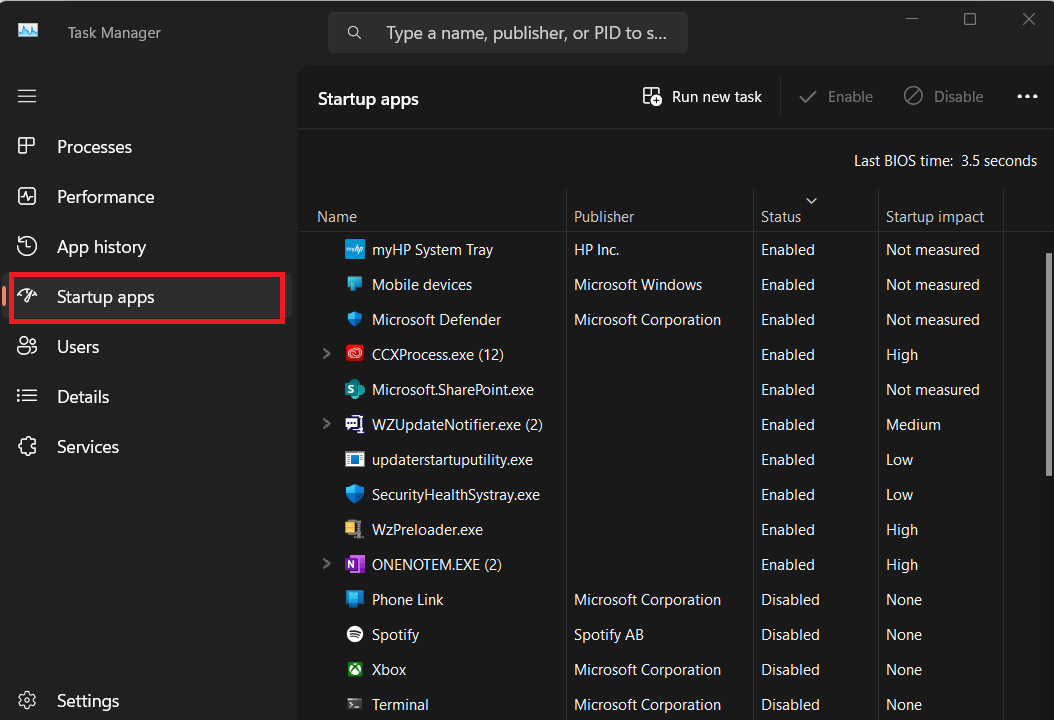
STEP 1: Press Ctrl + Shift + Esc to summon the Task Manager. Alternatively, we can right-click the taskbar and select “Task Manager” from the context menu.
STEP 2: Once the Task Manager window pops up, we’ll navigate to the ‘Startup’ tab. This is where you’ll get an overview of all the programs set to run at startup.
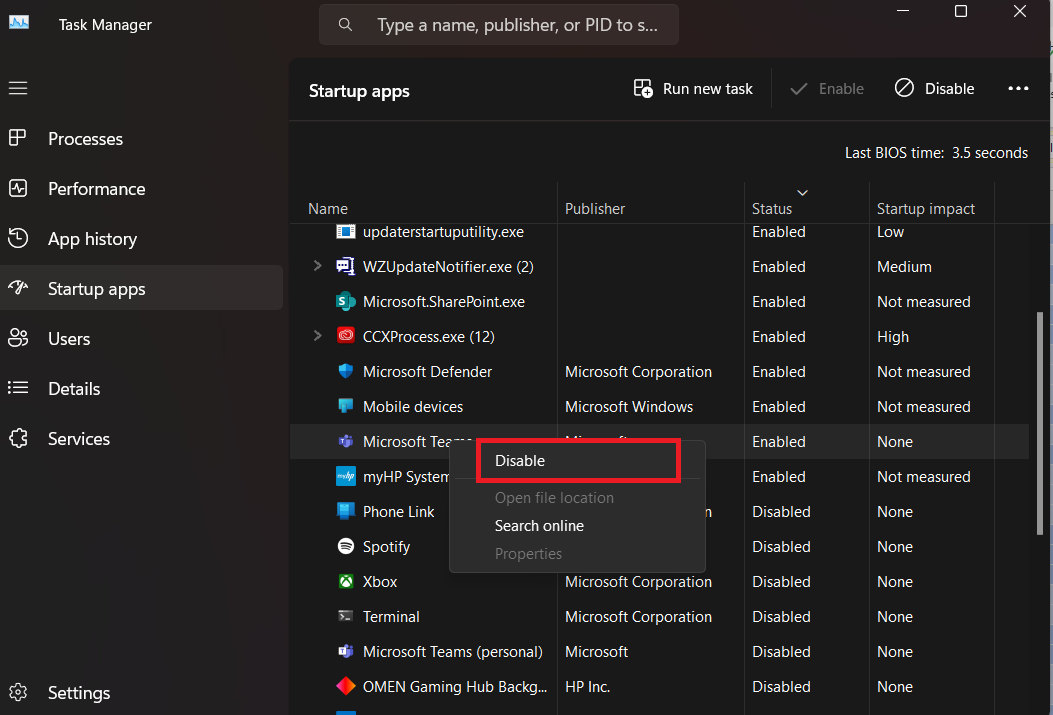
STEP 3: To prevent Microsoft Teams from opening at startup, we need to find it in the list. Right-click on Microsoft Teams and select ‘Disable’.
The Windows Way to Disable at Startup
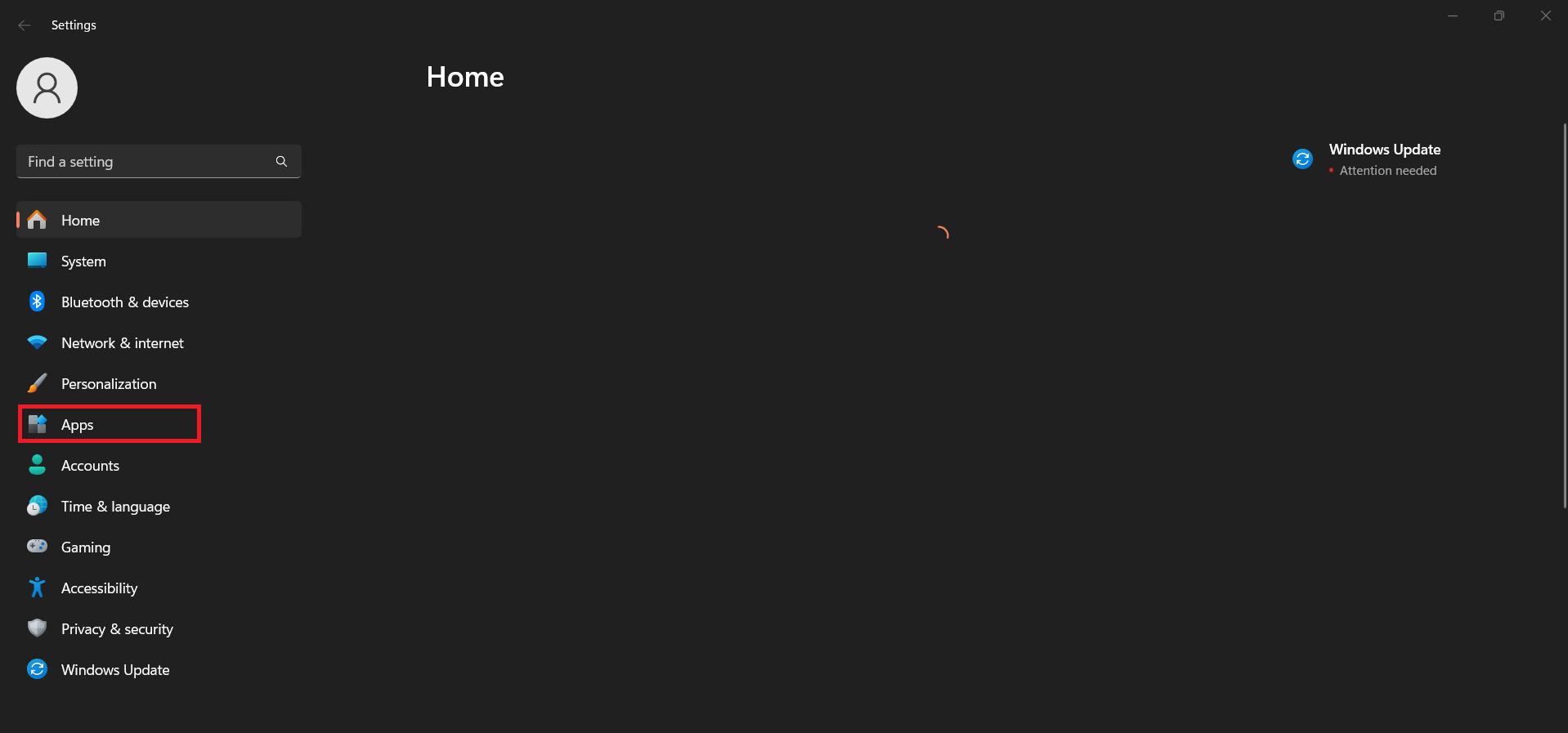
STEP 1: Press the Windows key + I to call forth the Settings app.
STEP 2: Click on ‘Apps’ to delve into the realm of installed programs.
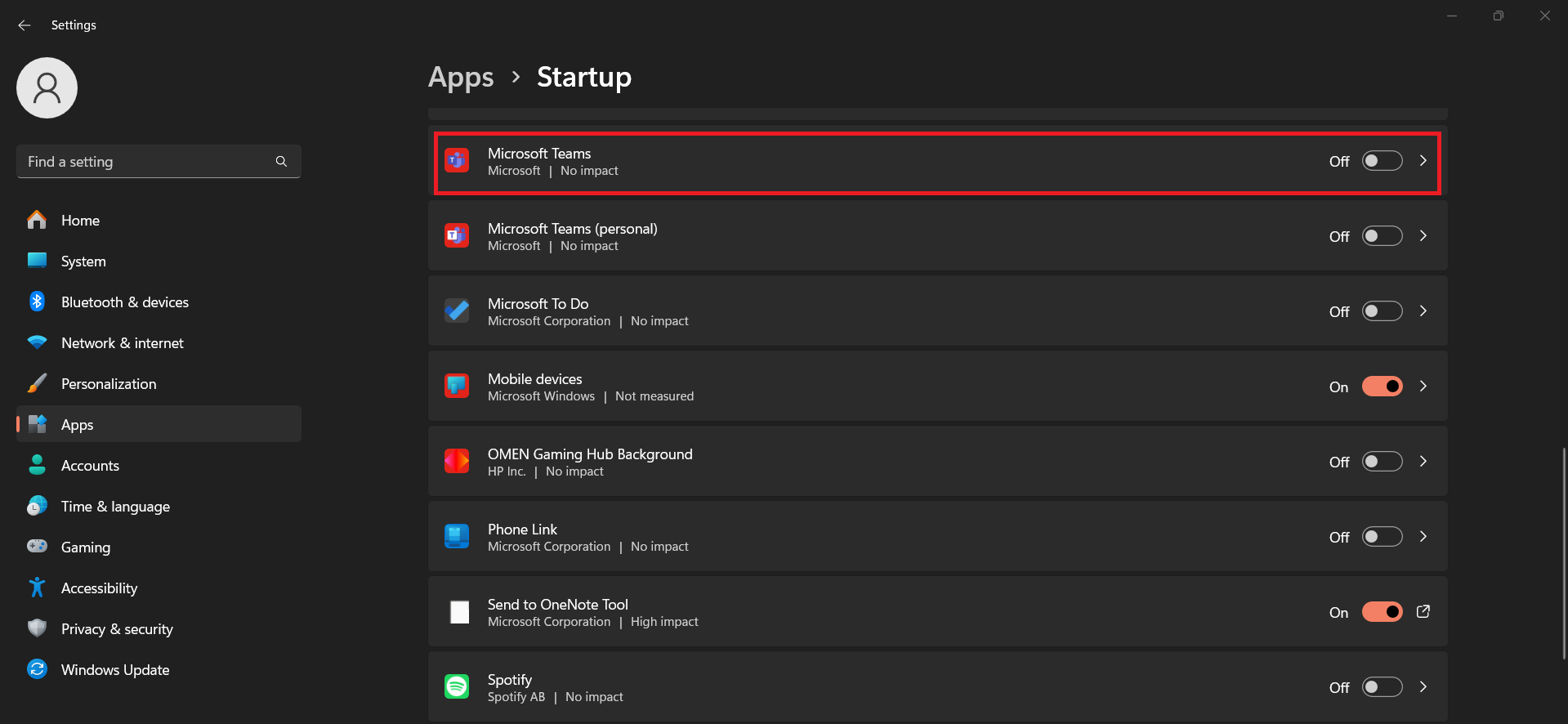
STEP 3: Locate Microsoft Teams in the list and toggle the button to ‘Off’.
FAQ
How to Stop Microsoft Teams from Opening at Startup
To prevent Teams from opening on startup, follow the steps below:
- Open Microsoft Teams
- Click on your profile picture
- Go to the General tab > Settings
- Uncheck ‘Auto-start application’
Can I Stop Teams from Opening Without Uninstalling It?
Yes, you can stop Teams from opening without uninstalling it. Simply disable it from the startup list in Task Manager on Windows to not automatically start upon login.
Why Does Teams Keep Reappearing in Startup Despite Being Disabled?
If Teams reappears in the startup list after being disabled, it might be due to the app re-enabling itself after an update, or there may be multiple startup entries.
How Do Changes in Startup Affect Login Times?
Disabling applications from starting up with your computer can considerably shorten login times.
Is it safe to change startup settings?
Yes, as long as you don’t disable important system apps.

John Michaloudis is a former accountant and finance analyst at General Electric, a Microsoft MVP since 2020, an Amazon #1 bestselling author of 4 Microsoft Excel books and teacher of Microsoft Excel & Office over at his flagship MyExcelOnline Academy Online Course.

 30 Days - Full Access









