 Free Practice Workbook
Table of Contents
How to Calculate Cumulative Relative Frequencies
Preparing Your Dataset
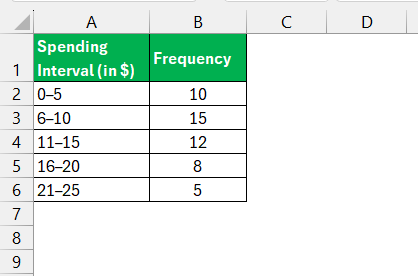
The first step is to create a data table. It will have two separate columns for individual data categories and frequency of occurrence for each category.
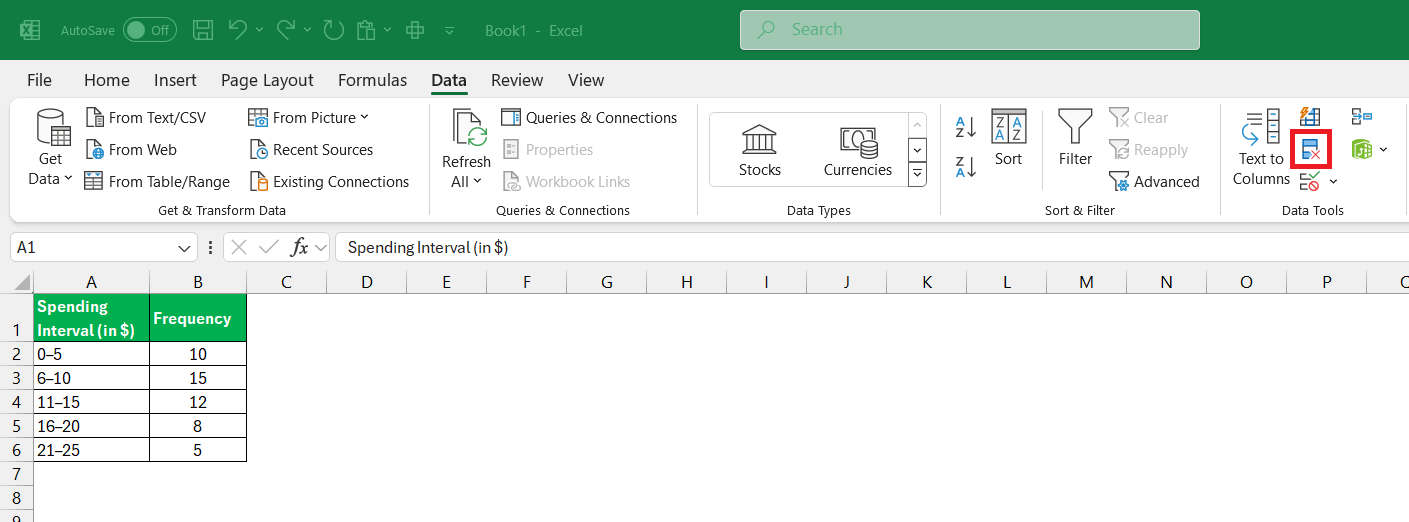
Use the Remove Duplicate option to make sure that there are no duplicates in the category column.
Cumulative Frequency Table
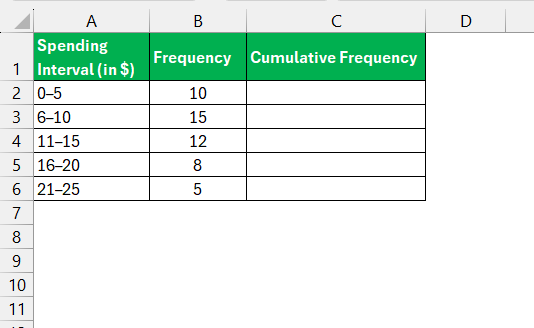
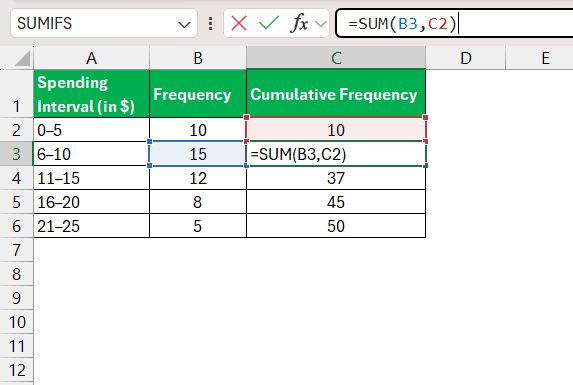
Once your data is in place, crafting a cumulative frequency table is quite straightforward. First, insert an additional column in your Excel spreadsheet next to the frequency column and title it “Cumulative Frequency”.
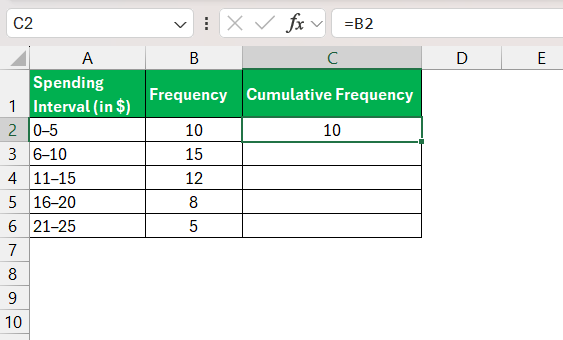
Start from the top of this new column; for the first row, the cumulative frequency equals the frequency.
For subsequent rows, it’s the sum of the previous cumulative frequency and the current frequency. To make things even simpler, you can use Excel’s SUM function—just be mindful to adjust the range appropriately as you go down the rows.
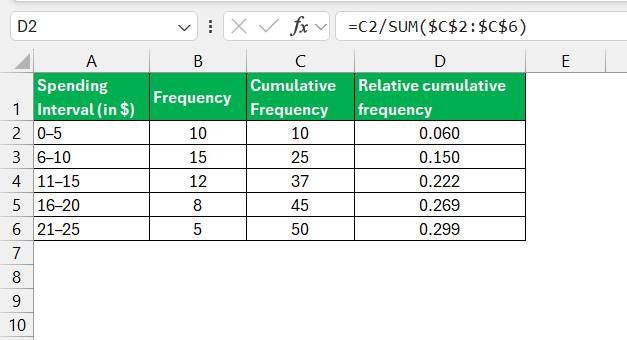
After tallying all the cumulative frequencies, you might choose to add a column for Relative cumulative frequency, where each cumulative frequency is divided by the total sum, converting it into a percentage if desired.
FAQs
What is the cumulative relative frequency?
Cumulative relative frequency shows the accumulation of each data point relative to the whole.
How to find the cumulative relative frequency in Excel?
To find the cumulative relative frequency in Excel, follow the steps below:
- Calculate the relative frequency for each data item.
- Add the relative frequencies of all previous items to the current one’s relative frequency.
What are some common errors to watch out for when working with cumulative frequencies in Excel?
Some of the common errors include:
- Incorrect range selection, which can lead to skewed results
- Not using absolute references in formulas can cause errors when copying formulas down a column.
What is the relative frequency formula in Excel?
The relative frequency formula is the frequency of an occurrence divided by the total number of data points. If you have the frequency in cell B2 and the total number in cell B10, the formula in Excel would be:
=B2/B10

John Michaloudis is a former accountant and finance analyst at General Electric, a Microsoft MVP since 2020, an Amazon #1 bestselling author of 4 Microsoft Excel books and teacher of Microsoft Excel & Office over at his flagship MyExcelOnline Academy Online Course.

 30 Days - Full Access









