Key Takeaways:
- Disable OneNote from Startup: Use Task Manager to automatically stop OneNote from opening at startup.
- Remove Notifications: Turn off OneNote notifications to avoid distractions.
- Uninstall OneNote If Needed: Completely remove OneNote from your system through Control Panel if it’s no longer needed.
- Troubleshoot Common Errors: Solve permission or integration issues by adjusting settings or restarting your system.
- Double-Check Settings: Confirm OneNote is fully disabled by revisiting Task Manager and restarting your PC so that it doesn’t appear at startup.
Table of Contents
Step-by-Step Methods to Disable OneNote
Disable OneNote Startup in Task Manager
Follow the steps below to use the task manager to disable OneNote startup:
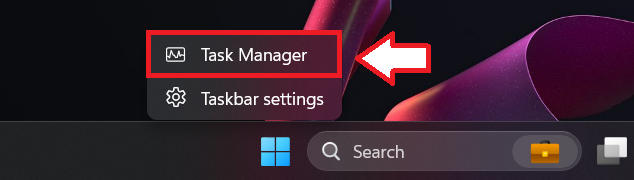
STEP 1: Right-click on the taskbar and select Task Manager.
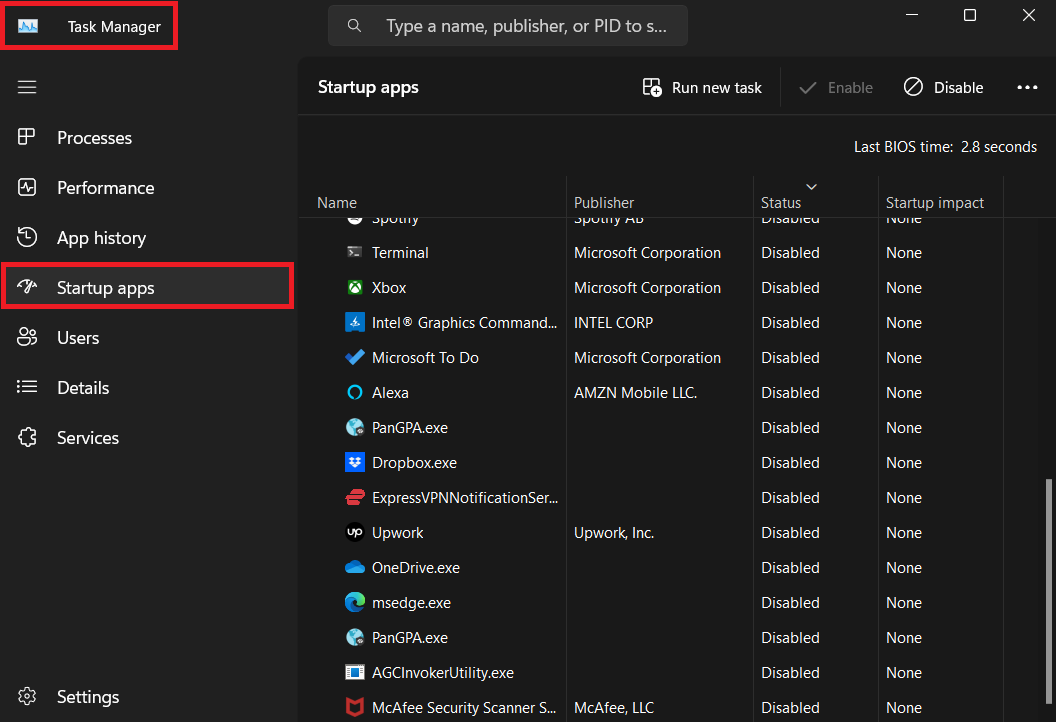
STEP 2: Click on Startup Apps.
STEP 3: Right-click on OneNote and select Disable.
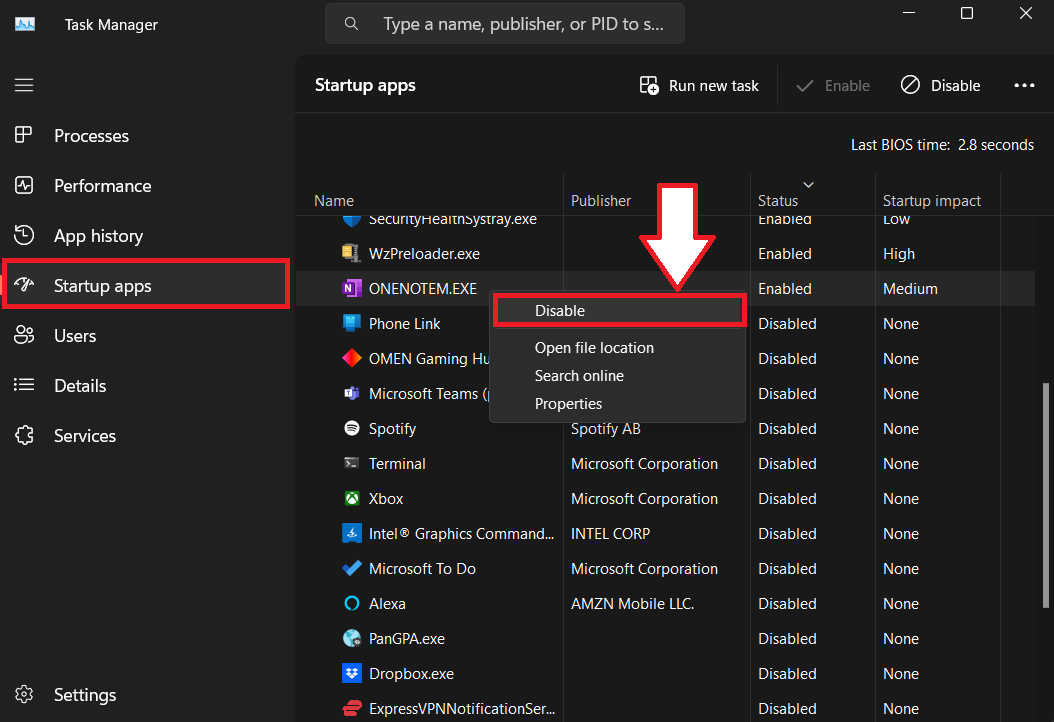
This method will automatically stop OneNote from opening upon startup.
Additional Tips
Delete OneNote
If you no longer require OneNote and want to remove it from your PC, follow the steps below:
STEP 1: Click on the Start button and select Control Panel.

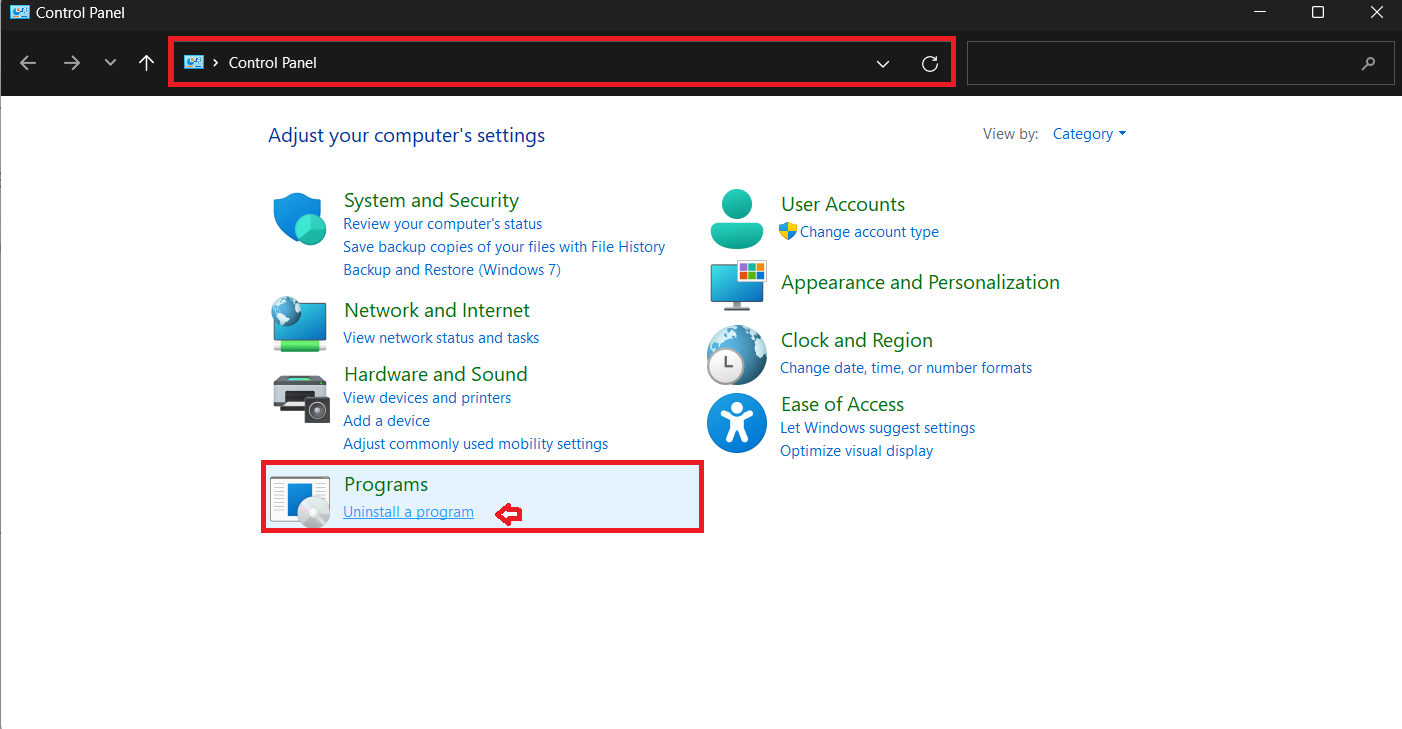
STEP 2: In the Control Panel, I look for ‘Programs’ where I can uninstall or change a program. And click on “Uninstall a program”.
STEP 3: Scrolling through the list of installed programs, I select “Microsoft Office” or “Microsoft Note” and then click on the ‘Change’ button. And follow instructions. Click ‘Continue’ or “Ok” to proceed, and patiently wait for the Setup wizard to reconfigure my installation without OneNote.
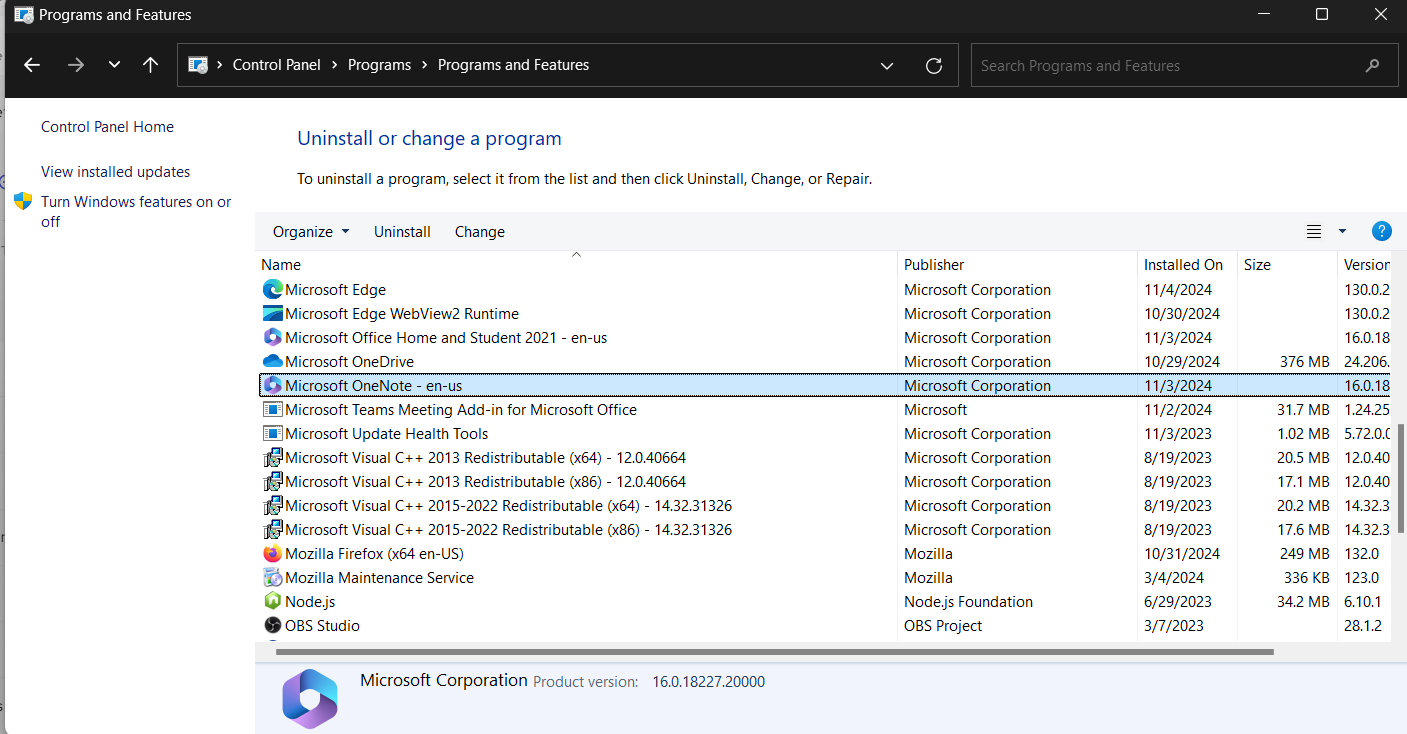
The process may take a few minutes as the wizard works its magic to delete and change files on my PC. Once it signals completion, I reboot my computer. When it starts up again, OneNote will be entirely absent from my system.
Tip: It’s essential to remember to back up any important notes before uninstalling OneNote, as this process will remove all related files.
Avoid Common Pitfalls
Common Errors and How to Fix Them
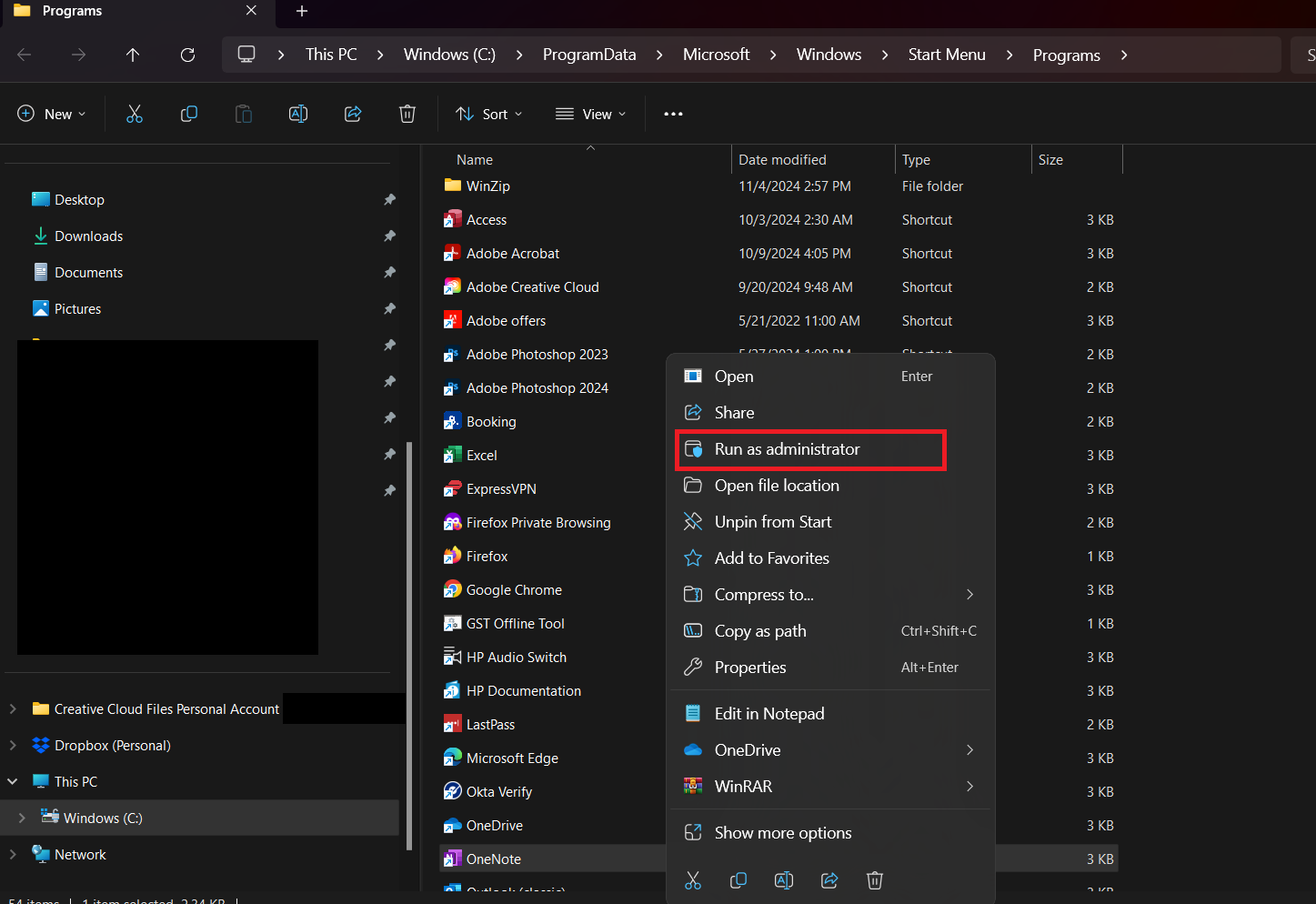
Sometimes, while trying to disable OneNote, I may run into errors. A common one is receiving a message that I don’t have sufficient permissions to change startup settings. This usually means I need to log in as an administrator or run the app with administrative privileges by right-clicking the Task Manager or Office app and selecting ‘Run as administrator’.
Another possible error is OneNote still opening up despite being disabled from startup. This could be due to OneNote being embedded within other Microsoft Office application processes. To fix this, I’d need to delve into the Trust Center settings within the Office applications to disable all OneNote integrations and add-ins manually.
Should I encounter an error message that the file path for OneNote cannot be found or is invalid, checking the Shortcut’s properties in the Startup folder to check if it’s pointing to the correct executable file can resolve the issue?
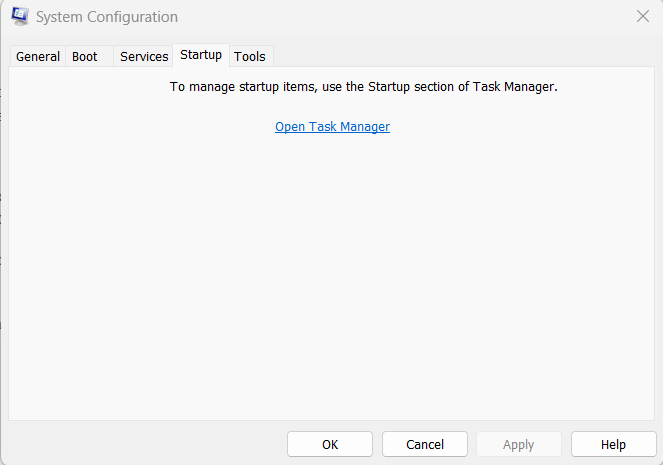
Lastly, if any changes seem not to take effect even after applying them, a system restart can help. If problems persist, using System Configuration (type “msconfig” in the Run dialog) to perform a more advanced startup management might be necessary.
Check OneNote is Completely Disabled
After following the previous methods to disable OneNote, I make sure to double-check that it’s completely turned off. This means revisiting the Task Manager’s Startup tab to confirm OneNote is still disabled. It’s also wise to restart the computer to see if OneNote makes an unwelcome appearance upon booting.
Lastly, I also keep an eye on the notification area in the taskbar post-reboot. If there’s no OneNote icon, that’s a good indication that I’ve been successful in completely stopping OneNote from starting up with Windows.
FAQs:
Can I disable Microsoft OneNote?
Yes, I can disable Microsoft OneNote. The application can be prevented from starting up automatically by disabling it in the Task Manager’s Startup tab, turning off its add-ins through Microsoft Office’s settings, or by removing it from the system entirely if I no longer wish to use it.
How to Stop OneNote From Being the Default Printer?
Follow the steps below to stop making OneNote the default printer:
- Go to Control Panel.
- Select Devices and Printers.
- Right-click on the preferred printer.
- Select Set as default printer.
How to make OneNote open at Startup After Disabling It?
Follow the steps below to enable OneNote to open at startup again:
- Go to Task Manager.
- Go to Startup Apps.
- Select OneNote.
- Right-click on OneNote.
- Select Enable.
Where to find OneNote files in Windows 7?
In Windows 7, OneNote typically stores notebooks in the Documents folder.
Is OneNote compatible with Windows 7?
Yes, OneNote does work on Windows 7, but with limitations. If you want to use all the features of OneNote, it is important to upgrade your system.

John Michaloudis is a former accountant and finance analyst at General Electric, a Microsoft MVP since 2020, an Amazon #1 bestselling author of 4 Microsoft Excel books and teacher of Microsoft Excel & Office over at his flagship MyExcelOnline Academy Online Course.

 30 Days - Full Access









