 Free Practice Workbook
Dotted lines in Excel can appear as borders, print preview settings, or even when dealing with page breaks. Understanding these dotted lines is essential for users who want to customize the appearance of their spreadsheets or troubleshoot unexpected formatting.
Key Takeaways:
- Dotted lines in Excel can indicate page breaks, cell borders, or gridlines, each serving different purposes.
- Page break dotted lines help visualize how a worksheet will be divided when printed and can be managed through the Page Layout settings.
- Dotted cell borders are customizable and can be applied or removed using the Format Cells dialog box.
- Gridlines may appear dotted based on display settings or print configurations but can be toggled or adjusted under the View and Options settings.
Table of Contents
Common Scenarios When Dotted Lines Appear
In my experience with Excel, there are a few typical situations when you might see dotted lines appear. One prevalent case is when you’re preparing a worksheet for printing. Excel shows where pages will break upon printing using dotted lines in both Page Break Preview and Normal view.
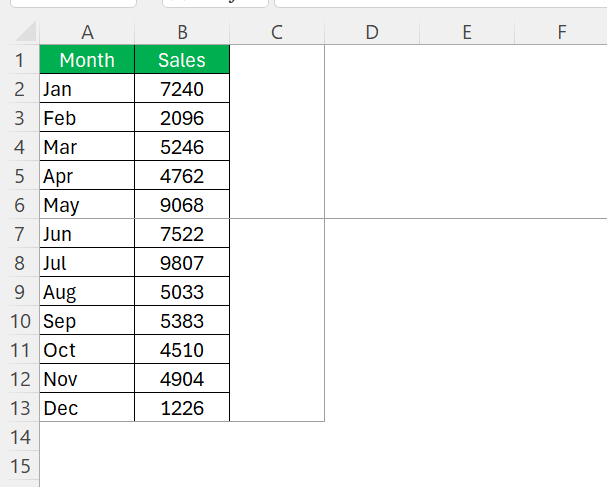
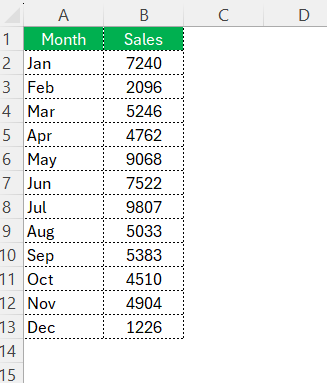
Another common scenario is the presence of dotted cell borders. This could be a stylistic choice applied intentionally to distinguish certain cells or areas within a spreadsheet. These borders are part of Excel’s array of formatting tools, and you can apply them as easily as you can remove them.
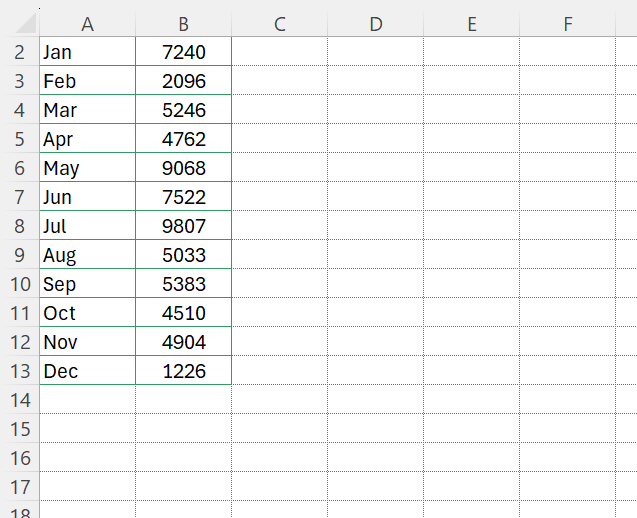
Lastly, you may notice what seem to be dotted lines throughout your entire worksheet, and more often than not, these are the gridlines. Excel displays gridlines by default to differentiate between cells. While they usually appear as faint solid lines, depending on the screen resolution and zoom level, they might seem dotted or broken. These gridlines can be easily turned on or off at your convenience.
Each of these circumstances has a specific remedy to remove the unwanted dotted lines, and we’ll cover that in the steps ahead.
Step-by-Step Guide to Remove Dotted Lines
Dotted Borders in Excel
Dotted borders are used to visually separate cells within a worksheet.
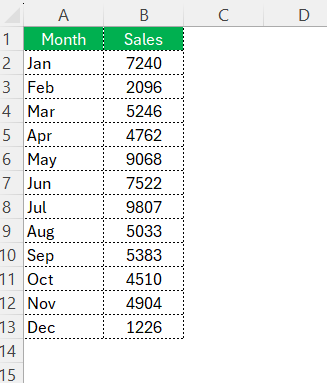
STEP 1: Highlight the cells where you want to apply the dotted border.
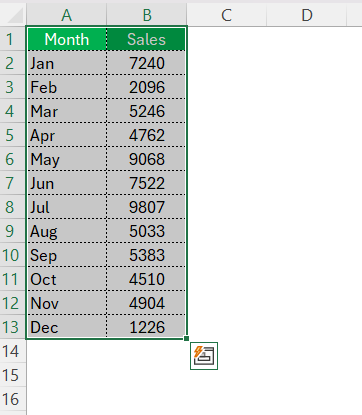
STEP 2: Right-click on the cells and select Format Cells.
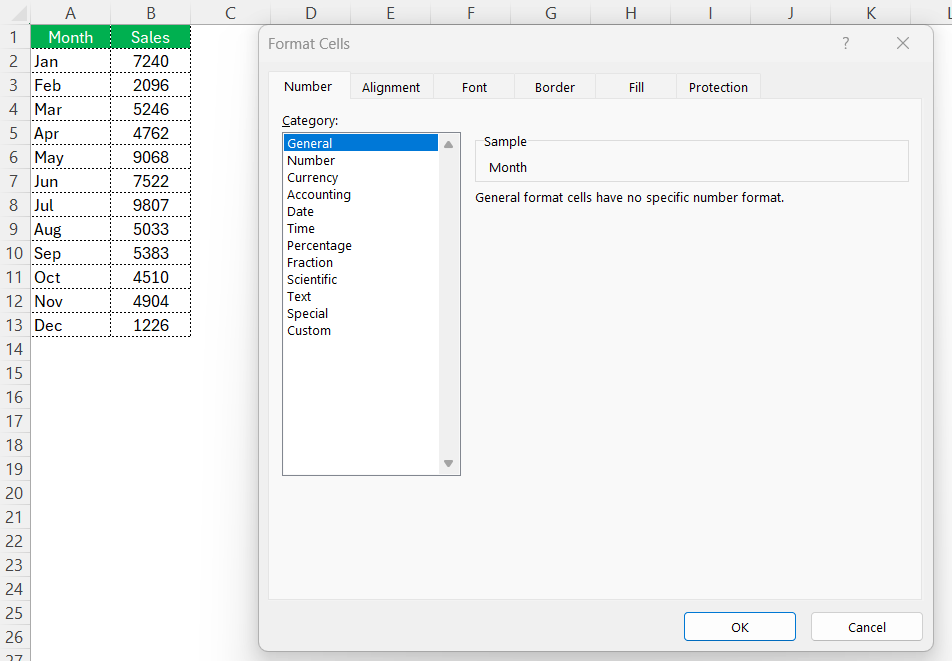
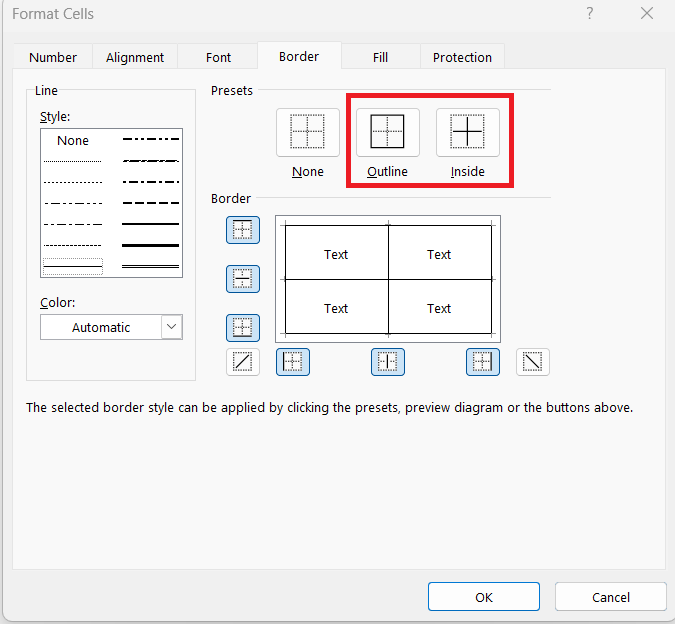
STEP 3: In the Format Cells dialog box, go to the Border tab.
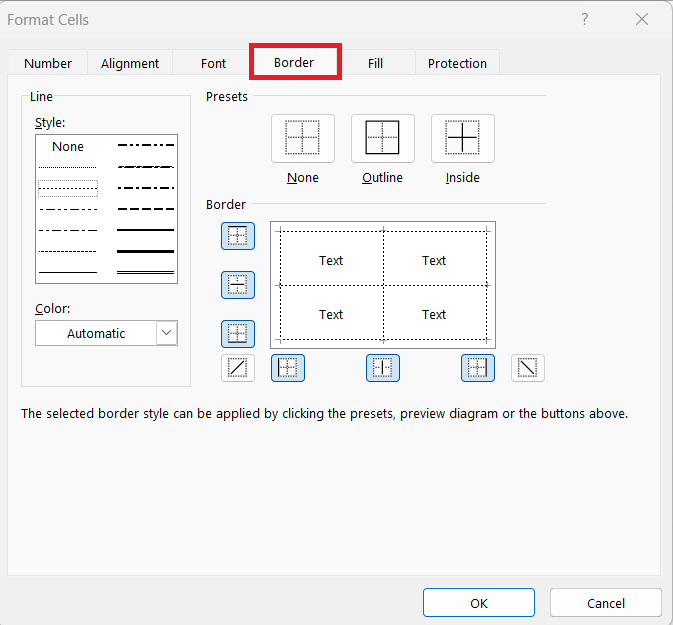
STEP 4: Under Style, select the dotted line option. You can choose a solid line or none.
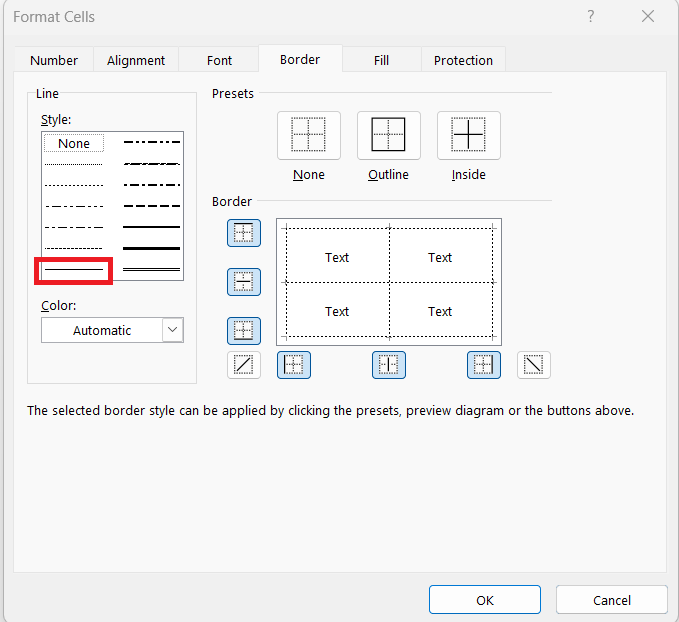
STEP 5: Click on the outline or inside border options to apply the dotted line where needed. Click OK.
Dotted Lines Indicating Page Breaks
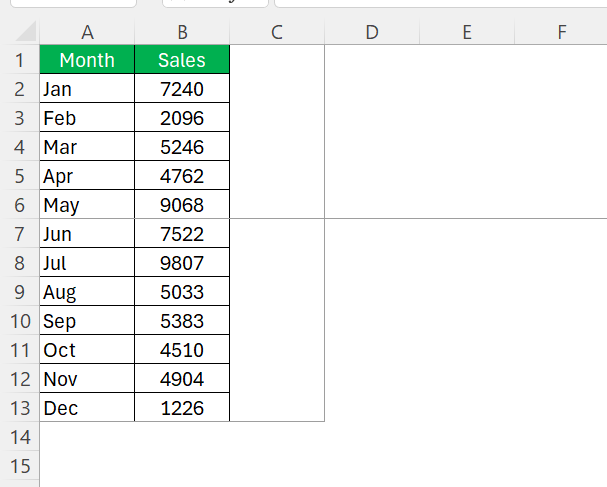
When working in Excel, dotted lines can also indicate page breaks. They show up as light dotted lines across the worksheet, separating the content into different pages.
STEP 1: Navigate to the View tab on the ribbon.

STEP 2: If you don’t want to see these dotted lines, uncheck Page Break Preview in the workbook views section. This will switch back to the normal view without the page break lines.

STEP 3: You can also reset all manual page breaks by going to Page Layout > Breaks > Reset All Page Breaks.

Dotted Gridlines in Excel
Excel shows solid gridlines, but sometimes these may appear as dotted lines due to display settings or printer configurations.
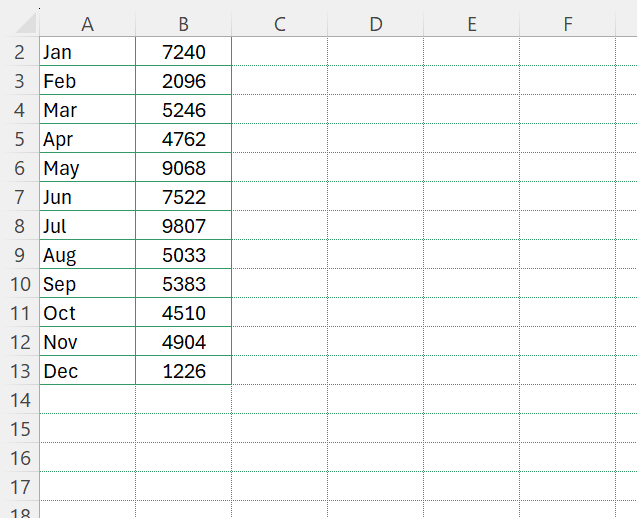
Follow the steps below to remove dotted gridlines in Excel –
STEP 1: Go to View > Show > Gridlines to toggle the gridlines on or off.

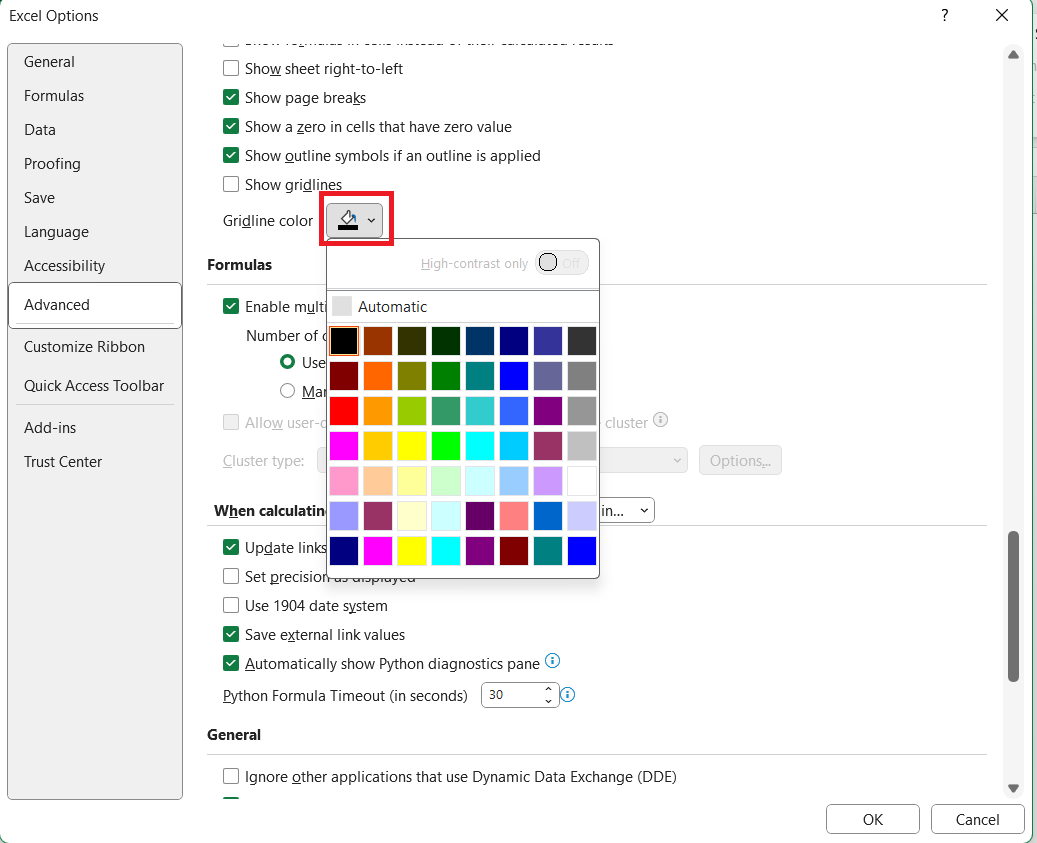
STEP 2: Go to File > Options > Advance. Go to the “Display options for this worksheet” section, and change the gridline color.
Frequently Asked Questions
Why is there a dotted line in Excel?
Dotted lines in Excel can emerge for a few reasons: they often signify page breaks, which indicate where data will split across printed pages, or they may represent cell borders set with a dotted line style. Sometimes, gridlines can appear as dotted lines based on display settings or screen resolutions. If you’re noticing these lines, it’s due to one of these formatting features.
How do I get rid of the dotted line in Excel?
The method to get rid of the dotted line in Excel depends on the kind of dotted line. If it’s a page break, you can turn off their visibility in Excel Options, or adjust your page layout settings. For dotted cell borders, select the cells, then head to the Home tab and choose ‘No Border’ in the Borders drop-down.
Why Do Dotted Lines Appear in My Excel Sheets?
Dotted lines appear in your Excel sheets primarily as page break indicators, which show you where pages will be divided for printing. They can also arise if you’ve set cell borders to a dotted style or, less commonly, when gridlines display as dotted due to particular view settings or monitor resolution. These are normal features within Excel used for various formatting and printing purposes.

John Michaloudis is a former accountant and finance analyst at General Electric, a Microsoft MVP since 2020, an Amazon #1 bestselling author of 4 Microsoft Excel books and teacher of Microsoft Excel & Office over at his flagship MyExcelOnline Academy Online Course.

 30 Days - Full Access









