Pinterest Pixel

Easily Duplicate Outlook Calendar Events and Meetings

John Michaloudis
Why do we need to Duplicate Calendar Events in Outlook?
If you need to set up similar events repeatedly, then instead of doing the same process again and again, you can easily duplicate calendar events.

This will make sure that you save time and there is consistency across similar events.

By duplicating calendar events, you avoid the task of entering the same data, like location, attendees, etc for multiple similar events.

Prerequisite

The most important thing that you need to do before starting the duplication process is to check which version of Microsoft Outlook you are using. The steps that you need to follow will depend on the version that you are working on. Follow the steps below to check the Outlook version:

STEP 1: Click on the Outlook icon.

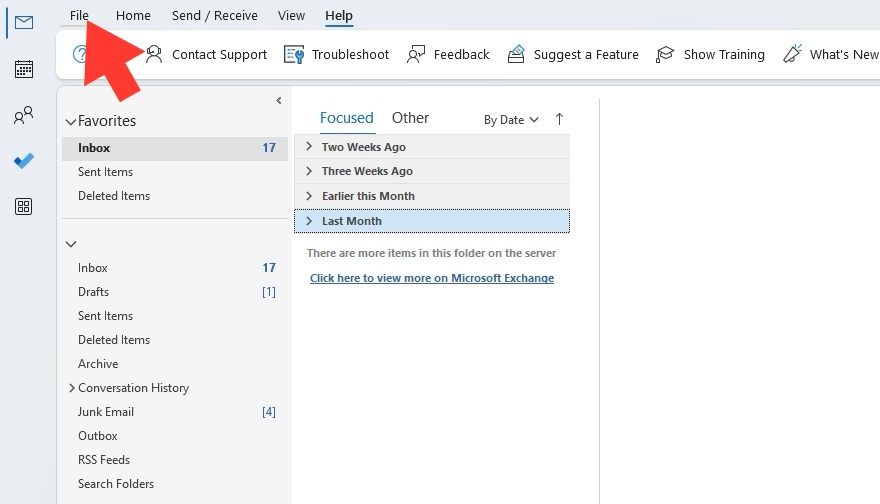
STEP 2: Click on “File” in the top-left corner of the window.
Duplicate Outlook Calendar Events
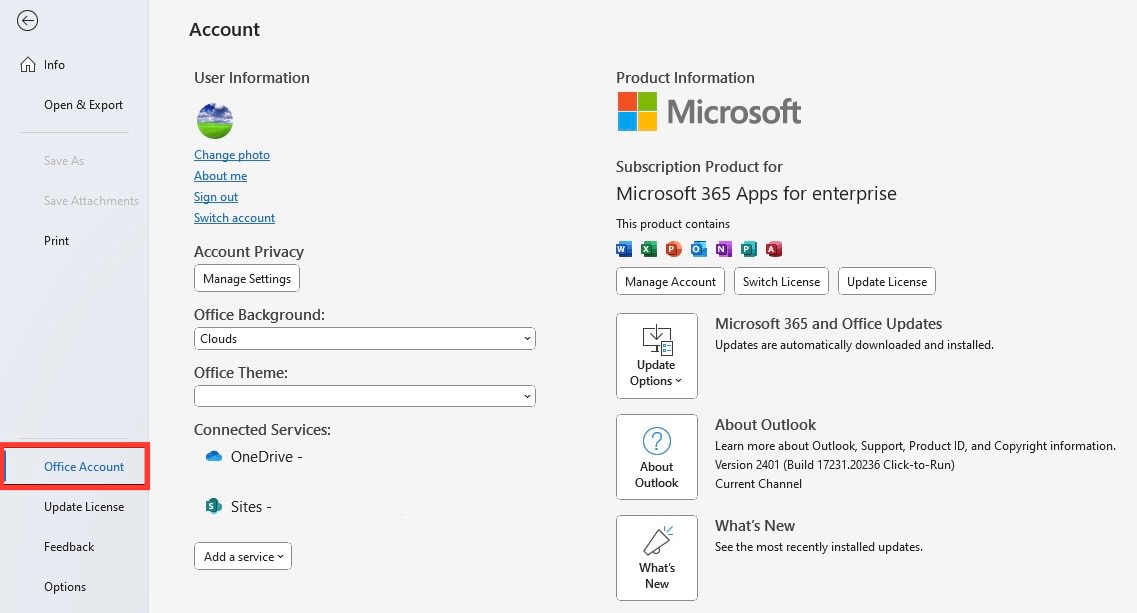
STEP 3: Select “Office Account” or “Help” depending on your version.
Duplicate Outlook Calendar Events
STEP 4: Under “Product Information,” you will see the version of Outlook you are running.

Knowing your version will make sure that you follow the right instructions for your software and can utilize all features available for your calendar events.


Straightforward Methods to Duplicate Calendar Entries

How to Duplicate a Calendar Invite in Outlook

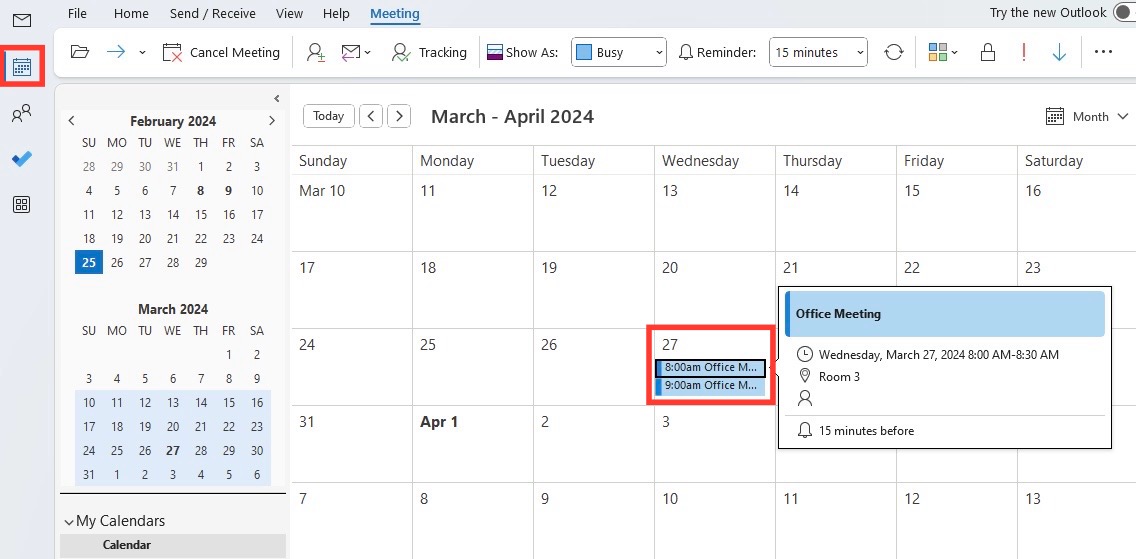
STEP 1: Open your Microsoft Outlook application and navigate to your calendar.

STEP 2: Find the calendar event you wish to duplicate and click on it to select it.
Duplicate Outlook Calendar Events
STEP 3: Press Ctrl+C to copy the existing meeting.

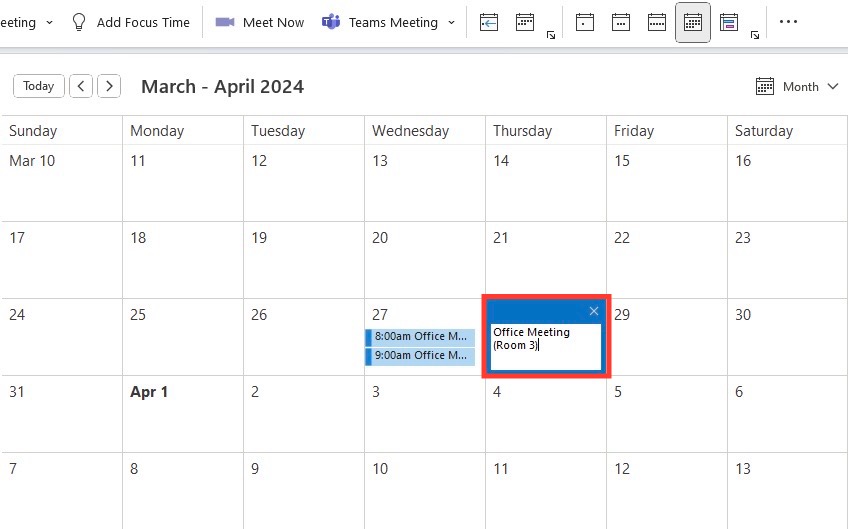
STEP 4: Select the date or time when you want the new event to be scheduled.
Duplicate Outlook Calendar Events

STEP 5: Press Ctrl+V to paste the copied event.

By following these steps, you can easily duplicate calendar events and save time.


Advanced Methods

It may be vital to automate the process of duplicating an event if you are repeatedly doing it. The following process can be done to achieve this:

  • Use VBA Scripts: Write VBA scripts that automate the duplication of events
  • Third-Party Add-ins: Add-ins like Quick Clicks and Template Phrases can be used to make a template.
  • Recurring Events: For events that occur regularly, consider using the ‘Recurring Event’ feature.
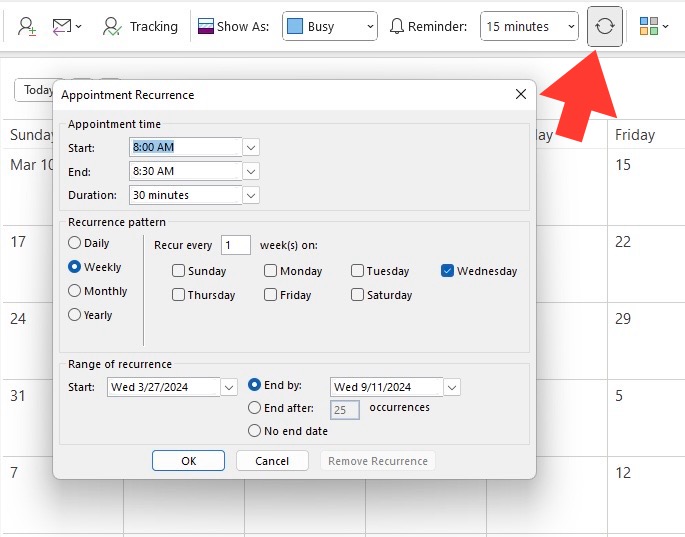
Duplicate Outlook Calendar Events

Troubleshooting Common Problems

Sometimes, you may encounter a situation where Outlook is blocking you from copying meetings. It can be because of either security settings, or add-in conflicts, ot any software glitches. Follow the steps below to resolve this issue:

  • Check Permissions: Check if you have the necessary permissions to make changes to the calendar event. For a shared calendar, you will need the owner to grant you the rights.
  • Update Outlook: Issues can sometimes be related to bugs in the software. Checking for and installing the latest updates for Outlook can resolve many of these problems. Go to ‘File’ > ‘Office Account’ > ‘Update Options’ > ‘Update Now’.
  • Inspect Add-ins: Disable any non-essential or recently added add-ins to determine if they are causing the issue. Go to ‘File’ > ‘Options’ > ‘Add-ins’, select ‘COM Add-ins’, and try unchecking add-ins one at a time to see if functionality returns.
  • Run in Safe Mode: Start Outlook in Safe Mode to see if the problem persists. Safe Mode disables all add-ins and customizations. You can do this by holding the ‘Ctrl’ key when clicking the Outlook shortcut or by typing outlook.exe /safe in the Run dialog (Win+R).
  • Office Repair Tool: Utilize the repair tool provided by Office to fix possible complications. You can find this by going to ‘Control Panel’ > ‘Programs and Features’, selecting Microsoft Office, and clicking ‘Change’ > ‘Repair’.
  • Review Security Settings: If the security setting is not allowing you to copy an invite, you can contact your IT department.
  • Create a New Outlook Profile: The last option will be to create a new Outlook profile and reset the settings to default.

Tips & Tricks

Best Practices

Here are some commonly used best practices that can help be used when you have multiple events in your calendar:

  • Use color to categorize different types of events.
  • Block time on your calendar for each task.
  • Use a clear and detailed title.
  • Adjust reminder times based on the importance and preparation time required for an event.
  • Group similar meetings together.
  • Try to keep events concise and to the point.
  • Regularly review your calendar to clean up irrelevant recurring events.
  • Avoid back-to-back scheduling.

By following these strategies, you can enhance the organization of your Outlook calendar so that your scheduling is clear, manageable, and optimally structured.

Integrating with Other Apps

Here are some tips for integrating with other apps to make the most of your Outlook Calendar:

  • Sync your Outlook calendar with your email app to seamlessly switch between scheduling and communication.
  • Use built-in integrations with other Microsoft Office apps.
  • Apps like Slack can be used to view and manage Outlook calendar events directly.
  • To log meetings and manage follow-up, you can integrate your CRM with Outlook.
  • Use platforms like Zapier to create automated workflows.
  • Make sure that your mobile calendar apps are synced with Outlook.
  • To avoid any conflicts, you can combine Outlook with scheduling tools like Calendly or Doodle.
  • Integrate Outlook with time tracking tools to extract calendar data for reports.
  • Use Outlook add-ins to perform specific tasks, like tracking email responses or sending out surveys.


FAQs

Why do you need to duplicate an invite?

When you have to create multiple similar events in Microsoft Outlook, duplicating an invite will save you time. As you will not have to re-enter details like location, agenda, or attendees.

Does duplicating an invite automatically notify the attendee?

No, attendees are not automatically notified when you duplicate an invite. You will have to either manually add the attendees or send out the invitation.

How to duplicate an invite on the mobile app?

You cannot duplicate an invite on the Outlook mobile app. You need to log in from your desktop to do the same. Desktop provides more flexibility, such as drag and drop and copy and paste options.

What details are copied when you duplicate an invite?

When you duplicate a calendar invite, the following details are copied into the new event:

  • Subject
  • Location
  • Start/End Date and Time
  • Notes
  • Attachments
  • Attendees
  • Recurrence Settings
  • Reminder Settings
If you like this Excel tip, please share it


Founder & Chief Inspirational Officer

at

John Michaloudis is a former accountant and finance analyst at General Electric, a Microsoft MVP since 2020, an Amazon #1 bestselling author of 4 Microsoft Excel books and teacher of Microsoft Excel & Office over at his flagship MyExcelOnline Academy Online Course.

See also  Excel Pro Tips: Customize Ribbon in Excel with Ease

Star 30 Days - Full Access Star

One Dollar Trial

$1 Trial for 30 days!

Access for $1

Cancel Anytime

One Dollar Trial
  • Get FULL ACCESS to all our Excel & Office courses, bonuses, and support for just USD $1 today! Enjoy 30 days of learning and expert help.
  • You can CANCEL ANYTIME — no strings attached! Even if it’s on day 29, you won’t be charged again.
  • You'll get to keep all our downloadable Excel E-Books, Workbooks, Templates, and Cheat Sheets - yours to enjoy FOREVER!
  • Practice Workbooks
  • Certificates of Completion
  • 5 Amazing Bonuses
Satisfaction Guaranteed
Accepted paymend methods
Secure checkout

Get Video Training

Advance your Microsoft Excel & Office Skills with the MyExcelOnline Academy!

Dramatically Reduce Repetition, Stress, and Overtime!
Exponentially Increase Your Chances of a Promotion, Pay Raise or New Job!

Learn in as little as 5 minutes a day or on your schedule.

Learn More!

Share to...









