 Free Practice Workbook
Euclidean distance is a fundamental metric in various scientific and engineering fields, particularly in statistics, data analysis, and machine learning. It represents the straight-line distance between two points in Euclidean space. This article will guide you through the process step-by-step on how to use the Euclidean distance calculator in Microsoft Excel.
Key Takeaways:
- Euclidean distance measures the straight-line distance between points, vital in many scientific and engineering applications.
- Use Excel’s SUMXMY2 to compute squared differences and SQRT to find the distance.
- Arrange data in columns, apply SUMXMY2, and use SQRT for the final distance.
- Essential in data analysis, machine learning, physics, and computer graphics.
Understanding Euclidean Distance
The Euclidean distance between two points (1,1) and (2,2) in a 2-dimensional space is calculated using the formula:
Distance=SQRT((X2-X1)^2 + (Y2-Y1)^2)
For points in higher dimensions, the formula extends to:
Distance=SQRT((X2-X1)^2 + (Y2-Y1)^2)+….+(Z2-Z1)^2)
In Excel, you can calculate this distance for any number of dimensions using the SUMXMY2 and SQRT functions.
Using SUMXMY2 and SQRT Functions in Excel
The SUMXMY2 function in Excel calculates the sum of squares of differences between corresponding elements in two arrays. The syntax is:
=SUMXMY2(,)
This function will return the sum of squared differences. To get the Euclidean distance, you then need to take the square root of this sum using the SQRT function.
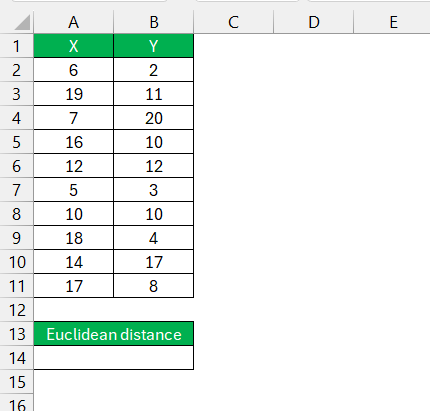
STEP 1: Arrange your data points in columns. For instance, if you have two points A and B with three dimensions, you might organize your Excel sheet as follows:
STEP 2: Calculate the Sum of Squared Differences –
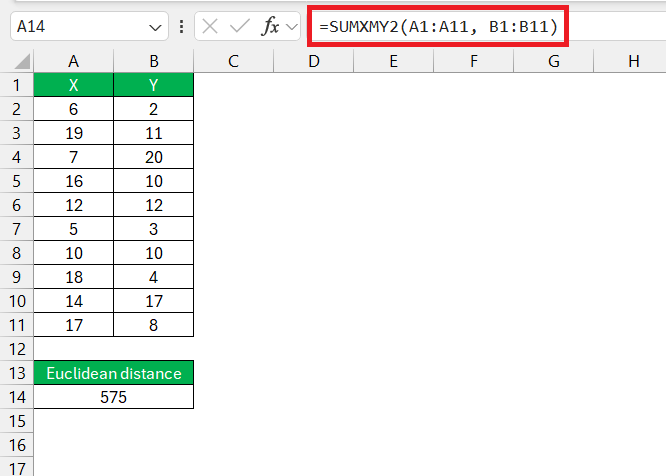
- Use the SUMXMY2 function to calculate the sum of squared differences between the two points.
- Assume the data for point A is in cells A1:A11 and the data for point B is in cells B1:B11. In an empty cell, enter the formula:
=SUMXMY2(A1:A11, B1:B11)
STEP 3: To get the Euclidean distance, take the square root of the result obtained from SUMXMY2.
=SQRT(SUMXMY2(A1:A11, B1:B11))
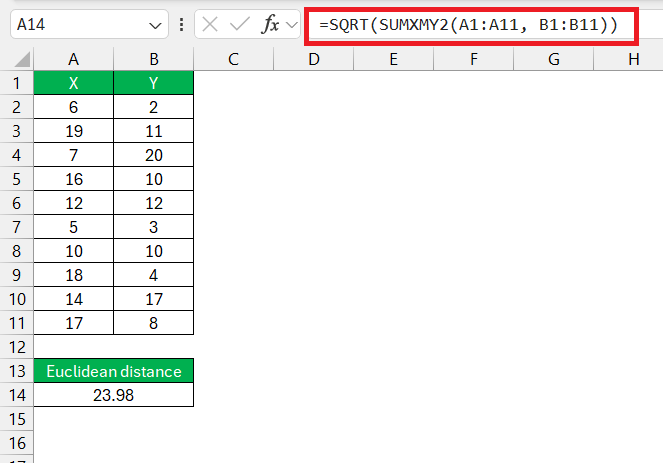
The Euclidean distance between points A and B is approximately 23.98.
Table of Contents
FAQs
What is the Euclidean distance used for?
Euclidean distance is used in various fields to measure the straight-line distance between points. It’s particularly handy in areas like navigation systems, machine learning algorithms, computer graphics, spatial analysis, and clustering in data mining, amongst others. Essentially, it helps to quantify the similarity or divergence of data points in space.
How do I calculate the Euclidean distance between two points in Excel?
In Excel, calculate the Euclidean distance by inputting the coordinates into separate cells and applying the formula =SQRT((X2-X1)^2 + (Y2-Y1)^2). This will give you the distance between two points in a 2D space. For 3D, add (Z2-Z1)^2 within the square root.
Can the Euclidean distance be calculated between more than two points at once?
Yes, you can calculate the Euclidean distance between multiple points sequentially in Excel, but not all at once. You’ll measure the distance from one point to another, then move to the next pair, and so on.

John Michaloudis is a former accountant and finance analyst at General Electric, a Microsoft MVP since 2020, an Amazon #1 bestselling author of 4 Microsoft Excel books and teacher of Microsoft Excel & Office over at his flagship MyExcelOnline Academy Online Course.

 30 Days - Full Access









