 Free Practice Workbook
Column numbering can be a useful task when you are working with a large dataset. It can be used for referencing, sorting, or organising the data. In this article, you will learn differetn methods on how to number columns in Excel.
Key Takeaways:
- Excel displays columns in the form of letters.
- You can change it to numbers manually or by using formulas.
- The Fill Handle can be used to create a number series.
- Use the COLUMN and SEQUENCE functions to number columns automatically.
- Keyboard shortcuts can help you move across columns faster.
Table of Contents
Introduction to Excel Column Numbering
In Excel, columns are labeled alphabetically, starting from A for the first column, B for the second, and so on. After column Z, the labeling continues as AA, AB, AC, and so forth. This system is known as the A1 reference style.
For example: Column 1: A, Column 26: Z, Column 27: AA, etc.
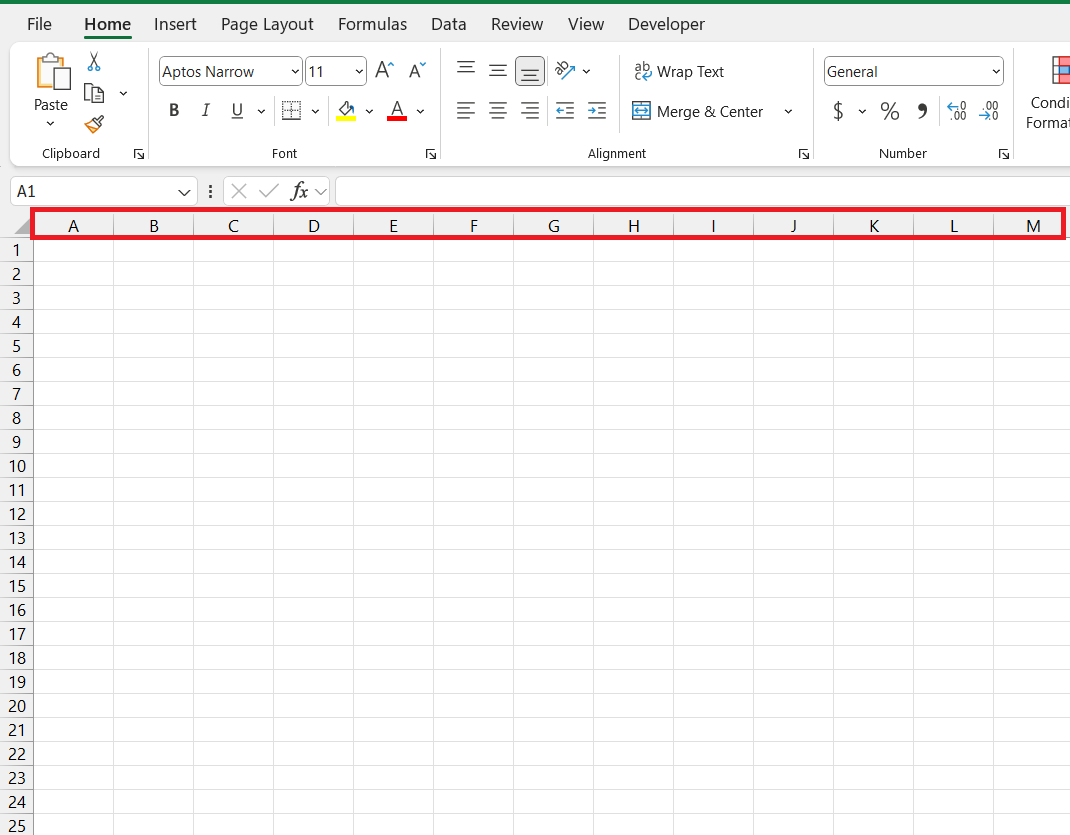
Although columns are represented by letters in the Excel interface, they also have corresponding numerical indexes that are used in formulas, coding, and other advanced features.
Column A = 1, Column Z = 26, Column AA = 27, etc.
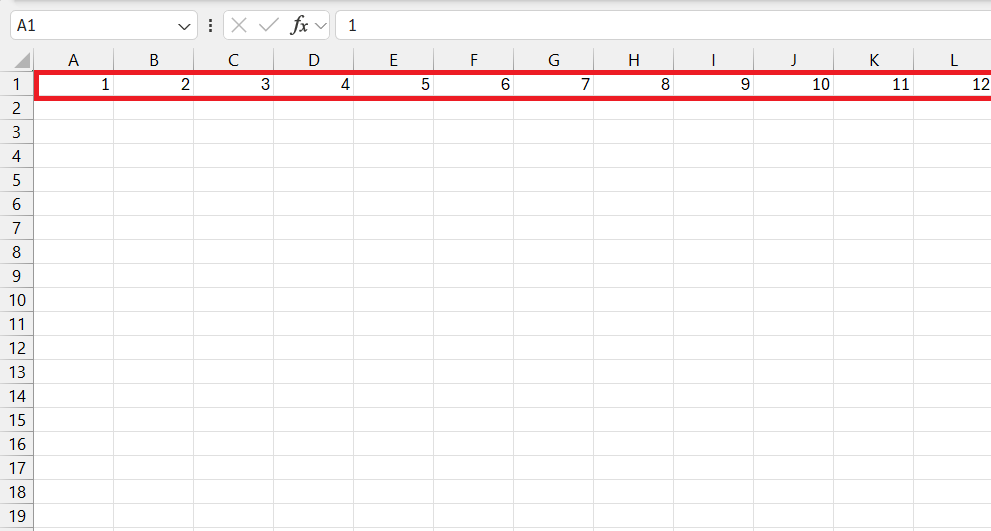
Methods of Excel Column Numbering
Method 1: Manually Entering Column Numbers
STEP 1: Click on the first cell of the row where you want the numbers to start.
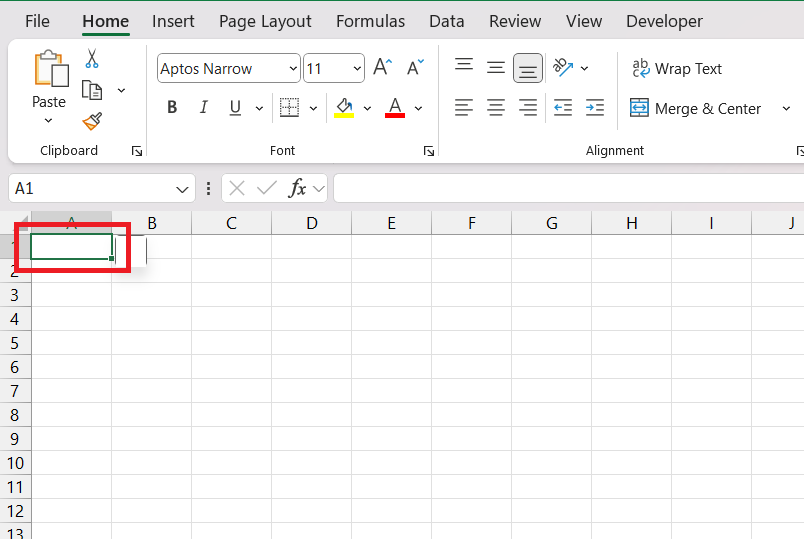
STEP 2: Type 1 into the cell.
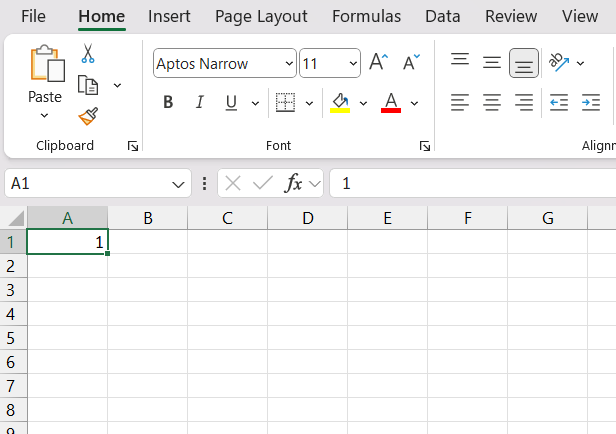
STEP 3: Type 2 in the second cell.
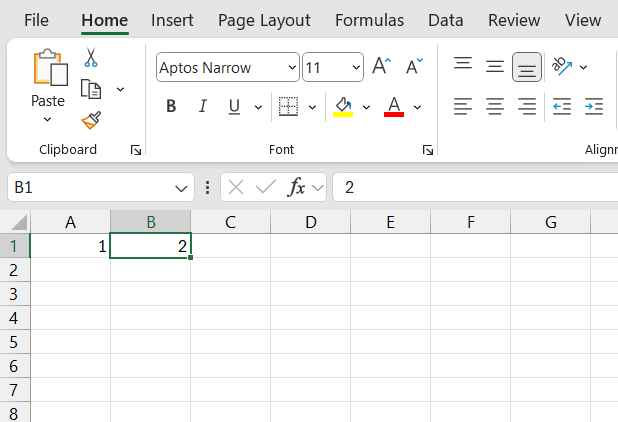
STEP 4: Continue this process till required.
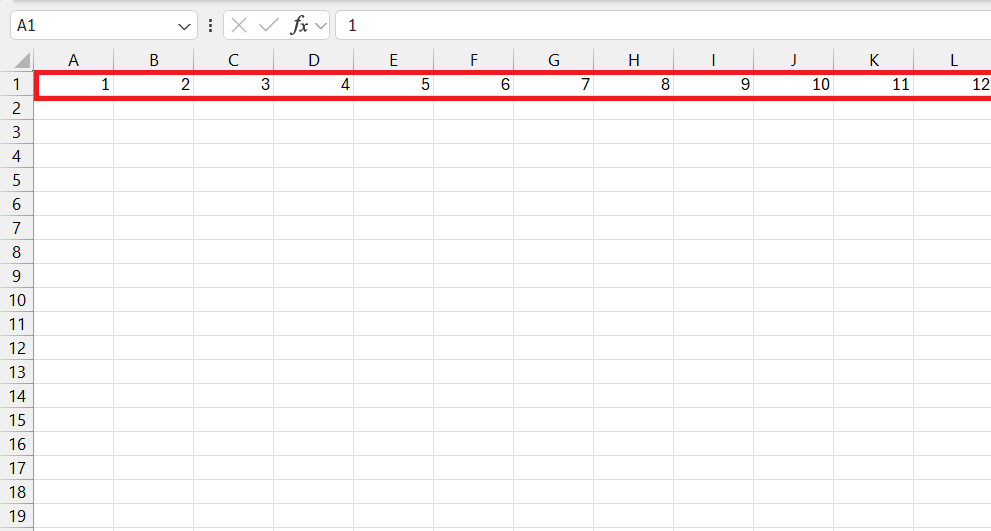
Method 2: Fill Handle
STEP 1: Type 1 in the first cell.
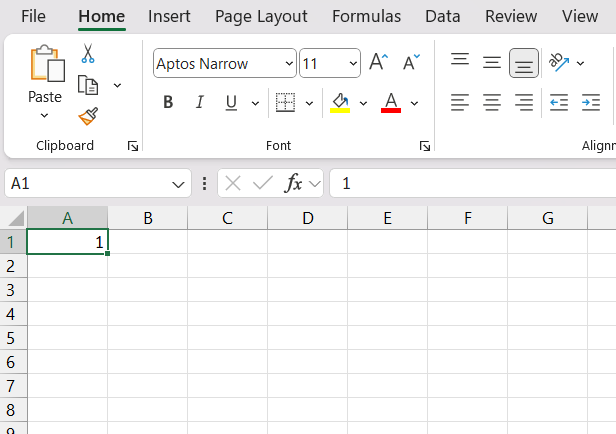
STEP 2: Type 2 in the second cell.
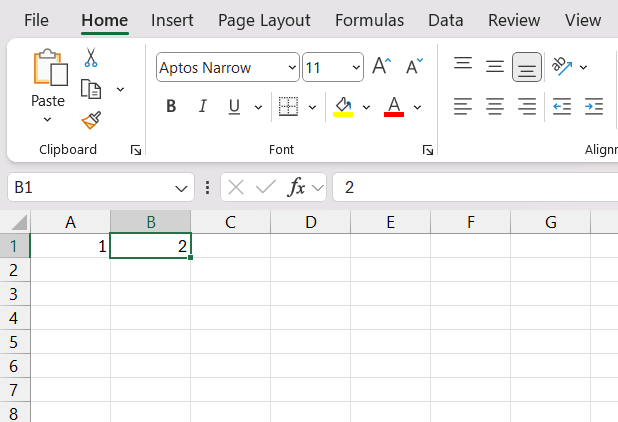
STEP 3: Select both cells to highlight them. Go to the bottom-right corner of the selection and drag the fill handle across the row.
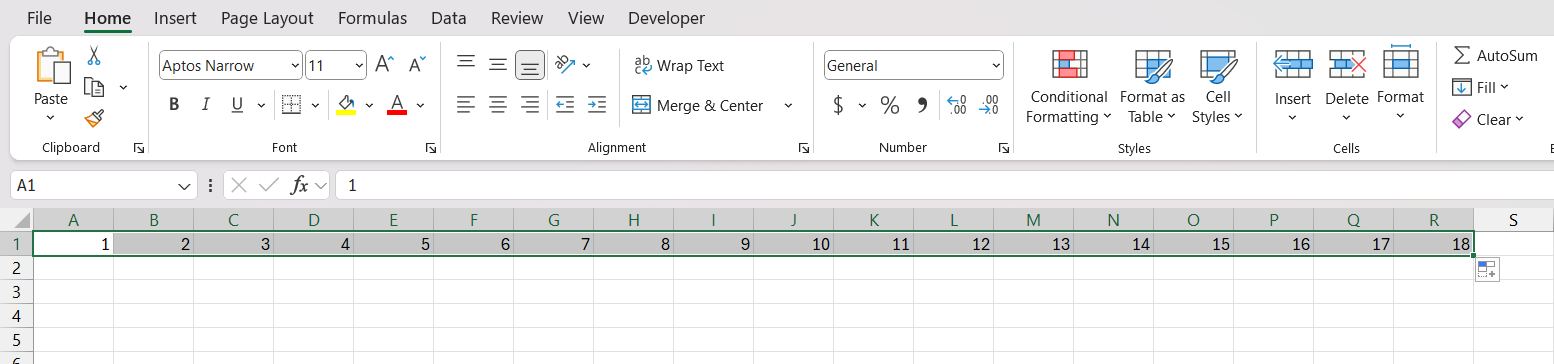
Method 3: COLUMN Function
STEP 1: Select the first cell in the row.
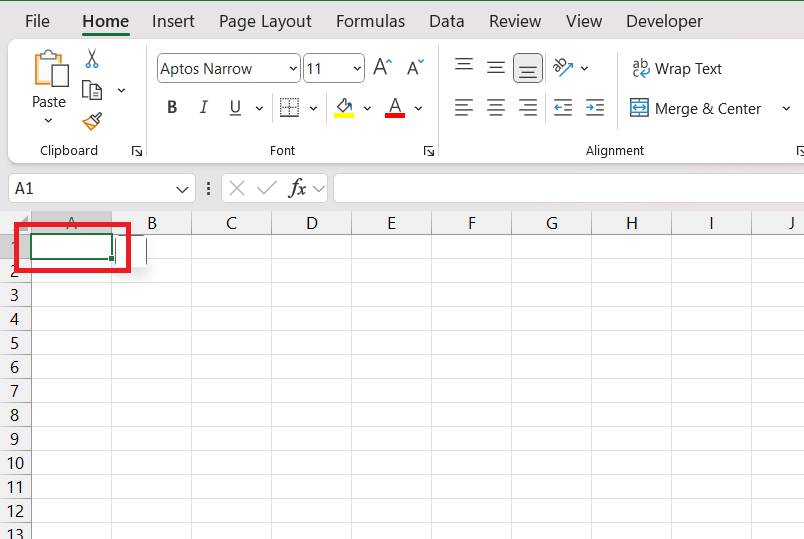
STEP 2: Enter the COLUMN formula.
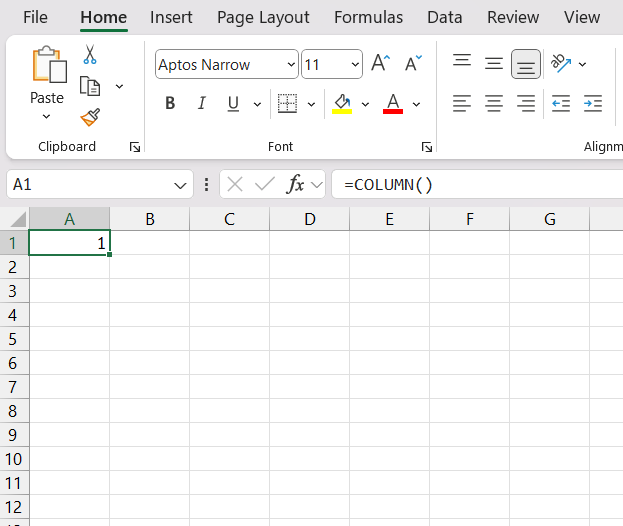
STEP 3: Drag the formula across the row to populate the column numbers.
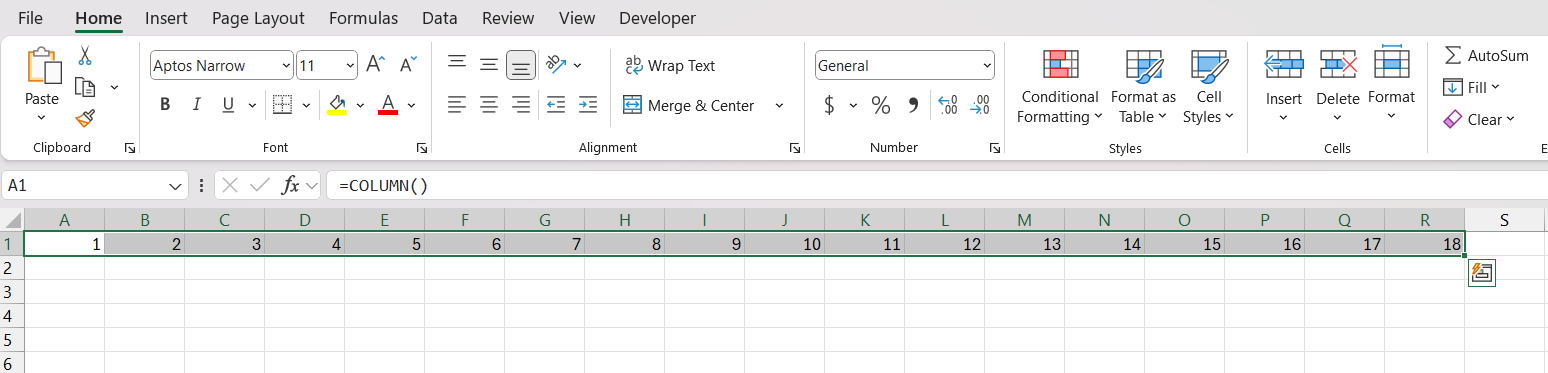
Method 4: SEQUENCE Function
STEP 1: Select the first cell.
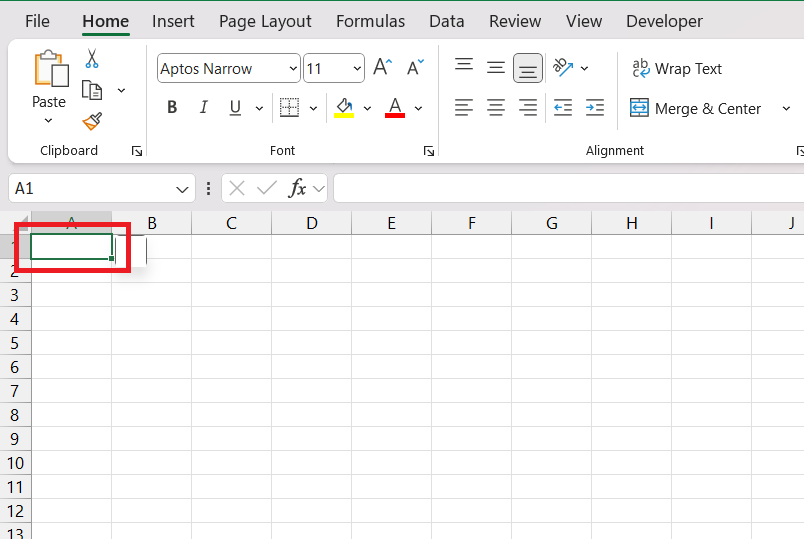
STEP 2: Enter the SEQUENCE formula.

Method 5 – Change Style from A1 to R1C1
Excel allows you to use two types of reference styles for cells in formulas: A1 (default) and R1C1. The R1C1 reference style uses numerical indices for both rows and columns. It is useful for advanced formula writing, automation, and understanding relative references in a systematic way.
STEP 1: Click on File.

STEP 2: Select Options to open the Excel Options dialog box.

STEP 3: Go to Formulas in the options sidebar. Under the Working with Formulas section, check the box for R1C1 reference style.
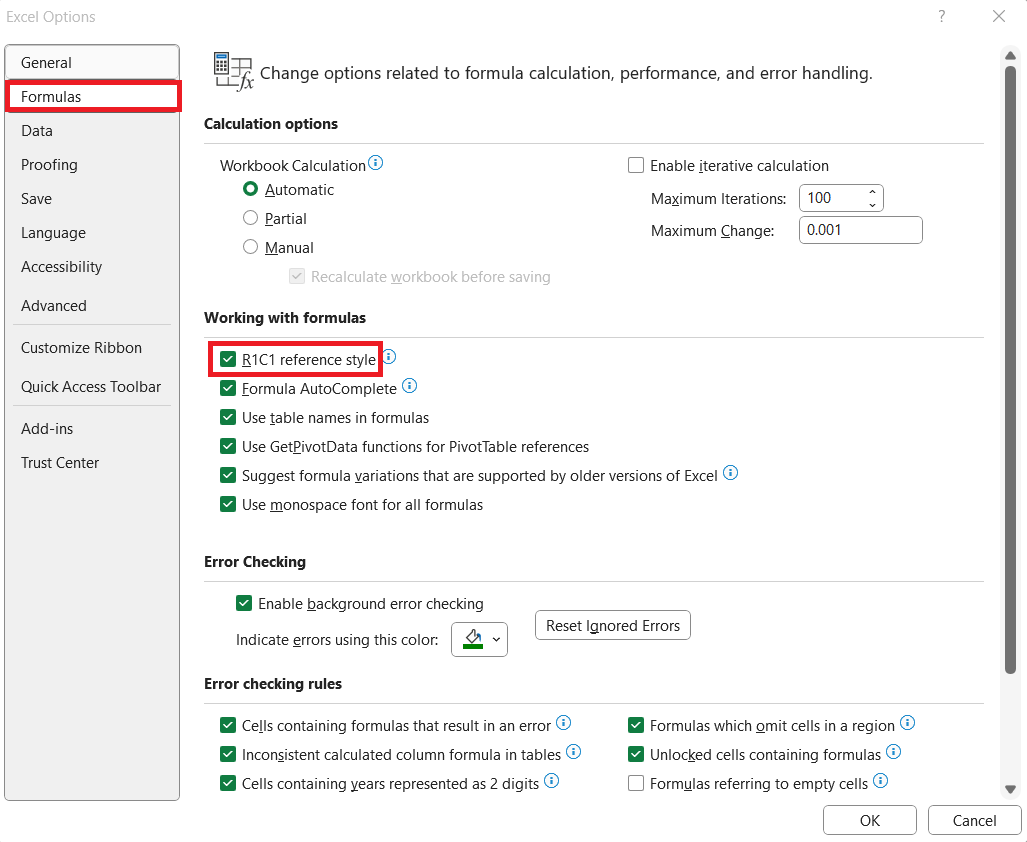
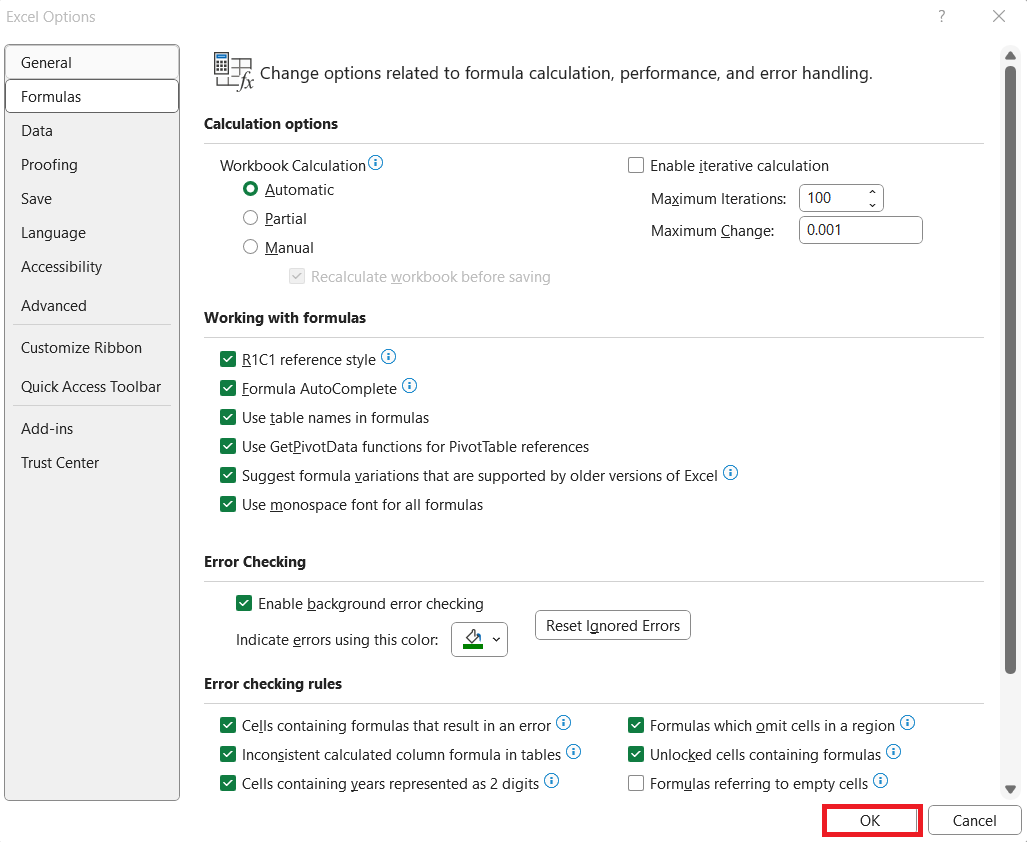
STEP 4: Click OK to apply the setting.
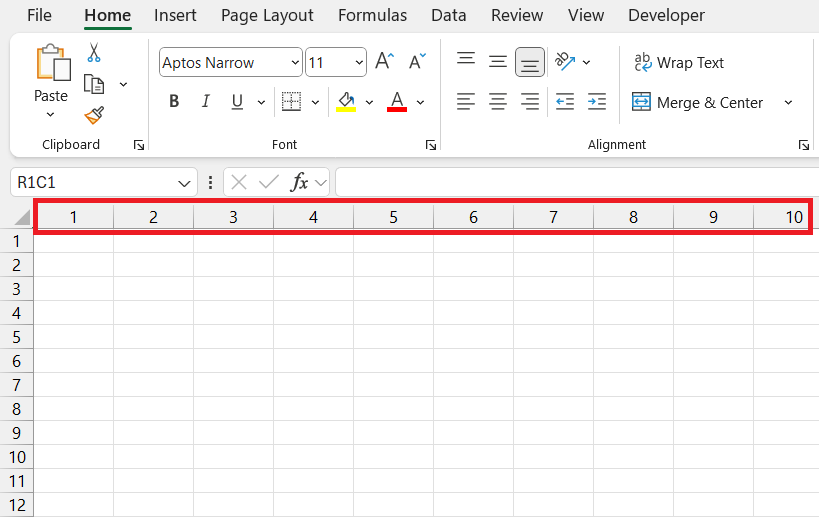
My column headers are now numbered, and my formulas reflect the R1C1 style.
FAQs
What is the COLUMN function?
The COLUMN function can be used to return the number of a column.
How to number columns in Excel?
You can use the Fill Handle to drag and create a sequence.
What is the R1C1 reference style?
It is a reference style that uses numbers for both rows and columns.
How to change the reference style from A1 to R1C1?
- Click on File.
- Select Options.
- Click on Formulas from the left sidebar.
- Under the Working with Formulas section, check the box for R1C1 reference style.
- Click OK
How to automatically generate column numbers?
You can use formulas like COLUMN or SEQUENCE to automatically generate column numbers.

John Michaloudis is a former accountant and finance analyst at General Electric, a Microsoft MVP since 2020, an Amazon #1 bestselling author of 4 Microsoft Excel books and teacher of Microsoft Excel & Office over at his flagship MyExcelOnline Academy Online Course.

 30 Days - Full Access









