 Free Practice Workbook
When working in Excel, you will see that the columns are numbered as A, B, C, and so on. It is important to understand Excel’s column lettering system to be able to go through the spreadsheet easily. In this article, you will learn how to convert column letters to numbers in Excel.A
Key Takeaways:
- The column lettering is numbered as A, B, C, and so on.
- The column system repeats letters after ‘Z’ (e.g., ‘AA’, ‘AB’).
- The CHAR function converts column numbers to letters using ASCII codes.
- Combined with SUBSTITUTE, the ADDRESS function dynamically converts column numbers to letters.
- VBA code can automate column number-to-letter conversions.
Table of Contents
Understand Excel Columns
What is Column Numbering?
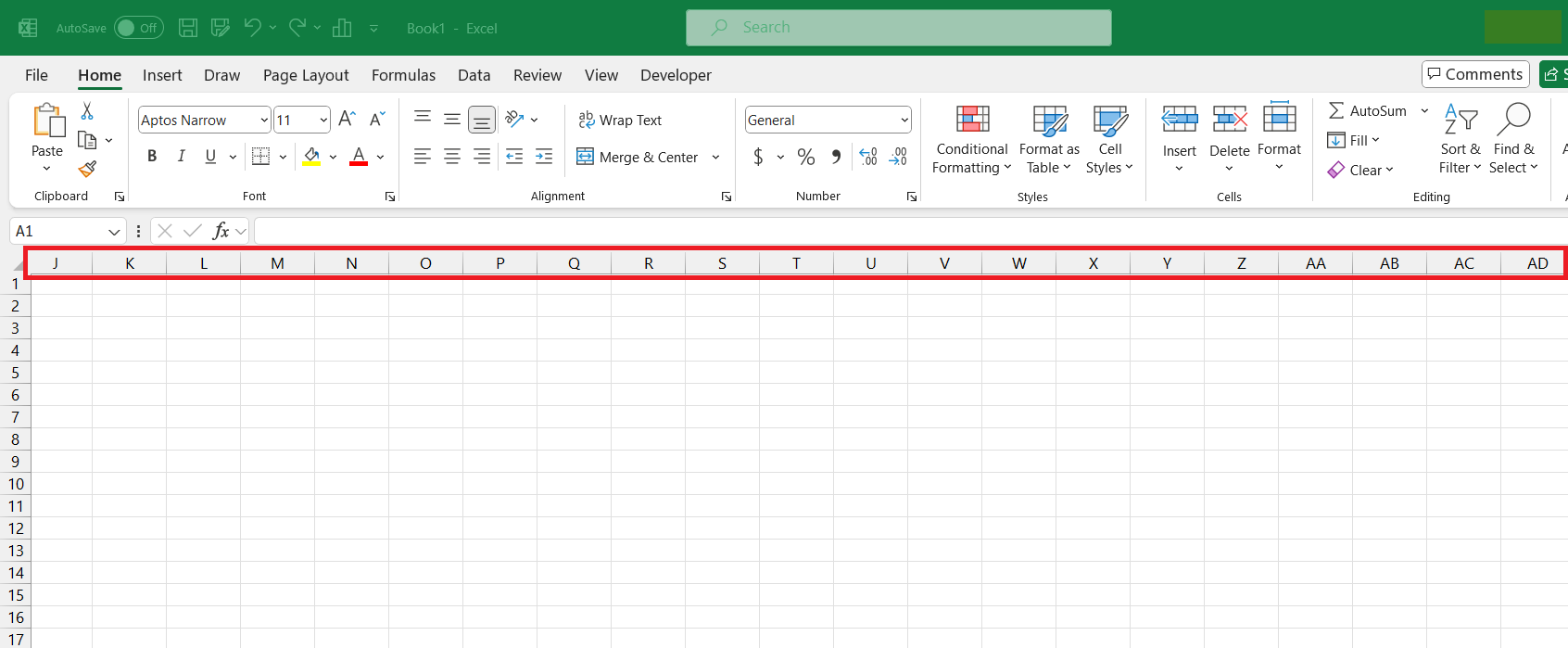
Excel uses letters to identify columns. The first column is A, the second is B, and the twenty-sixth is Z.
Beyond Z, the letters repeat with ‘AA’, ‘AB’, and so forth.
Why Convert Numbers to Letters?
Sometimes Excel formulas or VBA code return column numbers instead of column letters. However, many users find column letters easier to read.
For example, if a formula gives you column number 28, you may want to know that it refers to column AB.
How to Convert Column Number to Letter
CHAR Function
Excel typically uses letters for column headings, which can be pretty handy, but sometimes you’ll need to convert these to their corresponding numerical position. This is particularly true when dealing with Excel functions or programming within Excel. They must translate that ‘A’ into ‘1’, ‘B’ into ‘2’, and it gets a bit trickier once you pass ‘Z’. But don’t worry, you’ll soon have the tips to make that conversion a breeze.
In Excel, the CHAR function returns the character specified by a number (character code) from the character set used by your computer. The CHAR function returns a character based on its ASCII code. The ASCII values for uppercase English letters range from 65 (A) to 90 (Z).
Therefore, to find the ASCII code for an uppercase letter, you add its position in the alphabet to 64. For instance, for ‘A’ (the 1st letter), you add 1 to 64 to get 65; for ‘B’ (the 2nd letter), you add 2 to 64 to get 66, and so on.
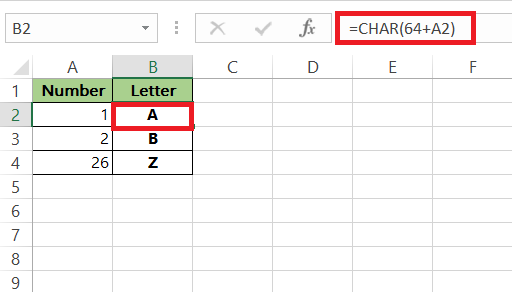
Note: If dealing with columns beyond ‘Z’ (i.e., past 26), you’ll need a different approach, as Excel column letters repeat after ‘Z’. In such cases, use a combination of the ADDRESS and SUBSTITUTE functions.
ADDRESS Function
The ADDRESS function is a game-changer for when you need to convert row and column numbers into a cell address. It’s the perfect tool to construct dynamic cell references, and when you’re manipulating data programmatically. With it, you can say goodbye to manually inputting cell addresses and hello to efficiency. For instance, if you’re dealing with the column number, simply set the row number to 1 and the reference style to 4 (for relative referencing) to get just the column letter.
To convert column numbers to letters using the ADDRESS function, follow this step:
Use the formula =SUBSTITUTE(ADDRESS(1,A2,4),”1″,””). The 1 sets the row, and 4 ensures relative referencing.
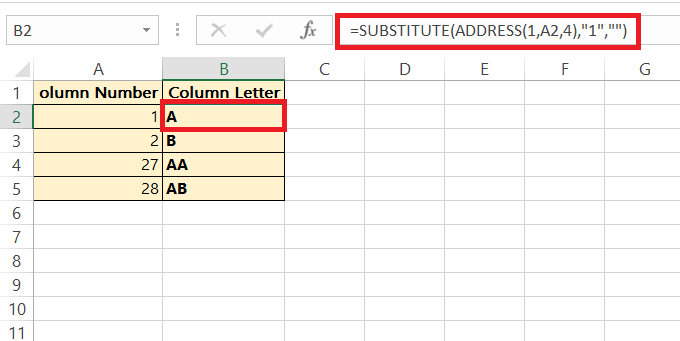
This efficiently generates the column letters.
Tips & Tricks
Custom Function
For those of you who love to work smarter, not harder, creating custom functions in Excel is the way to go. Excel’s built-in functions are powerful, but sometimes, they don’t fit the specific need you have. By writing your own function, say to convert column numbers to letters, you can save heaps of time with a formula that does exactly what you need with a single call. Get ready to impress with your newfound speed!
VBA Code
Dive into the world of automation with VBA code snippets and watch your productivity soar. By using the Visual Basic for Applications editor in Excel, you can write a snippet of code that turns tedious column number-to-letter conversions into a one-click affair. Whether it’s a one-time project or a regular necessity, these snippets can be your time-saving secret weapon. Just remember to save your code after creation for reuse in future projects.
The following code can be used as VBA:
Public Function ColumnLetter(col_num As Integer) As String

ColumnLetter = Split(Cells(1, col_num).Address, "$")(1)

End Function
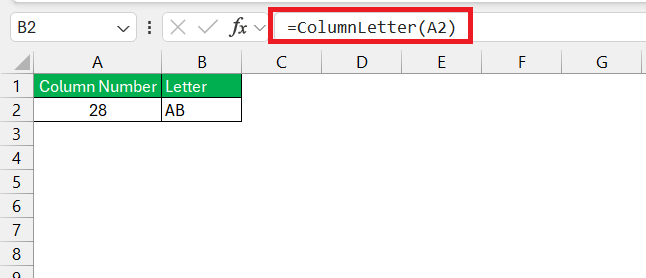 .
.
FAQs
How to convert Excel column number to letter?
To convert an Excel column number to a letter, you can use the ADDRESS function together with SUBSTITUTE:
=SUBSTITUTE(ADDRESS(1, your_column_number, 4), "1", "")
How to convert a column number to a letter in Excel directly?
For a direct conversion of a column number to a letter in Excel, use:
=CHAR(64 + your_column_number)
You should combine the ADDRESS and SUBSTITUTE functions when the columns go beyond Z.
How to change the column headings back to letters such as a, b, c, d?
To change column headings back to letters in Excel,
- Go to the ‘File’ tab
- Click ‘Options’
- Click on ‘Formulas’
- Uncheck the ‘R1C1 reference style’.
- Click ‘OK’
Is there a way to toggle between letter and number column headings?
Yes, you can toggle between letter and number column headings in Excel.
- Go to ‘File’ > ‘Options’ > ‘Formulas’
- Check or uncheck the ‘R1C1 reference style’ box to switch between the two systems.
- Click ‘OK’ to apply the changes.
How can we get the column letter for the given specific cell?
To get the column letter for a specific cell in Excel, use the following formula:
=SUBSTITUTE(ADDRESS(1, COLUMN(your_cell_reference), 4), "1", "")

John Michaloudis is a former accountant and finance analyst at General Electric, a Microsoft MVP since 2020, an Amazon #1 bestselling author of 4 Microsoft Excel books and teacher of Microsoft Excel & Office over at his flagship MyExcelOnline Academy Online Course.

 30 Days - Full Access









