- If the file is too large, it can freeze Excel.
- An incompatible add-in can also freeze Excel.
- Use the Task Manager to close Excel if it stops responding.
- To check if add-ins are causing issues, open Excel in safe mode.
- You can update or repair Excel if all other fixes fail.
Table of Contents
Emergency Solutions
Identify the Symptoms
The following symptoms can happen if your Excel stops responding:
- Excel suddenly crashes.
- A spinning wheel keeps circling.
- Command ribbon stops responding.
Keep an eye out for these symptoms so you can take immediate action.
Initial Steps
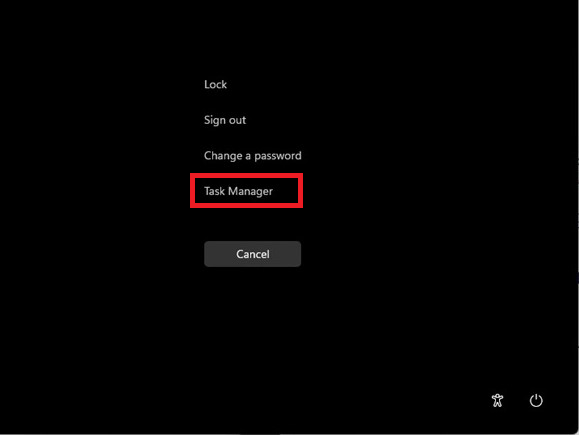
If your Excel stops working suddenly, there is no need to panic. You can press Ctrl + Alt + Del to open the Task Manager.
Right-click on Microsoft Excel and select End Task.
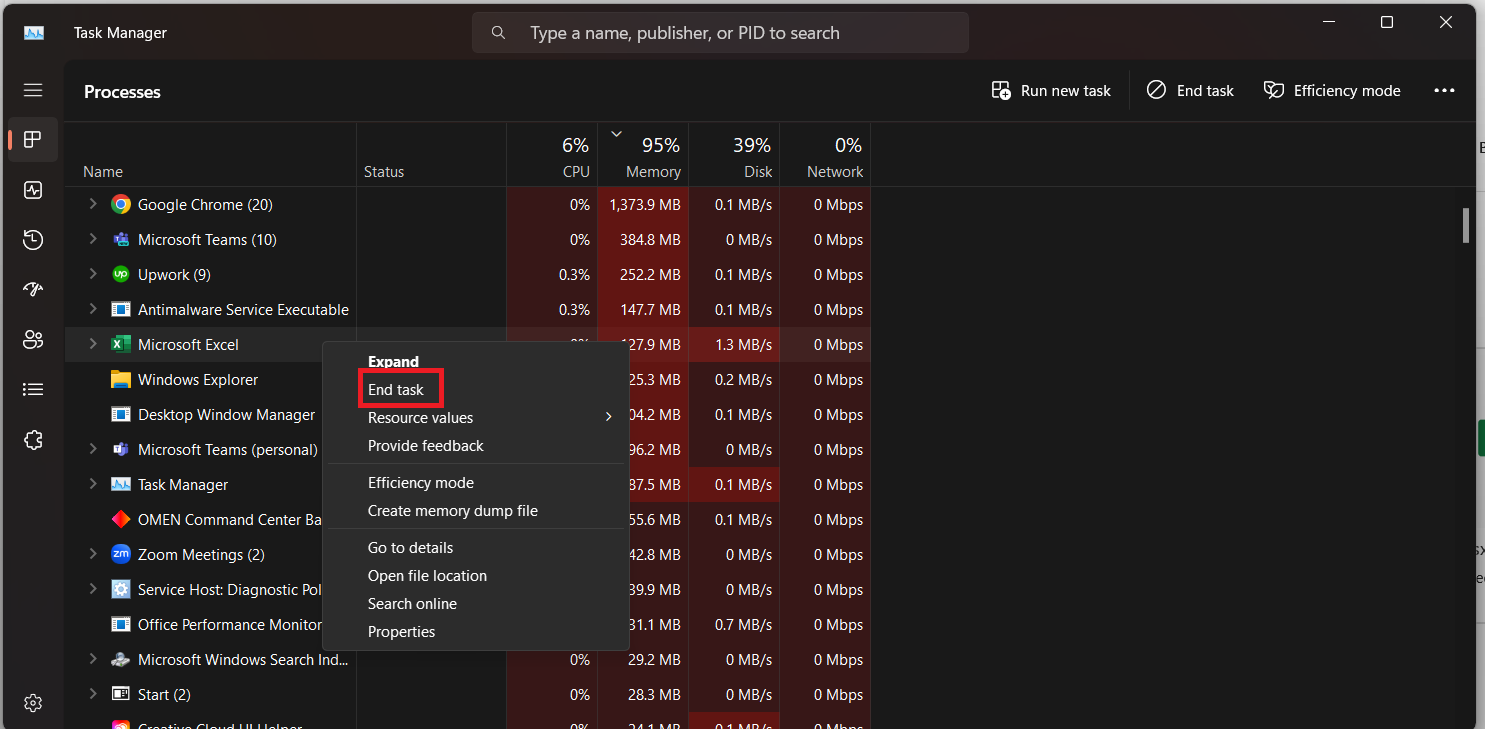
If the system feels crowded, close any Excel files to lighten the load.
Diagnosing the Root Causes
File Size
A large Excel file generally contains extensive data, high-resolution images, and complex formulas. These large files can affect the processing power of Excel and cause potential freezes. It is important to regularly review these files and remove any unnecessary data, compress images, and move some data to differetn workbook.
Add-Ins
Add-ins can supercharge your Excel experience with additional features, but sometimes they’re the culprits behind slowdowns or crashes. To check if add-ins are causing trouble, open Excel and click on the ‘File’ tab. Then, select ‘Excel Options’ and go to ‘Add-ins‘.
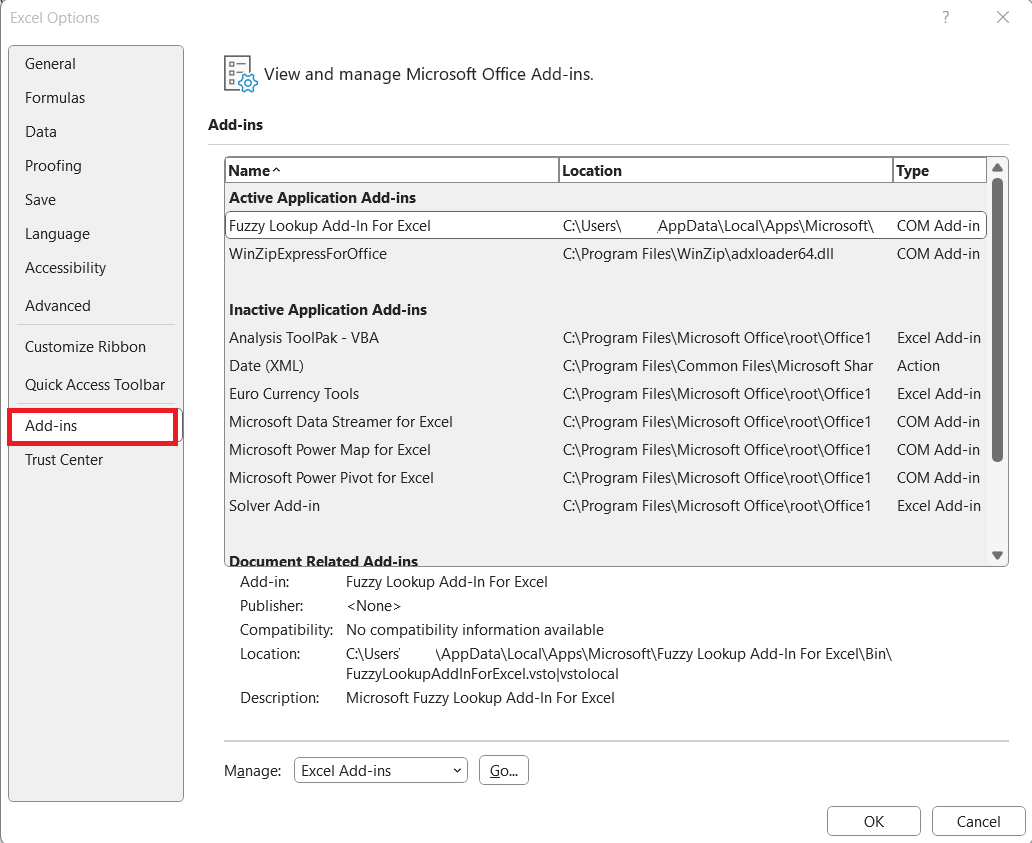
Here, you can view and manage both Excel and COM add-ins. Try disabling them and restarting Excel. If the problem vanishes, then bingo! You’ve pinpointed an incompatible or corrupt add-in. Remember to turn them back on one by one to determine which one caused the hiccup, ensuring you restart Excel after each to test things out.
Apply Fast Fixes
Jumpstart Excel with Safe Mode
If Excel still won’t cooperate, it’s time to jumpstart it using Safe Mode. This nifty trick launches Excel without any add-ins or extensions that could be causing the issue. To do this, close Excel and create a shortcut on your desktop.
Then, while holding the Ctrl key, double-click the shortcut and confirm you want to start in Safe Mode when prompted. Alternatively, press Windows+R, type excel /safe, and hit Enter.
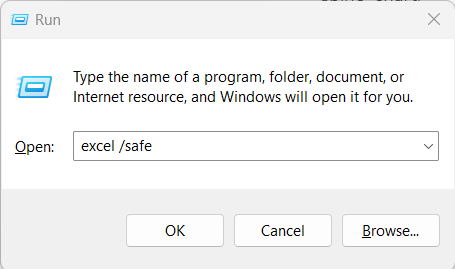
This should help you access Excel without any add-ins potentially meddling with its performance.
Update and Reinstall
Follow the steps below to update Excel:
- Open Excel Workbook
- Go to File > Account.
- Click on Update Options > Update Now.
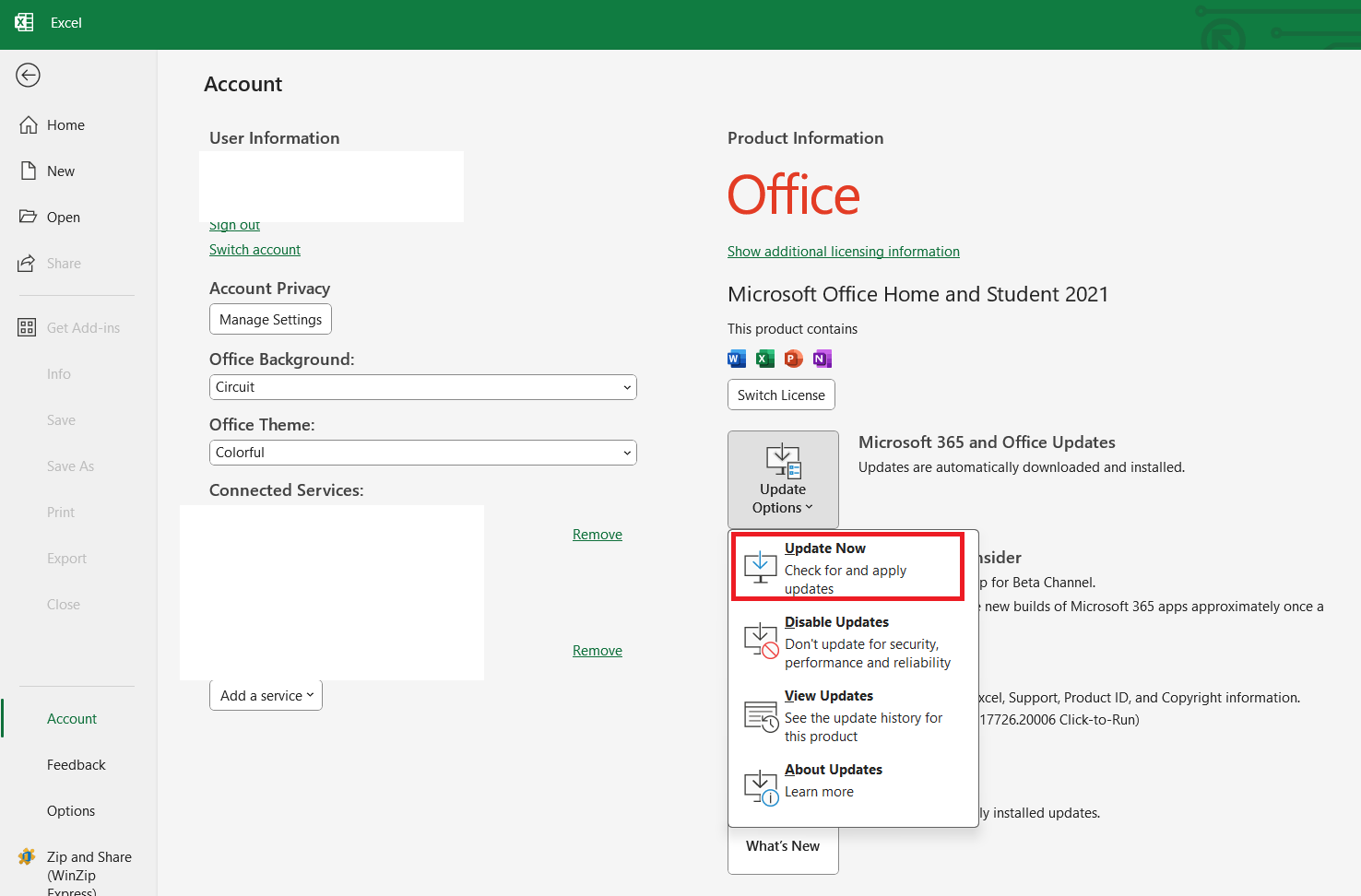
If the issue is still not resolved, you can uninstall and reinstall the application. This will remove any glitches and clear the cache.
Data Recovery
If your Excel file crashes before hitting the Save button, you can still use the Autorecover feature. This feature periodically saves a version of your file without any action from your end. When you open the crashed file, it will display a Document recovery pane. You can select the latest version of that file and use it.
If the recovery pane is not visible, you can go to the temporary file folder. The path of this folder is:
C:\Users\Username\AppData\Local\Microsoft\Office\UnsavedFiles.
You can use these methods to recover the latest file.
Advanced Measures
Clean Boot
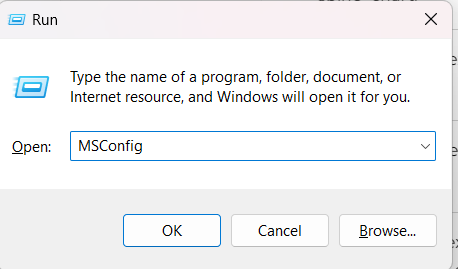
If you think any background services are causing issues, you can run a clean boot.
- Press the Windows key + R to open the Run dialog box.
- Type MSConfig.
- Press Enter.
- Go to the General tab.
- Choose Selective Startup, uncheck Load startup items.
- Click OK.
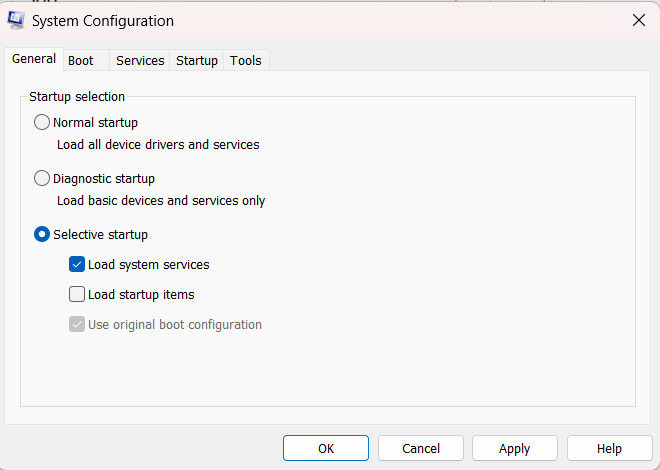
This investigative mode can help pinpoint the rogue elements. If Excel behaves, consider it a victory and then enable services one by one to unveil the villain behind the curtain.
Office Repair Tools
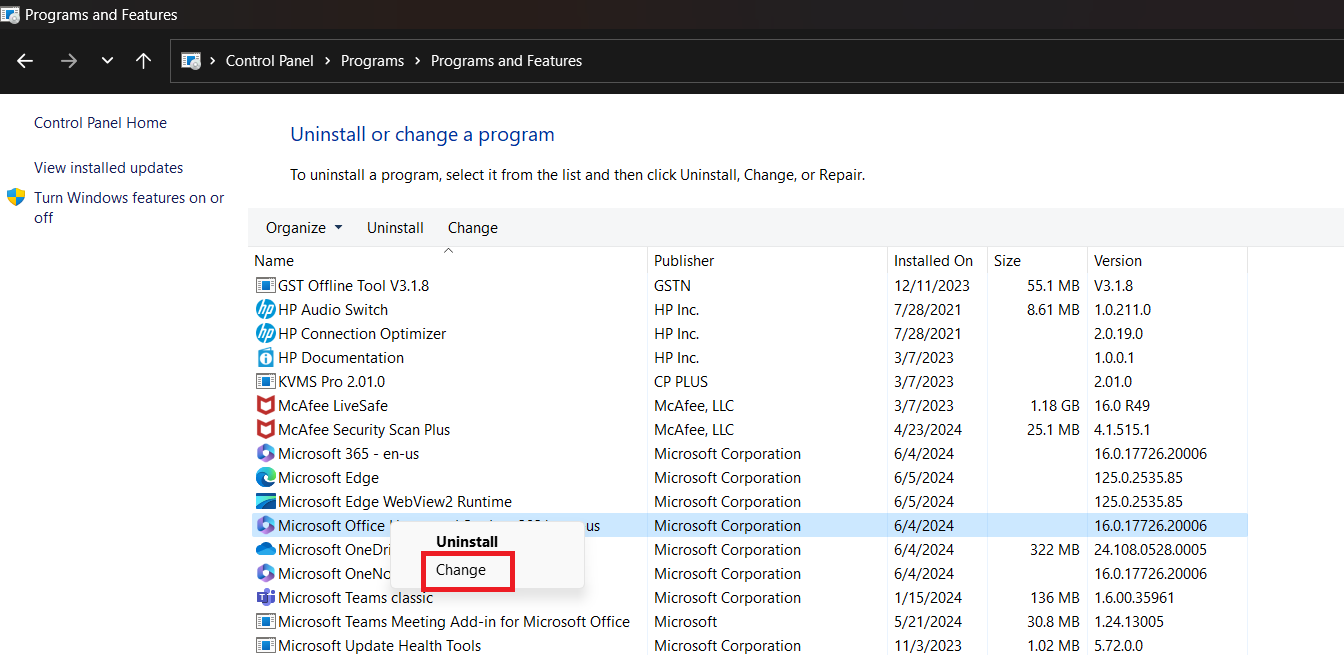
Go to the Control Panel and click on Uninstall a program.
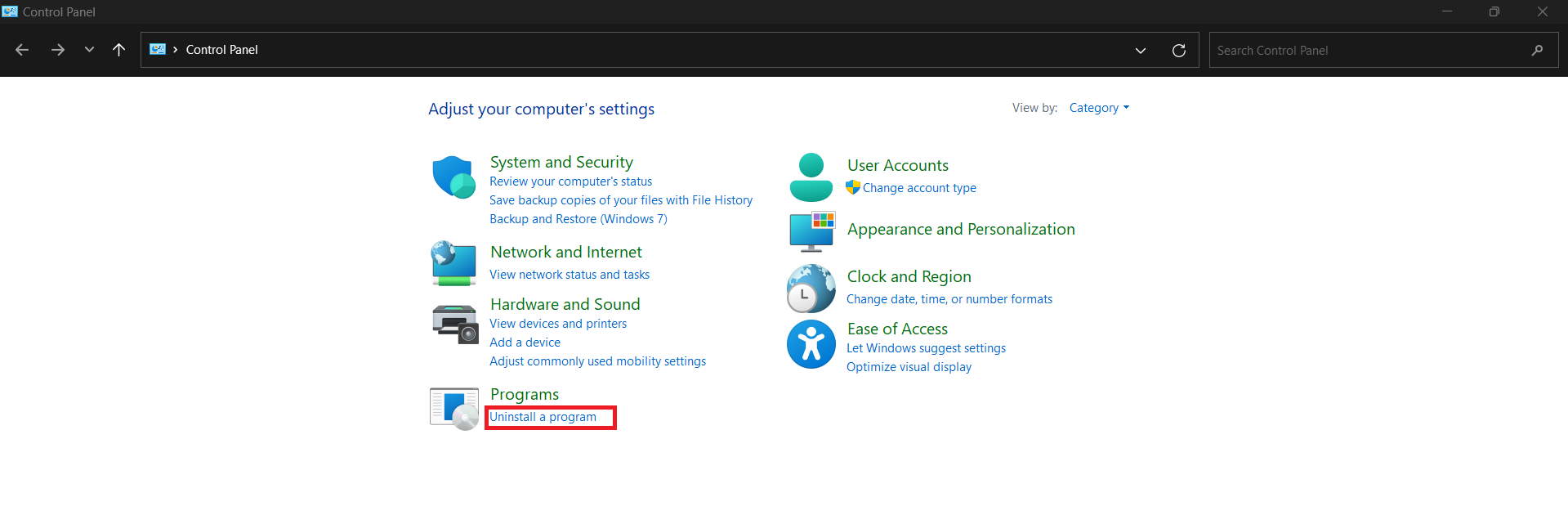
Right-click on Microsoft Office and select Change.
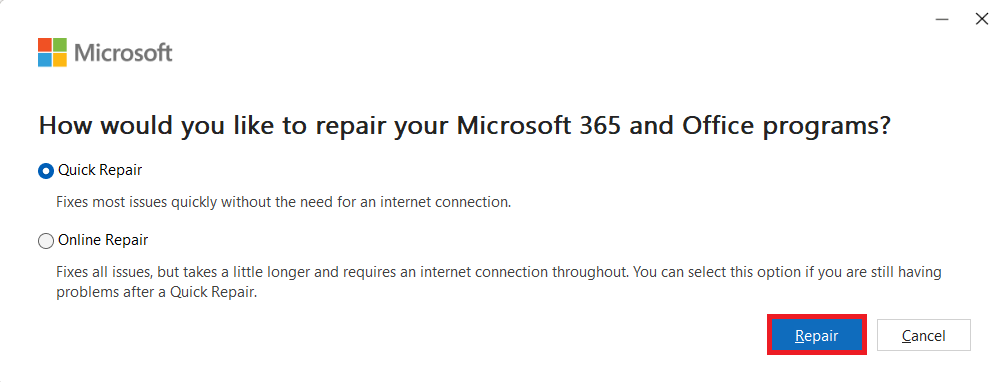
Choose Quick Repair > Repair.
FAQs
Why is Microsoft Office Excel not responding?
Microsoft Office Excel might stop responding due to insufficient system resources, conflicts with other programs or add-ins, or a corrupted Excel spreadsheet. Keeping your system and Excel updated, streamlining resources, and checking for incompatible add-ins can help prevent this issue.
How to unfreeze Excel when not responding?
To unfreeze Excel, start by pressing Ctrl + Alt + Del. This will open the Task Manager. Right-click on Microsoft Excel and click End.
How to recover unsaved Excel files?
To recover unsaved Excel files, follow the steps below:
- Restart Excel
- Look for the Document Recovery pane.
- If it’s not there, go to the temporary folder to recover the file.
Can an Excel crash because of its size?
Yes, a large Excel file size can be a reason for its crash. This is because large files need more memory and processing power that can make Excel freeze. It is recommended to reduce the file size by moving data to another workbook or removing unnecessary data.
What to do if your Microsoft Excel crashes frequently?
If Excel crashes frequently, you need to check the following points:
- Make sure that you are using the latest version of Excel.
- Check if any add-ins are causing any conflicts.
- Repair or reinstall Office.
- Clear the cache memory.

John Michaloudis is a former accountant and finance analyst at General Electric, a Microsoft MVP since 2020, an Amazon #1 bestselling author of 4 Microsoft Excel books and teacher of Microsoft Excel & Office over at his flagship MyExcelOnline Academy Online Course.

 30 Days - Full Access









