 Free Practice Workbook
The SUM function is one of the most commonly used functions in Excel. Instead of manually adding values, you can quickly sum them using the SUM function. The SUM function can add individual numbers, cell references, ranges, or a combination of these. In this article, you will learn how to use the SUM function in Excel.
Key Takeaways:
- SUM is used to quickly add numbers and calculate totals in Excel.
- You can use SUM with individual cells, ranges, or multiple ranges.
- You can use AutoSum to quickly create a SUM formula.
- SUM can add values from different worksheets using cell references or 3-D references.
- Use SUMIF or SUMIFS when you need to add values based on specific conditions.
Table of Contents
Introduction to SUM function
The SUM function adds numbers together and returns the total. The syntax of the SUM function is:
=SUM(number1, [number2], …)
- number1 – The first number that needs to be added. Required.
- number2 – Up to 255 more numbers, cells, or ranges. Optional.
The numbers used in this argument can be either typed manually or linked to a cell reference.
How to use the SUM function
Step-by-Step Guide
STEP 1: Click on the cell where you want to show the total value.
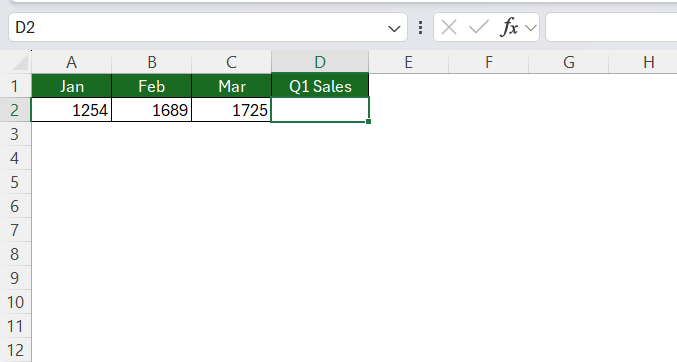
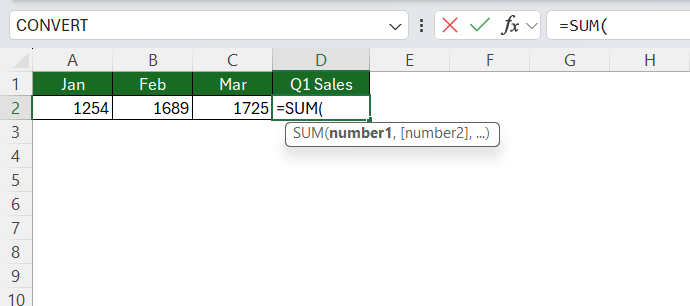
STEP 2: Type the SUM function.
=SUM(
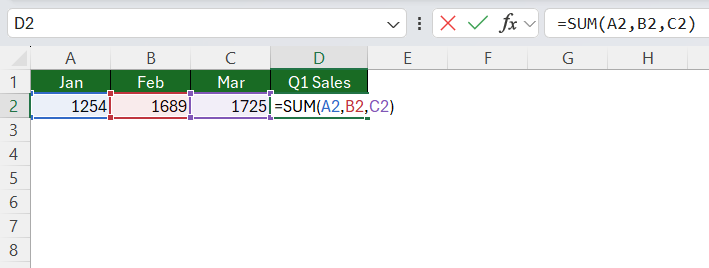
STEP 3: Select the range you want to add. You can either add individual values by selecting them and separating them with commas.
=SUM(A2,B2,C2,D2)
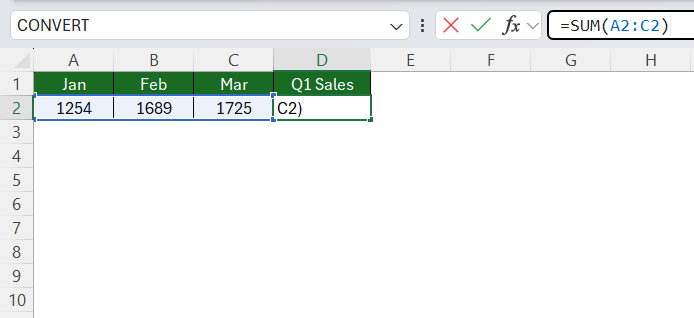
You can also add multiple ranges in a single formula.
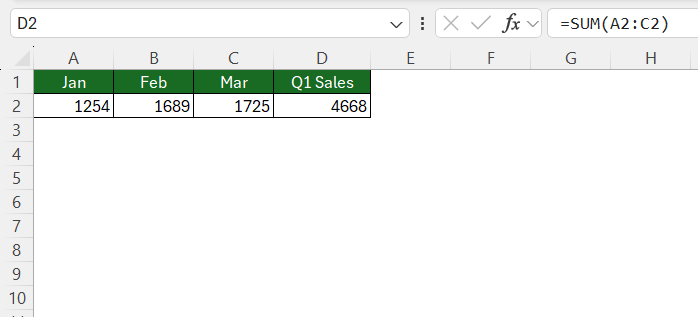
=SUM(A2:C2)
STEP 4: Press Enter.
The AutoSum Method
STEP 1: Click on an empty cell just below the range of numbers.
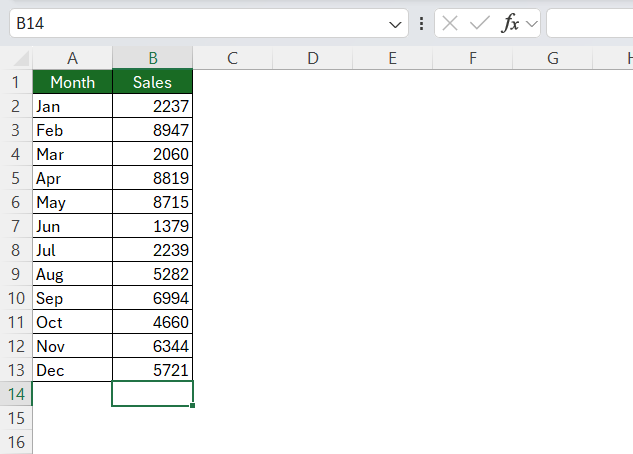
STEP 2: Go to Home > AutoSum.

STEP 3: The range will get selected automatically.
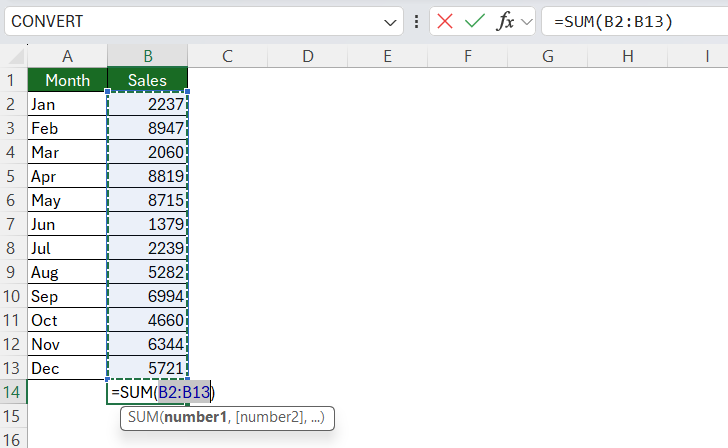
STEP 4: Press Enter.
You can also use Alt + = on your keyboard to get an autosum of a range of numbers.
Add Numbers from Different Worksheets
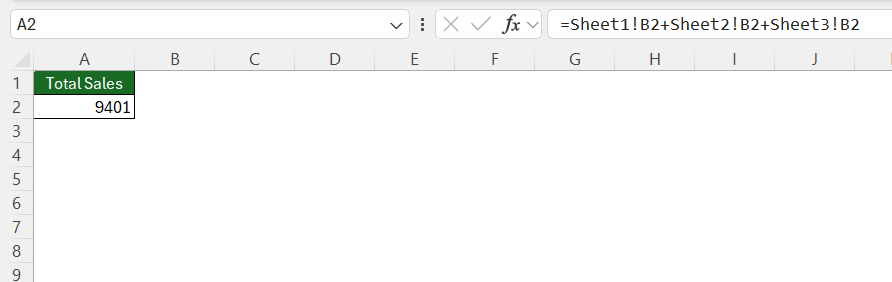
You can use SUM to add values from different worksheets.
=SUM(Sheet1!B2,Sheet2!B2,Sheet3!B2)
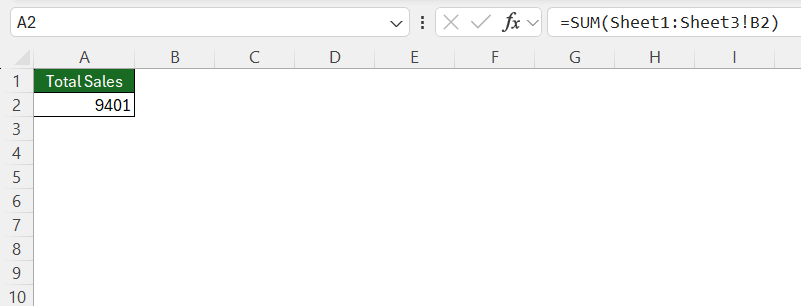
You can also use a 3-D reference to add the same cell across multiple worksheets:
=SUM(Sheet1:Sheet3!B2)
Common SUM Function Errors
- Make sure that the cells or range that you have selected are correct. An incorrect range can lead to an incorrect result.
- If a number is stored as text, it may not get included in the cell range.
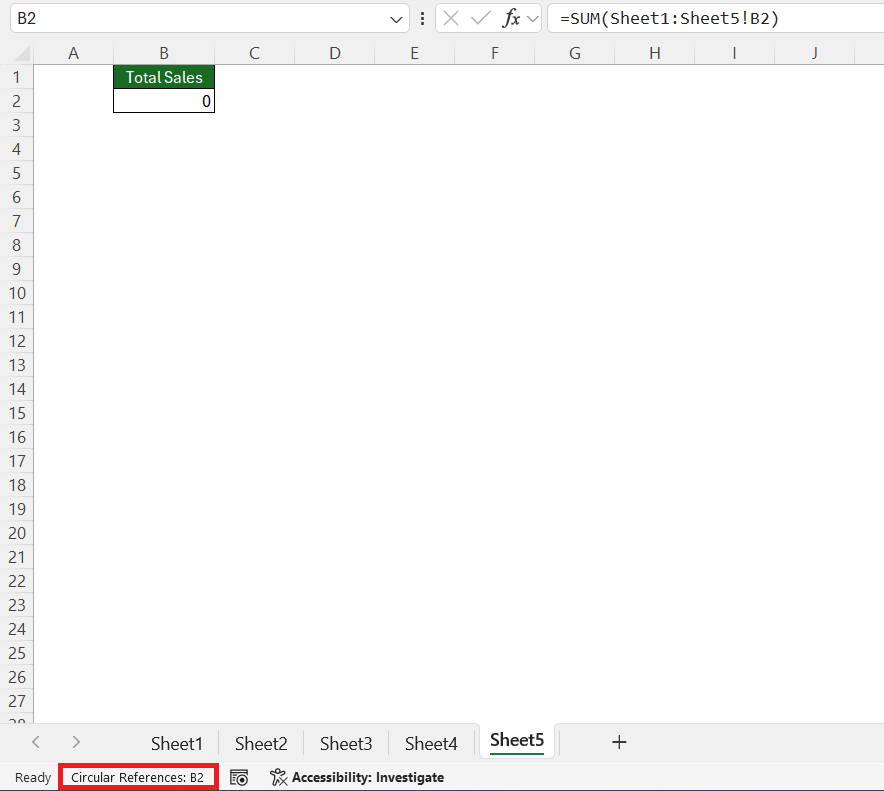
- A circular reference occurs when the SUM formula includes the cell containing the formula.
- The SUM function cannot add values based on any condition. You have to use the SUMIF function to add values based on conditions.
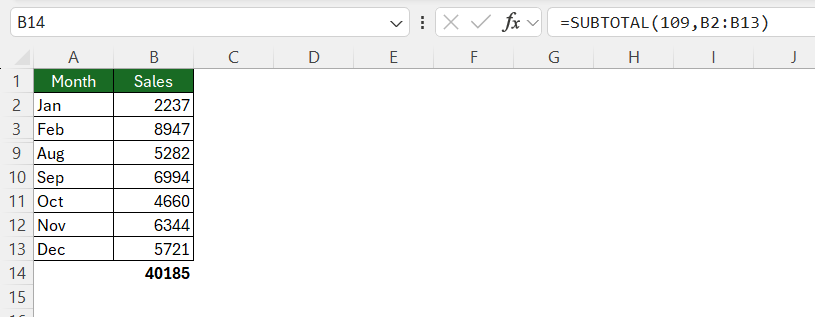
- SUM does not automatically exclude rows hidden by a filter. To add visible cells only, use the SUBTOTAL function.
FAQs
What does the SUM function do in Excel?
The SUM function adds numbers together and returns the total.
What is the syntax of the SUM function?
The syntax is =SUM(number1, [number2], ...).
Can SUM add numbers from multiple ranges?
Yes. You can add multiple ranges in one formula, such as =SUM(A2:A10,C2:C10).
Can SUM add values from different worksheets?
Yes. You can use references such as =SUM(Sheet1!B2,Sheet2!B2) to add values from different worksheets.
What function should I use to add values based on a condition?
Use the SUMIF function for one condition and SUMIFS for multiple conditions.

John Michaloudis is a former accountant and finance analyst at General Electric, a Microsoft MVP since 2020, an Amazon #1 bestselling author of 4 Microsoft Excel books and teacher of Microsoft Excel & Office over at his flagship MyExcelOnline Academy Online Course.

 30 Days - Full Access









