 Free Practice Workbook
Microsoft Excel is a great tool for data analysis, financial modeling, and project management. Many users are unaware of the built-in features that can be used to find synonyms and alternative words. In this article, you will learn how to find key synonyms using Excel Thesaurus.
Key Takeaways:
- Excel Thesaurus helps you find better words quickly.
- You can open it from the Review tab or use Shift + F7.
- It saves time by avoiding external searches.
- It improves reports, labels, and comments.
- It helps reduce repetition and improve writing quality.
What is the Excel Thesaurus?
The Excel Thesaurus is a feature that provides synonyms for words directly within Excel. It is particularly useful when you’re drafting reports, creating labels, or writing comments within your spreadsheets. By using the Thesaurus, you can avoid repetitive language and find more precise words to convey your message.
How to Access the Excel Thesaurus
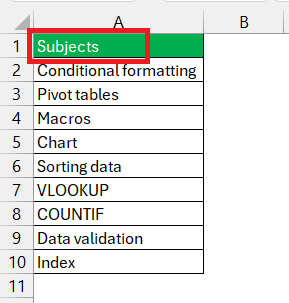
STEP 1: Start by opening the Excel spreadsheet where you want to use the Thesaurus.
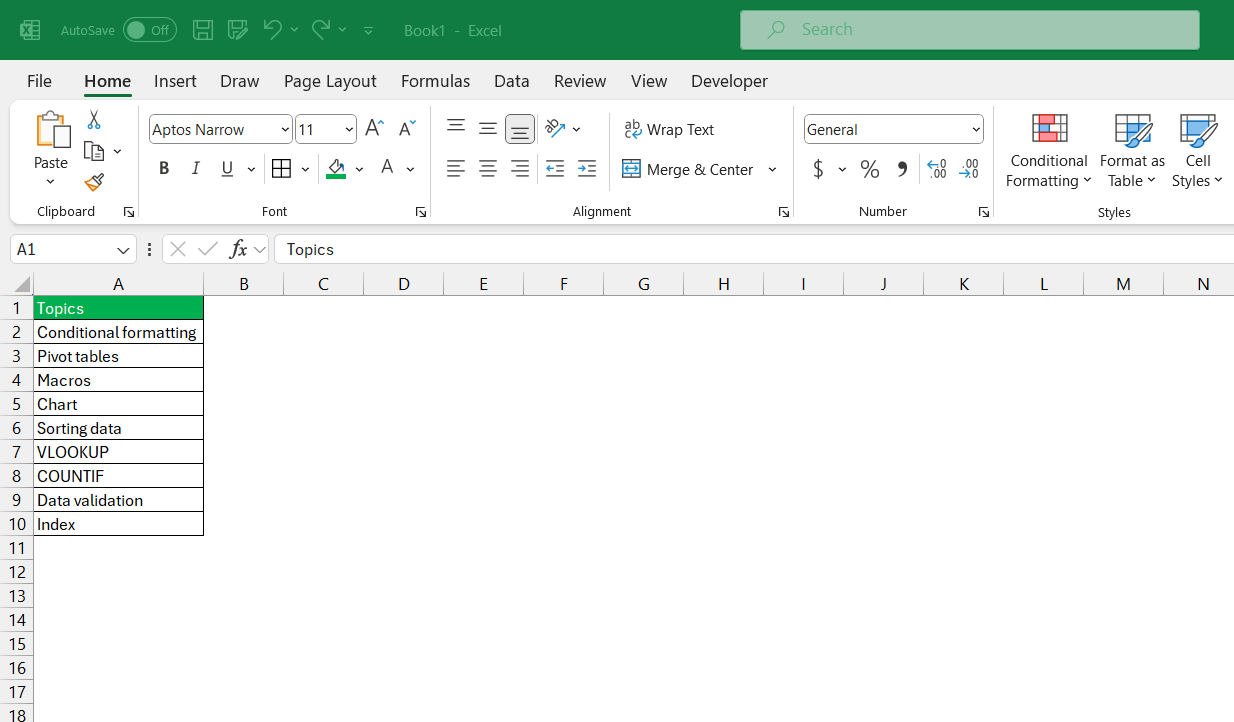
STEP 2: Highlight the word for which you want to find synonyms.
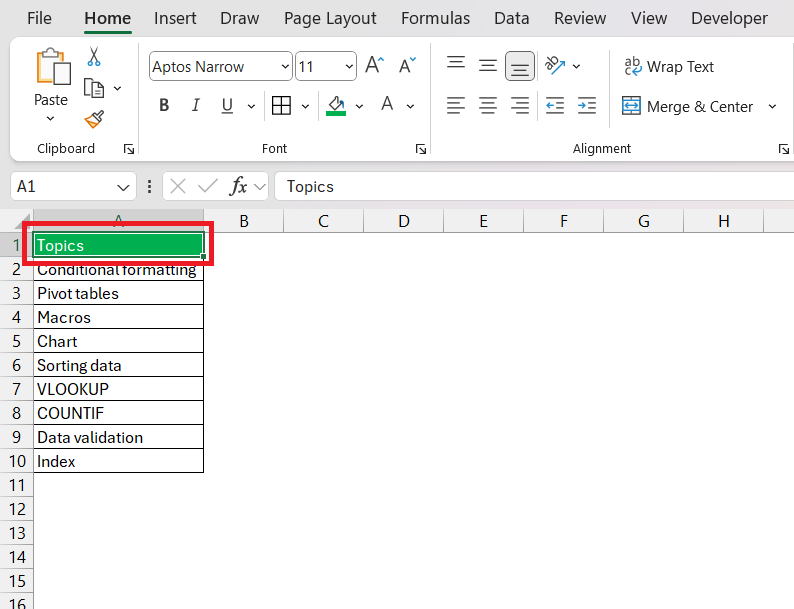
STEP 3: Go to the Review tab on the Ribbon. In the Proofing group, click on Thesaurus.
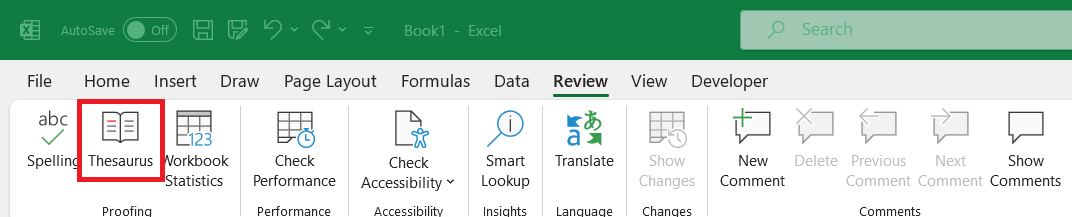
STEP 4: A pane will appear on the right side of your screen, displaying a list of synonyms for the selected word. Click on the word you prefer to replace the original word in your document.
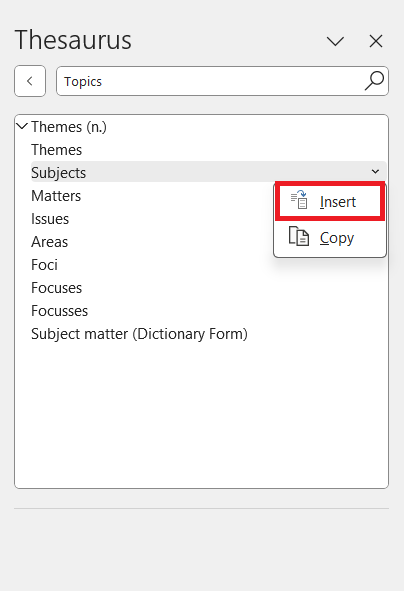
The word will be replaced.
Benefits of Using the Excel Thesaurus
- Finding the right word can make your data and commentary more understandable.
- Using appropriate vocabulary can improve the professionalism of your reports and presentations.
- Instead of manually searching for synonyms online or in a dictionary, the Thesaurus provides a quick solution within Excel.
- It allows you to use consistent terminology across your documents.
Tips & Tricks
- Context Matters: Always consider the context of your sentence or phrase when choosing a synonym to ensure it makes sense.
- Keep it Simple: Sometimes the simplest word is the best choice. Avoid overcomplicating your language unnecessarily.
- Regular Use: Make it a habit to use the Thesaurus regularly to improve your vocabulary and writing skills over time.
- Cross-Application Use: Remember that the Thesaurus is also available in other Microsoft Office applications like Word and PowerPoint. Consistent use across different platforms can enhance your overall document quality.
Table of Contents
FAQs
How to find synonyms in Excel?
To quickly find synonyms in Excel, follow the steps below:
- Go to the ‘Review’ tab
- Click ‘Thesaurus’ to display a list of synonyms.
- From there, you can insert your chosen synonym directly into your document.
How to find synonyms using keyboard shortcuts in Excel?
To find synonyms using keyboard shortcuts, follow these steps:
- Select a word
- Press Shift + F7.
Does the Thesaurus work inside formulas?
No, it only works with text and cannot be used inside formulas or functions.
Will using the Thesaurus change the formatting of my text?
No, it only replaces the selected word and keeps the original formatting unchanged.
Is there a way to expand the Excel Thesaurus with additional words or languages?
While you cannot directly expand the built-in Excel Thesaurus, it does offer multilingual support. To access synonyms in different languages,
- Go to the Review tab
- Click on ‘Thesaurus’
- Select your desired language from the drop-down menu at the bottom of the task pane.
This way, you can work with data in multiple languages effectively.

John Michaloudis is a former accountant and finance analyst at General Electric, a Microsoft MVP since 2020, an Amazon #1 bestselling author of 4 Microsoft Excel books and teacher of Microsoft Excel & Office over at his flagship MyExcelOnline Academy Online Course.

 30 Days - Full Access









