 Free Practice Workbook
Rows are a fundamental part of how Excel organizes data. Once you understand what a row is, working with spreadsheets becomes much easier. In this article, you will learn what a row is.
Key Takeaways:
- Rows in Excel are horizontal structures for organizing data.
- It is identified by numbers starting from 1.
- They store data in a sequential, left-to-right format.
- It enables easy interpretation and relationship maintenance across columns.
- Rows support formatting, height adjustments, hiding, and merging cells.
Table of Contents
What is a Row?
Defining a Row’s Role in Spreadsheets
In an Excel spreadsheet, a row constitutes one of the foundational building blocks of data organization. Rows run horizontally across the worksheet and are designed to store and present information linearly.
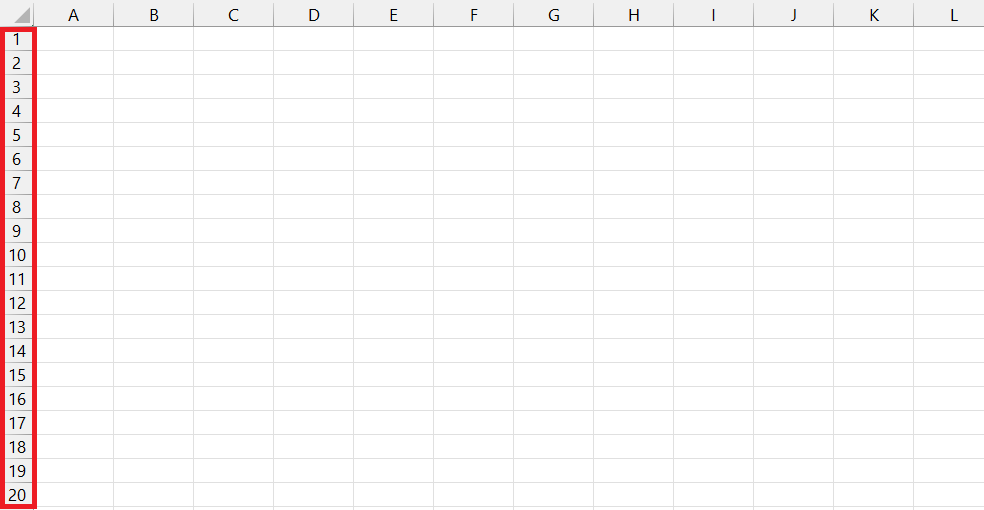
Each row is identified by a number and is displayed on the left side of the sheet. It starts from 1 at the top and increases incrementally. This labeling provides a quick reference for locating specific rows within the spreadsheet.
Connection between Rows and Data Organization
Rows are instrumental in data organization within Excel. It allows us to input, read, and interpret information sequentially. They align data in a horizontal manner for users familiar with reading from left to right.
For instance, when we view a spreadsheet, each row can represent a unique record. All related information to that record is placed side by side within that row.
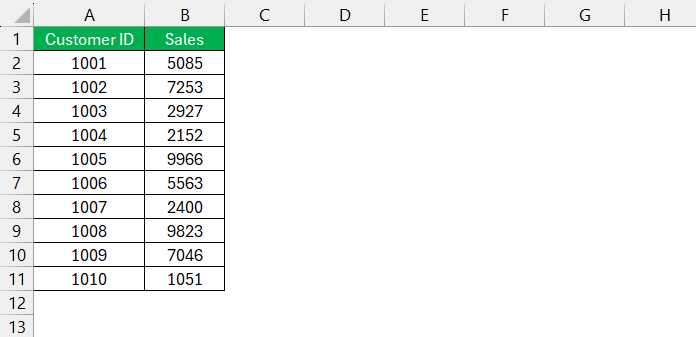
Rows offer flexibility in data categorization by using different rows for different types of information.
Exploring the Functions of a Row
Basic Features of Excel Rows
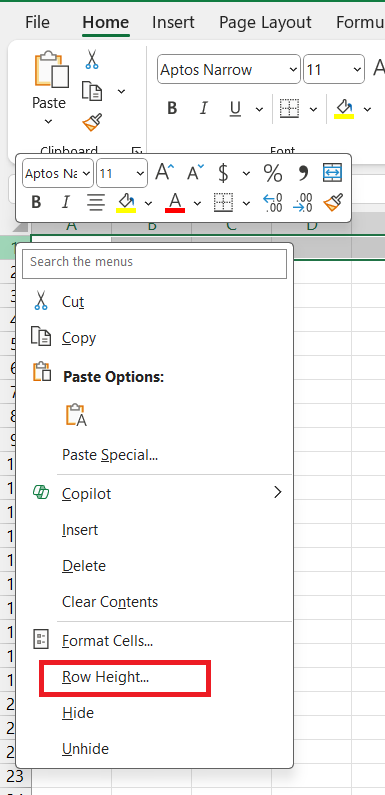
- Height Adjustment: The default height of an Excel row is set to accommodate the size of the font. But we can manually adjust the height to provide a better visual presentation or to accommodate more text.
- Formatting Options: Rows can be formatted collectively. For instance, we can apply the same font style, cell borders, or background color across all cells in a row.
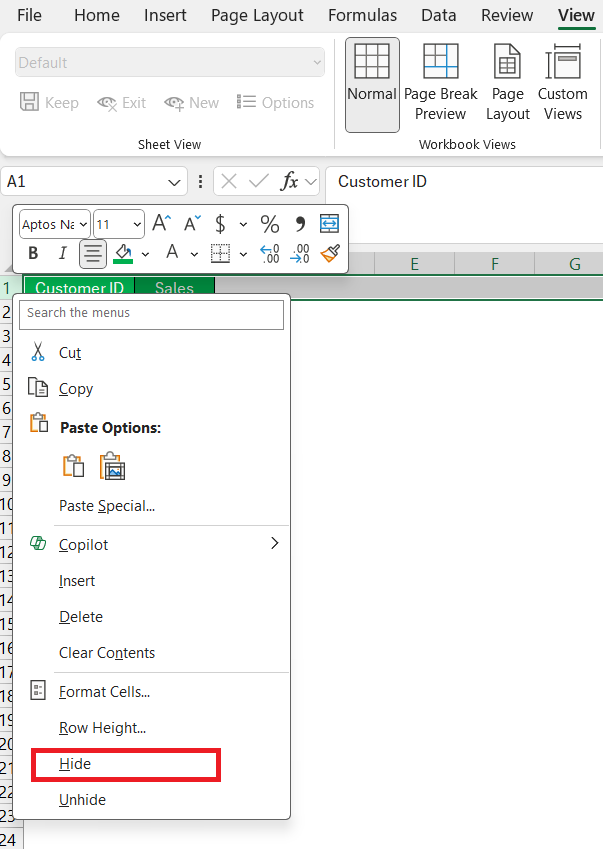
- Selective Row Hiding: At times, we may need to declutter our workspace by hiding rows that contain irrelevant or sensitive information. It can be done by right-clicking the row number and selecting ‘Hide’.
- Cell Merging: Within a row, adjacent cells can be merged to create a single larger cell. It is useful for headers or grouping similar data.

- Copy & Paste Functionality: Entire rows can be copied and pasted. It is handy when duplicating data or templates throughout a spreadsheet.
- Data Grouping and Outlining: Group rows to create an outline structure you can easily expand or collapse.

How to Manipulate Rows
Insert or Delete Rows
Inserting Rows:
- To insert a single row,
- Right-click the whole row directly below the desired location
- Select ‘Insert’
- A new row will appear above your selection.
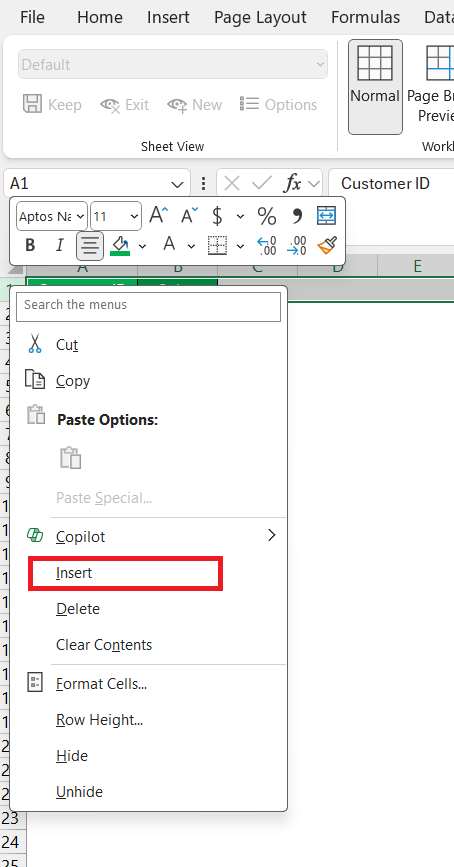
- For inserting multiple rows, select the number of rows you want to add. Right-click the selected area, and choose ‘Insert’.
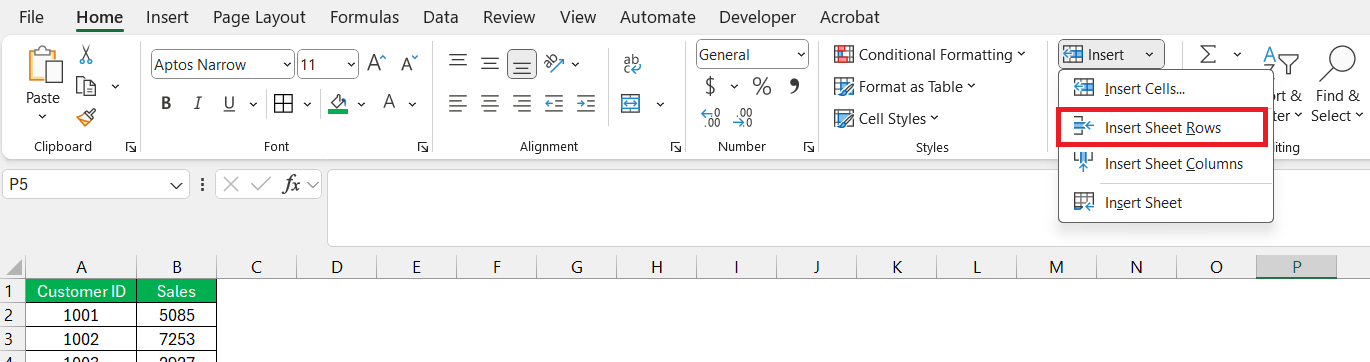
- Using the ribbon, click on any cell where you want to insert a new row. Go to Home > Insert > Insert Sheet Rows.
Deleting Rows:
- To delete a row,
- Click on the row number to highlight the entire row
- Right-click
- Choose ‘Delete’.
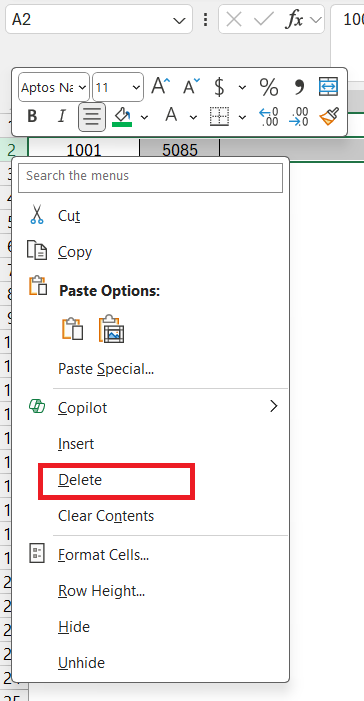
- For deleting several rows, select them, right-click the selection, and then click ‘Delete’.
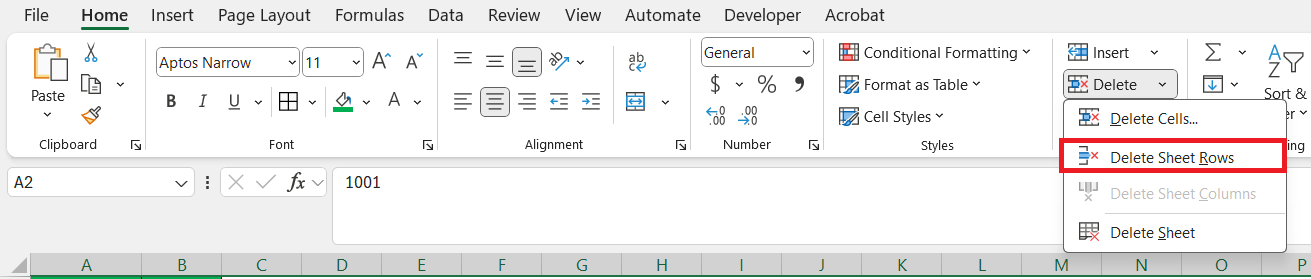
- The ribbon method involves selecting the row(s) you want to delete. Go to Home > Delete > Delete Sheet Rows.
Sorting and Filtering Data
Sorting Data:
- To quickly sort rows based on a specific column,
- Click on the dropdown arrow in the column header
- Choose “Sort A to Z” for ascending order
- Choose “Sort Z to A” for descending order.

- For a custom sort, go to the Data tab and select “Sort”.
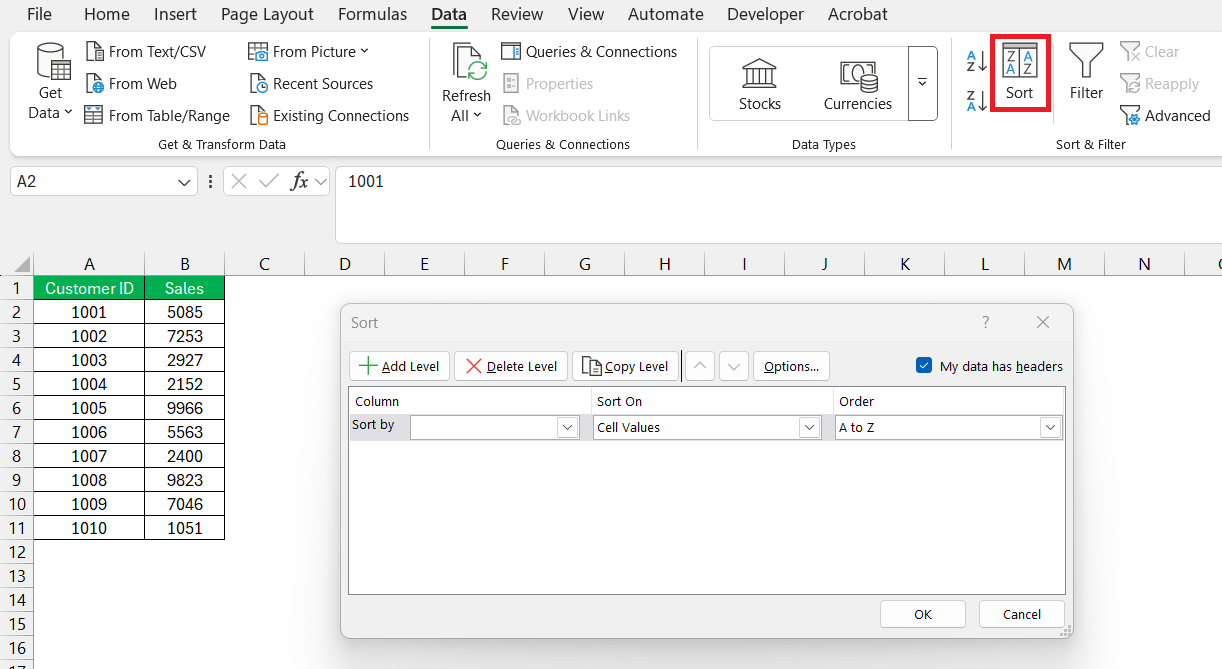
Filtering Data:
- Filtering is incredibly useful for displaying only the rows that meet certain criteria. Click on the ‘Filter’ icon on the Data tab to toggle filters on and off.

- Once filters are applied to column headers, use the dropdown arrows to select the values that are relevant to your analysis. Excel will automatically hide rows that don’t match the criteria.
Both sorting and filtering can significantly enhance the readability of large data sets by organizing content according to the user’s specific needs and interests.
Operational Shortcuts Involving Rows
Keyboard Commands
- To leap to the last row of your dataset, simply press
Control + Down Arrow. - To return to the top,
Control + Up Arrow.It will take you to the first row in the column you’re in.
Tips on Selecting Multiple Rows
- To select contiguous rows, click the row number of the first row you wish to select, then hold down
Shiftand click the last row number in the sequence. - For non-contiguous rows, click the first row number, then hold down
Ctrland click additional row numbers at your discretion. - If you want to select all rows in your dataset, press the shortcut
Ctrl + Shift + Spacebar.
FAQs
What is a row in Excel?
In Excel, a row is a horizontal alignment of cells. Rows run left to right across the worksheet and are identified by unique numbers on the left.
What is row vs column?
A row in Excel spreads horizontally from left to right and is labeled with a number. While a column runs vertically, top to bottom, labeled with a letter.
What Is the Maximum Number of Rows Allowed in Excel?
The maximum number of rows allowed in a single Excel worksheet is 1,048,576.
How to Add a Row Without Disrupting Formulas?
To add a row without disrupting formulas, right-click on the row number below where you want the new row, then select ‘Insert’.
What does the rows function in Excel do?
The ROWS function in Excel counts the number of rows in a specified range or array.

John Michaloudis is a former accountant and finance analyst at General Electric, a Microsoft MVP since 2020, an Amazon #1 bestselling author of 4 Microsoft Excel books and teacher of Microsoft Excel & Office over at his flagship MyExcelOnline Academy Online Course.

 30 Days - Full Access









