 Free Practice Workbook
Working with numbers in Excel often requires presenting data in scientific notation or performing calculations that involve exponents. When I first started using Excel, I realized that working with exponents wasn’t immediately intuitive. But once I learned the tricks, using exponents in Excel became a breeze! Let me walk you through how to use the exponent symbol in Excel.
Key Takeaways:
- The caret symbol is used to represent how many times a number is multiplied by itself.
- You can use the caret symbol to raise a number to a power.
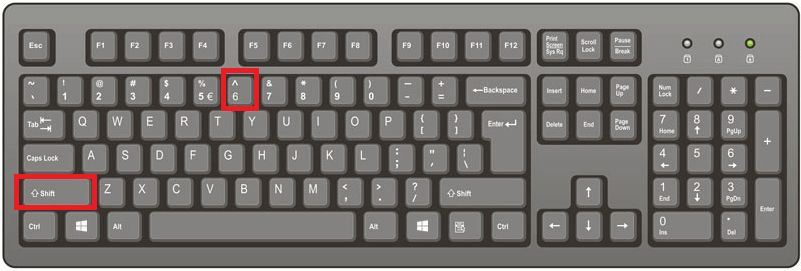
- Press Shift and number 6 to inser caret symbol.
- You can use the POWER function for exponential calculations.
- They are used for calculations like growth, compound interest, scientific value, and more.
Table of Contents
Basics of Exponent Symbol
Caret Symbol
The caret symbol (^) is used for exponential calculations in Excel. It tells Excel to raise the base number to the power of another number. It allows us to easily perform calculations that would otherwise require repetition of multiplication.
Where and How to Use
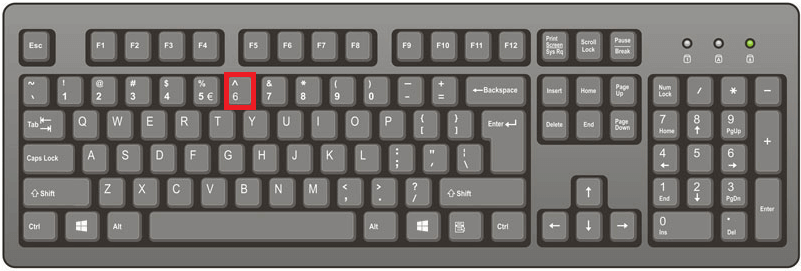
You can use the caret symbol located above the number 6.
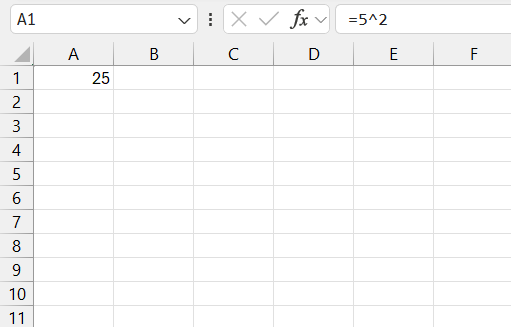
To input an exponent, follow these steps:
- Click on the cell where you want to perform the calculations
- Type the equal sign
- Enter the base number
- Type the caret symbol
- Enter the exponent.
- Press Enter.
Practical Tips
Keyboard Shortcuts
Press the shift key and the number 6 on your keyboard to insert the caret symbol.
Quick Access Toolbar
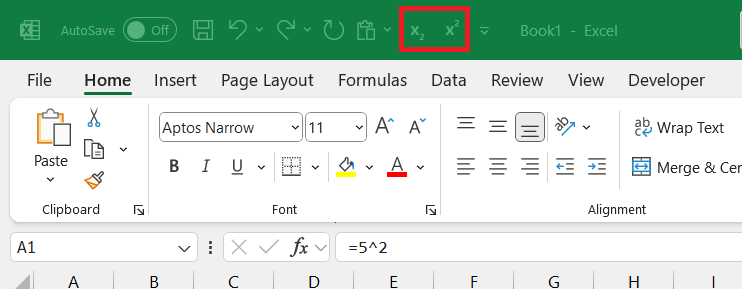
Follow the steps below to add the superscript option in QAT:
- Click on the dropdown arrow near QAT.
- Select More Commands
- Select Commands Not in the Ribbon in the dropdown.
- Find Superscript in the list.
- Click Add.
- Click OK.
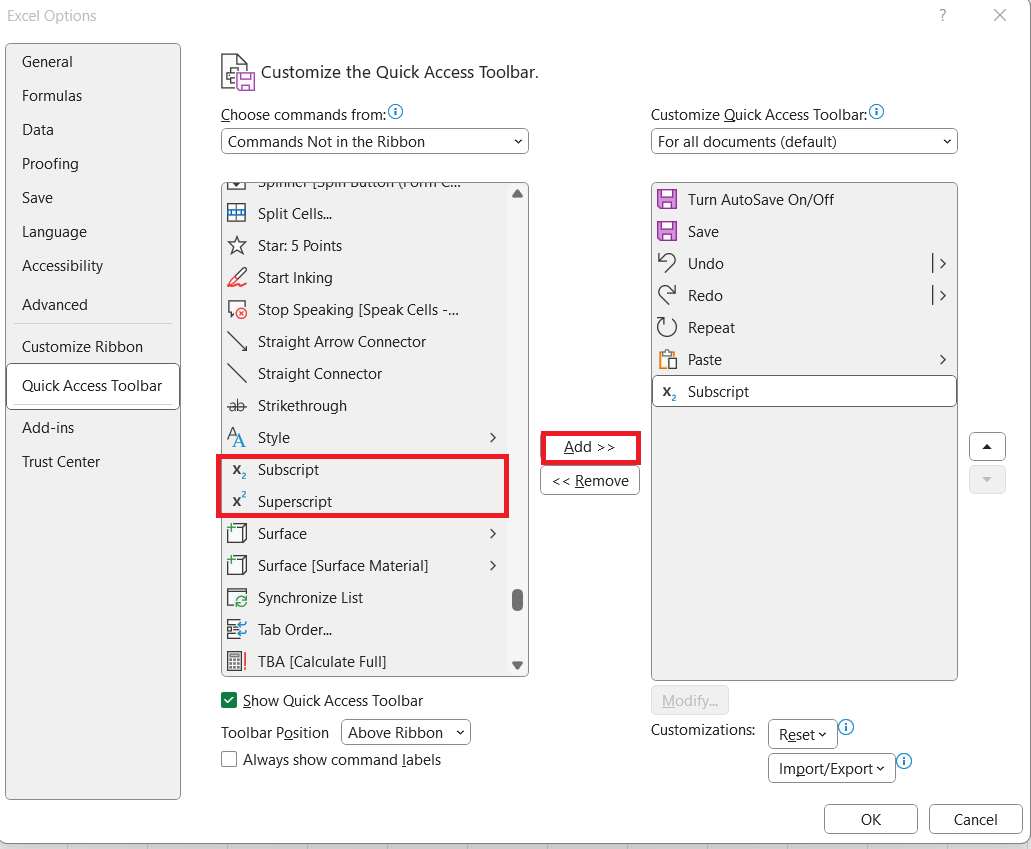
Click OK. The superscript button will be added to the QAT menu.
Advanced Tips
Exponents with Fractions and Decimals
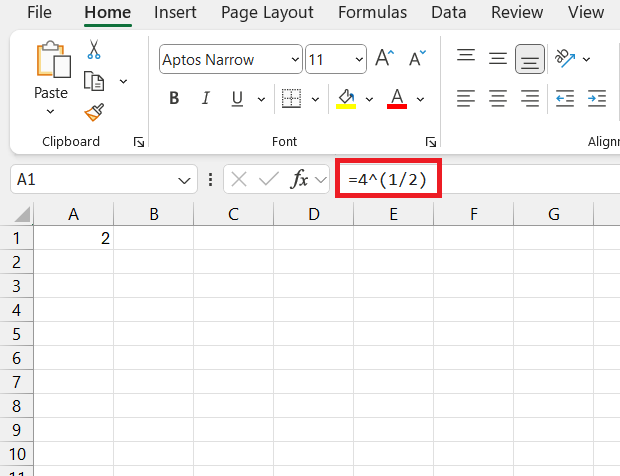
A fractional exponent denotes a root.
For example, 4^(1/2) is equivalent to the square root of 4.
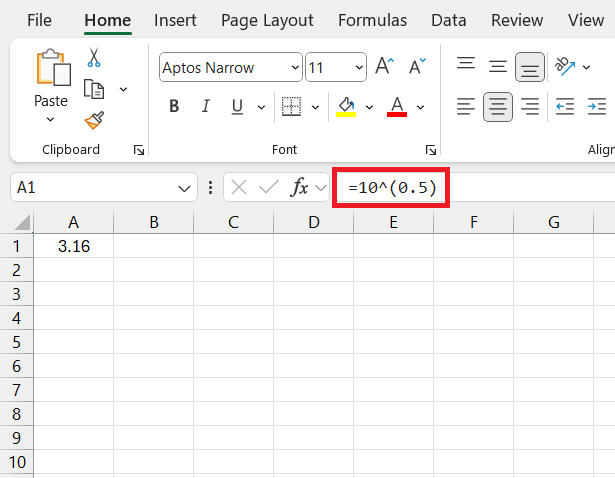
You can also insert the exponent in form of decimals.
Dealing with Negative Exponents
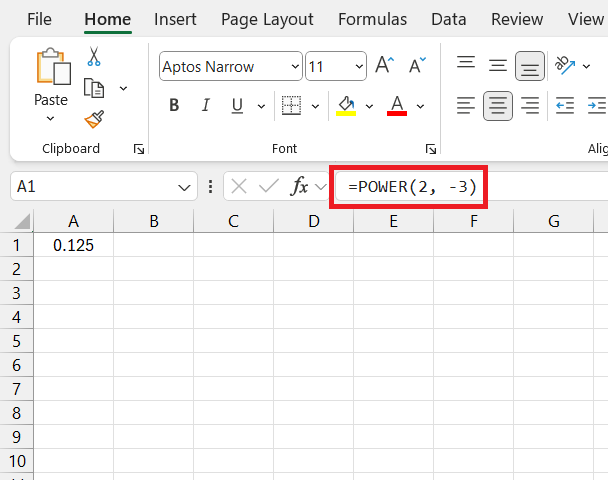
Negative exponents in Excel mean division. For instance,
2^-3
=1/(2^3)
=1/8
=0.125
You can also use the POWER function for this:
FAQs
How to do an exponent in Excel?
To use exponent in Excel, you can use either of these methods:
- Type an equals sign, followed by the base number, the caret symbol, and the exponent. For example, =5^3 will result 125.
- Use the POWER function: “=POWER(5, 3)”, which returns the same result.
What if the exponent formula is not working as expected?
If the formula is not working as expected, follow these points:
- Double-check the formula for correct syntax and cell references.
- Both base and exponent are numbers.
- Check that the calculation setting is set to Automatic.
Which function can be used for exponents in Excel?
The POWER function can be used for exponents in Excel.
=POWER(base, exponent)
For example, “if you want to raise 2 to the power of 3, the formula will be =POWER(2, 3)
How to type an exponent symbol?
You can use the superscript feature to add an exponent.
- Type the base number.
- Type the exponent number.
- Highlight exponent.
- Press Ctrl + 1.
- Check the box next to superscript.
- Click OK.

John Michaloudis is a former accountant and finance analyst at General Electric, a Microsoft MVP since 2020, an Amazon #1 bestselling author of 4 Microsoft Excel books and teacher of Microsoft Excel & Office over at his flagship MyExcelOnline Academy Online Course.

 30 Days - Full Access









