Exporting notebooks in Microsoft OneNote is an important task if I want to preserve, share, or back up my work. Exporting notebooks can facilitate collaboration, ease transitions between devices, and safeguard against data loss. In this article, I will show you how to export OneNote Notebooks.
Key Takeaways
- Exporting Notebook is required to safeguard your notes against data loss.
- Use the OneNote Package option while exporting to keep the notes editable.
- Always sync the notebook before exporting.
- Make sure to protect sensitive information before sharing the notebook.
- Make sure to update the application if the export fails.
OneNote provides us with multiple methods to export our content, each suited for different needs and scenarios. We can choose to export whole notebooks, individual sections, or single pages depending on our goal. The options range from using OneNote for Windows for a more comprehensive export to manual copy/paste for a simple transfer, or even exporting as a PDF for ease of sharing. An overview of these methods gives us a clear path depending on whether we’re aiming to move content outside of a specific Office 365 account or just share readable copies.
Exporting entire notebooks might be ideal for a full backup or migration, whereas exporting individual pages or sections can be perfect when you’re only looking to share specific content. Each method aligns with our end goals, ensuring we have the flexibility and control we need over our work.
Table of Contents
How to Export OneNote NoteBooks
When I’m set to export entire notebooks or sections using OneNote on Windows, I follow a methodical process. Firstly, I ensure my notebook is fully synced with OneDrive before exporting to avoid any missing data. Here’s my step-by-step guide:
STEP 1: Open OneNote and access the notebook you wish to export.
STEP 2: Click on the File > Export.
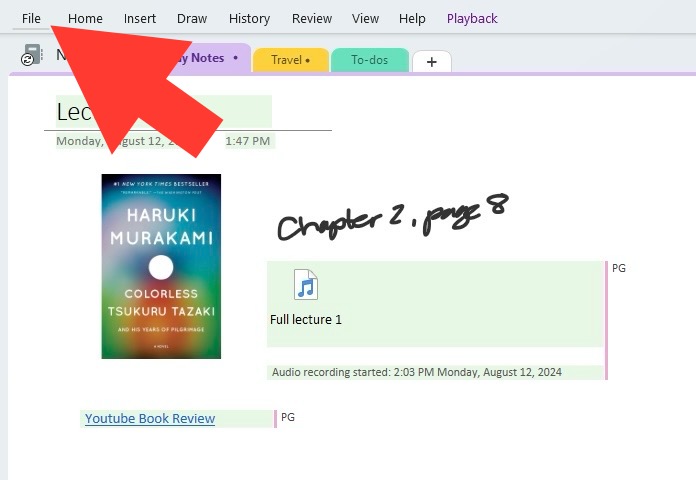
STEP 3: Choose the scope of your export – single page, section, or entire notebook.
STEP 4: Select OneNote Package (*.onepkg) to keep a dynamic, editable version of your notes.
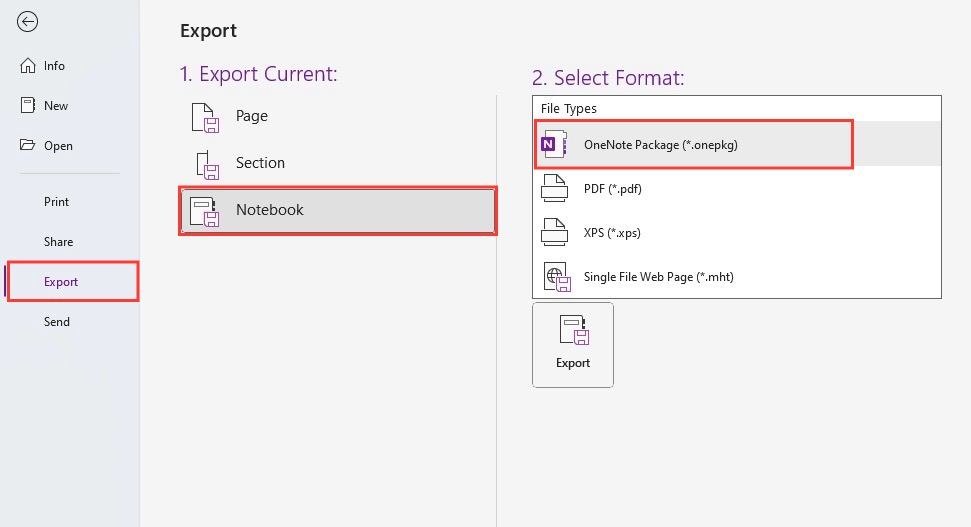
STEP 5: Click Export and select where you want to save the file on your local machine.
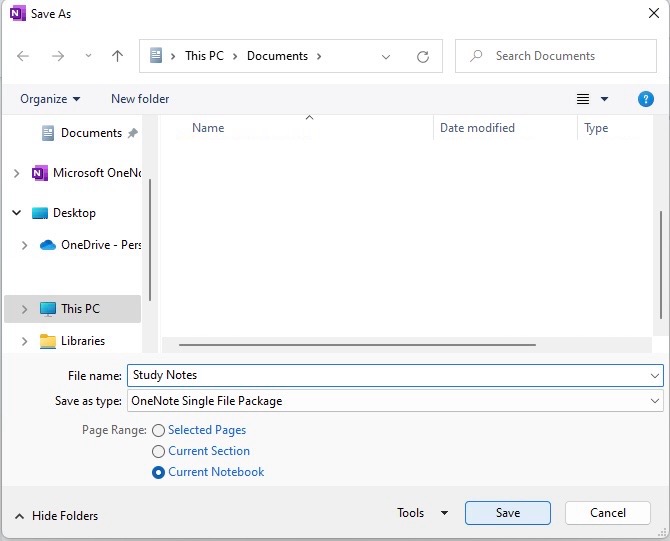
These steps result in a .onepkg file that I can open on any computer with OneNote, ensuring my notes are portable and preserved.
Preserve Your Privacy During Exports
Remove Sensitive Information Before Export
Before exporting notebooks, I take these steps to make sure that sensitive information is not included:
- Review the notebook for any sensitive content like personal identification numbers or confidential notes.
- If the sensitive information is in the form of text, I will edit or delete it.
- If an image contains sensitive information, I use an image editor to hide the sensitive portions.
- Check the metadata in the notes and clear them if necessary.
- Create a copy and manually remove the sensitive content.
Password Protect
You can follow the steps below to password-protect specific sections og the notebook:
To set it up:
STEP 1: Right-click on the section tab I want to protect.
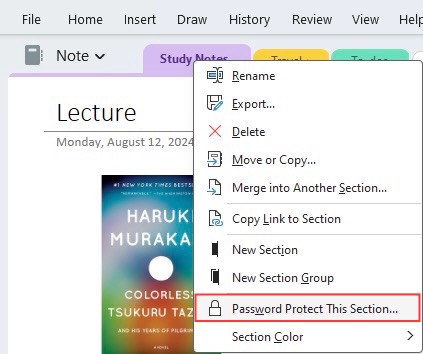
STEP 2: Select ‘Password Protect This Section’ from the context menu.
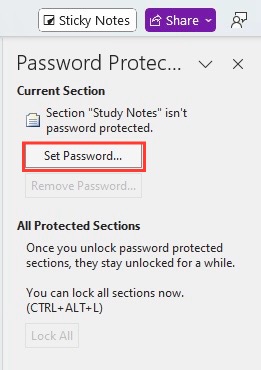
STEP 3: Click on ‘Set Password’, enter my desired password, and confirm it.
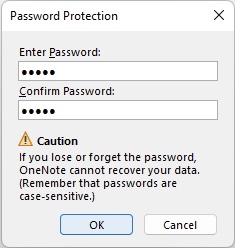
Once a section is locked, anyone trying to access it will need to input the correct password. But, do remember:
- Password protection is not available for OneNote for the web or the OneNote for Windows 10 app.
- It is important to remember the password, and Microsoft cannot retrieve it for me.
How to Share OneNote NoteBook
I follow the steps below to share a page from my OneNote notebook:
STEP 1: Open the page I want to share.
STEP 2: I click on File and then Share.
STEP 3: I choose Send a Copy or Email Page.
STEP 4: Select a format like Word or PDF. This allows the recipient to view the content without having to open OneNote.
STEP 5: Lastly, I enter the email addresses of my collaborators and hit Send.
Troubleshoot Common Issues
Export Limitations
When I am unable to export a notebook, I follow these startegies”
- For Windows – I use the Print option to print the entire notebook in a readable format.
- For MacOS – I export individual pages as PDF files and collate them into on edocument.
- For OneNote Online – Since there’s no direct export feature, I make sure to sync the notebook with the desktop app and export from there.
These workarounds ensure that, no matter the platform restrictions, I can export the content from my OneNote notebooks in a format that suits my needs.
What to Do When Exports Fail
When an export fails, you can follow the steps below to troubleshoot the issue:
- Make sure that there is a stable internet connection.
- Divide large notebooks into smaller sections to prevent timeout errors.
- Make sure that OneNote and the operating system are updated so that there are no compatibilty issue.
- You can save the pages as a PDF.
- If the issue persists, you can contact the Microsoft support team.
By targeting common problems that arise during the export process, I’m able to minimize disruption and ensure that I can access and share my work as needed.
FAQs
How to export my OneNote notebooks with private information securely?
To securely export your OneNote notebooks with private information, follow these points:
- Remove any sensitive content manually.
- Password-protect sections that contain sensitive data
- Export the notebook as a OneNote package and store it securely.
How to export an entire OneNote?
Follow the steps below to export an entire OneNote:
- Click on File in the top-left corner.
- Select Export.
- Choose Notebook.
- Select the format – OneNote Package (.onepkg)
- Click Export
This will create a ZIP file containing all the notebook content.

John Michaloudis is a former accountant and finance analyst at General Electric, a Microsoft MVP since 2020, an Amazon #1 bestselling author of 4 Microsoft Excel books and teacher of Microsoft Excel & Office over at his flagship MyExcelOnline Academy Online Course.

 30 Days - Full Access









