Many times, you might have faced a situation where need to do a bunch of tasks repeatedly while working on an Excel worksheet. You may need to insert a blank row or column, add a black border, red fill to a cell, etc. to multiple cells, and repeating the same task again and again can be quite time-consuming.
Key Takeaways:
- The F4 key in Excel repeats the last action.
- Using F4 for formatting or data entry can shorten workflows.
- F4’s repeat function applies to actions like bolding text, inserting rows, or applying borders.
Table of Contents
Using Keyboard Shortcuts (F4)
If you want to repeat action in Excel, like inserting a column/row, formatting cells, copy & pasting, etc, then you can use the keyboard shortcut F4 which will repeat your last action (in most cases).
If you want to insert blank rows multiple times using f4 keyboard shortcut, follow the steps below:
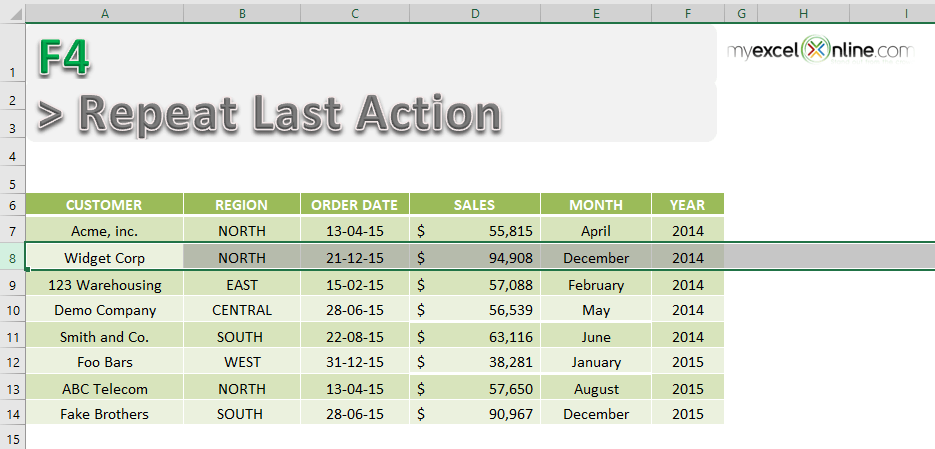
STEP 1: Select the row above which you want to insert a blank row.
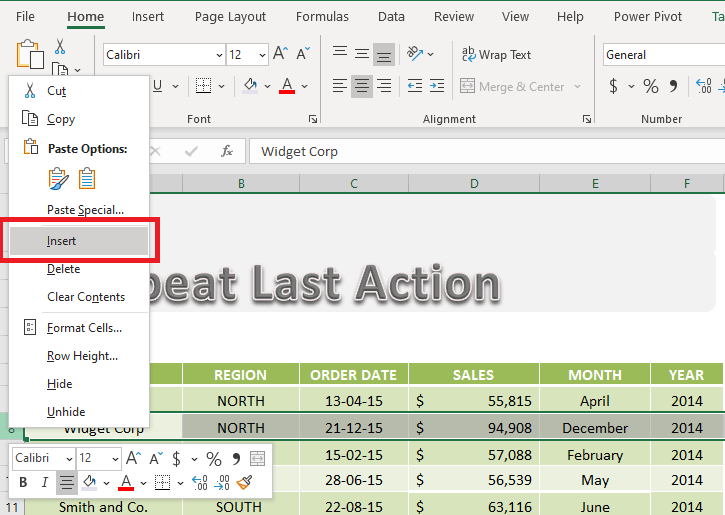
STEP 2: Right-Click and select Insert.
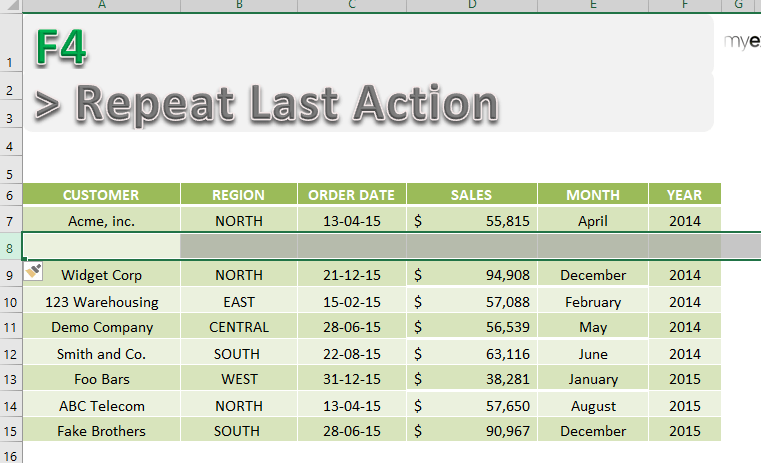
A new row is added!
STEP 3: To repeat this action, simply press F4.
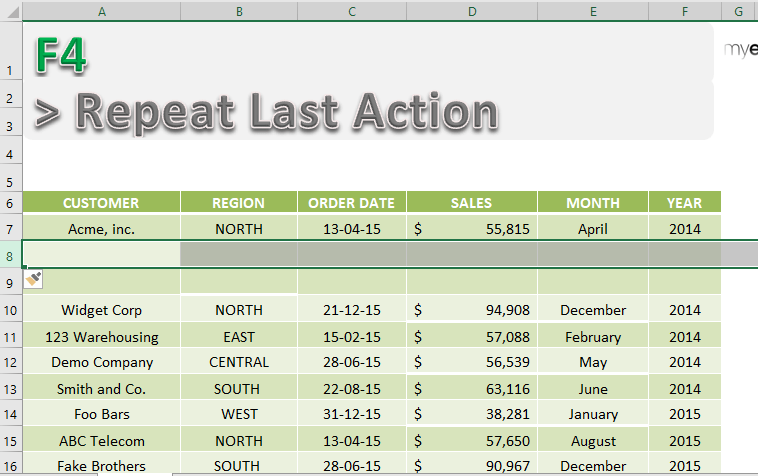
This is how you can repeat last action Excel.
Using Keyboard Shortcut (Ctrl + Y)
Previously, you have used the shortcut F4 to redo a task in Excel. In the same manner, you can use the keyboard shortcut Ctrl + Y to get the task to repeat again!!
Instead of using a keyboard shortcut, you can even add the Repeat Command in your QAT!
Let’s try the repeat command to redo the last action in Excel!
Using Repeat Command
Another easy way is to add the Repeat command on the Quick Access Toolbar and simply click on it to repeat the last action multiple times.
To add Repeat Command in QAT, do as follows:
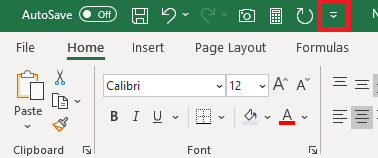
STEP 1: Select the small arrow on the top of the ribbon to access the Quick Access Toolbar.
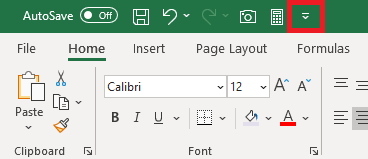
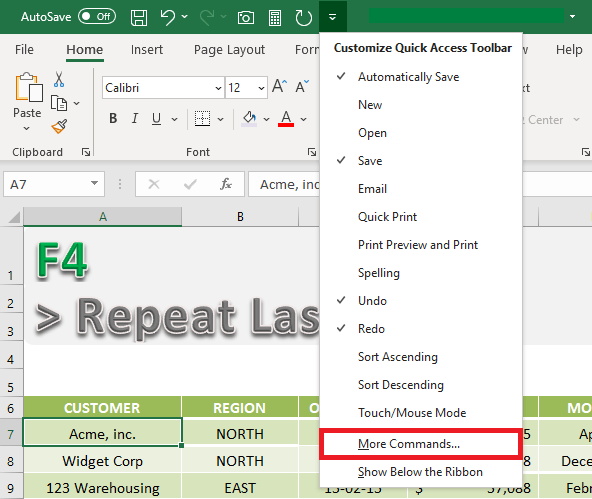
STEP 2: Select More Commands from the list.
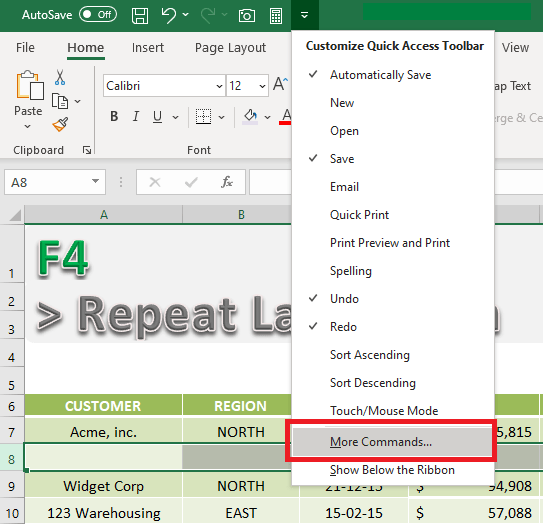
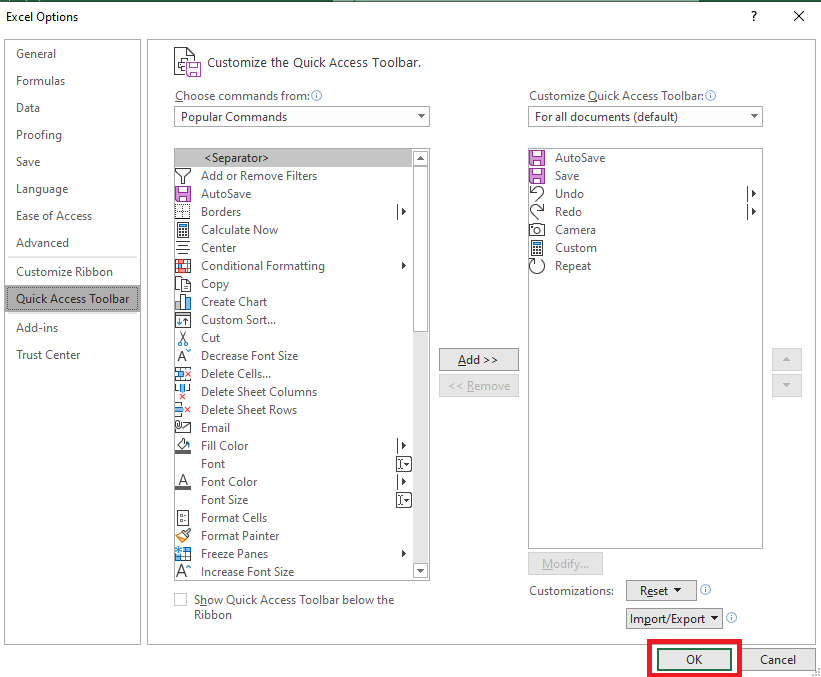
STEP 3: In the Excel Options dialog box, from the list of commands under Popular Commands select Repeat.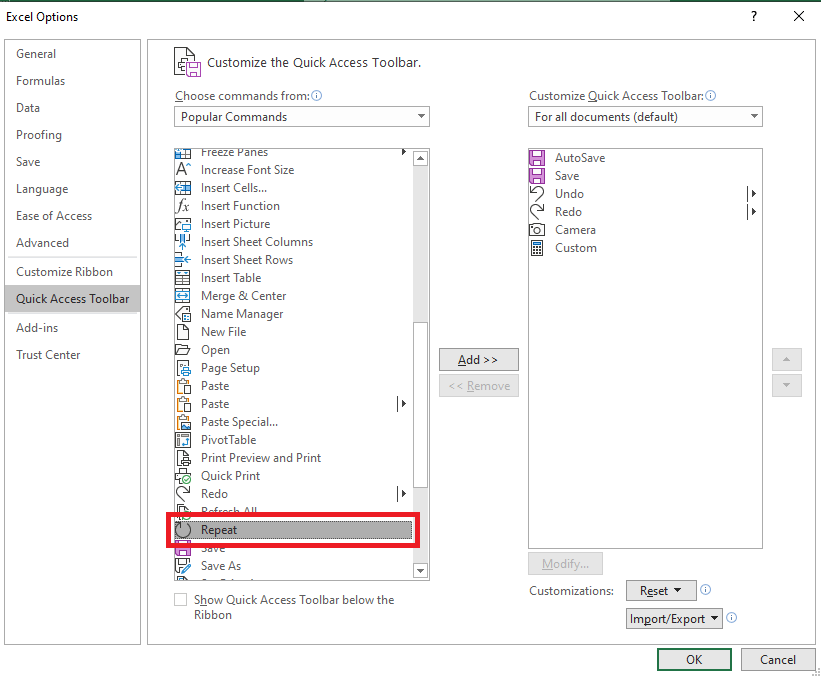
STEP 4: Click on Add and then you will see Repeat added to the right. 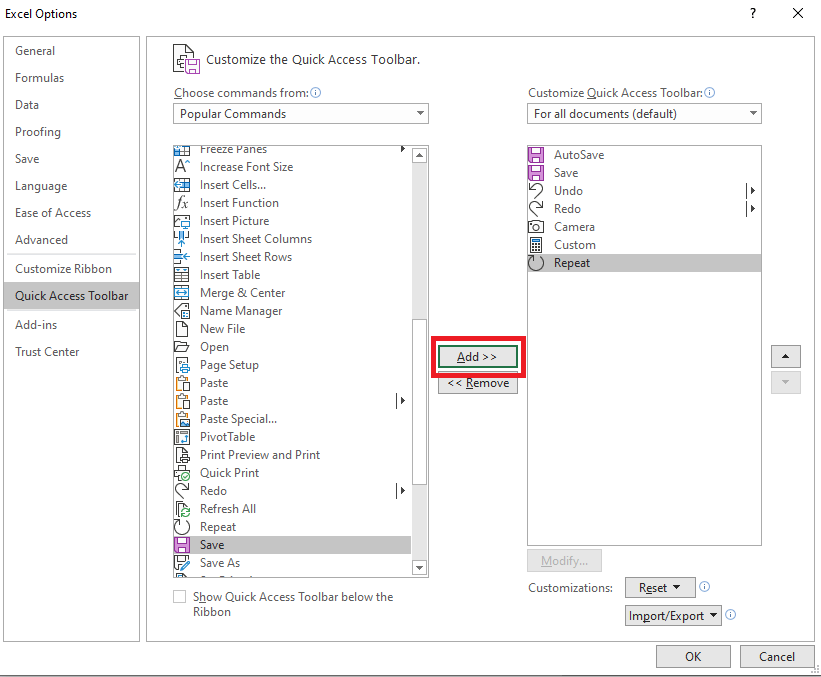
STEP 5: Click OK.
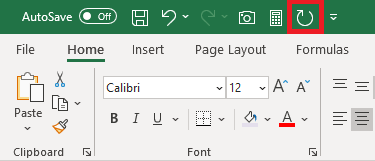
Repeat Command is now added to your QAT. You can now easily Redo the last action by simply clicking on it.
You can remove this command from the QAT. To do that:
STEP 1: Select the small arrow on the top of the ribbon to access the Quick Access Toolbar.
STEP 2: Select More Commands from the list.
STEP 3: Under Customize Quick Access Toolbar, select Repeat.
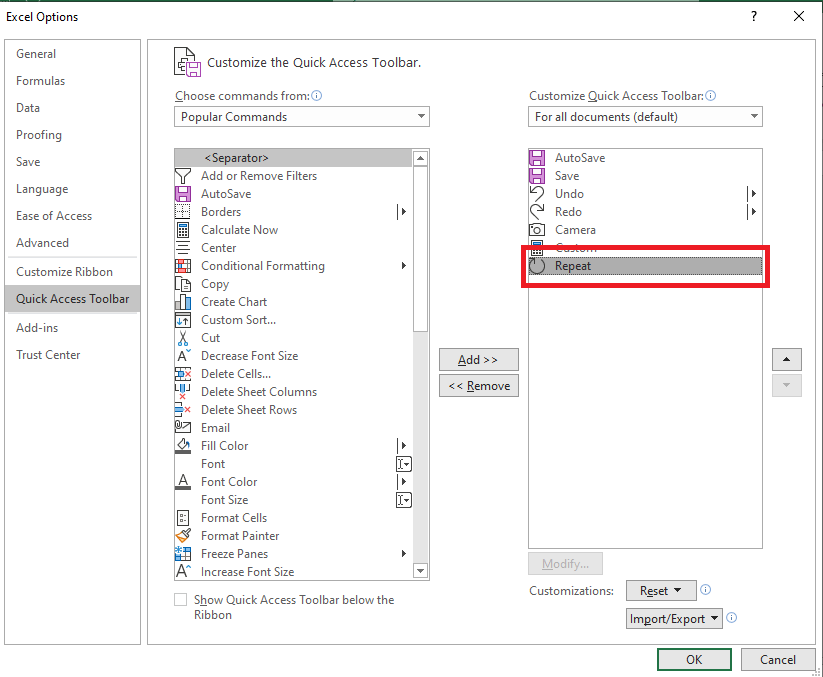
STEP 4: Click Remove and then click OK.
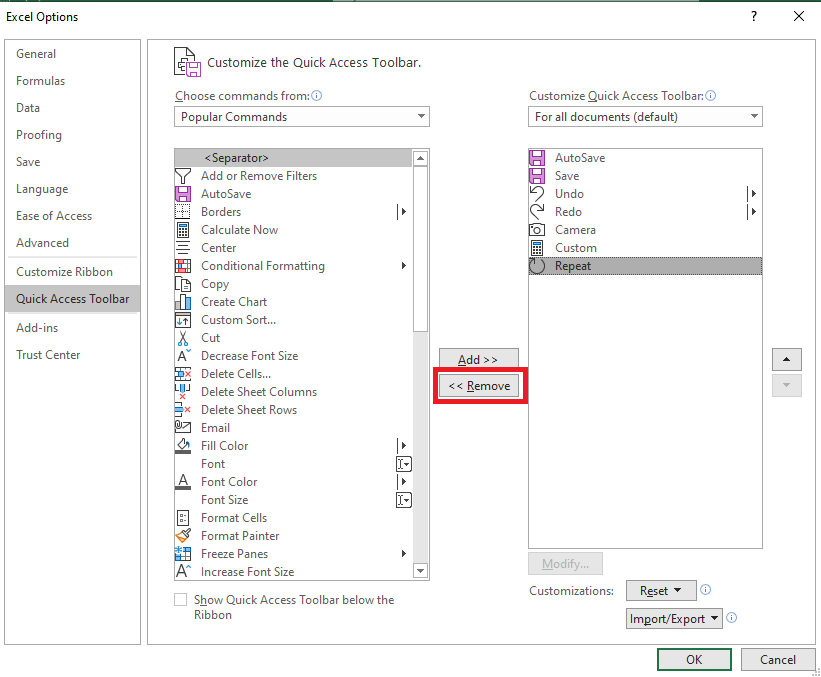
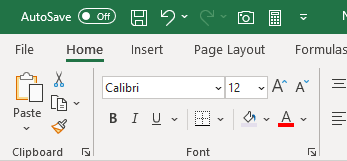
Repeat Command is now no longer part of the Quick Analysis Toolbar!
Step-by-Step Guide to Using F4
Repeating Your Last Action with Ease
Suppose you’re working on a report, and you want to bold several headers. Here’s what I used to do: select a cell, click the Bold button, then move to the next cell and repeat the process. It took forever!
You can use F4 to do this faster.
STEP 1: Select your first header cell.
STEP 2: Click the Bold button (or use Ctrl+B as a shortcut).
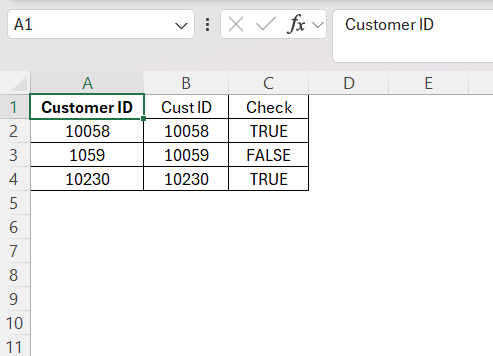
STEP 3: Move to the other header and hit F4.
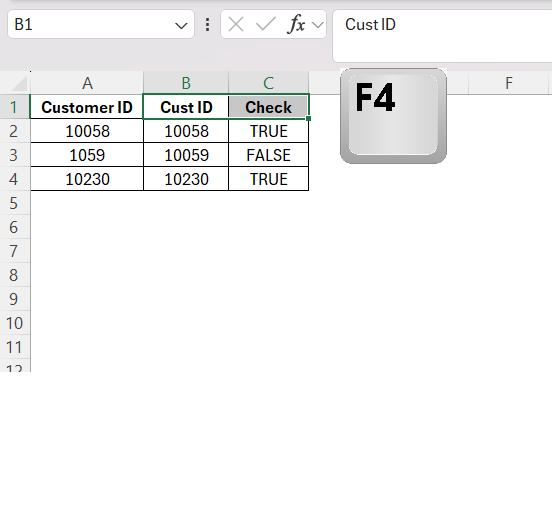
The bold formatting is applied instantly. Keep pressing F4 as you move through the cells, and you’re done in seconds. This repetitive task automation is what makes F4 a significant time-saver in my toolkit.
Practical Examples of F4 in Action
If I formatted a cell with bold text and a border, and then needed to apply the same formatting to numerous other cells, I would select the next cell and tap F4 and the same formatting is applied.
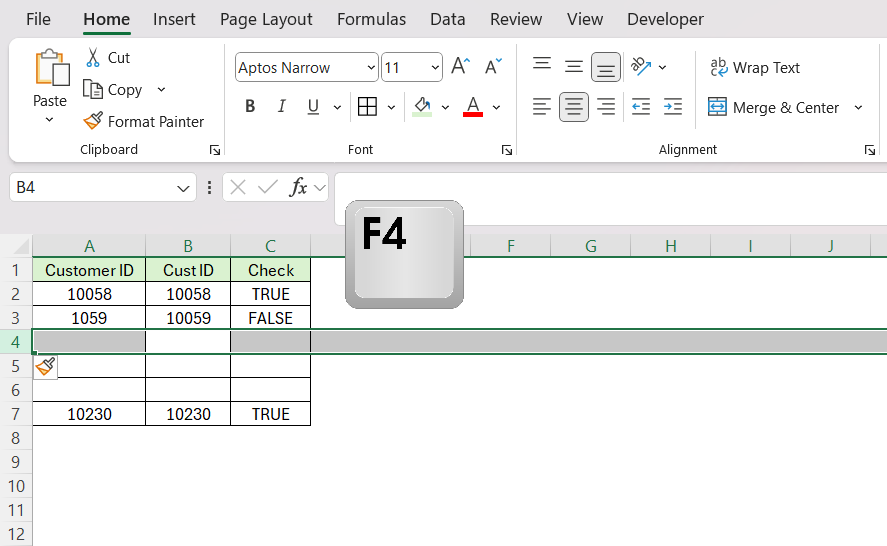
Another instance is when adding rows consistently throughout a dataset. After inserting one row, pressing F4 while selecting adjacent cells inserts additional rows.
Frequently Asked Questions
What Exactly Does the F4 Key Do in Excel?
In Excel, the F4 key is renowned for its repeat functionality. It swiftly repeats the last action I’ve taken, whether it’s an alteration in cell formatting, an entry of data, or the application of a formula.
How to repeat the last command in Excel?
To repeat the last command in Excel, I simply press the F4 key after completing an action. Whether I’ve adjusted a cell’s format, added a new data series, or performed any number of individual tasks, hitting F4 immediately reenacts that exact command on the currently selected cell or range.
How Can I Customize Excel to Better Utilize the F4 Shortcut?
Customizing Excel to better utilize the F4 shortcut typically revolves around incorporating it into my routine tasks. However, I also can access Excel’s options and customize the Quick Access Toolbar or Ribbon to rearrange commands for more efficient F4 use.

John Michaloudis is a former accountant and finance analyst at General Electric, a Microsoft MVP since 2020, an Amazon #1 bestselling author of 4 Microsoft Excel books and teacher of Microsoft Excel & Office over at his flagship MyExcelOnline Academy Online Course.

 30 Days - Full Access









