Table of Contents
Understanding Freezing vs. Locking Cells
Why Focus on the Second Row?
Sometimes, the first row of your Excel spreadsheet isn’t the header; it could be a title, an image, or some introductory text. When this happens, the header—that indispensable key to understanding your data rows—could be situated on the second row.
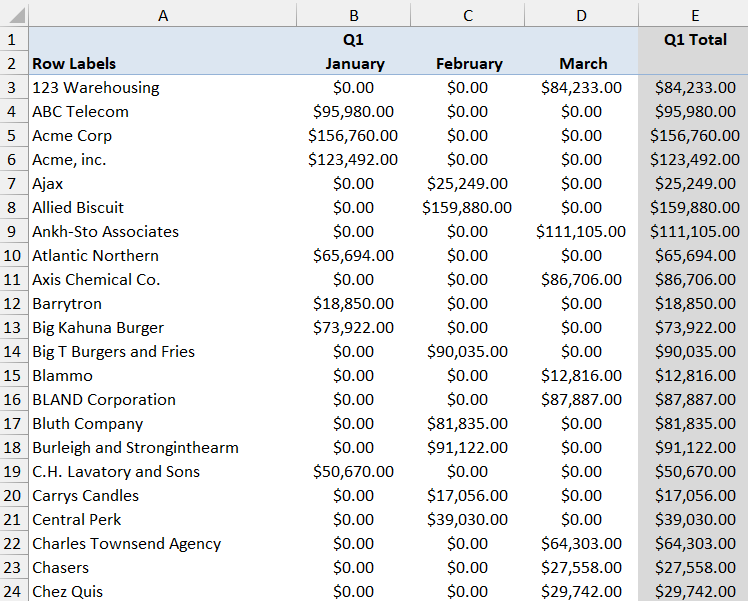
By freezing the second row, you make sure your headers stay in place as you navigate through your sea of data, granting you continuous context and making comparisons a breeze. Keeping this important information visible at all times can significantly ease data management tasks, especially in larger spreadsheets.
Freeze Second Row
STEP 1: Navigate to Your Desired Worksheet
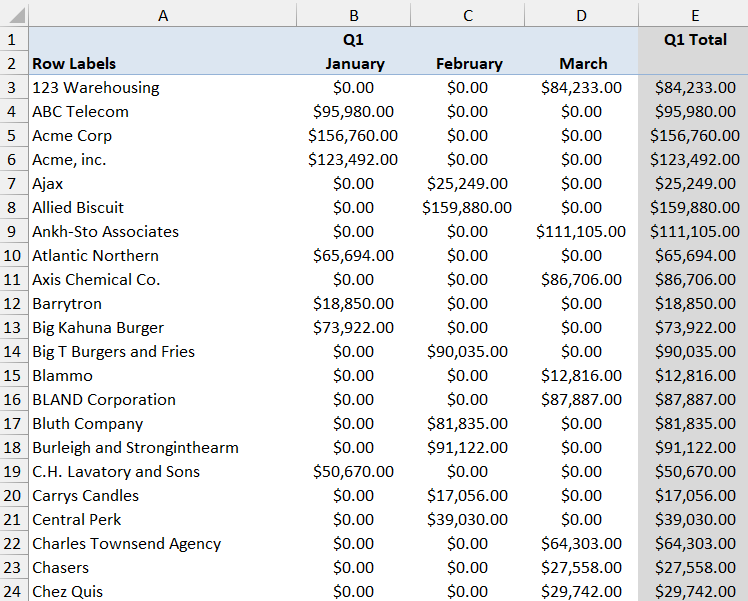
Before making any change, it is vital to check that you have opened the correct workbook and selected the worksheet where you want to freeze the second row.
STEP 2: Select the Correct Cell.
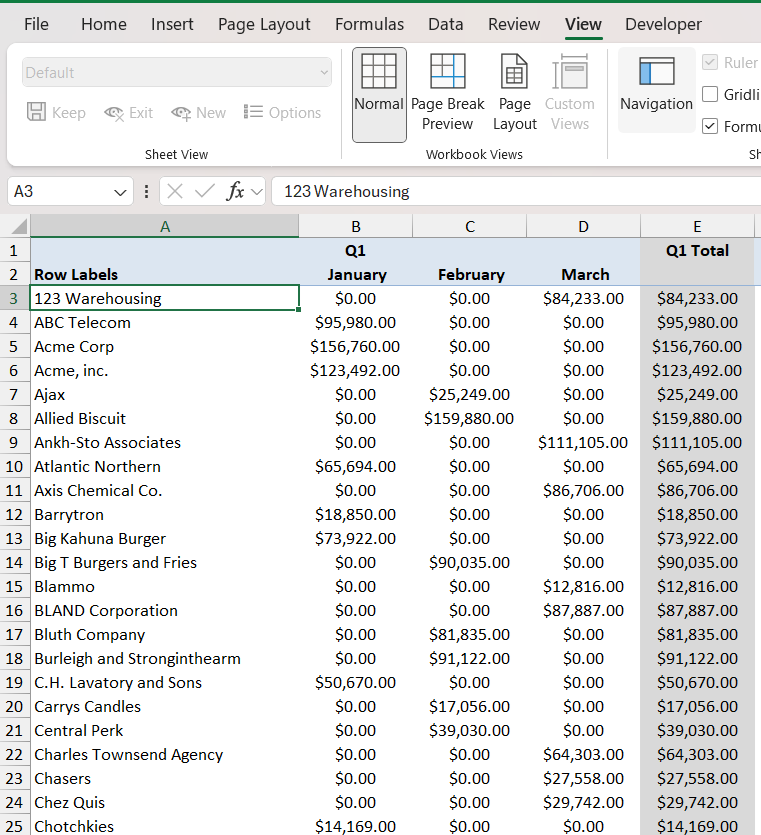
To freeze the second row, you need to select any cell in the third row. This will inform Excel that all rows above the selected row should be frozen.
STEP 3: Go to the view tab and in the window group select Freeze Panes, and then Freeze Panes again in the dropdown.
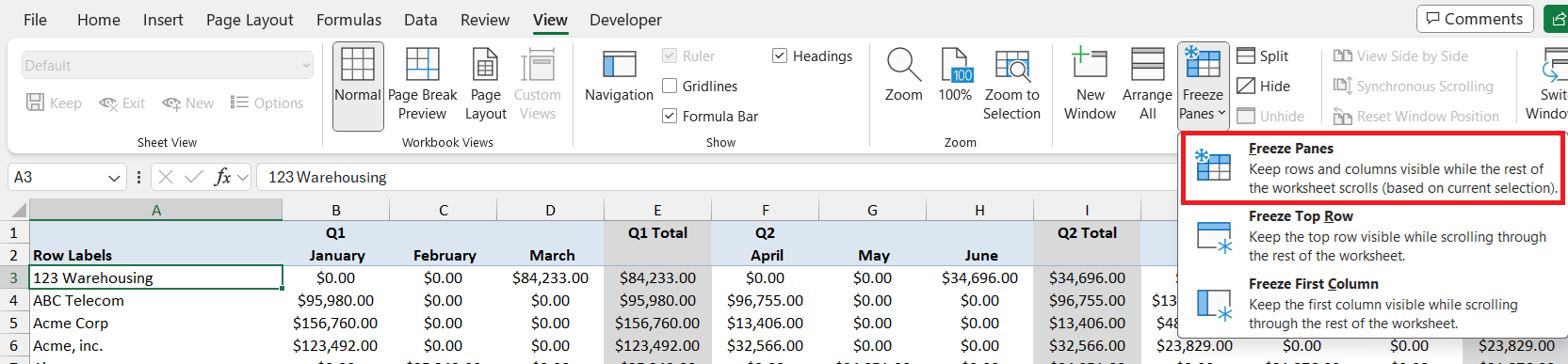
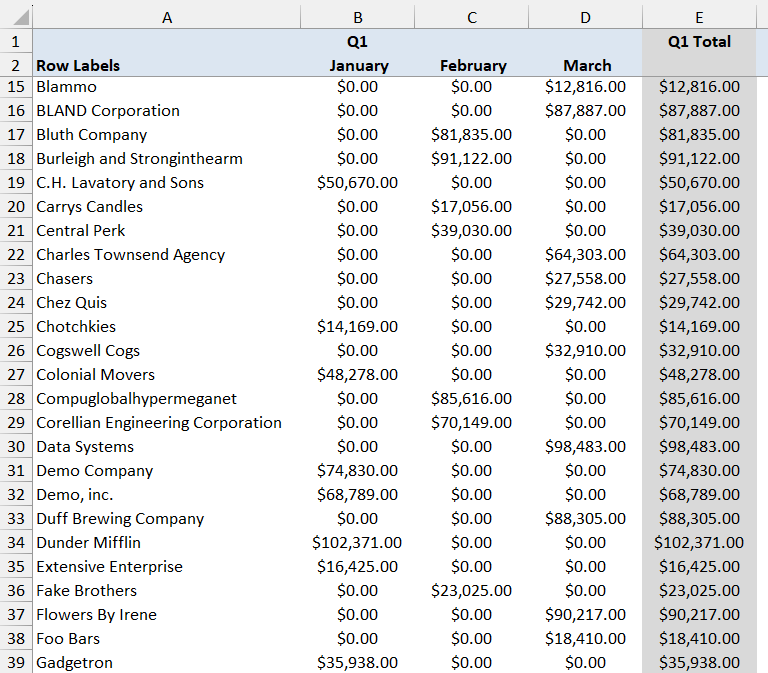
The second row will now be frozen. You can now scroll down and check that the first 2 rows will remain on the top.
Tips and Tricks
Shortcuts for Quick Freezing
Speed up your workflow with a few handy keyboard shortcuts! To instantly freeze second row, use the Alt + W + F + F. Here’s how you do it: once you’ve selected the cell below the row you want to freeze (for the second row, that’s A3), simply press and release the ‘Alt’ key, followed by ‘W’, then ‘F’, and ‘F’ again. Excel swiftly locks the rows in place, giving you a quick freezing action without the mouse gymnastics.
For power users frequently adjusting their view, customizing the Quick Access Toolbar to include the Freeze Panes command can save loads of time. Here are the steps to add the Freeze Panes command to the Quick Access Toolbar in Excel:
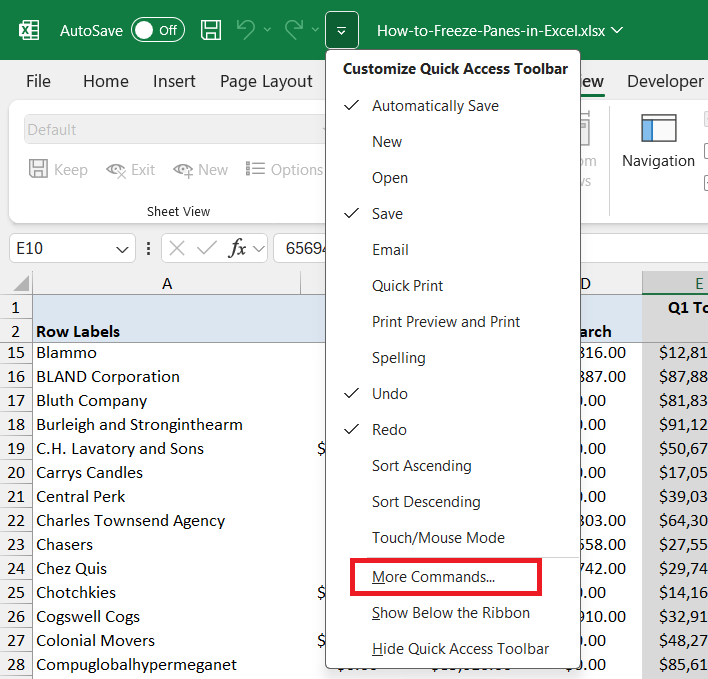
STEP 1: Click the down arrow at the very top of the Excel window to open the Quick Access Toolbar’s customization dropdown menu and select “More Commands” from the dropdown menu to open the Excel Options dialog box.
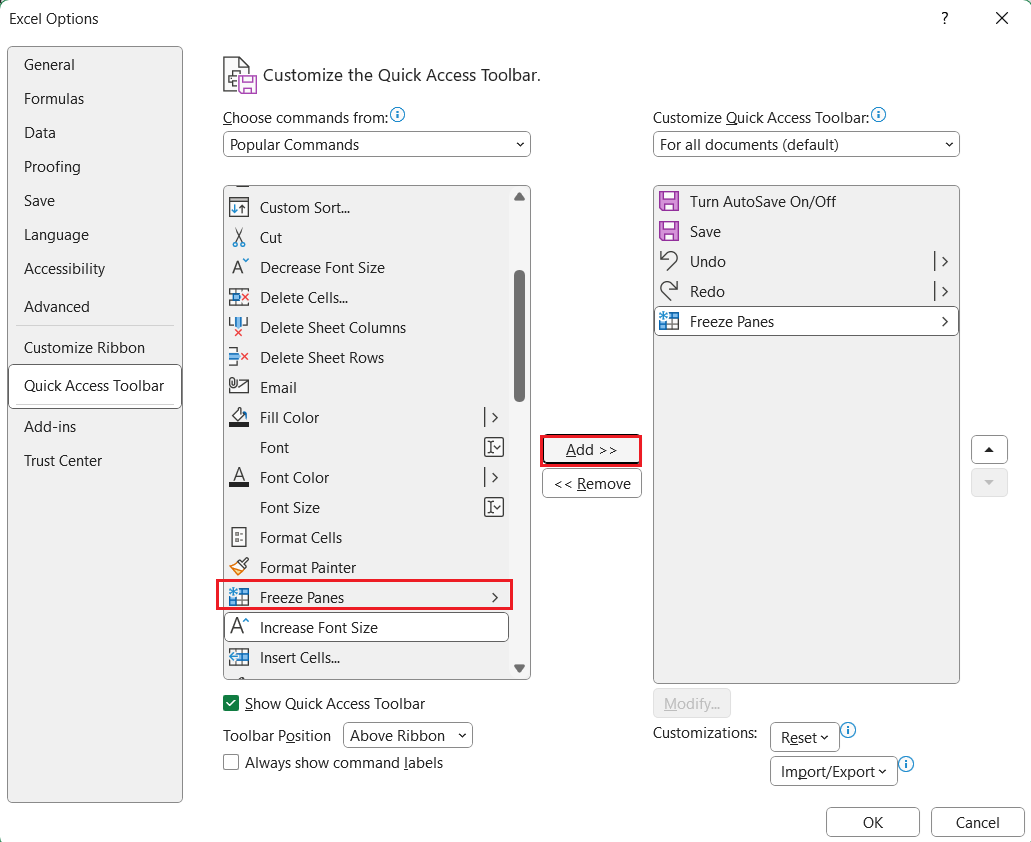
STEP 2: In the Excel Options dialog box, select Freeze Panes and then select Add. This will move the command to the list of tools in the Quick Access Toolbar.
STEP 3: Click Okay and close the dialog box.
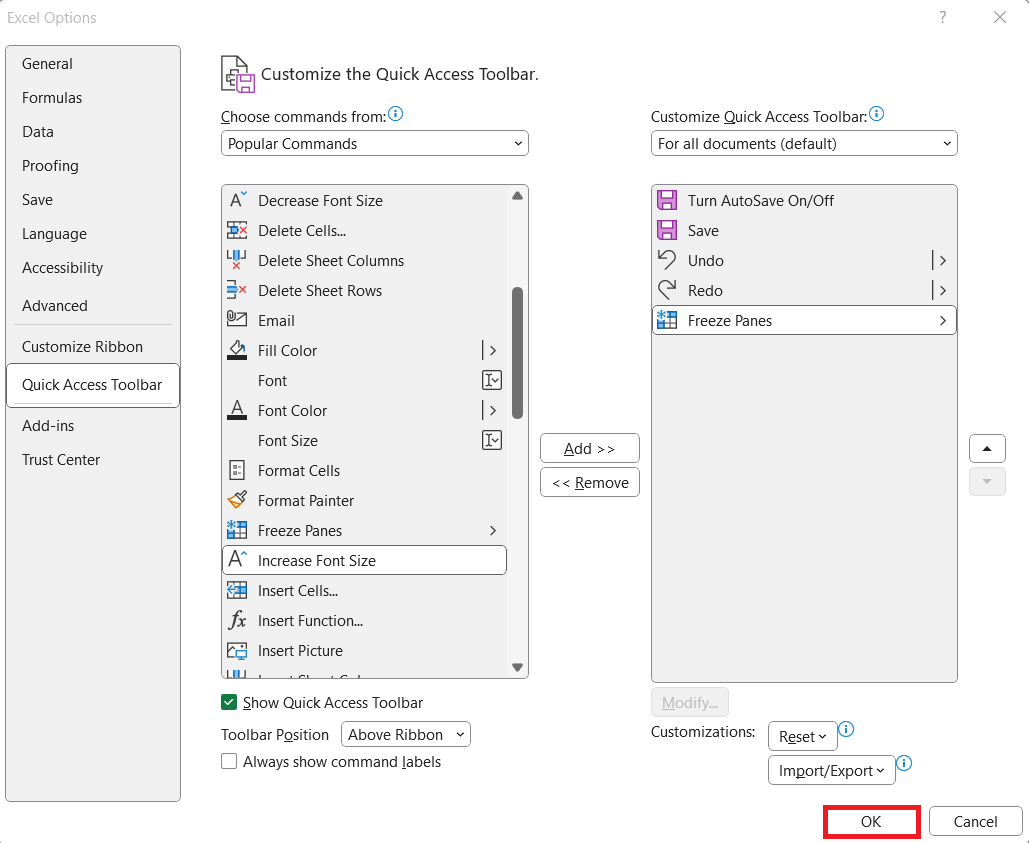
By using this method, you will have a custom button ready to be used to freeze panes.

Best Practices
Use these best practices to keep the workbook more efficient and easy to manage:
- Limit Frozen Columns: Freeze only essential columns so that the sheet is clean and responsive.
- Use Headers and Filters: They will make organizing and filtering data quick.
- Optimize Your View: Use the View side-by-side feature to compare data easily.
Troubleshooting Common Problems
What to Do When Freeze Panes Is Not Working?
Encountering a snag with the ‘Freeze Panes’ feature? Take these quick steps to problem-solve:
- Exit Cell Editing Mode: If you’re typing or editing, ‘Freeze Panes’ won’t engage. Hit ‘Enter’ or ‘Esc’ to exit.
- Check Workbook Protection: ‘Freeze Panes’ may hide under lock and key. Unprotect your sheet to access the feature.
Still frozen in the unfreezing predicament? Do a quick review of your Excel version‘s compatibility or consider restarting the program to give it a gentle nudge.
How to Unfreeze Rows
As you continue with your tasks, there might come a moment when you need to thaw your spreadsheet and unfreeze those rows. This process is as simple as it was to freeze them:
STEP 1: Go to the ‘View’ tab along the top of your Excel window.
STEP 2: Locate and click on ‘Freeze Panes’ within the Window group.
STEP 3: From the drop-down menu that appears, select ‘Unfreeze Panes’.
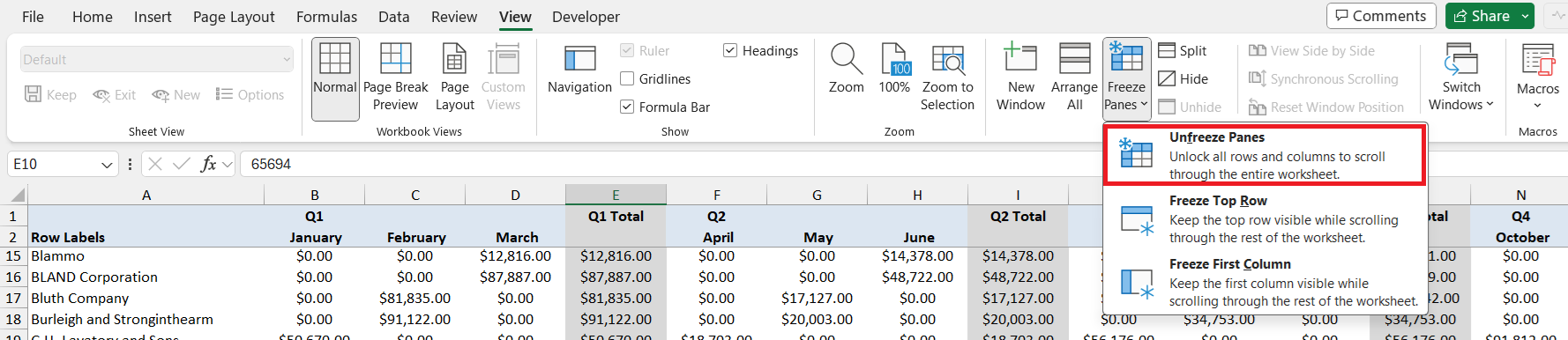
That’s it! You’re back to a fully scrollable sheet. Use this feature with flexibility—freeze when you need stability, and unfreeze to regain the full view.
Enhancing Productivity with Advanced Techniques
Automating Row Freezing with VBA Macros
Automating row freezing with VBA macros is like having a personal Excel wizard at your command. VBA (Visual Basic for Applications) allows you to create small programs that perform tasks within Excel, saving you time and effort. For instance, by running a simple macro, you can freeze second row across multiple sheets or workbooks with a single command:
To use this macro, press Alt+F11 to open the Visual Basic Editor, insert a new module, paste the code, and hit F5 to run it.
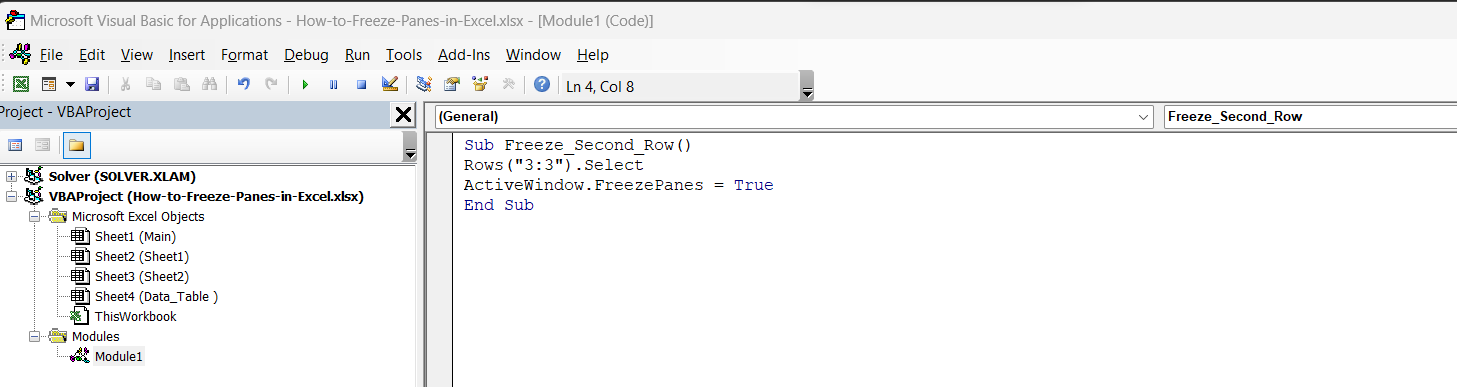
With VBA, your repetitive tasks melt away, leaving you to focus on the analysis that matters.
Customizing Freeze Panes for Optimal User Experience
Excel offers you the reins to customize the freeze panes to fit your unique workflow. If freezing the second row is just the starting point, you can also freeze columns or create a combination of frozen rows and columns. To do this:
- For Columns: Click on the cell to the right of the column you want to freeze. Then, select ‘Freeze Panes’. This keeps your selected column and all columns to its left stationary.
- For Both: Select the cell situated beneath and to the right of the rows and columns you wish to freeze. Freeze from there, and now both row and column headers are locked in place during scrolling.
You can cater the freeze panes feature to support how you process your data. Whether it’s analyzing customer data, tracking project timelines, or comparing financial reports, customize your freezing for a data experience that’s tailored just for you.
FAQs
Can I Freeze Multiple Rows at Once?
Absolutely! In Excel, you can freeze multiple rows at the same time. Simply select the row right under the last row you want to freeze and then follow the standard freeze panes process. So, if you want to freeze the first five rows, select row 6 and use the freeze panes functionality.
How Do I Keep Columns Visible While Scrolling?
To keep columns visible while you scroll, click on the cell to the right of the column you wish to remain on-screen. Next, go to View Tab > Freeze Panes > Freeze Panes. This will lock the selected columns and all columns on its left.
What is the Difference Between Freeze Panes and Split Panes?
Freeze panes will keep your selected row fixed when you are scrolling, whereas split panes will divide the screen into separate sections. You can scroll each section of the split panes separately.
How to Unfreeze Second Row?
To unfreeze just the second row, you’ll need to unfreeze all panes first and then re-freeze only what you need. Go to ‘View’ > ‘Freeze Panes’ > select ‘Unfreeze Panes’. Then, if you need to keep the first row frozen, simply select the cell in the second row and refreeze.

John Michaloudis is a former accountant and finance analyst at General Electric, a Microsoft MVP since 2020, an Amazon #1 bestselling author of 4 Microsoft Excel books and teacher of Microsoft Excel & Office over at his flagship MyExcelOnline Academy Online Course.

 30 Days - Full Access









