 Free Practice Workbook
When you scroll through a large Excel worksheet, your headers can disappear from view. Freezing the top two rows keeps them visible at all times, making your data easier to read. In this article, I will show you how to freeze the top 2 rows in Excel.
Key Takeaways
- Use Freeze Panes to lock specific rows or columns in place
- To freeze top 2 rows, select row 3 before using Freeze Panes
- This method works the same in Excel for Windows and Mac
- Freezing rows allows you to view the header while scrolling
- Use the Unfreeze Panes option to remove the freeze panes.
Table of Contents
How to Freeze Top 2 Rows in Excel
Step 1: Set Up Your Data
Start with a sheet that has at least two rows you want to keep visible. For example:
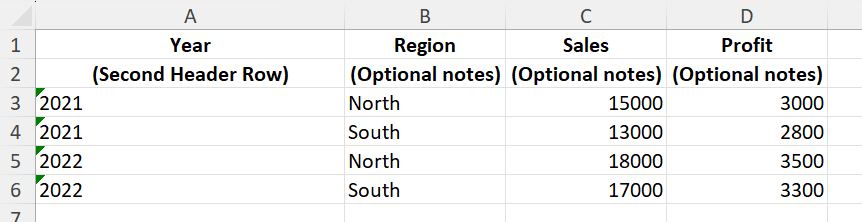
Step 2: Select the appropriate Row
To freeze the top 2 rows, you need to select row 3.
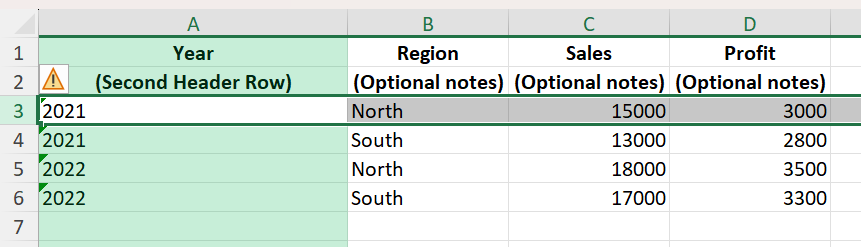
Step 3: Apply Freeze Panes
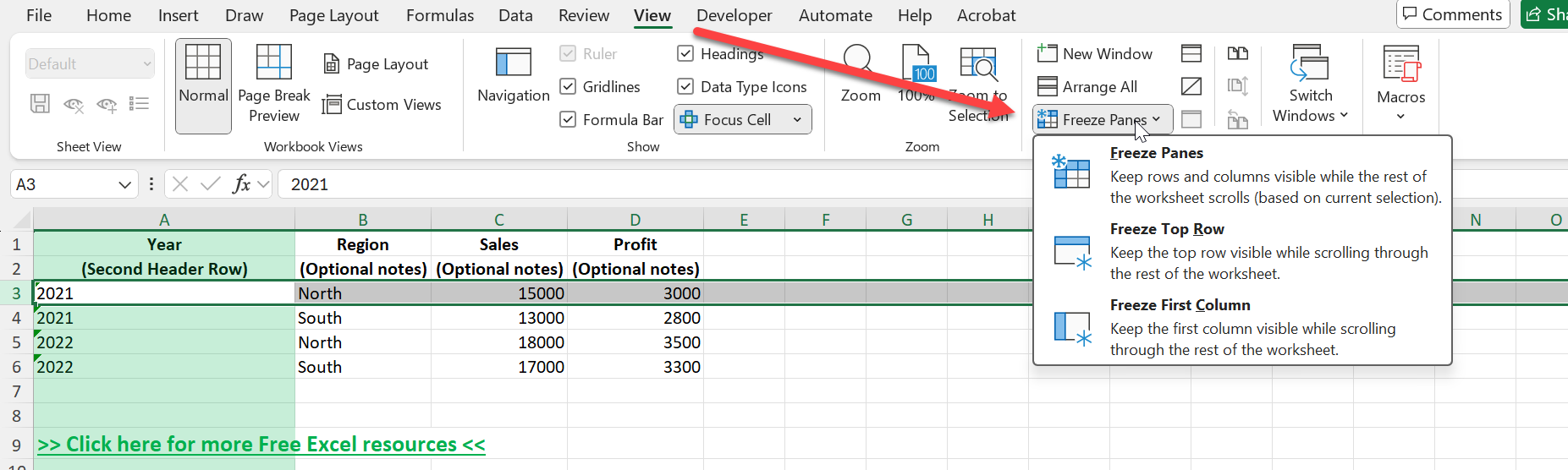
- Go to the View tab
- Click on Freeze Panes
- Select Freeze Panes
Excel will now freeze everything above the selected row 3.
Step 4: Test
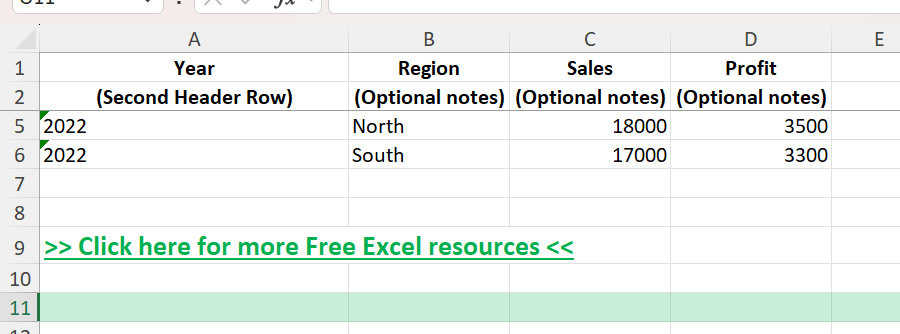
If you scroll the sheet down, you will see the row 1 and 2 are locked at the top of the screen.
How to Unfreeze Rows
If you no longer need the rows to stay visible:
- Go to the View tab.
- Click Freeze Panes.
- Select Unfreeze Panes.
Common Mistakes or Tips
- To freeze the top 2 rows, you must select row 3, not the first or second row.
- If you select the option – Freeze top row, it will freeze only the first row.
- If you apply the steps and the rows do not get frozen. It means that the worksheet was already frozen. You need to unfreeze panes first and then repeat the steps.
- If row 1 or row 2 are hidden, the freeze feature will not work. You need to unhide them and then try freezing again.
- To select a row, you need to make sure that you click on the row number at the left, not just a cell in the row.
Bonus Tips and Advanced Scenarios
Freeze Rows and Columns Together: Select cell C3 to freeze the top 2 rows and left 2 columns at the same time
Use Split View for Comparison: If freezing is not flexible enough, try using the Split option for more control
VBA to Freeze Rows: You can use a macro to automate freezing if setting up multiple sheets.
Sub FreezeTopTwoRows()
    Rows("3:3").Select
    ActiveWindow.FreezePanes = True
End Sub
FAQs
How to freeze top 2 rows?
To freeze the top 2 rows,
- Select row 3
- Go to View > Freeze Panes > Freeze Panes
This locks rows 1 and 2
Why does Freeze Top Row not work for 2 rows?
Freeze Top Row will only freeze row 1. If you need to freeze more than one row, you need to select the appropriate row and click on Freeze Panes.
How to freeze both rows and columns?
To freeze both rows and columns,
- Select the cell below the rows and to the right of the columns you want to freeze. For example, to freeze top 2 rows and the first 2 columns, select cell C3.
- Go to the View tab
- Select Freeze Panes > Freeze Panes
How to remove freezing?
To remove freezing,
- Go to the View tab
- Select Freeze Panes > Unfreeze Panes
Does freezing rows affect printing?
No. Freezing rows only changes how the worksheet appears on your screen.

John Michaloudis is a former accountant and finance analyst at General Electric, a Microsoft MVP since 2020, an Amazon #1 bestselling author of 4 Microsoft Excel books and teacher of Microsoft Excel & Office over at his flagship MyExcelOnline Academy Online Course.

 30 Days - Full Access









