Pinterest Pixel

The Ultimate Guide to iPad Onenote – Handwriting to Text Conversion Step by Step Guide

John Michaloudis
OneNote is used to convert handwriiten notes in digital format.
It can easily recognize handwritting and change the text to typed form.

This allows you to make changes, and keep your notes more organized.

In this article, you will learn how to convert Handwriting to Text in OneNote.

Handwriting Recognition Technology

Handwriting recognition technology feels a bit like magic. It transforms the strokes of your handwriting, whether it’s scribbles on a digital canvas or notes taken with a stylus, into editable, searchable, and shareable text. This technology relies heavily on complex algorithms and machine learning to understand and interpret various handwriting styles. It’s an incredible feat that my handwritten to-do list, captured on my iPad, becomes something I can search for weeks later, or that a quick note can be turned into an action item in a digital calendar.

The magic here resides in the fact that this technology accommodates our human touch—our unique way of writing—meshing it with the digital world’s precision and utility. It’s a balance between recognizing the idiosyncrasies of personal handwriting and interpreting them accurately enough to transform ink into text.


Getting Started with Handwriting Conversion

Set Up Your iPad

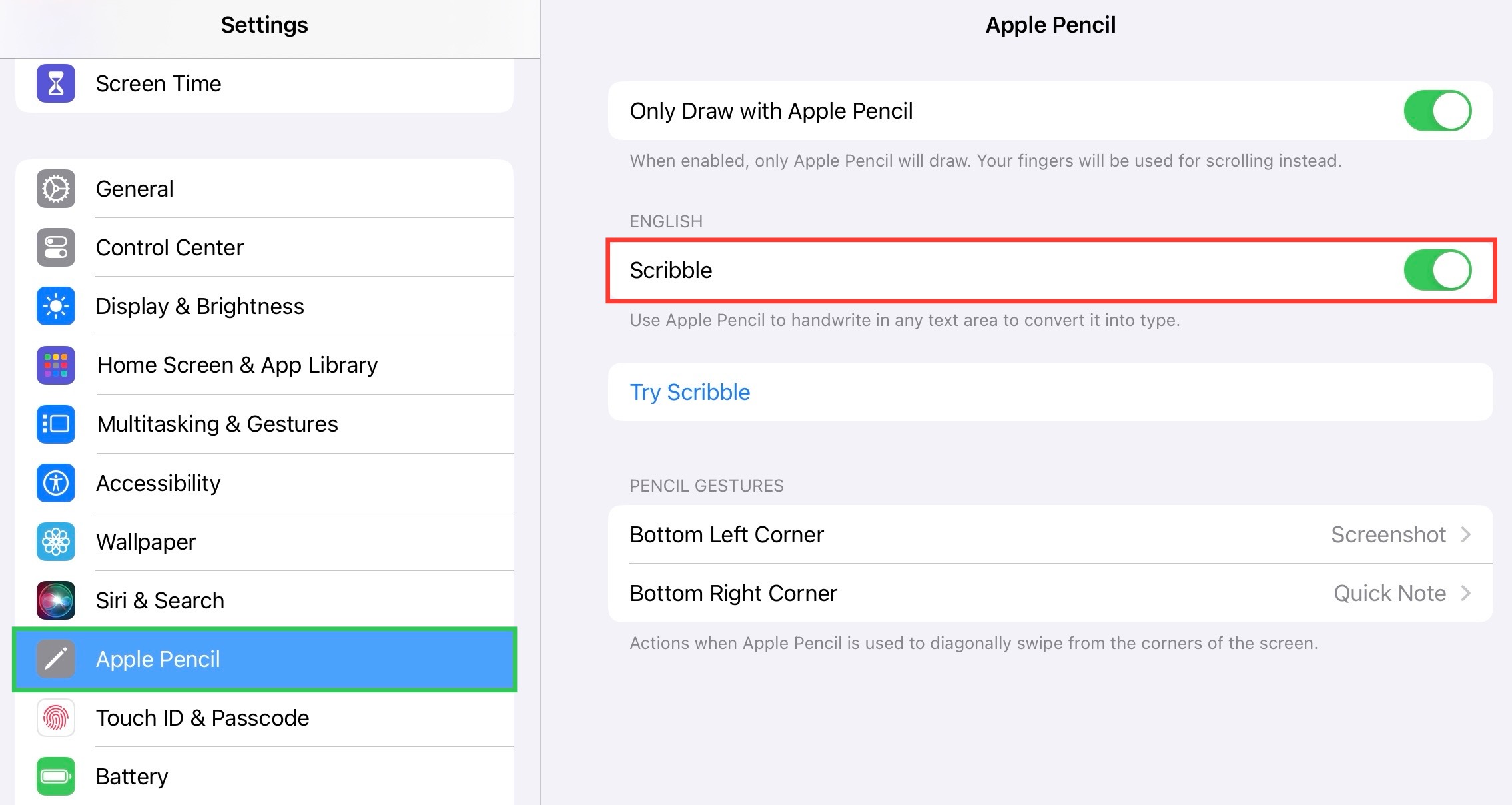
First you need to check that scribble is enabled in your iPad.

  • Select settings.
  • Choose Apple Pencil.
  • Toggle on Scribble.

This setting will allow your input to be recognized through iPadOS.Handwriting to text
You should choose a style that feels right in your hand and also adjust its sensitivity according to your writing style. You should also instal any relevant software updates that can improve recognition and conversion.
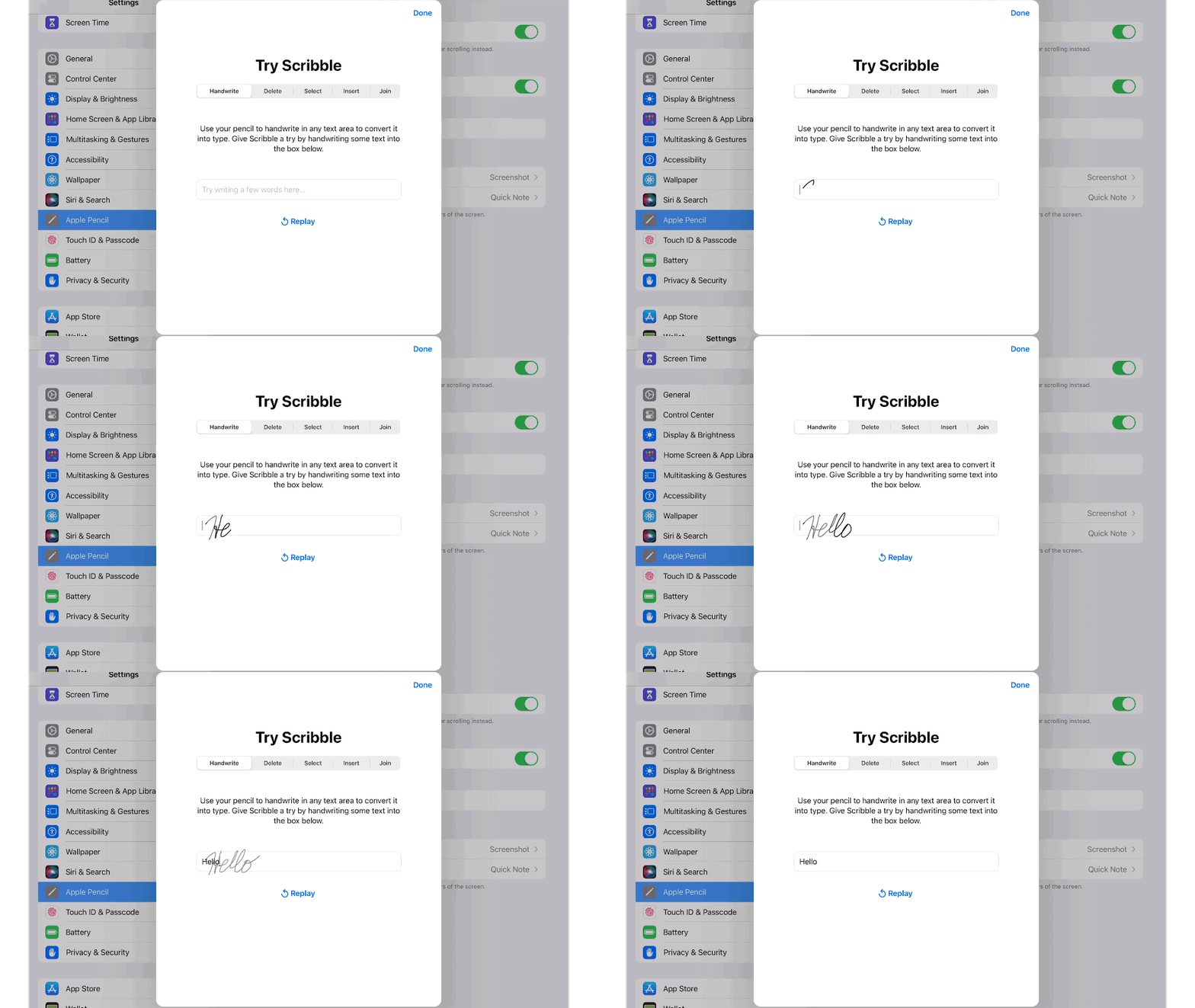
Handwriting to text

Tips to Improve Recognition

  1. Write neatly and make sure there is consistent spacing between letters. If your handwritten notes are uniform, the converted results will be more accurate.
  2. Hold the stylus correctly to get more control and clear handwriting.
  3. You can use lined or grid papaer when writing the notes. This will help you write staright and keep the size of characters same.
  4. Avoid wrist fatigue by resting your hand on the screen if you’re not using a palm rejection glove. OneNote can handle it.
  5. The more you write with intention on your iPad, the better your handwriting will become, and the more accurate the recognition software can become.

Make sure that your handwriting is clean, as it will increase the chance of accurately converting text using OneNote.


Convert Handwritten Notes to Typed Text

Follow the steps below to quickly convert handwritten notes to typed text:

STEP 1: Go to the Draw tab.

STEP 2: Select the Ink to Text button.
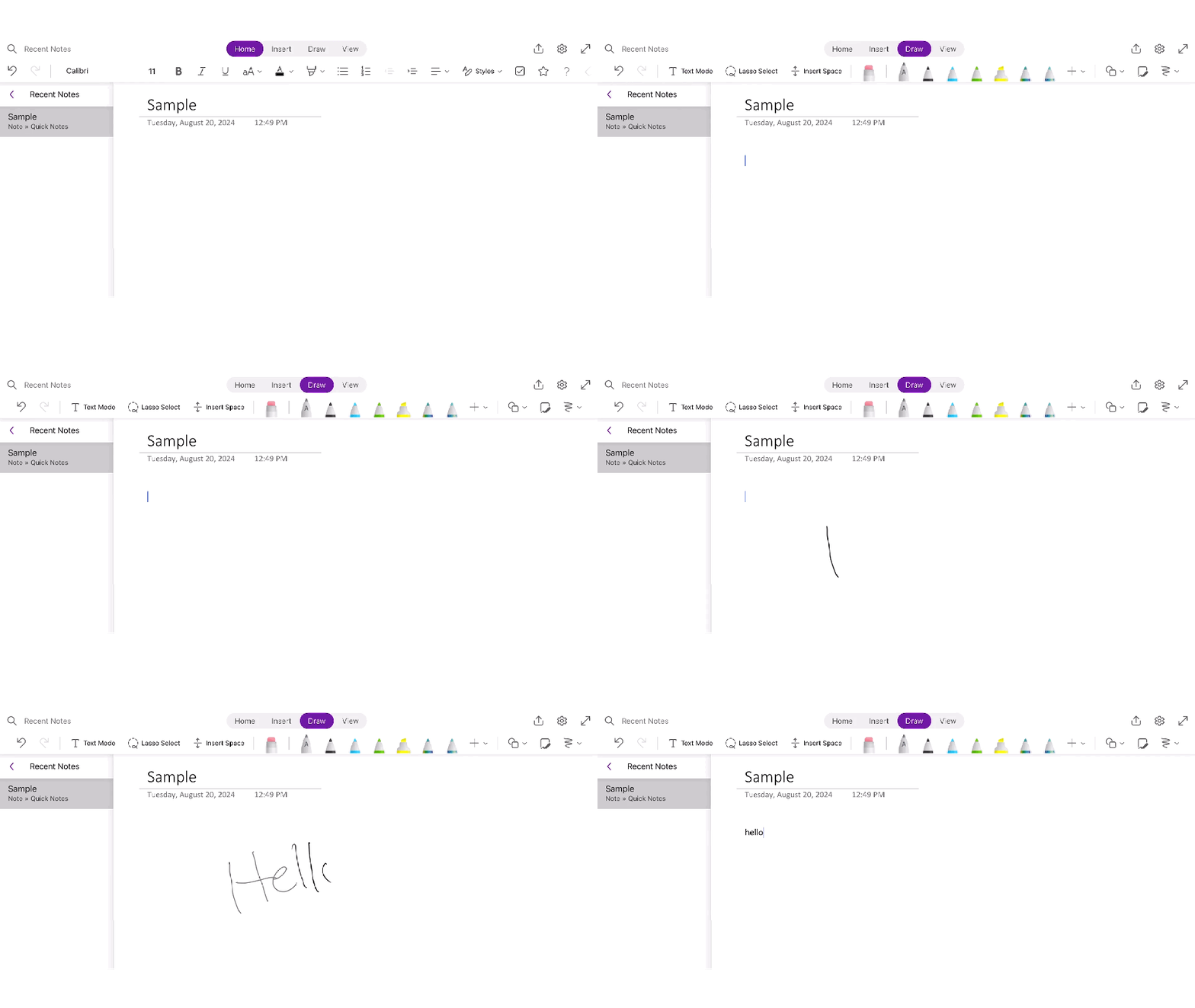
Handwriting to text

This will convert the Handwriting to Text.


FAQs

How to Edit Text After Converting it?

Editing text after conversion in OneNote is as straightforward as editing any typed text. Once your handwritten notes have been converted:

STEP 1: Tap on the text you’d like to edit to bring up the on-screen keyboard.

STEP 2: Point the cursor to the place where you need to make changes.

STEP 3: Type the correct words.

If you like this Excel tip, please share it


Founder & Chief Inspirational Officer

at

John Michaloudis is a former accountant and finance analyst at General Electric, a Microsoft MVP since 2020, an Amazon #1 bestselling author of 4 Microsoft Excel books and teacher of Microsoft Excel & Office over at his flagship MyExcelOnline Academy Online Course.

See also  OneNote vs Word - The Ultimate Microsoft Note Utility Guide

Steps To Follow

Star 30 Days - Full Access Star

One Dollar Trial

$1 Trial for 30 days!

Access for $1

Cancel Anytime

One Dollar Trial
  • Get FULL ACCESS to all our Excel & Office courses, bonuses, and support for just USD $1 today! Enjoy 30 days of learning and expert help.
  • You can CANCEL ANYTIME — no strings attached! Even if it’s on day 29, you won’t be charged again.
  • You'll get to keep all our downloadable Excel E-Books, Workbooks, Templates, and Cheat Sheets - yours to enjoy FOREVER!
  • Practice Workbooks
  • Certificates of Completion
  • 5 Amazing Bonuses
Satisfaction Guaranteed
Accepted paymend methods
Secure checkout

Get Video Training

Advance your Microsoft Excel & Office Skills with the MyExcelOnline Academy!

Dramatically Reduce Repetition, Stress, and Overtime!
Exponentially Increase Your Chances of a Promotion, Pay Raise or New Job!

Learn in as little as 5 minutes a day or on your schedule.

Learn More!

Share to...









