 Free Practice Workbook
- Horizontal bar charts should be used to display data with long category labels.
- They are perfect for presenting a large number of categories or data with negative values.
- The horizontal orientation of these charts makes it easier to present and interpret negative values.
- Adjusting bar width, spacing, and colors, and adding data labels can improve clarity.
Table of Contents
Introduction to Horizontal Bar Charts in Excel
What is a Horizontal Bar Chart?
A Horizontal bar chart represents categories in the vertical axis and values in the horizontal axis. Each of the bar repreents a category, and the length of the bar represents value. They are preferred for data visualization as they are readable and have a simple layout.
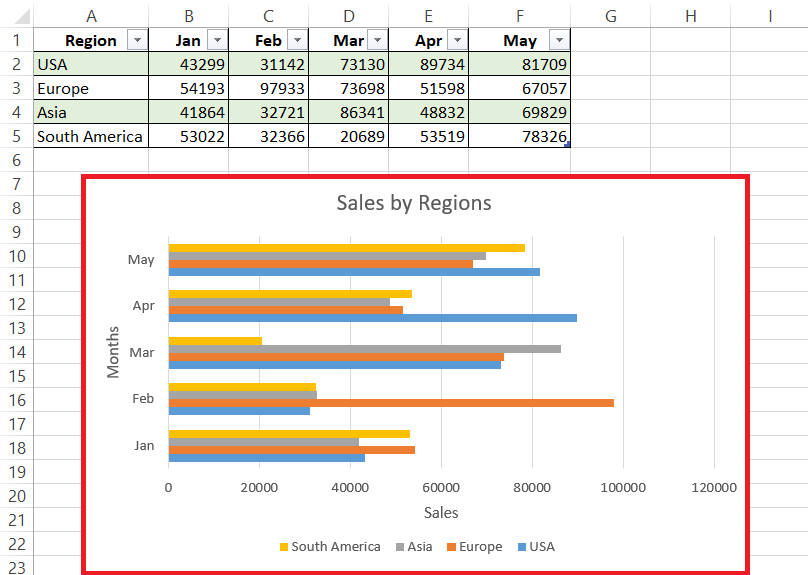
Creating a Horizontal Bar Chart
Select Dataset
It is important to choose the correct data to display in the chart. To select the data, click and highlight the cells you want to include in the chart. Make sure that both category name and values are included, and total or average values are not.
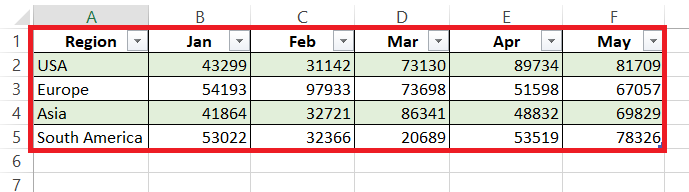
How to Create the Chart
To create a horizontal bar chart in Excel, enter your data in columns, select the data range, go to the “Insert” tab, click on the “Bar Chart” icon, and choose a horizontal bar chart style.

Customize Horizontal Bar Chart
Adjust Bar Width
To adjust the bar width and spacing for clarity in your horizontal bar chart, right-click on any bar and select ‘Format Data Series.’ Here, you’ll find the ‘Series Options’ that allow you to alter the ‘Gap Width’— which influences the spacing between bars.
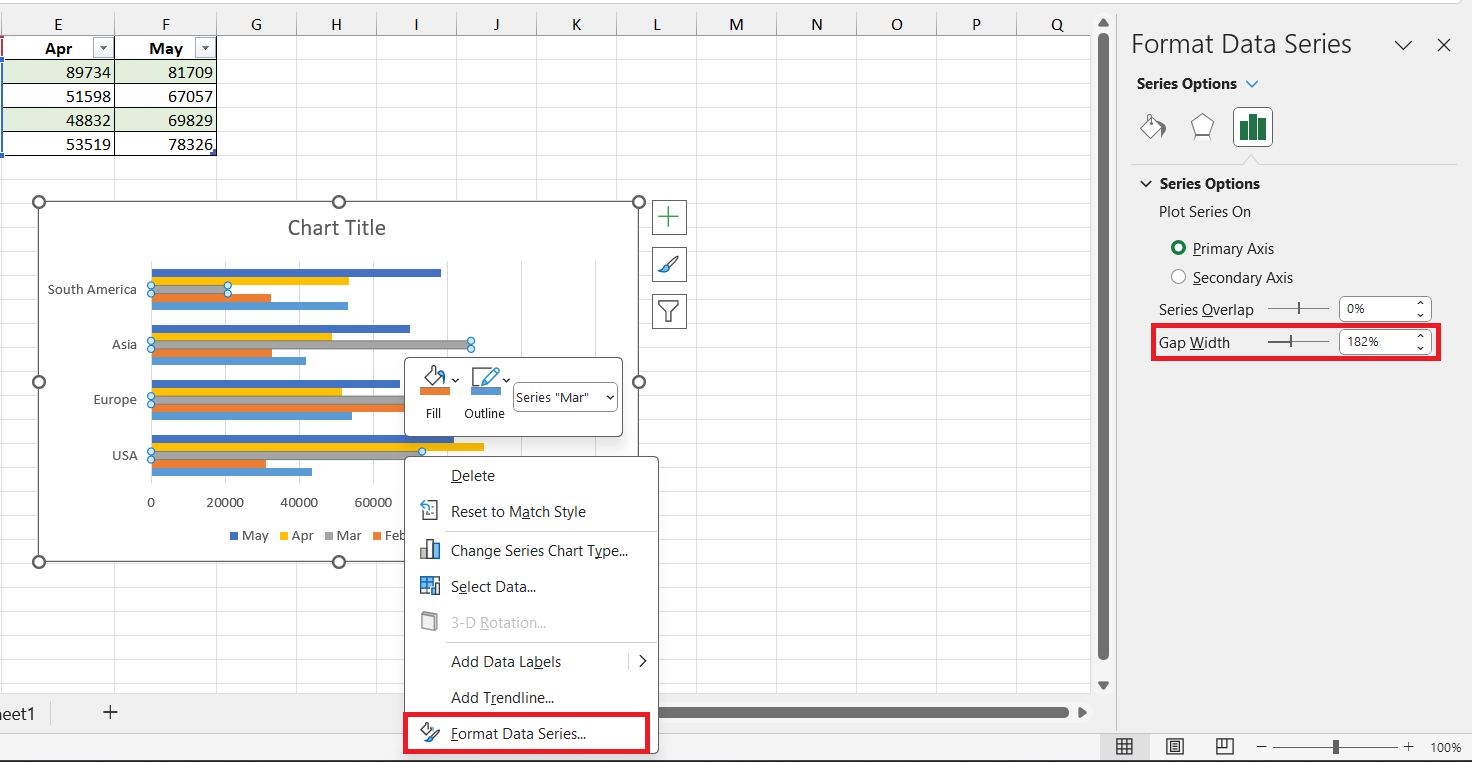
A smaller percentage leads to wider bars and reduced gaps, enhancing clarity. Play around with these settings to strike the optimal balance between a clear separation of data points and optimal use of space.
Change Colors and Add Data Labels
Adding a splash of color and inserting informative data labels can turn a bland bar chart into an insightful visual story. Take advantage of Excel’s vast color palette to differentiate between categories or highlight specific data points.
For added clarity, sprinkle your chart with data labels to display exact values. Right-click the bars and choose ‘Add Data Labels‘ or use the ‘Chart Elements’ button to further customize position and format.
STEP 1: Select your data and insert a bar chart.
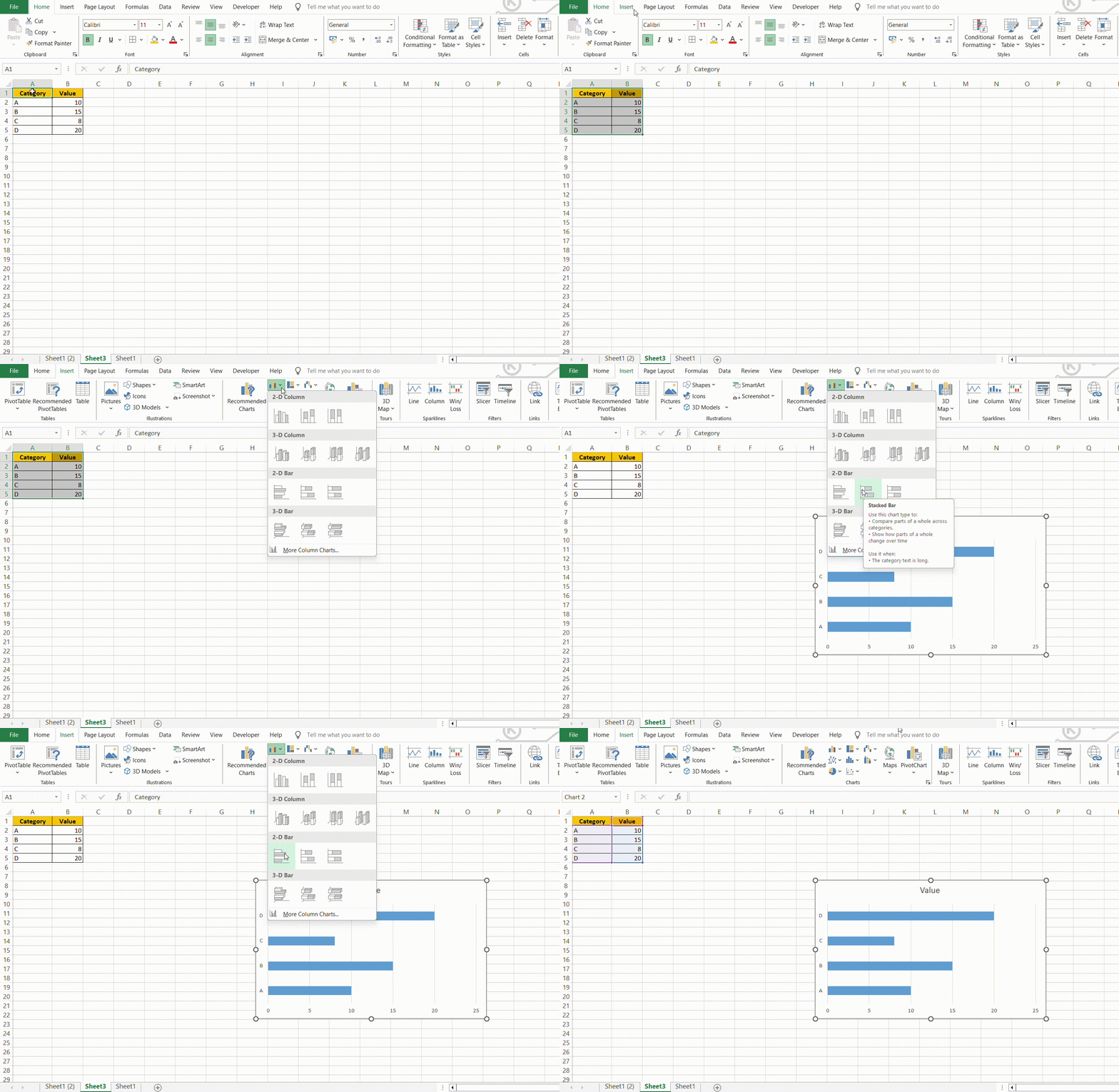
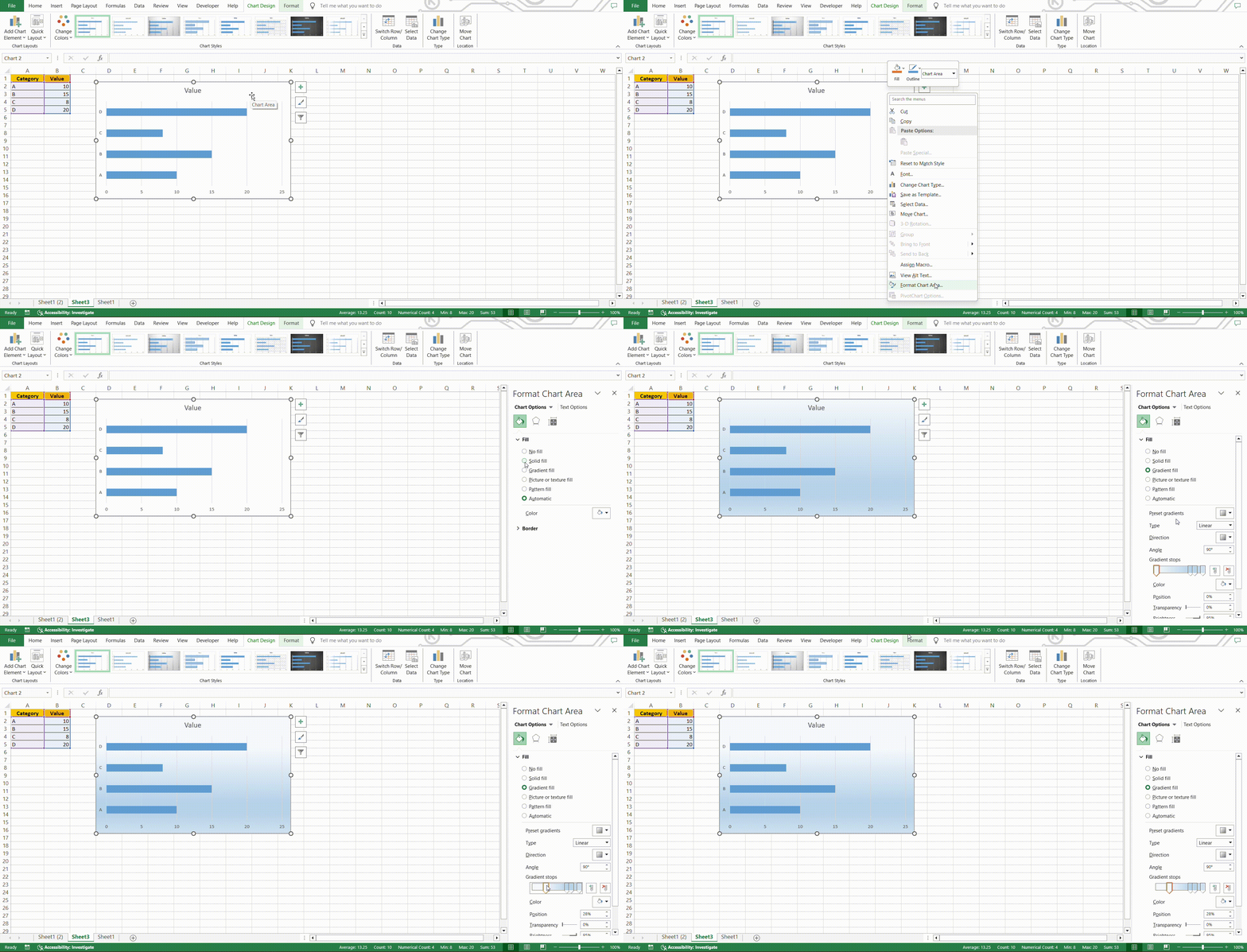
STEP 2: Right-click on the bars and select Format Data Series. Then, choose a color from the Fill options.
STEP 3: Right-click and select Add Data Labels.
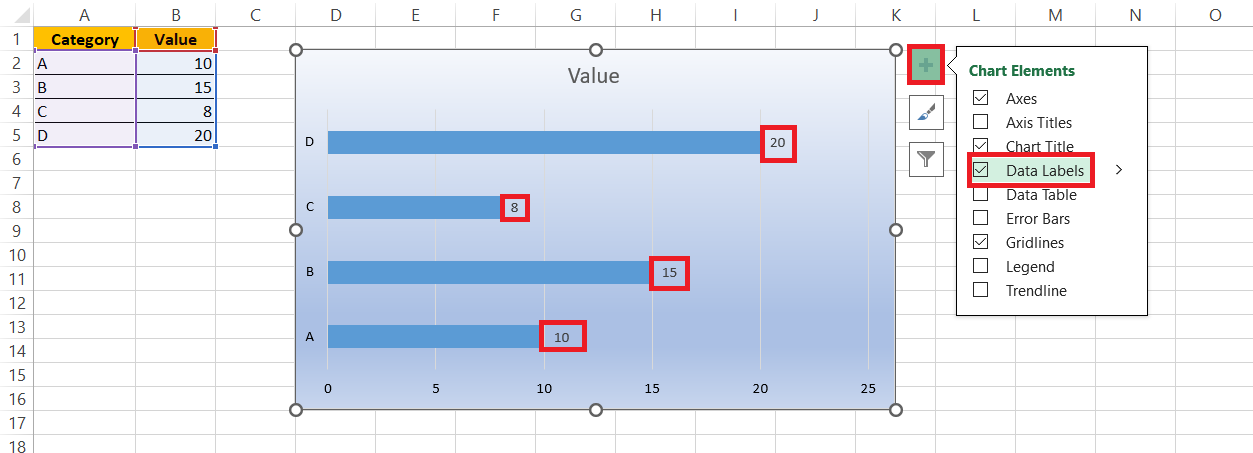
NOTE: To change font size or color, right-click on the data label and select Format Data Label.
Advanced Tips
Sort Data Without Changing Source
Follow the steps below to change the order of data in your chart without changing the source data:
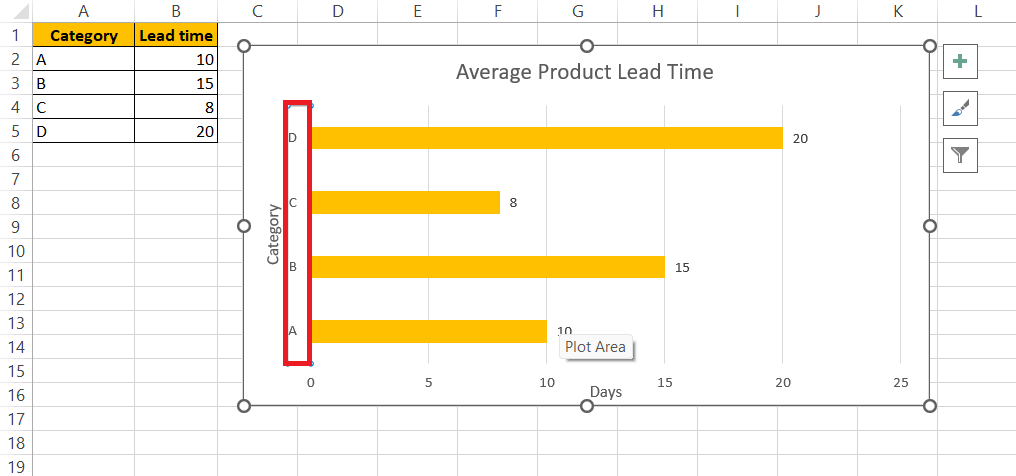
STEP 1: Click on the vertical axis.
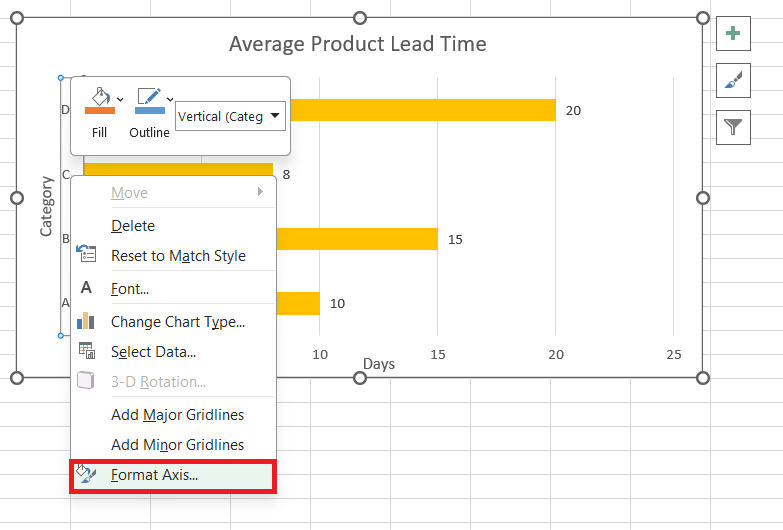
STEP 2: Right-click and select Format Axis.
STEP 3: In the “Axis Options” pane, check “Categories in reverse order” to flip the sequence.
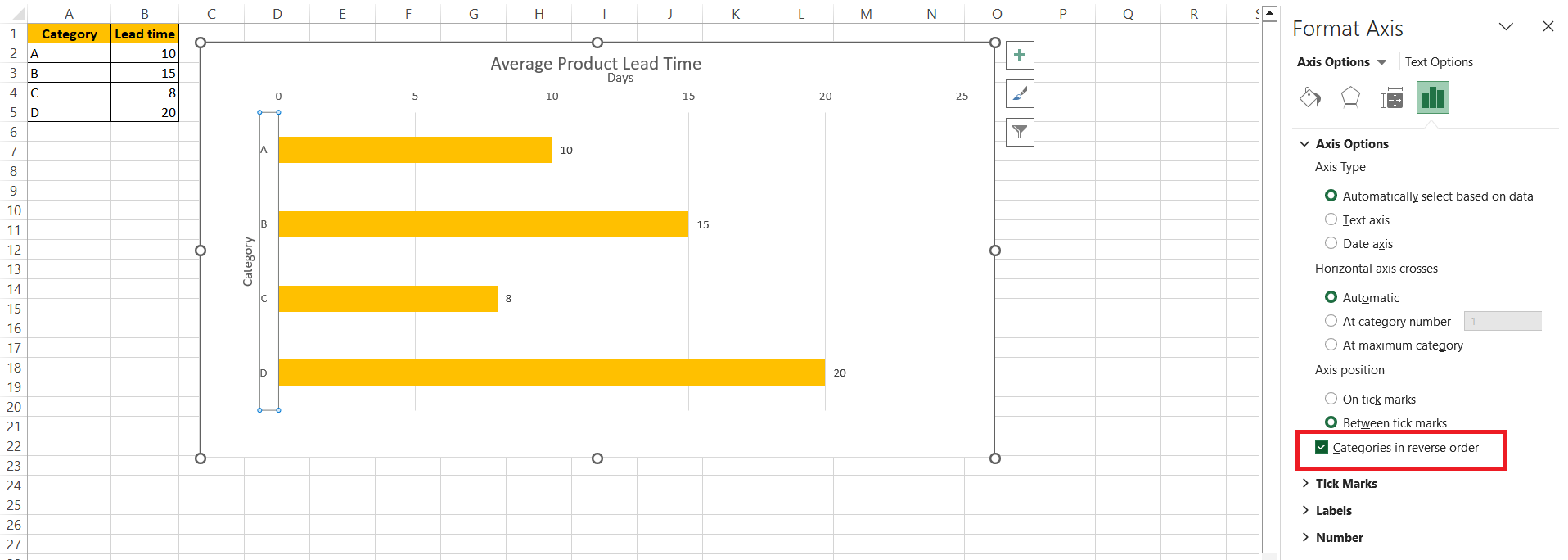
STEP 4: Optionally, adjust “Horizontal axis crosses” to “At maximum category” for precise alignment.
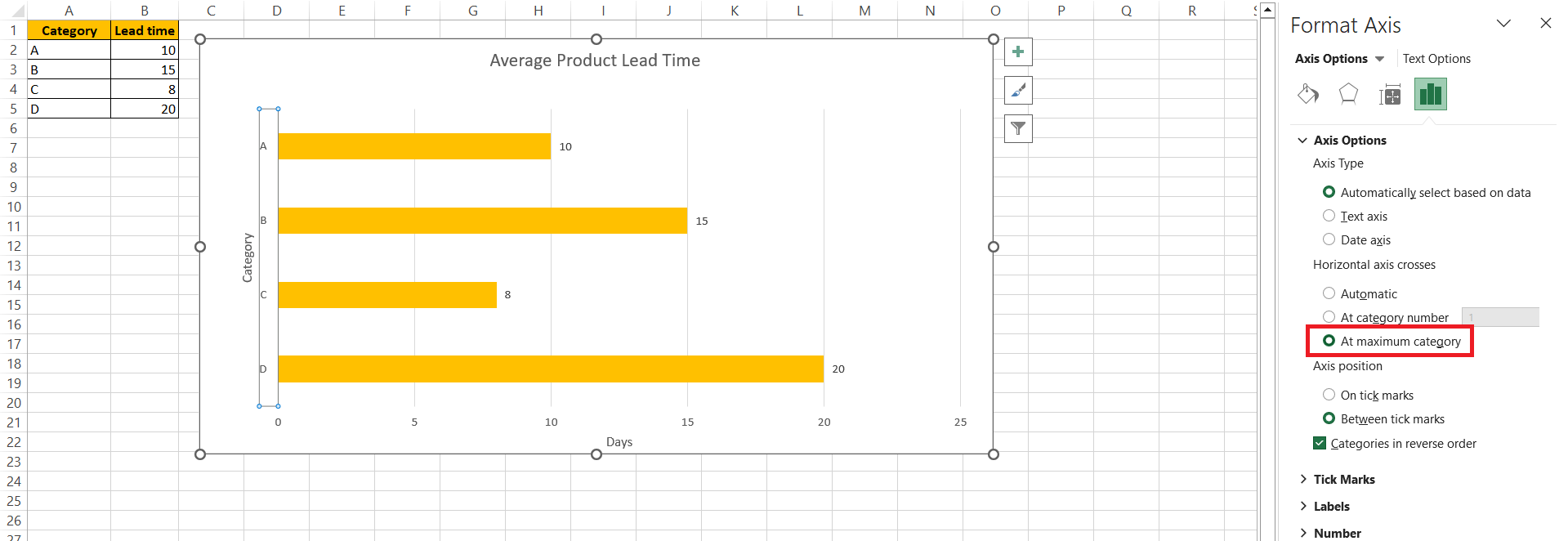
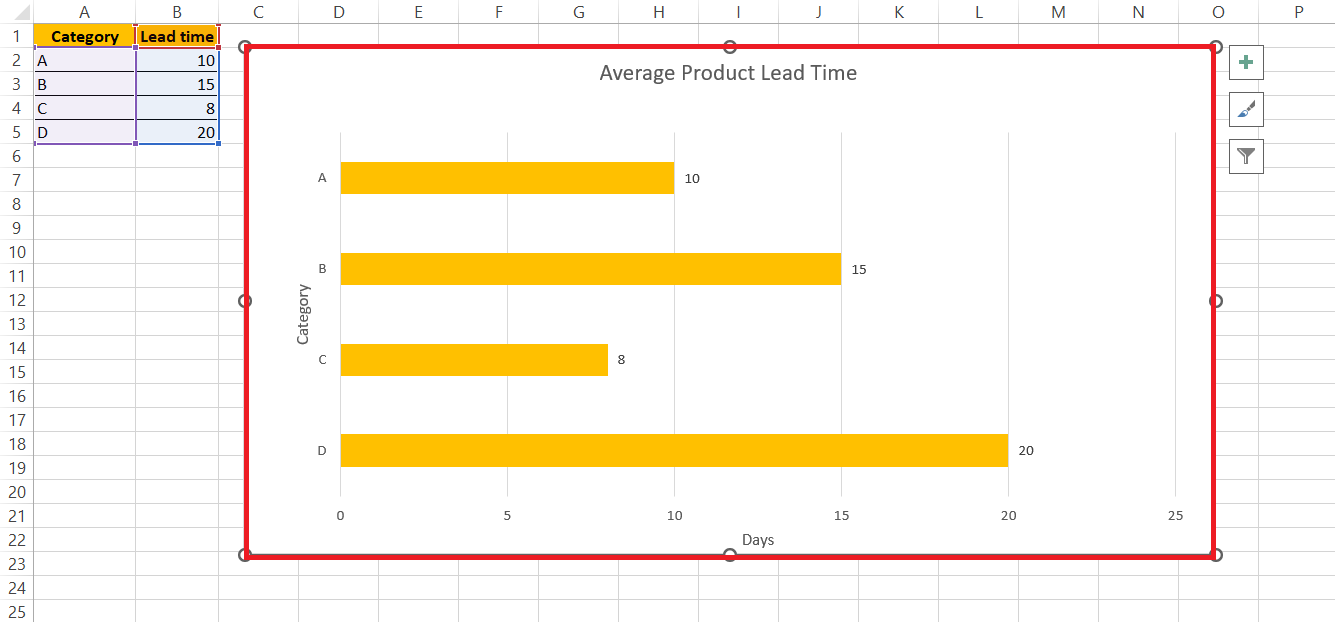
RESULT:
Common Pitfalls to Avoid
Overcomplicate Data Presentation
Keep it clean, keep it simple. Introducing too many categories or data points can transform your horizontal bar chart from a clear visual representation into an overwhelming puzzle. The secret to a successful chart is finding the sweet spot where you convey your message without overtaxing your audience’s ability to process information.
Find ways to segment complex data into multiple charts if necessary, so that each chart maintains its clarity and focus.
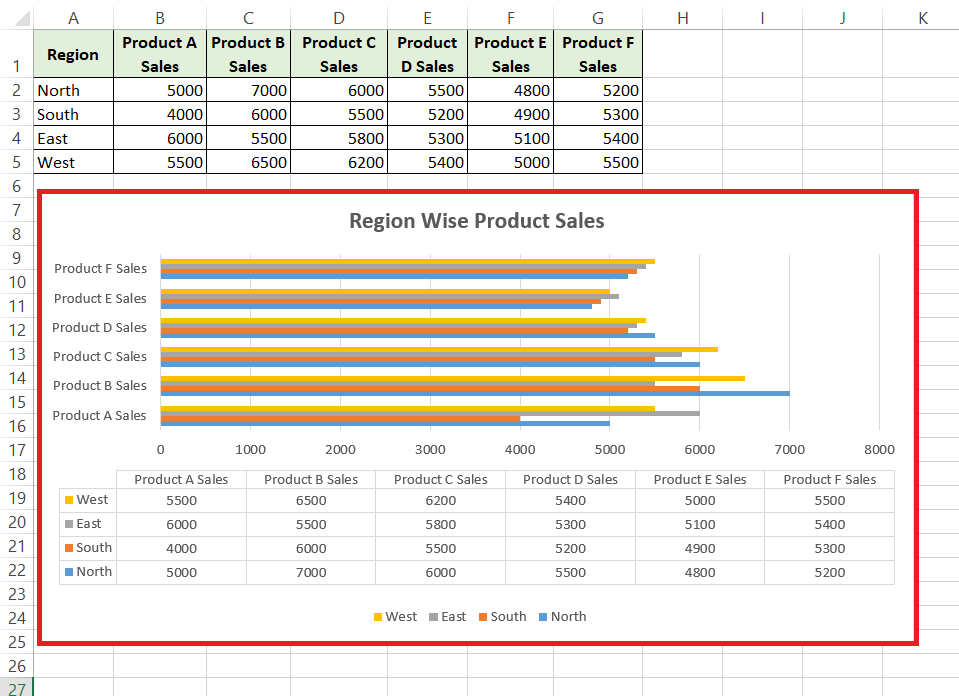
Hence, simple charts maintain clarity. Overloading with categories can overwhelm, making charts confusing puzzles. Success lies in the balance—conveying messages without taxing understanding. Segment complex data into clear charts, so that each maintains focus for easy comprehension by your audience.
Misalignment of Data Points
Accuracy is key in data visualization. Any mismatch between data points and their corresponding values can lead your audience astray. To prevent misalignment in Excel, double-check your data ranges and so that your category names and values are properly paired.
Also, take care to align axes and data labels correctly. In Excel, this can typically be adjusted under ‘Axis Options‘ where you can set the axis bounds and units precisely.
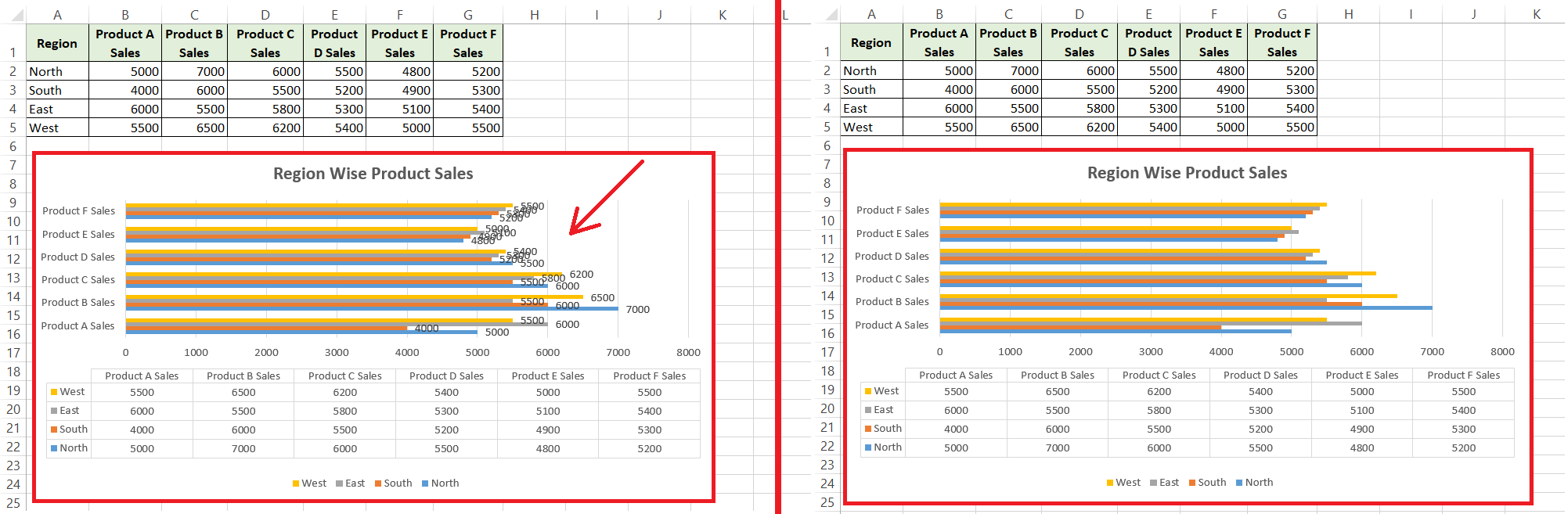
From the above example, we can see the left-side graph has a misalignment of data points and the right- side is readable to a layman. Hence, making sure that accuracy in data visualization is paramount. Verify data and label alignment to avoid misinterpretation. Excel’s ‘Axis Options’ allow precise adjustments, enhancing clarity and reliability, ultimately guiding audiences accurately through your visual narrative.
Alternative Visualization Techniques
Other Bar Chart Types
Excel has an array of charts that can be used to represent your data.
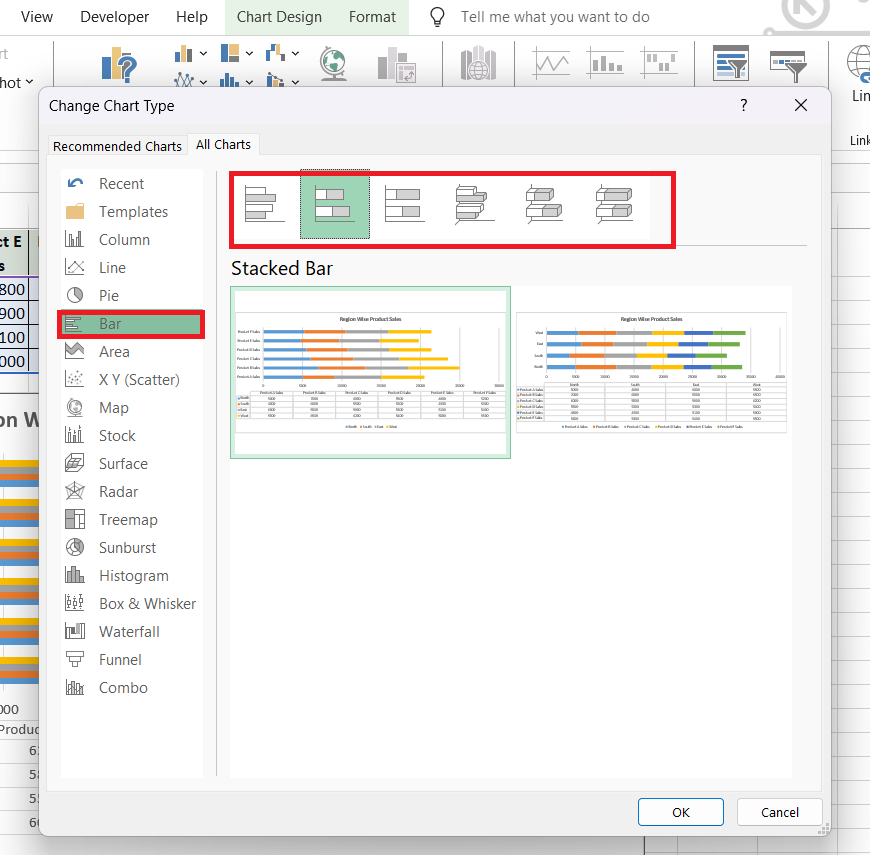
- A stacked bar chart is used to represent the proportion of each category within a total.
- A waterfall chart is used to visualize a sequential change in data.
FAQs
What to do if Data Labels Overlap in the Chart?
If data labels overlap in your chart, try reducing the font size, changing label position, or using the ‘Label Options’ to add a callout or leader lines for clarity. You can also stagger labels, use abbreviations, or simply show key data labels to prevent clutter.
Is It Possible to Convert a Vertical Bar Chart to a Horizontal One?
Absolutely! To convert a vertical bar chart to a horizontal one in Excel, right-click the chart and select ‘Change Chart Type.’ Then choose the horizontal bar chart option from the list of available chart types. Your chart will update automatically to the new orientation.
How to change a bar chart from vertical to horizontal in Excel?
In Excel, to change a bar chart from vertical to horizontal, click on the chart, then select ‘Change Chart Type‘ from the design tab. Choose a horizontal bar chart from the options and click ‘OK’ to apply the changes.

John Michaloudis is a former accountant and finance analyst at General Electric, a Microsoft MVP since 2020, an Amazon #1 bestselling author of 4 Microsoft Excel books and teacher of Microsoft Excel & Office over at his flagship MyExcelOnline Academy Online Course.

 30 Days - Full Access









