 Free Practice Workbook
Table of Contents
Setting Up Your Excel Template
Establish Start Time and End Time
It is important to set up your workbook before starting the time calculation.
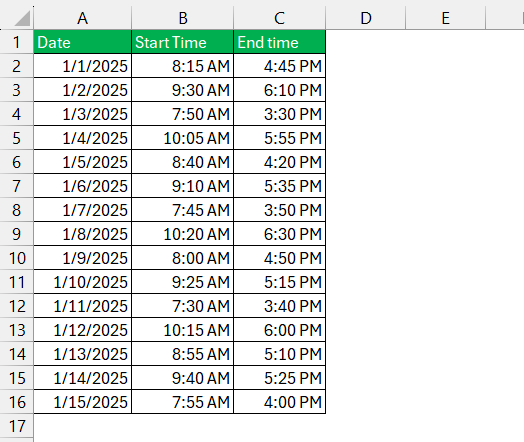
- First, you need to input dates in a column.
- Next, input both start time and end time in separate columns.
- Label each column clearly.
- Input time in a standard format.
Convert to Military Time
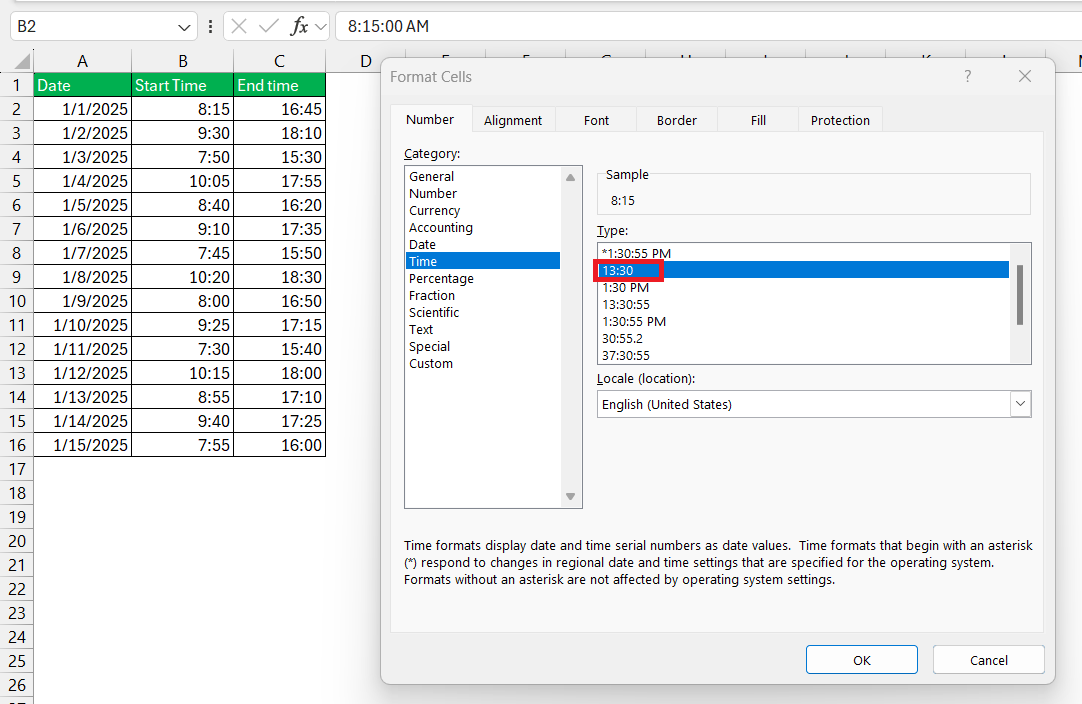
You can easily convert any time format to military by following these 2 steps:
- For the time between 1:00 am to noon, keep it the same and remove the prefix AM.
- For the time between 1:00 pm to midnight, add 12 to the hour and remove the prefix PM.
Methods to Calculate Hours Worked
Subtraction Formula
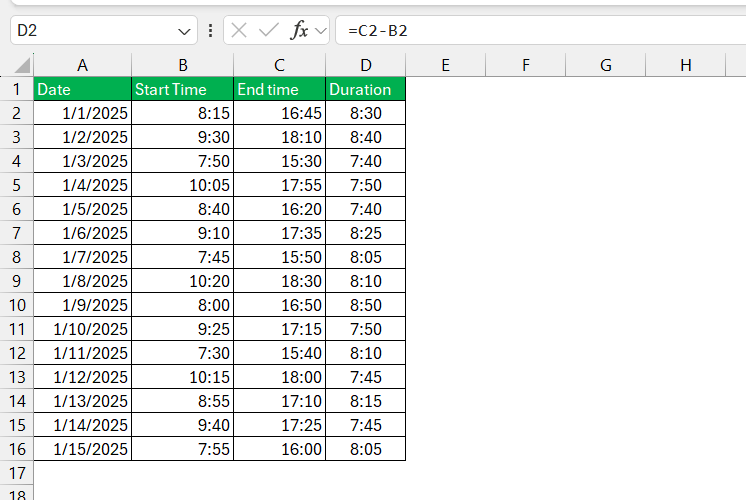
To find the number of hours worked, subtract the start time from the end time.
=End Time − Start Time
For example, if the start time is mentioned in cell B2 and the end time is in cell C2, use the formula
= C2 – B2
Manage Unpaid Breaks
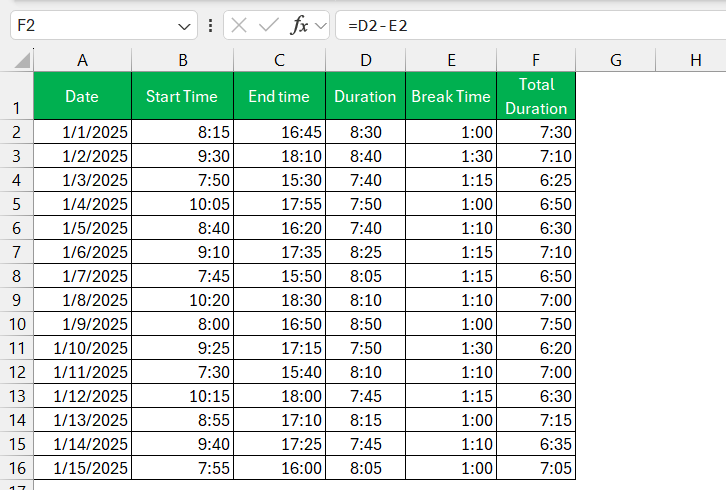
To get the actual hours worked, you need to subtract unpaid breaks from the total hours calculation. For example, if there is a 1-hour lunch break, you need to subtract it from the total hours worked.
= Total hours – Break time
Advanced Functions
Overtime Calculation
Overtime is any hour that you work beyond the standard work schedule set by the company. You can easily calculate overtime in Excel by using the IF formula. For example, if the standard work hour is 8 hours. You can use the IF formula to check if the number of hours worked is greater than 8 or not.
=IF(Total Hours > 8, Total Hours - 8, 0)
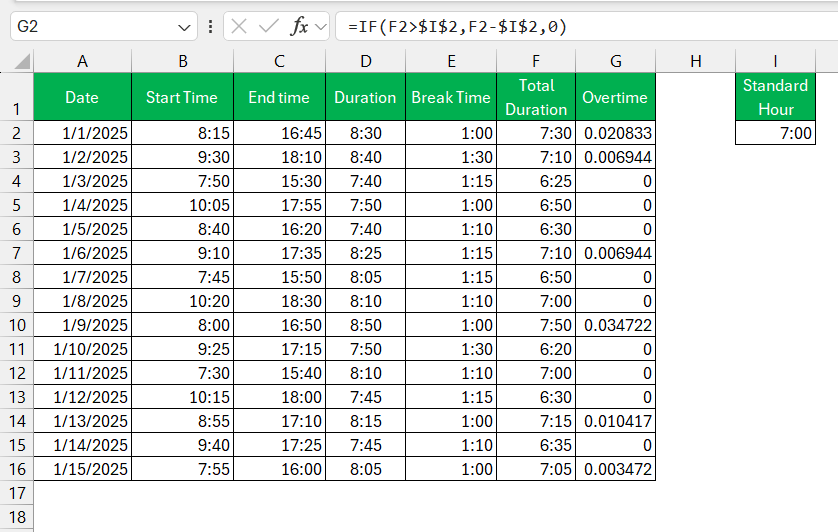
Formatting Time Durations
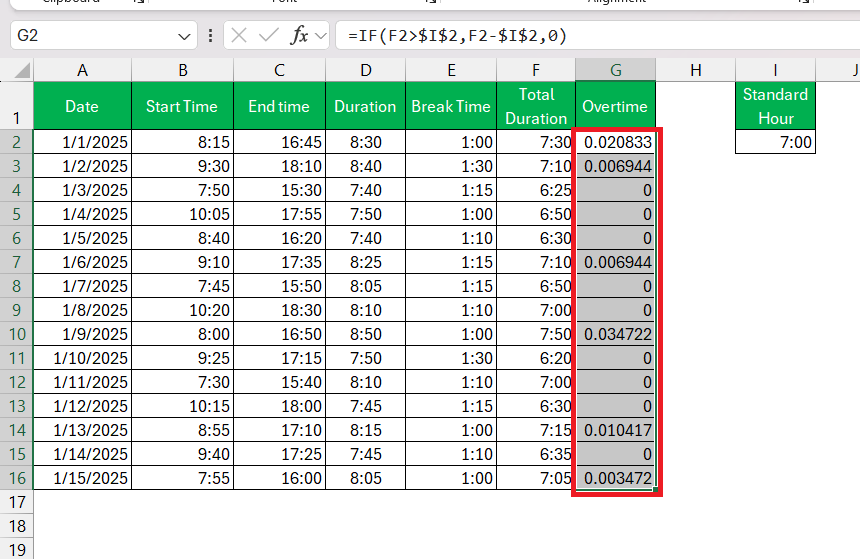
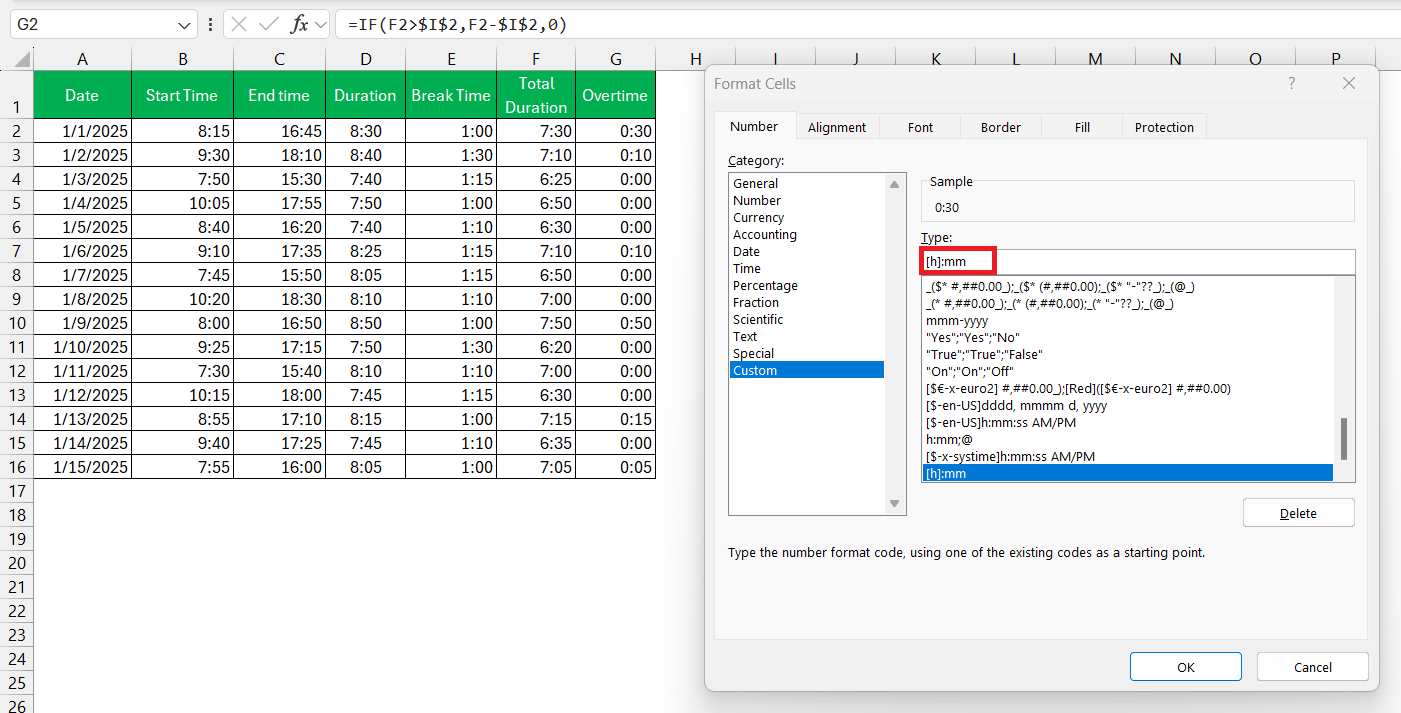
For durations that exceed 24 hours, standard time formatting in Excel will not suffice, as it might not display the total number of hours correctly. Use a custom format to make durations easy to read and understand:
STEP 1: Select the cell with the duration.
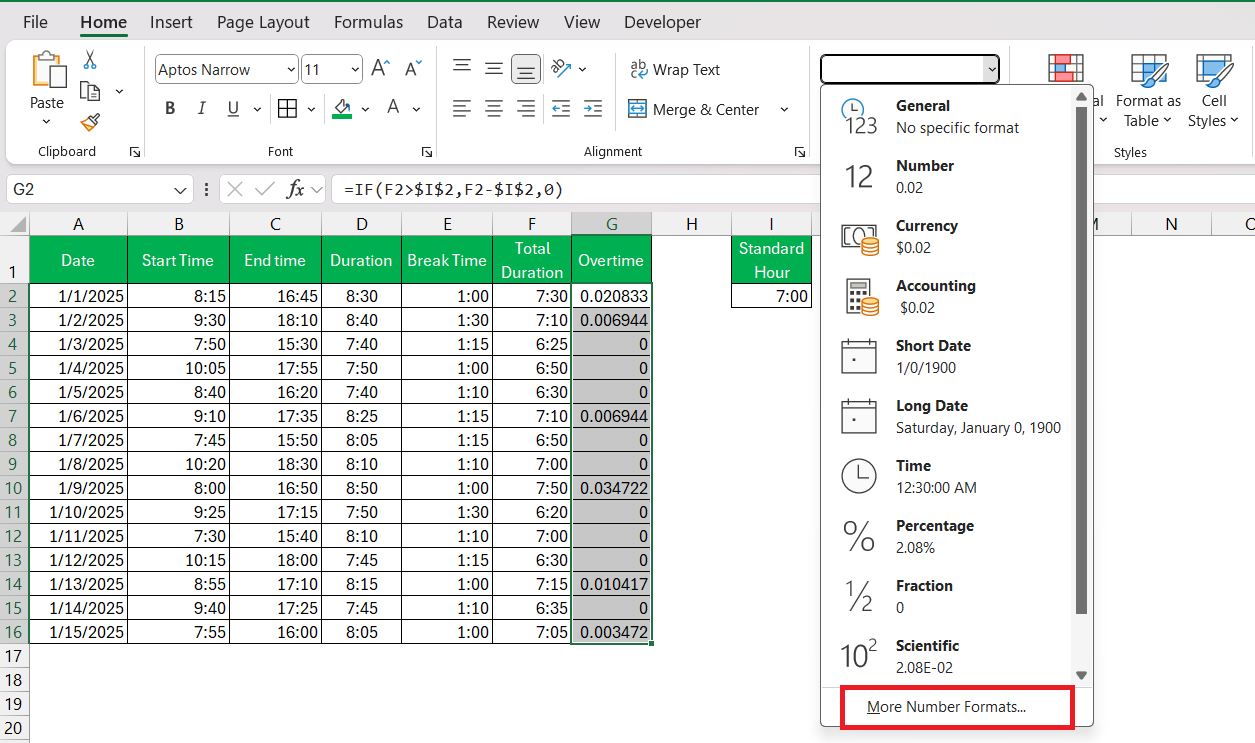
STEP 2: Go to the Home tab and click More Number Formats.
STEP 3: In the dialog, select Custom. Type [h]:mm for hours and minutes, and [h]:mm:ss for hours, minutes, and seconds if needed.
FAQs
How to calculate the time difference in Excel?
You can subtract start time from end time to find the time difference in Excel. You need to input time in two separate cells and then apply the formula = End Time – Start Time.
How to Calculate Average Hours Worked Per Week?
You can use the AVERAGE function to find the average number of hours worked. If the daily hours worked are mentioned in column B, you can use the formula
= AVERAGE(B2:B8)
This gives the average hours worked per day.
What are some shortcuts for time in Excel?
Some of the shortcuts for time are –
- Ctrl+Shift+: to insert the current time.
- Ctrl+; to insert the current date.
How to add time values in Excel?
You can use the SUM function to add time values across multiple cells. You can format the result as [h]:mm or [h]:mm:ss to show total hours correctly.

John Michaloudis is a former accountant and finance analyst at General Electric, a Microsoft MVP since 2020, an Amazon #1 bestselling author of 4 Microsoft Excel books and teacher of Microsoft Excel & Office over at his flagship MyExcelOnline Academy Online Course.

 30 Days - Full Access









