 Free Practice Workbook
Mastering row deletion in Microsoft Excel is important for improving efficiency in data management. By understanding quick deletion techniques, users can streamline their workflow and reduce time spent on mundane tasks. In this article, we will cover the different methods on how to delete rows in Excel.
Key Takeaways:
- Use shortcut keys like Shift + Space and Ctrl + – to delete rows quickly.
- Use mouse clicks with keyboard commands for row selection and deletion.
- Use the Excel Filter feature for deleting rows based on specific criteria.
- Make sure that the cells are unmerged and the sheet is unprotected.
Table of Contents
Shortcut for Row Deletion
Use Keyboard Shortcuts
In Excel, you can delete rows quickly using keyboard shortcuts.
STEP 1: Use Shift + Space to select the entire row.

STEP 2: Once a row is selected, press Ctrl + minus key to delete the selected row.

Using keyboard shortcuts can help you keep your hands on the keyboard and maintain a faster workflow.
Use Mouse and Keyboard
While keyboard shortcuts are highly efficient, you can combine mouse clicks with keyboard commands for better control.
- Click on the row number to highlight the entire row. For multiple rows, hold down the
Shiftkey and click on the sequence of row numbers you wish to select. - With the rows highlighted, press
Ctrl + Minus keyon the keyboard. This will delete the entire row.
The method will enable you to select and remove the row.
Deletion Techniques for Different Scenarios
Handling Single and Multiple Rows
When you need to delete rows in Excel, whether it’s just one or a batch, the process can be intuitively handled with little effort. Here’s how you can do it:
Handling Single Rows:
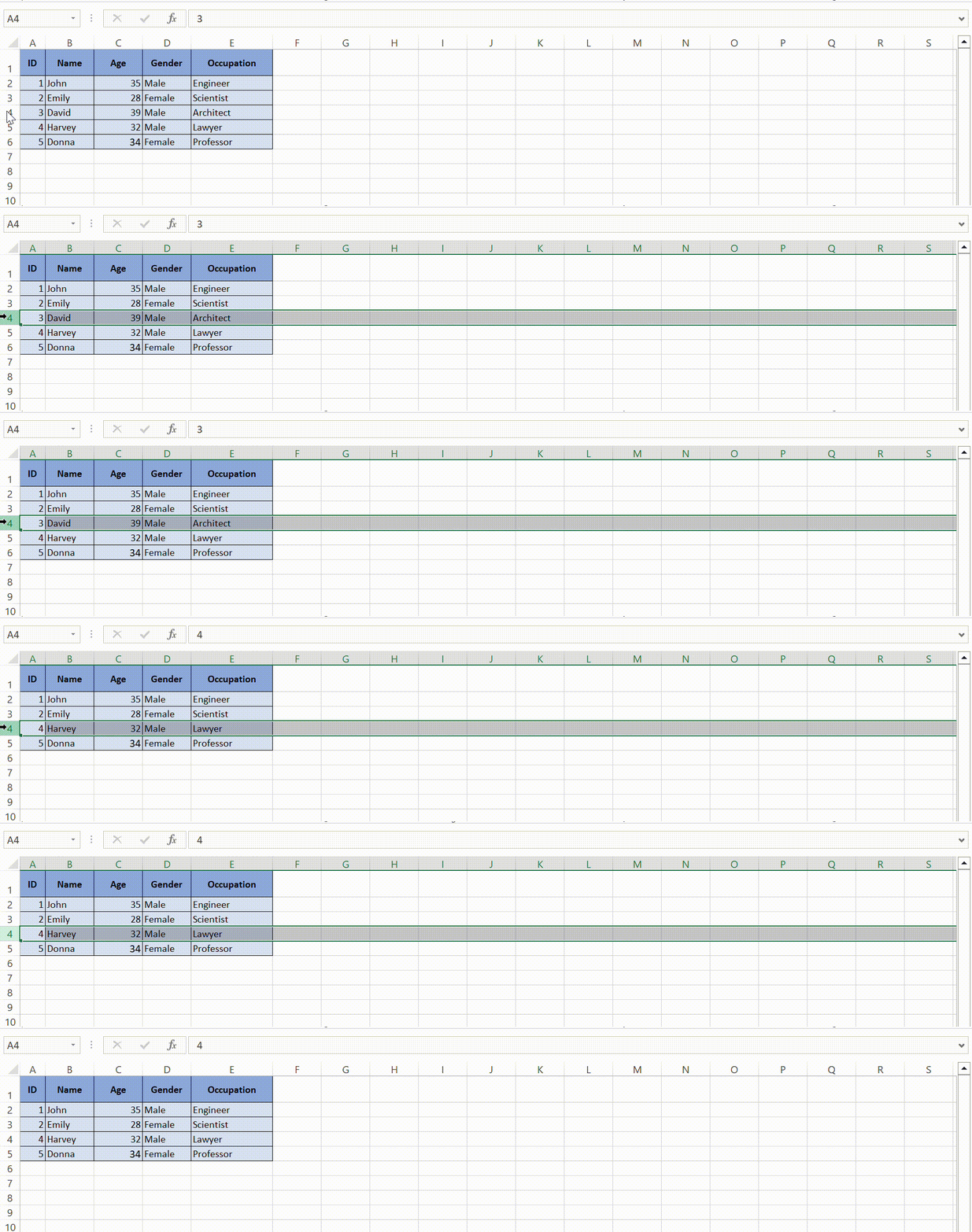
To remove a single row, first click on the row number to select the entire row. Press Ctrl + - to delete the row instantly.
Handling Multiple Rows:
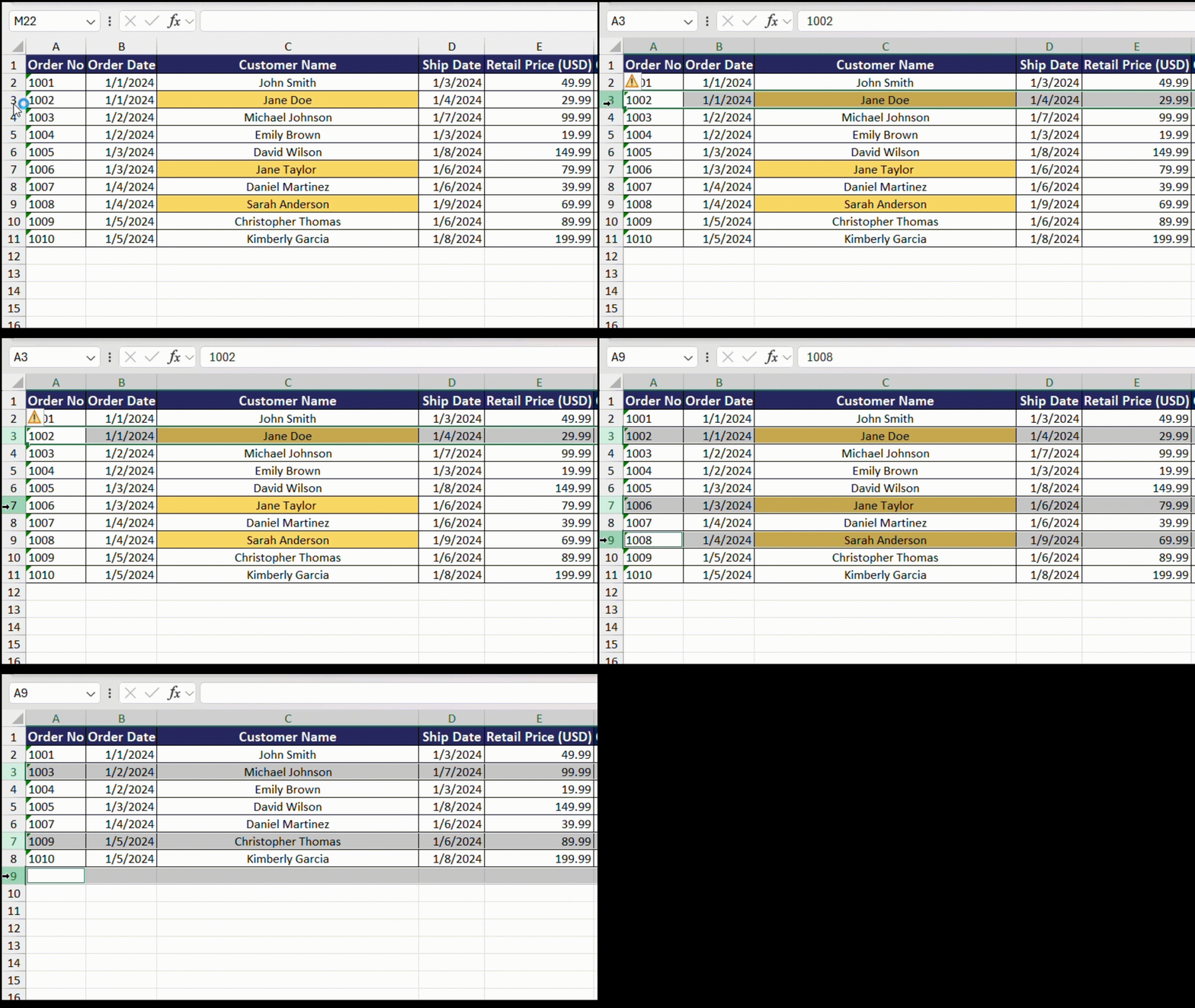
STEP 1: If you want to delete consecutive rows, click on the first row number and drag to the last row you want to delete or use Shift + click to select the range of rows.
STEP 2: Again, press Ctrl + - to delete all selected rows at once.

For non-consecutive rows, you would hold the Ctrl key while clicking on each row number to select them and then use the Ctrl + - shortcut to delete them all simultaneously.
These speedy techniques help you maintain the flow of your work without getting bogged down by the details of row management, ensuring you can stay focused on your analysis or reporting.
Targeted Row Removal
Sometimes, your datasets might be large and complex, necessitating the removal of rows based on specific criteria, such as a value, a date, or even a color. Here’s a quick way to do this:
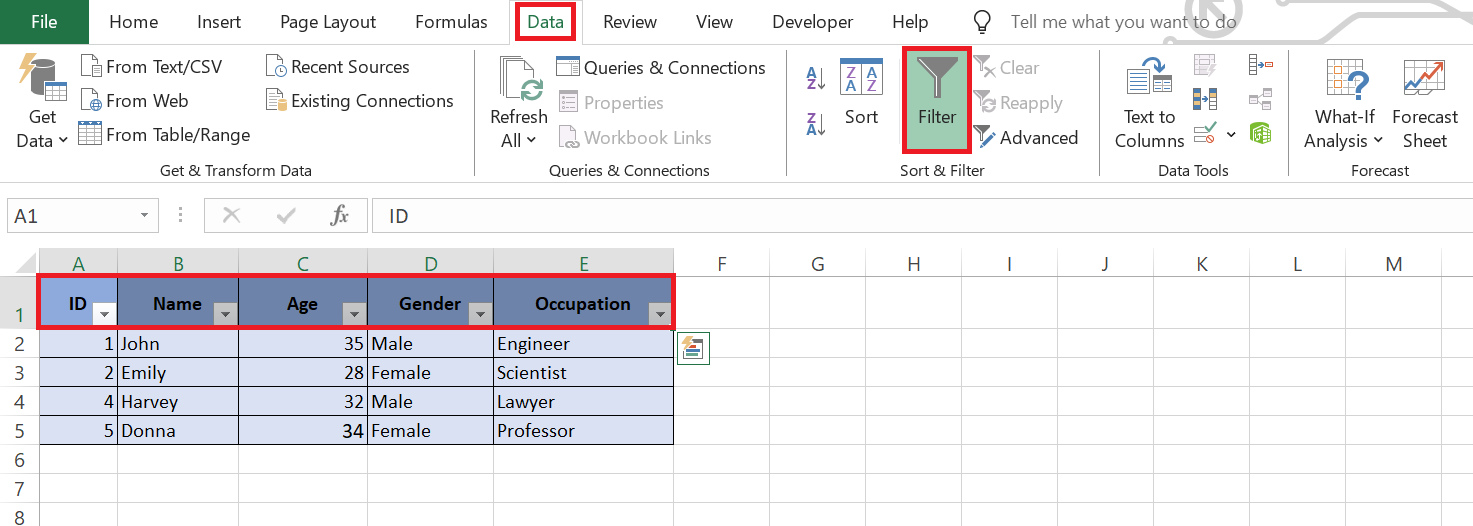
STEP 1: Start with the Excel Filter feature: Apply a filter by selecting your data range and clicking on the ‘Filter’ button in the ‘Data’ tab.
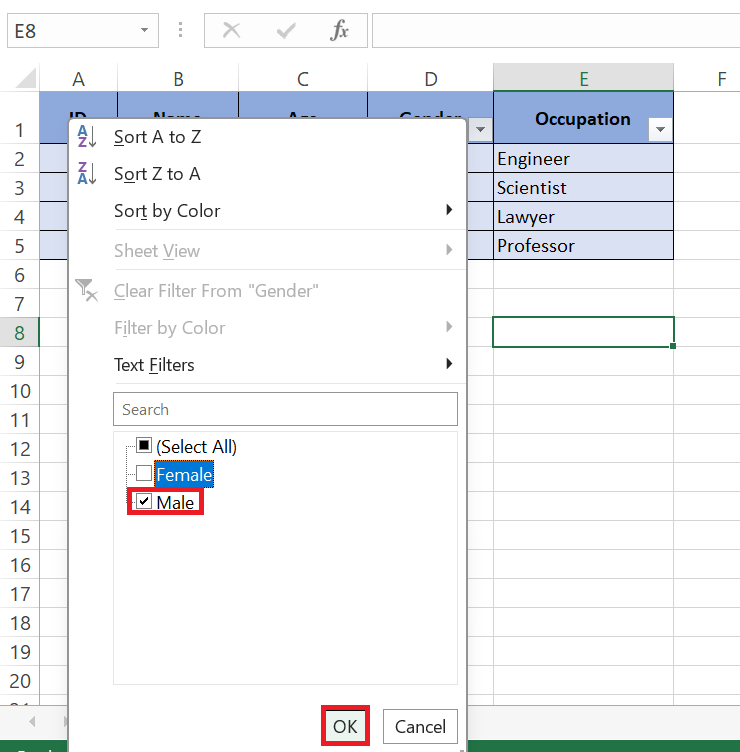
STEP 2: Specify your criteria: Choose the criteria for the cells you wish to filter. For example, here you can select “Gender” as just “Male”
STEP 3: After clicking on “Ok” below is the filtered data set.
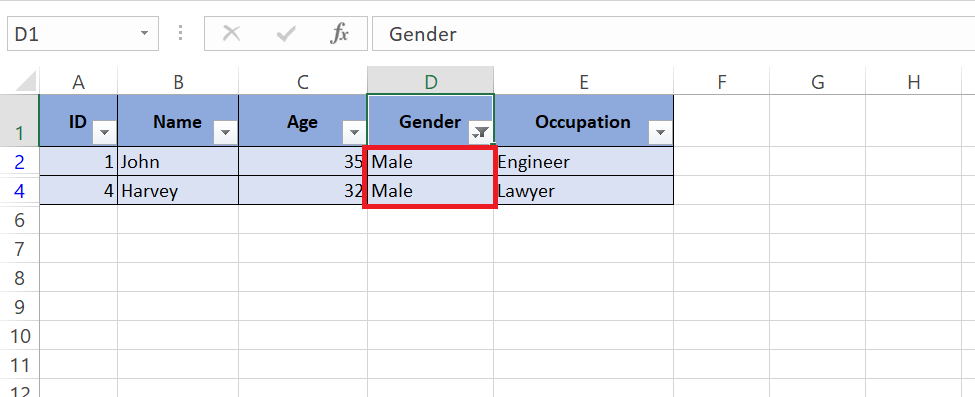
STEP 4: Once the data is filtered, select the rows: Click on the row headers for the rows that you want to delete.

STEP 5: Now, simply press Ctrl + - to delete all selected rows. Then remove the filter to see the fresh data set.
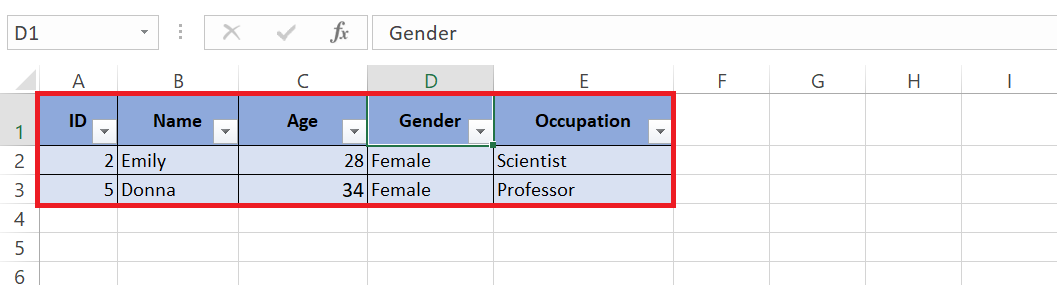
This method ensures that you’re only deleting rows that meet your predefined criteria, preventing the accidental removal of vital data. It’s a targeted approach that proves exceedingly useful when dealing with extensive and detailed information.
Step-by-Step Examples for Fast Deletion
Removing Rows Based on Cell Content
Eliminating rows based on specific cell content is straightforward in Excel, and doing this speeds up tasks like cleaning data or condensing data sets. Follow these steps to remove rows swiftly:
STEP 1: Locate the Content: Use the ‘Find and Replace’ feature (Ctrl + F) to locate the cells containing the content in question (for instance, ‘Jane’).
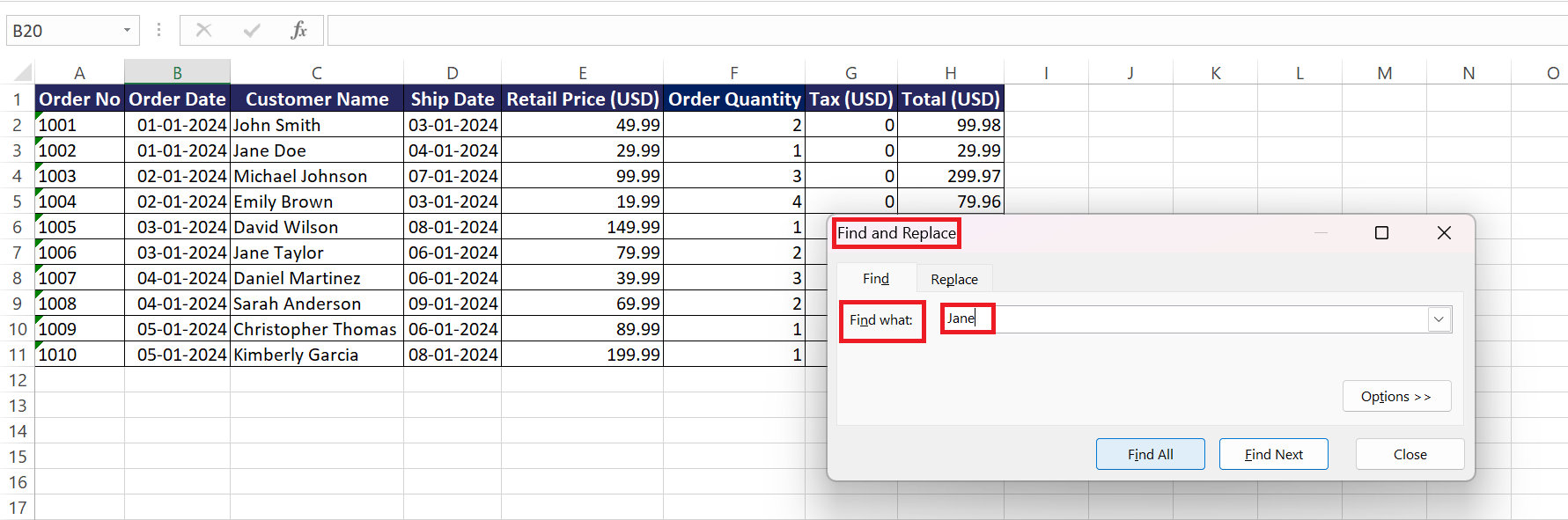
STEP 2: Find All Instances: After you’ve entered the value in the ‘Find what’ field, click ‘Find All’. The dialog box will list all instances where the cell contains ‘Jane’.
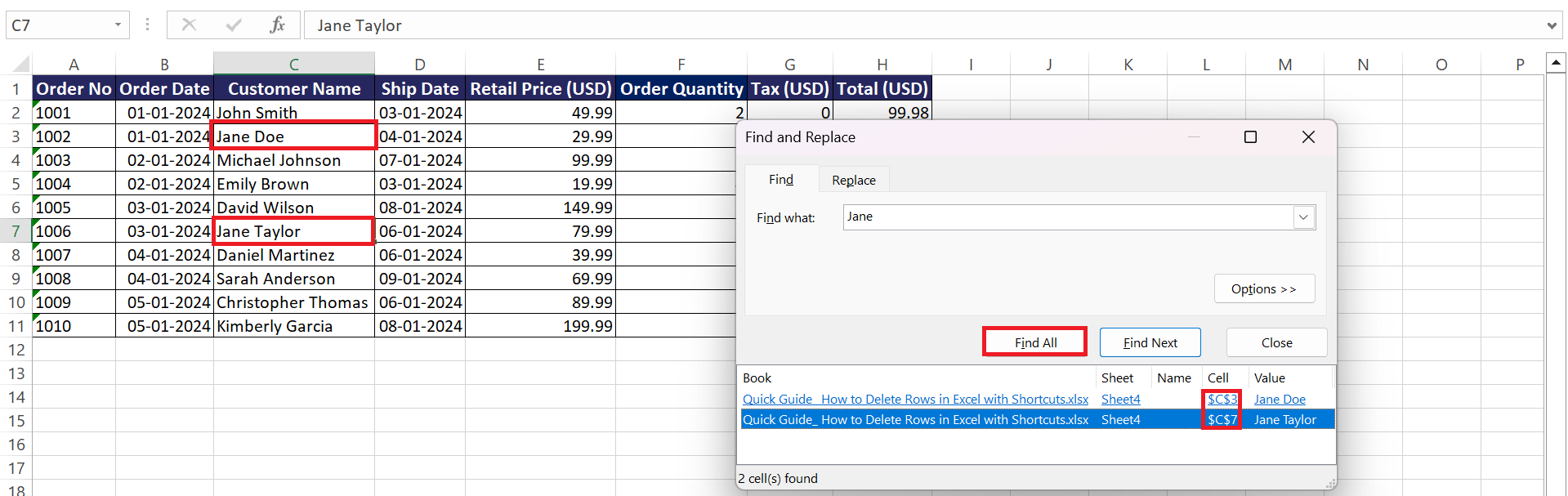
STEP 3: Select Rows: Highlight all the instances shown in the ‘Find and Replace’ window, or press Ctrl + A to select all found items.
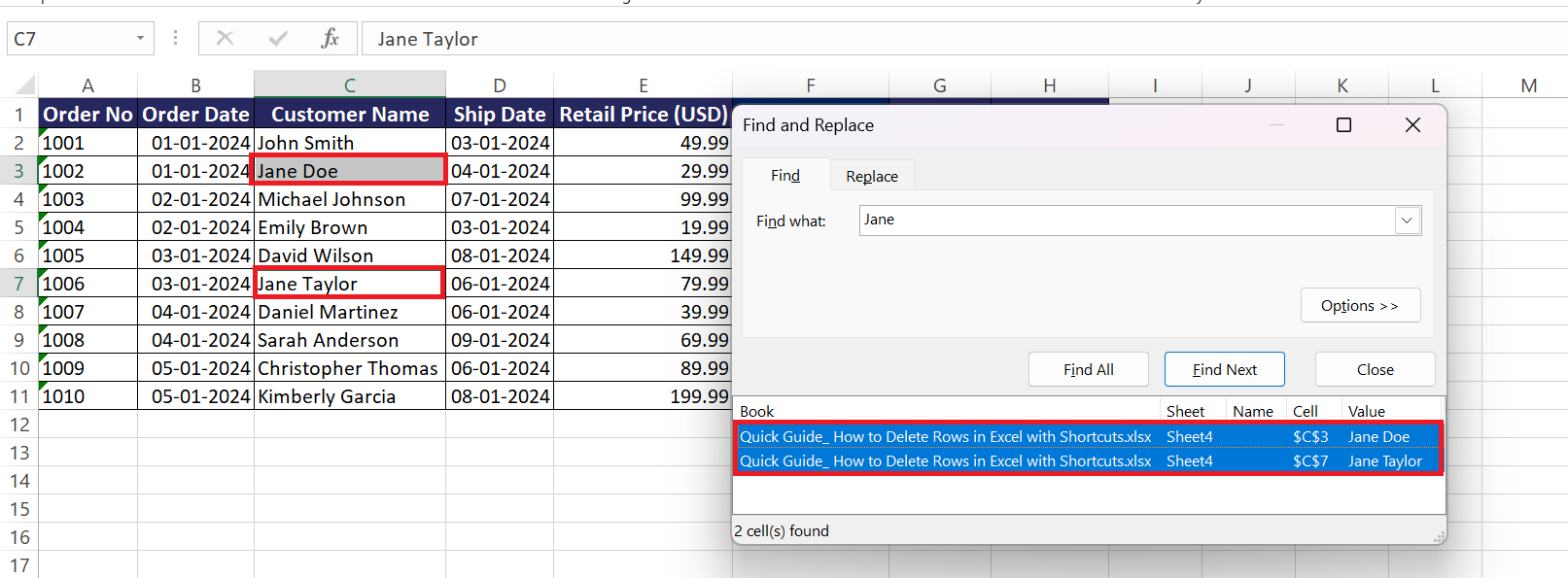
STEP 4: Delete Rows: Close the ‘Find and Replace’ dialog box. Right-click on one of the highlighted cells . Choose ‘Delete’ from the pop-up menu.
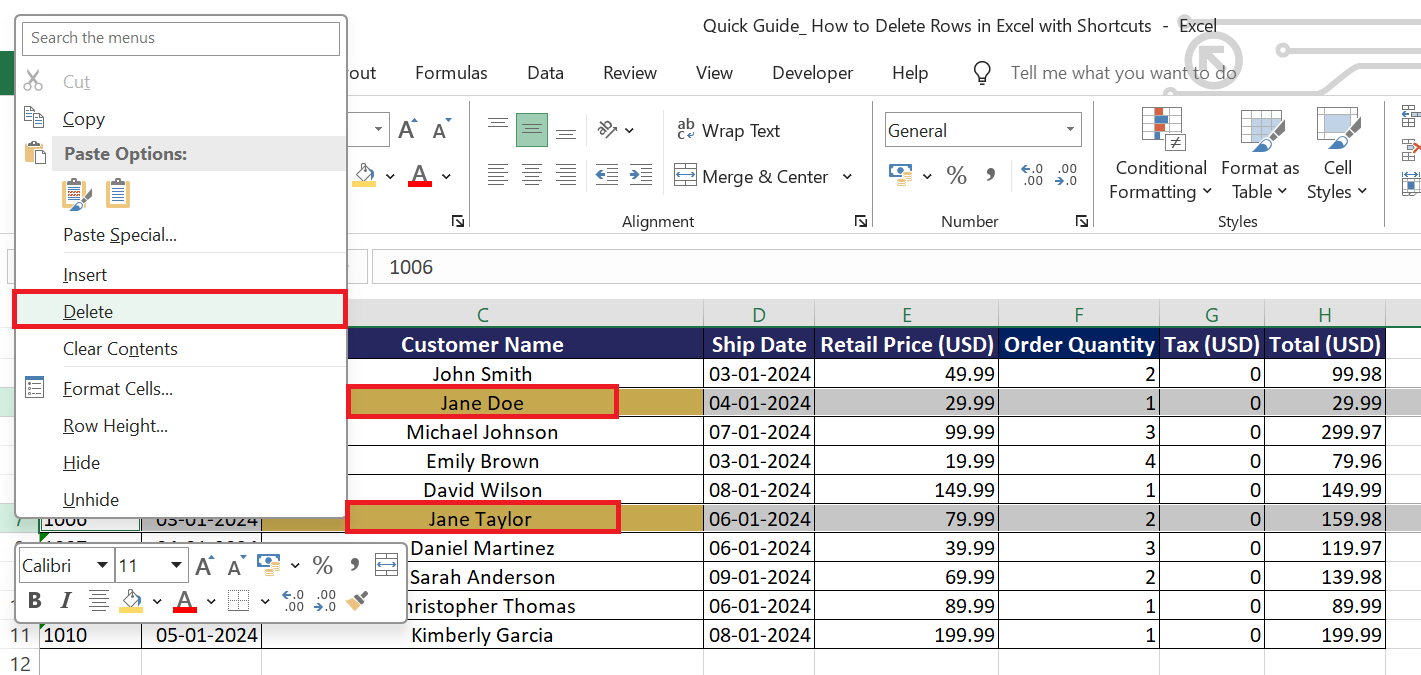
By removing rows based on cell content, you ensure the data you’re left with is exactly what you need, free of unnecessary or irrelevant information.
Tips & Tricks
- Unmerge any merged cells in your selection so that the rows can be deleted.
- If the sheet is protected, you may not be able to delete the row.
- If your data is in a table format, make sure that the filters are turned off.
- Understanding how to navigate these common pitfalls will make the row deletion process smoother and your overall experience with Excel more productive.
- Before making bulk changes, save a copy of your Excel file.
- Check the rows that you have selected before deleting them.
- Use Ctrl + Z to undo an action.
- Use filters to review the data you are planning to delete.
Advanced Shortcuts
Go To Special
Excel’s Go To Special command is a real powerhouse for those who need to manage and manipulate data on a granular level. Here’s how you can use this feature for deleting rows effectively:
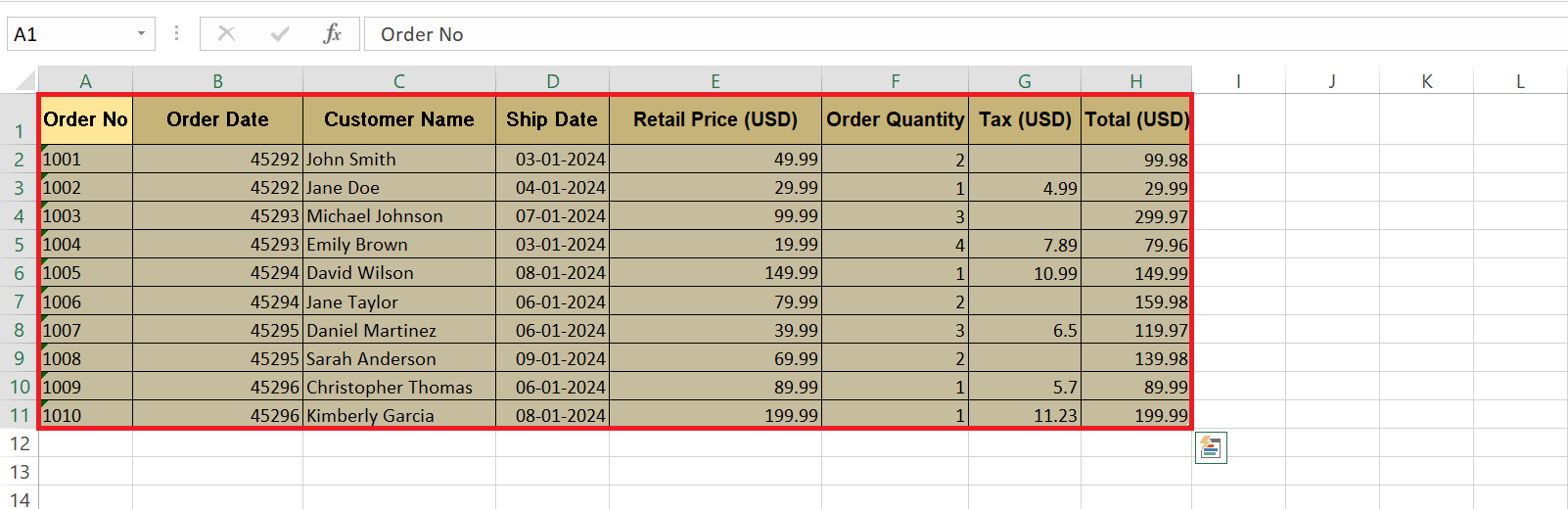
STEP 1: Highlight the range of cells where you want to search for criteria.
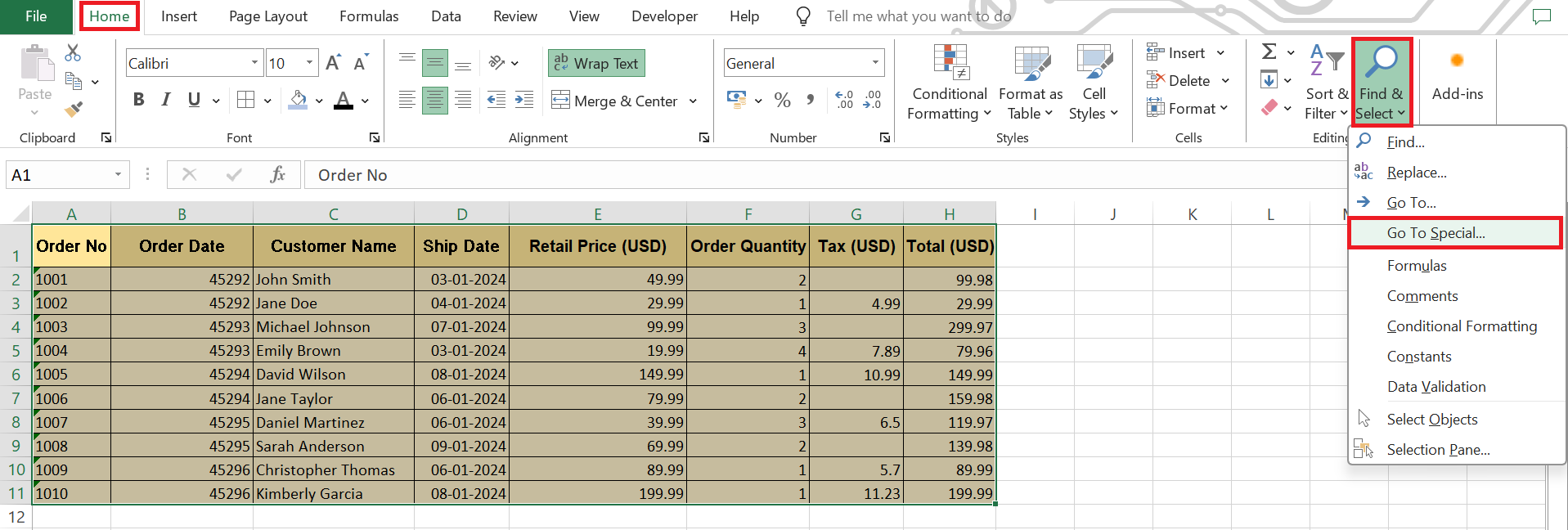
STEP 2: Go to the Home tab and click on the Find & Select button. Click on Go To Special.
STEP 3: In the Go To Special dialog box, select Blanks.
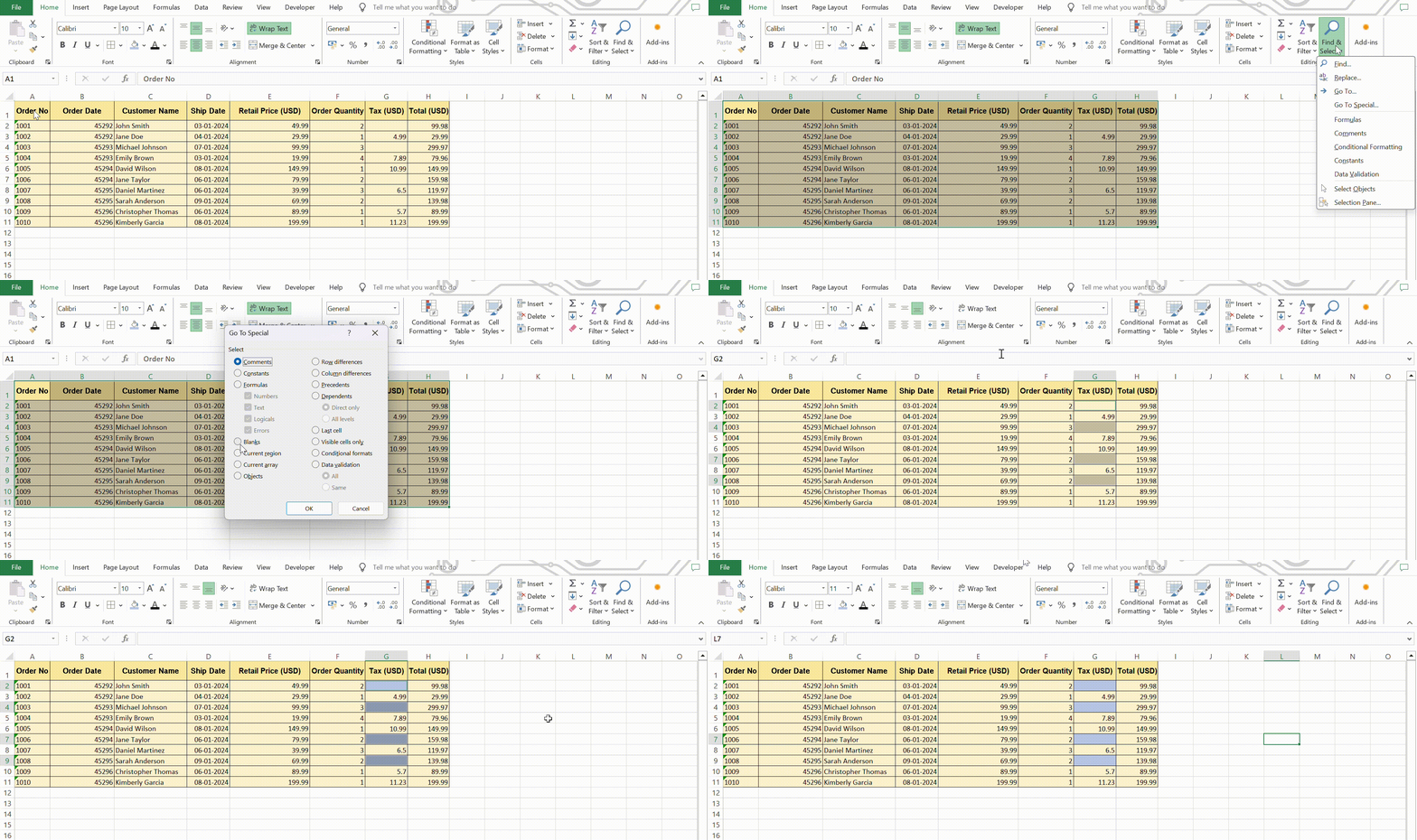
STEP 4: Once all empty cells are selected, press Ctrl + - to delete the entire row.
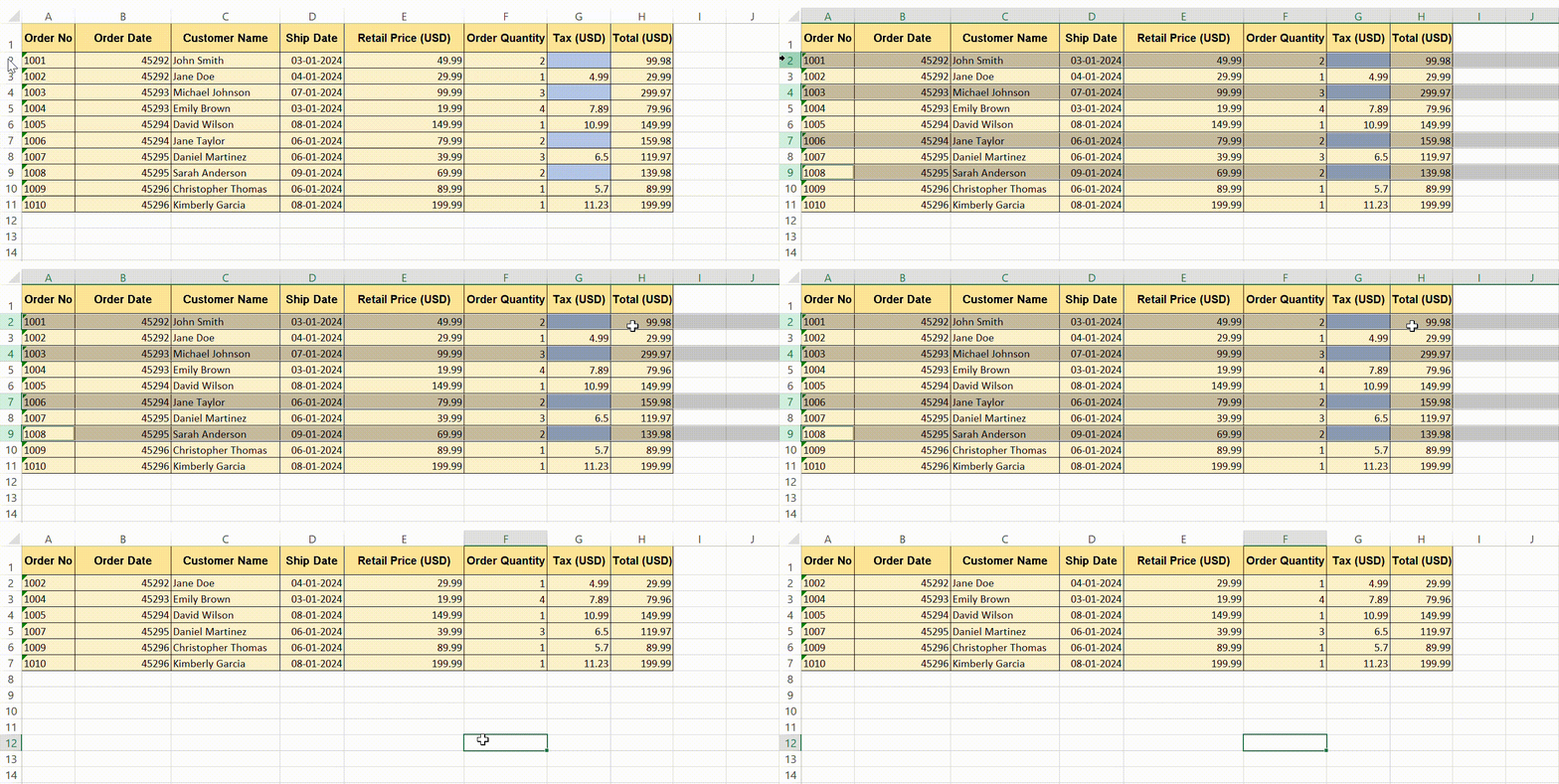
Create Custom Macros
You can create a custom macro with a personalized shortcut to delete a row in Excel.
STEP 1: Press Alt + F11 to open the VBA editor.
STEP 2: Go to the Insert tab and select Module.
STEP 3: Type a macro:
Sub DeleteSelectedRows()
Selection.EntireRow.Delete
End Sub
STEP 4: Go to the Developer tab and select Macros. Select the macro in the dialog box and select ‘Run’.
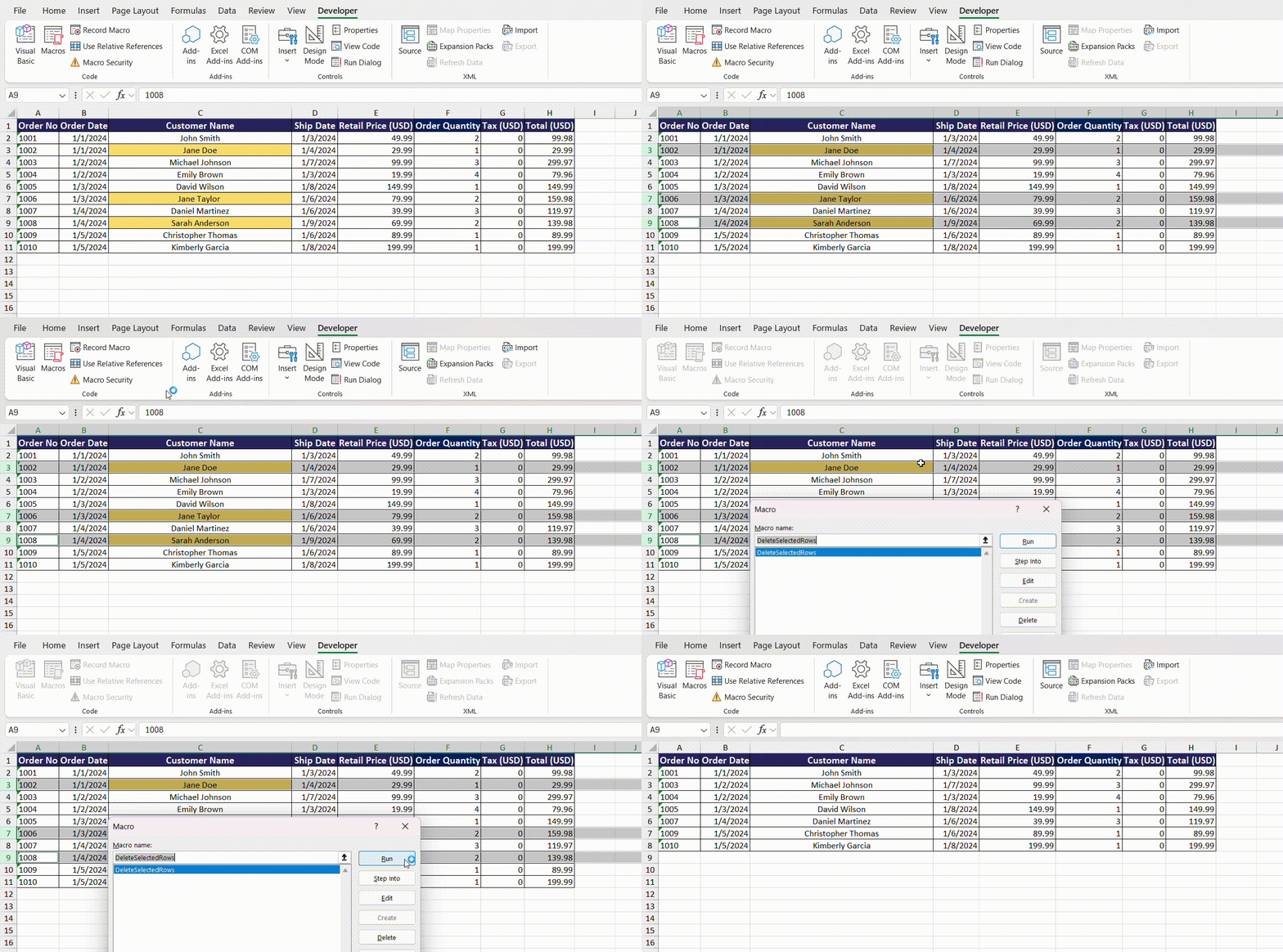
This macro will delete any rows you have selected when you run it. You can assign this macro to a shortcut key or a button on the ribbon for easy access.
Remember to save your workbook as a macro-enabled file (.xlsm) to ensure your macros are saved. With custom macros, repetitive tasks are no longer a hindrance, and you get a workflow truly tailored to your needs.
FAQs
How to delete every other row?
You can use the filter or conditional formatting to highlight alternate rows. Then, you can use the shortcut Ctrl + minus key to delete the rows.
How to undo a row deletion?
If you delete a row and immediately realize it was a mistake, press Ctrl + Z to undo the deletion.
How to delete rows based on cell color?
You can apply a filter to the table and select the option Filter by Color. The colored row will be filtered, and you can then delete it.
How to delete all rows below a certain row?
Select the row below which you want to delete all rows. Press Ctrl + Shift + Down Arrow to highlight all subsequent rows. Press Ctrl + minus key to delete them.

John Michaloudis is a former accountant and finance analyst at General Electric, a Microsoft MVP since 2020, an Amazon #1 bestselling author of 4 Microsoft Excel books and teacher of Microsoft Excel & Office over at his flagship MyExcelOnline Academy Online Course.

 30 Days - Full Access









