 Free Practice Workbook
When working in Excel, I often find myself needing to add annotations, titles, or explanations directly on the spreadsheet. This can make my work clearer and more organized. One simple yet effective way to achieve this is by using text boxes. These handy tools allow me to add text that’s not limited to a cell. It gives me greater flexibility in formatting and positioning.
In this article, you will learn how to insert text box in Excel.
Key Takeaways:
- Text boxes can be placed anywhere on a spreadsheet.
- They are limited by grid constraints.
- Use Alt + N + X shortcut to quickly add a text box.
- You can change the style, shape, and text formatting of the text box.
- Limit excessive use of text boxes to keep Excel files responsive.
Table of Contents
Introducing Text Boxes in Excel
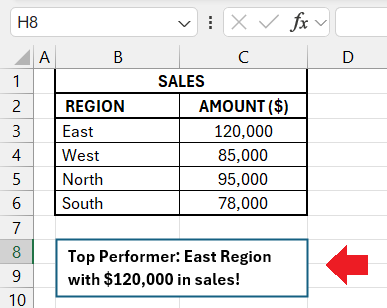
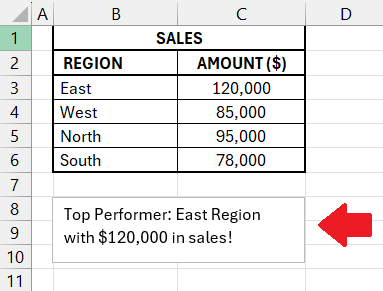
Text boxes are a versatile tool that might not be used daily, but are incredibly handy when needed. It can be used to put a spotlight on specific information. They are placed freely over the spreadsheet’s grid.
Text boxes are required when you want to:
- Provide instructions
- Create report heading
- Display standout numbers
- Give detailed commentary.
Quick Start Guide to Insert Text Boxes
The Ribbon Approach
Follow the steps below to insert a text box using Excel’s ribbon:
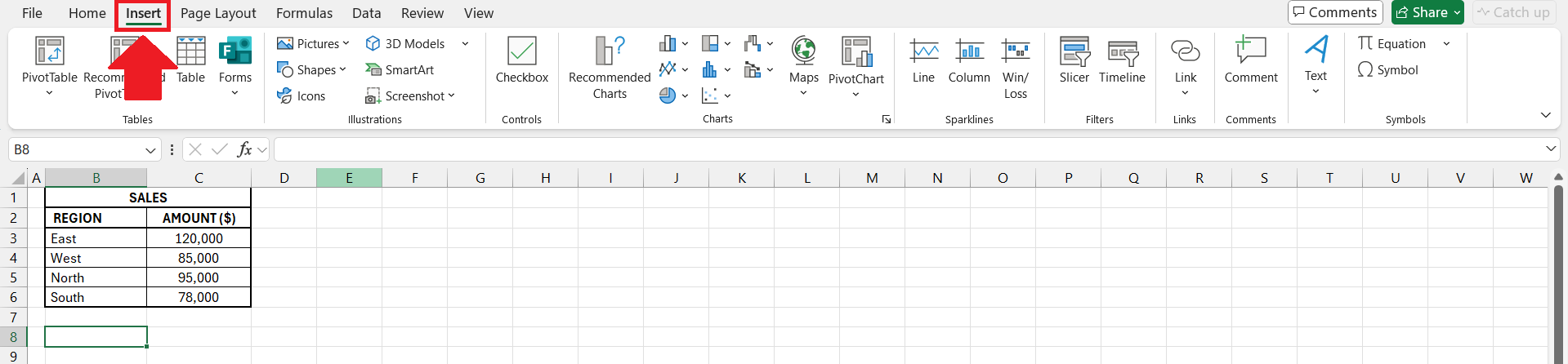
STEP 1: Go to the Insert tab.
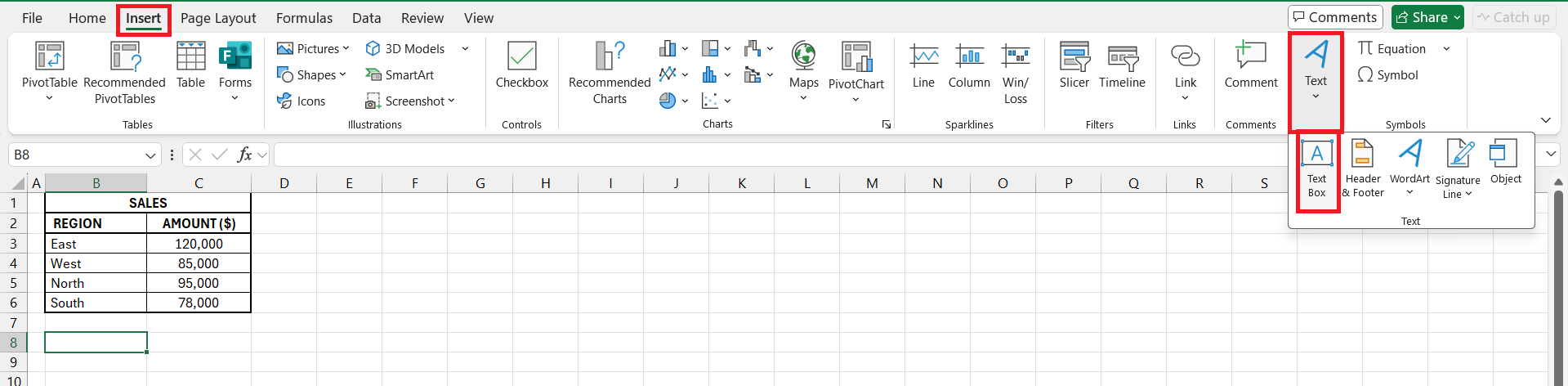
STEP 2: Go to Text > Text Box.
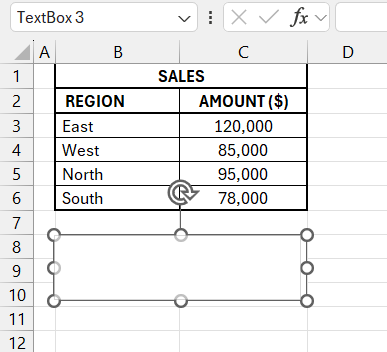
STEP 3: Click and drag the cursor within the spreadsheet to insert a box.
STEP 4: Type text inside the text box and press enter.
Keyboard Shortcut
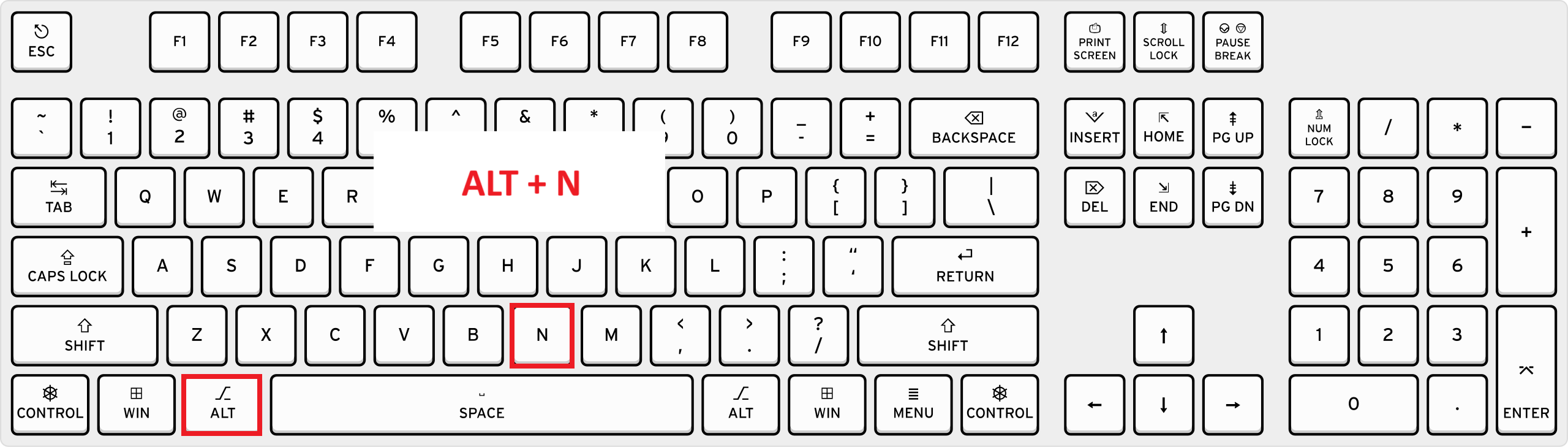
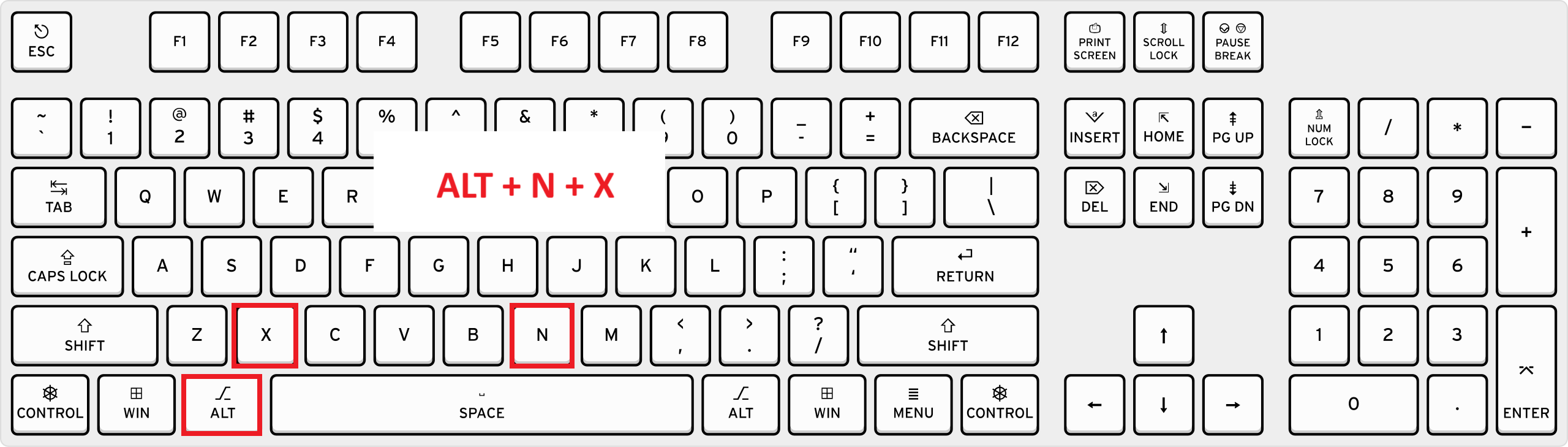
You can use keyboard shortcuts to improve your productivity. You can insert a text box by pressing Alt + N + X.
Press Alt + N to go to the Insert tab.
Then, the subsequent ‘X’ will insert a text box onto our spreadsheet.
With a flick of the wrist, we then click and drag to create the text box, just as we would with our mouse. It’s a swift move for those who prefer keystrokes over cursor clicks.
Customize Text Box
Styling
You can use the shape format option to add style to the digital shapes. You can choose from a palette of theme styles and make your text book eye-catching. It should align with the document’s overall theme.
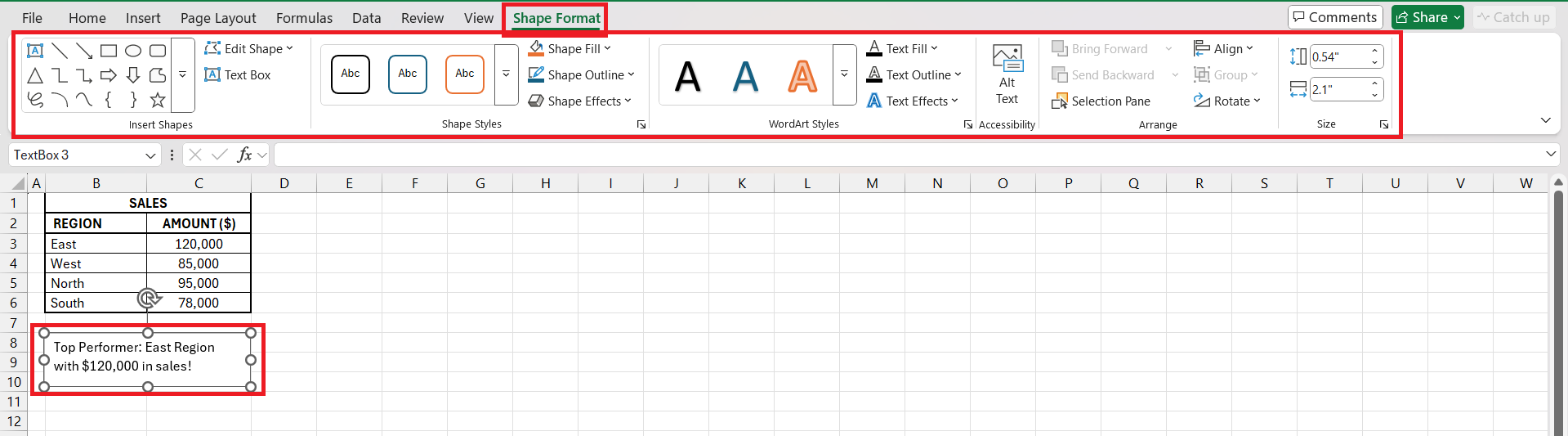
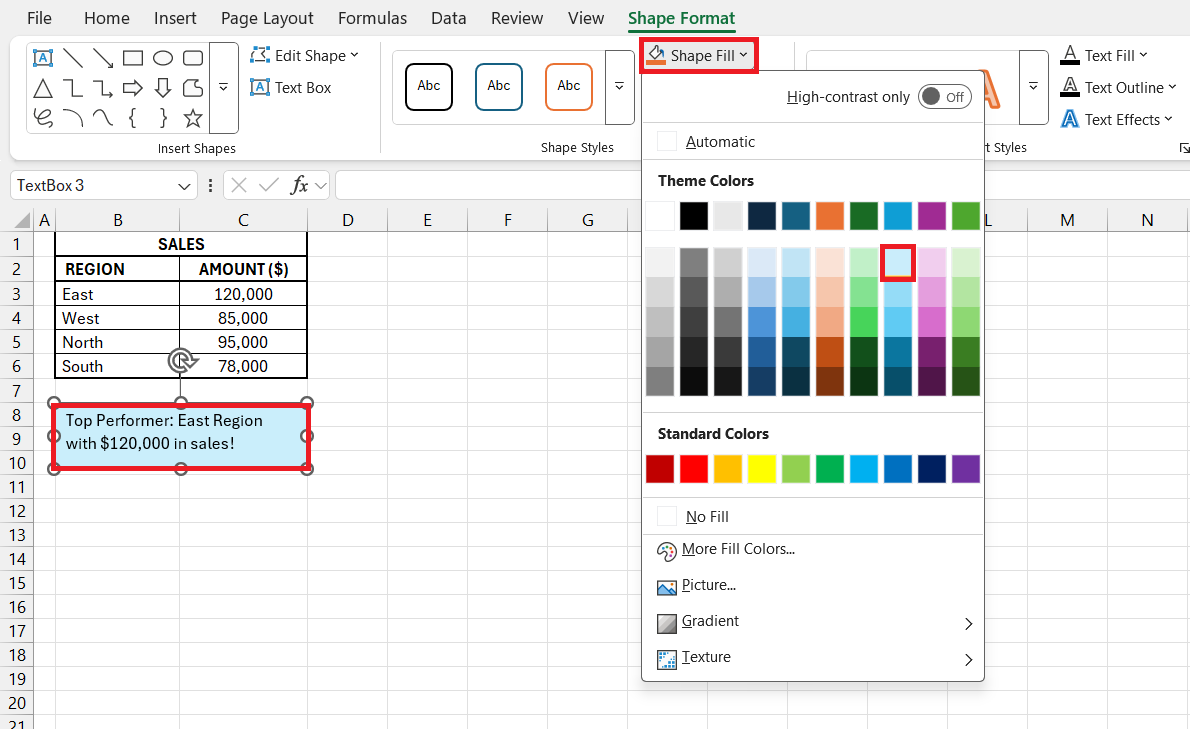
Add a suitable fill color using ‘Shape Fill’. It can be a solid color, or a gradient for depth, or perhaps a pattern to captivate.
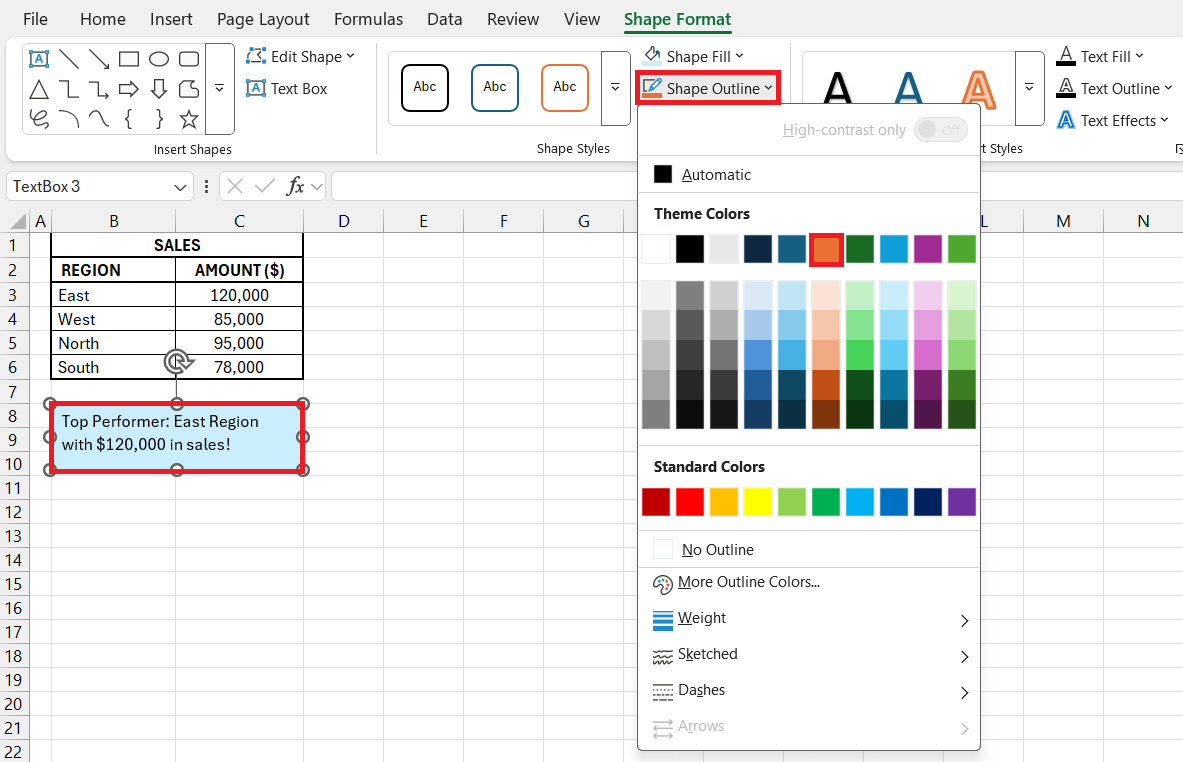
Use the Shape Outline option to outline color, weight, and dash style
Adjusting Text
If the text is looking cramped and is not clear, it is important to increase the size of the text box.
- Drag the handle of the text box to increase the size.
- Go to Shape format, and input height and width in the size group.
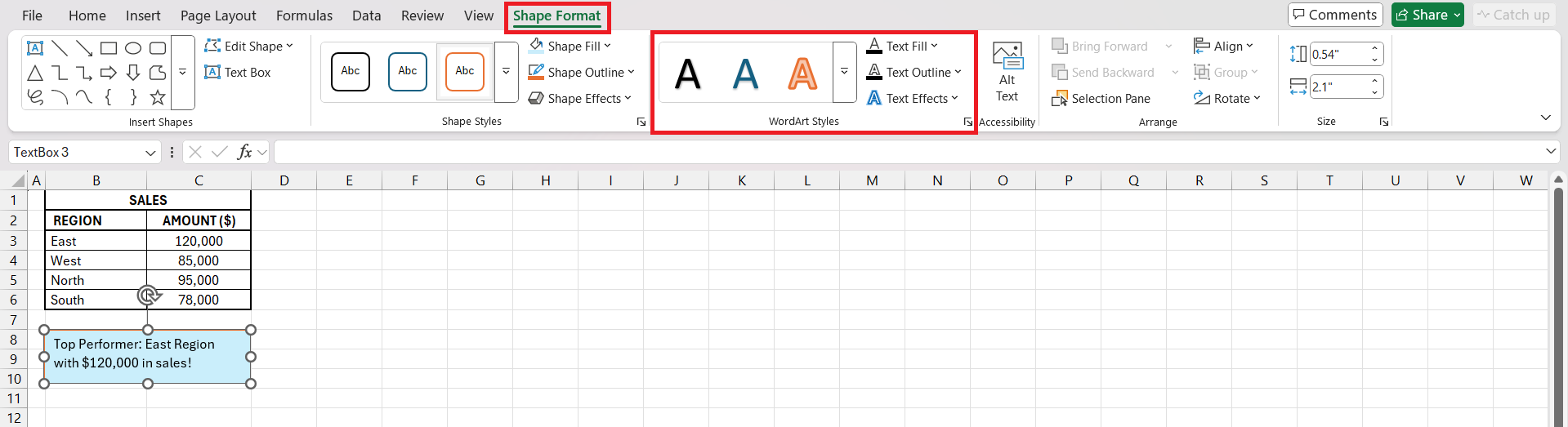
To increase the size of the text, you can go to the Home tab and increase the size. The Text Fill option adds a splash of color, while Text Outline and Text Effects add definition and drama to the text.
Are the words still rebelling against a perfect fit? No problem. Resizing the font or altering paragraph spacing can tame unruly text, making sure every word is both seen and absorbed by the reader.
Troubleshoot Common Issues
If you are not able to insert a text box in Excel, you can check the following points:
- Excel is in cell editing mode. Press ESC to exit that mode.
- Make sure you have the correct worksheet view i.e. Normal view.
- If a worksheet is protected, it prevents us from adding text boxes.
- If you are trying to insert the text box in a shared workbook that restricts certain types of editing.
- Check Excel’s options settings.
- Repair the Office installation.
FAQs
What is a textbox in Excel?
A textbox in Excel is a flexible form of text input. It can be placed anywhere on the spreadsheet and is not constrained by column and row boundaries.
What are the steps to insert a Text Box in Excel?
To insert a text box in Excel, follow the steps below:
- Go to the Insert tab
- Click on the Text Box option
- Click and drag on the worksheet to draw the box.
- Once the box is placed, start typing text.
Can I Link Text Boxes in Excel to Display Overflowing Text?
Currently, Excel doesn’t offer a feature to link text boxes so that overflowing text from one flows into another. However, we can manually split the text and distribute it across multiple text boxes to simulate a linked appearance, ensuring a cohesive reading experience.
What is the shortcut for inserting a text box in Excel?
The shortcut for inserting a text box in Excel is pressing Alt, then N, followed by X. This swift sequence of keys catapults us directly to text box insertion without the detour of using the mouse.
How to put a box in an Excel cell?
To put a box in an Excel cell, we’d generally use cell borders rather than a text box. Select the cell or cells, head to the ‘Home’ tab, click on the ‘Borders’ icon in the ‘Font’ group, and choose the border style we want to apply around the selected cells.

John Michaloudis is a former accountant and finance analyst at General Electric, a Microsoft MVP since 2020, an Amazon #1 bestselling author of 4 Microsoft Excel books and teacher of Microsoft Excel & Office over at his flagship MyExcelOnline Academy Online Course.

 30 Days - Full Access









