 Free Practice Workbook
Table of Contents
Pasting Without Formatting
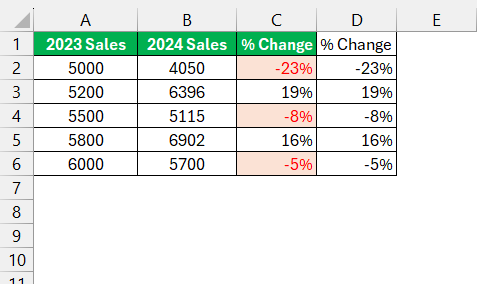
When you are combining information from diverse sources, it is important to paste data without formatting. It allows you to keep the data consistent across the spreadsheet. It also prevents the need to reformat newly pasted data. It saves you time and allows you to keep the workbook clean.
The paste special option provides you with a variety of options like values, formulas, formatting, and even transposing data.
Shortcuts to Paste without Formatting
Keyboard Shortcuts
Keyboard shortcuts are your secret weapon when you want to quickly paste without formatting.
- Use Ctrl + V to paste a value with the formatting.
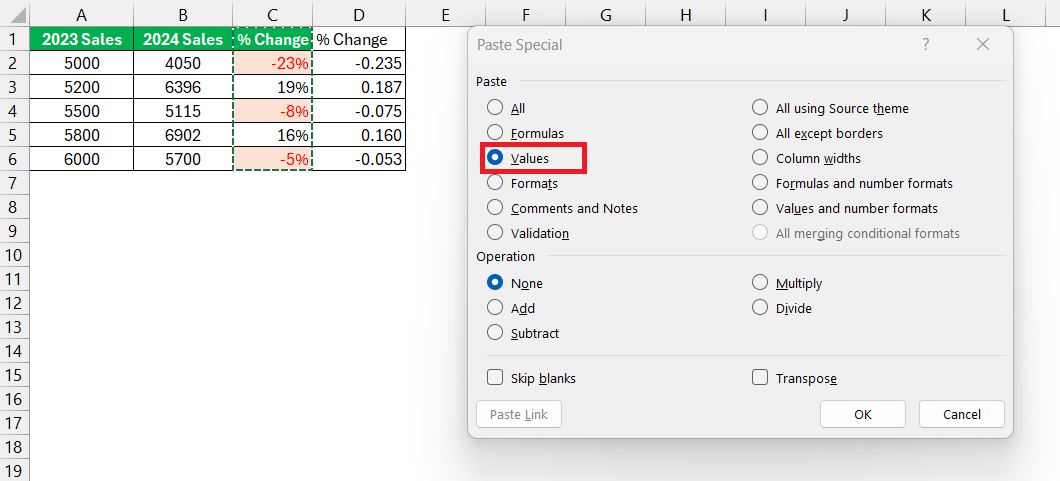
- Use Ctrl + Alt + V to paste to open the paste special dialog box.
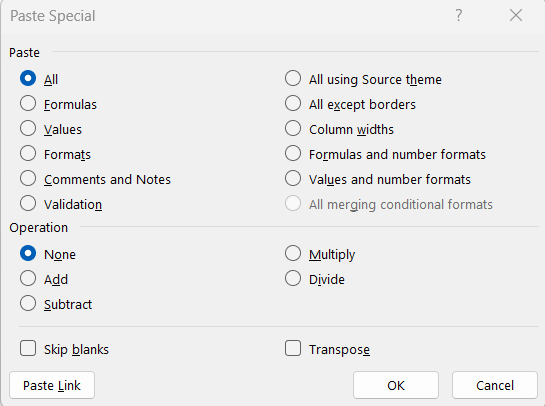
Select Values if you want to paste just the values.
Menu Options
You can also use the menu option to paste values in Excel.
- Copy the data.
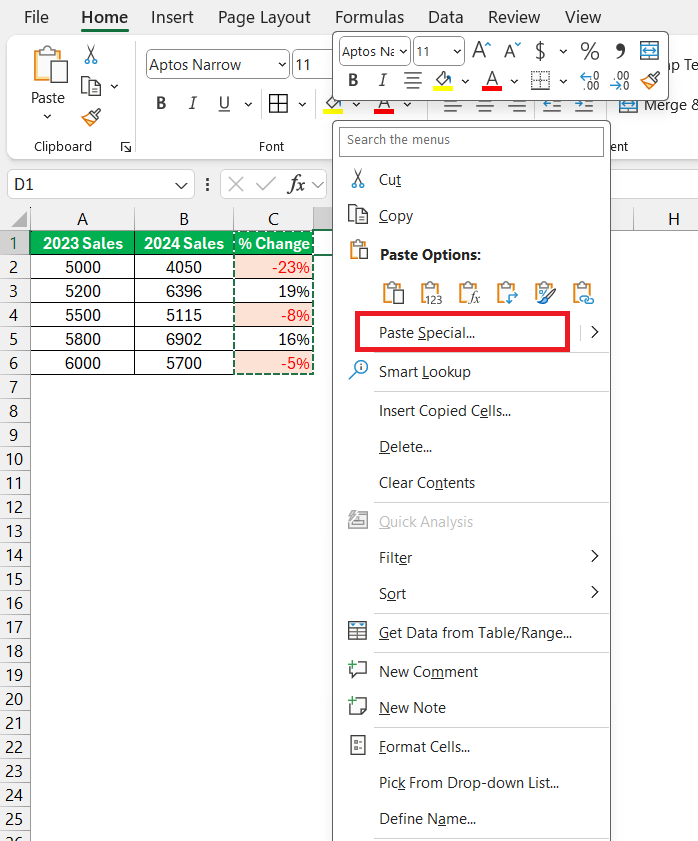
- Right-click on the cell where you want to paste the value.
- Select Paste Special.
Select Values or Values & Number Formats to paste data devoid of any source formatting.
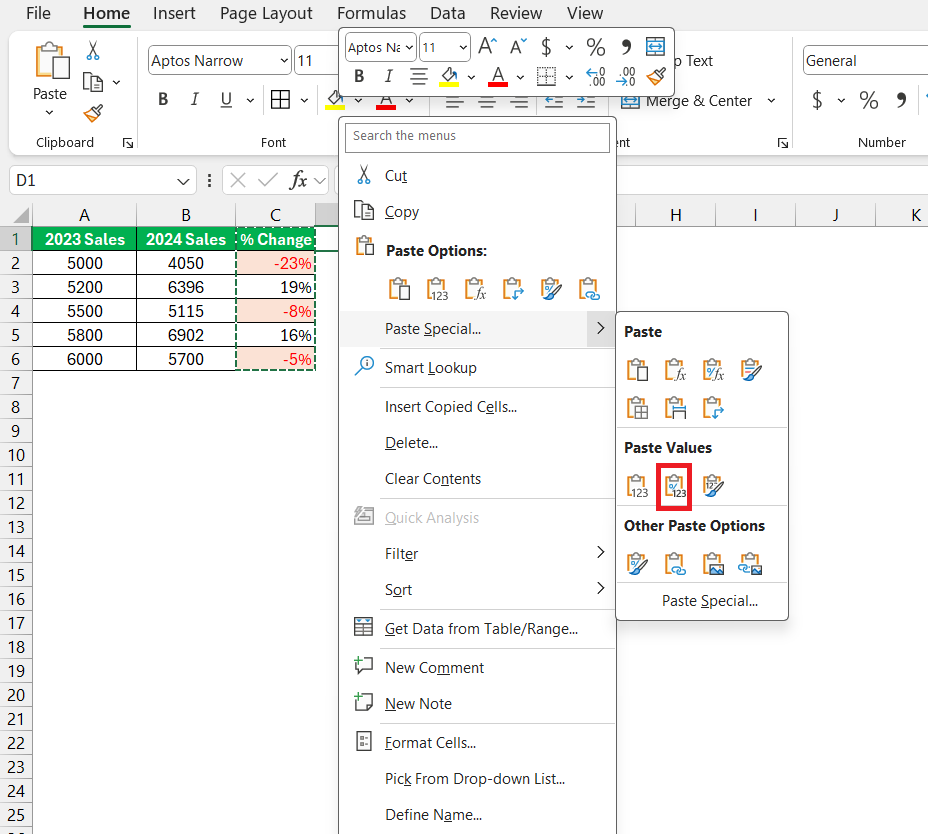
This method gives me a visual confirmation of my choice and is excellent for those who prefer a point-and-click approach rather than memorizing keyboard shortcuts.
Quick Access Toolbar
The Quick Access Toolbar is my go-to tool to increase productivity in Excel. You can customize this toolbar by adding the Paste Values button to it. Follow the steps below to paste unformatted data with just one click:
- Go to the File tab.
- Select Options.
- Select Quick Access Toolbar
- Select Keep Source Formatting or Keep Text Only.
- Click OK.
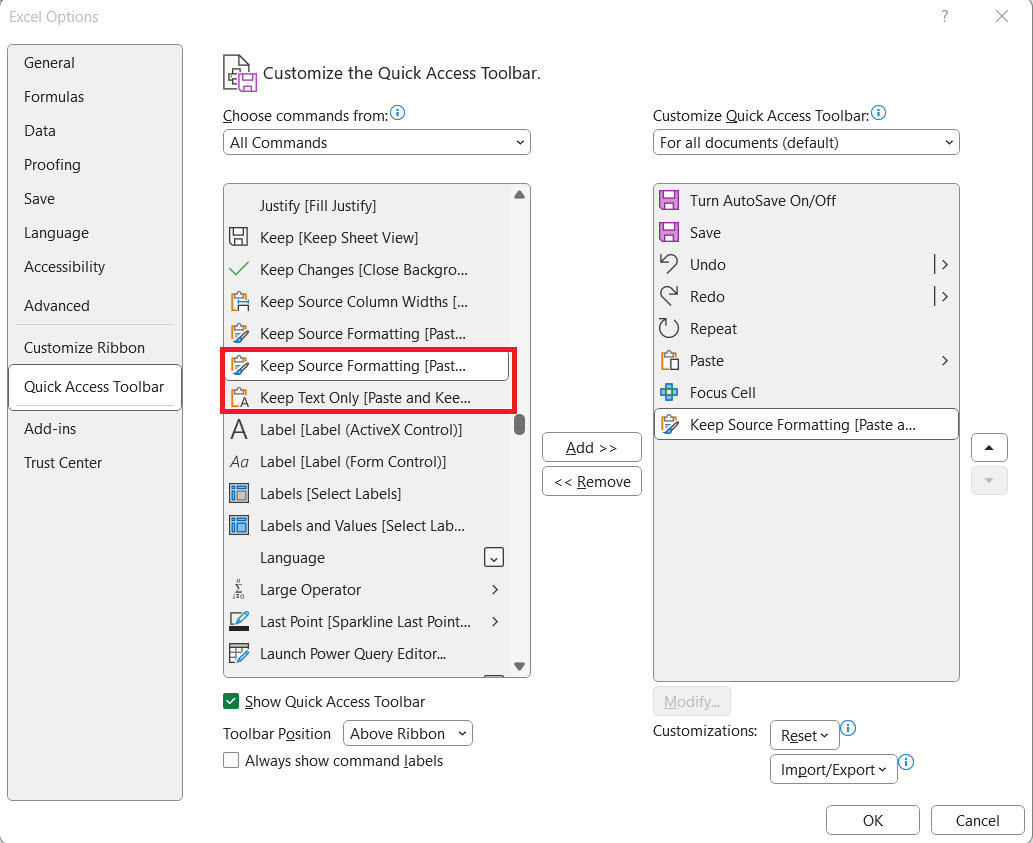
Adding this button to the QAT saves you time and allows you to paste values with ease.
FAQs
How to paste values only?
To paste without formatting in Excel, right-click on the cell where you want to paste and choose ‘Paste Special‘, then select ‘Values’ or ‘Values & Number Formats’. Alternatively, use the keyboard shortcut ‘Ctrl+Alt+V’ then ‘V’ to paste values directly.
How to paste without formatting using keyboard shortcuts?
Use ‘Ctrl+Shift+V’ or ‘Ctrl+Alt+V, V’ as a keyboard shortcut to paste without formatting in Excel. This strips the text of any source formatting, leaving behind the raw data ready for your worksheet.
Can I set ‘paste values only’ as my default pasting option?
Yes, you can set ‘paste values only’ as your default pasting option in Excel. Go to ‘File’, then ‘Options’, choose ‘Advanced’, and under ‘Cut, copy, and paste’, set the default paste option to ‘Values’.
How to stop Excel from changing my format when I paste?
To stop Excel from changing your format when you paste, use the ‘Paste Special’ feature and select ‘Values’ or ‘Keep Text Only’. These options will make sure that the pasted content does not alter the destination cell’s format.
What is the paste special feature in Excel?
The Paste Special feature in Excel allows for advanced pasting options beyond the default paste. It lets you paste specific elements like values, formulas, formats, or comments while discarding others, providing precise control over how data integrates into your sheets.

John Michaloudis is a former accountant and finance analyst at General Electric, a Microsoft MVP since 2020, an Amazon #1 bestselling author of 4 Microsoft Excel books and teacher of Microsoft Excel & Office over at his flagship MyExcelOnline Academy Online Course.

 30 Days - Full Access









