Pinterest Pixel

How to Split Cells Diagonally in Excel

John Michaloudis
I’ve often come across situations where I need to split a cell diagonally in Excel, especially when working with tables where I want to display two different headers within the same cell, like "Price/Quantity" or "Date/Time." If you're looking to split a cell diagonally in Excel, here's how you can do it quickly and easily.

I’ve often come across situations where I need to split a cell diagonally in Excel, especially when working with tables where I want to display two different headers within the same cell, like “Price/Quantity” or “Date/Time.” If you’re looking to split a cell diagonally in Excel, here’s how you can do it quickly and easily.

Key Takeaways:

  • Splitting a cell diagonally is a purely visual formatting trick.
  • It is used when you have headers with two labels.
  • You can add a diagonal line using borders in Excel.
  • You can also split a cell using shapes like a right-angled triangle.
  • You can use contrasting colors, clear fonts, and adjust text alignment when using diagonal splits.


Introduction to Diagonal Cell Splitting in Excel

Unveiling the Magic of Excel’s Flexibility

Excel is not just a powerhouse for crunching numbers and data analysis; it’s also a canvas for creative data presentation. I’ve always found its robust set of features allows us to present information in ways that are both insightful and eye-catching.

One such feature is the ability to split cells diagonally, which enhances the level of sophistication of our spreadsheets. This flexibility is the magic I’m eager to explore with you today.

The Basics of Cell Formatting

Before diving deep into the more advanced techniques like diagonal splits, it’s essential to grasp the basics of cell formatting in Excel. Think of formatting as the art of sprucing up the spreadsheet, where we can adjust the visual aspects of cells to improve our data’s clarity and impact. By tweaking font sizes and colors, adding borders, and employing cell shading, we can transform a basic table into a well-organized and eye-catching spreadsheet.

Imagine a monthly budget table—by simply changing category headers to a bold font, applying distinct colors to different income and expense types, and adding borders for separation, we give life and meaning to the raw numbers. Clever cell formatting makes our data not only look professional but also makes it significantly easier to read and analyze.

For example, consider using alternating row colors (also known as zebra striping) to enhance readability, or use a contrasting fill color to immediately draw the eye to the most important figures. Remember, a well-formatted cell is like a signpost that guides the observer’s attention to where it’s needed the most.


Step-by-Step Guide on How to Split Cells Diagonally

Using Format Cells Option

STEP 1: Select the cell that you want to split.
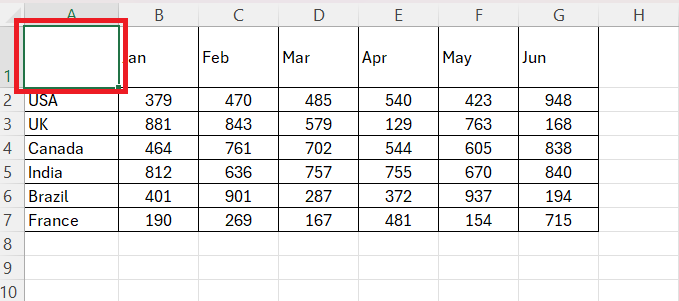
Split Cells Diagonally

STEP 2: Right-click on the cell and select Format Cells.
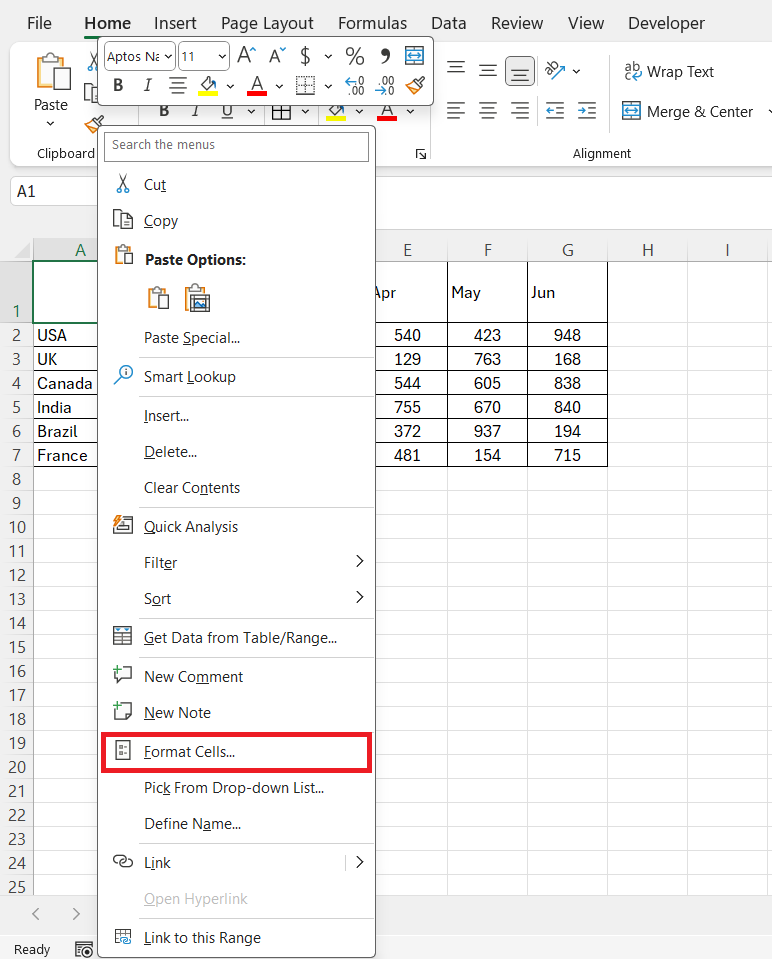
Split Cells Diagonally

STEP 3: In the dialog box, go to the Border tab.
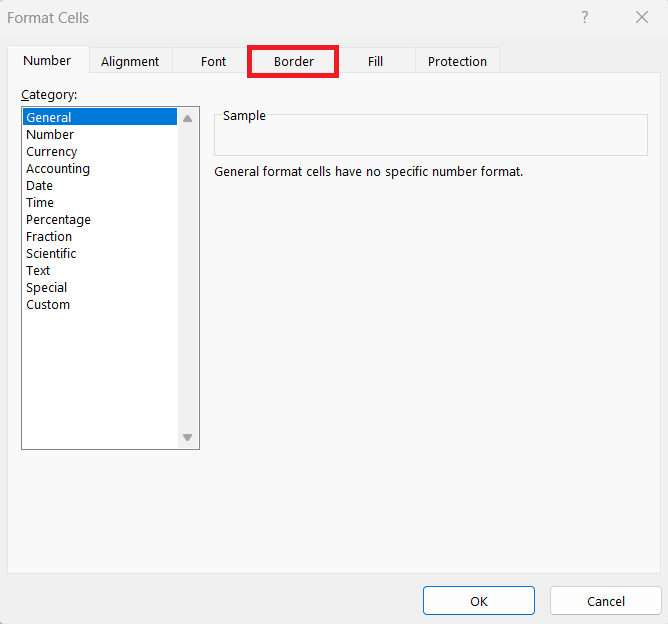
Split Cells Diagonally

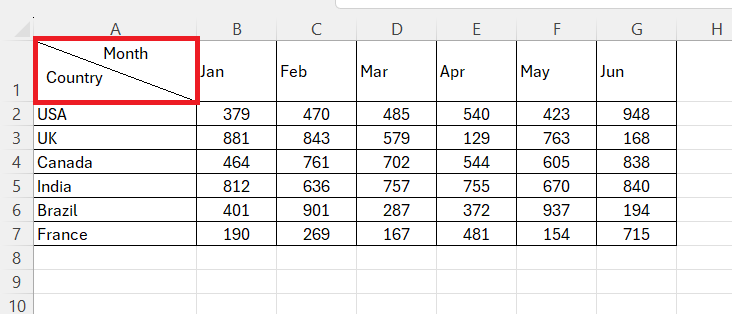
STEP 4: On the Borders tab, select one of the two diagonal line options:

  • One that goes from the bottom-left to the top-right
  • One that goes from top-left to bottom-right.

Click OK to apply the formatting.
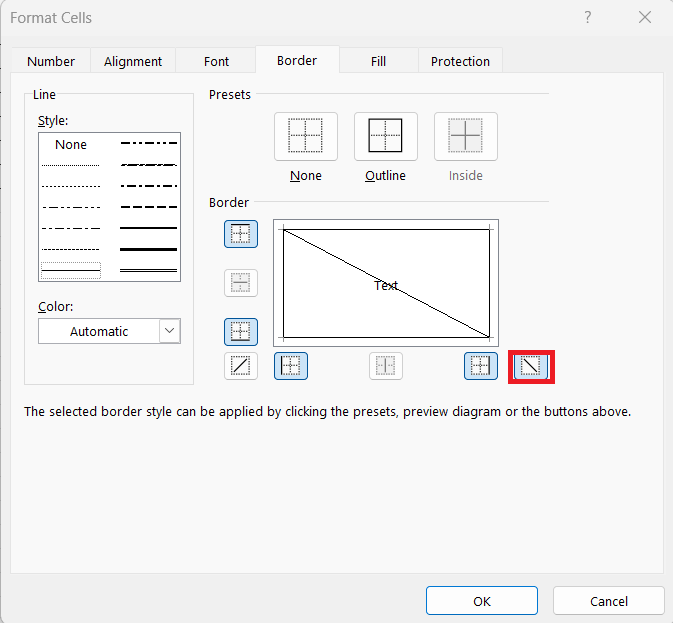
Split Cells Diagonally

STEP 5: Now that the diagonal line is added, you can type the text. Add multiple spaces between the two labels to place them on either side of the diagonal lines.
Split Cells Diagonally

Using Shapes

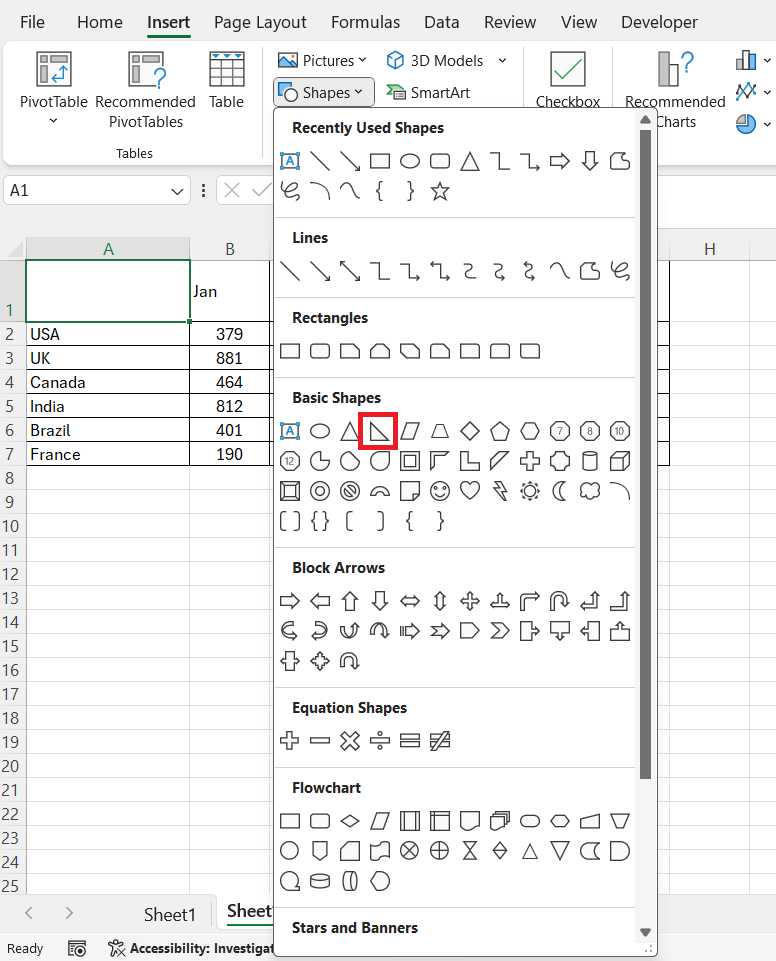
Another method to split a cell diagonally is to use shapes. Follow the steps below to know how:

STEP 1: Go to the Insert tab.

Split Cells Diagonally

STEP 2: Click on Shapes and select a Right Triangle.
Split Cells Diagonally

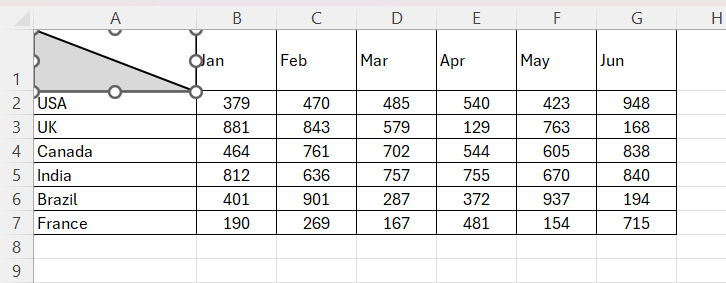
STEP 3: Draw the triangle that fits within the cell.
Split Cells Diagonally

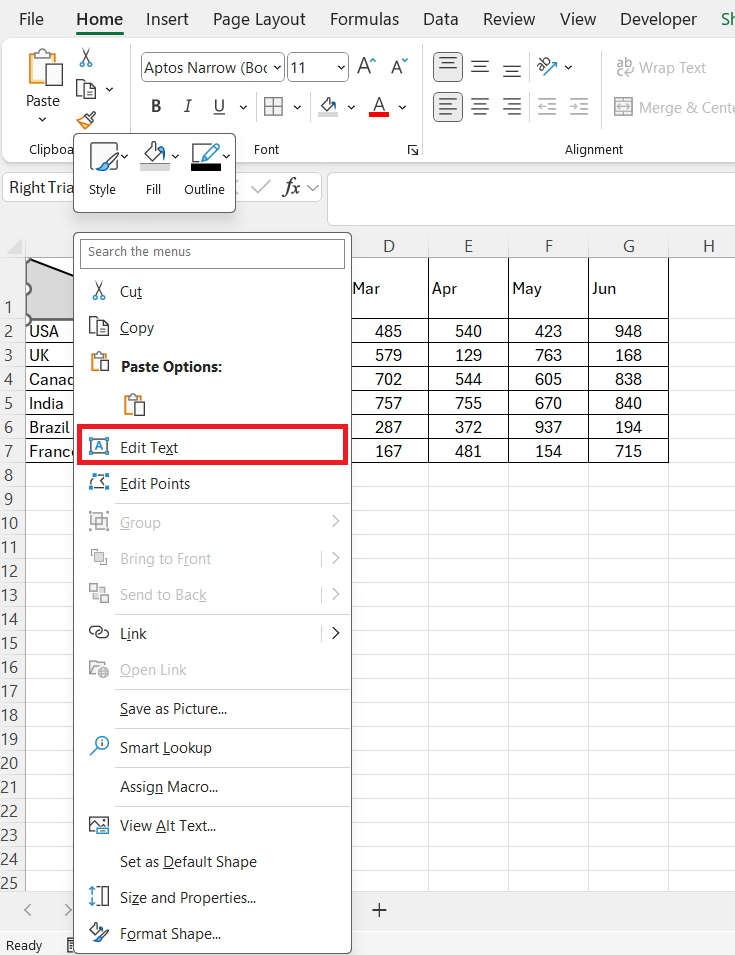
STEP 4: Now you can right click on the shape inserted and then select Edit from the dropdown.
Split Cells Diagonally

STEP 5: Type the labels both inside and outside the shape.
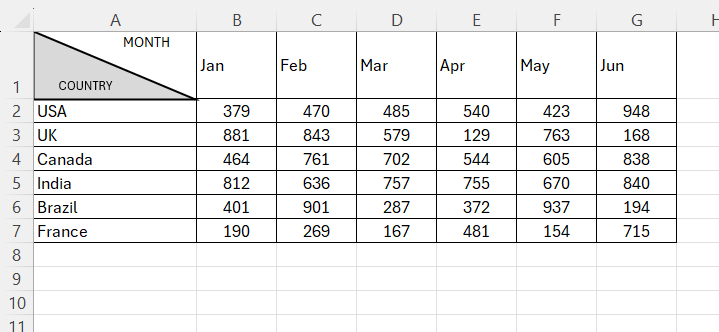
Split Cells Diagonally


Tips & Tricks

To make the spreadsheet readable, you should place the diagonal split should be placed carefully. The diagonal line should split the cell into two equal sections in such a way that the labels are clearly visible. For example, in a project management table, a diagonally split cell will display both the task and the person responsible in the same cell.

You should use contrasting cells to make sure that the data in the diagonally split cells is clearly visible. Additionally, we might adjust the alignment and font size so that each section of the split cell is clear and legible at a glance, keeping in mind that effective communication is the ultimate goal.

To sum up, the real knack lies in striking the right balance between cosmetic appeal and the pure functionality of clear data presentation. With diagonal splits done right, our spreadsheets can enjoy the best of both worlds.


Limitations of Diagonal Splitting in Excel

Splitting a cell may be useful, but it comes with its limitations. Some of them are:

  • You cannot reference the labels separately as they are part of the same cell.
  • It may be difficult to sort or filter data with labels that are diagonally split.
  • It’s mainly a formatting technique, so don’t expect it to function like merged or divided cells in other applications (such as tables in Word).


FAQs

What Is Splitting a Cell Diagonally?

Splitting a cell diagonally in Excel is a formatting technique that allows us to divide a single cell into two triangular sections visually. It’s done by adding a diagonal line within the cell, giving the appearance that it has been split. This method retains the cell as a single entity while providing visual cues to represent different data types or categories within the same cell space. It’s particularly useful for headers where two attributes need to be displayed succinctly.

How make Data Legible When Splitting Cells Diagonally?

To keep data legible when splitting cells diagonally, focus on simplicity. Use bold and straightforward fonts for clarity, and opt for high-contrast colors to make sure the labels stand out against the cell’s background. Additionally, adjust the font size so that it fits comfortably within each section of the split cell. Be selective with borders to define areas without clutter, and always preview your changes to make sure the information is easily accessible despite the diagonal formatting.

Can I Apply Different Formatting to Each Section of a Split Cell?

Yes, while Excel doesn’t allow for different formats within the actual split sections of a cell, there’s a creative workaround. Once a cell is split diagonally, I can simulate different formatting by using text and background colors that contrast each other. This helps in creating a distinct visual separation. For text alignment, I carefully position text in each section so it appears separate, maintaining the illusion of individual formatting.

Are There Any Limitations to the Types of Data that Can Be Inserted into Diagonally Split Cells?

Indeed, Excel does impose limitations on diagonally split cells since the split is purely visual—technically, the cell remains a singular entity. Therefore, we can’t directly insert different types of data into each of the split sections. Instead, we have to enter all the data as a single unit and then use positioning and formatting tricks to give the illusion that the cell contains distinct data types. It’s worth noting that this method is more about visual organization and isn’t suited for cells that require individual data processing.

How to split cells in Excel?

To split cells in Excel, choose the cell, navigate to the ‘Home’ tab, click on ‘Borders,’ and select ‘More Borders.’ In the ‘Format Cells’ box that appears, under the ‘Border’ tab, apply a diagonal line. For actual data splitting across multiple cells, use the ‘Text to Columns’ feature under the ‘Data’ tab, which separates the contents of one cell into different cells based on your specified delimiter, such as commas or spaces.

If you like this Excel tip, please share it


Founder & Chief Inspirational Officer

at

John Michaloudis is a former accountant and finance analyst at General Electric, a Microsoft MVP since 2020, an Amazon #1 bestselling author of 4 Microsoft Excel books and teacher of Microsoft Excel & Office over at his flagship MyExcelOnline Academy Online Course.

See also  The Ultimate Guide to Sorting the Greek Alphabet in Excel

Star 30 Days - Full Access Star

One Dollar Trial

$1 Trial for 30 days!

Access for $1

Cancel Anytime

One Dollar Trial
  • Get FULL ACCESS to all our Excel & Office courses, bonuses, and support for just USD $1 today! Enjoy 30 days of learning and expert help.
  • You can CANCEL ANYTIME — no strings attached! Even if it’s on day 29, you won’t be charged again.
  • You'll get to keep all our downloadable Excel E-Books, Workbooks, Templates, and Cheat Sheets - yours to enjoy FOREVER!
  • Practice Workbooks
  • Certificates of Completion
  • 5 Amazing Bonuses
Satisfaction Guaranteed
Accepted paymend methods
Secure checkout

Get Video Training

Advance your Microsoft Excel & Office Skills with the MyExcelOnline Academy!

Dramatically Reduce Repetition, Stress, and Overtime!
Exponentially Increase Your Chances of a Promotion, Pay Raise or New Job!

Learn in as little as 5 minutes a day or on your schedule.

Learn More!

Share to...










