 Free Practice Workbook
When printing a worksheet in Excel, the default page numbering starts at 1. However, there are times when I need my printed document to start with a different page number. In this guide, I’ll walk you through the steps on how to start page number at 2 in Excel. Let’s dive in!
Key Takeaways:
- Excel allows customising the starting page number for printed documents.
- The Page Setup dialog box is the key tool for adjusting the first page number.
- Page numbers can be added to headers or footers using the Insert tab.
- Print Preview helps verify page numbering before printing.
- Advanced techniques like inserting a dummy sheet or modifying the print area.
Table of Contents
Excel Page Numbering
In Excel, the ability to customise page numbering provides users with clarity. It is used to create a clear reference system for printed spreadsheets. When presenting data reports, the significance of starting the page numbering on a specific page becomes apparent. It allows for the inclusion of title pages, disclaimers, or summary sheets without disrupting the numerical flow of the main content. By controlling page sequences, I make sure that my audience can navigate and reference material with ease.
How to Start Page Number at 2
Open the Page Setup Dialog Box
STEP 1: Open the Excel workbook and go to the worksheet I want to print.
STEP 2: Click on the Page Layout tab in the Ribbon.

STEP 3: In the Page Setup group, I click on the small arrow in the bottom-right corner. This opens the Page Setup dialog box.

Set the First Page Number
STEP 1: Go to the Page tab.
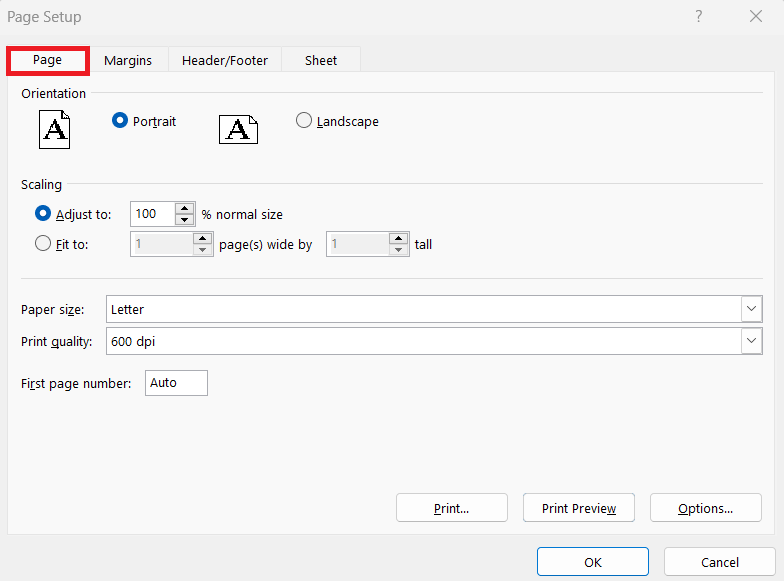
STEP 2: Find the First page number field at the bottom of the tab. By default, the value is set to “Auto.” I change this to 2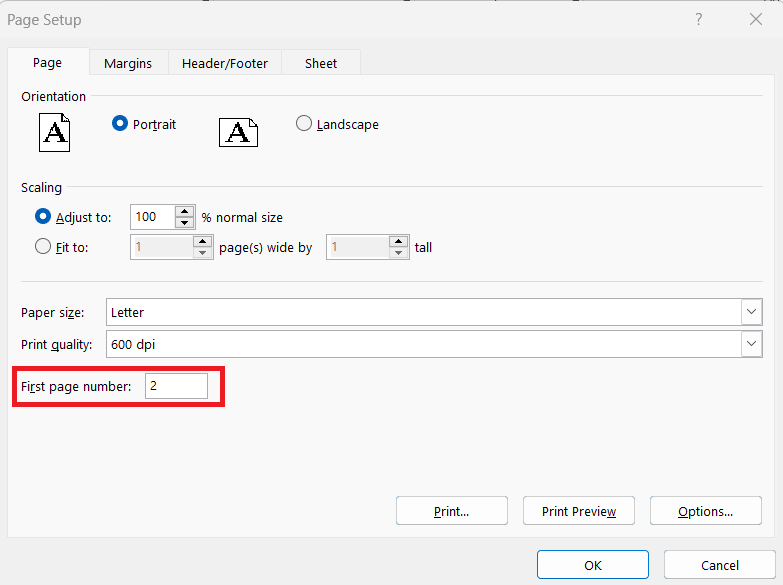
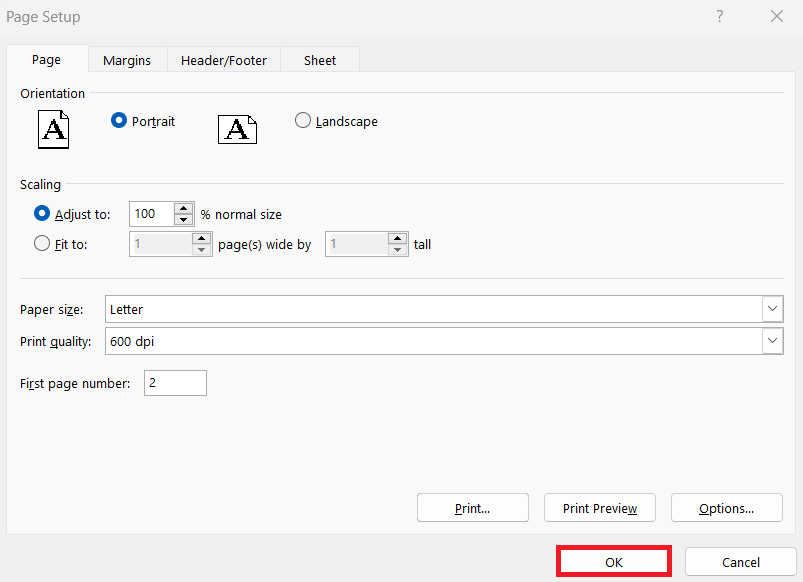
STEP 3: Click OK.
Add Page Numbers to the Header or Footer
STEP 1: Click on the Insert tab. In the Text group, click Header & Footer.

STEP 2: Excel switches to Page Layout View, and I see placeholders for the header and footer. Click on either the header or footer section where I want to add the page number.
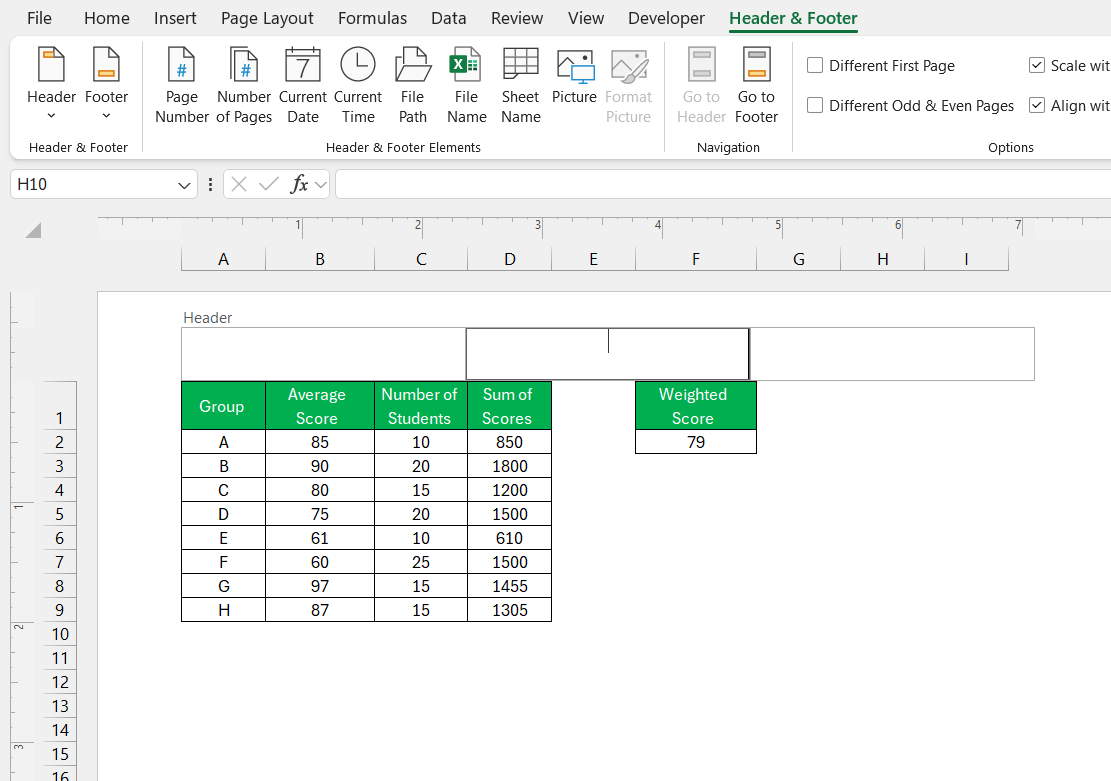
STEP 3: In the Header & Footer Elements group, click on Page Number.

STEP 4: Excel inserts the [Page] code, which automatically updates to reflect the starting page number I set.
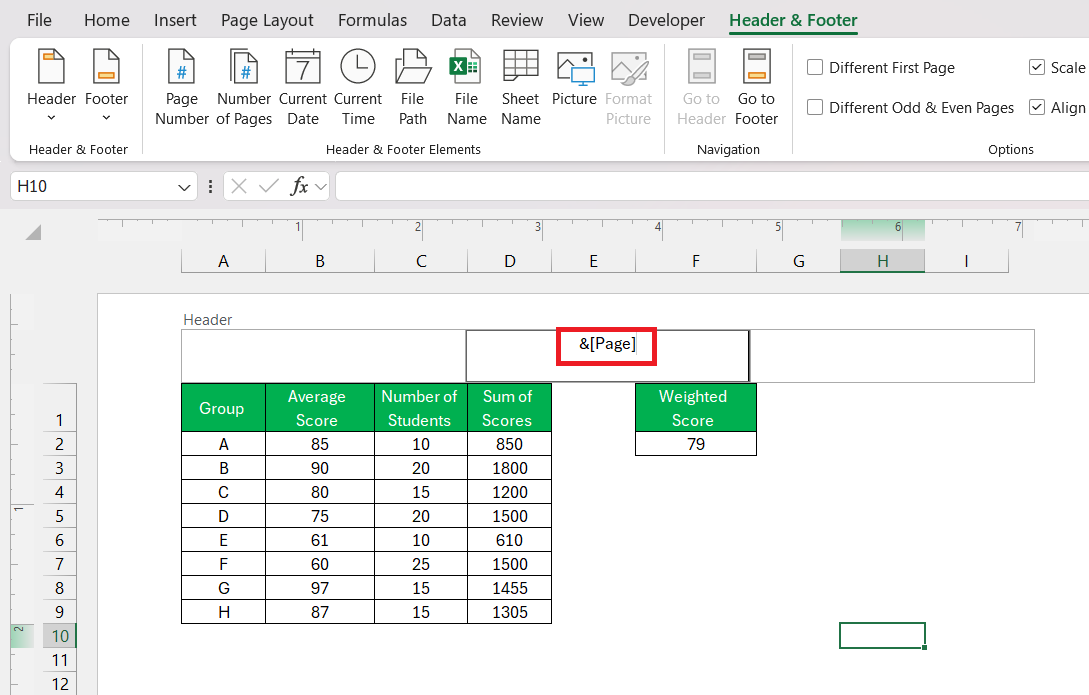
STEP 5: Click anywhere outside the header/footer to save the changes.
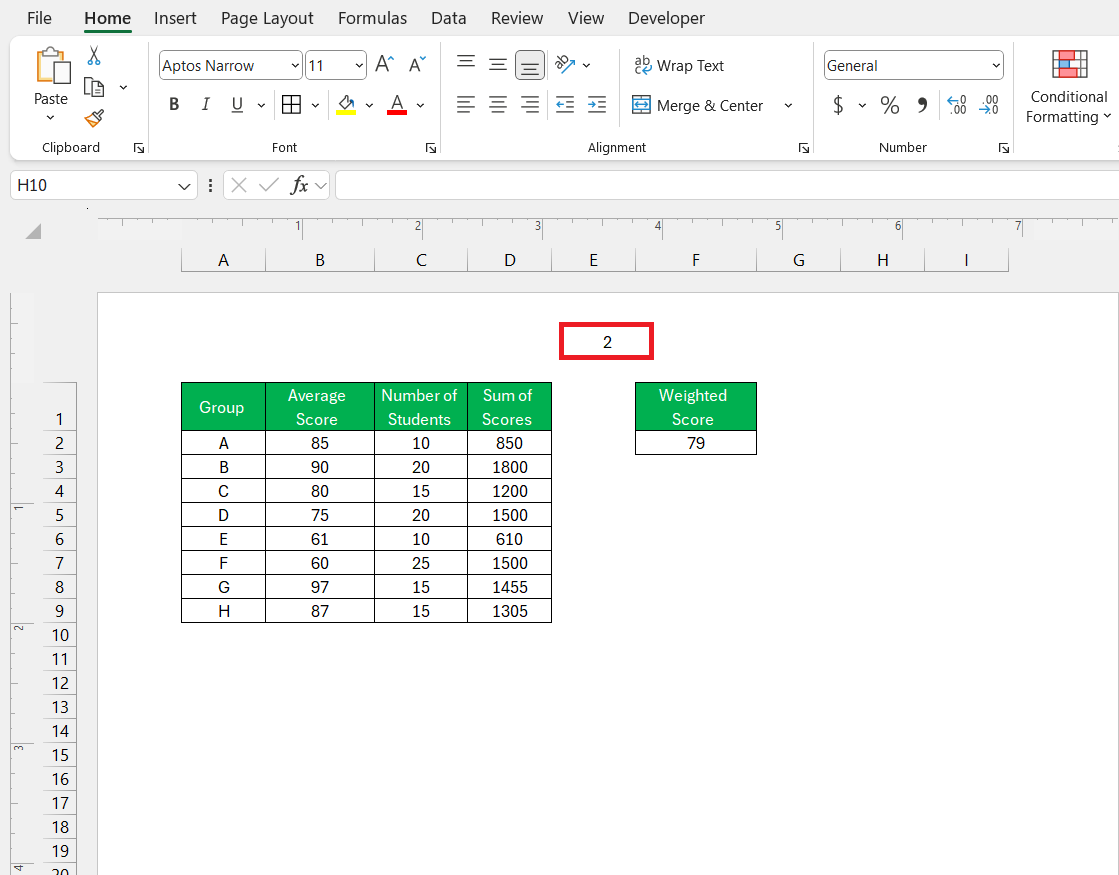
Preview and Print
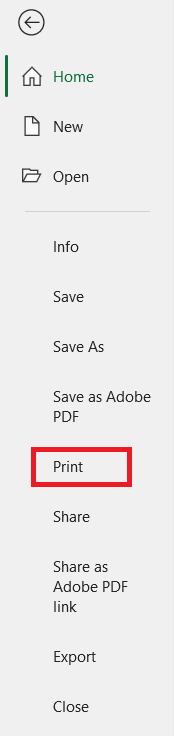
STEP 1: Click on File and then Print.
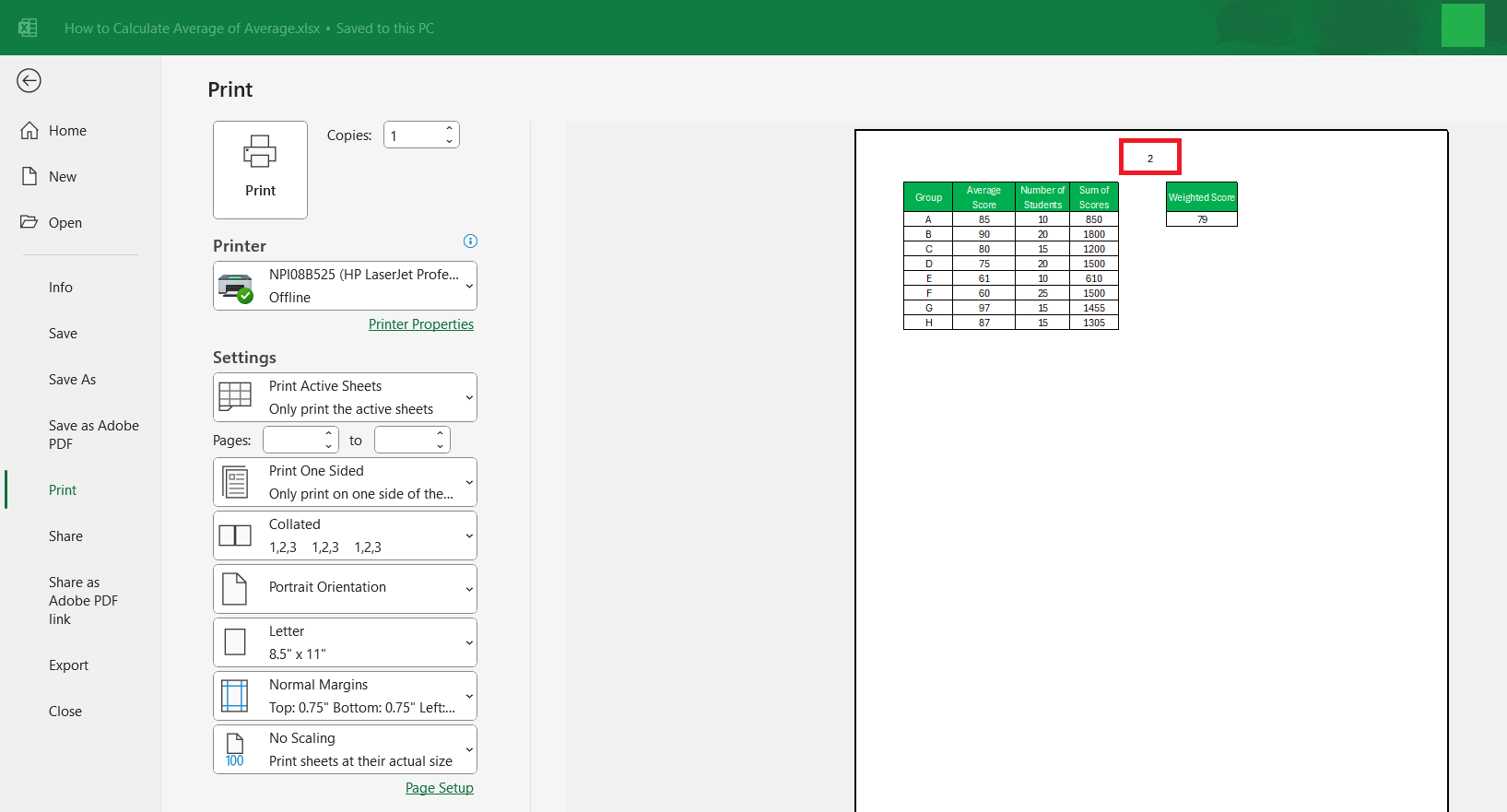
STEP 2: In the Print Preview pane, I scroll through the pages to confirm that the numbering starts from 2.
Tips and Tricks
- Keep page numbering consistent across all worksheets.
- Make sure page numbers continue in the correct order.
- Check Page Setup settings for every sheet.
- Adjust the starting page number manually if needed.
- Organize sheets properly for smooth printing flow.
- Change the first page number from Auto to a custom number.
- Set the document to start printing from page 0 to begin at page 2.
- Insert a dummy sheet before the main data sheet.
- Hide the dummy sheet before printing.
- Use Print Area settings to exclude unwanted sheets.
FAQs
How to add page numbers for the entire worksheet?
To add page numbers for an entire worksheet,
- Go to the ‘Page Layout’ tab
- Click ‘Print Titles’ or ‘Page Setup’
- Go to the ‘Header/Footer’ tab
- Select a preset or custom option to insert page numbers
- Click ‘OK’
How to start page number at 2 on an Excel worksheet?
To start page numbering at 2 on an Excel worksheet,
- Click on Page Layout
- Select Page Setup
- Choose the Page tab
- In the First page number box, type 2
- Click OK
Can I start page numbering from page 3 or another number?
Yes, enter any number you want in the First page number field.
Why are my page numbers not showing in Excel?
Page numbers may not appear if they are not added to the header or footer. Go to Insert > Header & Footer and insert the Page Number field.
How to reset page numbering back to default?
To reset page numbering back to the default,
- Open Page Setup
- Go to the Page tab
- Change the First page number field back to Auto.

John Michaloudis is a former accountant and finance analyst at General Electric, a Microsoft MVP since 2020, an Amazon #1 bestselling author of 4 Microsoft Excel books and teacher of Microsoft Excel & Office over at his flagship MyExcelOnline Academy Online Course.

 30 Days - Full Access









