Table of Contents
How to Stop GIFs in PowerPoint
How to Insert a GIF
Follow the steps below to insert a GIF in PowerPoint:
For Windows:
STEP 1: Go to the slide.
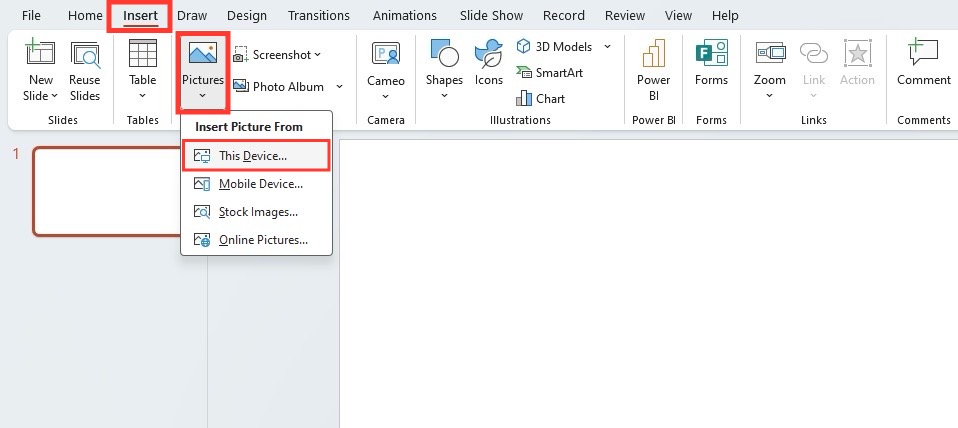
STEP 2: Go to Insert > Pictures > This Device.
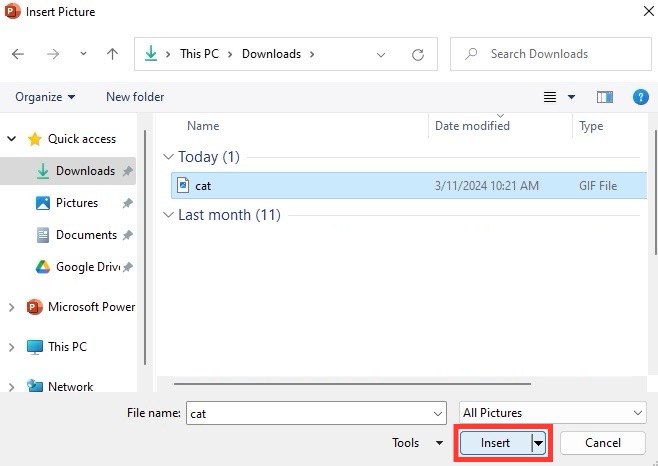
STEP 3: Locate your GIF file and click Insert.
For macOS:
STEP 1: Go to the slide containing the GIF.
STEP 2: Go to the Insert tab, select Picture > Picture from File.
STEP 3: Select your GIF file and click Insert.
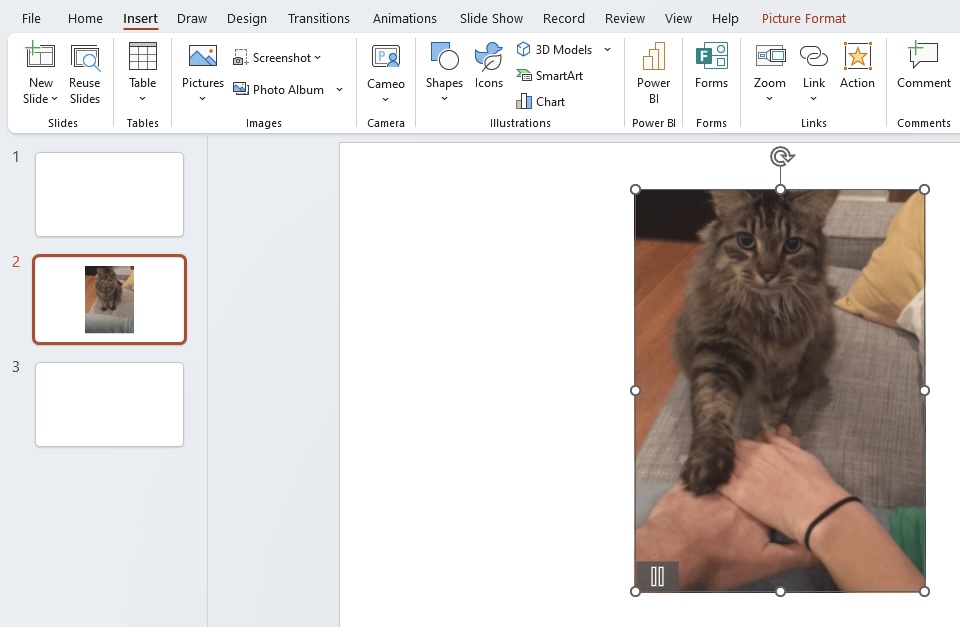
Your GIF is now ready to charm the audience as part of your presentation!
Methods to Pause Animation
When you find yourself needing to take control of an animated frenzy during a presentation, remember these easy methods to pause or stop a GIF on PowerPoint:
- To pause a GIF, press the “1” key.
- To resume without a slide jump, hit the “~” key.
- Note: Shortcut keys like “S” or “+” might show as pause options, but they don’t always work as expected.
- Press Ctrl and select multiple effects to delete them together.
- Select the first animation and then press Shift and select the last animation. This will delete all animations in a single go.
- If you are not able to view the Animations pane:
- Go to Normal view
- Go to the Animations tab.
- Select the Animation pane.
FAQs
How to stop GIF Animations in PowerPoint?
You can permanently disable GIF animations in PowerPoint by following the steps below:
- Go to the Slide Show Tab.
- Choose Set Up Slide Show
- Under the Show options, select Show without animation.
This will prevent GIFs from playing during the slideshow.
How to enable an animated GIF in PowerPoint?
To enable an animated GIF in PowerPoint, follow the steps below:
- Go to the slide where you want to add a GIF
- Click on the Insert tab
- Select Pictures
- Choose your GIF file.
Once inserted, the GIF will play automatically during the slideshow.

John Michaloudis is a former accountant and finance analyst at General Electric, a Microsoft MVP since 2020, an Amazon #1 bestselling author of 4 Microsoft Excel books and teacher of Microsoft Excel & Office over at his flagship MyExcelOnline Academy Online Course.

 30 Days - Full Access









