 Free Practice Workbook
Microsoft Excel is a great tool for analyzing data. Formula criteria can be used to perform calculations based on specific conditions. It can help you to extract meaningful information quickly. In this article, you will learn how to use formula criteria in Excel.
Key Takeaways:
- The formula criteria can calculate data based on conditions.
- Functions like SUMIF and COUNTIF make data analysis faster.
- You can use multiple conditions with functions like SUMIFS.
- Logical operators help create more flexible formulas.
- Using criteria reduces manual work.
Table of Contents
Introduction to Formula Criteria
What is Formula Criteria?
Formula criteria refer to conditions that can help determine which data should be included in a calculation. These criteria are used within formulas to filter data automatically. It reduces the need for manual sorting and filtering. For example, you can use formula criteria to calculate total sales for a specific region.
Excel will check each value in a range and include only the data that meets the criteria.
Importance of Using Formula Criteria
The formula criteria can help you to :
- Analyze a specific dataset
- Automate calculations
- Avoid manual calculation
- Improve accuracy
How to Use Formula Criteria
SUMIF Function
The SUMIF function is used to sum the values in a range that meet a criterion.
=SUMIF(range, criteria, sum_range)
This formula checks the region column and adds the sales values of the eastern region.
SUMIFS Function
The SUMIFS function enables you to sum values in a range that satisfies multiple conditions.
=SUMIFS(sum_range, criteria_range1, criteria1, criteria_range2, criteria2)
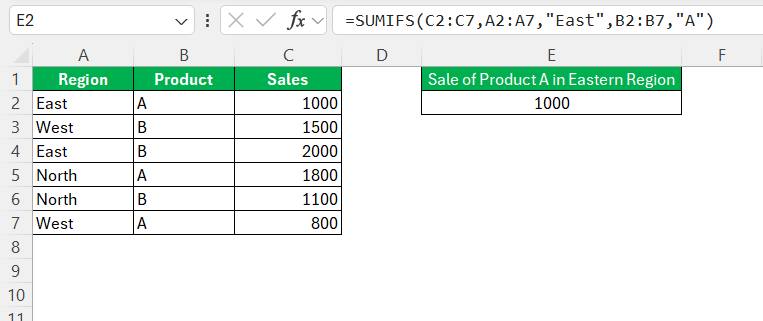
This formula will sum the sales of product A in the eastern region.
COUNTIF and COUNTIFS Function
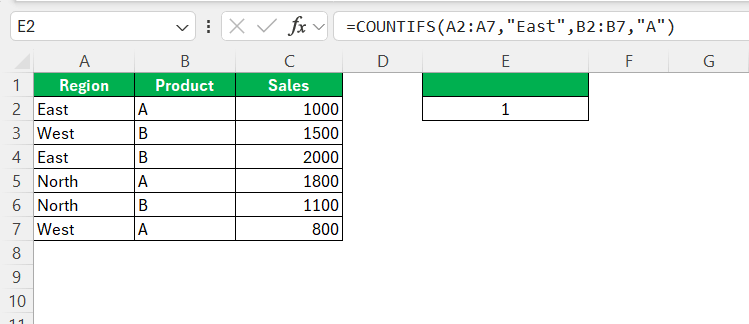
The COUNTIFS function counts the number of cells in a range that meet the conditions.
=COUNTIFS(range1, criteria1, range 2, criteria2)
AVERAGEIF and AVERAGEIFS
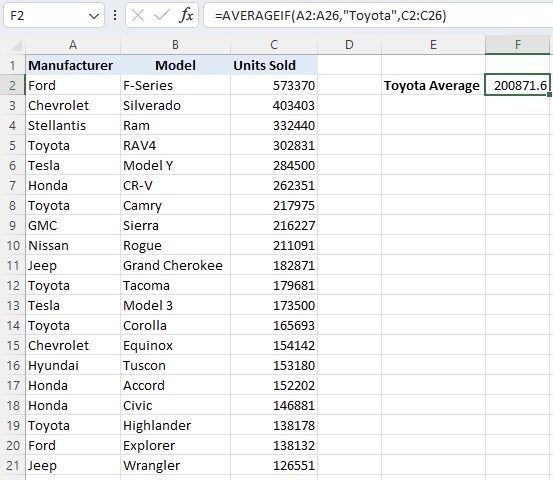
These functions calculate averages based on criteria.
=AVERAGEIF(range, criteria, [average_range])
IF Function
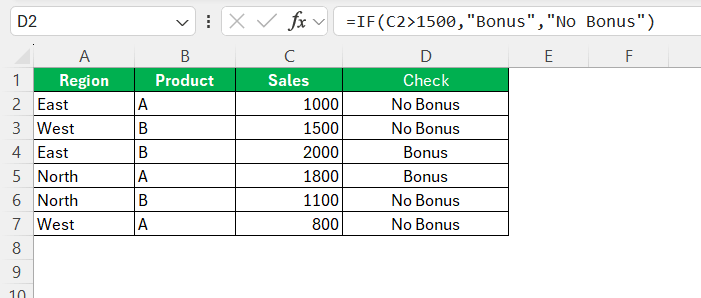
The IF function will return a value that you set if a condition is met, and a value if it is not met
=IF(Logical Test,Value if True,Value if False)
The three arguments are:
- The condition to be checked
- Value to be shown if the condition is met
- Value to be shown if the condition is not met
FILTER Function
The FILTER function extracts data based on criteria.
=FILTER(array, include)
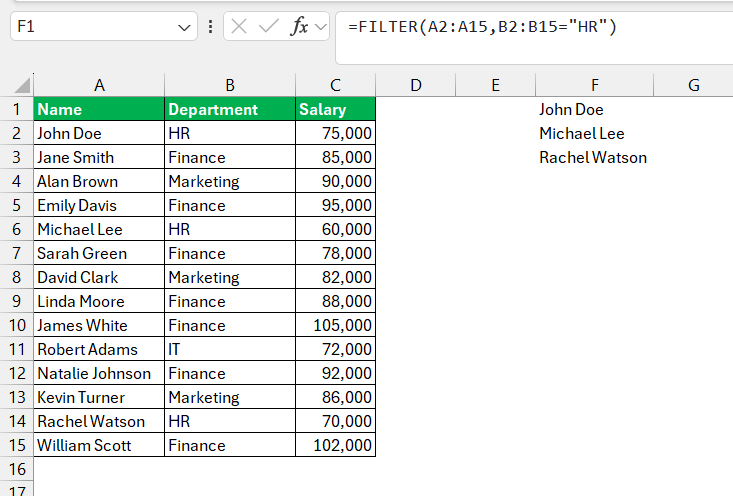
This function will search for employees in the HR department.
Advanced Techniques
Using Logical Operators
Formula criteria become more powerful when combined with logical operators. Some commonly used operators include:
- > (greater than)
- < (less than)
- >= (greater than or equal to)
- <= (less than or equal to)
- <> (not equal to)
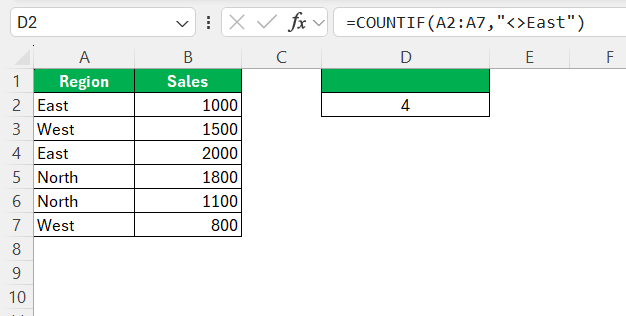
You can count values that are not equal to a specific text – East.
=COUNTIF(A2:A7,”<>East”)
Using Wildcards
Wildcards are useful when you do not know the exact value or want partial matches.
- * – represents any number of characters
- ? – represents a single character
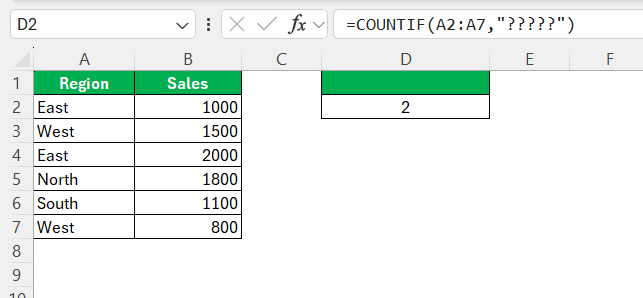
You can use this formula to find entries that have exactly five characters.
=COUNTIF(A2:A7,”?????”)
Using Conditional Formatting
Formula criteria are not limited to calculations. You can also use them in conditional formatting.
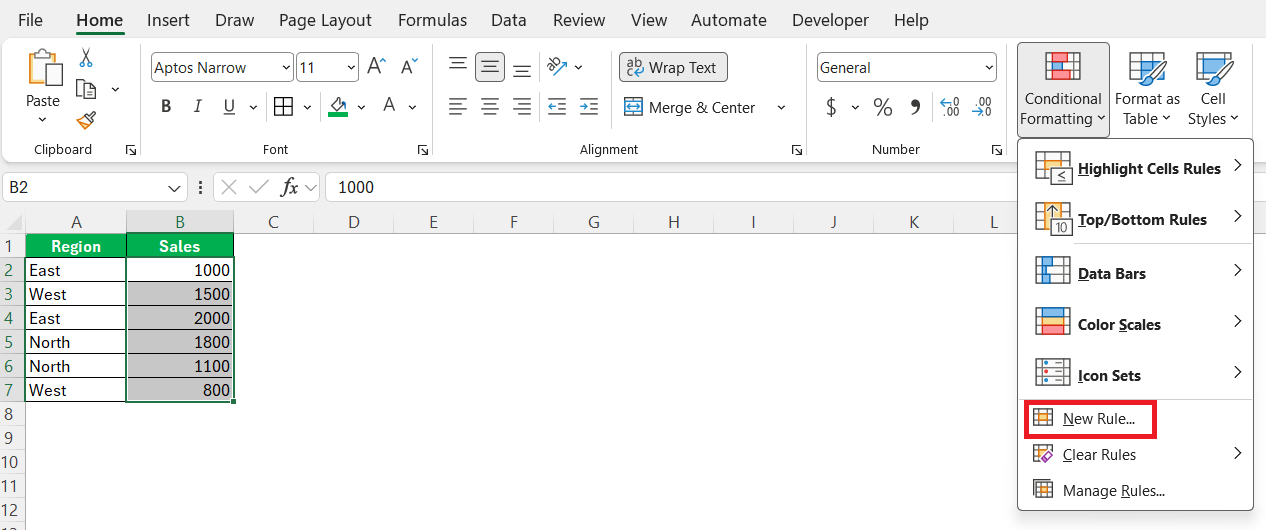
- Select the data range
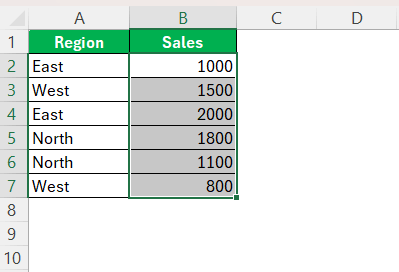
- Go to Home > Conditional Formatting

- Choose “New Rule”
- Select “Use a formula to determine which cells to format”.
- Enter the formula: B2>1500
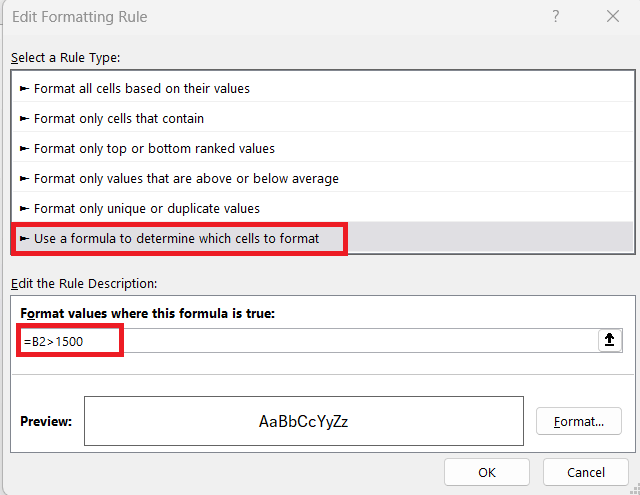
- Click on the Format button.
- Select a format as per your requirement. Click OK.
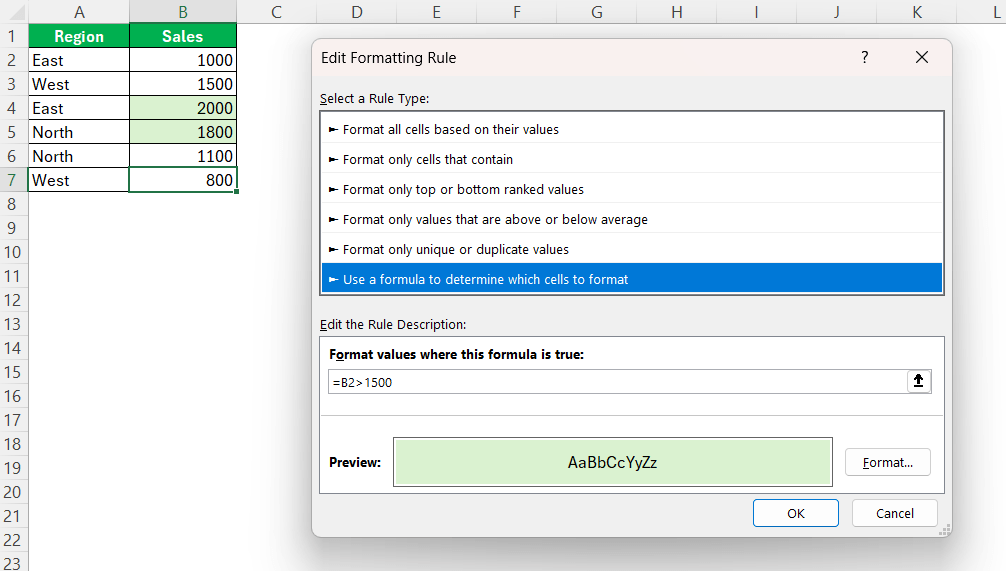
This will highlight all cells with values greater than 1500.
Common Mistakes to Avoid
- Make sure that the range in the formula matches in size.
- The text criteria that you need ot check must be within quotes.
- Numbers stored as text can cause incorrect results.
- It is better to reference cells instead of typing fixed values.
FAQs
What is formula criteria in Excel?
Formula criteria are conditions used to filter data in calculations.
What is the difference between SUMIF and SUMIFS?
The SUMIF function can check one condition, while the SUMIFS function can support multiple conditions.
Why are my formula results incorrect?
It may be due to wrong ranges or text not in quotes.
Can I use criteria with text values?
Yes, text criteria should be written inside quotation marks.
What are wildcards in Excel formulas?
Wildcards help match partial text using symbols like * and ?.

John Michaloudis is a former accountant and finance analyst at General Electric, a Microsoft MVP since 2020, an Amazon #1 bestselling author of 4 Microsoft Excel books and teacher of Microsoft Excel & Office over at his flagship MyExcelOnline Academy Online Course.

 30 Days - Full Access









