 Free Practice Workbook
As someone who loves getting the most out of Excel, I’ve often needed to insert special symbols to enhance my spreadsheets. One such symbol that’s surprisingly handy is the approximate symbol (≈).
Whether you’re working on math-related data, scientific notes, or even some creative formatting, inserting this symbol is easier than you might think. Let me guide you through a few simple ways to insert approximate symbol in Excel worksheet.
Key Takeaways:
- The approximate symbol (≈) is useful for indicating estimates or near-equality in Excel.
- Keyboard shortcuts like Alt+247 (Windows) or Option+X (Mac) make inserting ≈ quick and efficient.
- The Symbol dialog box in Excel allows easy access to approximate with a few clicks.
- Setting up an AutoCorrect rule can streamline typing ≈ by converting a custom text string automatically.
- The Equation Editor provides a robust way to include ≈ within complex formulas and mathematical expressions in Excel.
Table of Contents
Methods to Insert Approximate Symbol in Excel
Keyboard Shortcuts
To accelerate the process of inserting the approximate symbol (≈) in Excel, keyboard shortcuts are my go-to method. Not everyone knows that you can press Alt and enter a numerical code on a full-sized keyboard to summon special characters.
For the approximate symbol, holding down the Alt key while typing 247 on the numeric keypad promptly places ≈ in the cell.
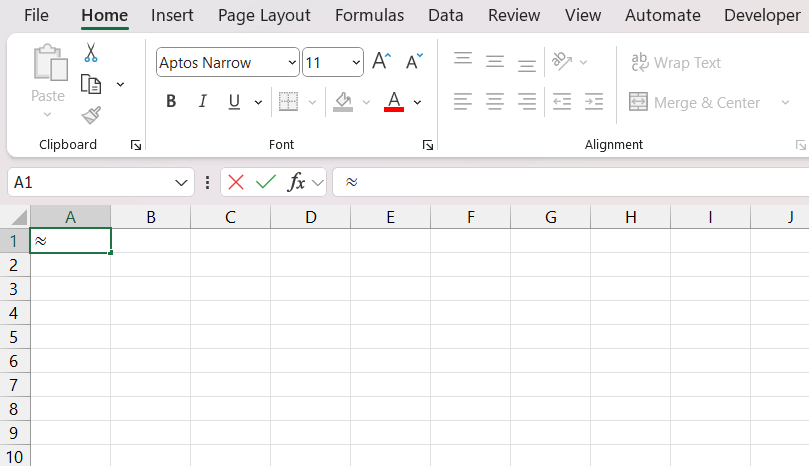
But remember this only works with a full-sized keyboard that has a numeric keypad. Getting to know these can streamline the workflow significantly, but they may take some practice to memorize and use with fluidity.
Symbol Dialog Box
I always find the symbol dialog box to be a comprehensive resource for inserting various characters that are not readily available on the keyboard. Here’s how we navigate through it seamlessly in Excel. We place the cursor in the cell where we want the symbol to appear and select the Insert tab, followed by the Symbol button.
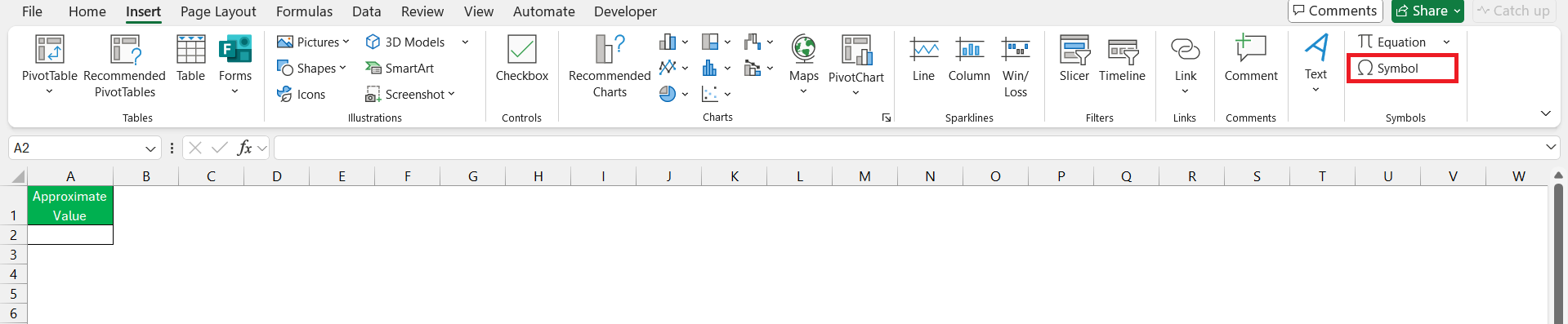
A dialog box pops up displaying various characters. To find the approximate symbol, we scroll to the top of the list and click the toggle button in the right corner if necessary. The commonly used symbols, including the approximate symbol, are often under the Segoe UI Symbol set.
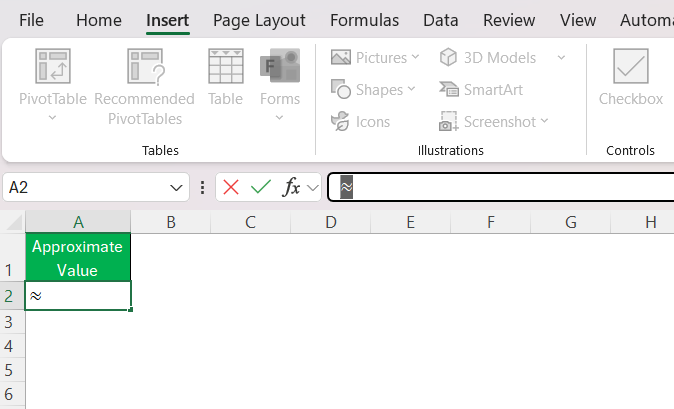
Once the desired symbol is in sight, a simple click to highlight and another click on the Insert button does the job; the symbol appears in our Excel cell.
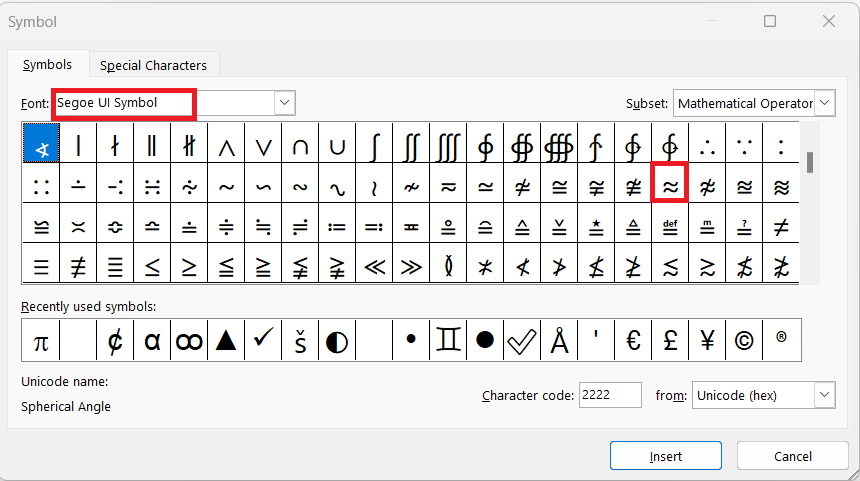
It’s straightforward once we’re acquainted with the dialog layout and the process can be repeated for a range of special characters as needed.
Advanced Techniques
AutoCorrect Feature
AutoCorrect in Excel does wonders when we want to type the approximate symbol (≈) without breaking the workflow. Once we set it up, we can easily type a predefined string, and Excel will automatically convert it to ≈, just like autocorrecting common typos. To utilize this, we have to establish the AutoCorrect rule first.
Here’s my step-by-step guide on setting up AutoCorrect to instantly replace a text string with the approximate symbol in Excel:
STEP 1: First, I insert the symbol as I would normally do via the Symbol dialog box. Copy the symbol so it’s in my clipboard.
STEP 2: Then, I go to the File tab, click on Options, and select Proofing.

STEP 3: In the dialog box, select Proofing and click on ‘AutoCorrect Options…’.
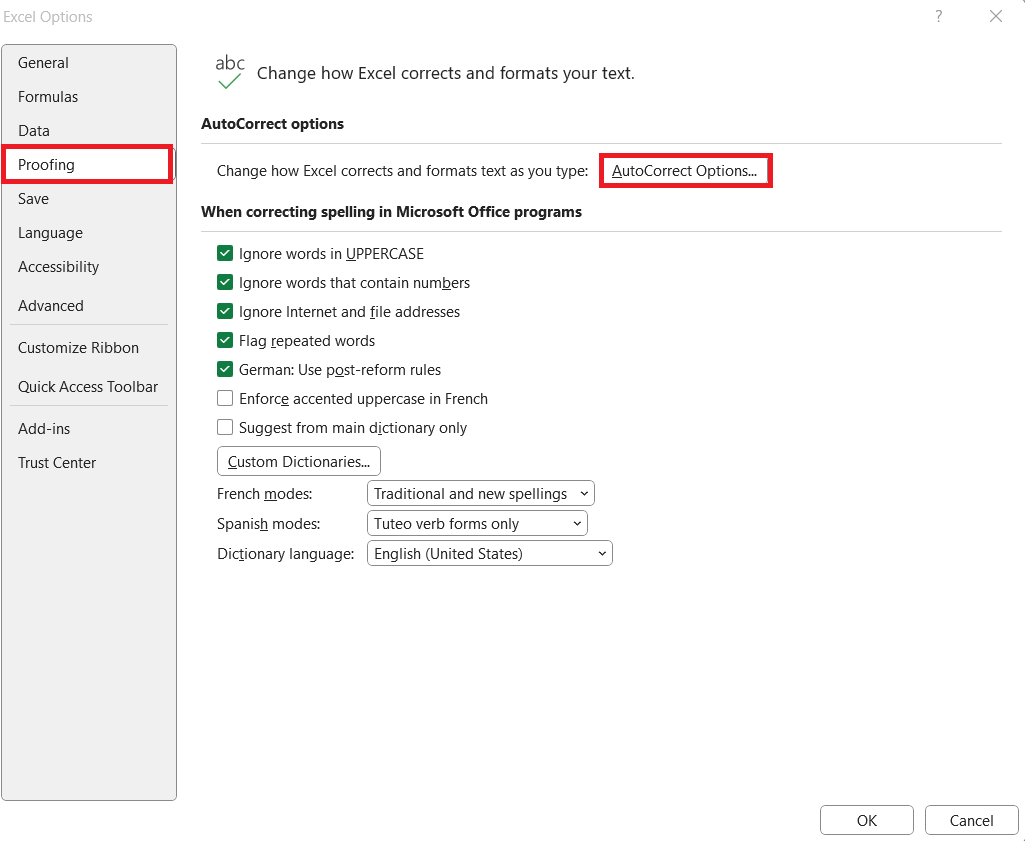
STEP 4: In the ‘Replace:’ box, I type my desired text string—something intuitive like “\approx” or “~=” that I would remember.
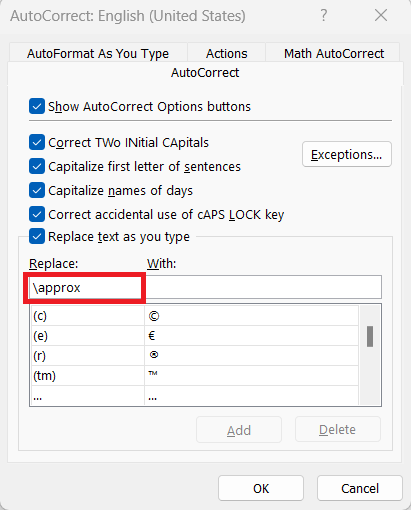
STEP 5: In the ‘With:’ box, I paste the symbol from my clipboard.
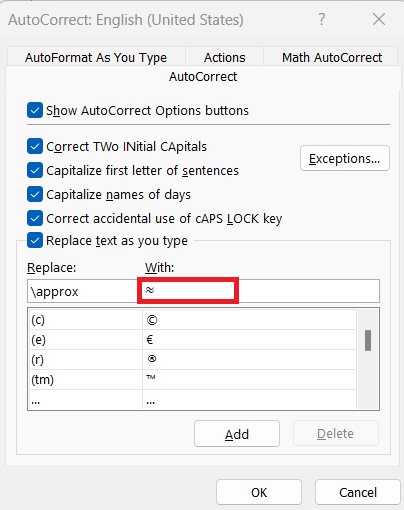
STEP 6: After clicking ‘Add’, then ‘OK’, my setting is saved.
Now, every time I type my chosen text string in a cell and press Enter or the space bar, it magically turns into ≈. This little AutoCorrect trick saves me a great deal of time, especially when dealing with large datasets that frequently utilize mathematical symbols.
Equation Editor
For those of us delving into more complex data that involves mathematical formulas, Excel’s built-in Equation Editor is a game changer. It offers a tailored environment for crafting intricate equations with precision, and naturally, the approximate symbol (≈) is comfortably within reach using this tool.
To access the Equation Editor, we go to the Insert tab and select ‘Equation’ which brings up a new tab with a plethora of mathematical symbols and structures.

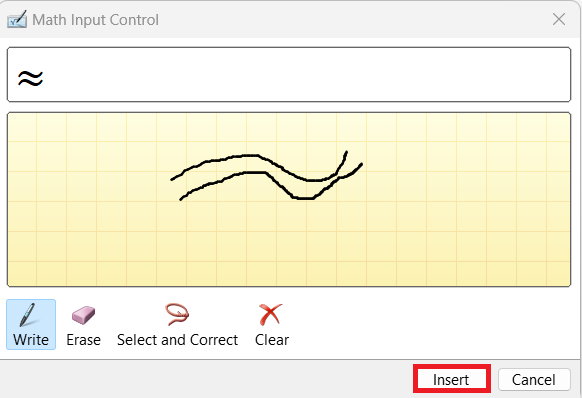
To find and insert ≈, I click the drop-down arrow next to the Equation gallery. Click on Ink Equation.
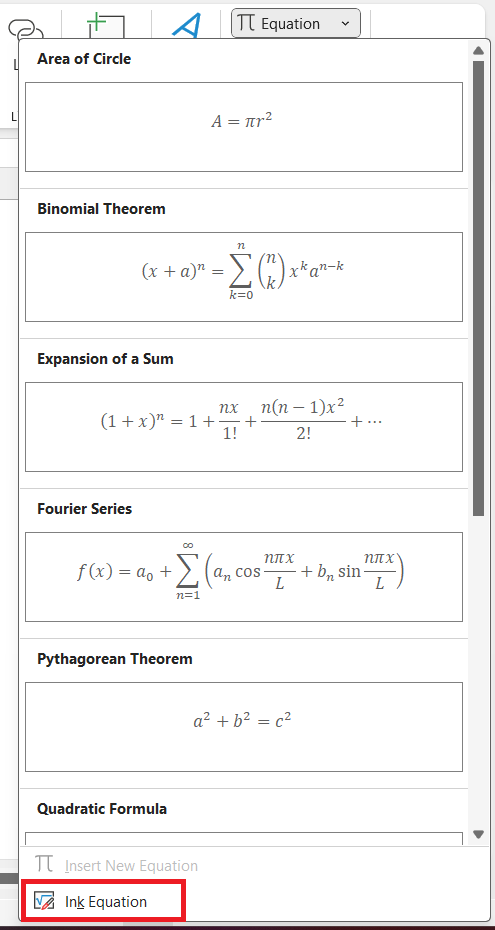
Draw the approximate symbol and then press ‘ Insert’.
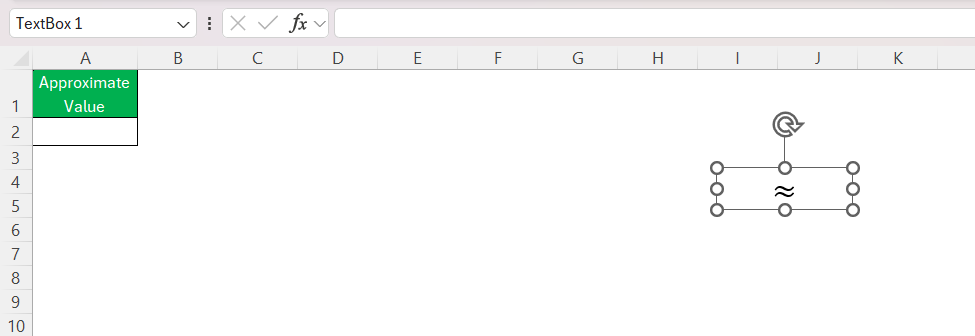
The symbol will be added in a text box in Excel.
FAQs
How to type ≈ on keyboard?
To type the approximate symbol ≈ on a keyboard, you can use the Alt code; press and hold the Alt key and type 247 on the numeric keypad, then release the Alt key. On some laptops without a numeric keypad, you may use the Fn key + NumLk to enable a hidden numeric keypad on the regular keys. Remember, this only works on Windows. If you’re using a Mac, use Option+X.
How to Insert the Approximate Symbol for Mac?
Yes, it is possible to insert the approximate symbol in Excel on a Mac. You can use the keyboard shortcut Option+X to insert ≈ directly into your spreadsheet. This shortcut is straightforward and specific to Mac computers, making it convenient for Mac users.
How to insert symbols in Excel?
To insert symbols in Excel, go to the Insert tab, click on the Symbol button, then choose the symbol you want and hit the Insert button. For Mac, use the Symbols tab in the Media browser, or press Command + Ctrl + Space to open the Character Viewer.

John Michaloudis is a former accountant and finance analyst at General Electric, a Microsoft MVP since 2020, an Amazon #1 bestselling author of 4 Microsoft Excel books and teacher of Microsoft Excel & Office over at his flagship MyExcelOnline Academy Online Course.

 30 Days - Full Access









